Help Center Appointments
Take bookings with a form
People book an appointment through one of your forms: add an Appointments field to the form, and visitors choose a date and one of your free times before they send it.
Watch it done: a short silent video with captions · 1:51. The steps below show the same thing picture by picture.
Before you start
- Log in as the site owner.
- Set your appointment settings and available hours first (see the related articles).
- Open ADMIN › Forms.
Add the Appointments field
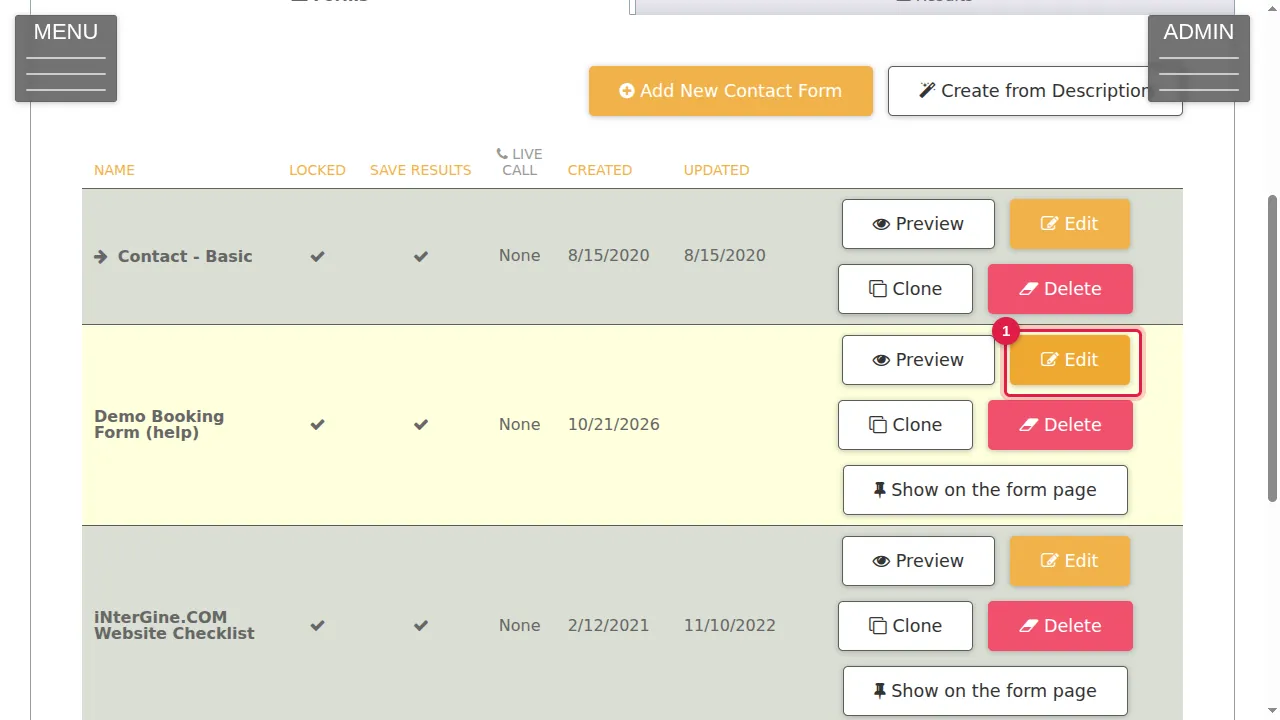
Step 1. In Manage Contact Forms, create a new form or click Edit on one of yours. (Here: a demonstration form.)
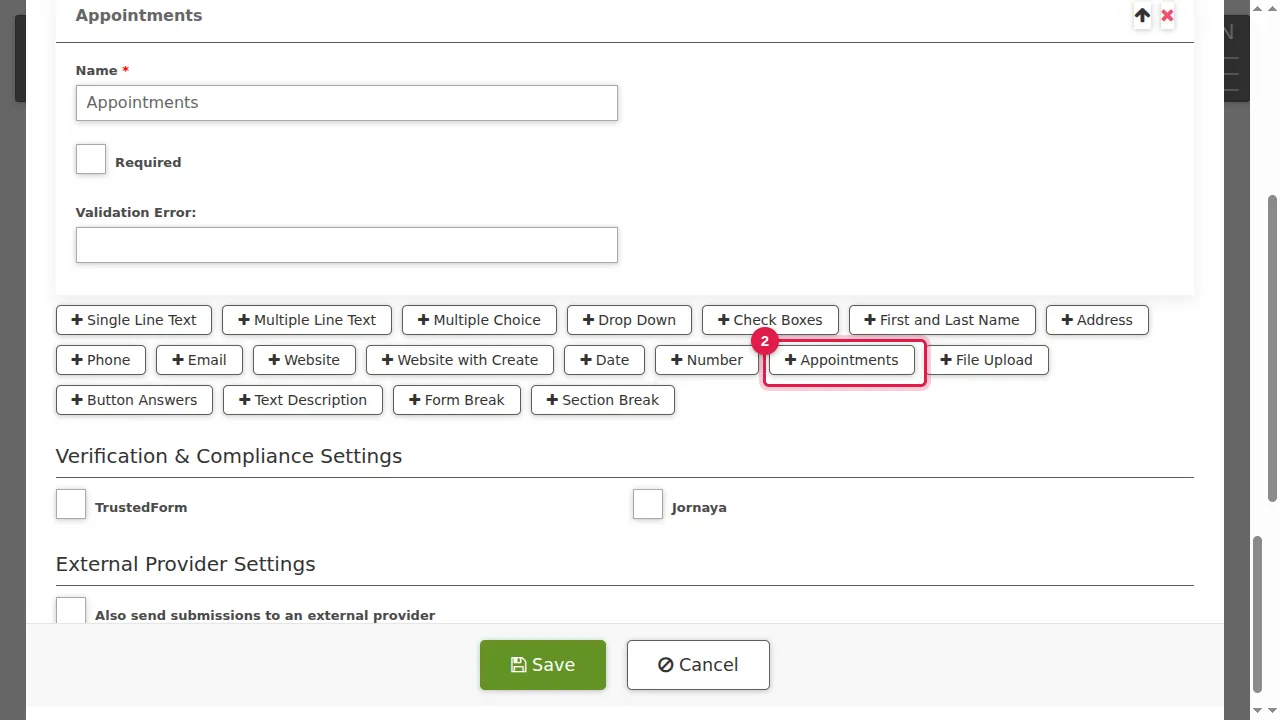
Step 2. Under the fields, click Appointments to add the booking field to the form.
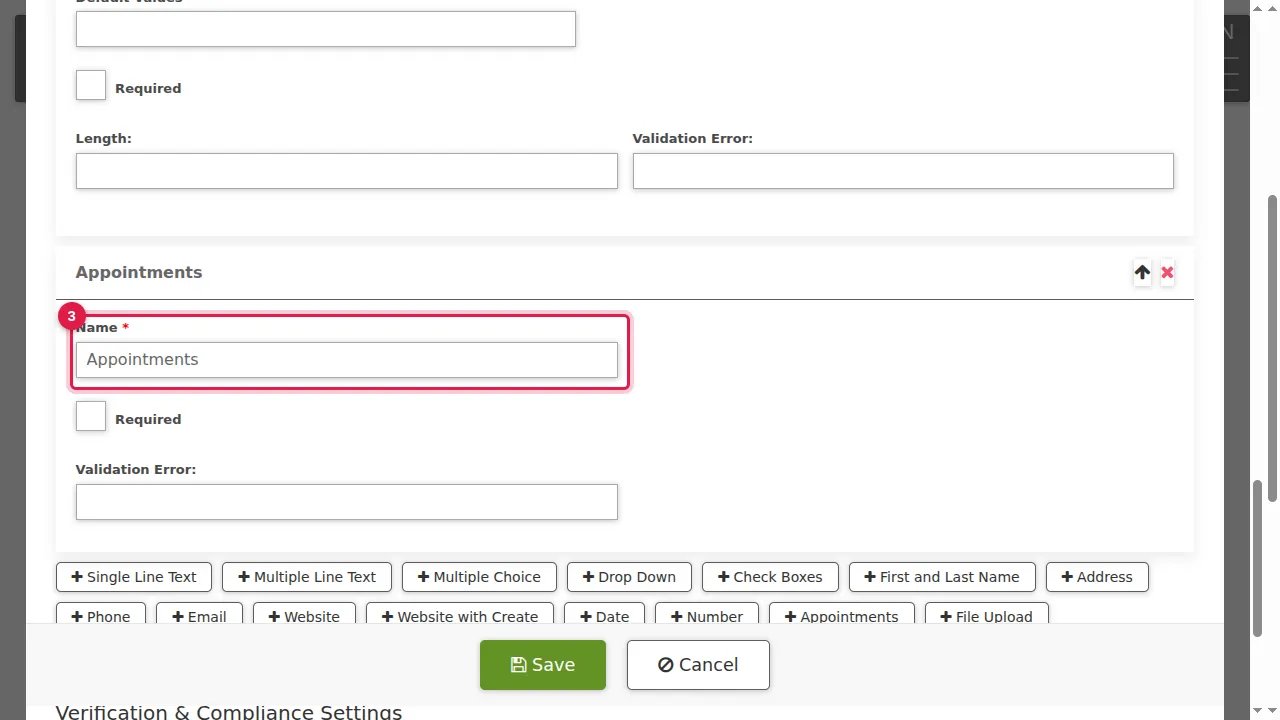
Step 3. The Appointments field appears in the form. Its Name is the label visitors see, and Required makes it compulsory.
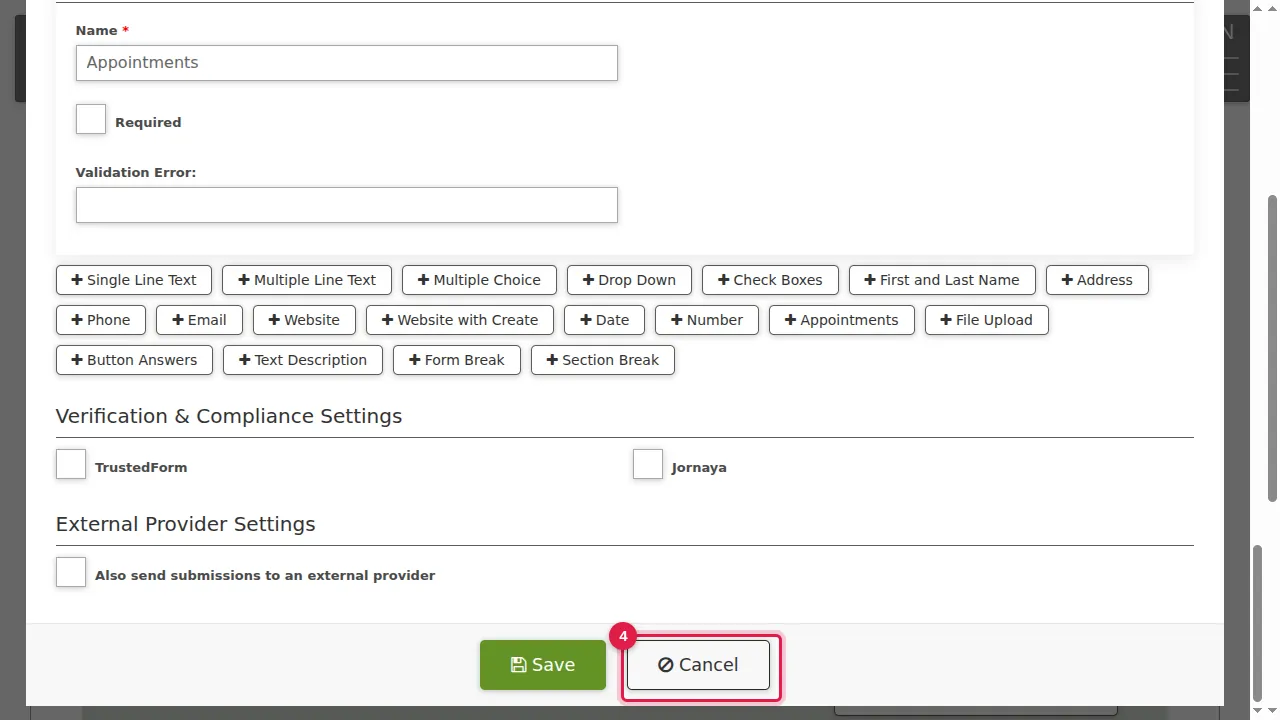
Step 4. Click Save to keep the form. (In this demonstration nothing was changed, so Cancel was clicked.)
How visitors book
Step 5. Open the form as a visitor: the Appointments field shows your time zone and a date box.
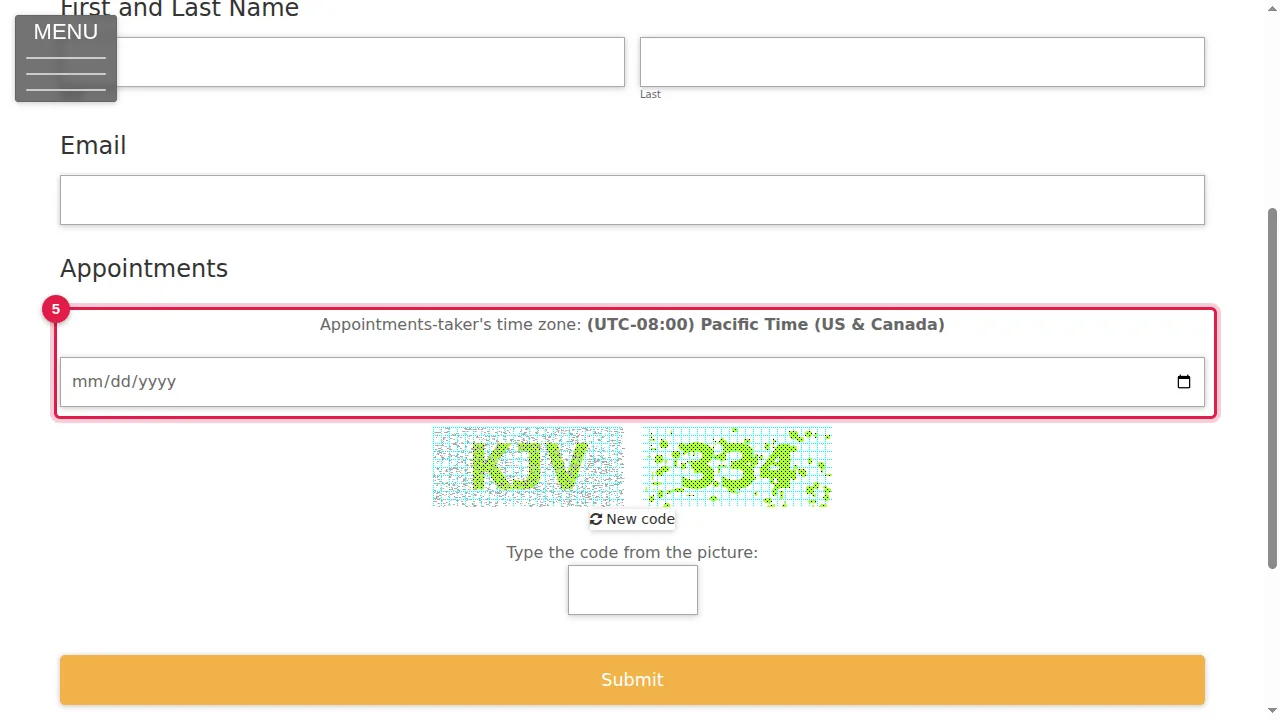
Step 6. The visitor chooses a date.
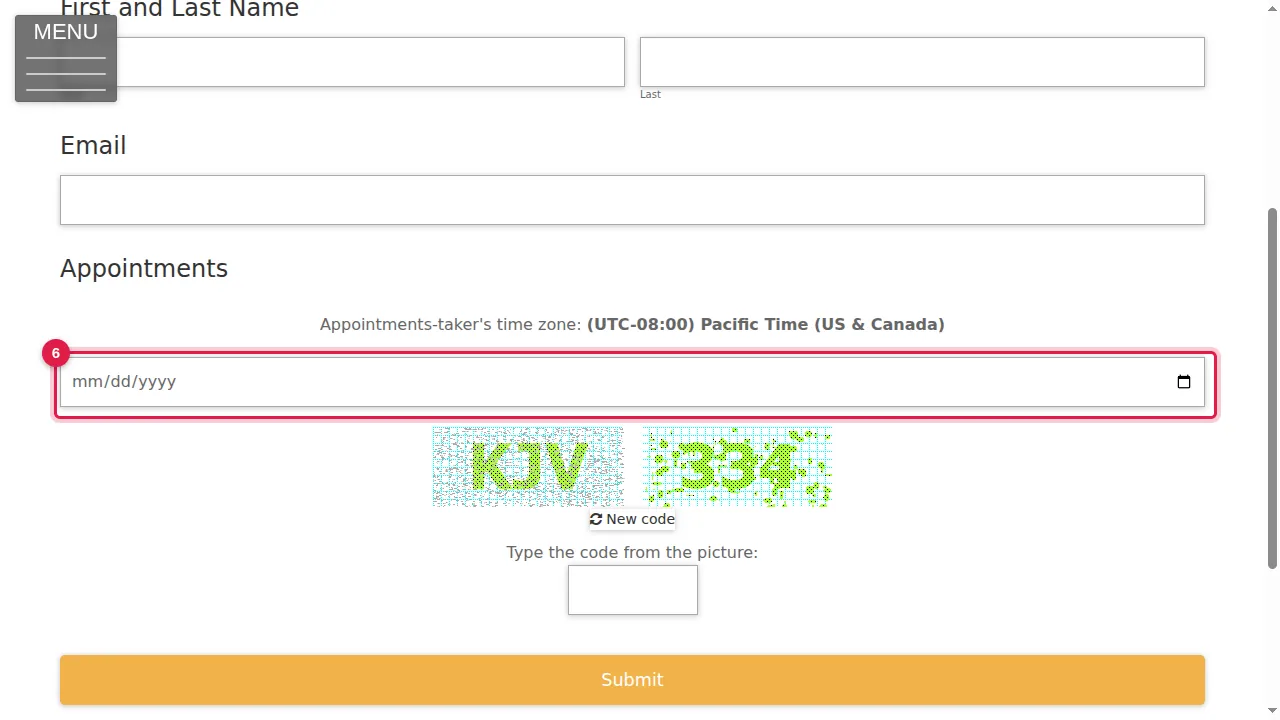
Step 7. On a day without available hours (here a Saturday), the form says: "There are no available Appointments for this day. Please pick a different date."
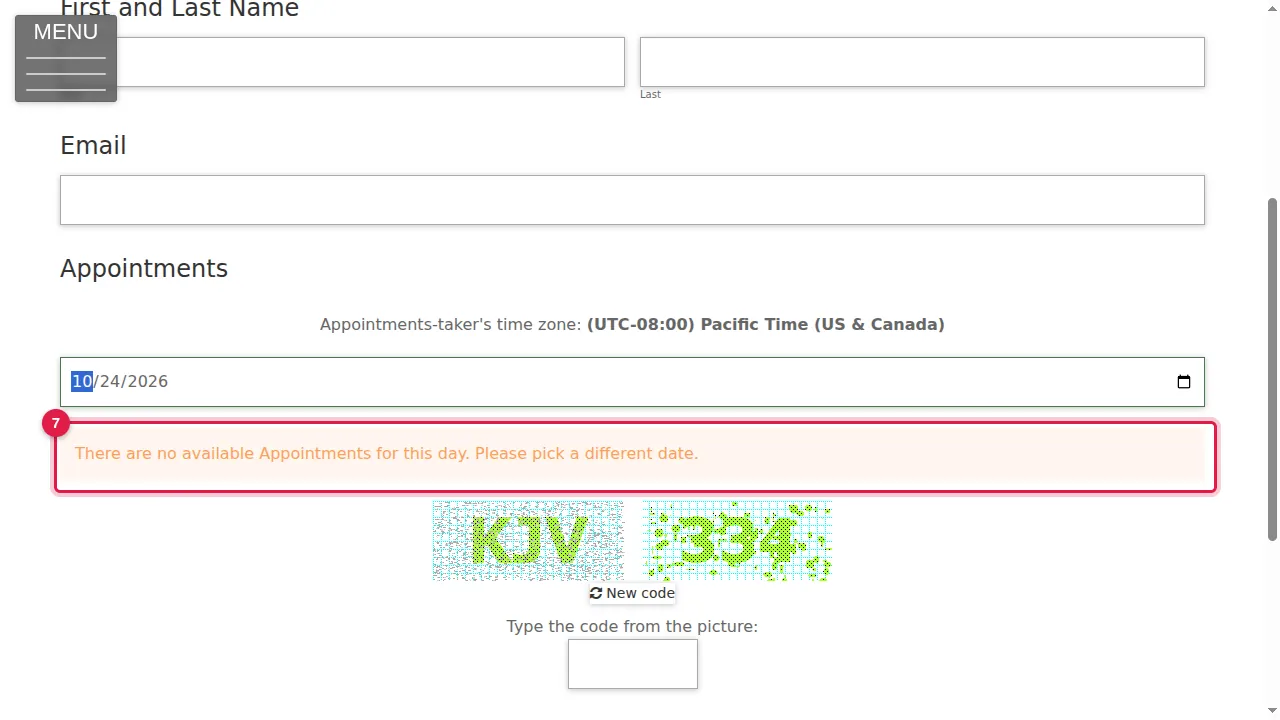
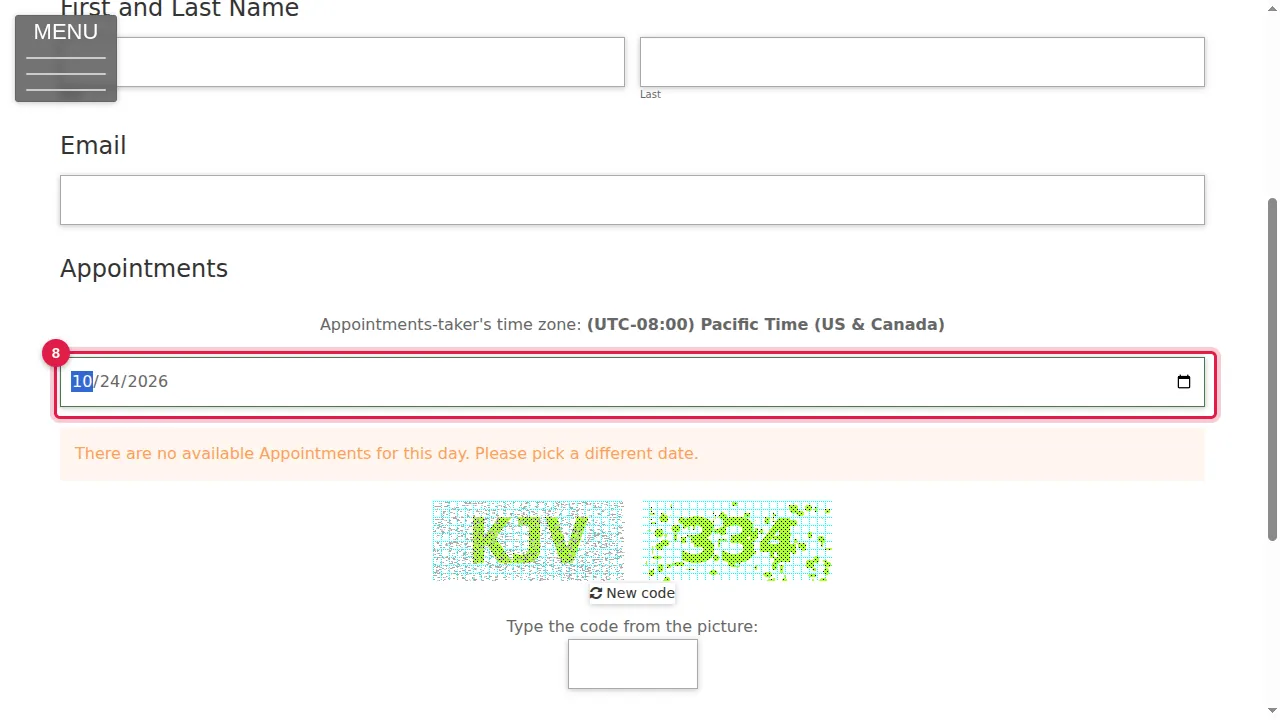
Step 8. The visitor chooses another date.
Step 9. Now the times that can be booked are listed as buttons, in AM and PM columns.
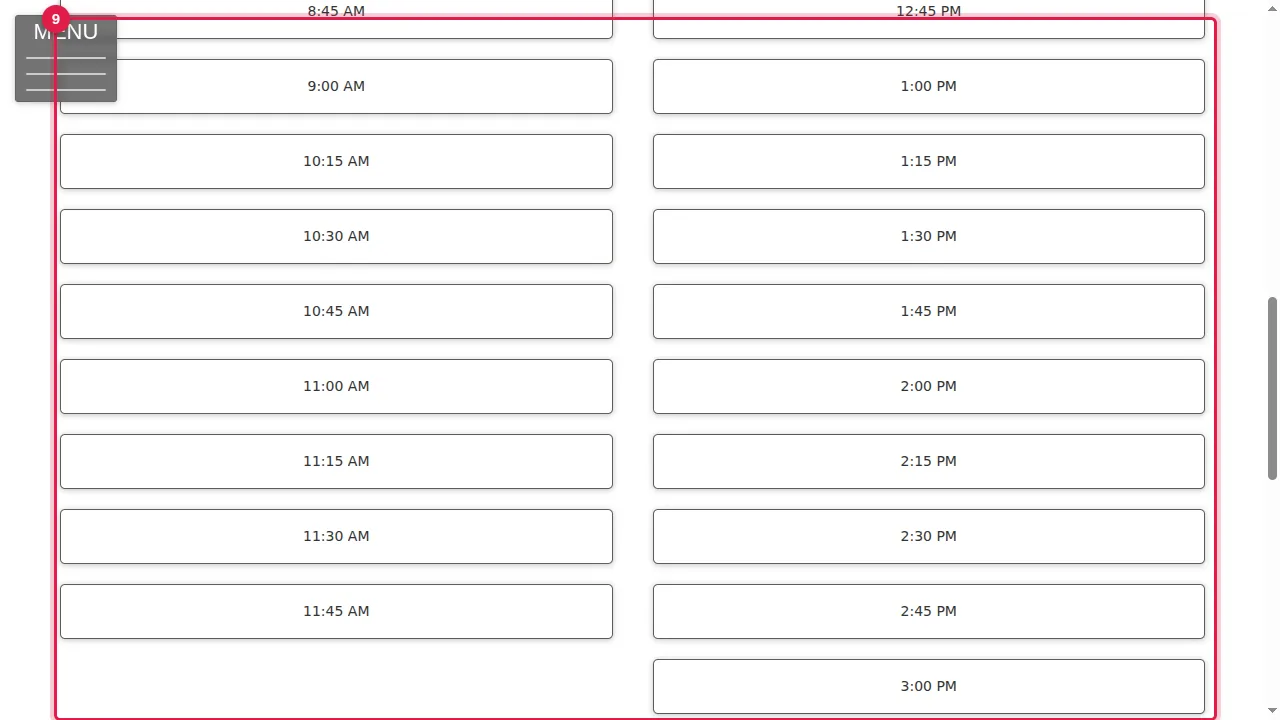
Step 10. The visitor clicks a time.
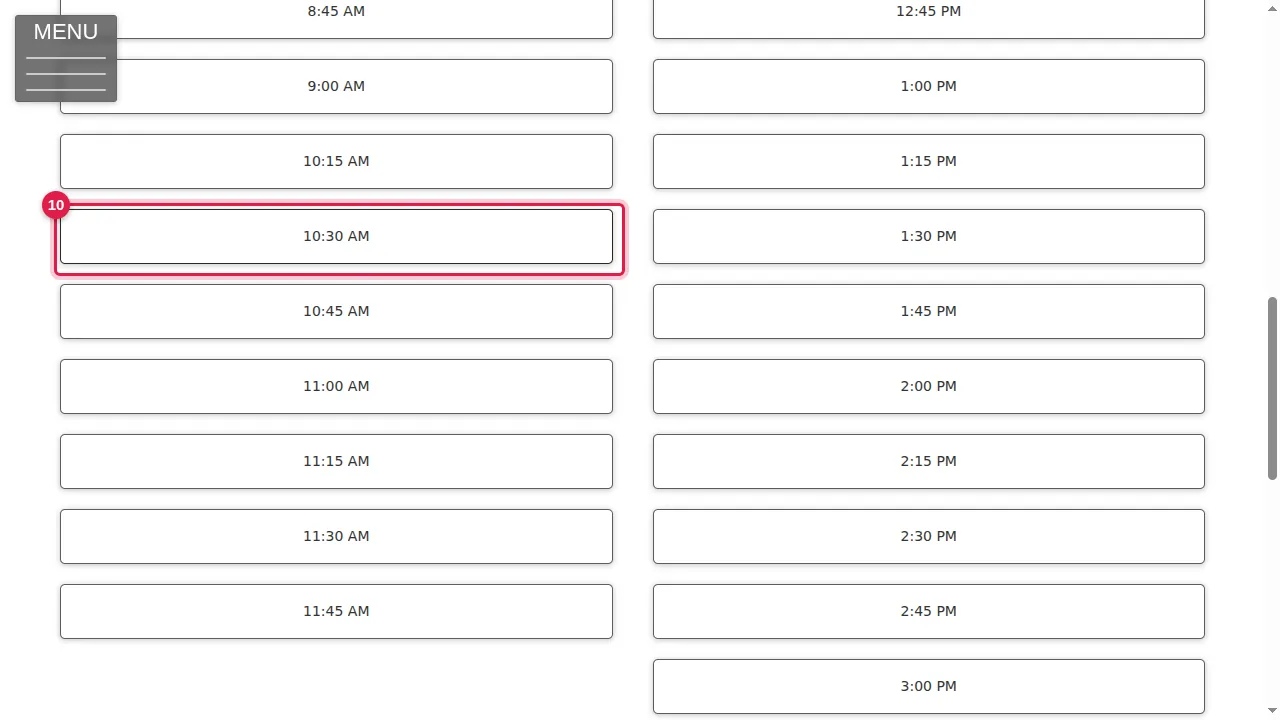
Step 11. The chosen date and time are shown under the times.
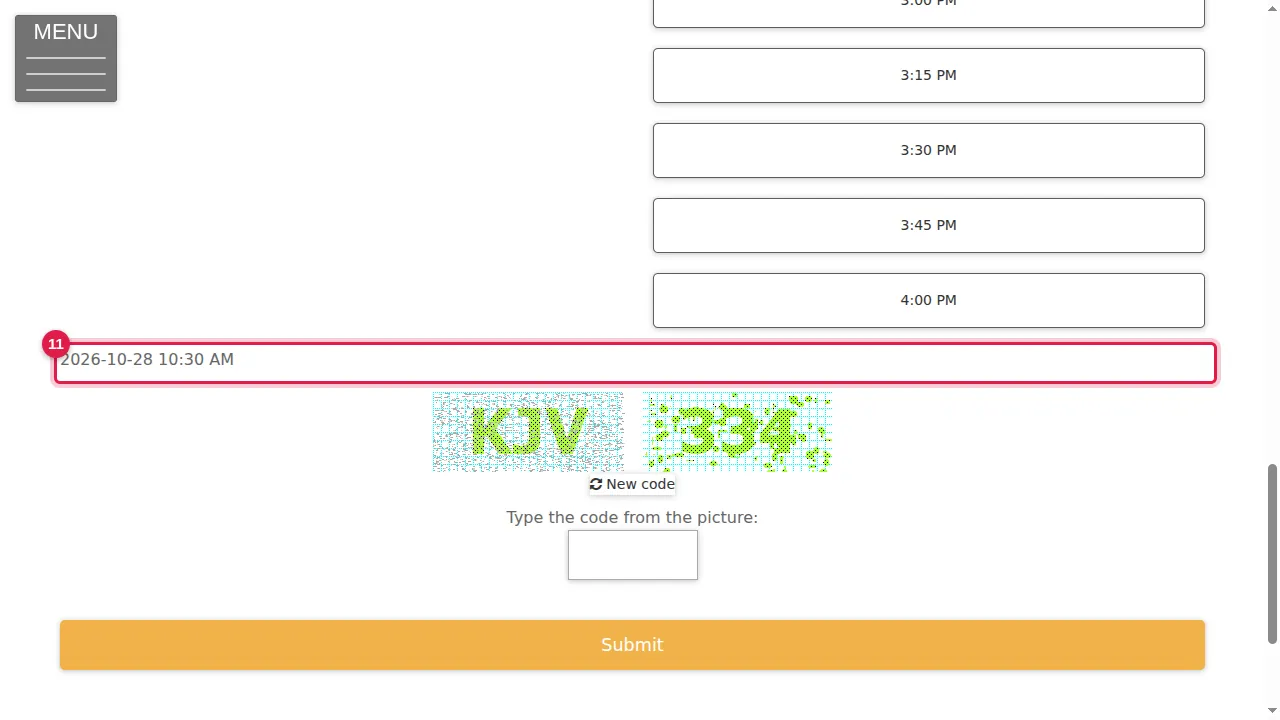
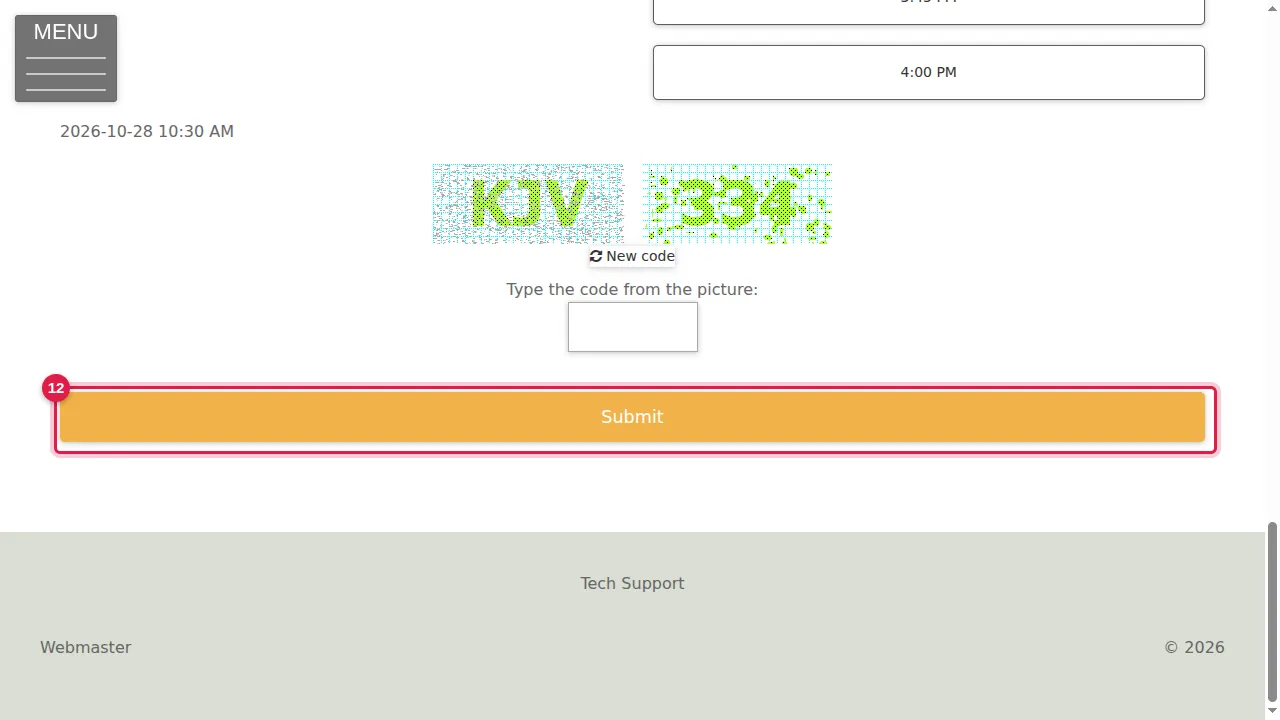
Step 12. The visitor fills in the rest of the form, types the code from the picture and clicks Submit. (In this demonstration the form was not sent.)
Check it worked
Open your booking form in a private window and choose a day in your available hours: the times that can be booked are listed.
Good to know
- Put the booking form on a page so visitors can find it (see Put a form on a page).
Related help
Shown on the 2026 version of the SoNET Web Engine. Last checked 21 October 2026. Something different on your screen? Tell us through the Contact page.