Help Center Forms
Put a form on a page
Show one of your forms on any page with the Form widget: choose the form, switch the picture code (captcha) on or off, choose who sees it, and check what visitors get. Also: preview and clone a form.
Watch it done: a short silent video with captions · 2:33. The steps below show the same thing picture by picture.
Before you start
- Log in as the site owner.
- Have a form (see Create a form and its fields).
- Open the page that should show the form.
Add the Form widget
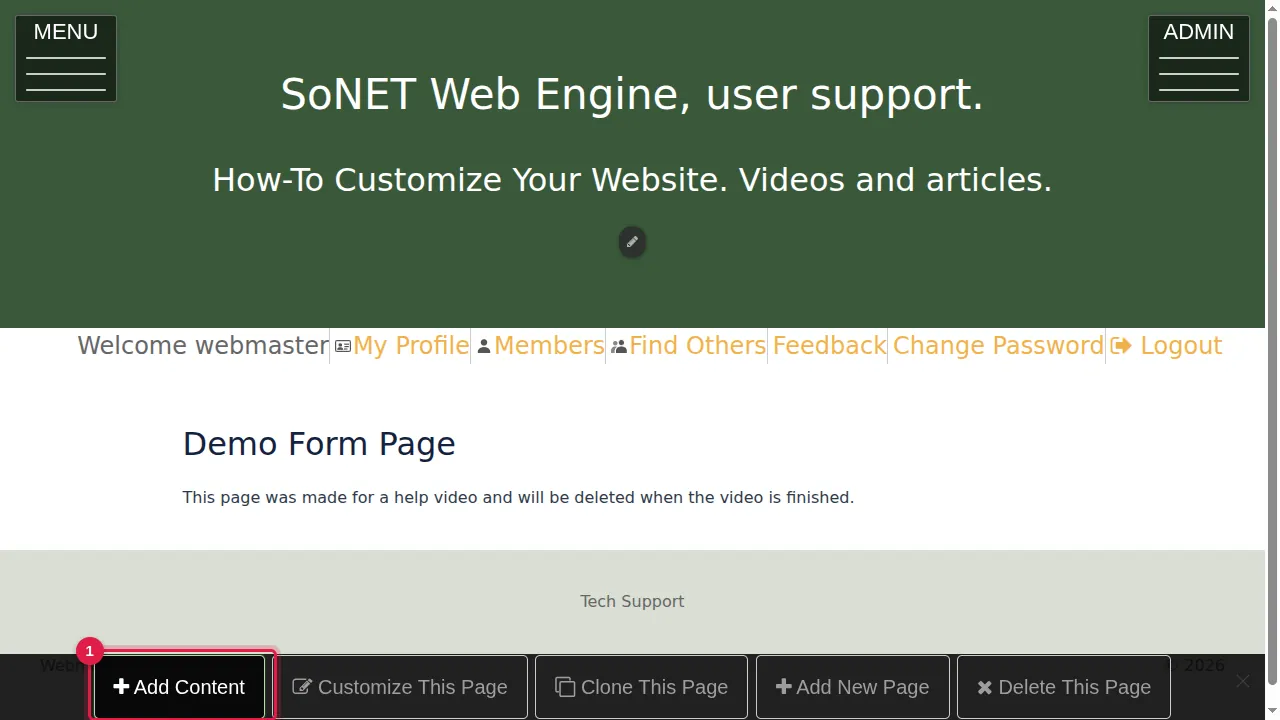
Step 1. On the page, click Add Content in the bar at the bottom.
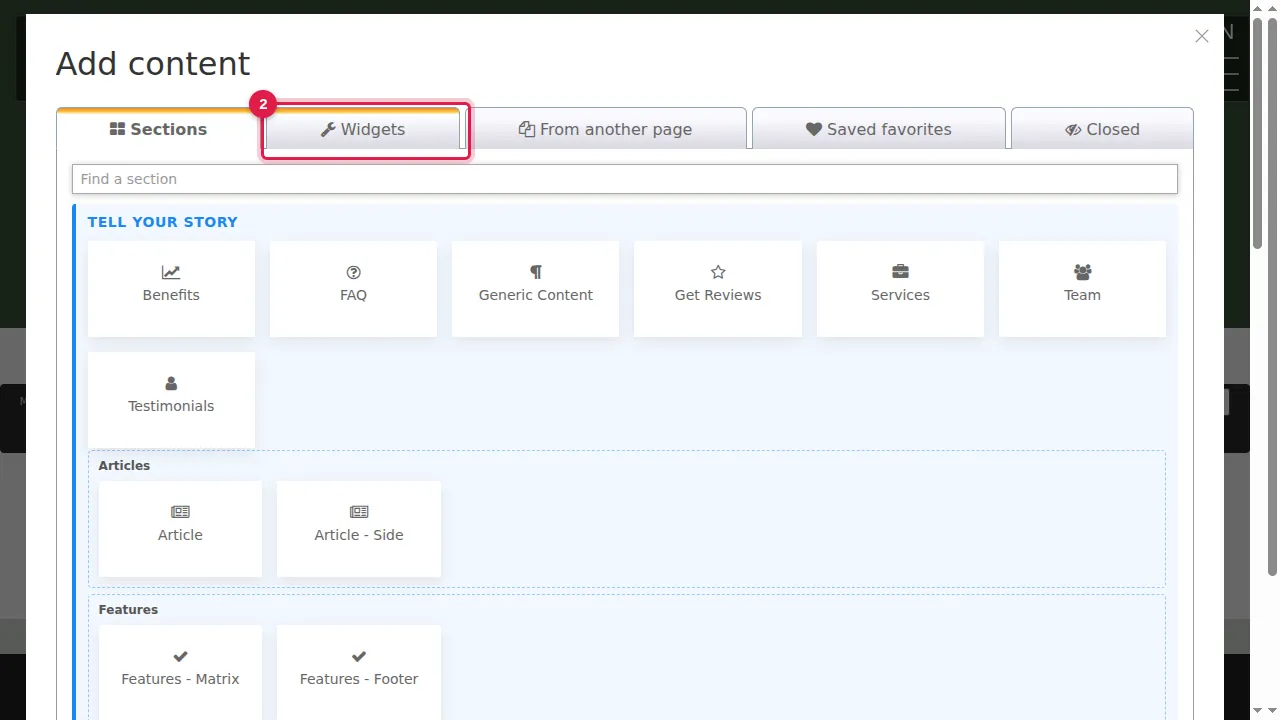
Step 2. Open the Widgets tab.
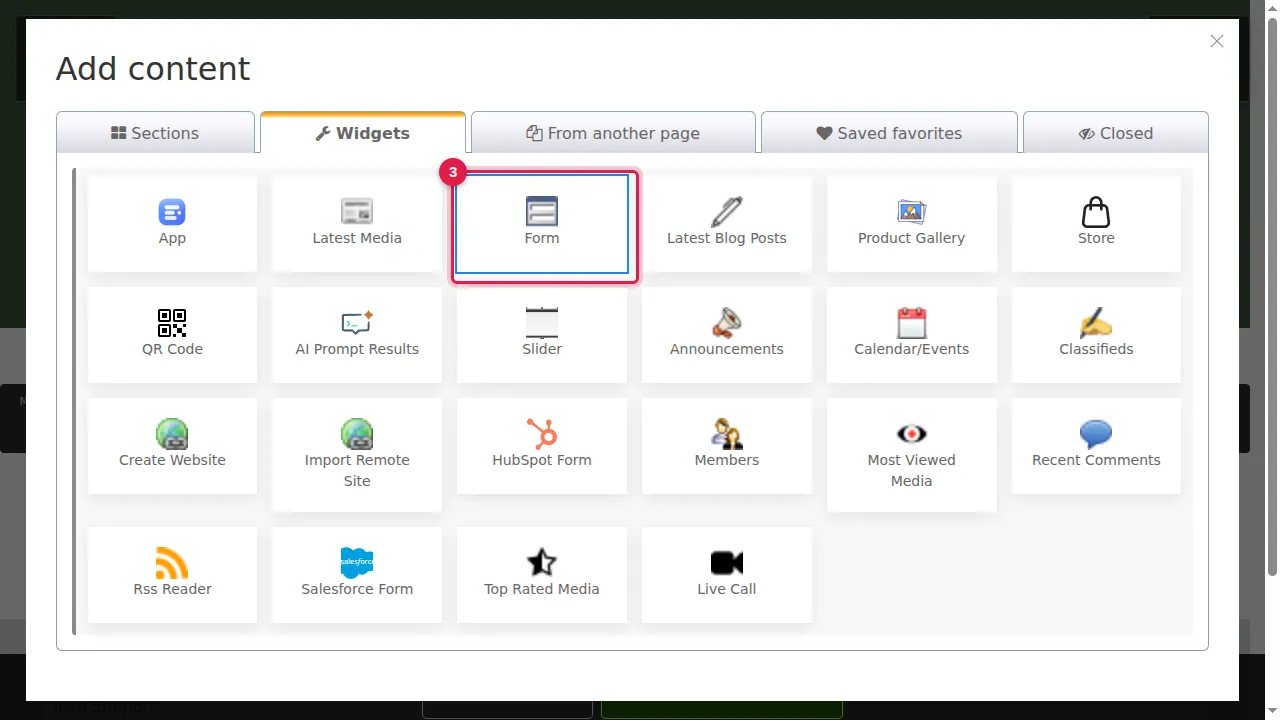
Step 3. Click Form.
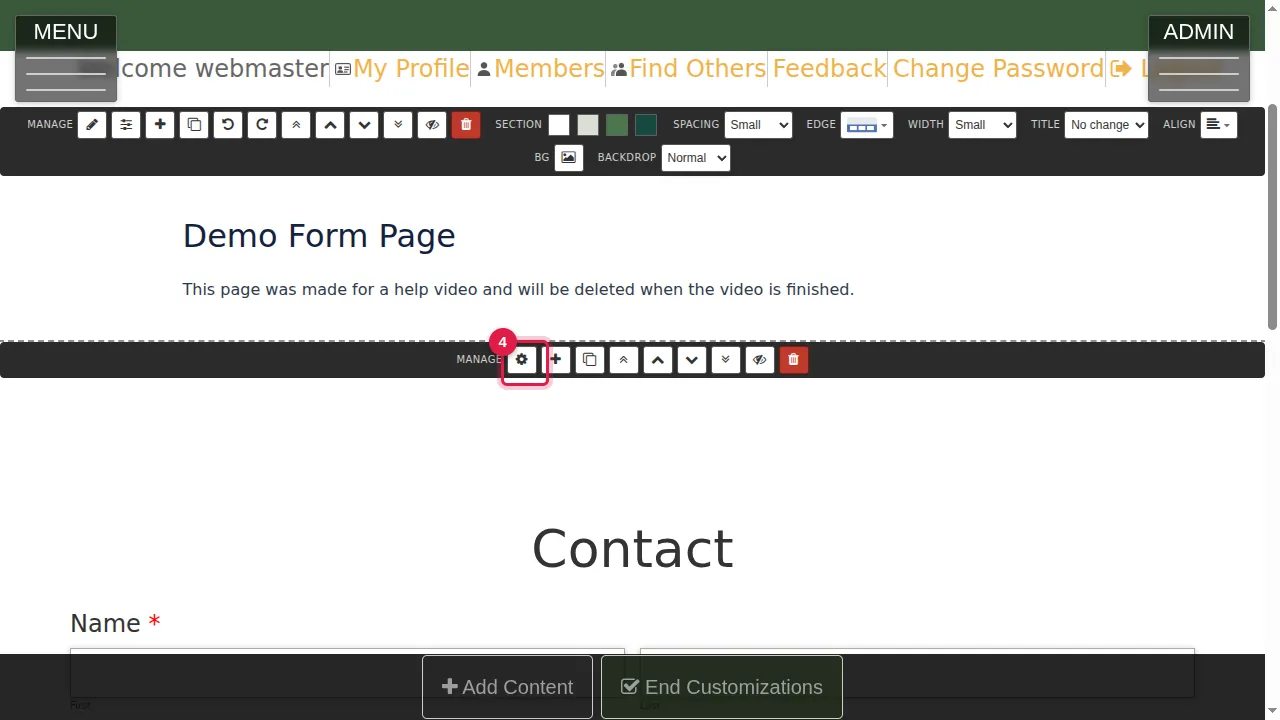
Step 4. The form widget is added at the bottom of the page. Click its gear to set it up.
Its settings
Step 5. Under Form, choose which of your forms to show. The editor below it, Side Content, is for an extra text shown with the form.
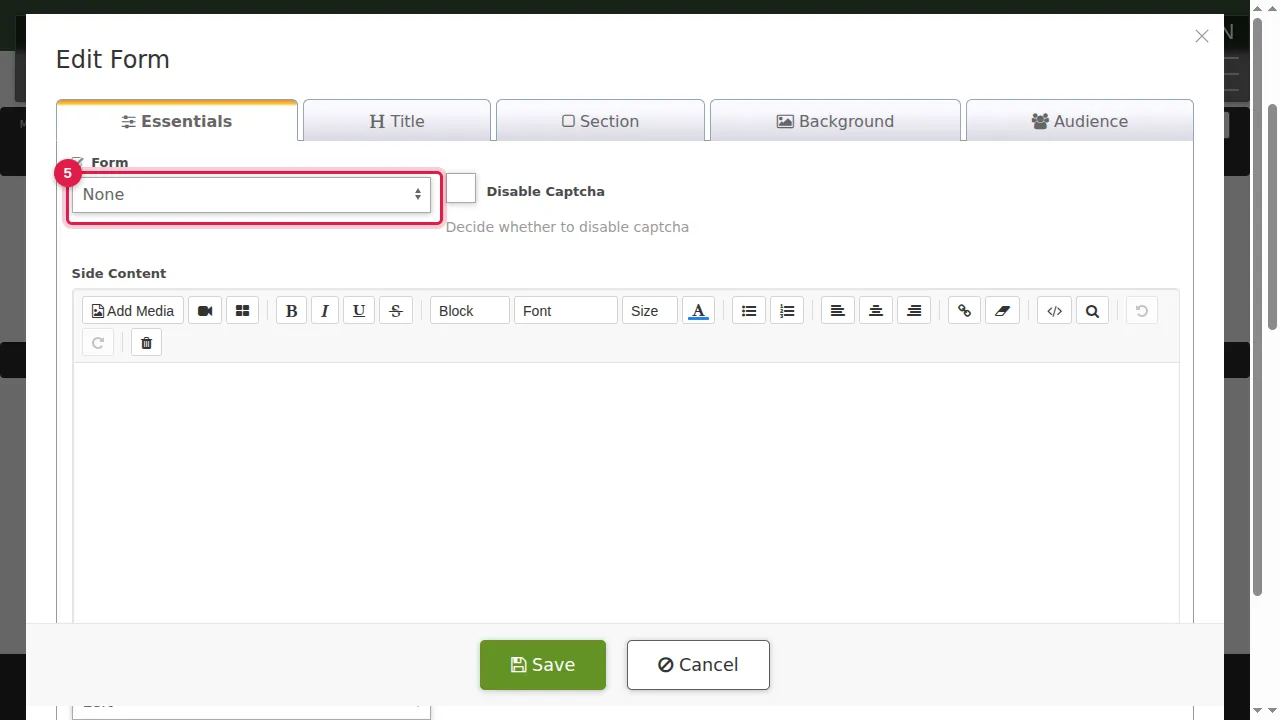
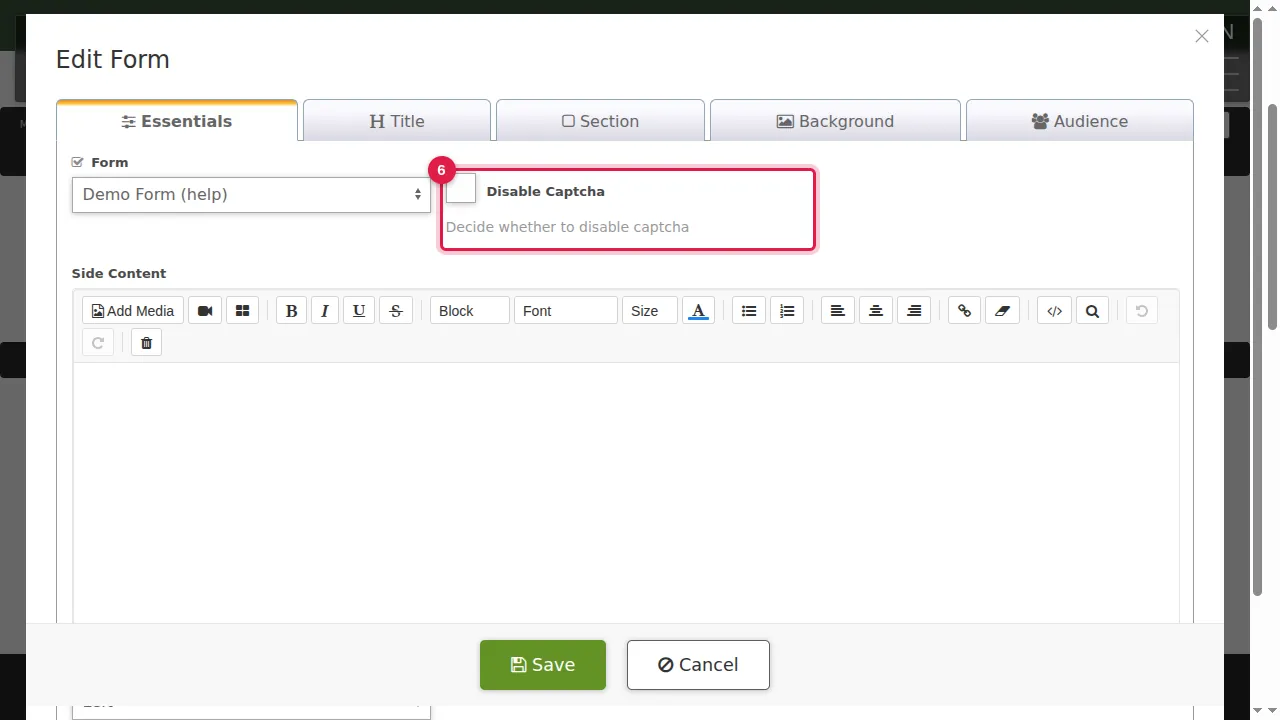
Step 6. Disable Captcha removes the picture code visitors must type before they can send the form. Leave it unticked to keep the protection against spam.
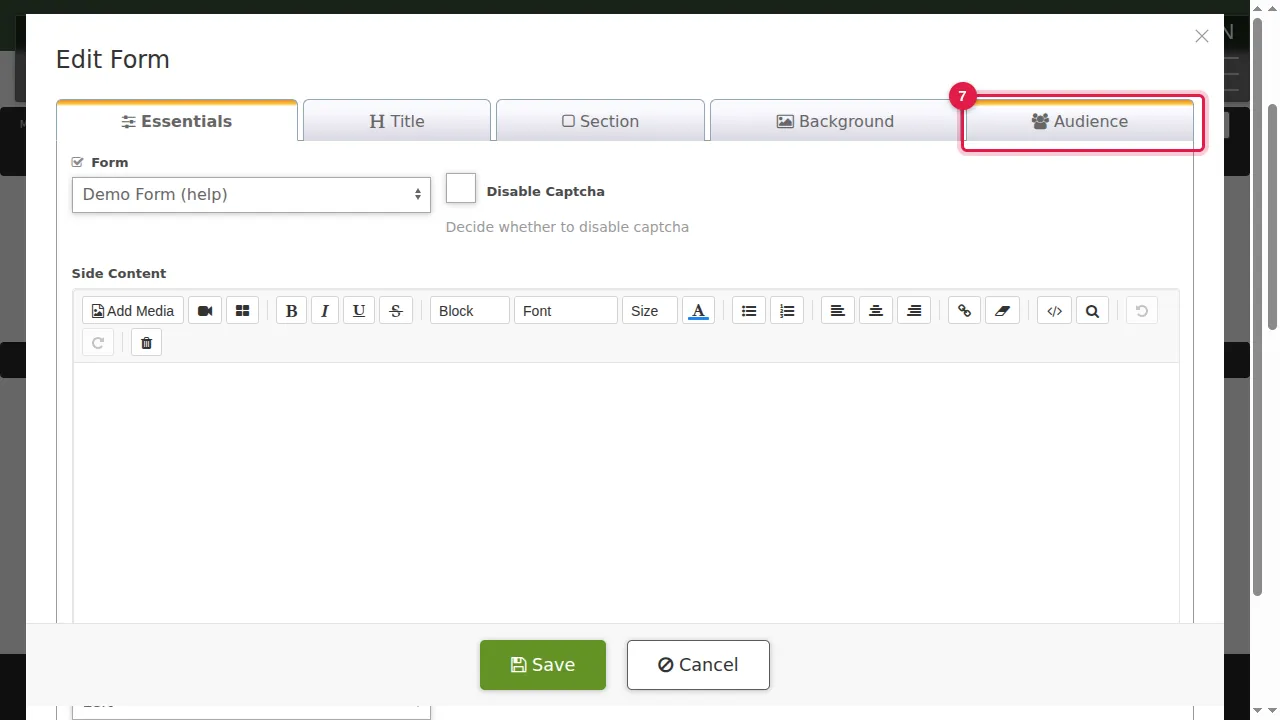
Step 7. The Audience tab sets who sees the form.
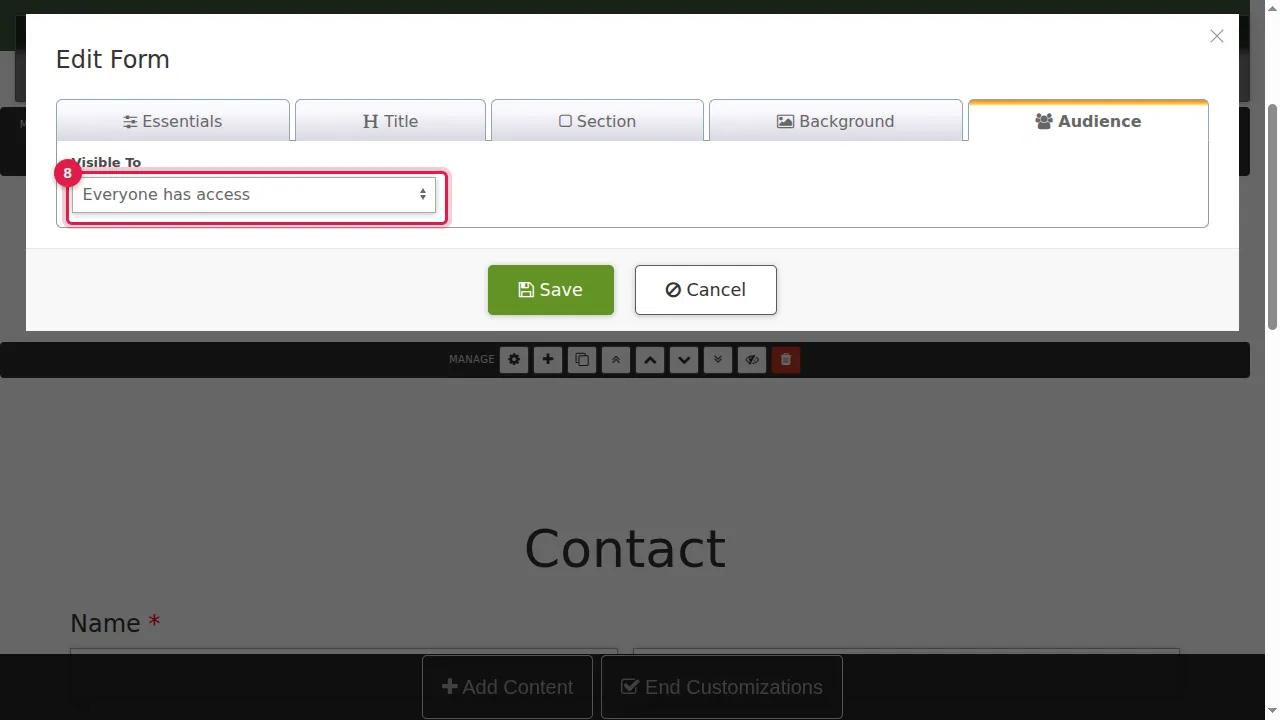
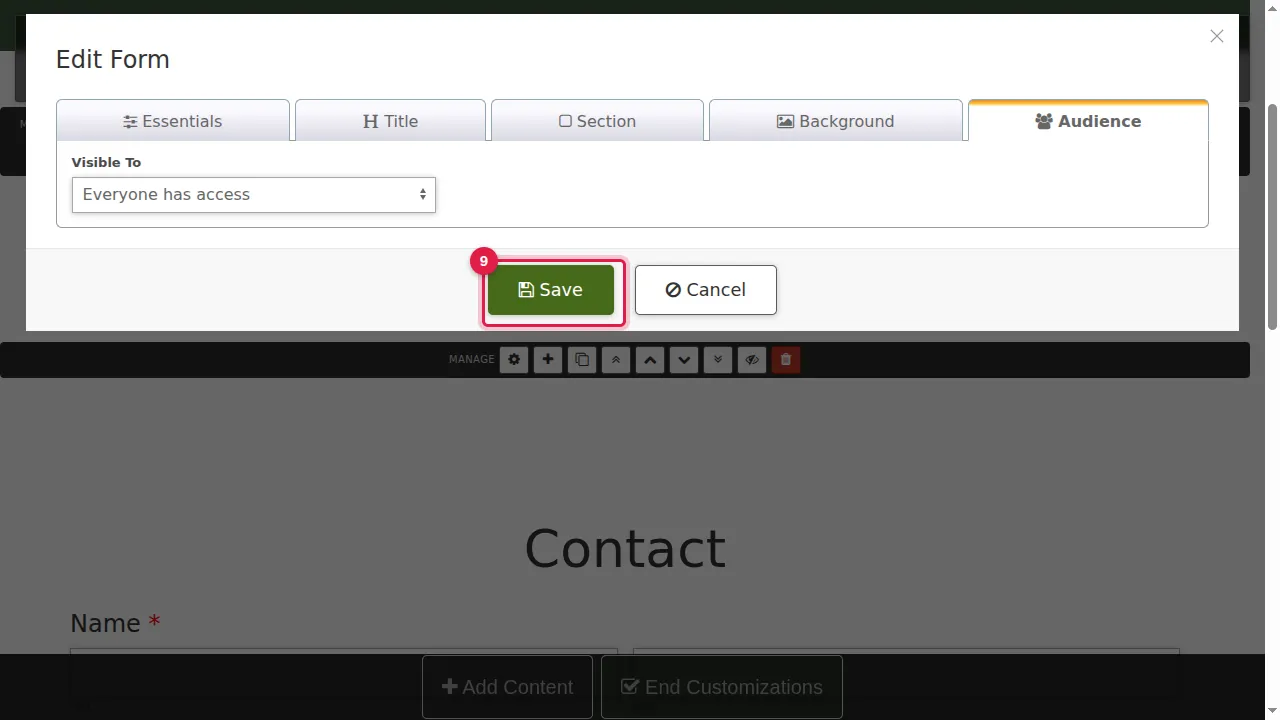
Step 8. Visible To: everyone, or only some visitors (for example admins only).
Step 9. Click Save.
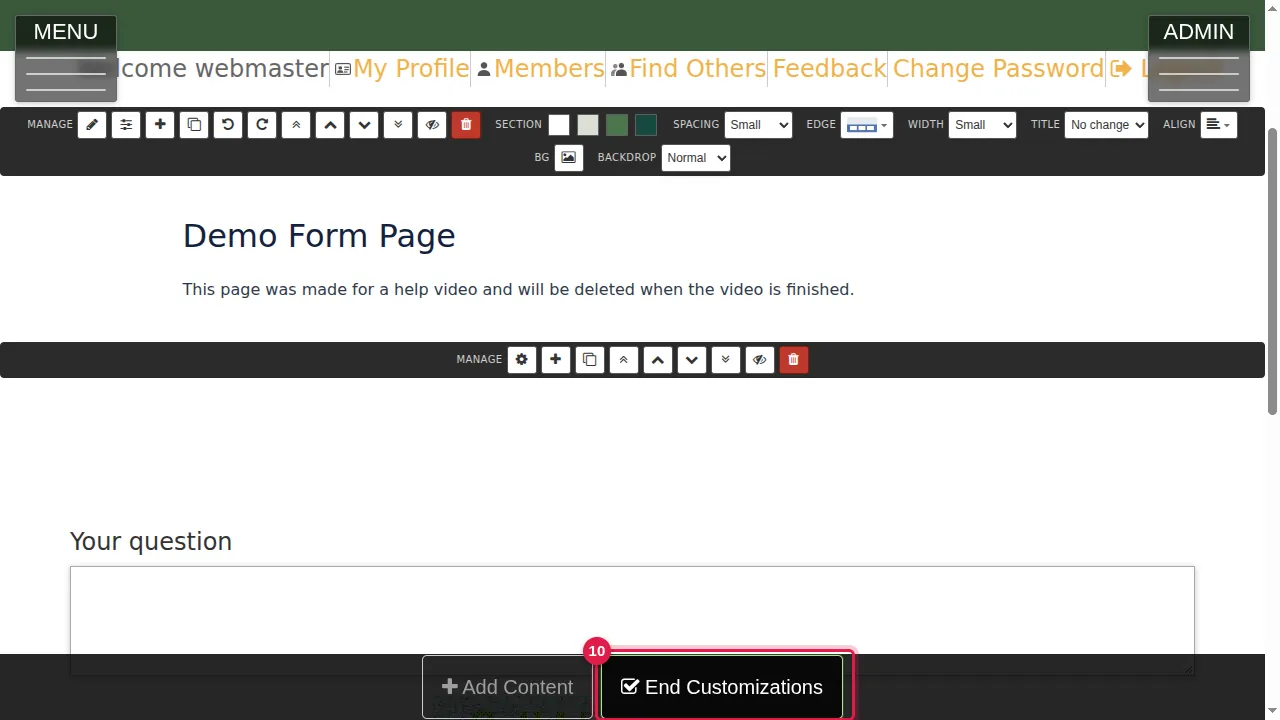
Step 10. Click End Customizations.
What visitors see
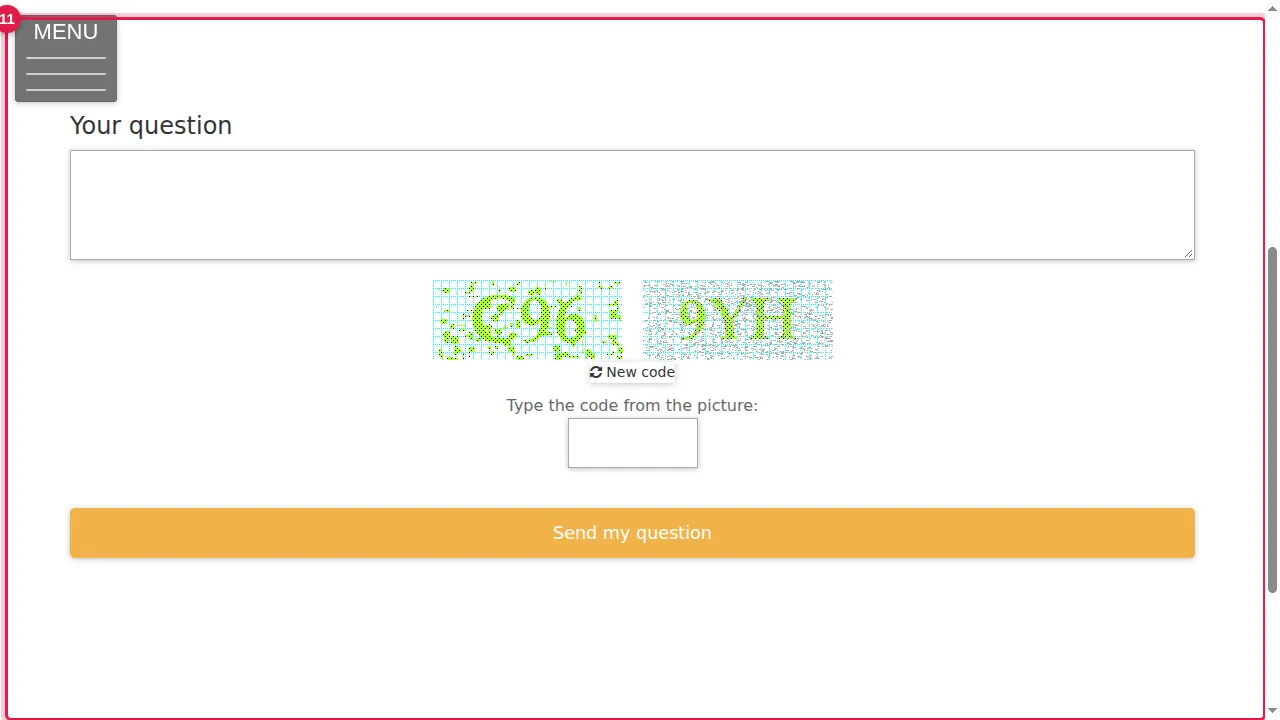
Step 11. Your visitors see the form on the page, with the picture code: they type the code from the picture (New code gives another one) and click the send button.
Preview and clone a form
Step 12. In ADMIN › Manage Contact Forms, Preview opens a form at its own address, in a new tab.
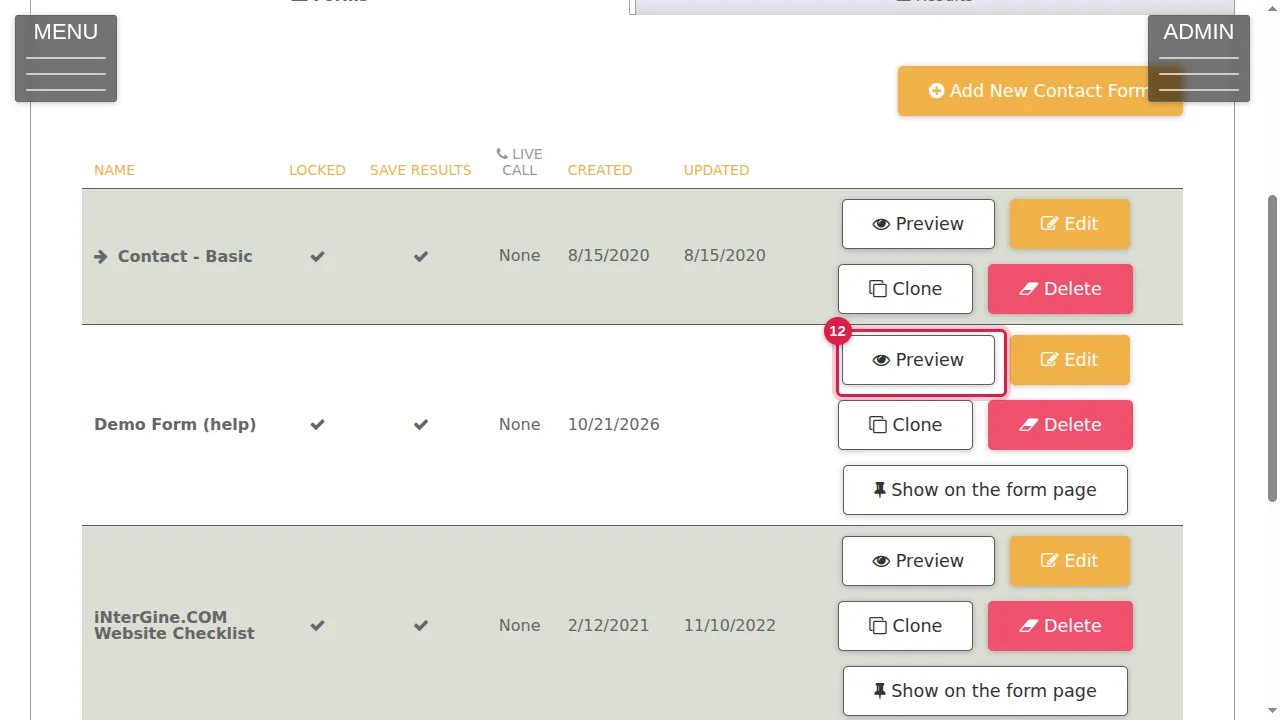
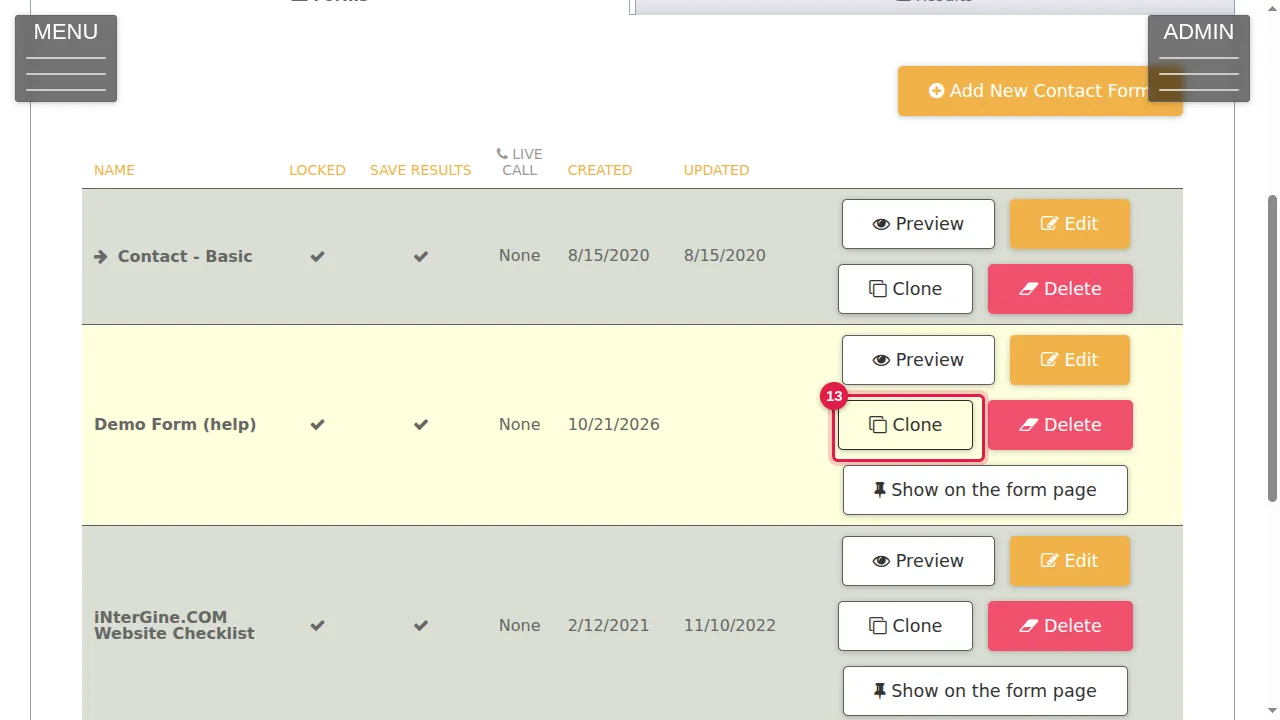
Step 13. Clone makes a copy of a form straight away.
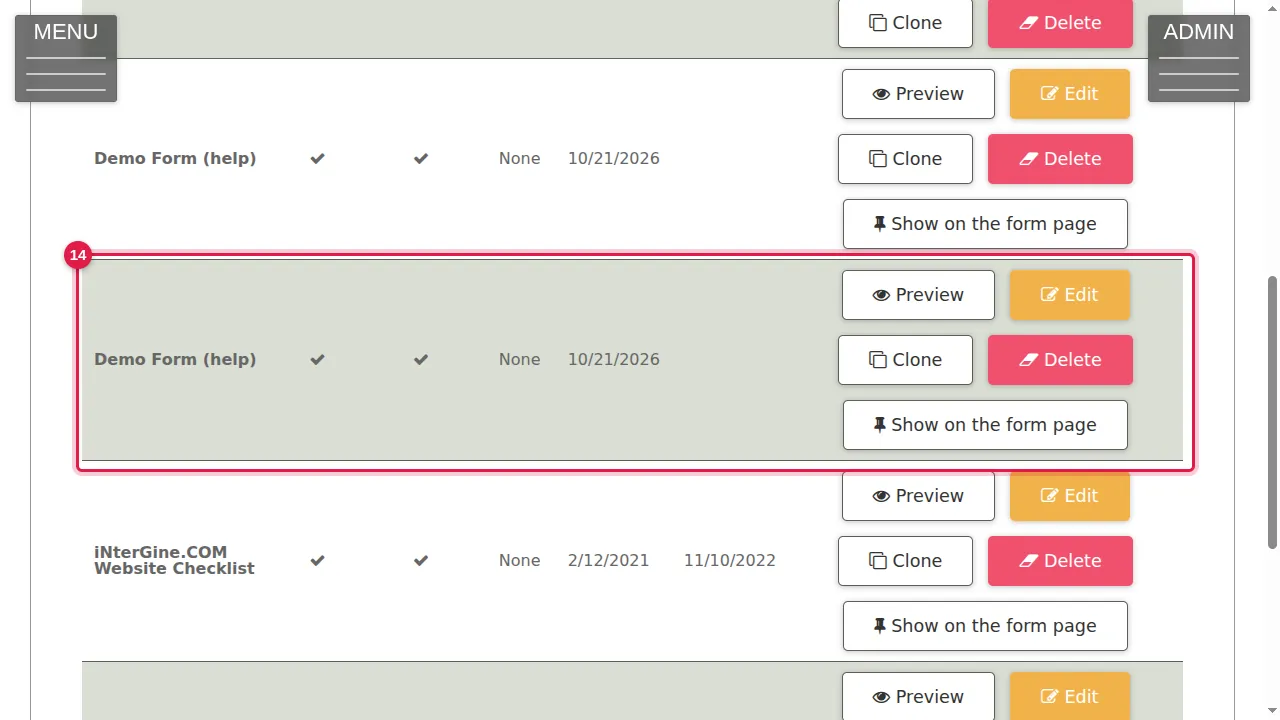
Step 14. The copy is in the list, ready to change with Edit.
Check it worked
Open the page in a private window: the form is there, as your visitors see it.
Related help
Shown on the 2026 version of the SoNET Web Engine. Last checked 21 October 2026. Something different on your screen? Tell us through the Contact page.