Help Center Pages & Editing
Add a widget to a page (example: a QR code)
Widgets are live building blocks that show content from other parts of your site or do a job for your visitors: a contact form, your latest blog posts or pictures, your store, a slider, events, a QR code and more.
Watch it done: a short silent video with captions · 1:45. The steps below show the same thing picture by picture.
Before you start
- Log in and open the page that should get the widget.
Add the widget
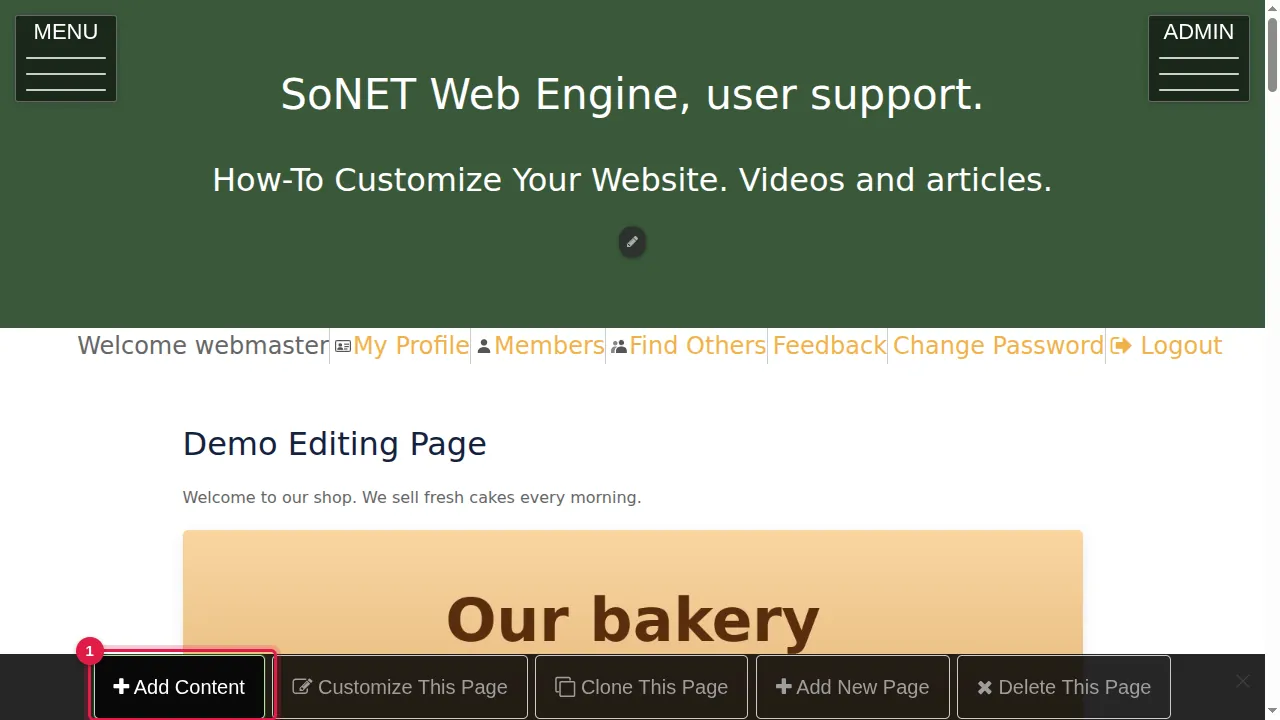
Step 1. Click Add Content in the bar at the bottom of the page.
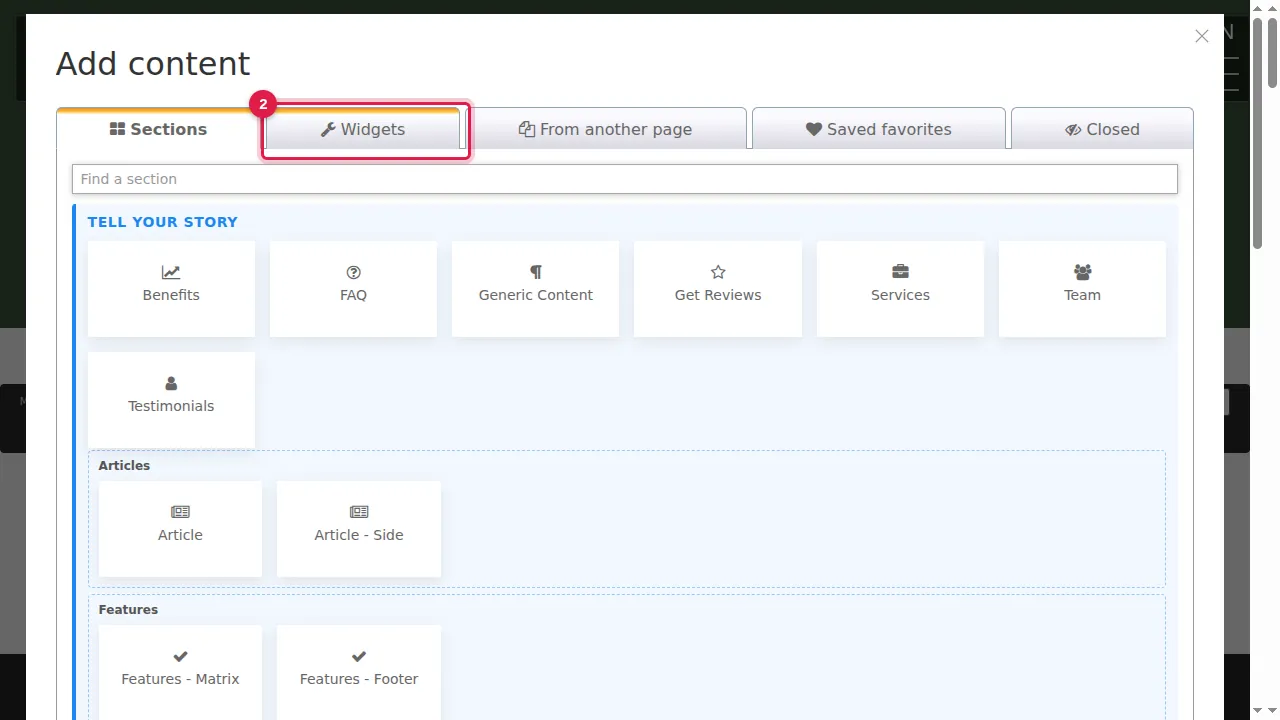
Step 2. Open the Widgets tab. You can choose from: App, Latest Media, Form, Latest Blog Posts, Product Gallery, Store, QR Code, AI Prompt Results, Slider, Announcements, Calendar/Events, Classifieds, Create Website, Import Remote Site, HubSpot Form, Members, Most Viewed Media, Recent Comments, RSS Reader, Salesforce Form, Top Rated Media and Live Call.
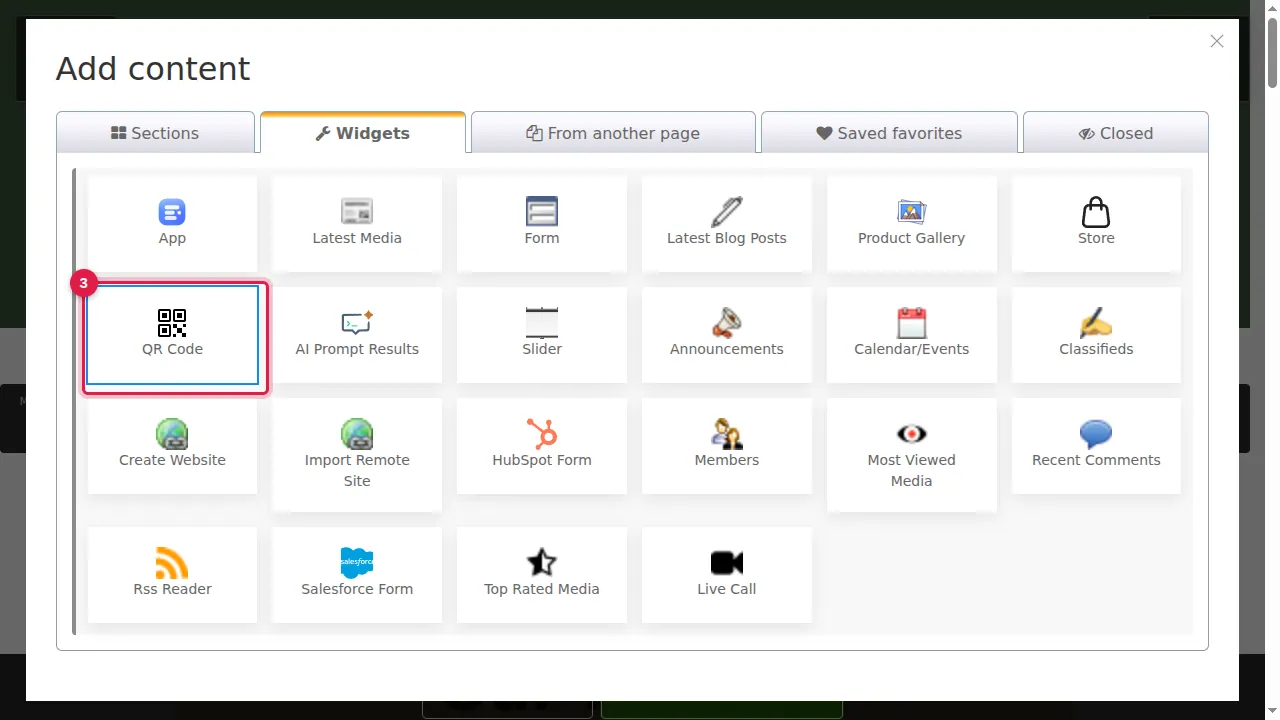
Step 3. Click the widget you want. Here: QR Code.
Set it up
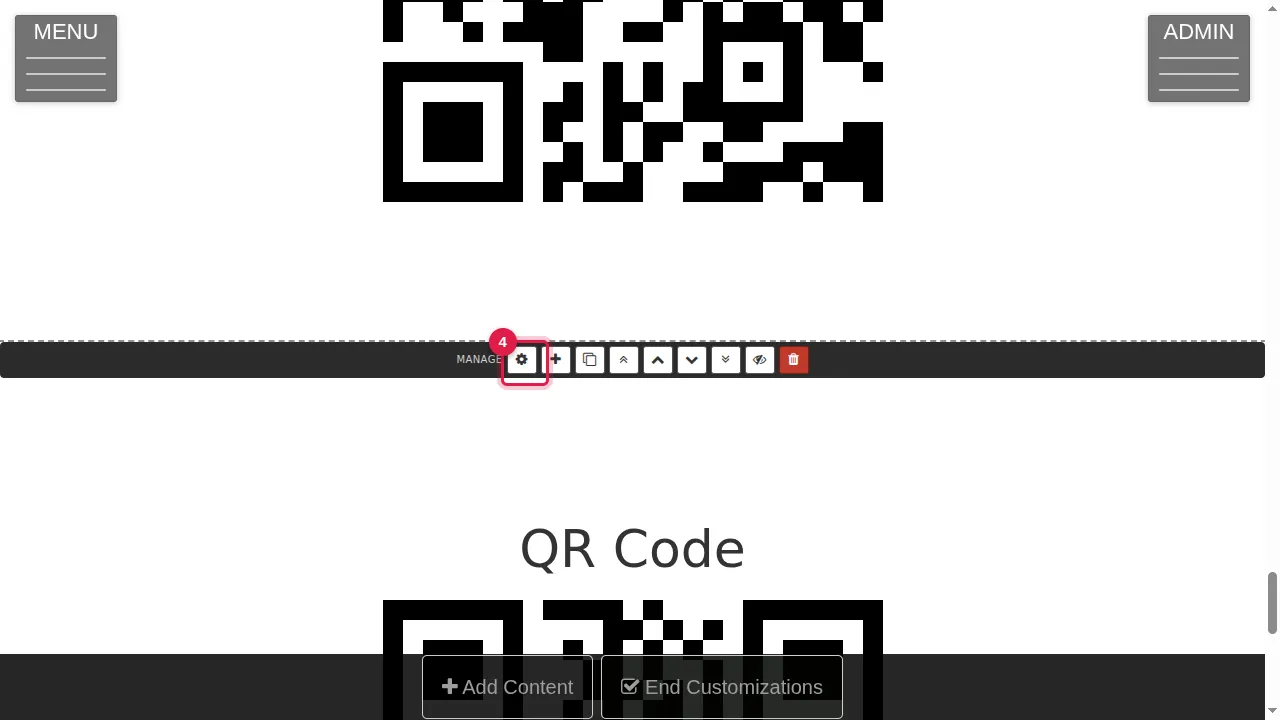
Step 4. The widget is added at the bottom of the page and the page is in edit mode. Click the widget's gear ("This widget's settings").
Step 5. Each widget has its own settings (here on the Essentials tab), plus tabs for its Title, Section and Background, and Audience (who can see it).
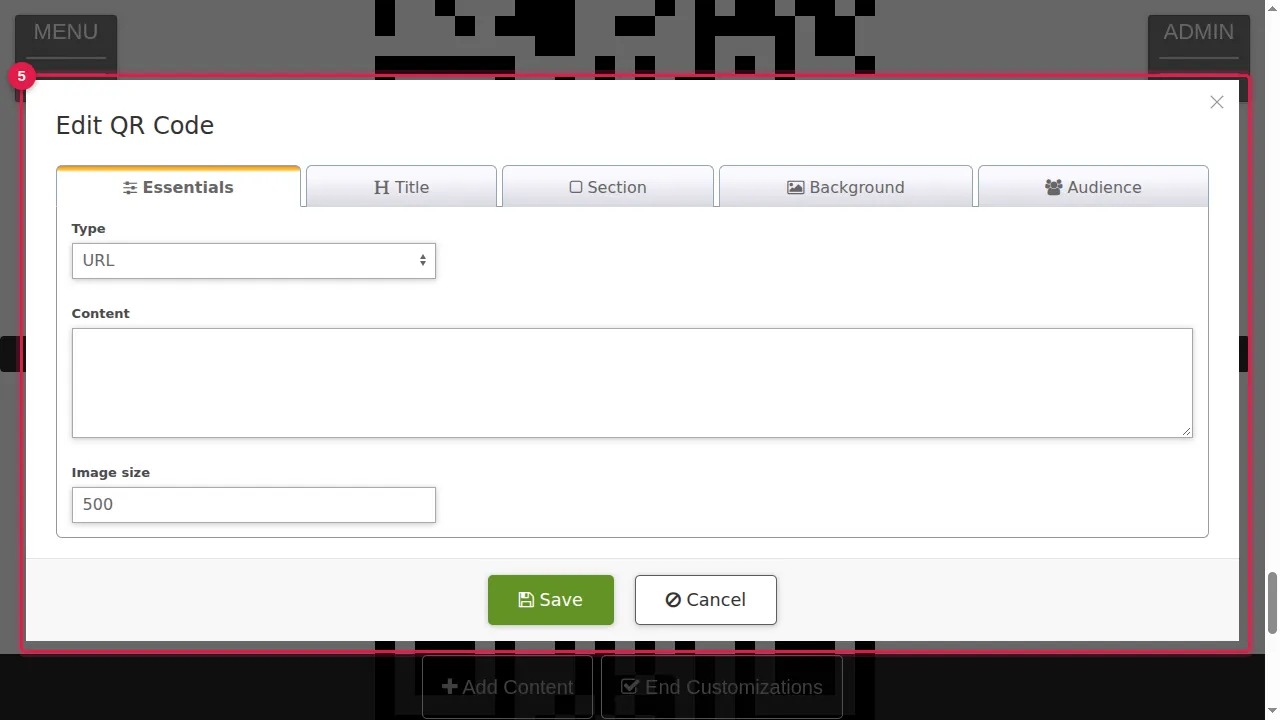
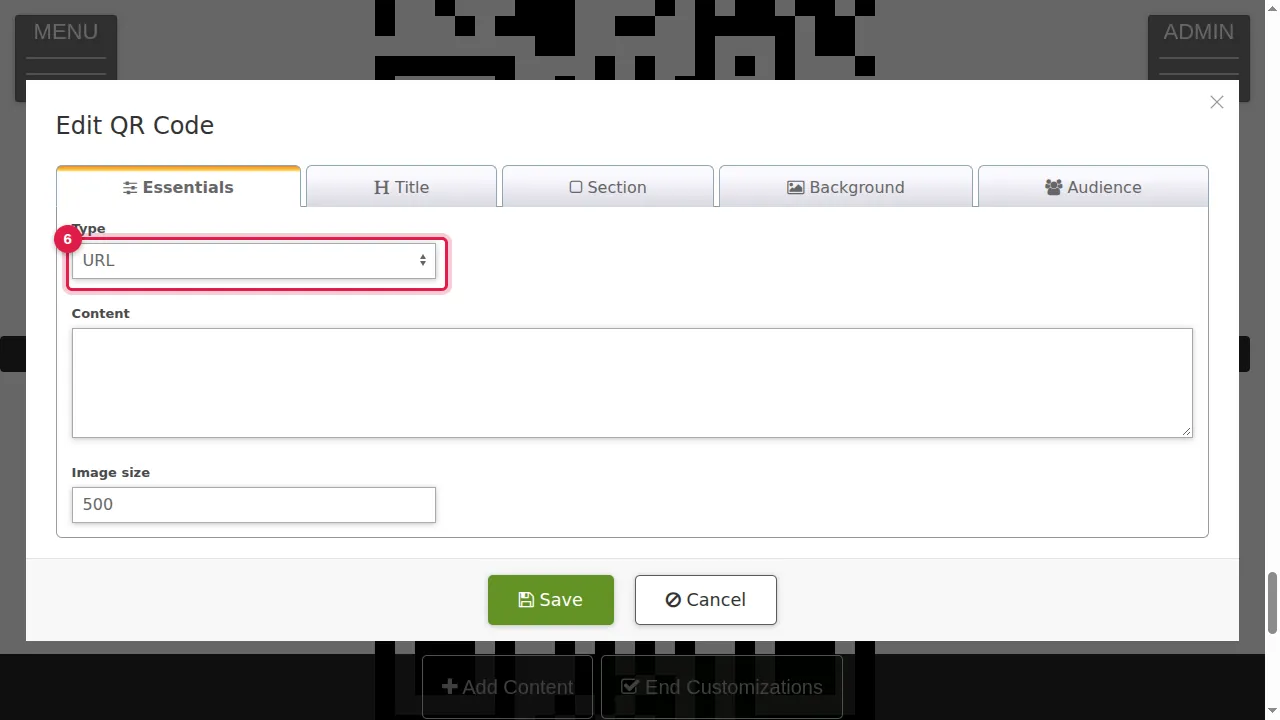
Step 6. For a QR code, choose what it holds: an event, a contact card, an e-mail address, a phone number, a text message, plain text or a web address (URL).
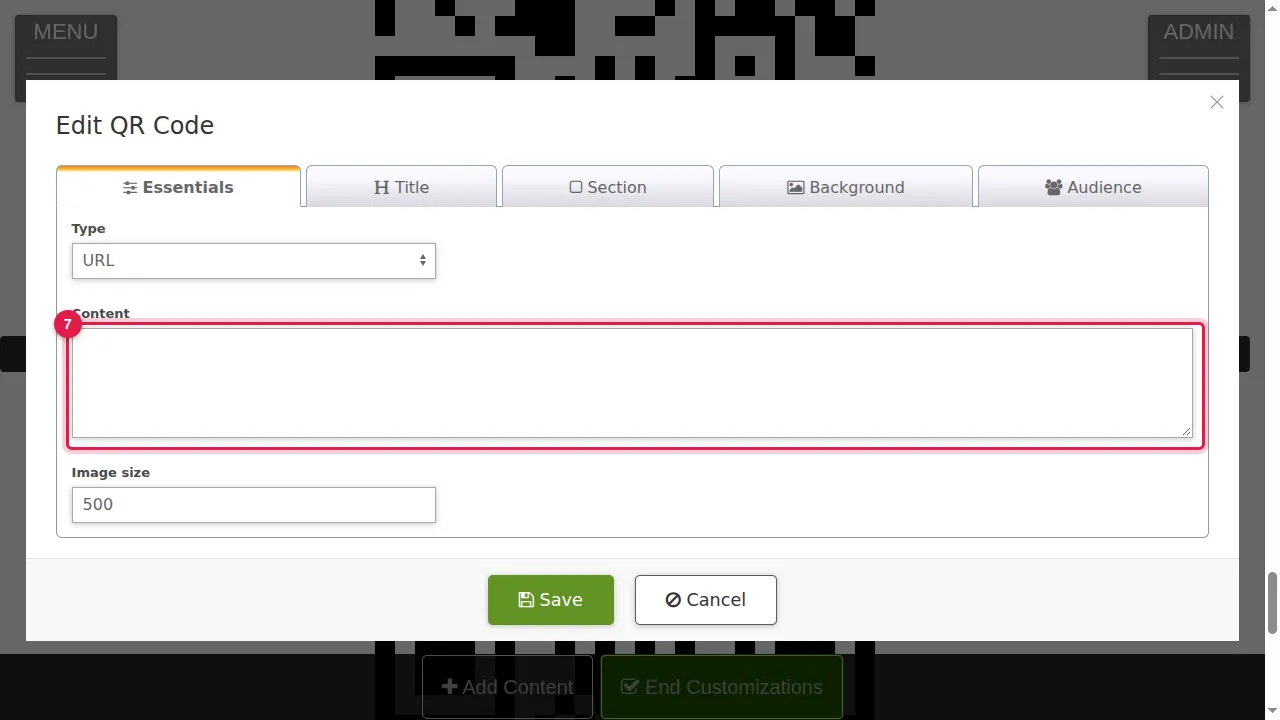
Step 7. Type the content, here the web address.
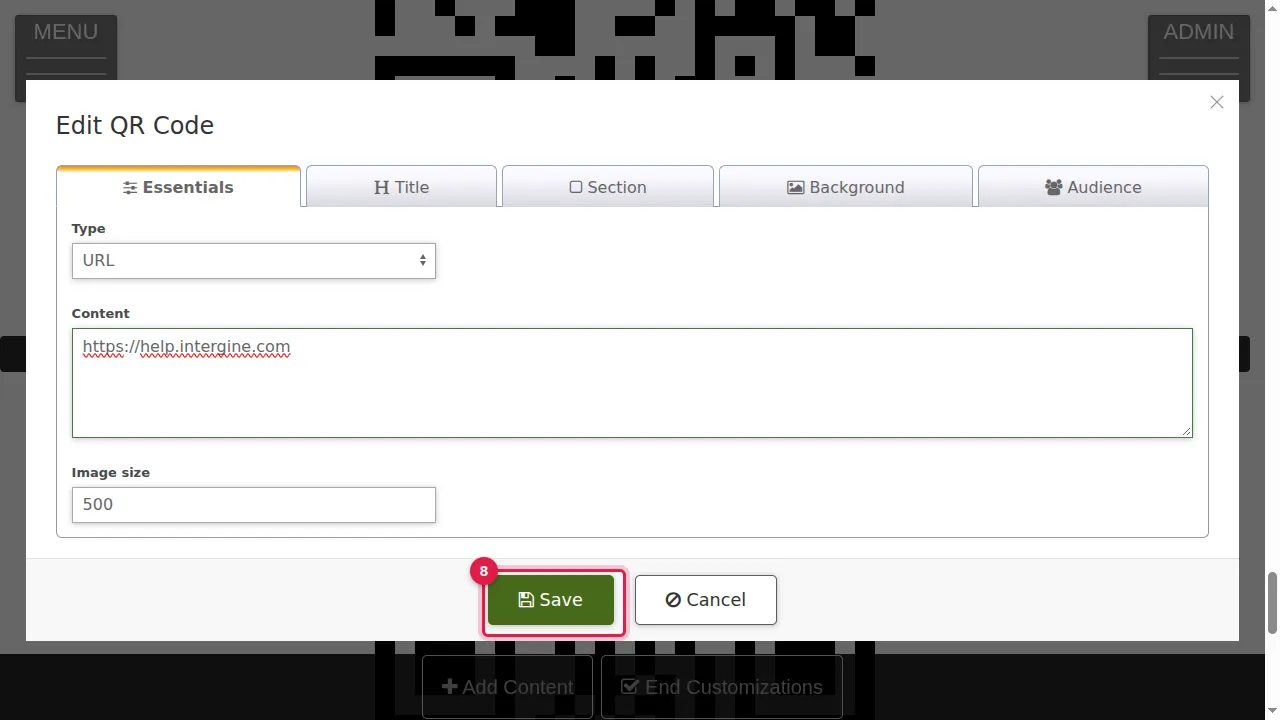
Step 8. Click Save.
See it as a visitor
Step 9. Click End Customizations.
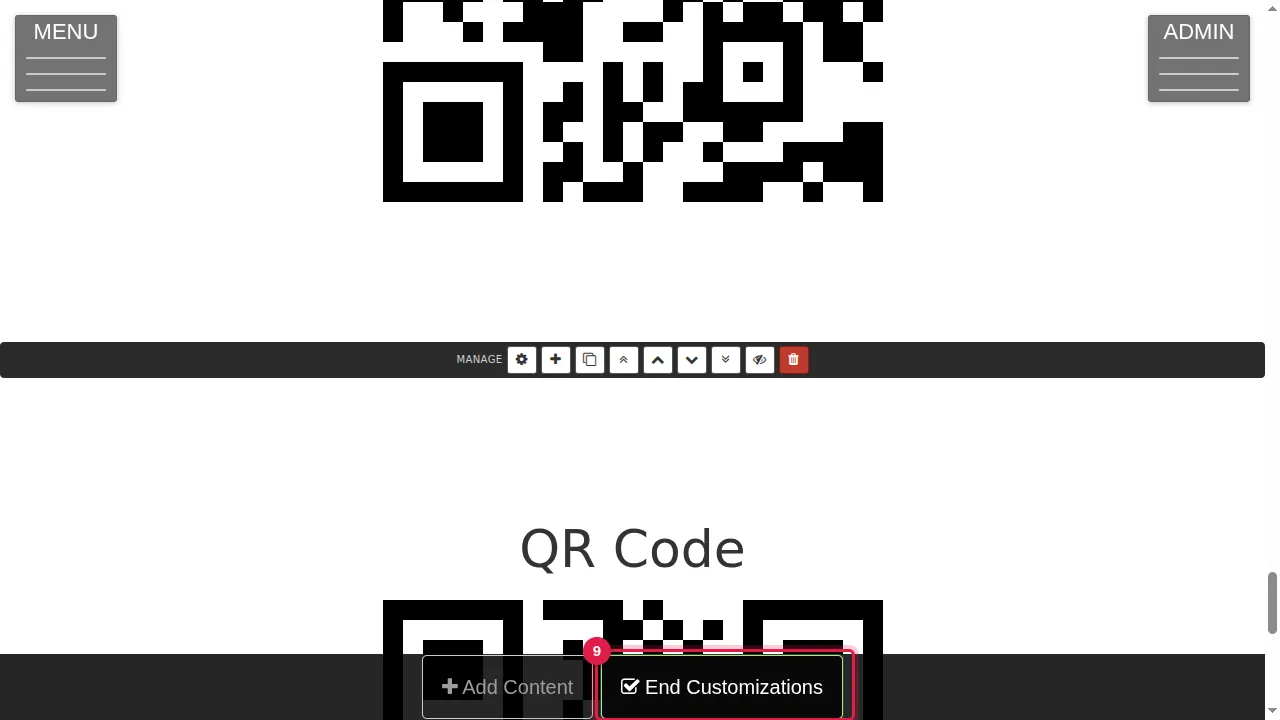
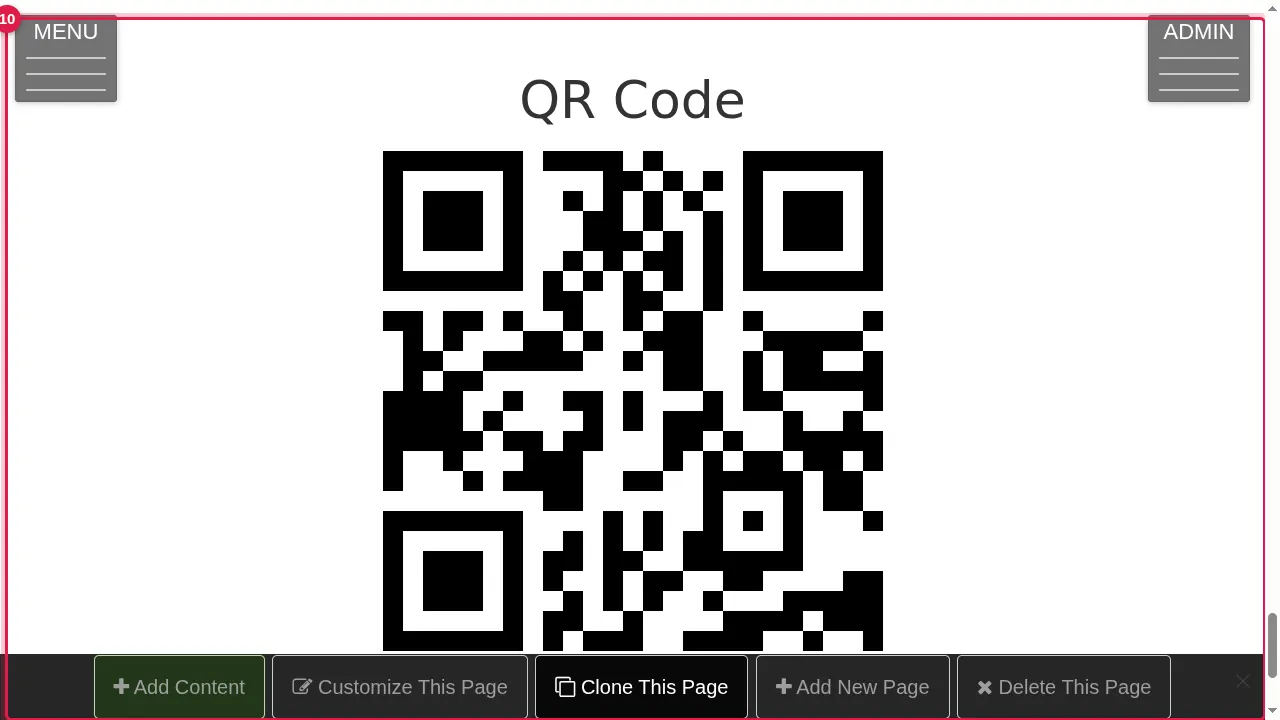
Step 10. Your visitors see the QR code; scanning it with a phone camera opens the address.
Check it worked
Scan the QR code with your phone: it should open the address you typed.
Good to know
- To move the widget higher on the page, use the arrows in its toolbar in edit mode.
Related help
Shown on the 2026 version of the SoNET Web Engine. Last checked 21 October 2026. Something different on your screen? Tell us through the Contact page.