Help Center Pages & Editing
Widgets that show your site's content
Nine widgets fill a page with content that already lives on your site and keep it up to date by themselves: pictures and videos, blog posts, comments, announcements, classifieds, members and events. Here is what each one shows and the settings that matter.
Watch it done: a short silent video with captions · 3:54. The steps below show the same thing picture by picture.
Before you start
- Log in and open the page that should get the widget.
- How to add any widget: see Add a widget to a page.
Add a widget
Step 1. Click Customize This Page, then Add content at the end of the page, and open the Widgets tab. Click a widget to add it, then click its gear ("This widget's settings"). The settings below are on the Essentials tab; every widget also has an Audience tab (who can see it), and most have Title, Section and Background tabs.
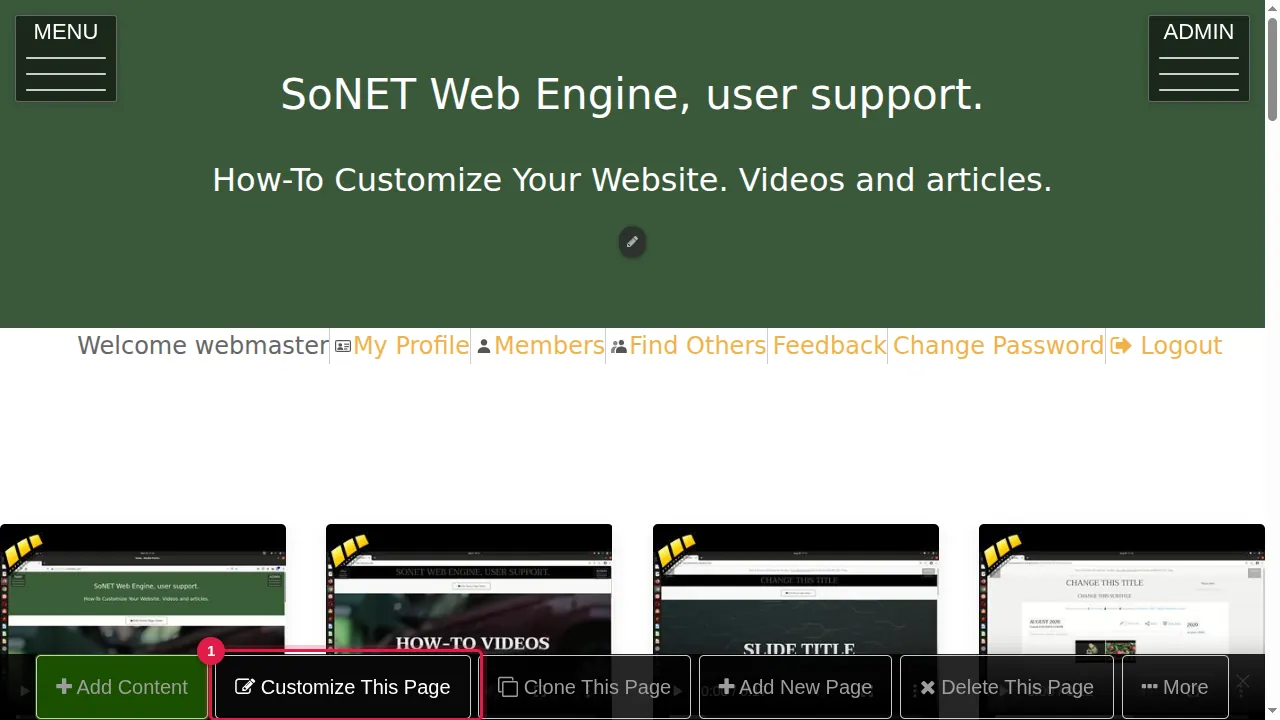
The settings of each widget
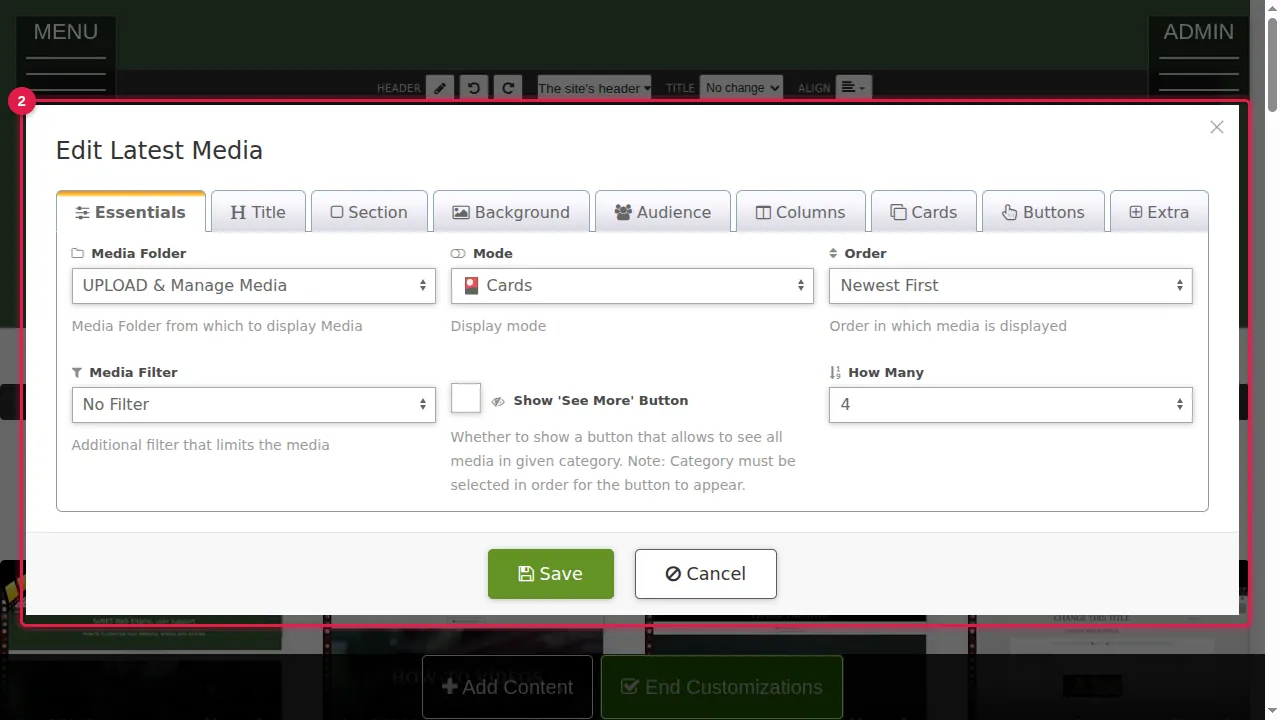
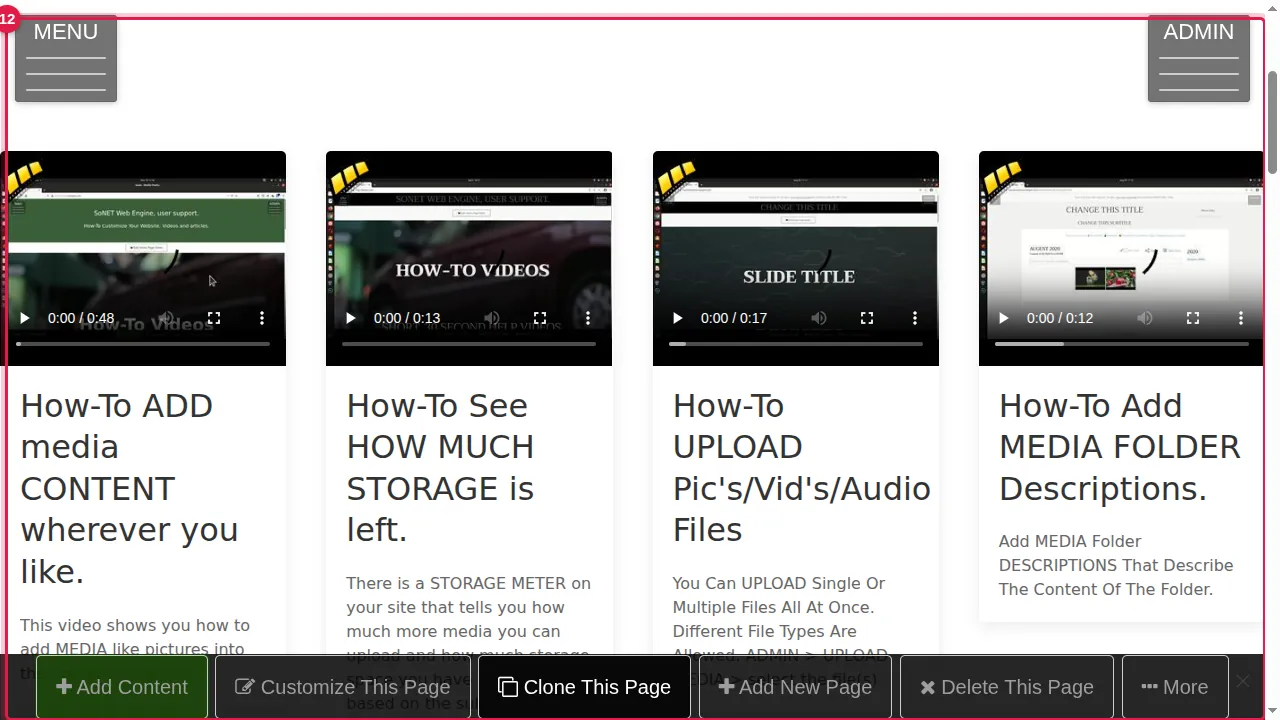
Step 2. Latest Media: choose the gallery folder, how to show it (Gallery - Grid, Gallery - Horizontal, Cards, Side Promotion, Services, Team, Testimonials, Tiles or Article Preview), the order (Newest First, Oldest First), a filter (for example only rated or commented pictures) and how many to show. The Columns, Cards and Buttons tabs change the layout. In this example: the folder "UPLOAD & Manage Media" as 4 cards.
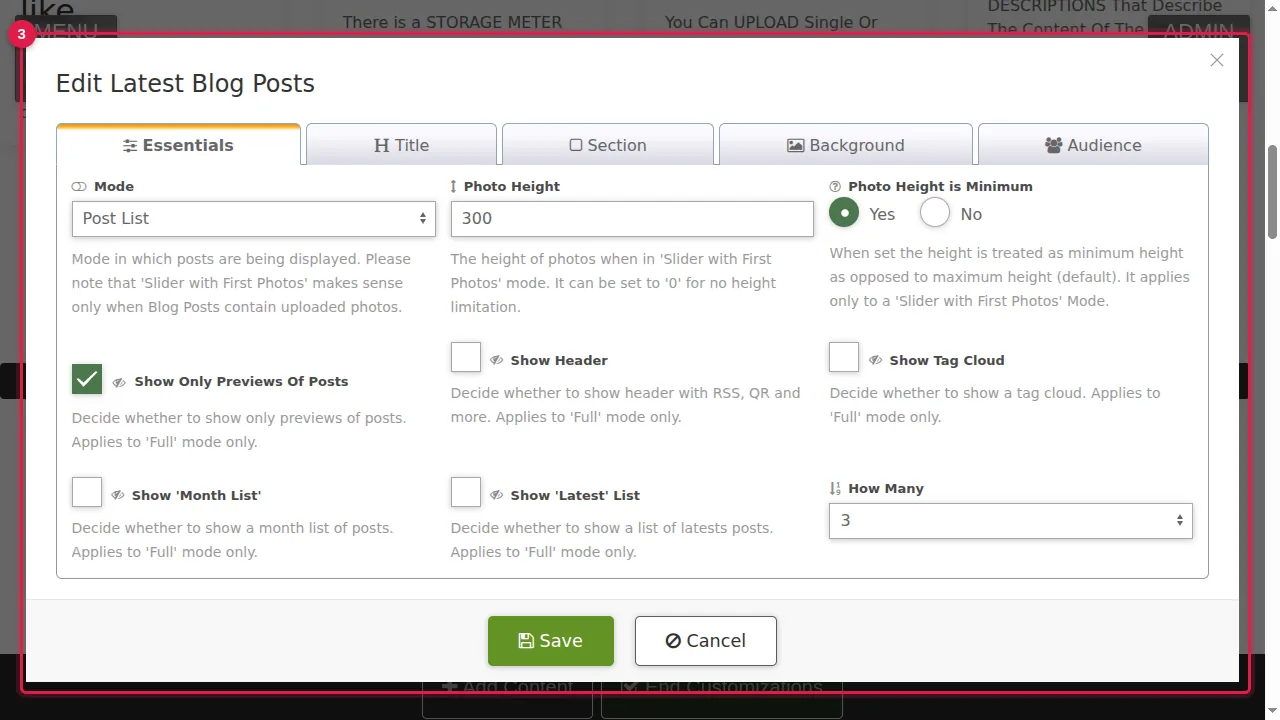
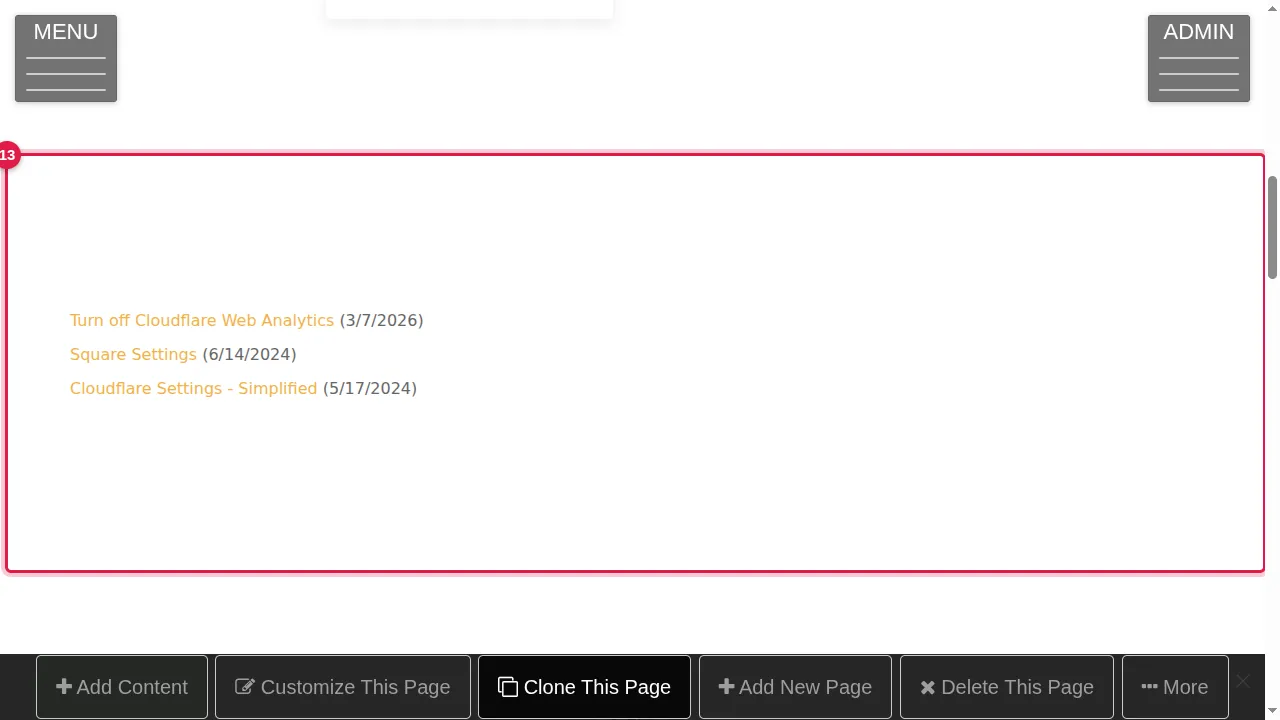
Step 3. Latest Blog Posts: Post List, Slider with First Photos, or Full (the whole posts, which makes a long page). Choose how many, and whether to show only previews, a tag cloud, a month list or a latest list. In this example: a list of 3.
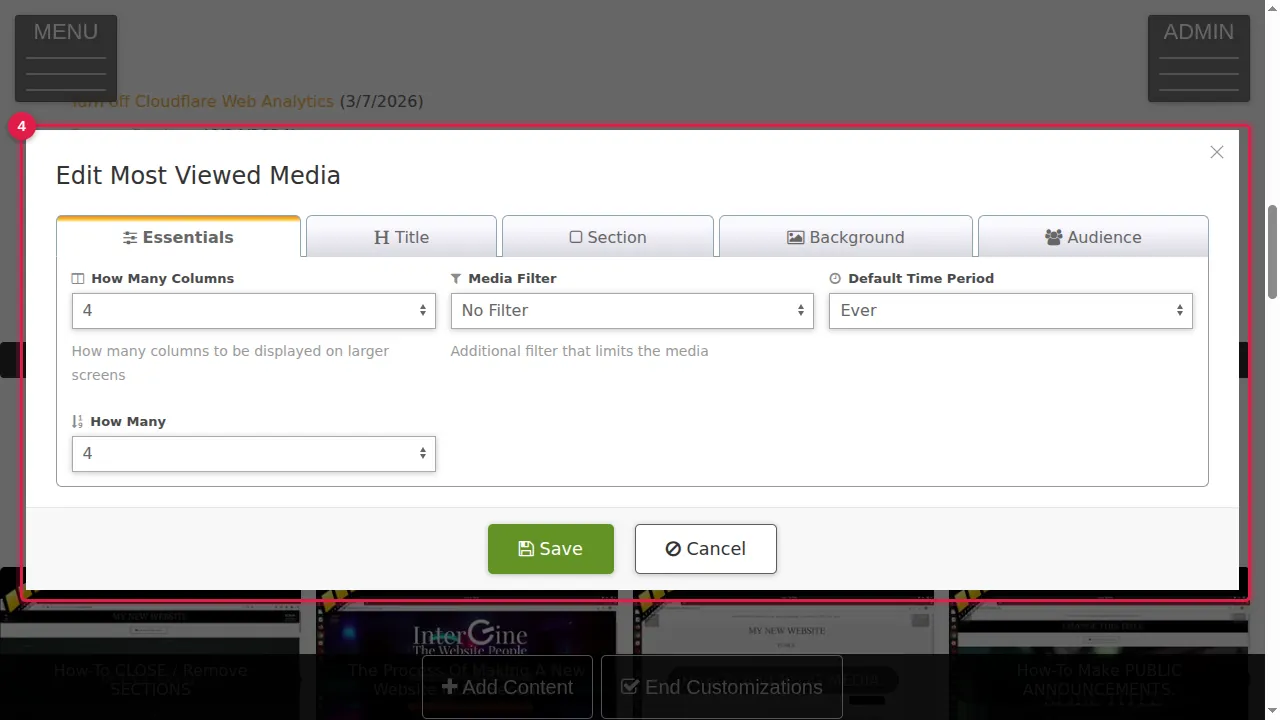
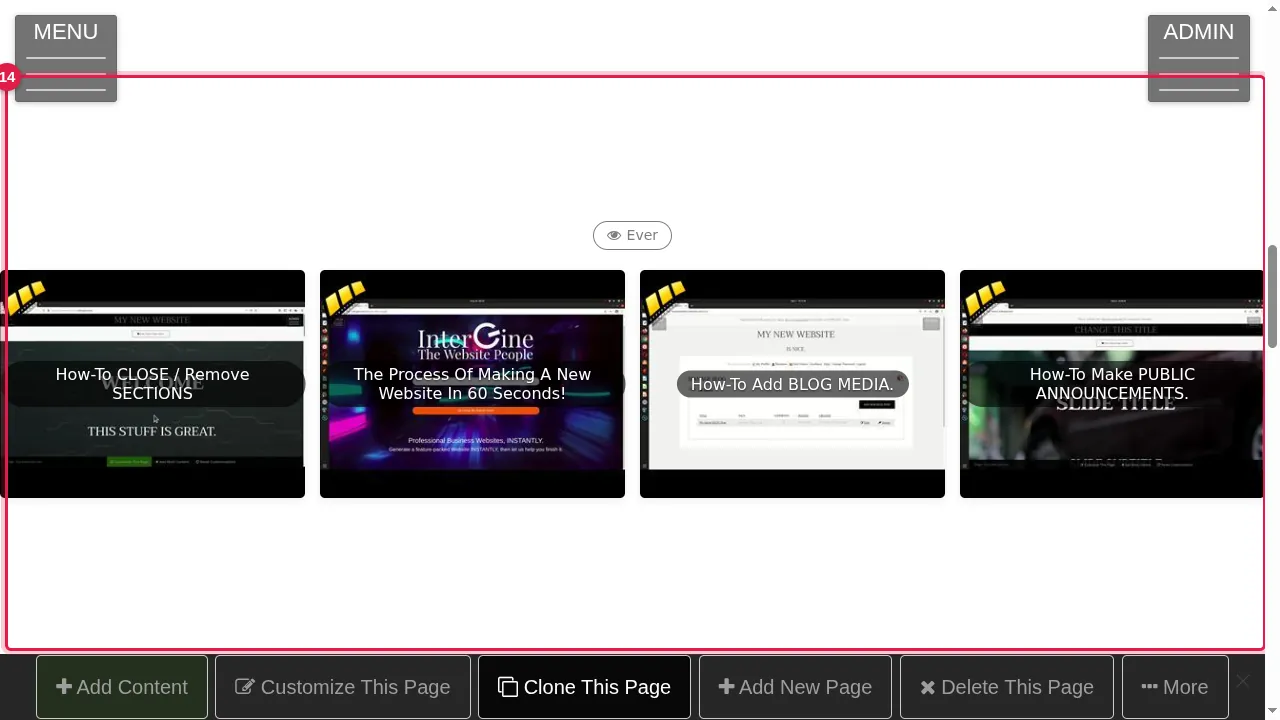
Step 4. Most Viewed Media: the pictures and videos seen most Today, Last Week, Last Month, Last Year or Ever, in up to 6 columns. In this example: Ever, 4.
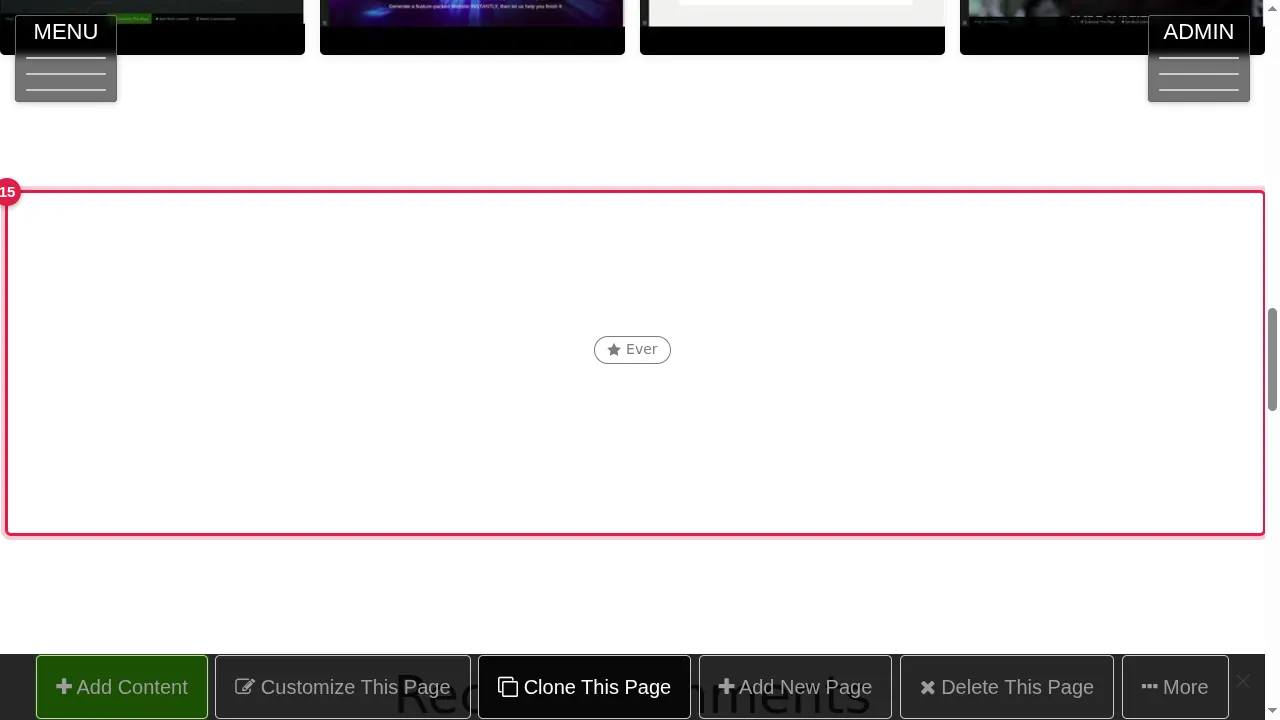
Step 5. Top Rated Media: the same choices, ranked by the visitors' star ratings. In this example: Ever, 4.
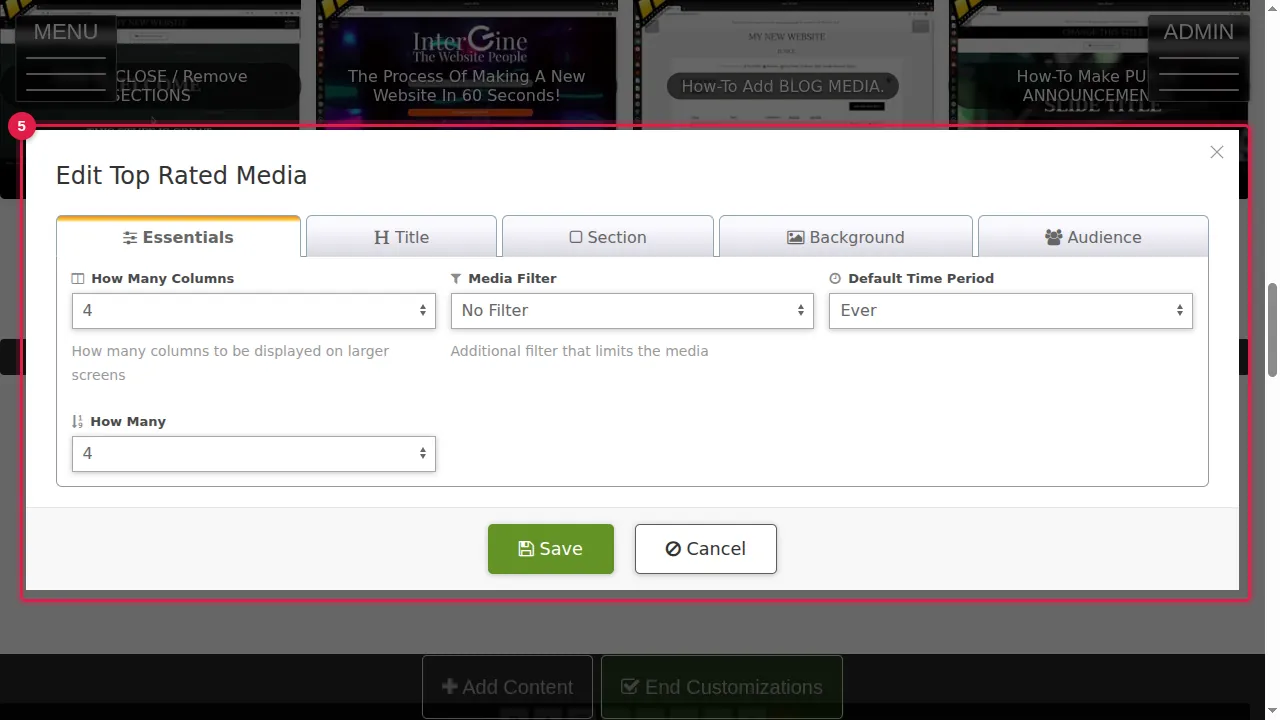
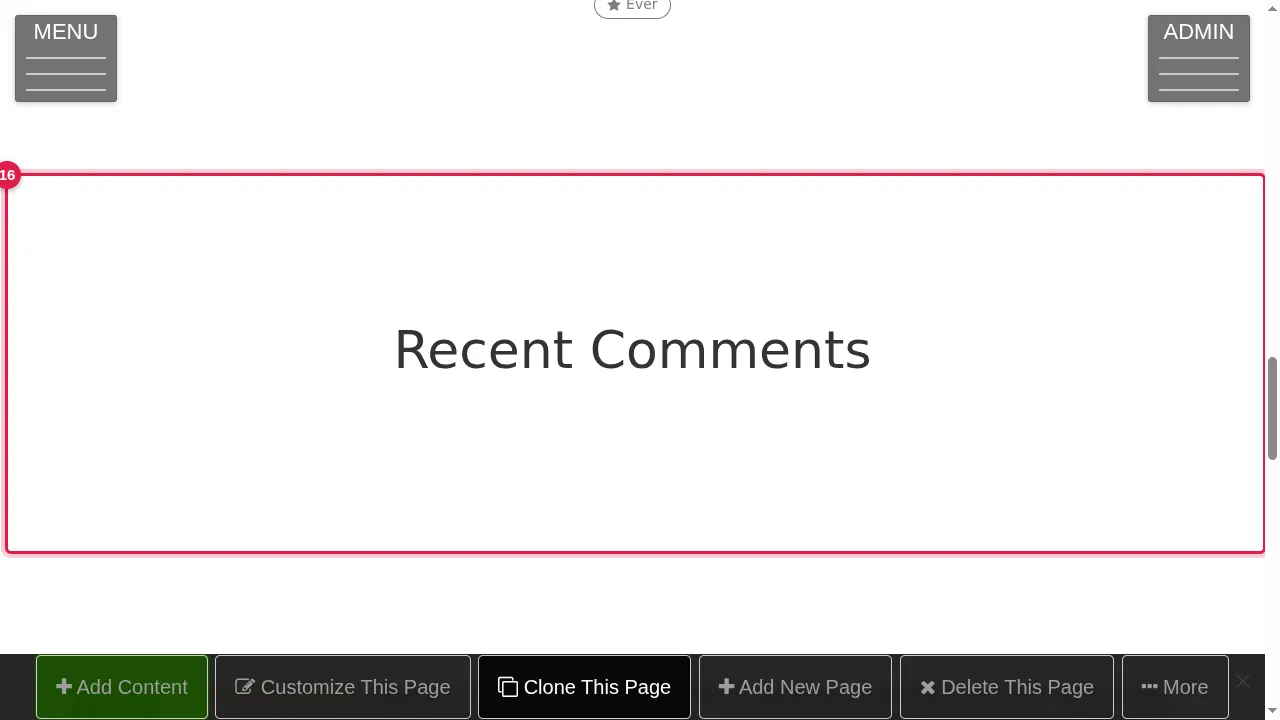
Step 6. Recent Comments: how many of the newest comments to list. In this example: 5.
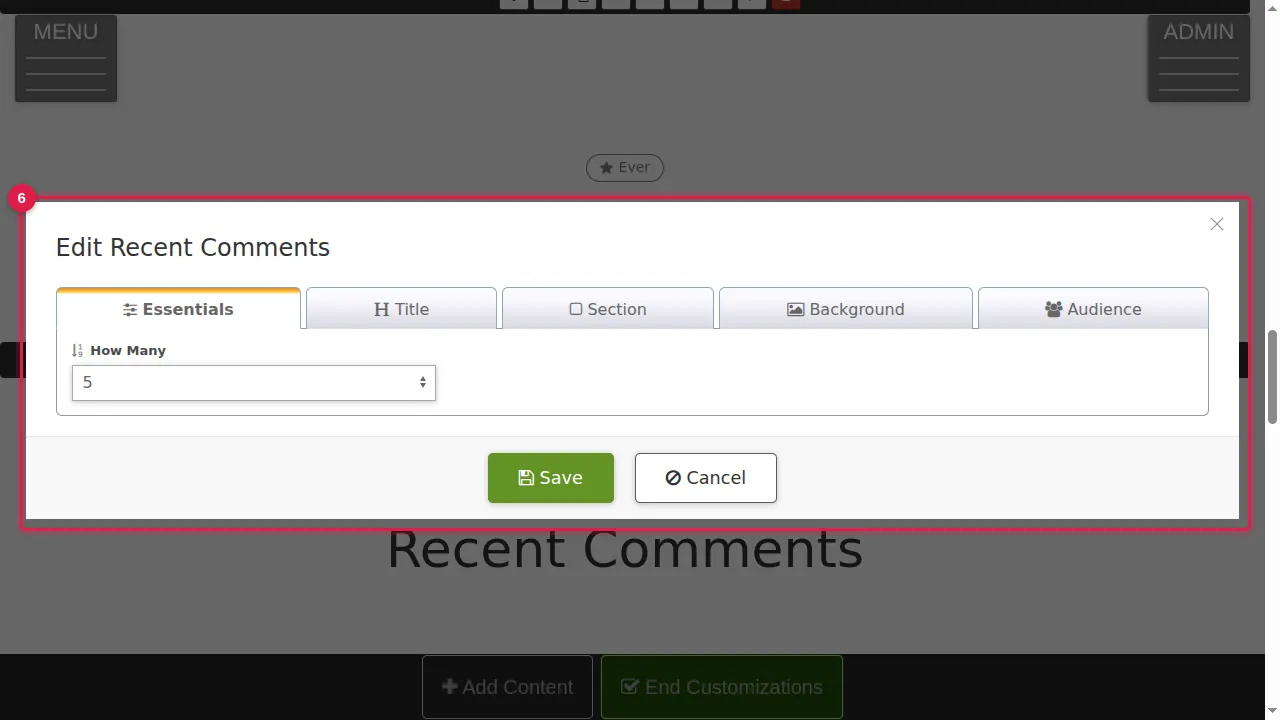
Step 7. Announcements: how many of the newest announcements to list. In this example: 3.
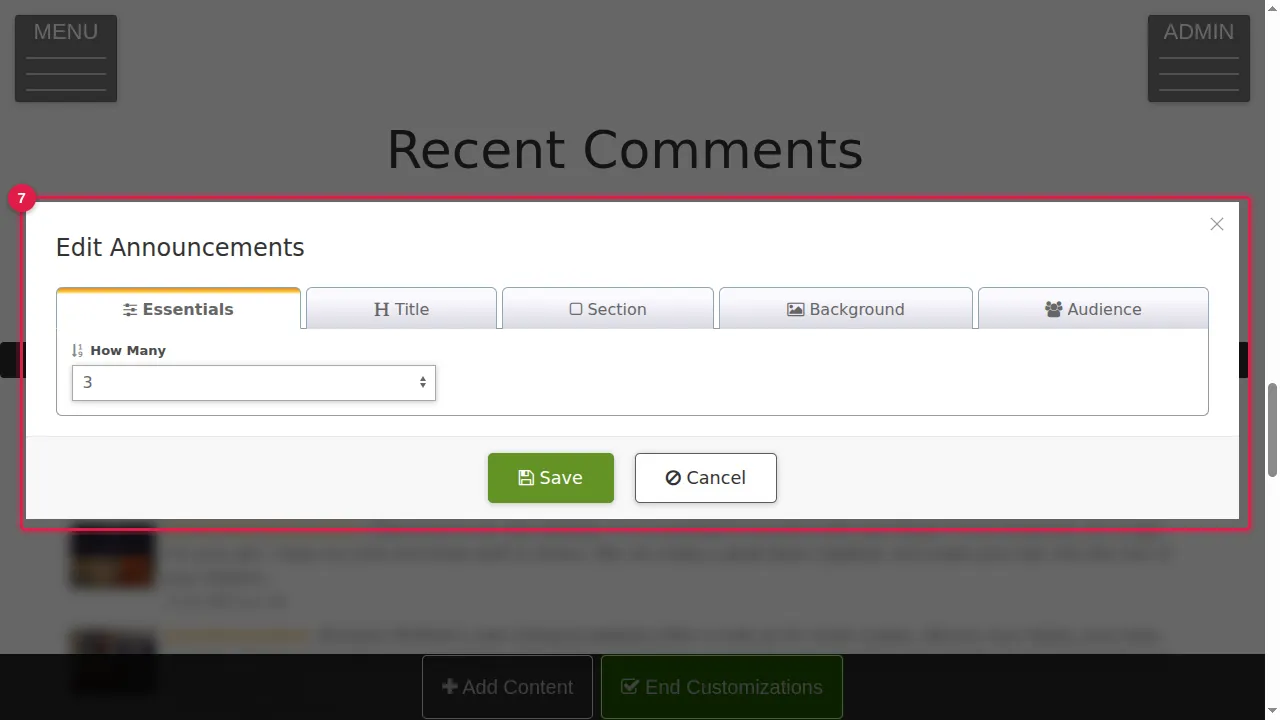
Step 8. Classifieds: how many of the newest listings to show.
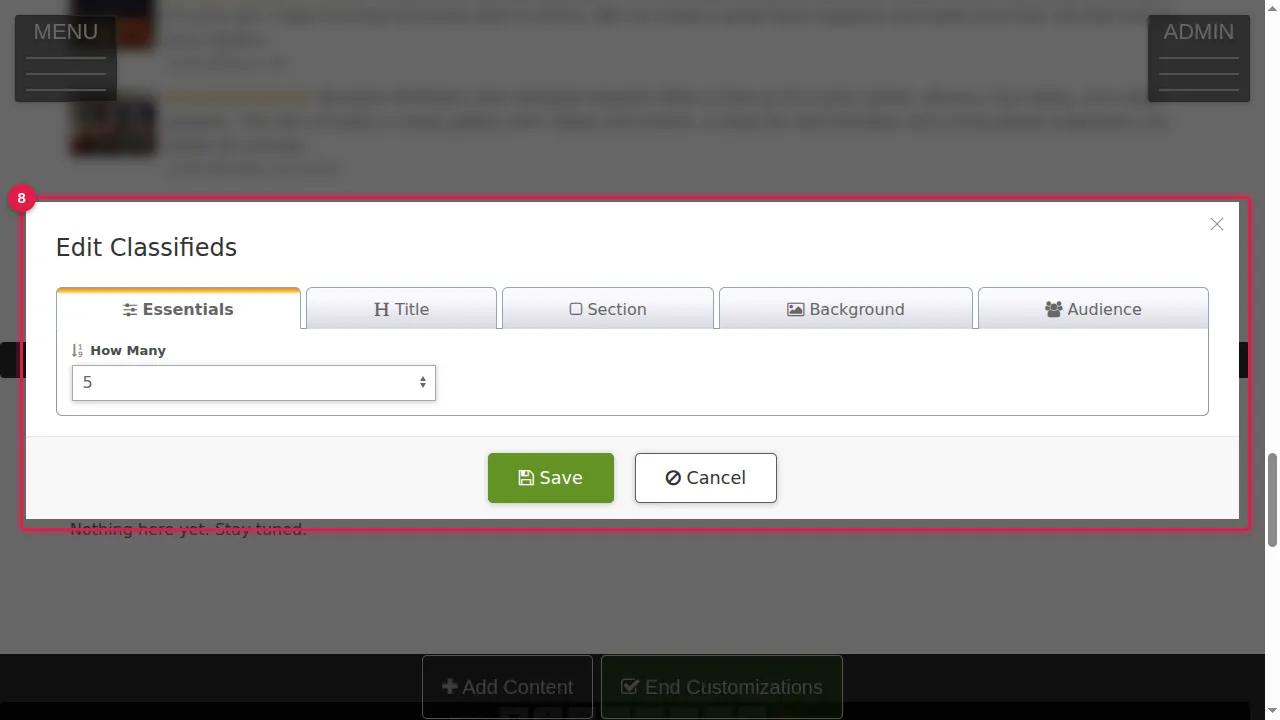
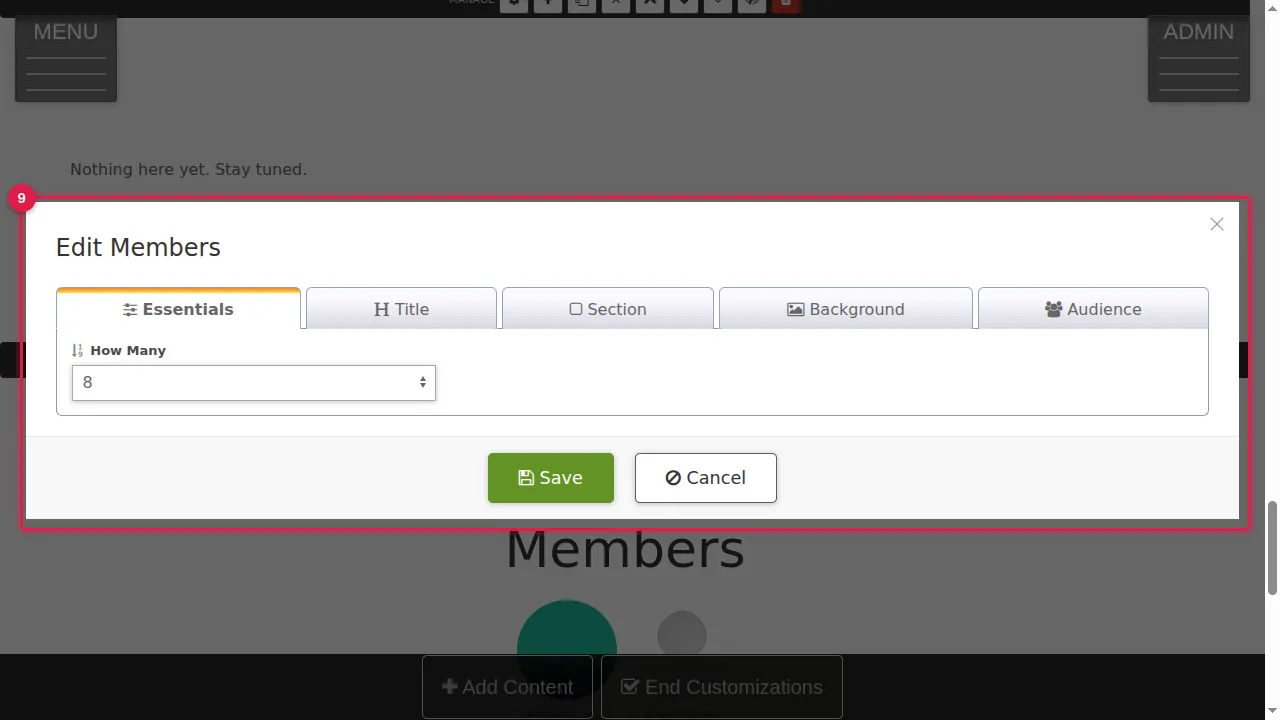
Step 9. Members: how many members to show. In this example: 8.
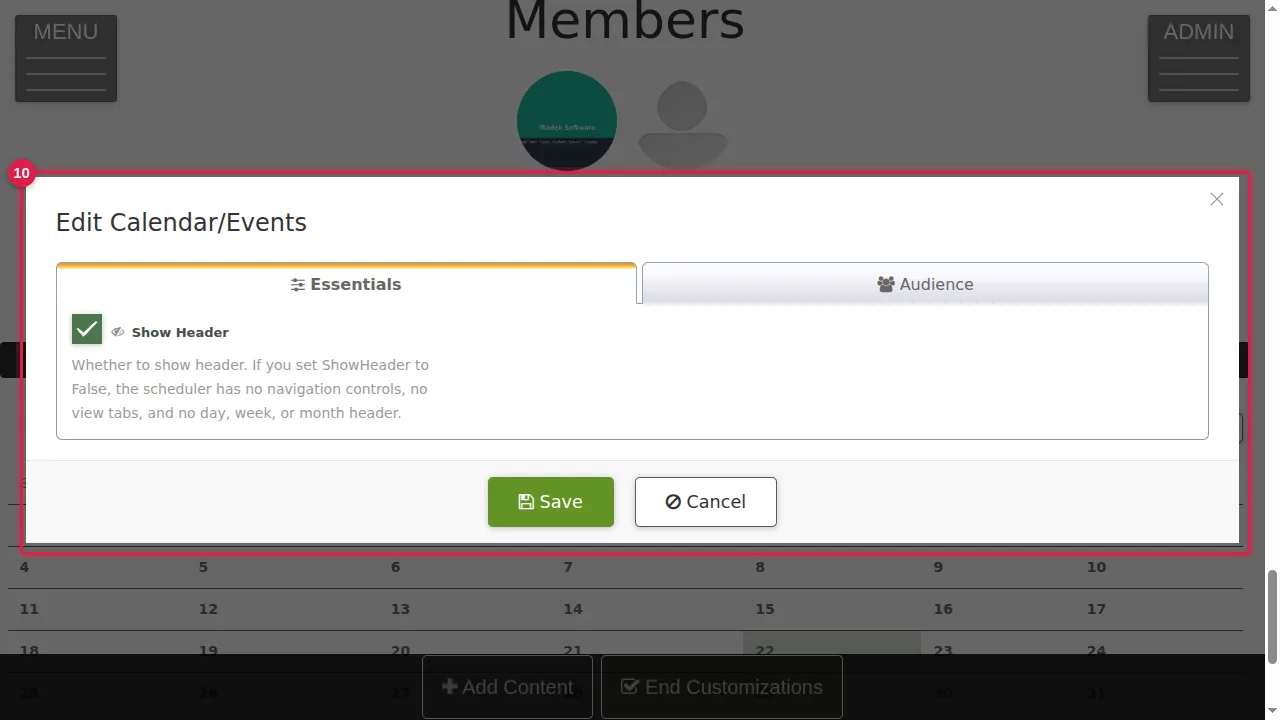
Step 10. Calendar/Events: a month calendar; choose whether it shows its header.
What visitors see
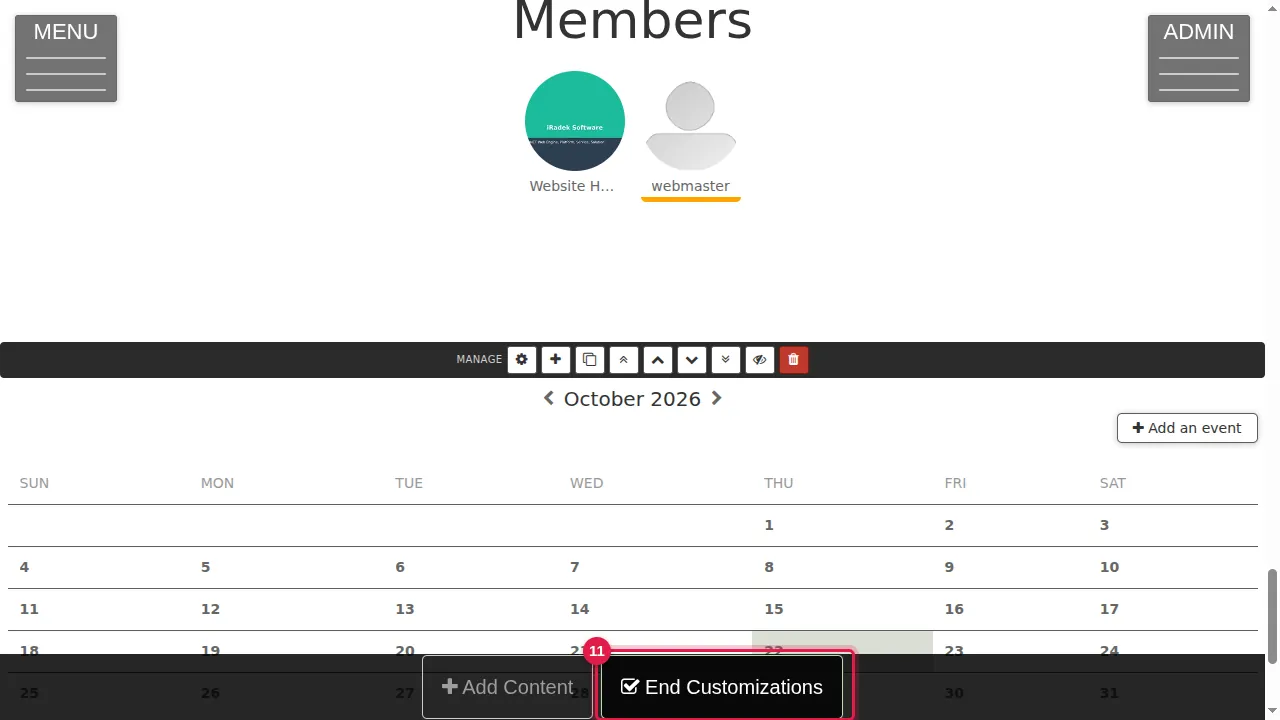
Step 11. Click Save in each widget's settings, then End Customizations.
Step 12. Latest Media as cards: each picture or video with its title and description.
Step 13. Latest Blog Posts as a list: each title links to its post, with its date.
Step 14. Most Viewed Media: the most-seen pictures and videos; a click opens one.
Step 15. Top Rated Media stays empty until visitors rate your pictures and videos.
Step 16. Recent Comments stays empty until visitors leave comments.
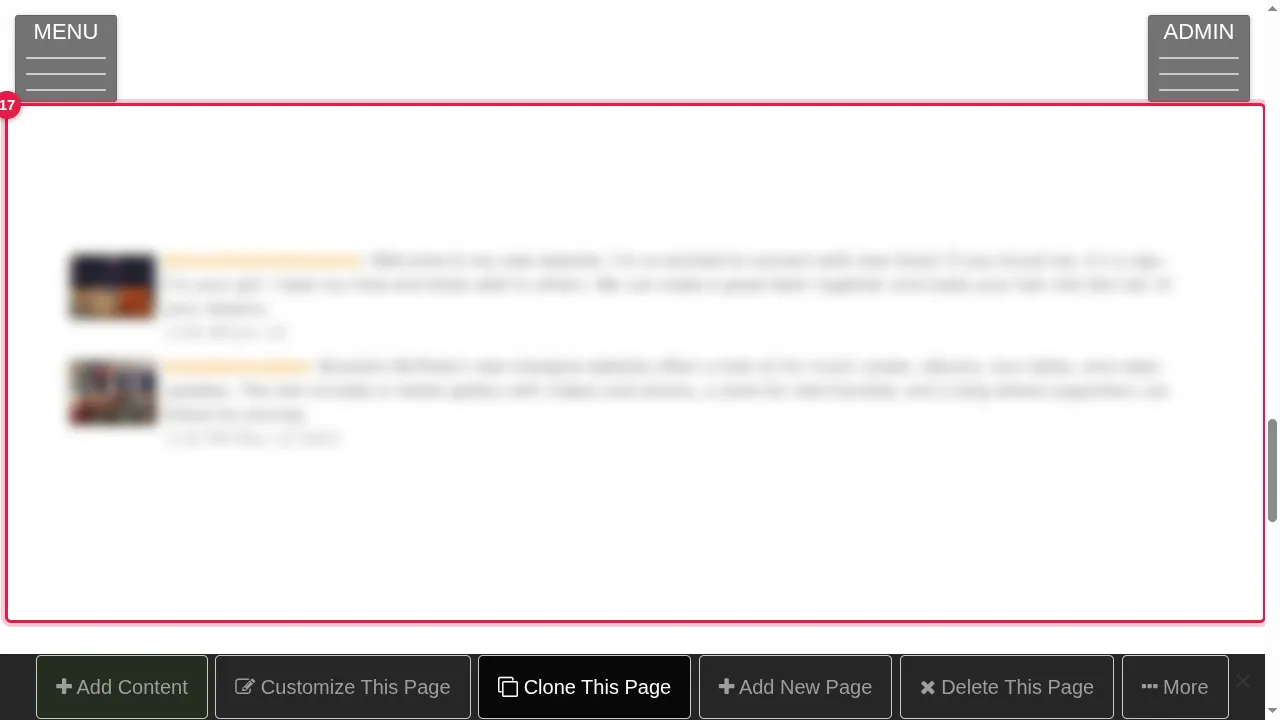
Step 17. Announcements: the newest announcements, each with a picture of its site (blurred here).
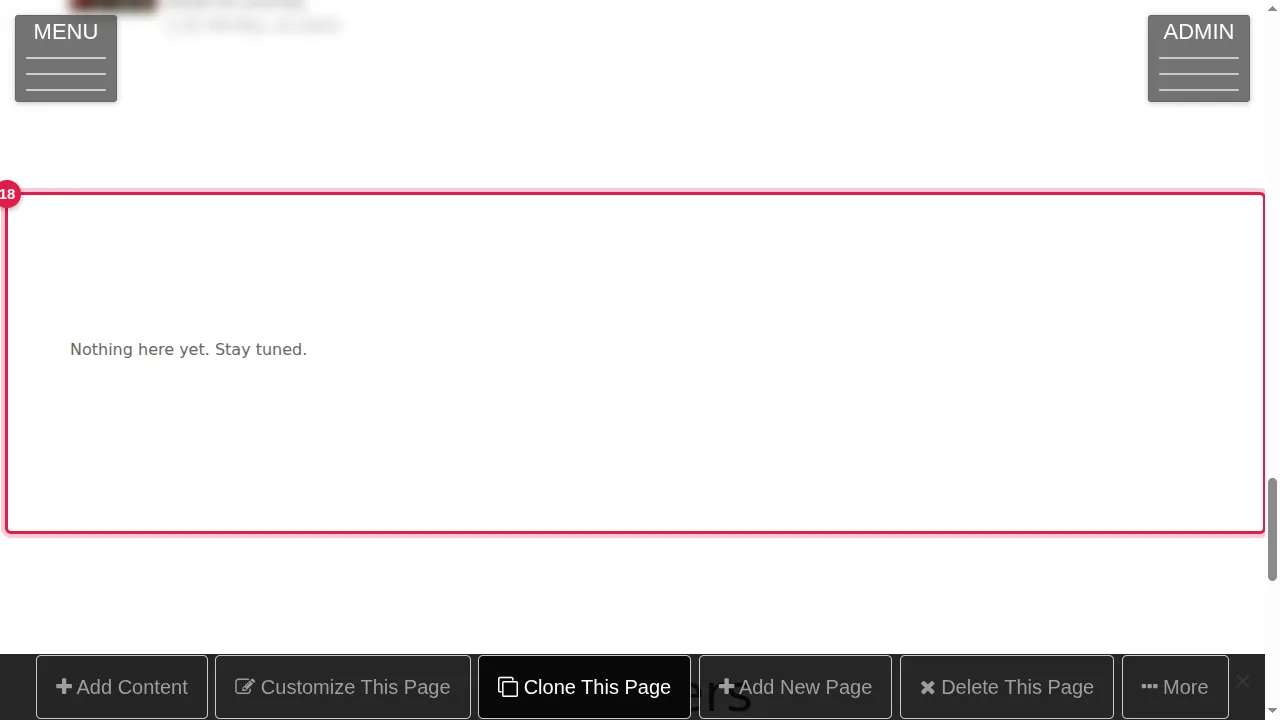
Step 18. Classifieds with no listings says "Nothing here yet. Stay tuned."
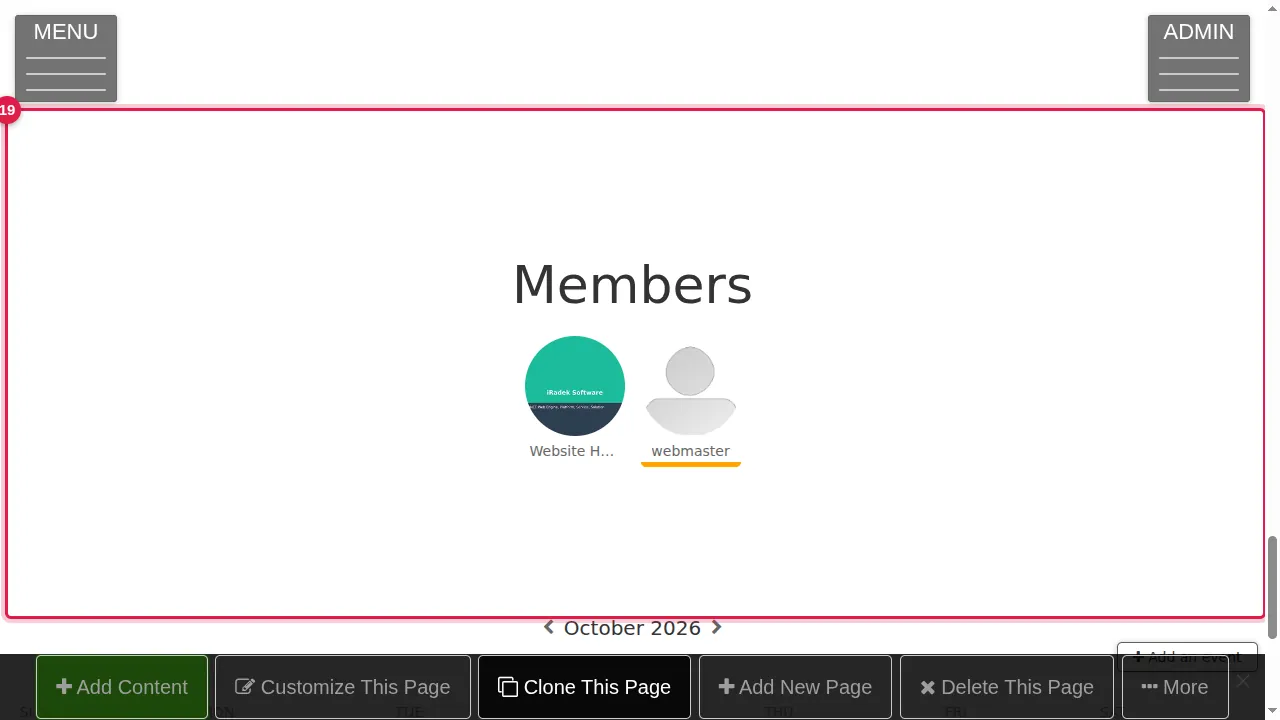
Step 19. Members: each member's picture and name.
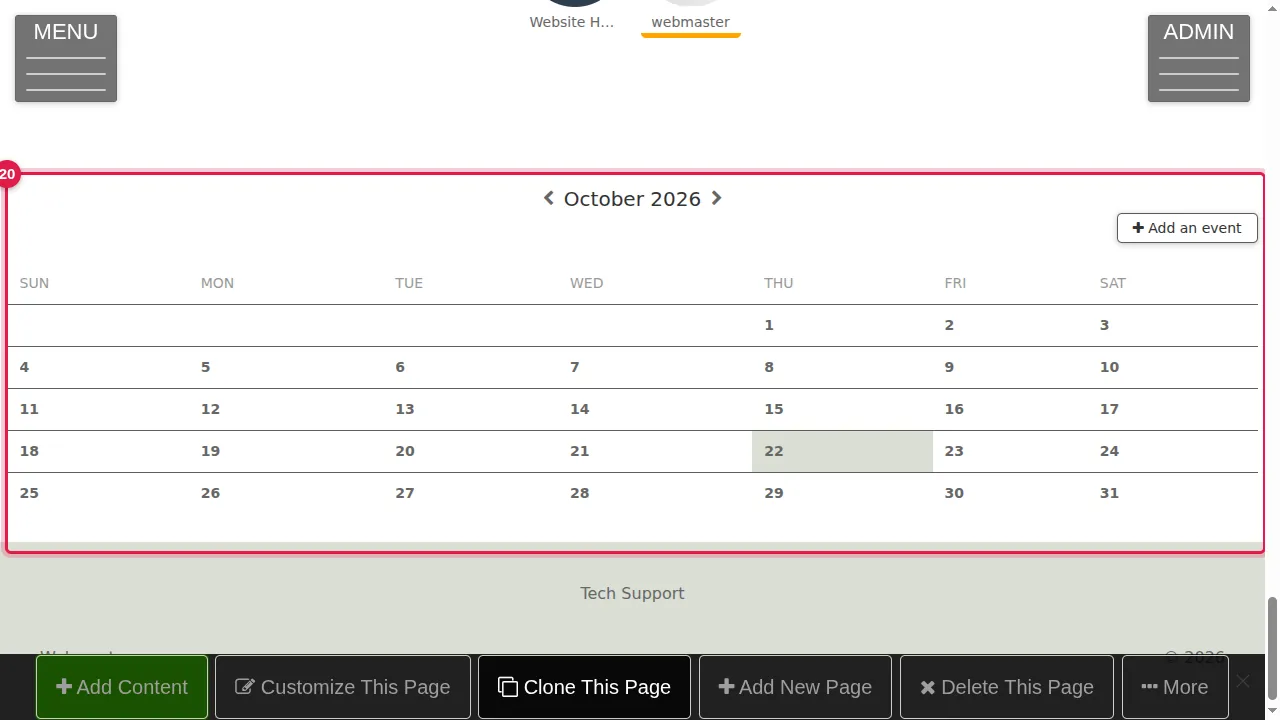
Step 20. Calendar/Events: the month with your events. You see Add an event; your visitors don't.
Check it worked
Open the page in a private window: each widget shows what it should, and a new picture, post or comment appears there by itself.
Good to know
- A widget with nothing to show still takes up room on the page: add it when there is content to show.
- Latest Blog Posts in Full mode shows every post in full: use Post List on busy pages.
- Use the Audience tab to show a widget to everyone or to admins only.
Related help
Shown on the 2026 version of the SoNET Web Engine. Last checked 22 October 2026. Something different on your screen? Tell us through the Contact page.