Help Center Pages & Editing
Widgets for your community: comments, announcements, classifieds, members
Four widgets show what your visitors and members bring to the site: their comments, your announcements, classified listings and the members themselves. Here is what each one shows and the settings that matter.
Watch it done: a short silent video with captions · 1:25. The steps below show the same thing picture by picture.
Before you start
- Log in and open the page that should get the widget.
- How to add any widget: see Add a widget to a page.
Add a widget
Step 1. Click Customize This Page, then Add content at the end of the page, and open the Widgets tab. Click a widget to add it, then click its gear ("This widget's settings"). The settings below are on the Essentials tab; every widget also has an Audience tab (who can see it), and most have Title, Section and Background tabs.
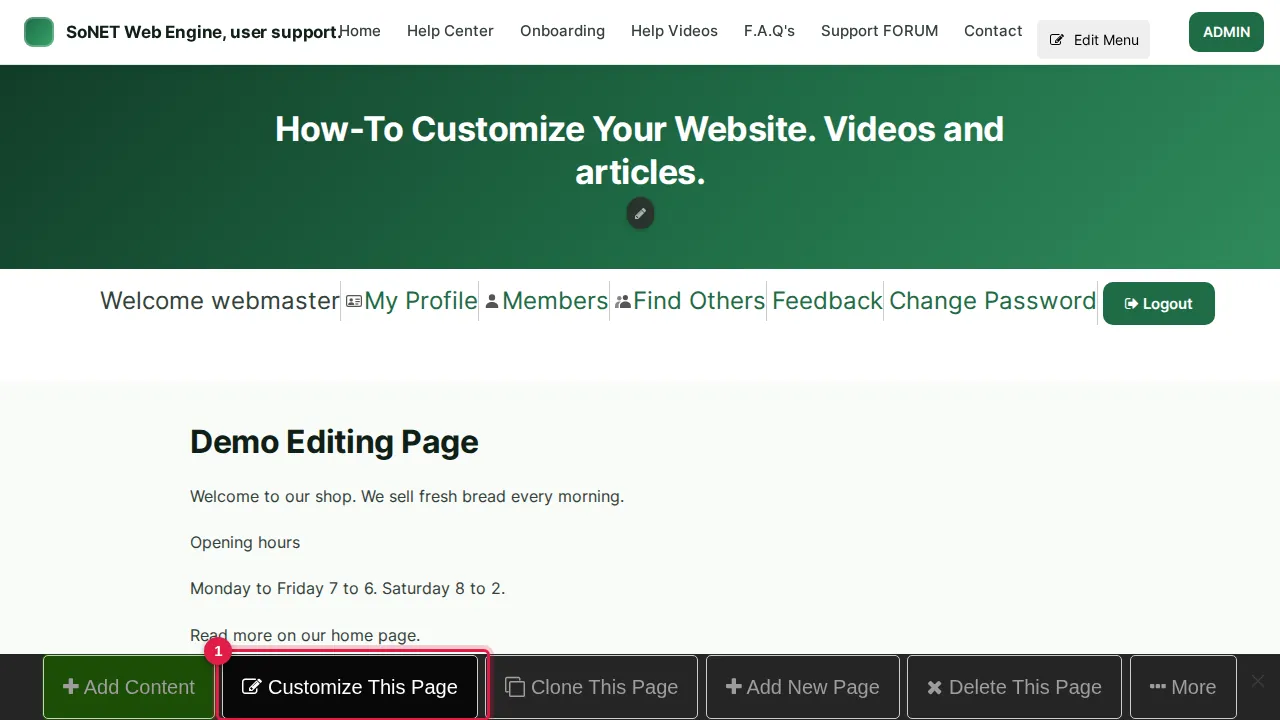
The settings of each widget
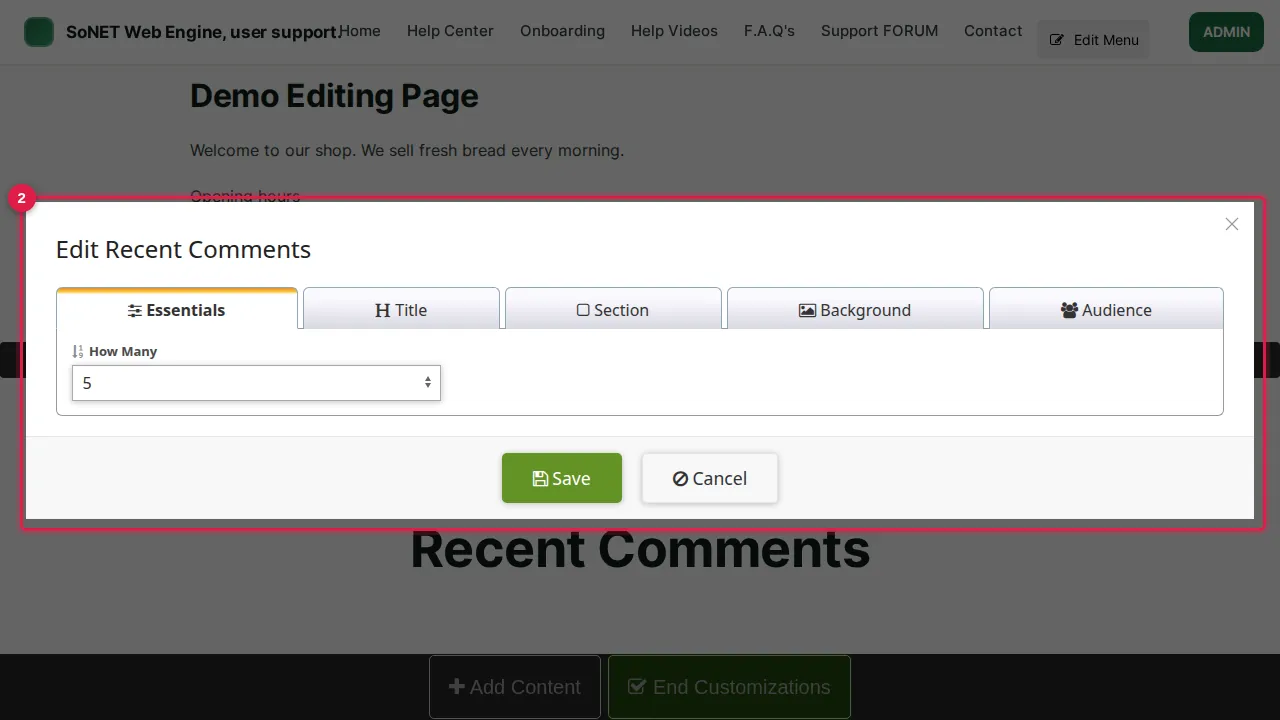
Step 2. Recent Comments: how many of the newest comments to list. In this example: 5.
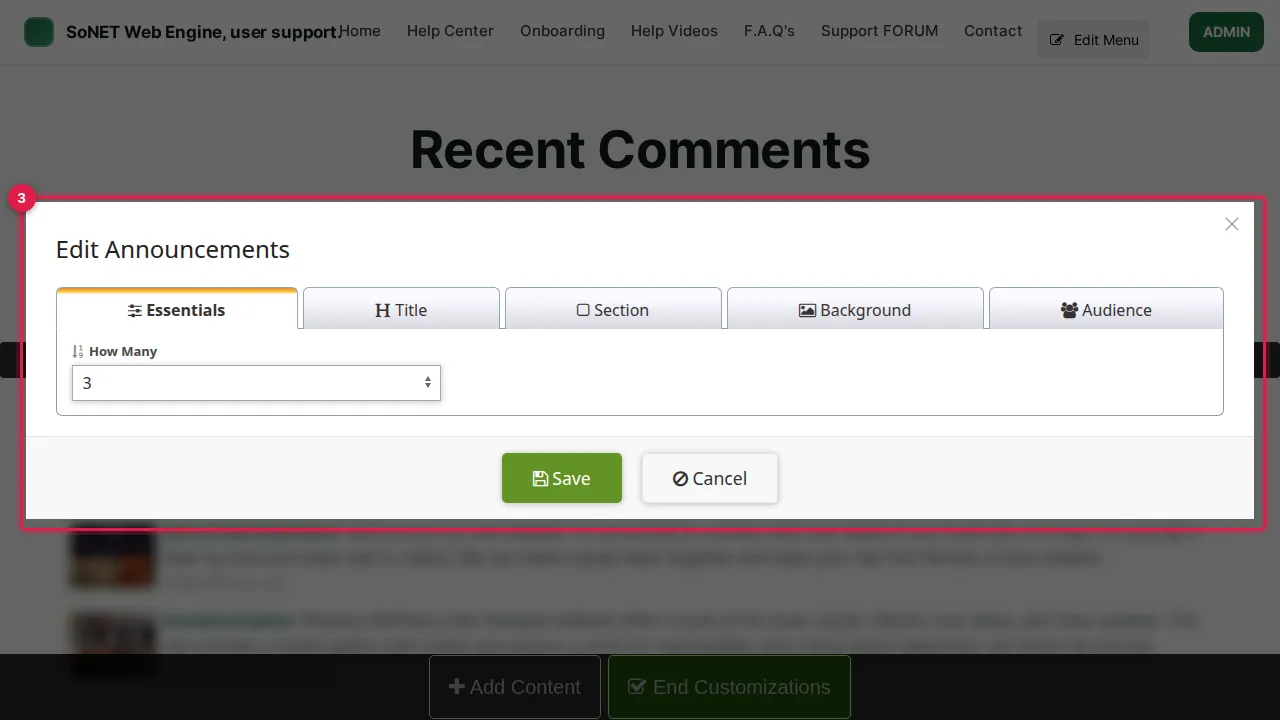
Step 3. Announcements: how many of the newest announcements to list. In this example: 3.
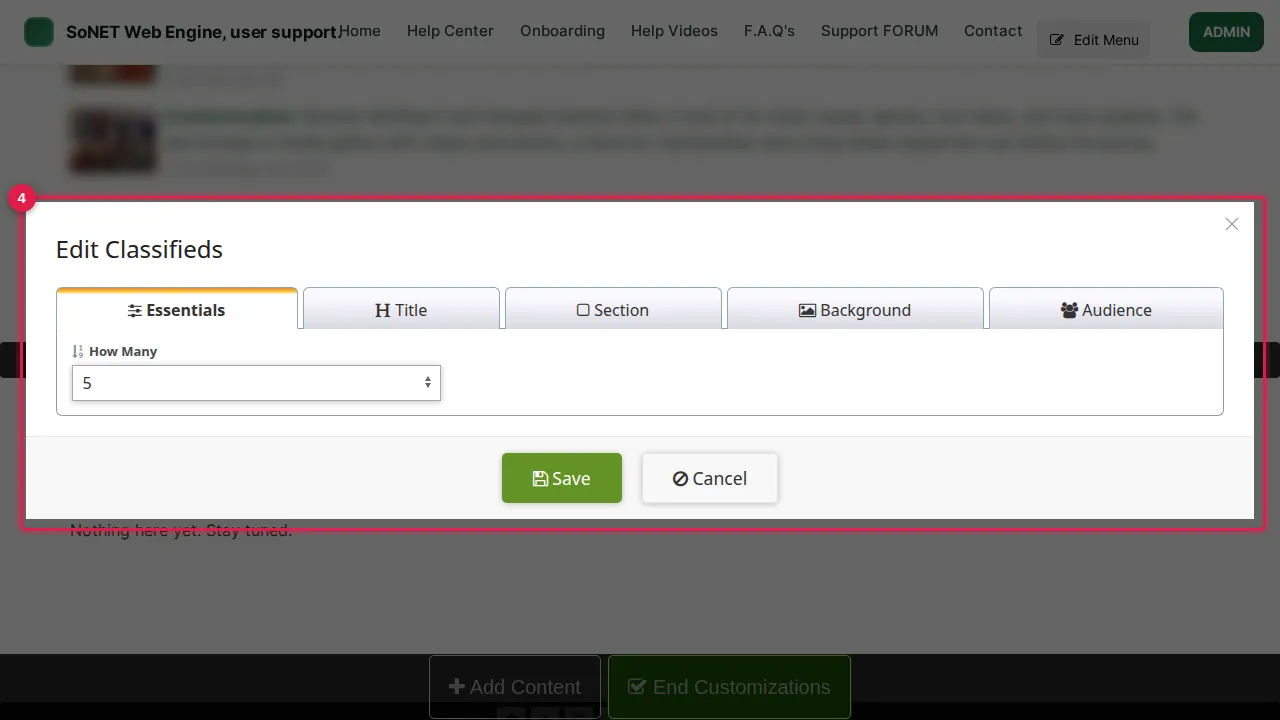
Step 4. Classifieds: how many of the newest listings to show.
Step 5. Members: how many members to show. In this example: 8.
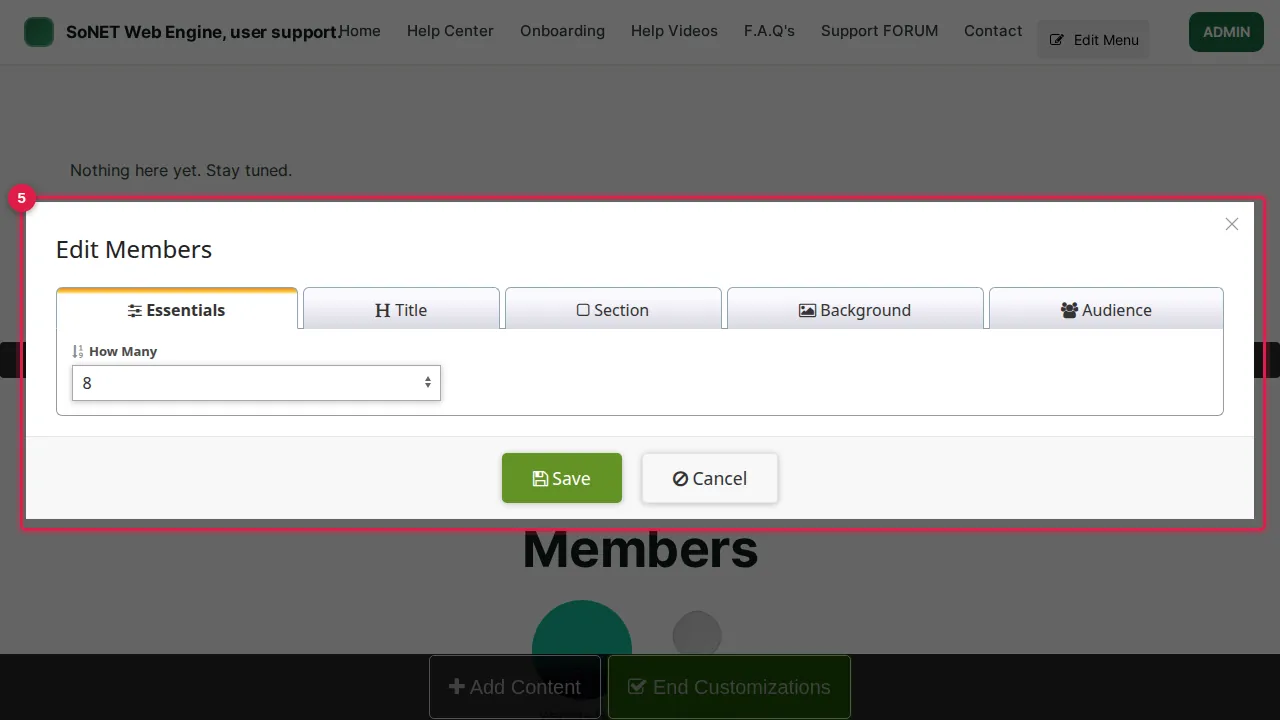
What visitors see
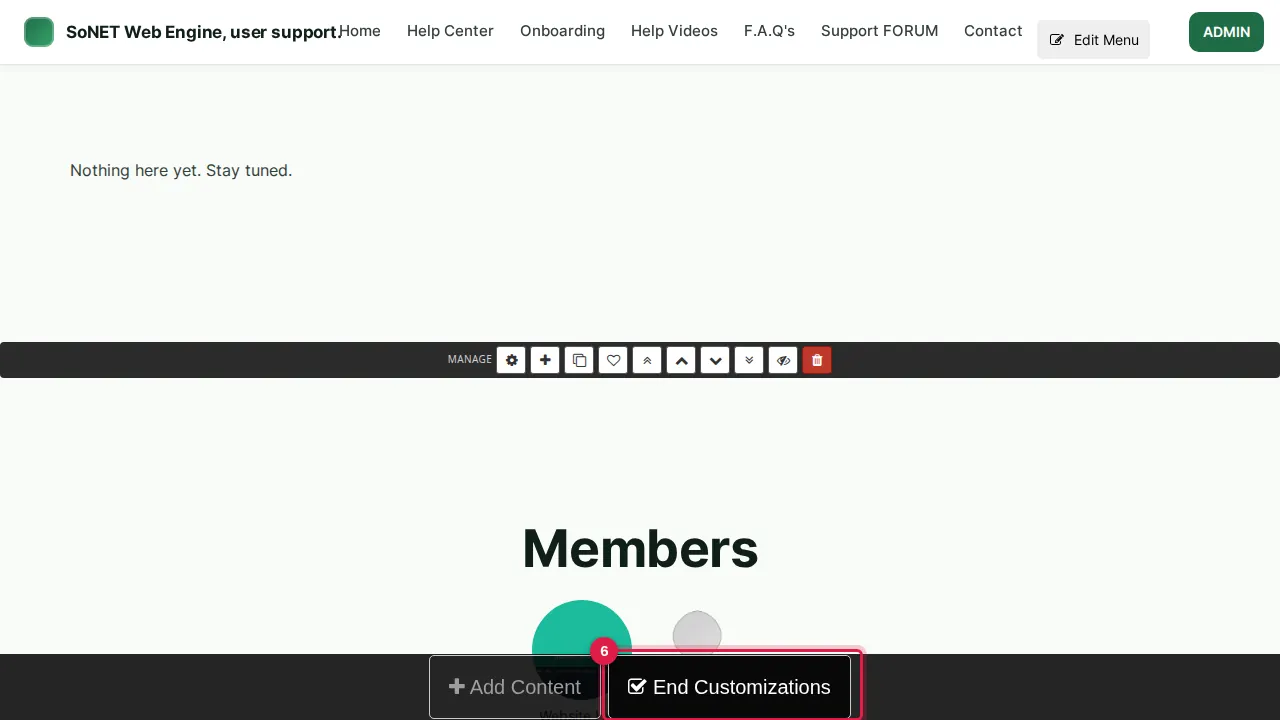
Step 6. Click Save in each widget's settings, then End Customizations.
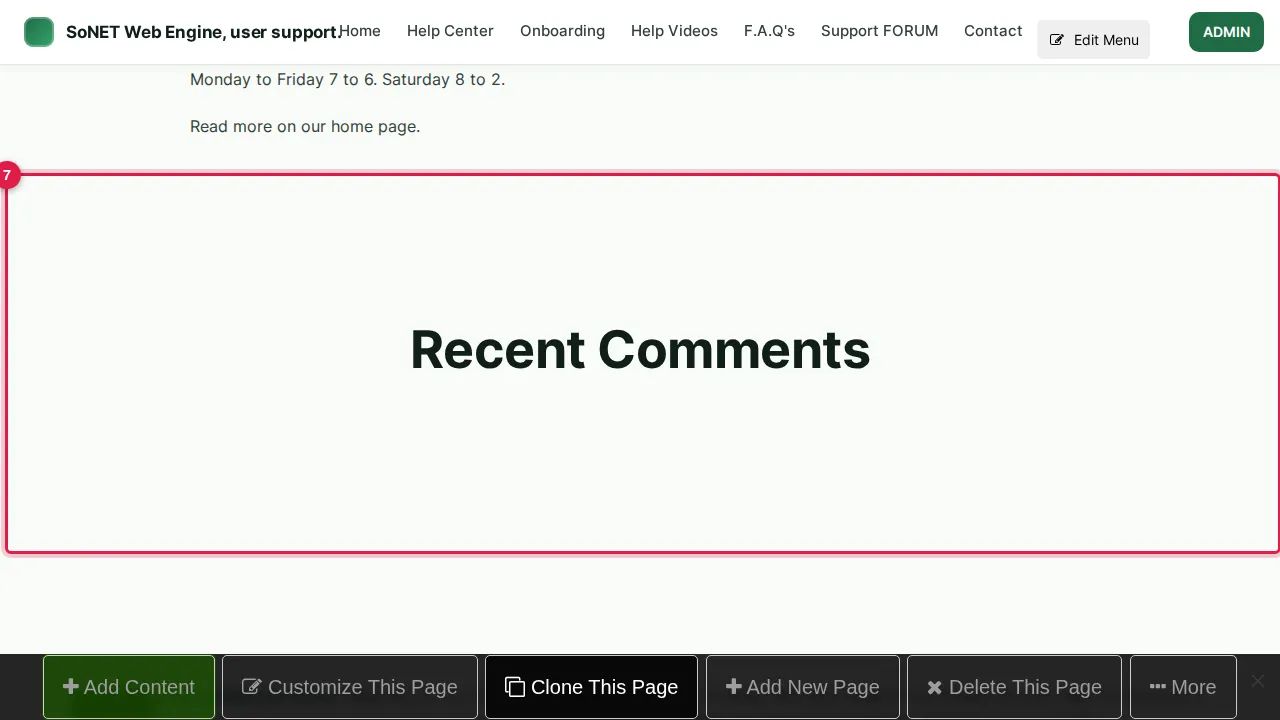
Step 7. Recent Comments stays empty until visitors leave comments.
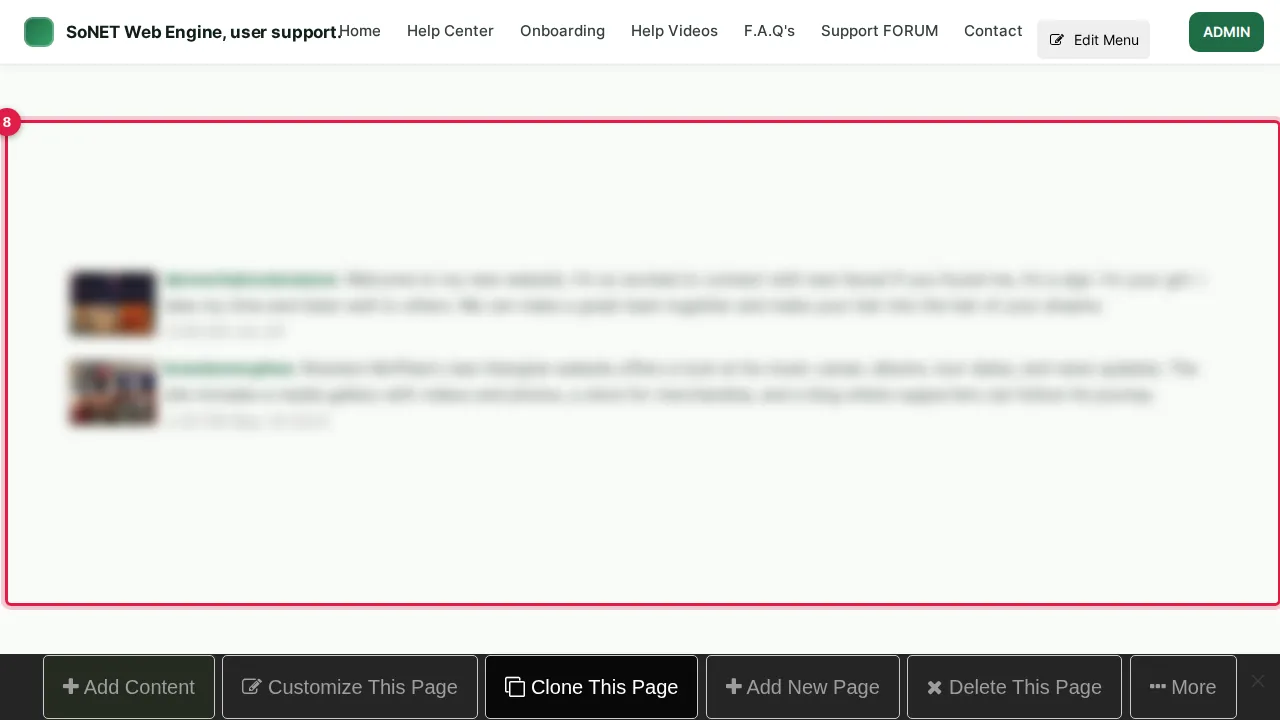
Step 8. Announcements: the newest announcements, each with a picture of its site (blurred here).
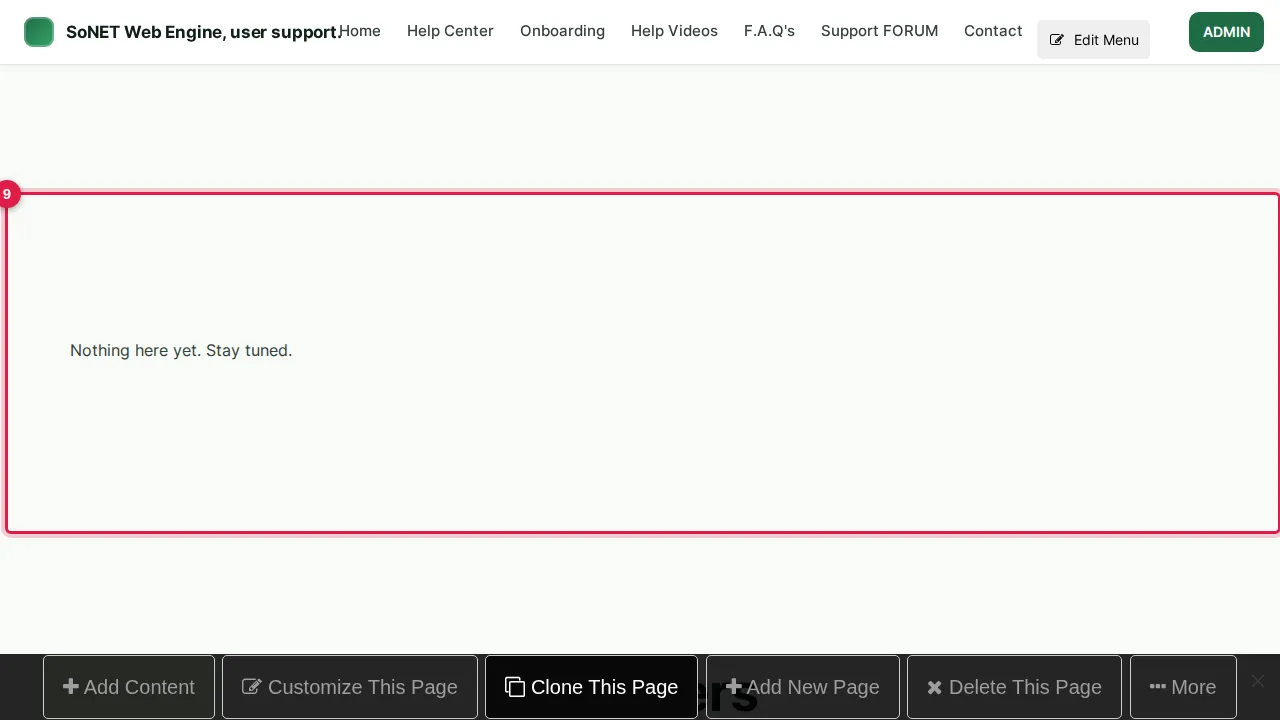
Step 9. Classifieds with no listings says "Nothing here yet. Stay tuned."
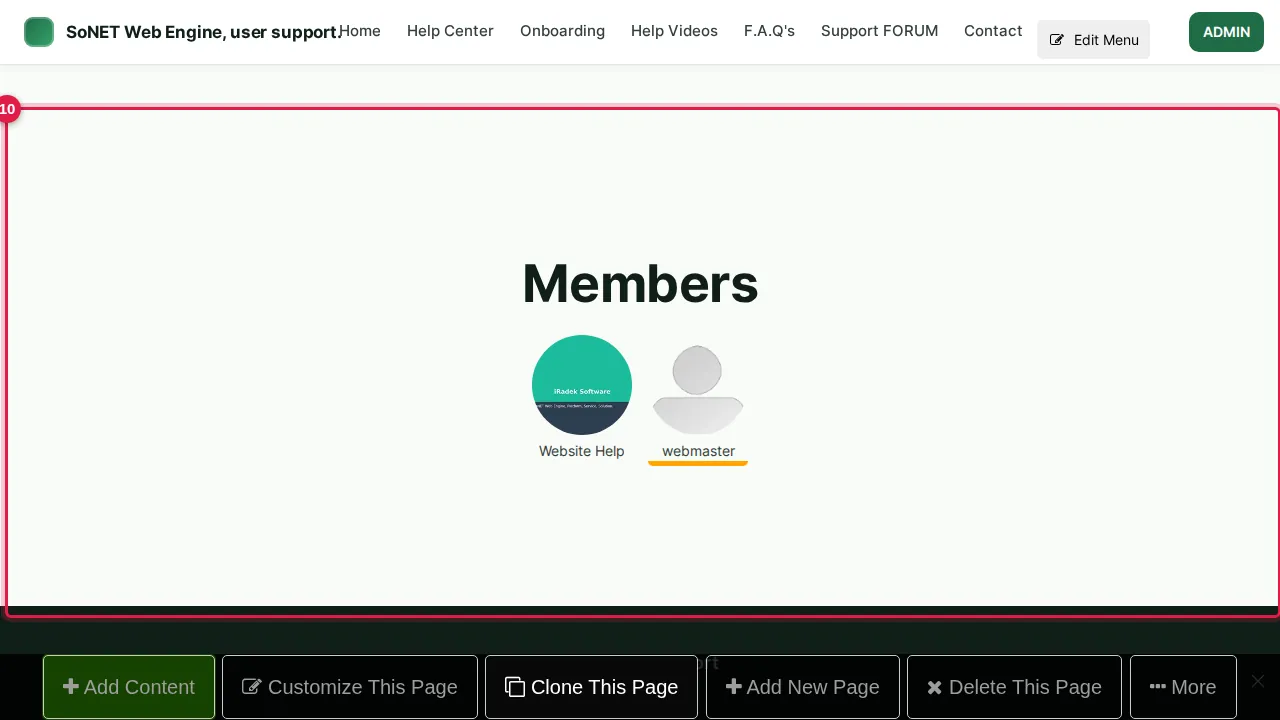
Step 10. Members: each member's picture and name.
Check it worked
Open the page in a private window: each widget shows what it should, and a new comment or listing appears there by itself.
Good to know
- A widget with nothing to show still takes up room on the page: add it when there is content to show.
- Use the Audience tab to show a widget to everyone or to admins only.
Related help
Shown on the 2026 version of the SoNET Web Engine. Last checked 7 November 2026. Something different on your screen? Tell us through the Contact page.