Help Center Classifieds
Classifieds: add a listing
Post classified listings (for sale, housing, jobs, services and more) with a place, a price and an expiry date, and see how visitors search and read them on your Classifieds page.
Watch it done: a short silent video with captions · 3:06. The steps below show the same thing picture by picture.
Before you start
- Log in as the site owner.
- Open ADMIN › Classifieds.
Add a listing
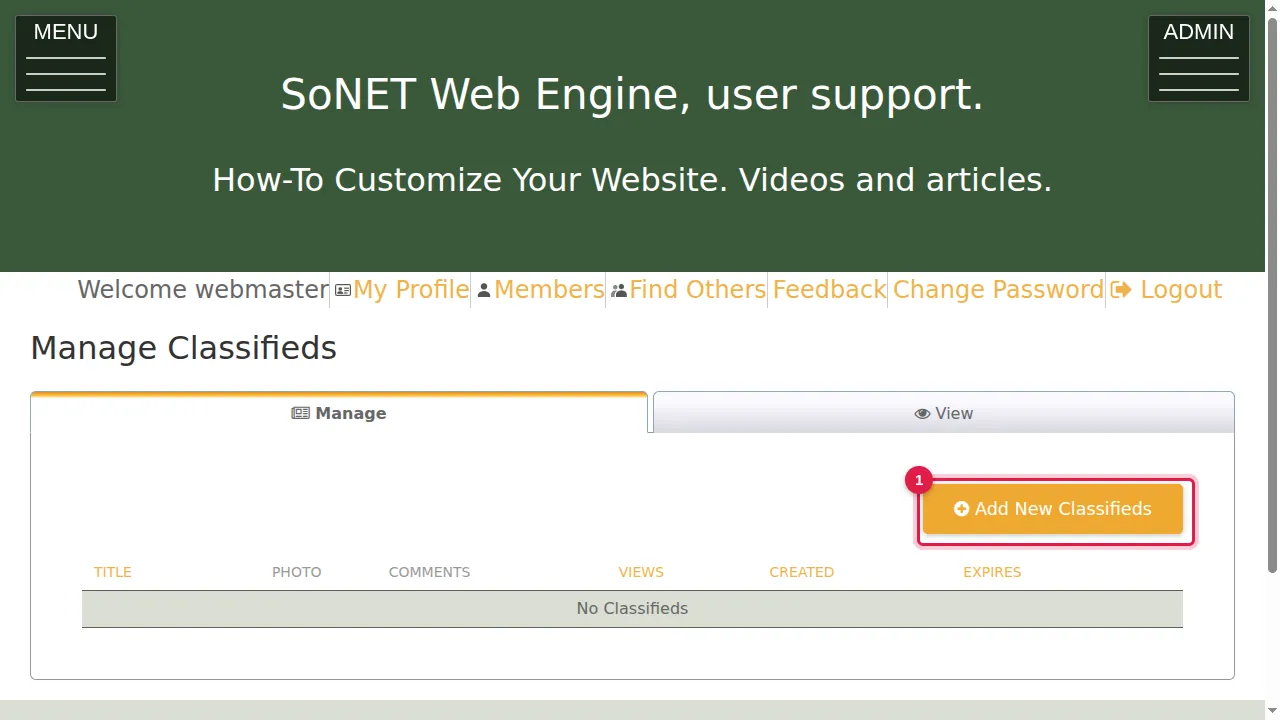
Step 1. Manage Classifieds lists your listings. Click Add New Classifieds.
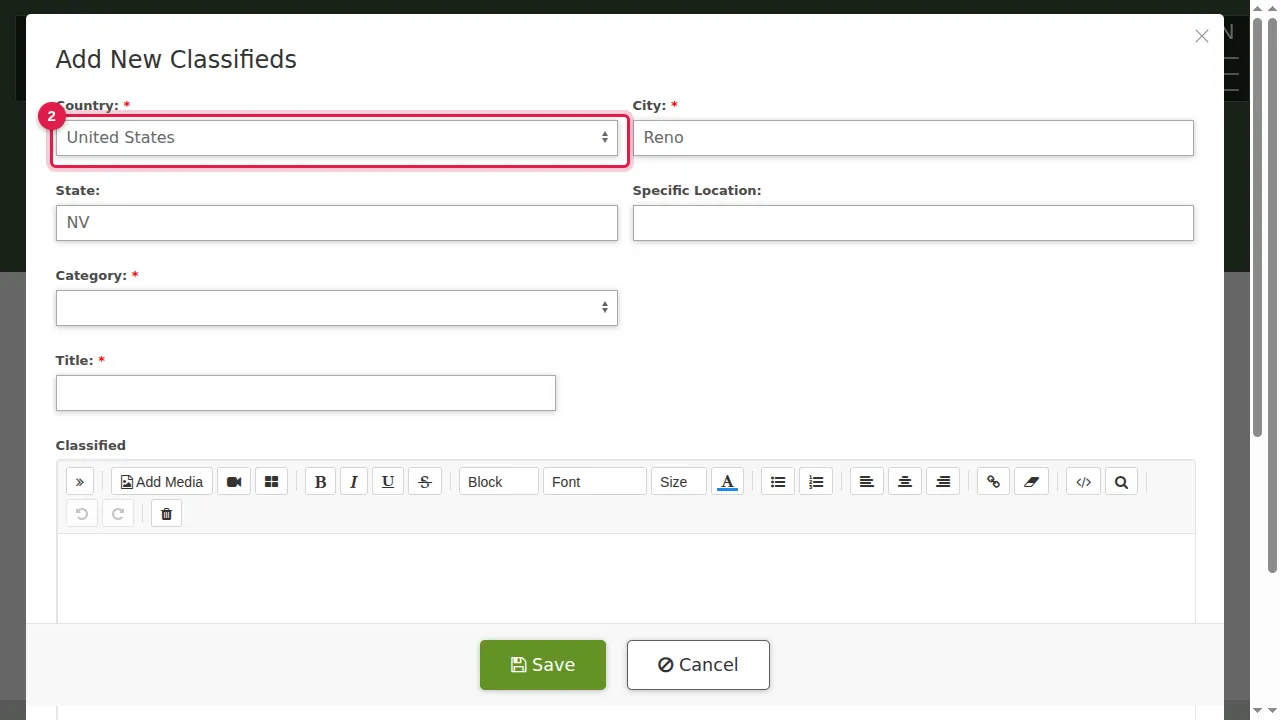
Step 2. Country (required): choose the country.
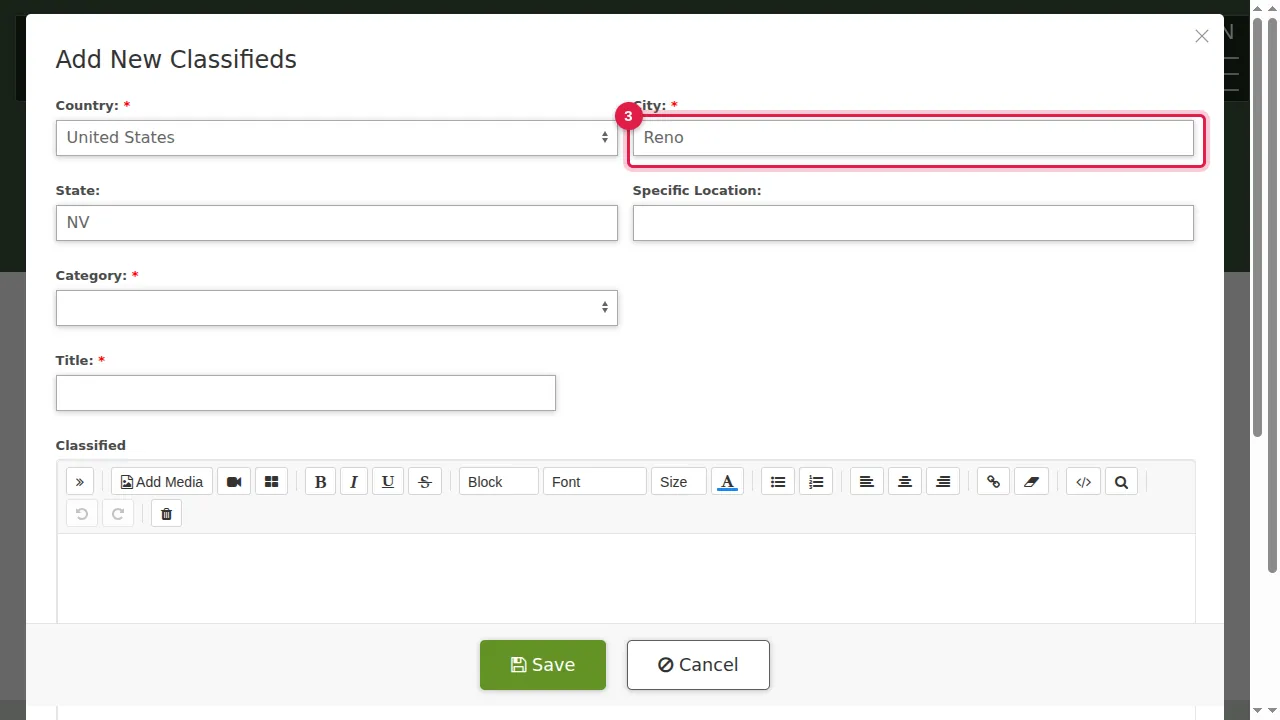
Step 3. City (required). City and State start filled in with the ones from your last listing; type over them if needed.
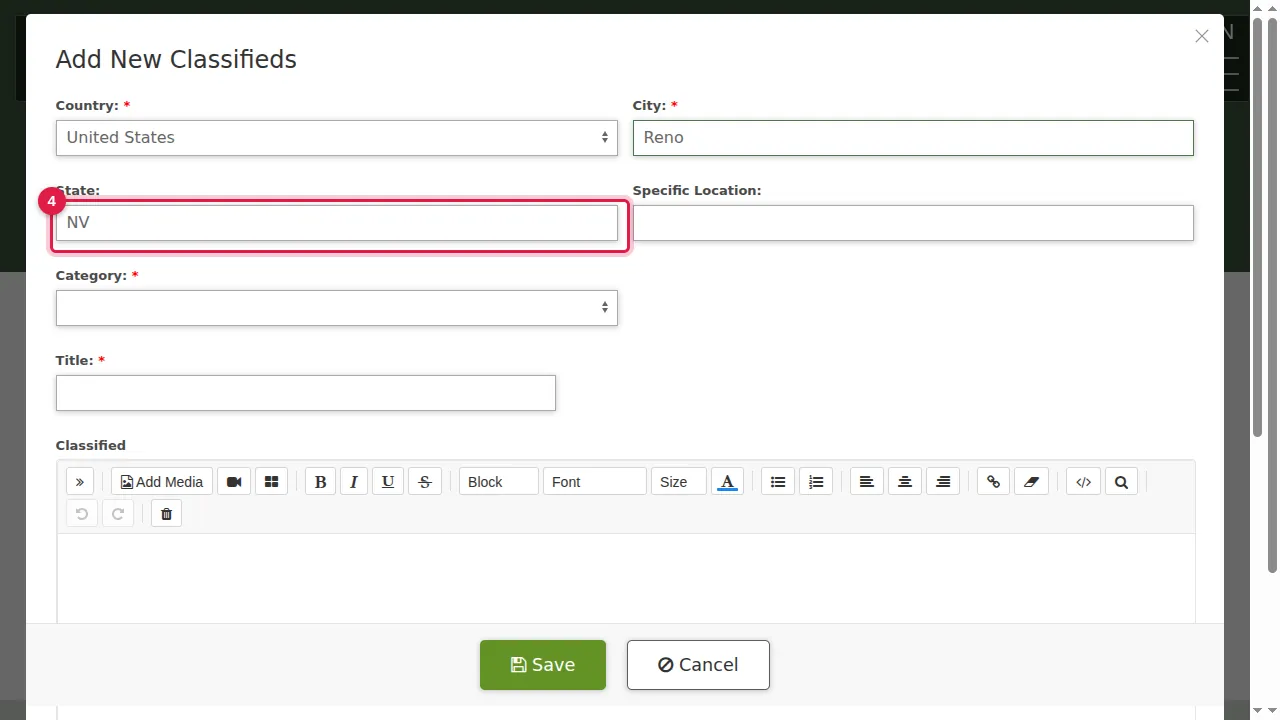
Step 4. State.
Step 5. Specific Location: a neighbourhood or address, if you like.
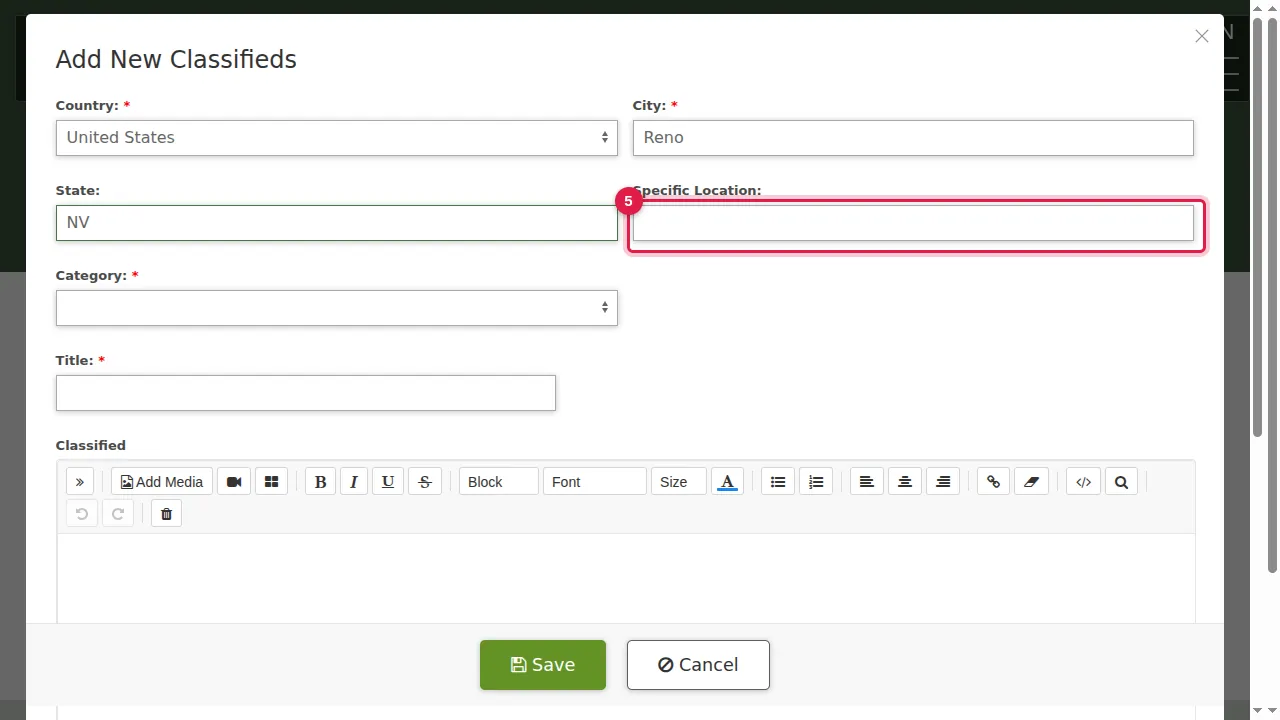
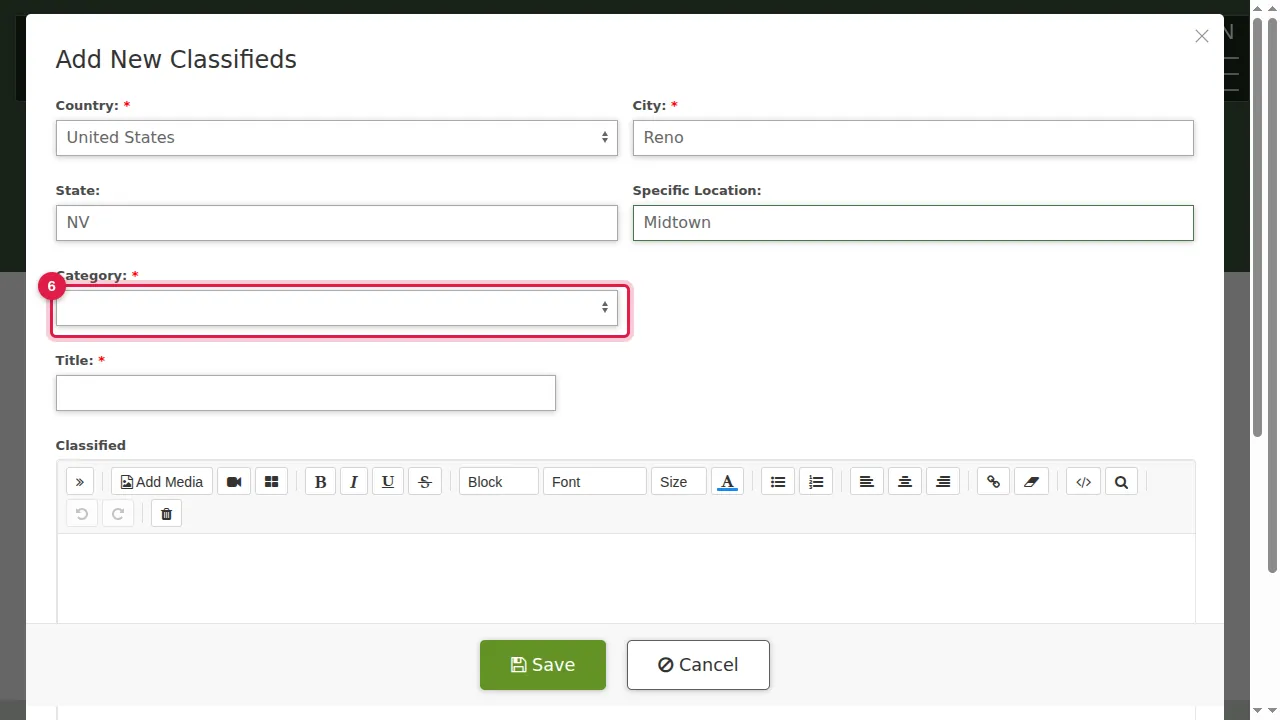
Step 6. Category (required): Community, Employment, For Sale, Housing, Services, Transportation, Other, or one of their sub-categories.
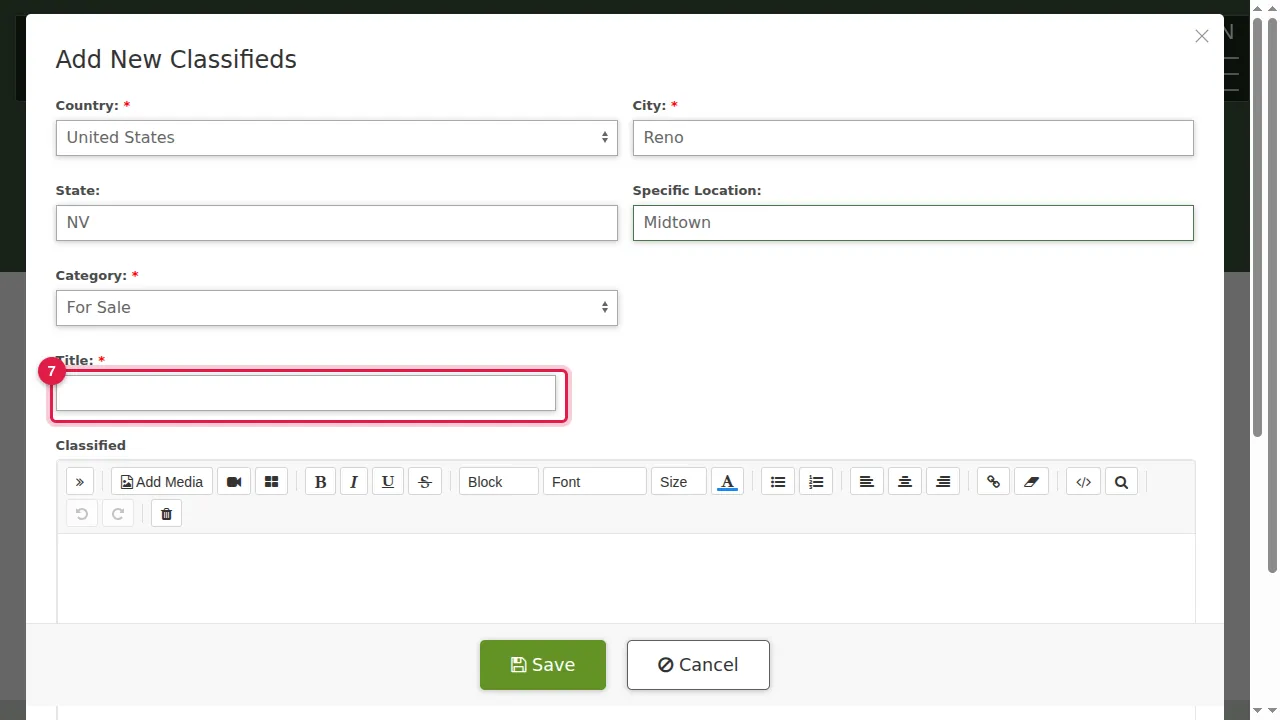
Step 7. Title (required).
Step 8. Classified: the text of the listing, written in the usual editor (Add Media adds pictures).
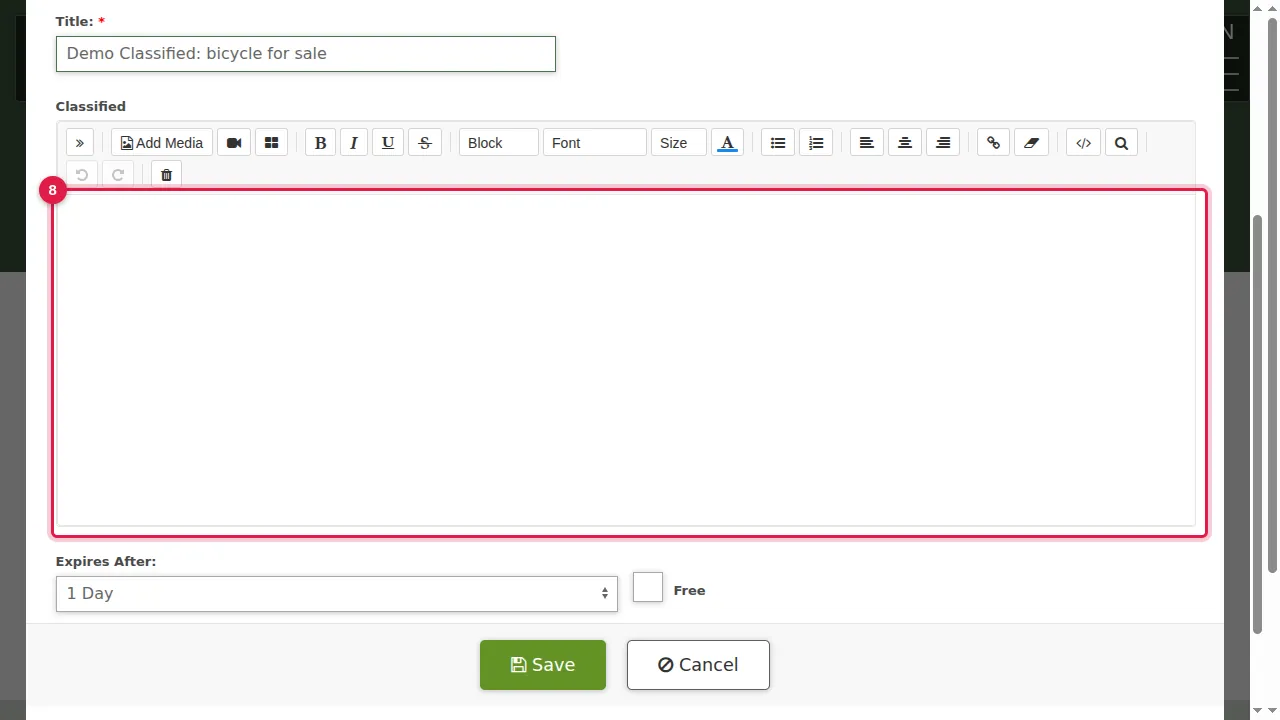
Step 9. Expires After: how long the listing is shown, from 1 day to 30 days.
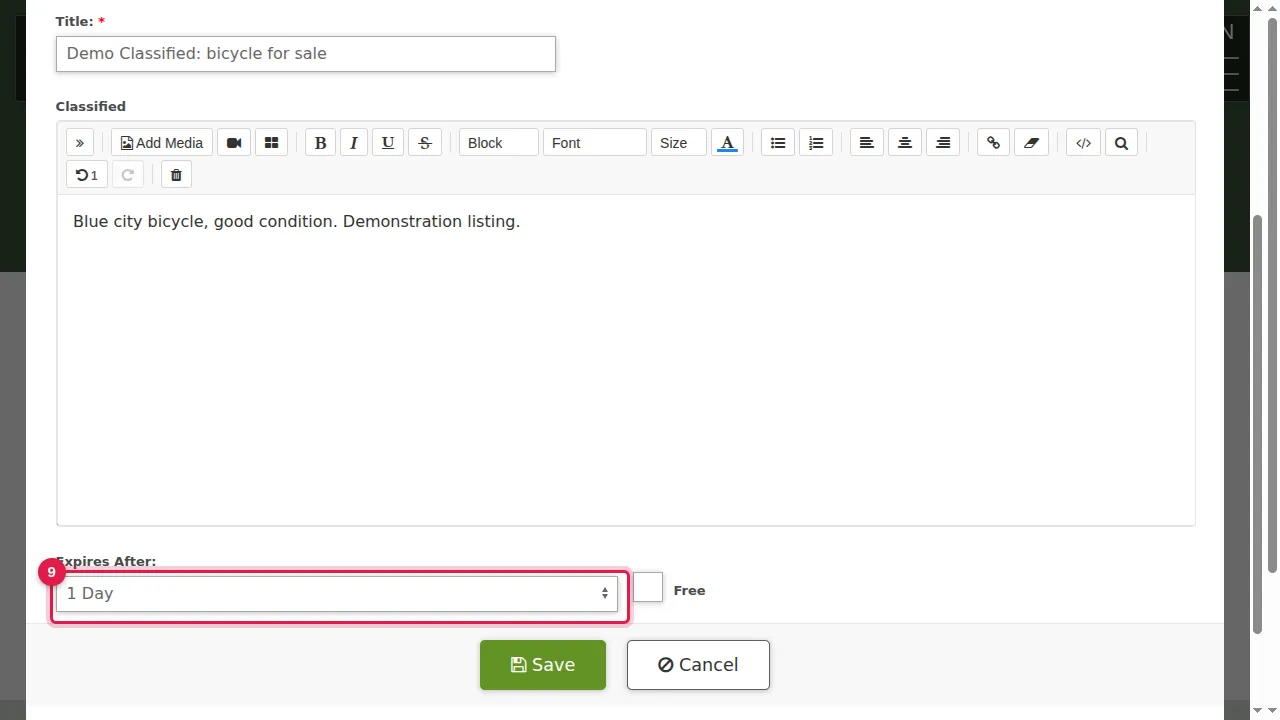
Step 10. Tick Free if it costs nothing…
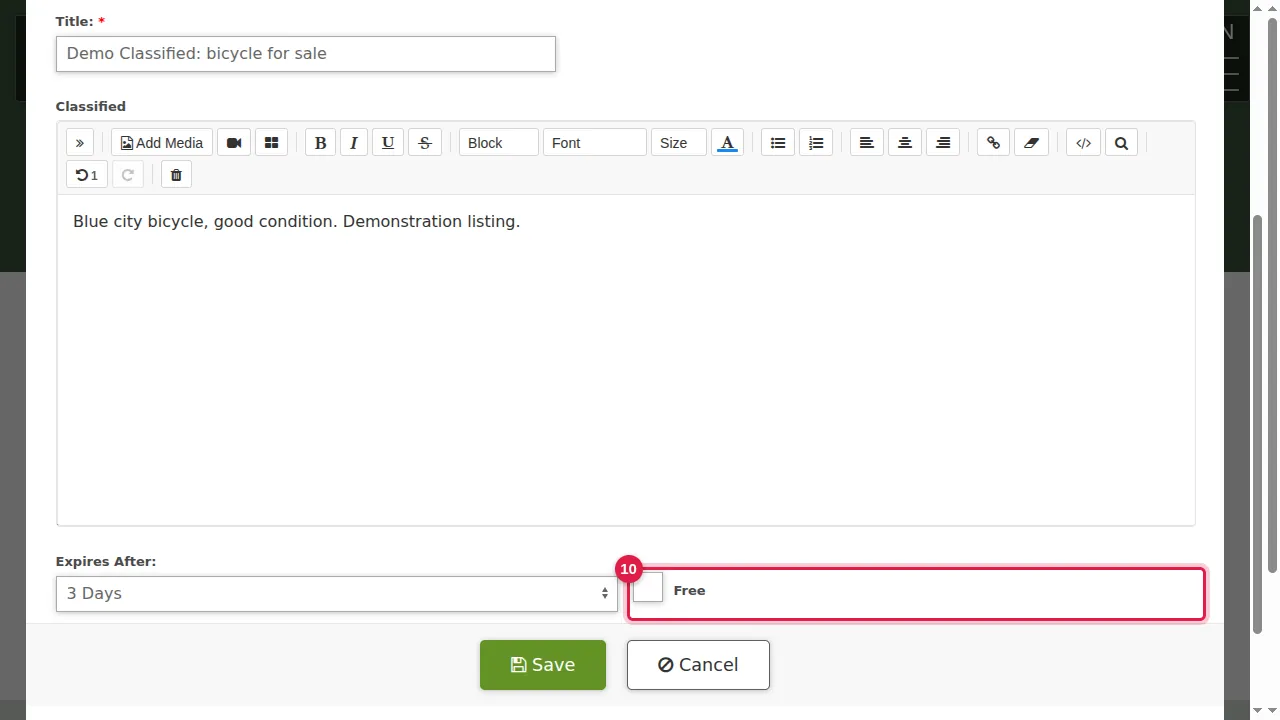
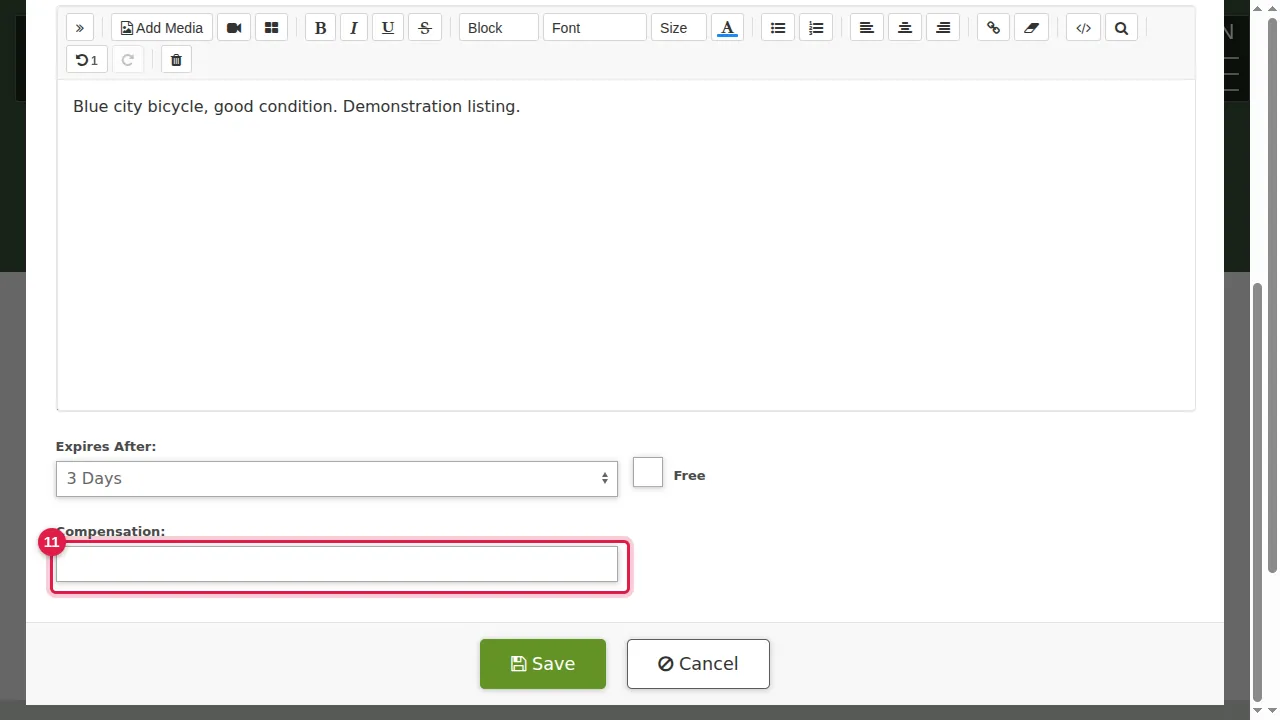
Step 11. …or type the price in Compensation.
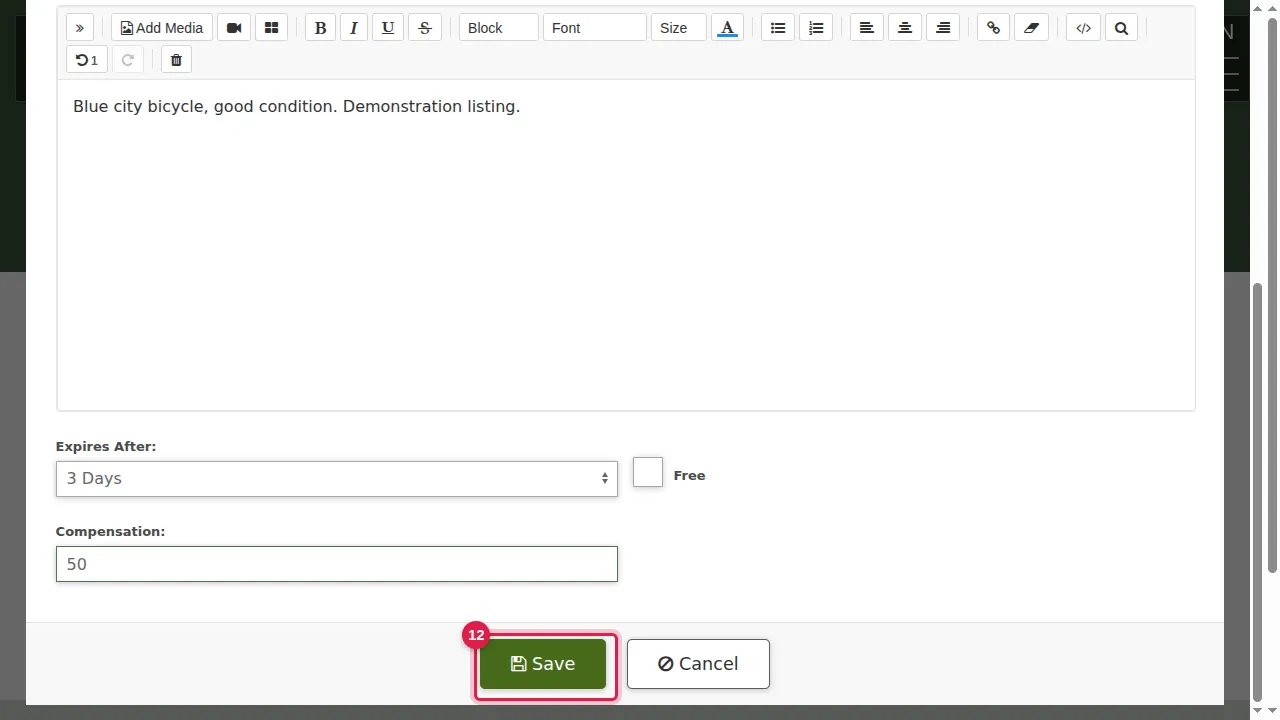
Step 12. Click Save.
Your listings
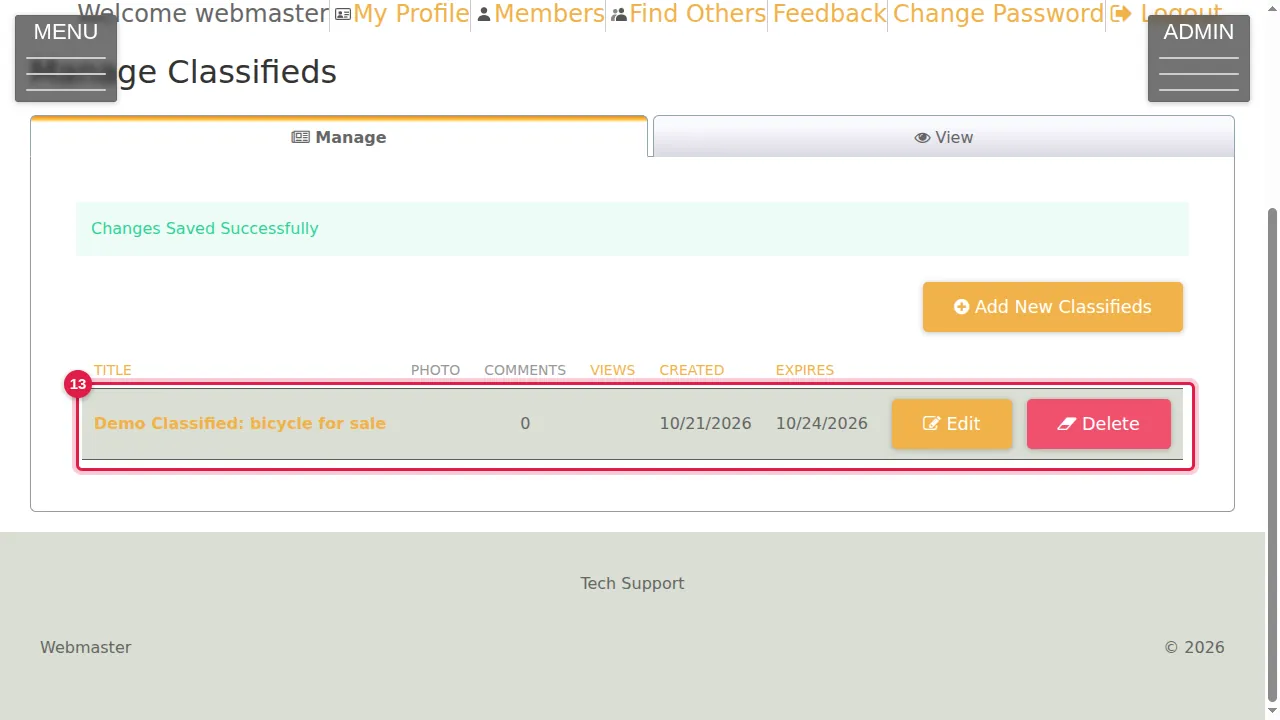
Step 13. "Changes Saved Successfully". The listing is shown with its comments, views, created date and expiry date. Edit changes it; Delete removes it.
What visitors see
Step 14. Visitors find your listings on the Classifieds page (/c). They can type words to search for…
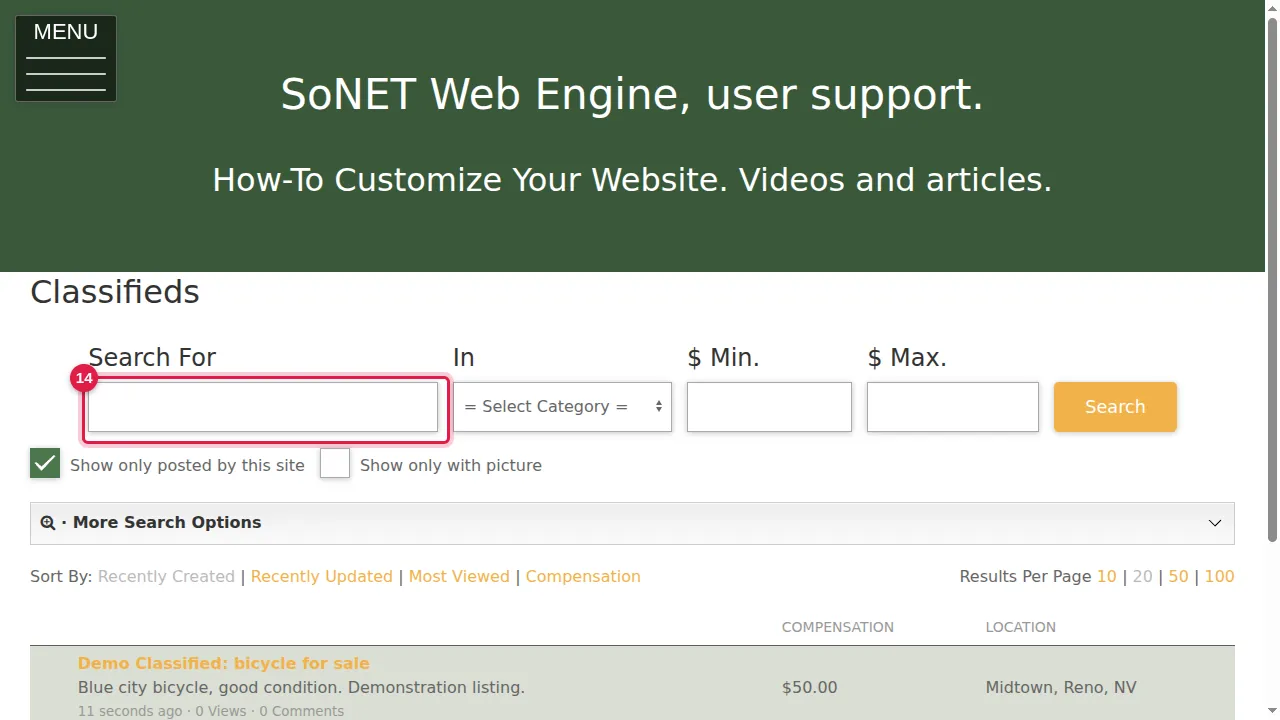
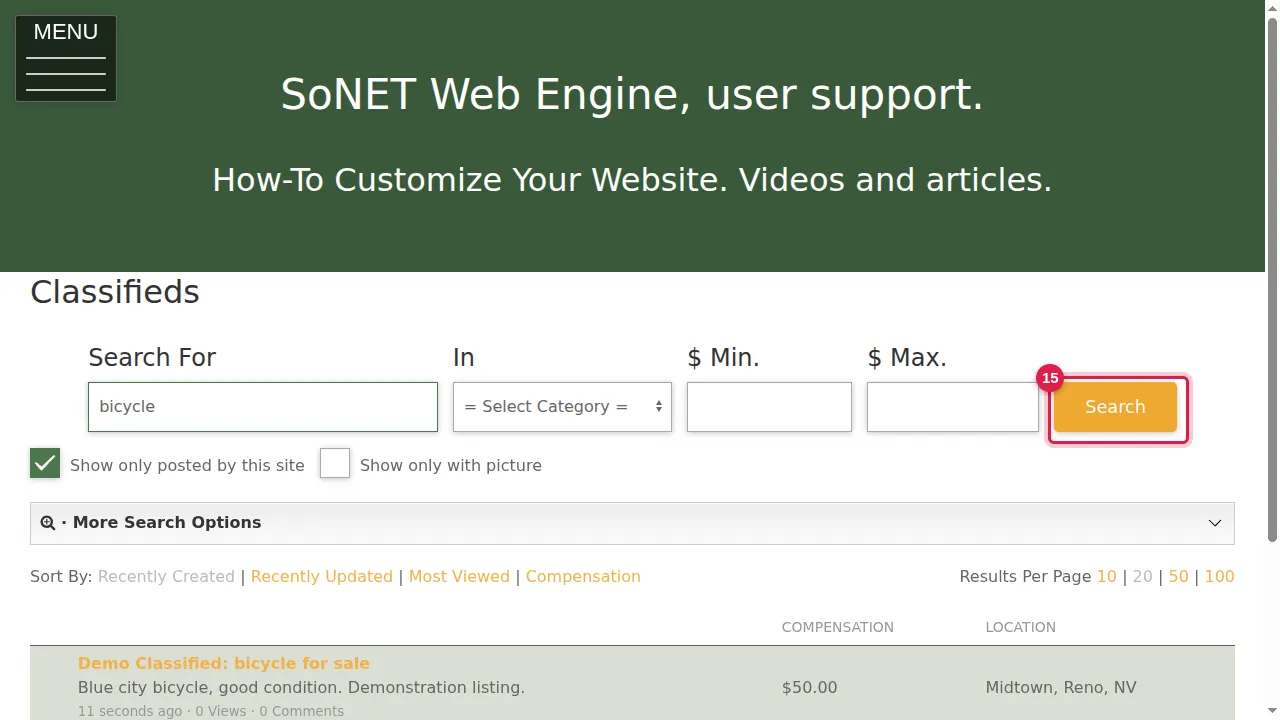
Step 15. …choose a category and a price range ($ Min. and $ Max.), then click Search. More Search Options adds country, state and city.
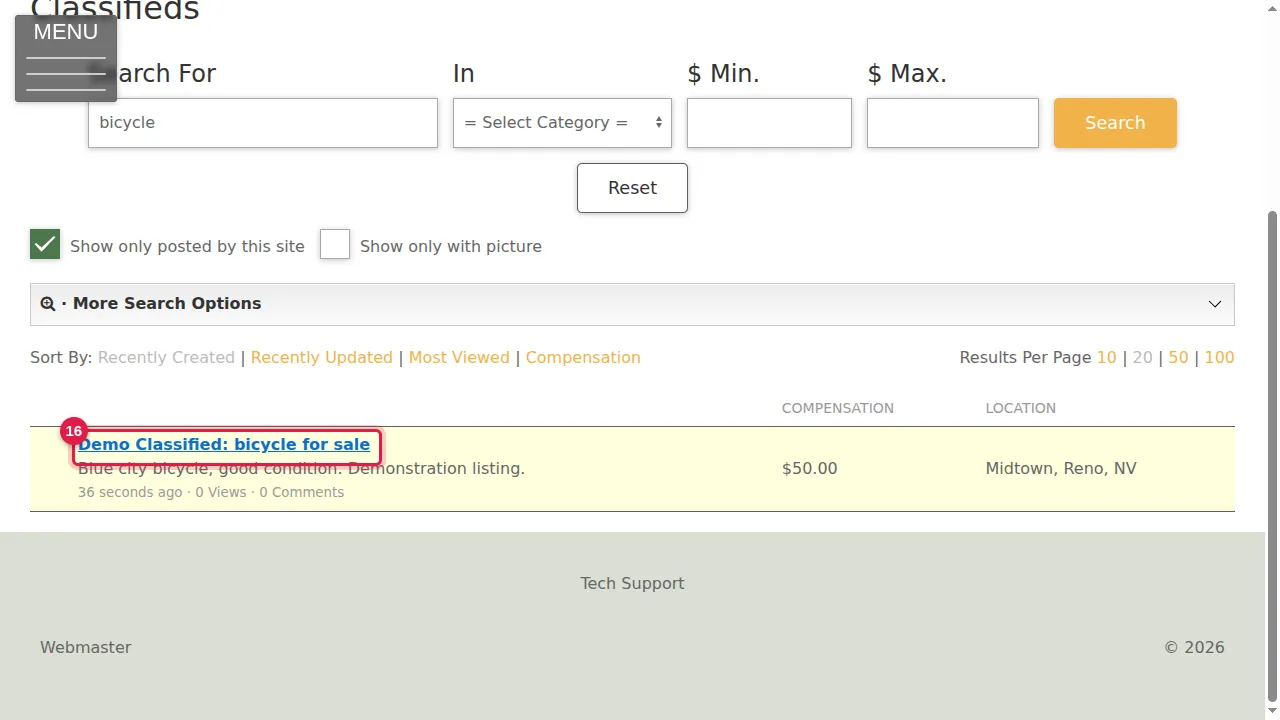
Step 16. Clicking a listing's title opens it.
Step 17. The listing shows its category, date, text, location and compensation.
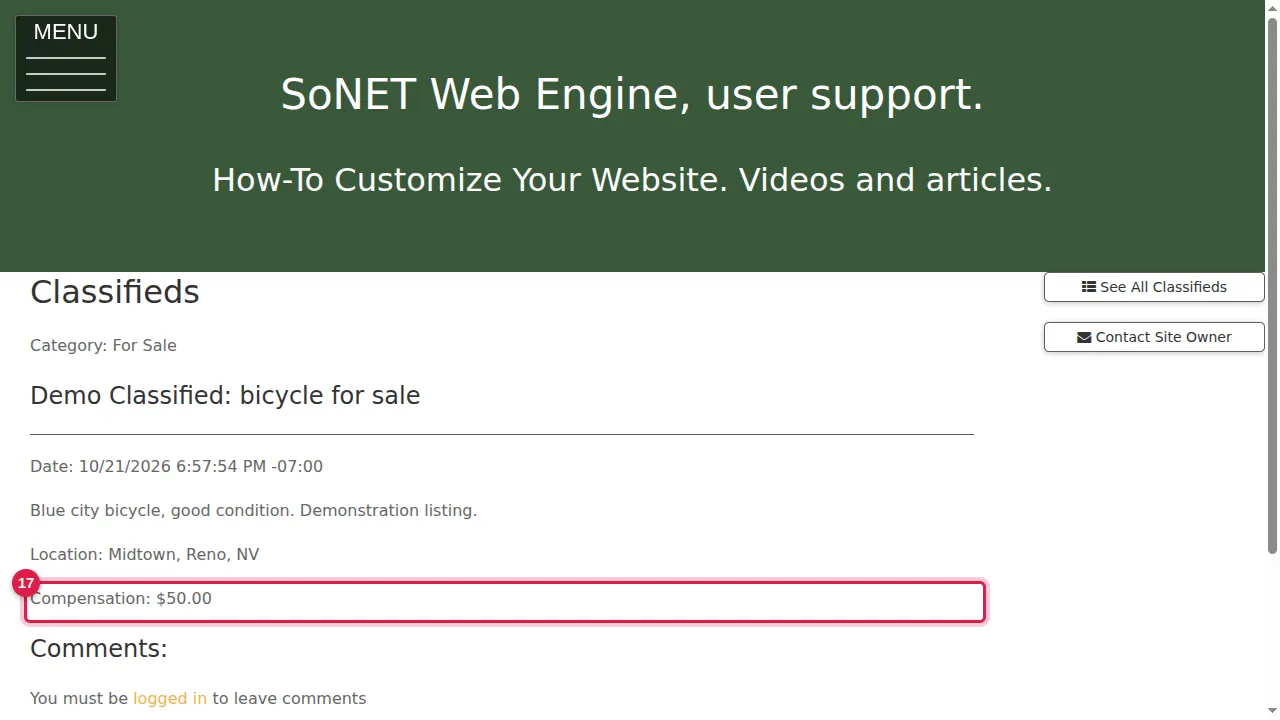
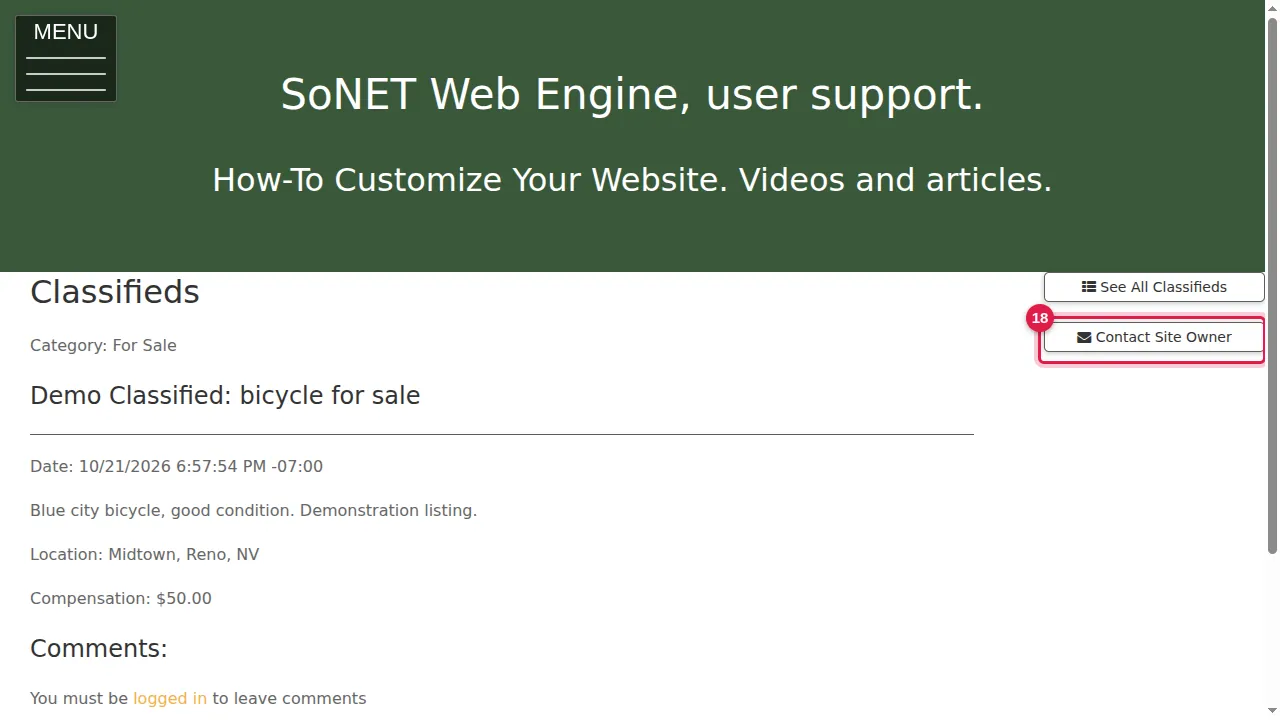
Step 18. Visitors must be logged in to comment. See All Classifieds goes back to the list, and Contact Site Owner lets them reach you.
Check it worked
Open /c in a private window and search for a word from your listing.
Good to know
- Visitors cannot post listings themselves; only you add them in ADMIN › Classifieds.
- In the search, a $ Max. of 0 finds the free listings.
Related help
Shown on the 2026 version of the SoNET Web Engine. Last checked 21 October 2026. Something different on your screen? Tell us through the Contact page.