Help Center Pages & Editing
The section editor: format your text
The section editor works like a word processor: select text and use the toolbar to make it bold, turn it into a heading, change its font, size and colour, make lists, align it and add links.
Watch it done: a short silent video with captions · 2:39. The steps below show the same thing picture by picture.
Before you start
- Log in, open the page and click Customize This Page.
Open the editor
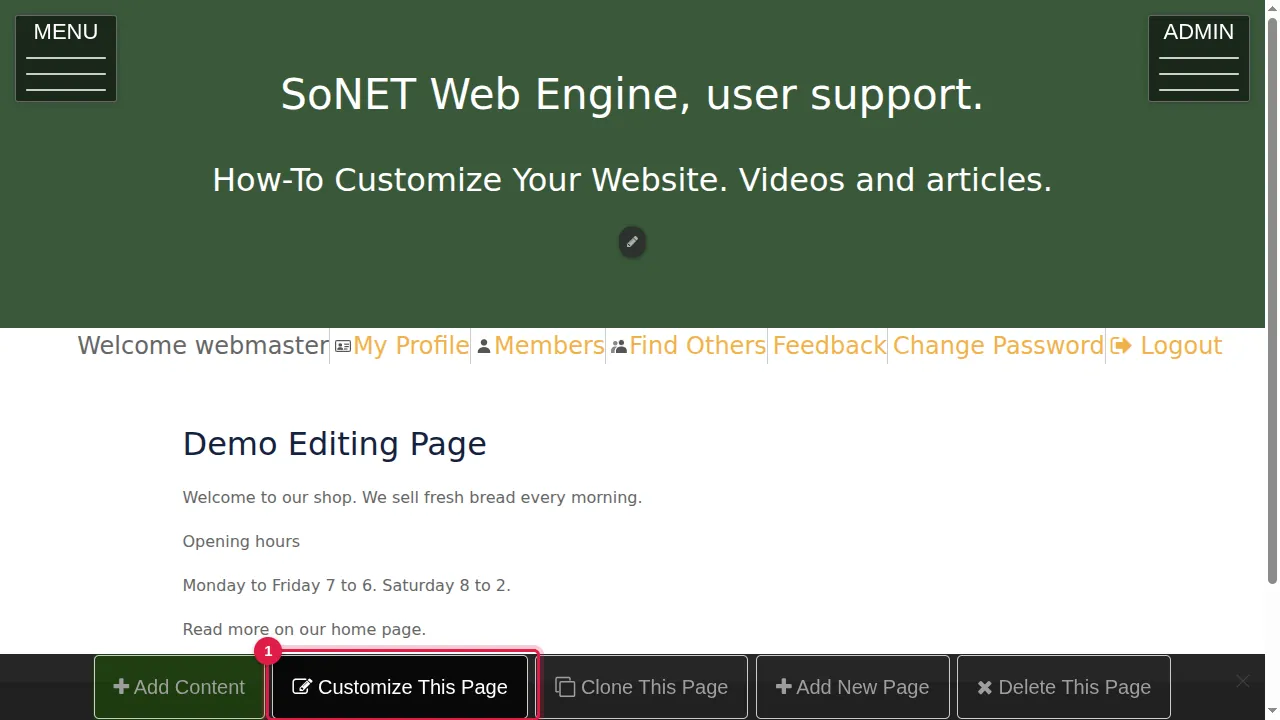
Step 1. Click Customize This Page in the bar at the bottom.
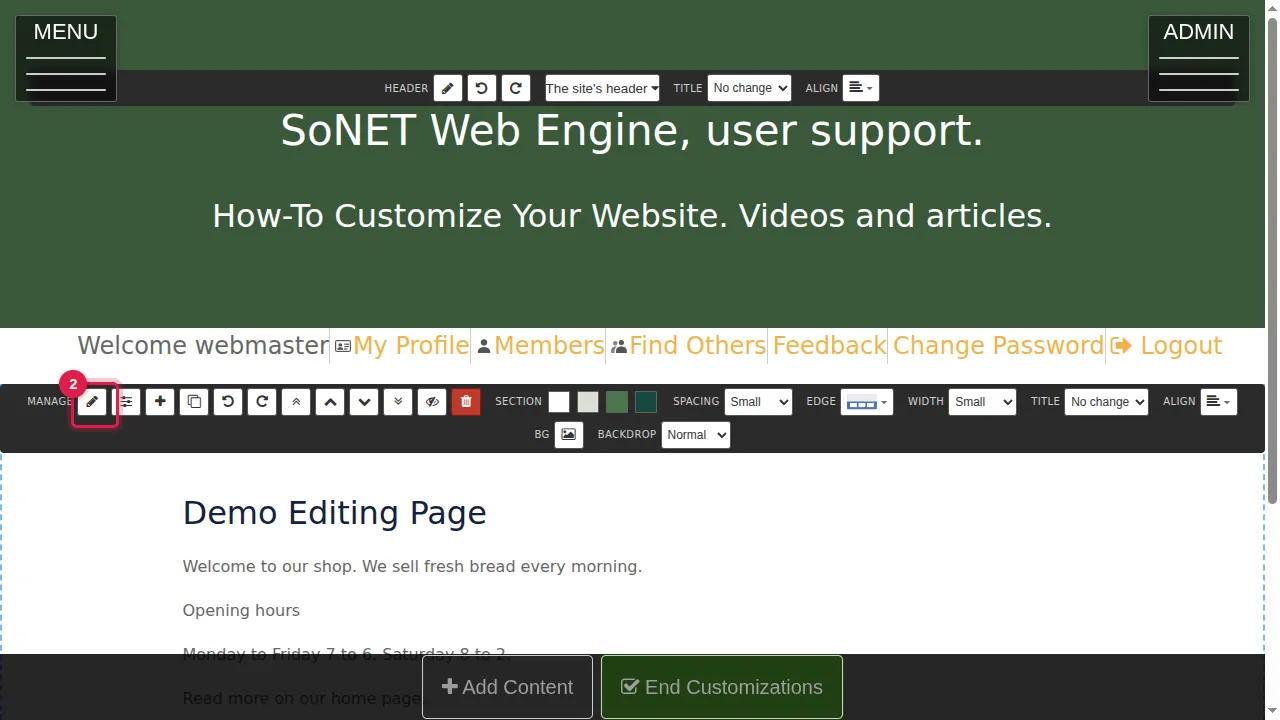
Step 2. Click the pencil of the section you want to change. The section editor opens.
Bold, italic, underline
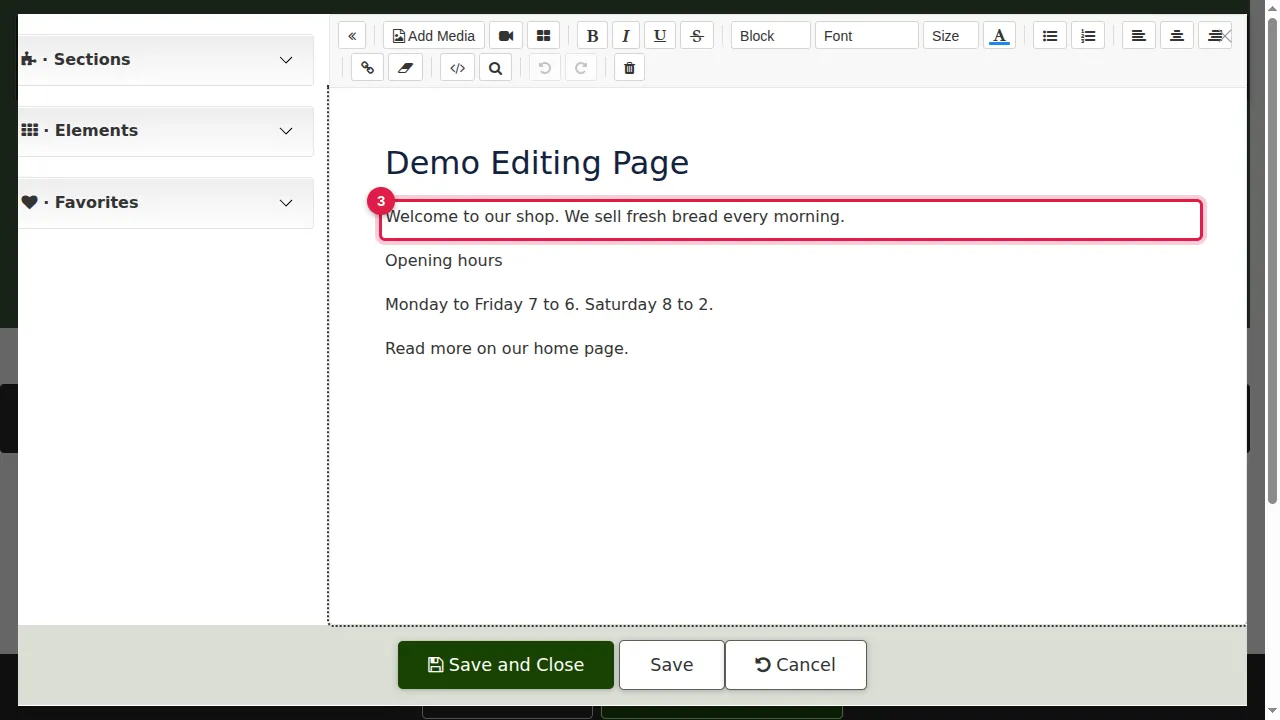
Step 3. Double-click a word to select it (or drag over the text you want).
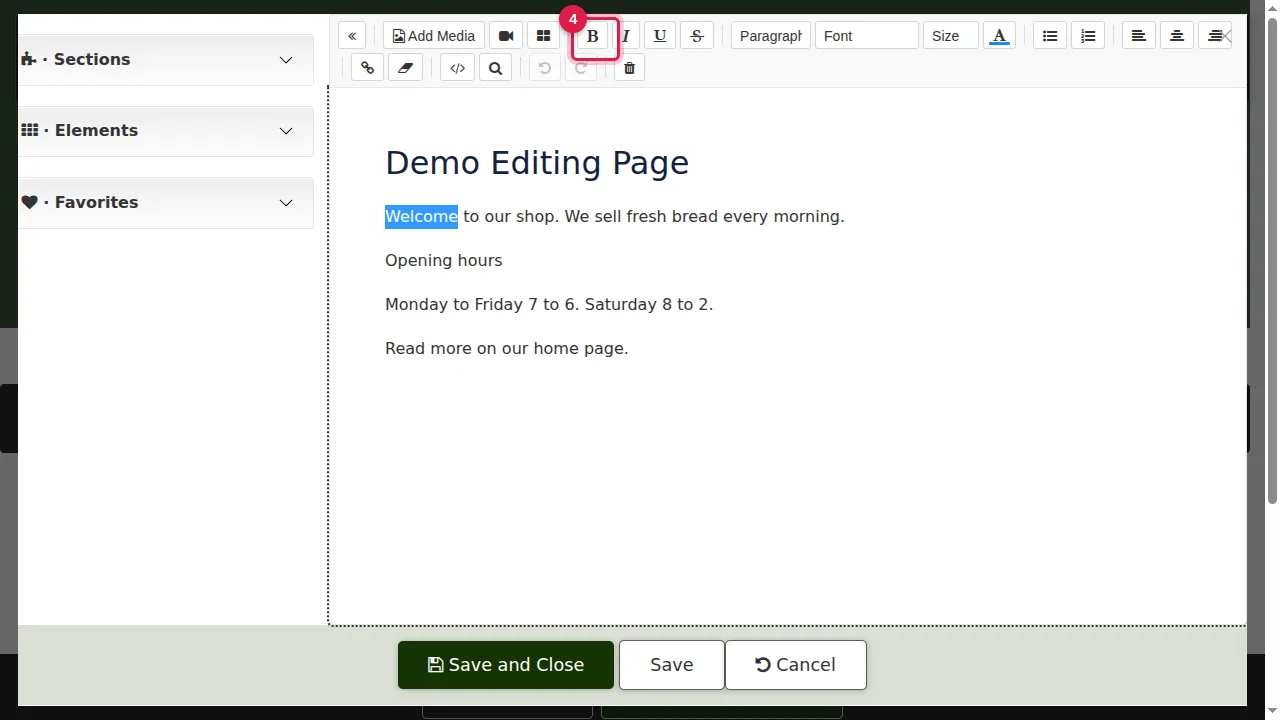
Step 4. Click B to make it bold. I makes it italic, U underlines it and S strikes it through. Shortcuts: Ctrl+B, Ctrl+I, Ctrl+U.
Headings, fonts and sizes
Step 5. Click in a line of text.
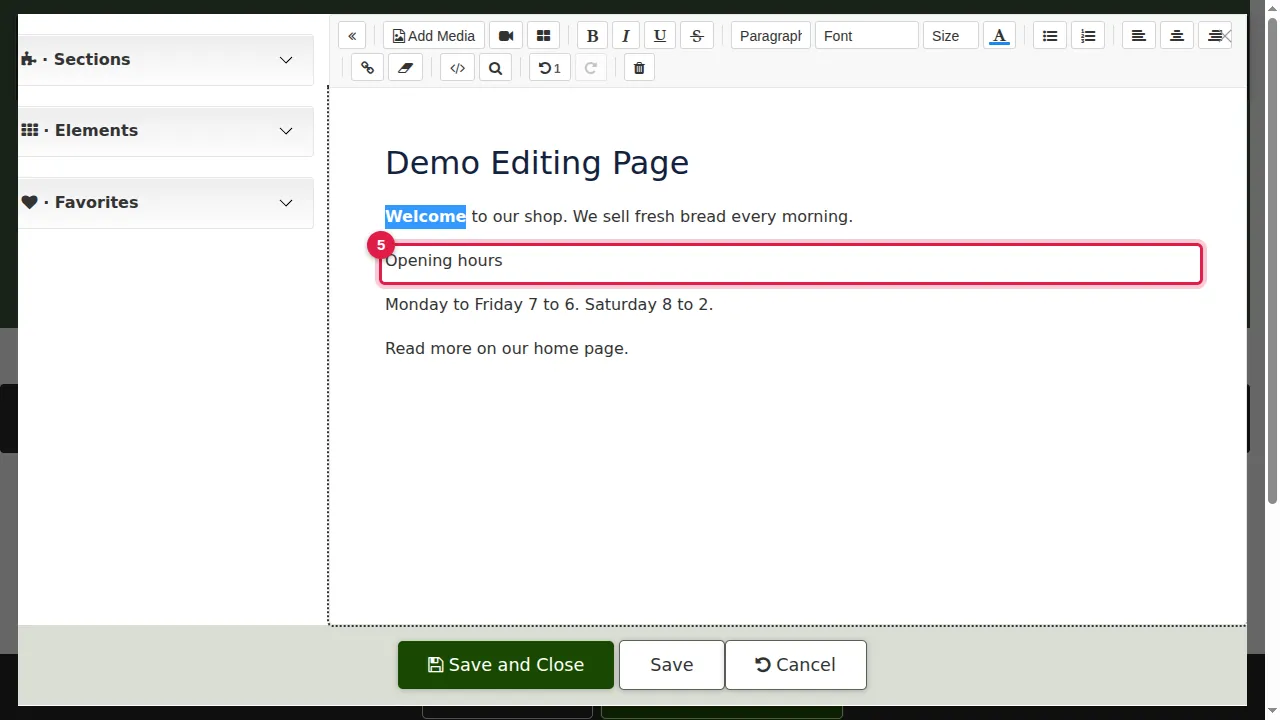
Step 6. Choose a style in the Block list: Paragraph (normal text), H1 to H4 (headings, from biggest to smallest) or Quote. Here the line becomes an H3 heading.
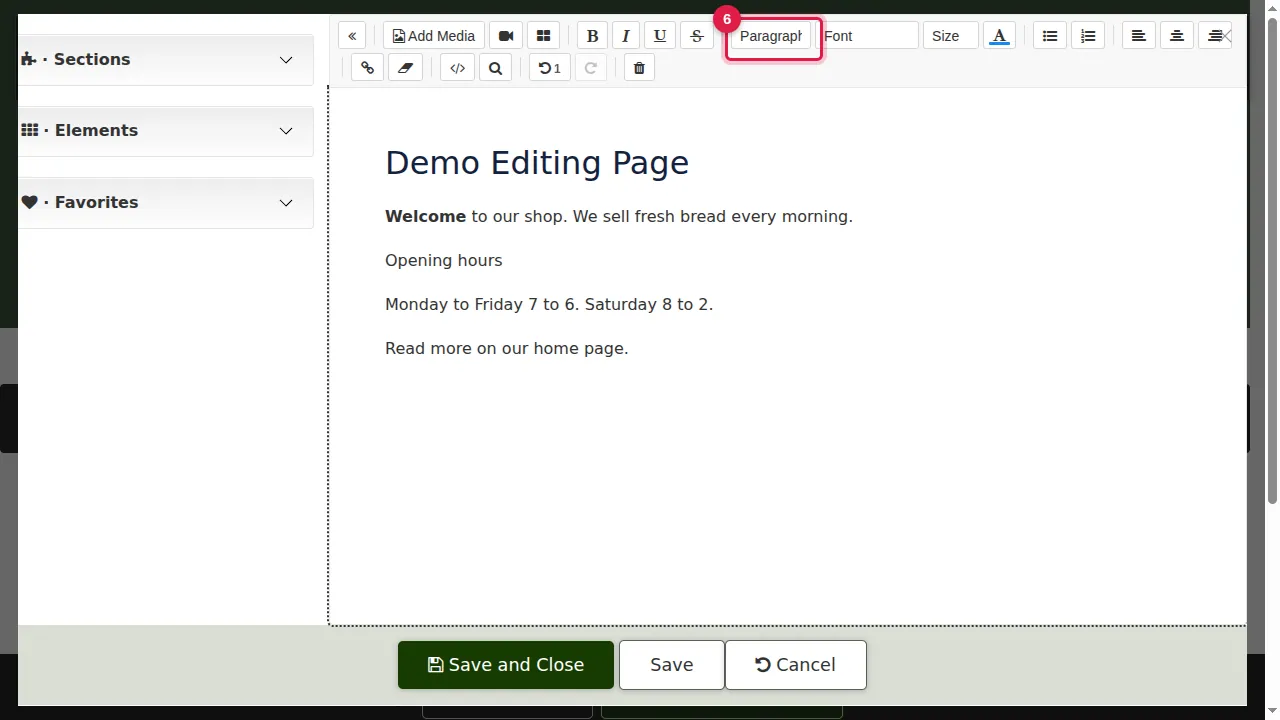
Step 7. Select some text and choose a Font for it. "Site body font" is the font of the rest of your site.
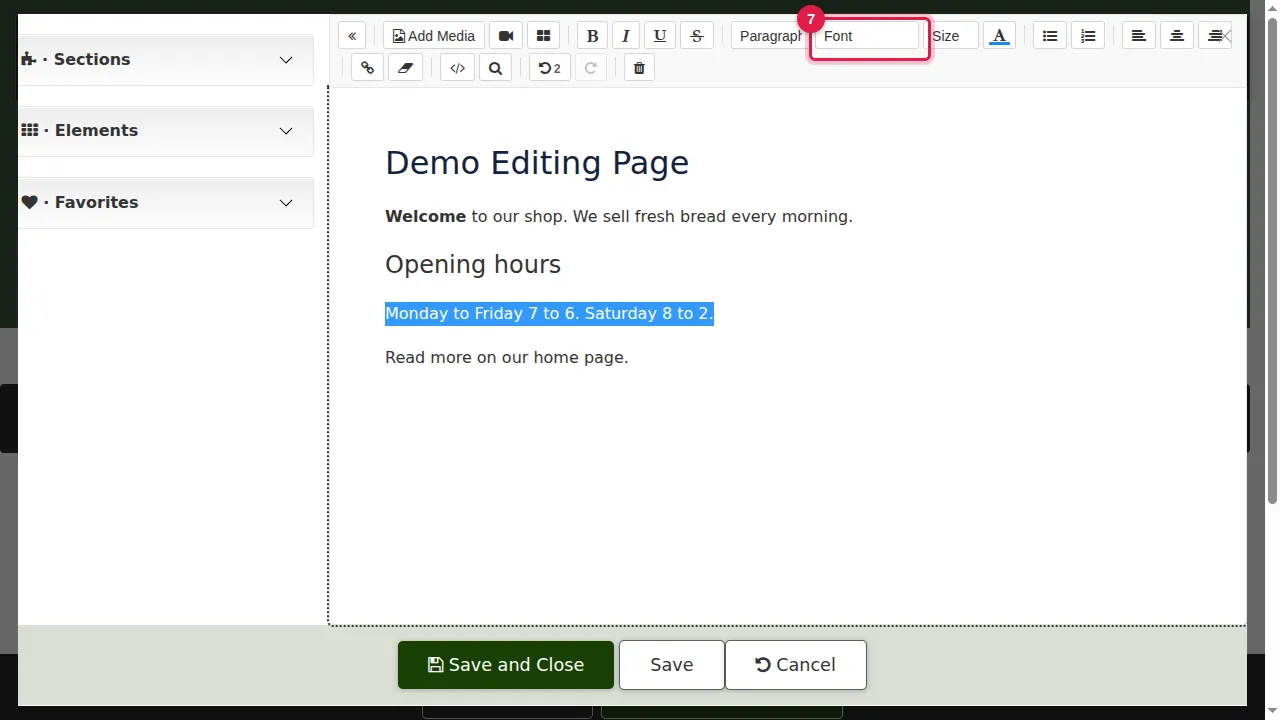
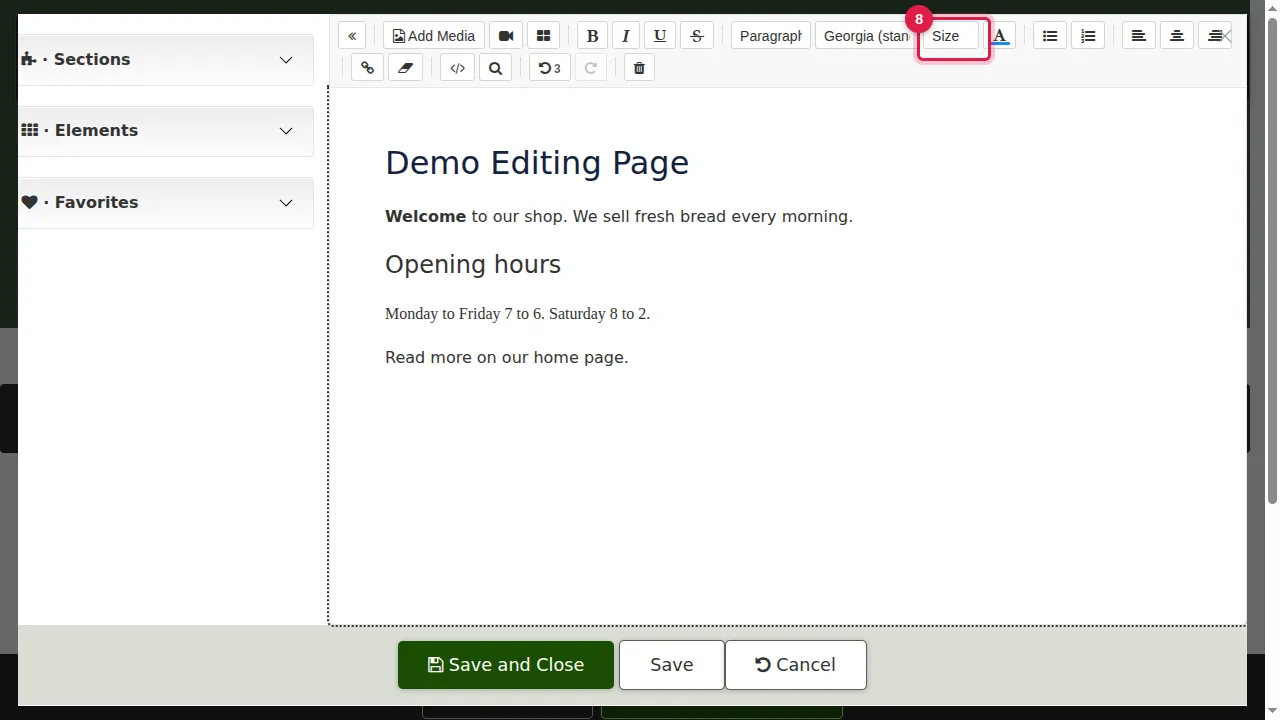
Step 8. Choose a Size for the selected text. The sizes are in points (pt), from 8 to 72.
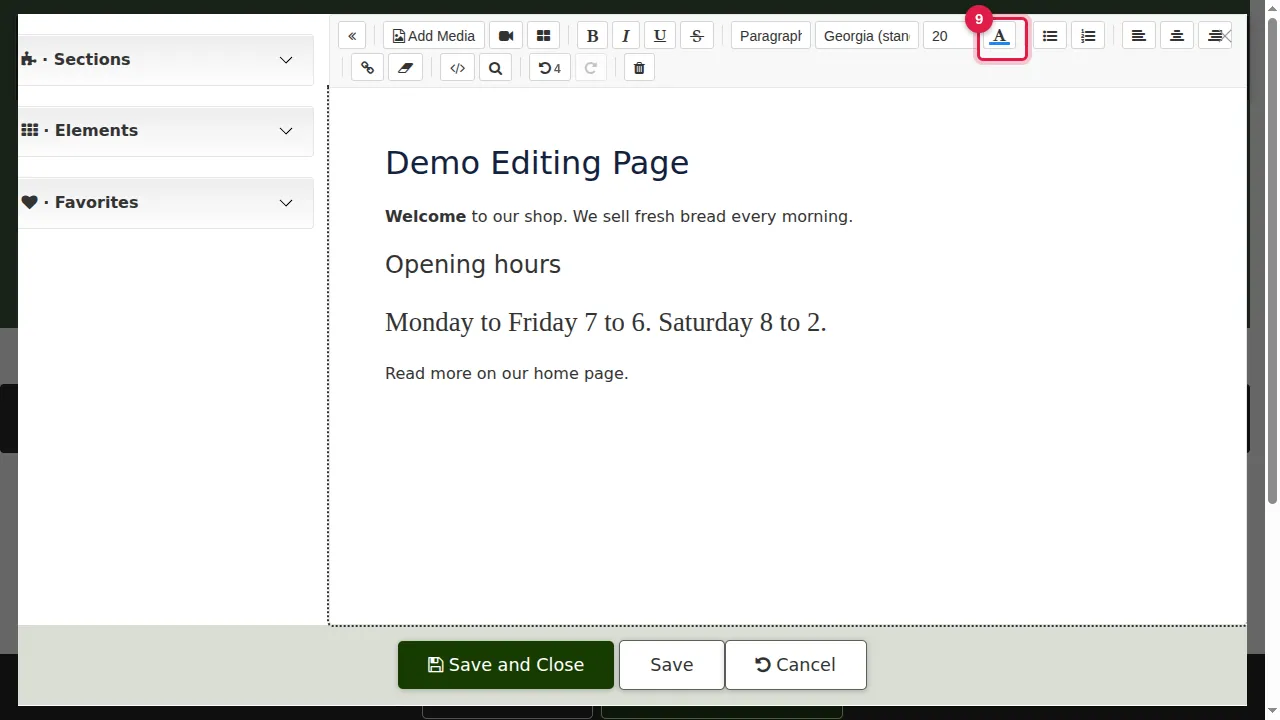
Step 9. The A button changes the colour of the selected text.
Lists, alignment and links
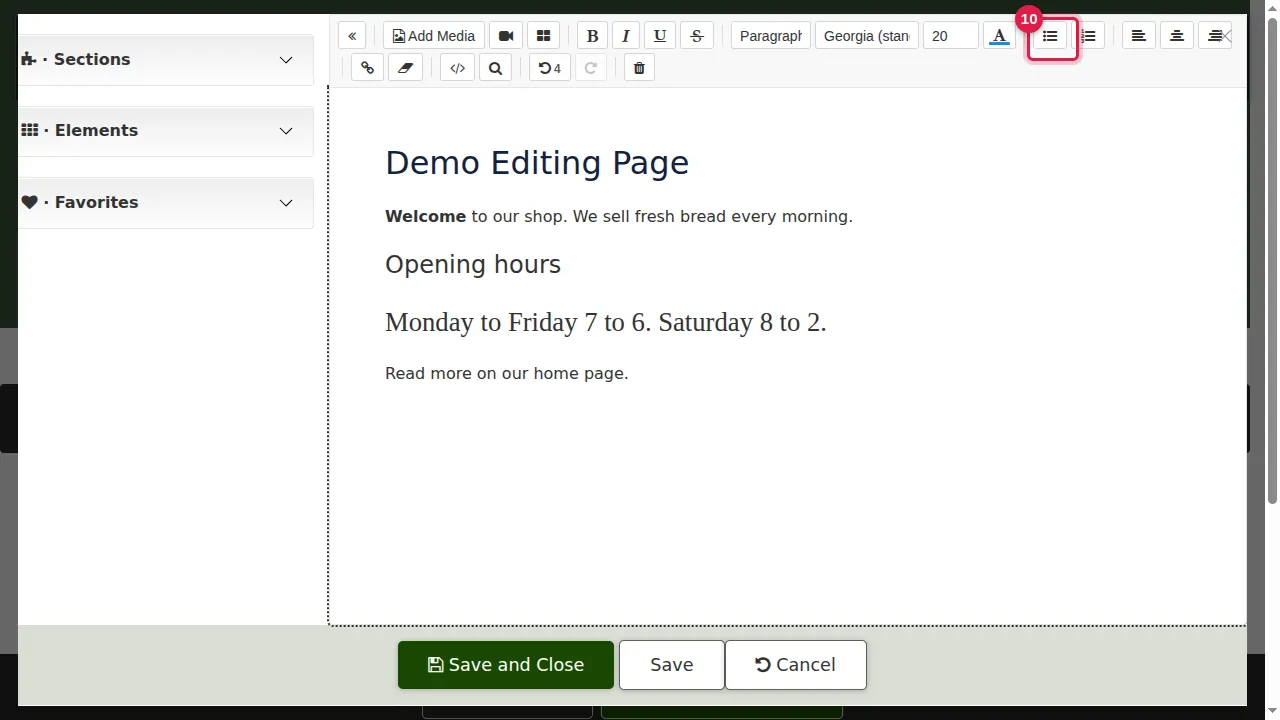
Step 10. To make a list, click in the line(s) and click the bulleted list button; the button next to it makes a numbered list.
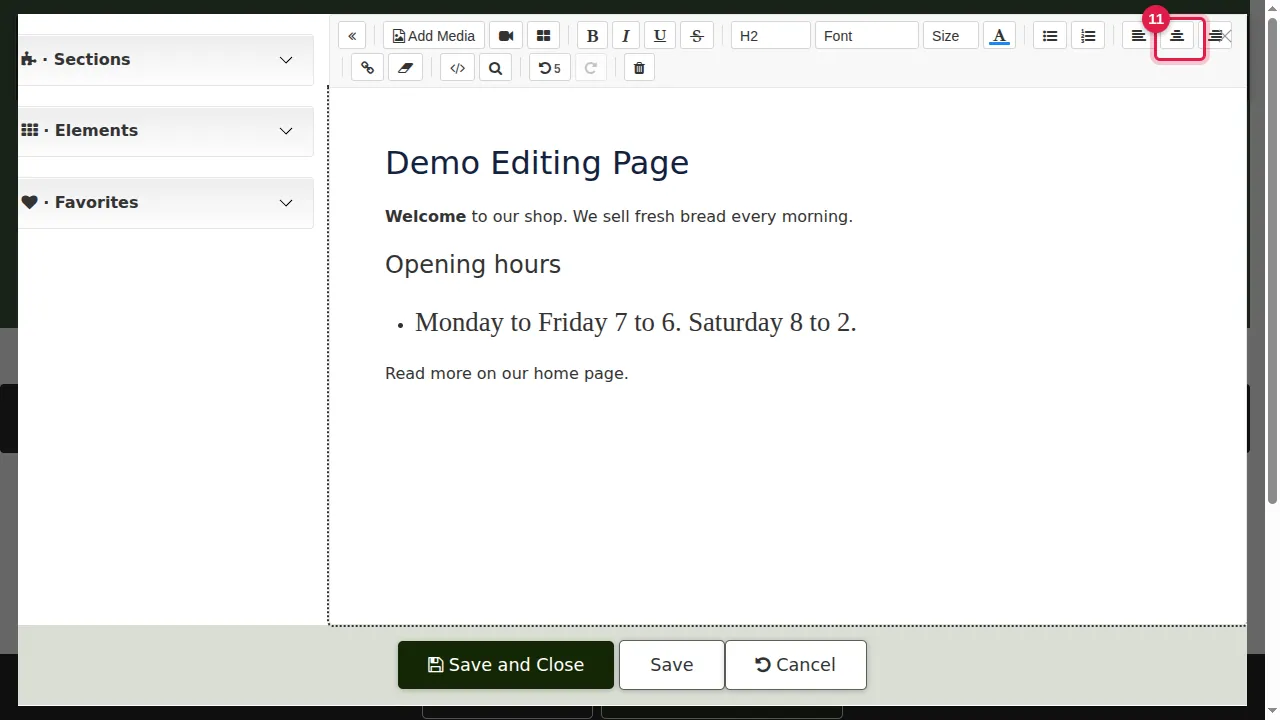
Step 11. To align text, click in it and click Align left, Align center or Align right. Here the page heading is centred.
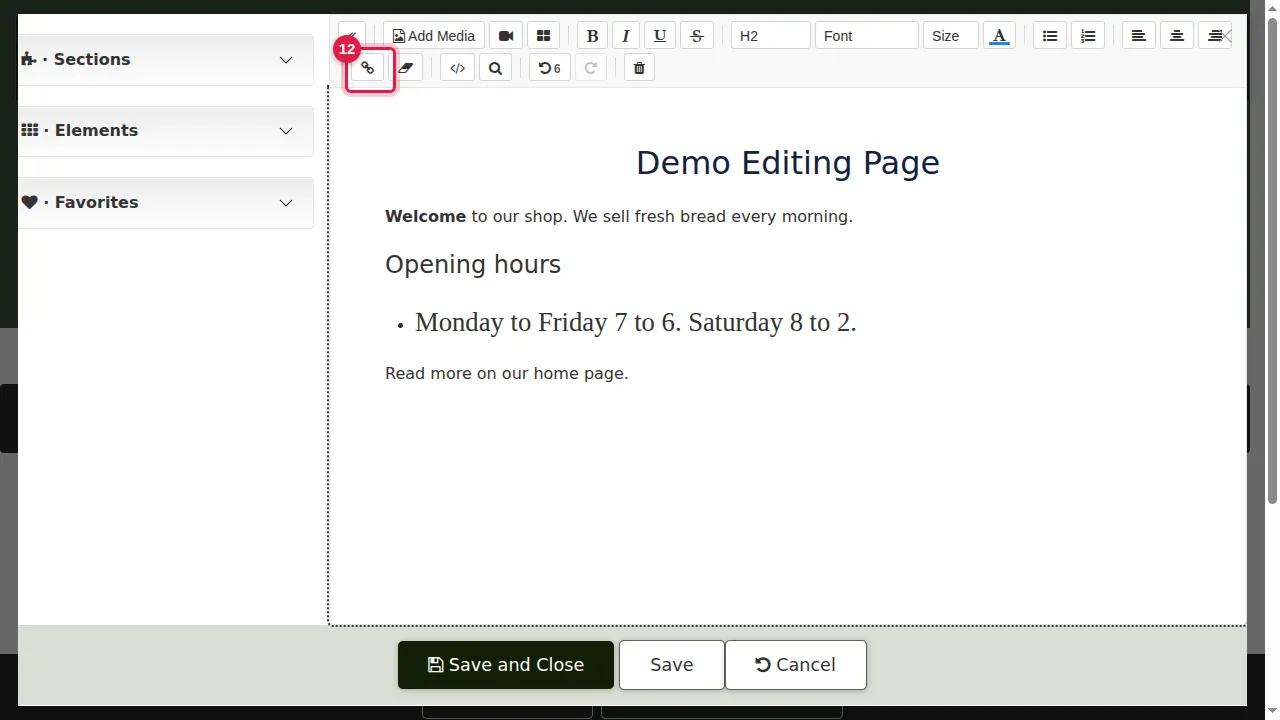
Step 12. To make a link, select the words and click the chain button (Insert link), then type the address.
More tools
Step 13. The eraser removes the formatting of the selected text (or the styles of a picture you clicked).
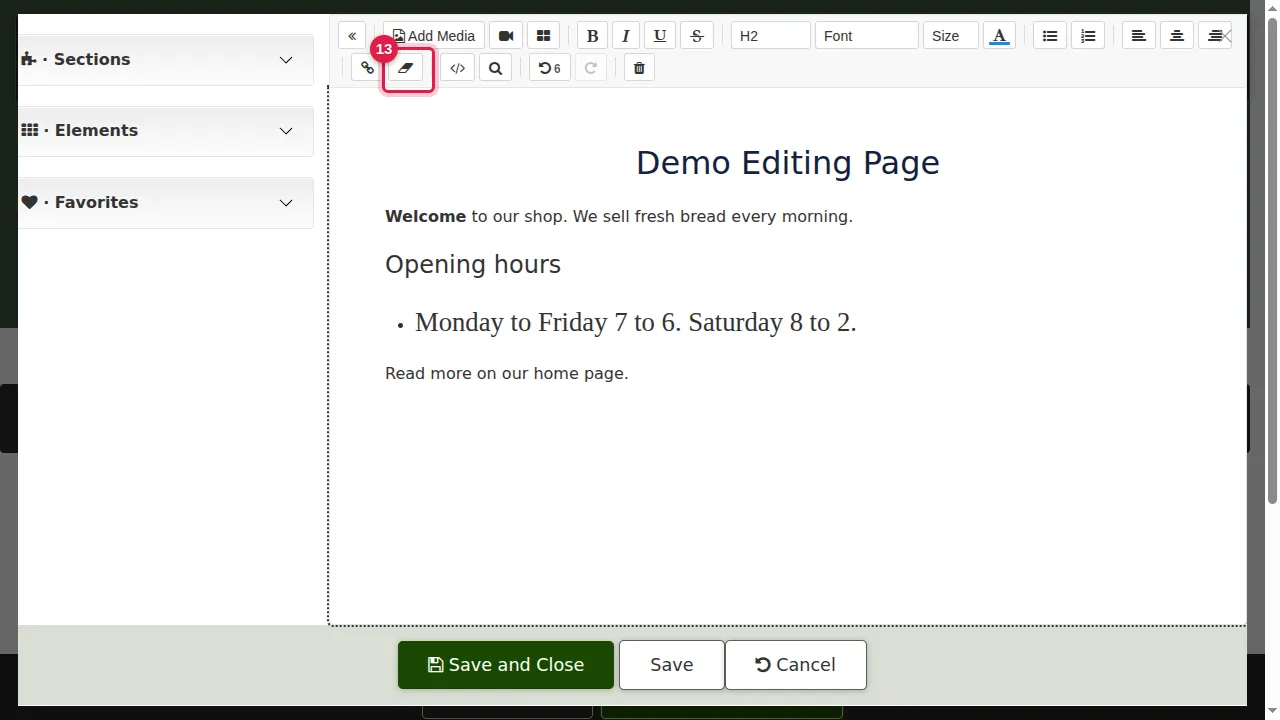
Step 14. </> shows the section's HTML for advanced changes; the magnifier finds and replaces words.
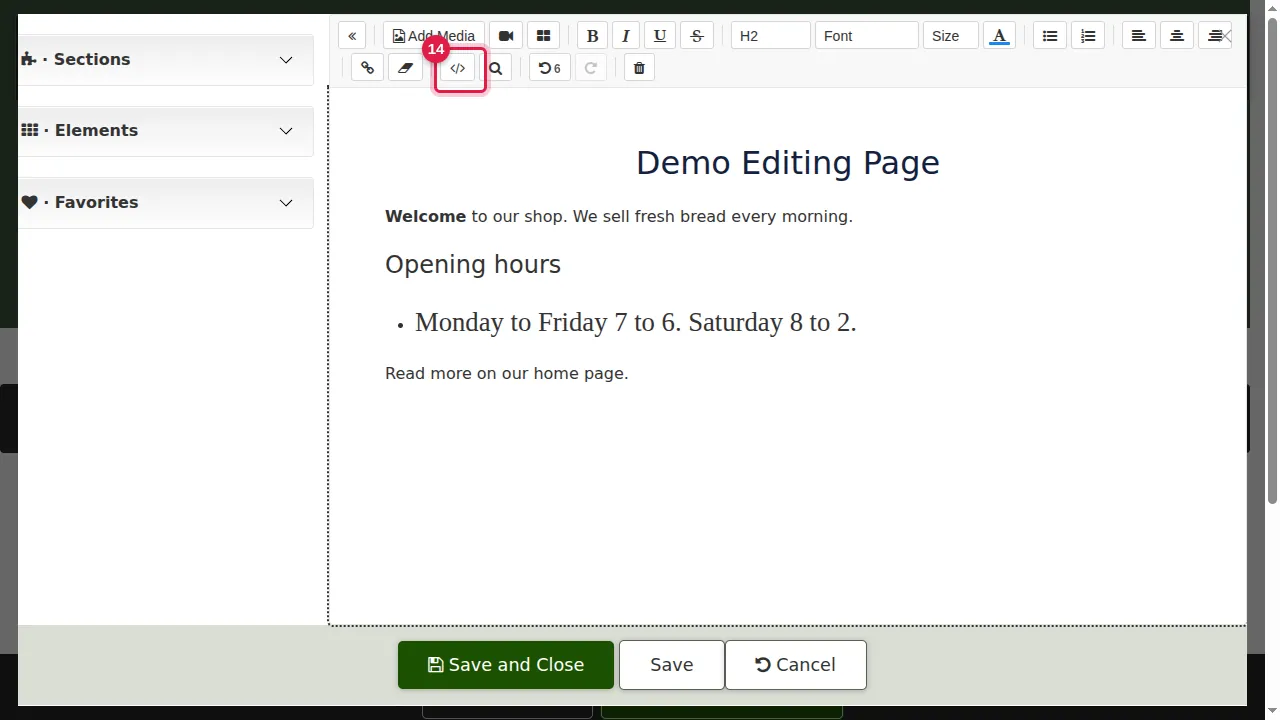
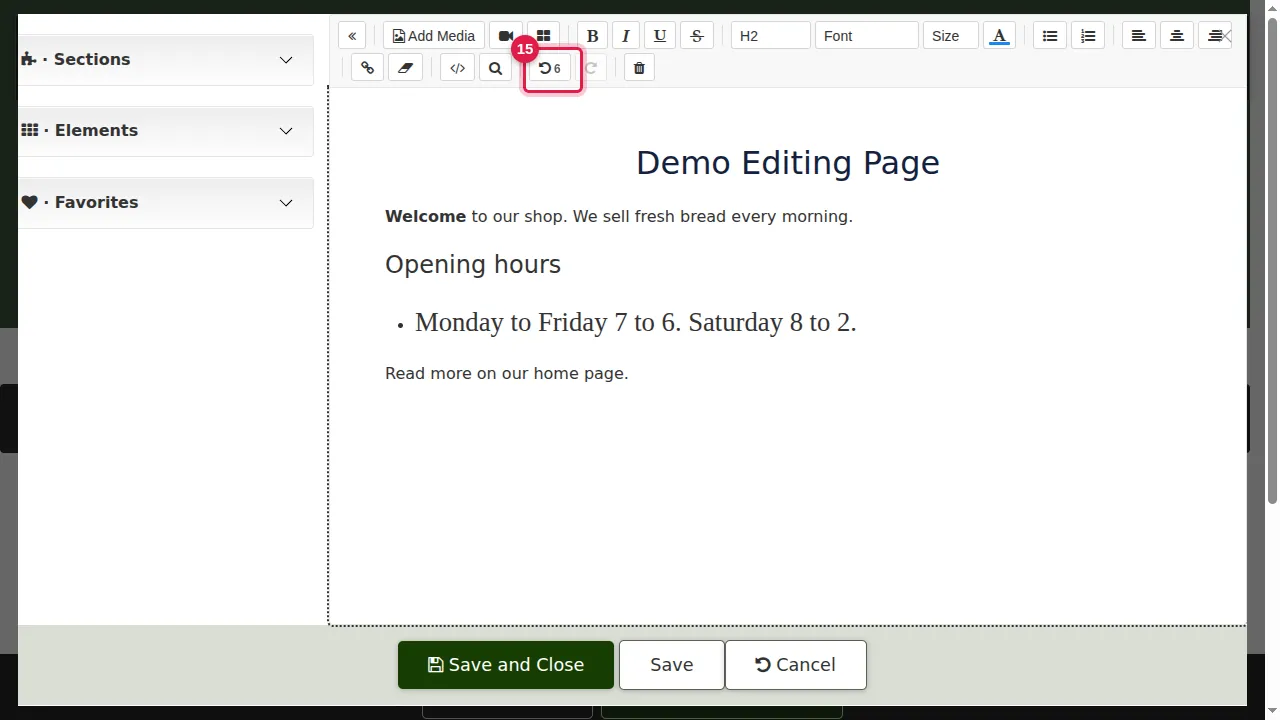
Step 15. The curved arrows undo and redo your last changes (Ctrl+Z, Ctrl+Y). The bin clears the whole section, so use it with care.
Save
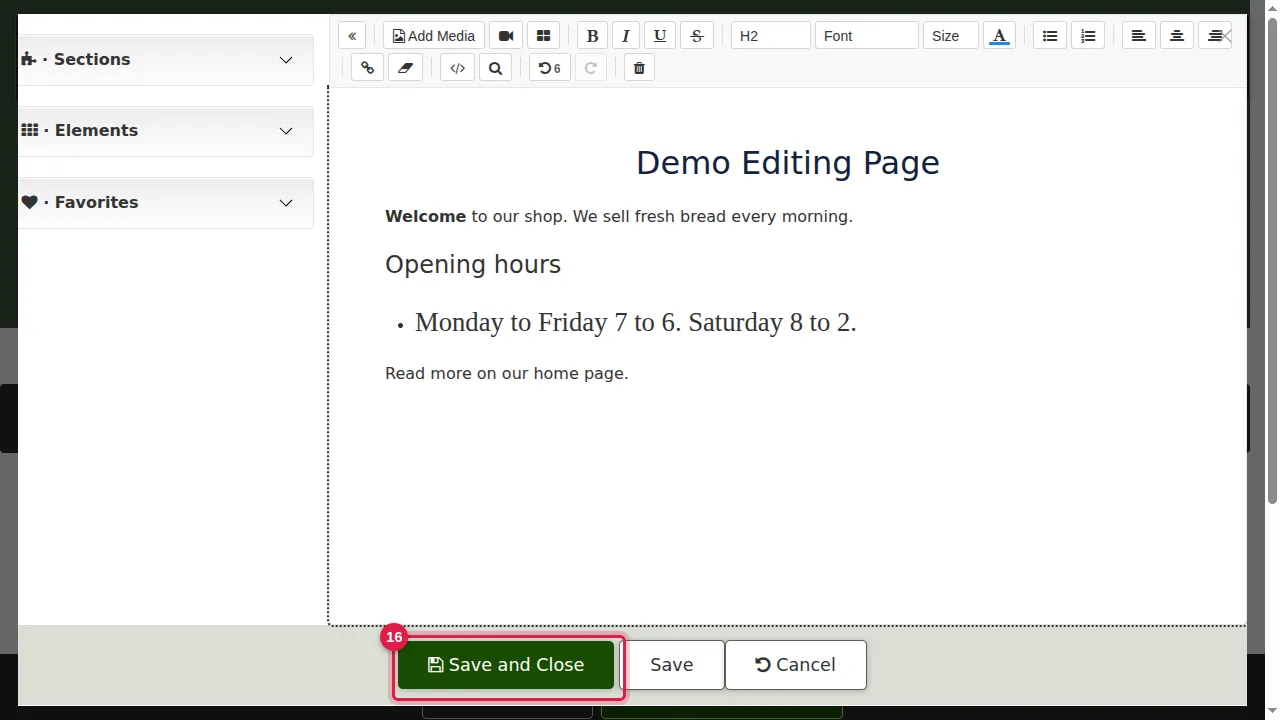
Step 16. Click Save and Close. (Save keeps the editor open; Cancel closes it without saving.)
Step 17. The page shows your changes.
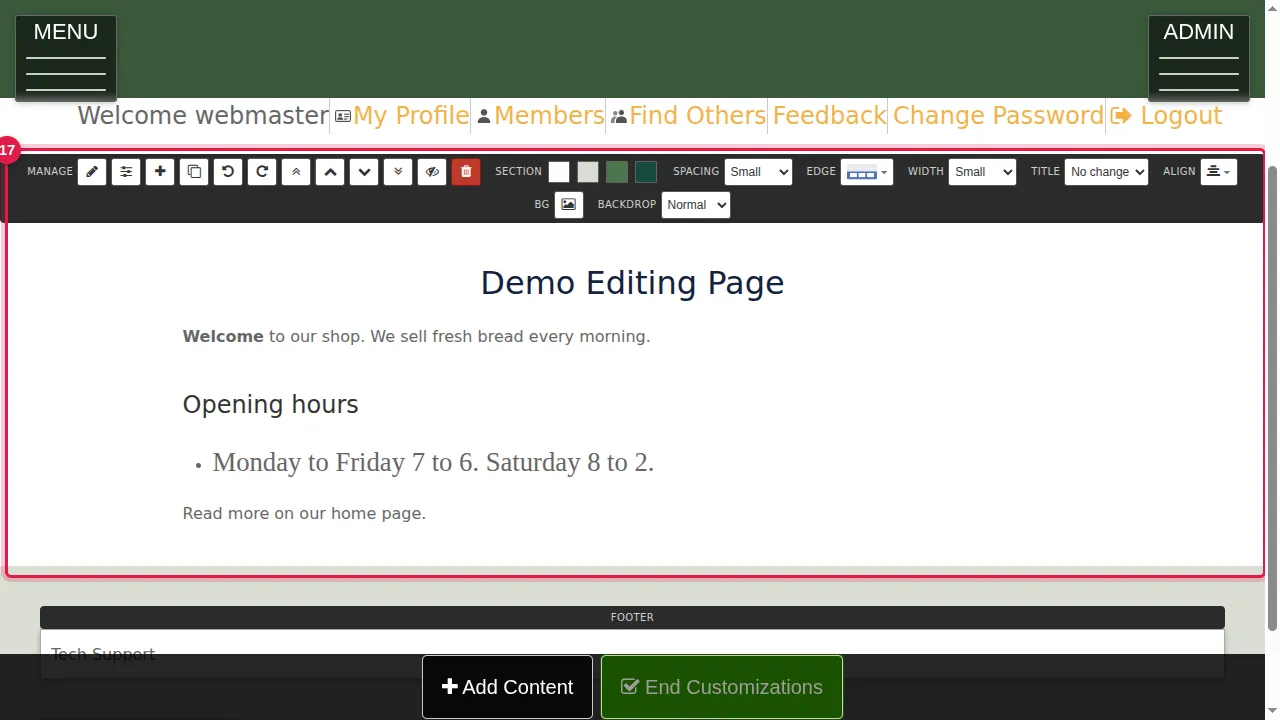
Check it worked
Click End Customizations and look at the page as your visitors see it.
Good to know
- Headings (H1 to H4) are also what search engines read as the outline of your page: use them for headings, not just to make text bigger.
- Hover over any toolbar button to see what it does and its keyboard shortcut.
Related help
Shown on the 2026 version of the SoNET Web Engine. Last checked 21 October 2026. Something different on your screen? Tell us through the Contact page.