Help Center Getting Started
Customize This Page: change a page in edit mode
Customize This Page puts the page you are looking at into edit mode: every section gets a pencil and a toolbar, so you can change, add, move and close sections right on the page.
Watch it done: a short silent video with captions · 1:26. The steps below show the same thing picture by picture.
Before you start
- Log in to your website and open the page you want to change.
Switch on edit mode
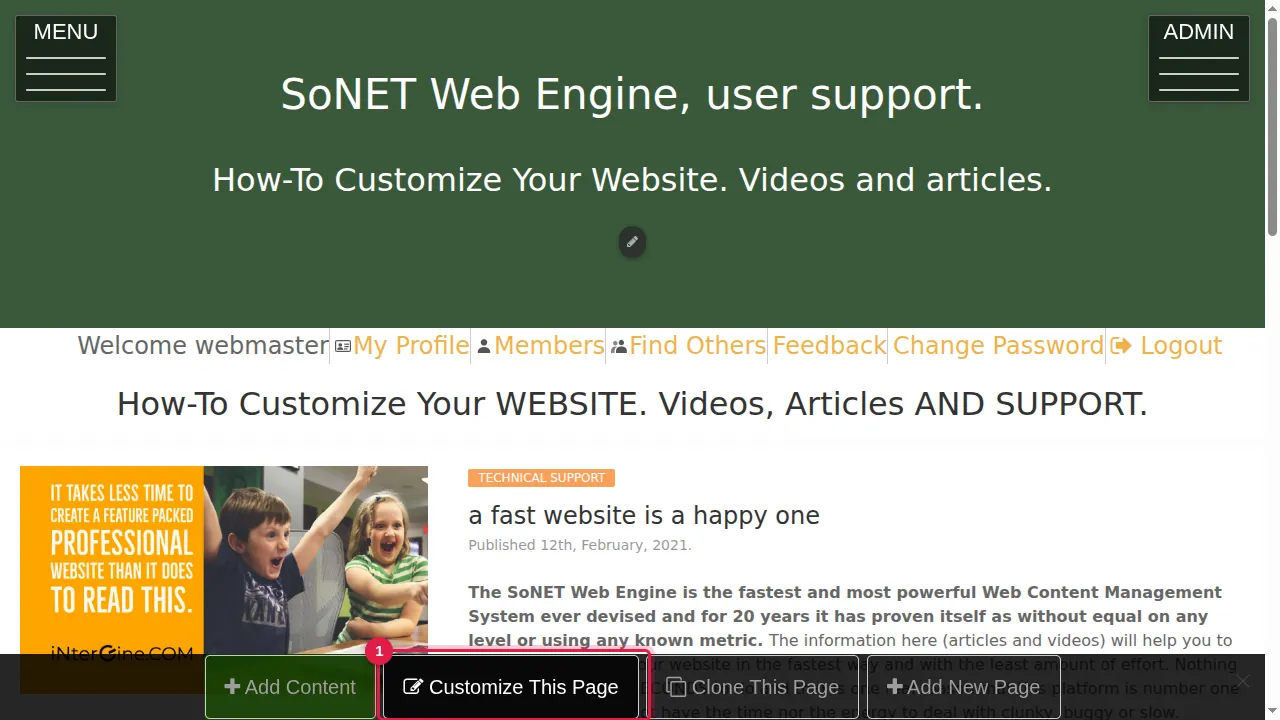
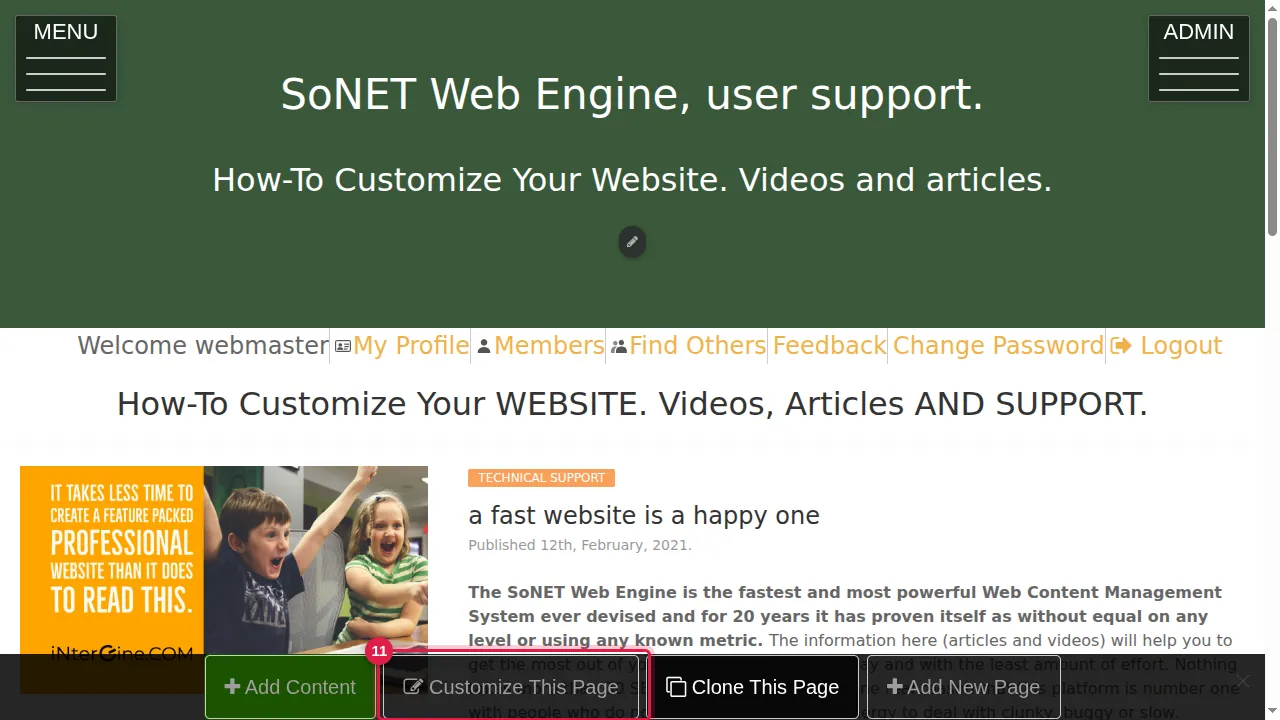
Step 1. Click Customize This Page in the bar at the bottom of the page.
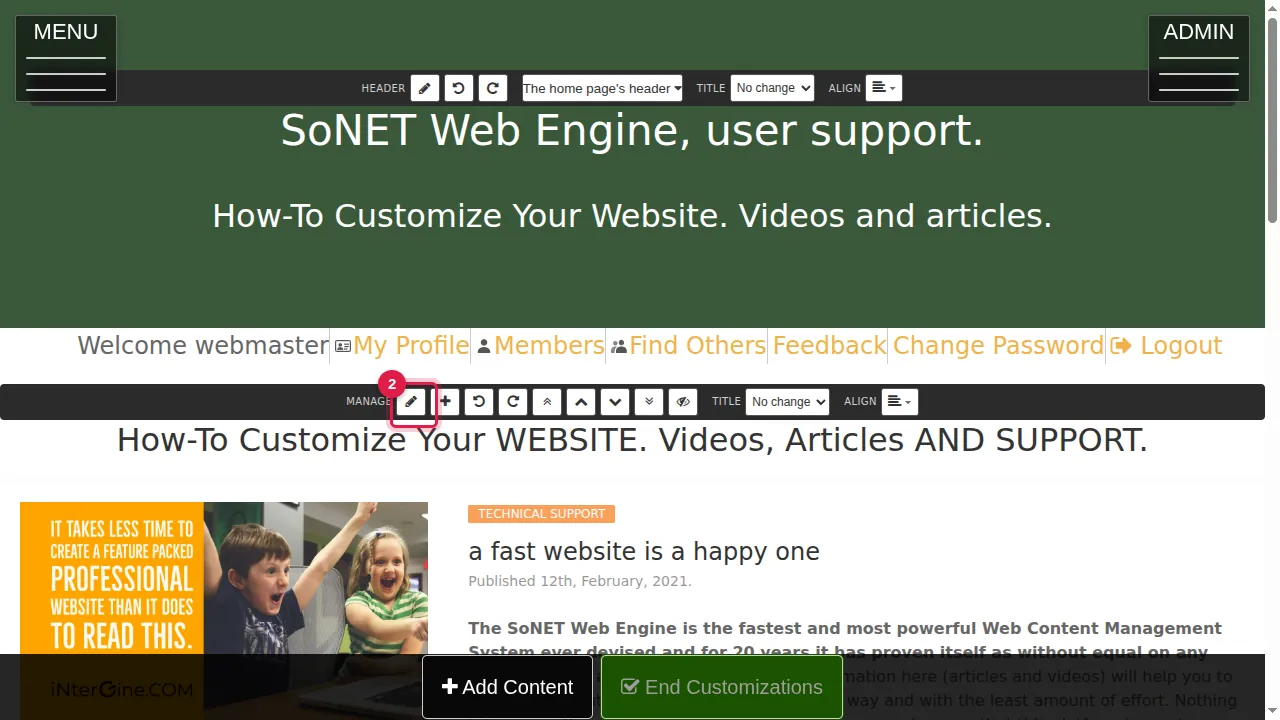
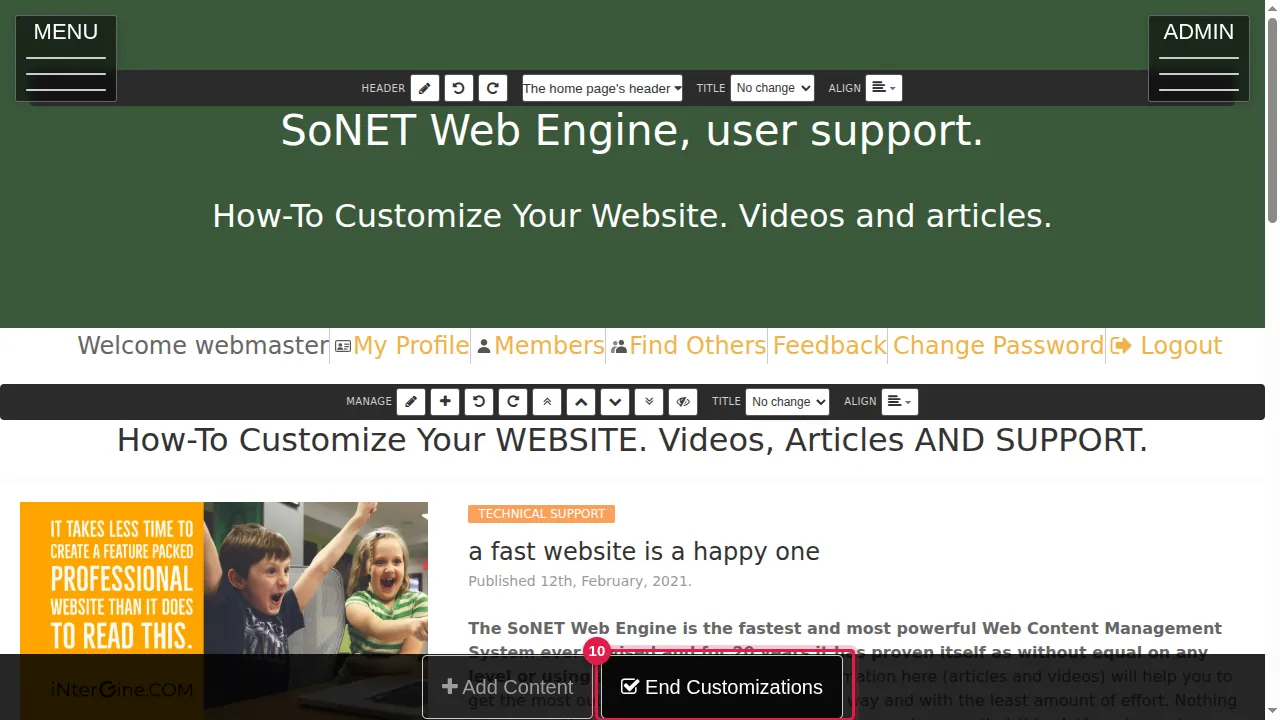
Step 2. The page is now in edit mode. Each section you can change has a pencil.
The section toolbar
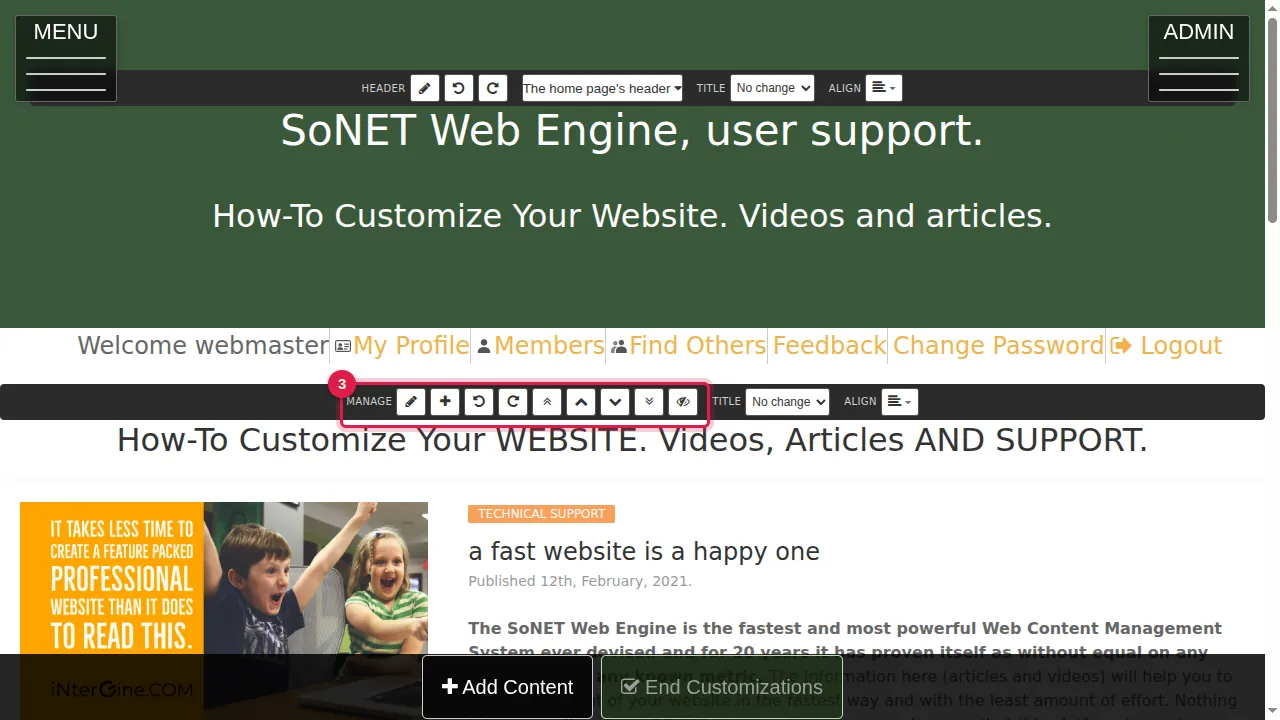
Step 3. Every section has a toolbar (MANAGE) right above it.
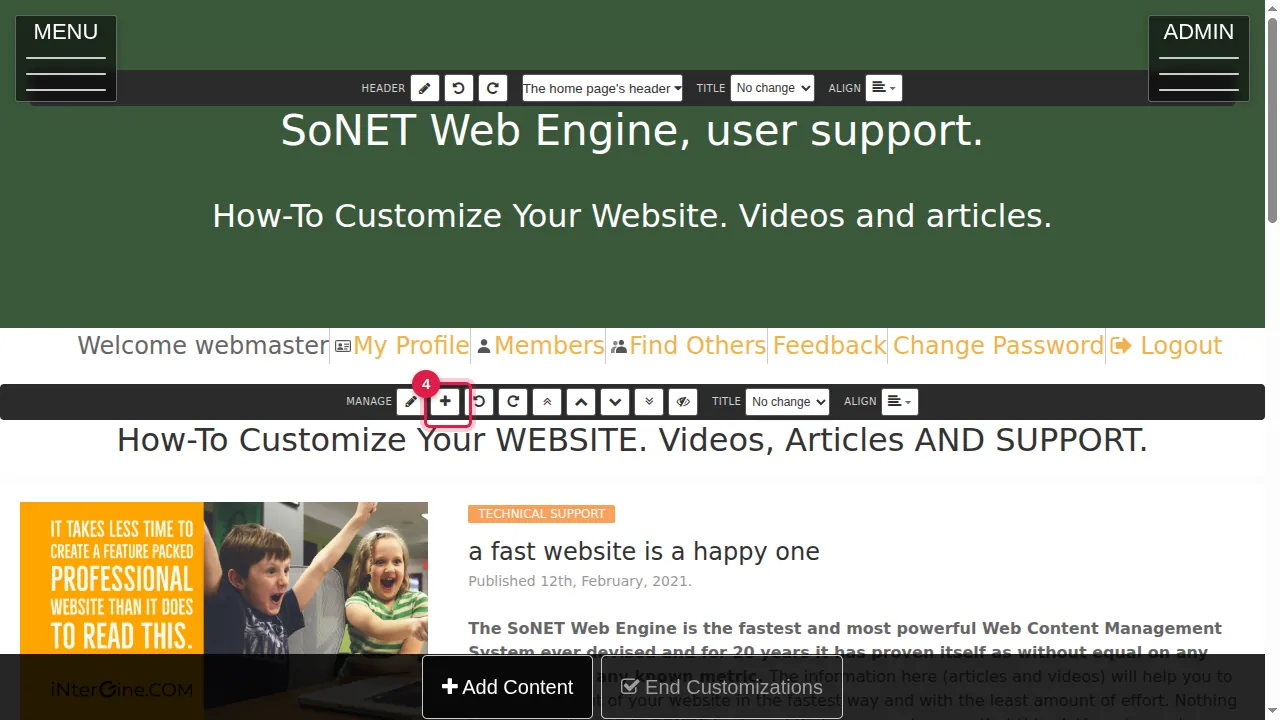
Step 4. The + button adds new content below this section.
Step 5. The arrows move the section to the top, up one place, down one place or to the bottom of the page.
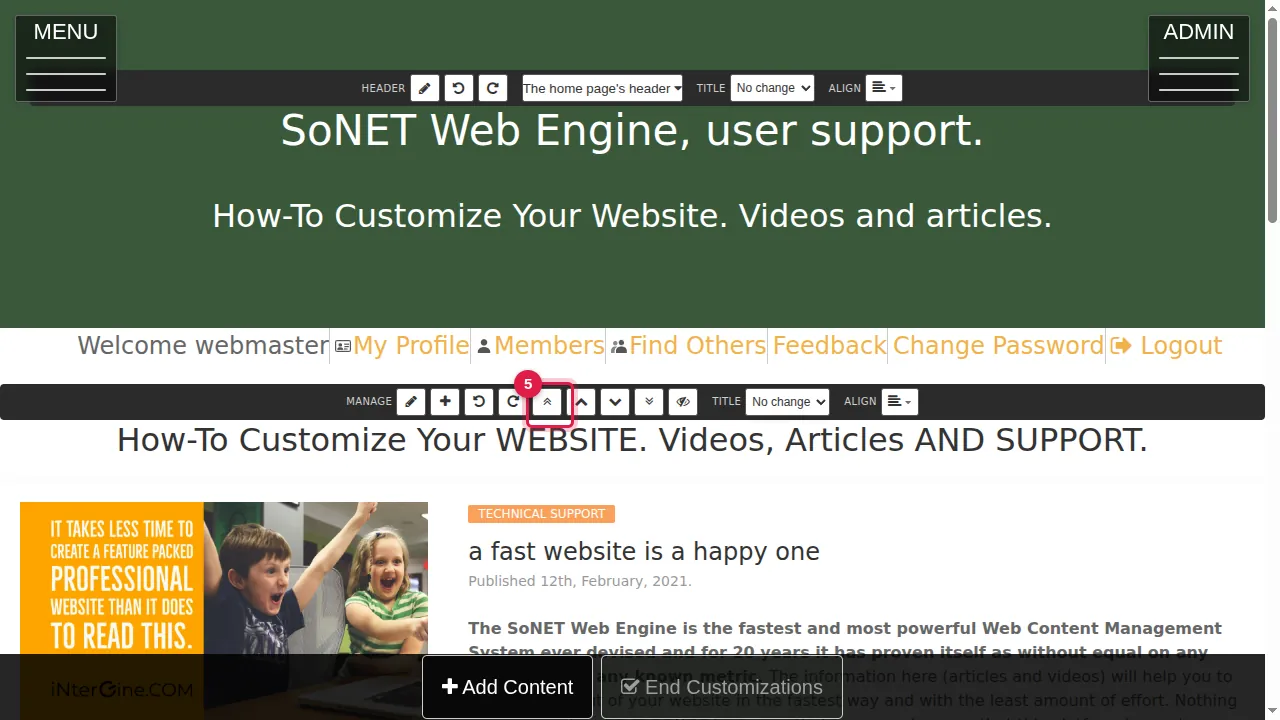
Step 6. The eye closes the section: it disappears from the page but is kept, so you can bring it back later.
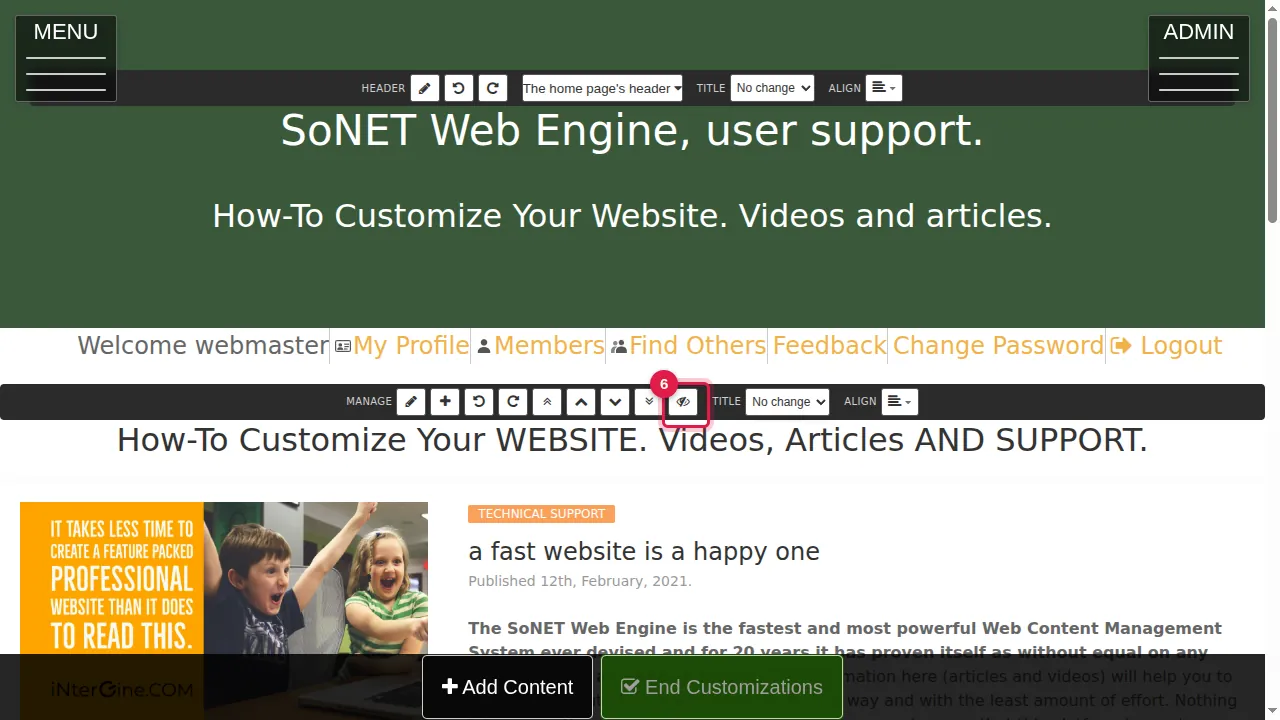
Step 7. Undo and redo take back the last change to this section, or do it again.
Change a section
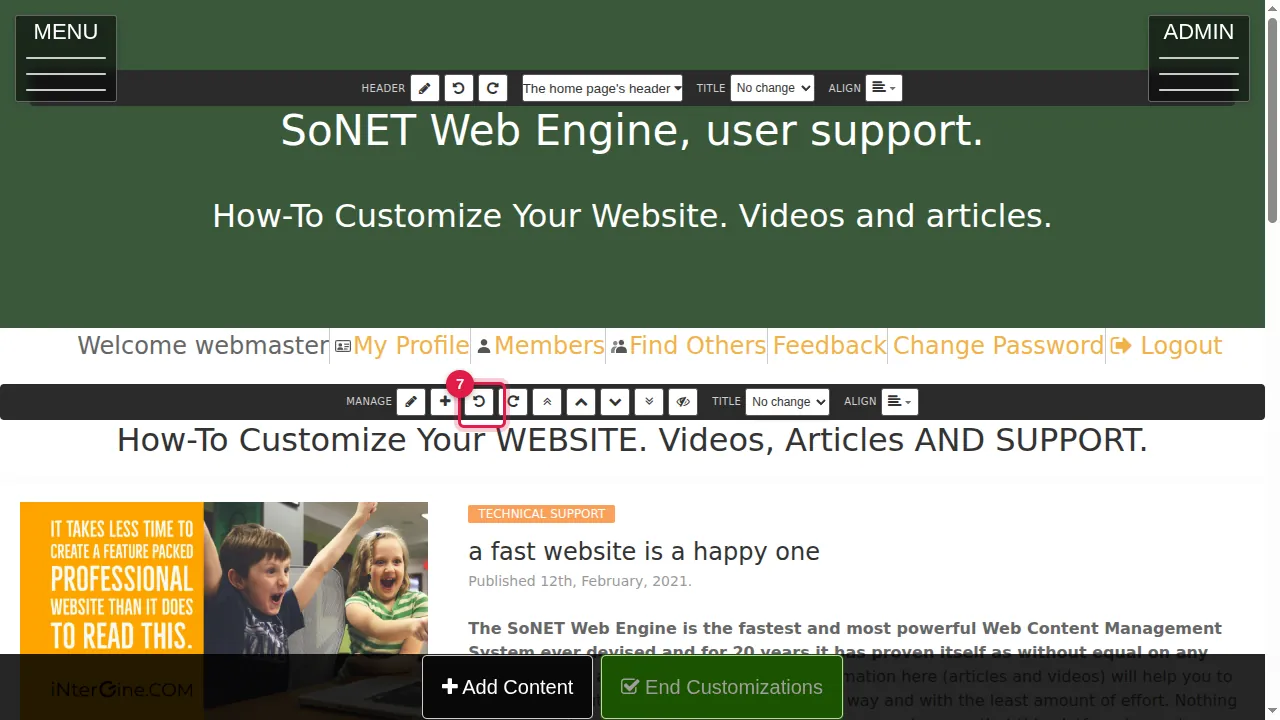
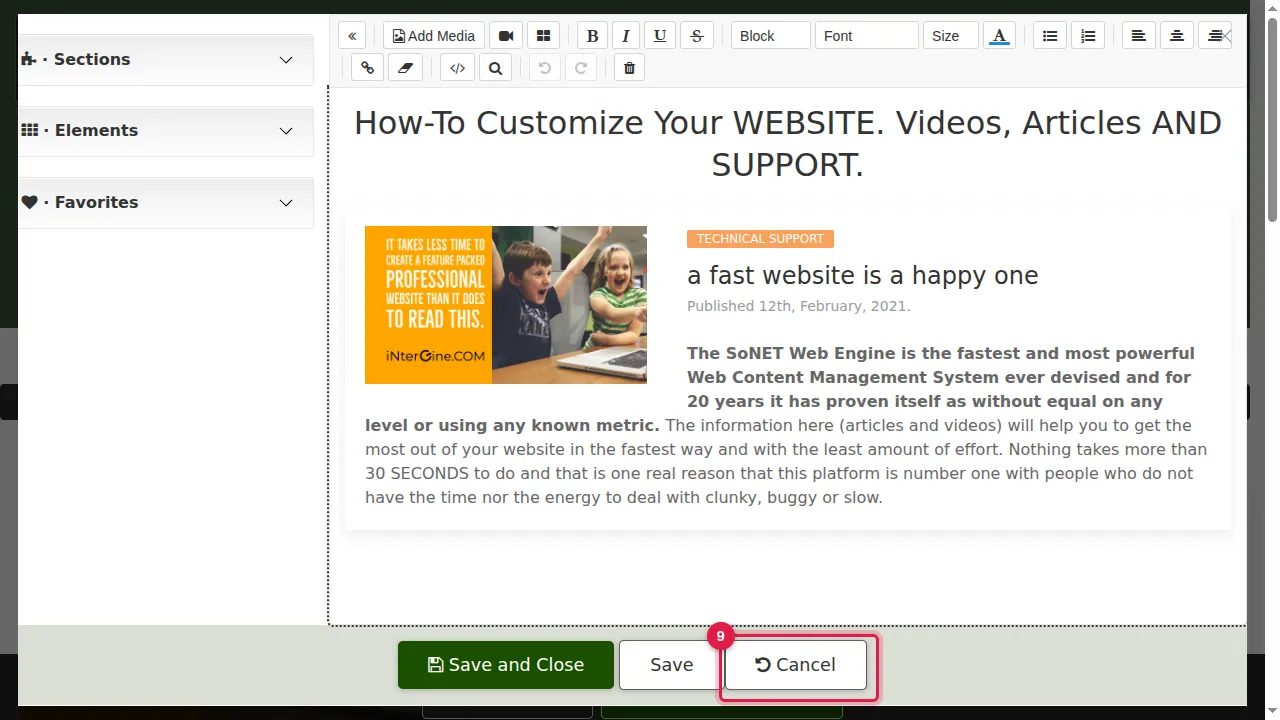
Step 8. Click a section's pencil to change its text and pictures.
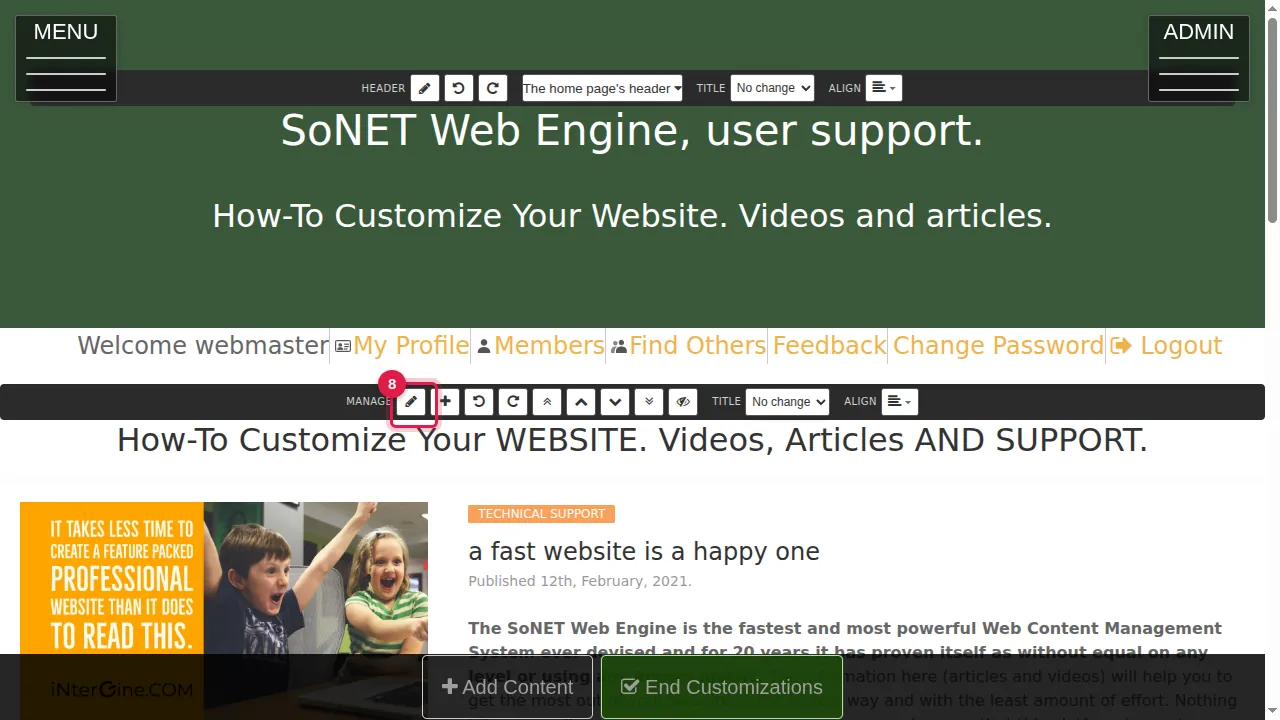
Step 9. The section editor opens. Save and Close saves your changes and closes the editor, Save saves and keeps it open, and Cancel closes it without saving.
Leave edit mode
Step 10. When you are finished, click End Customizations at the bottom.
Step 11. The page is back in normal view, the way your visitors see it.
Check it worked
After End Customizations, open the page as a visitor (log out or use a private window) and check your changes.
Good to know
- The toolbar also has TITLE, which sets the size of the section's heading (Small to 2XLarge), and ALIGN, which puts the heading on the left, in the centre or on the right. Some sections show more style buttons; they are explained in their own article.
- In edit mode the header has a toolbar too: its pencil edits this page's header, and its menu offers "Make a slim version for the other pages", "Back to the title and subtitle" and "No header".
- End Customizations only switches the page back to normal view; your saved changes stay as they are.
Related help
Shown on the 2026 version of the SoNET Web Engine. Last checked 20 October 2026. Something different on your screen? Tell us through the Contact page.