Help Center Getting Started
Log in, find your way around, change your password, log out
How to log in to your website, what the extra tools are that you see once you are logged in, how to change your password and how to log out.
Watch it done: a short silent video with captions · 1:51. The steps below show the same thing picture by picture.
Before you start
- You need your website's address and your user name and password (or the Microsoft or Google account your site lets you log in with).
Log in
Step 1. Open your website and click MENU at the top left.
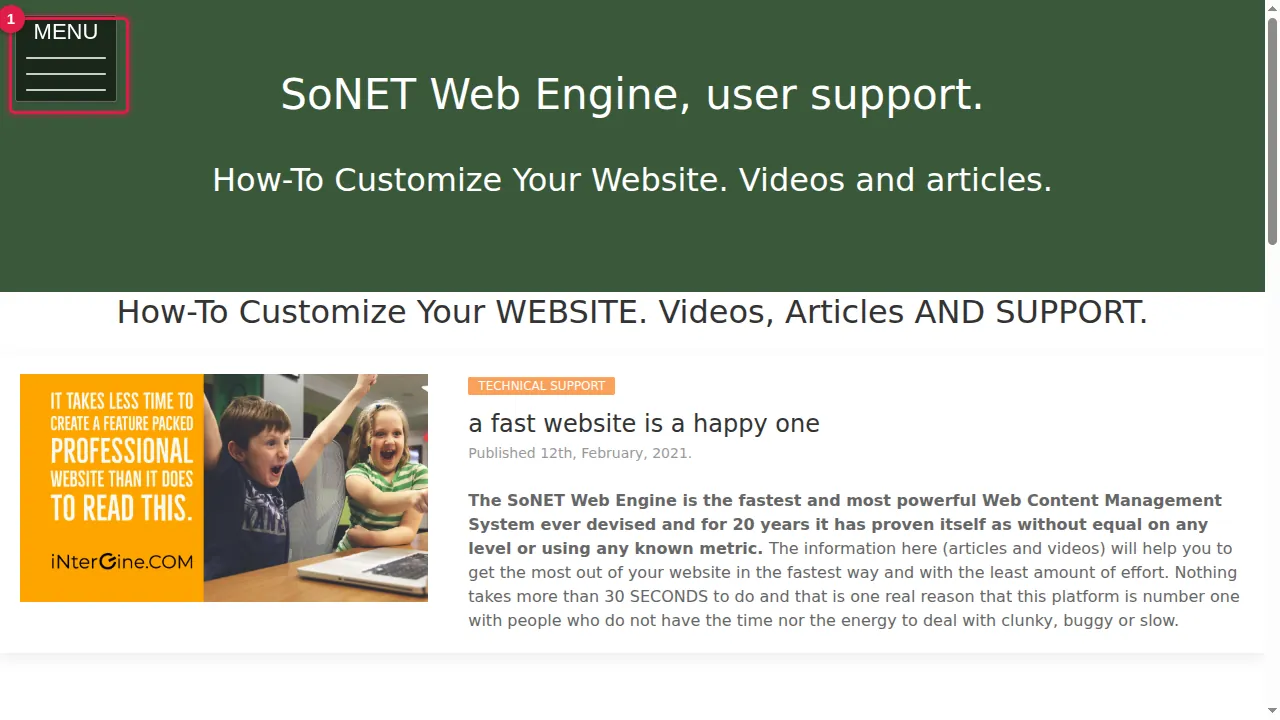
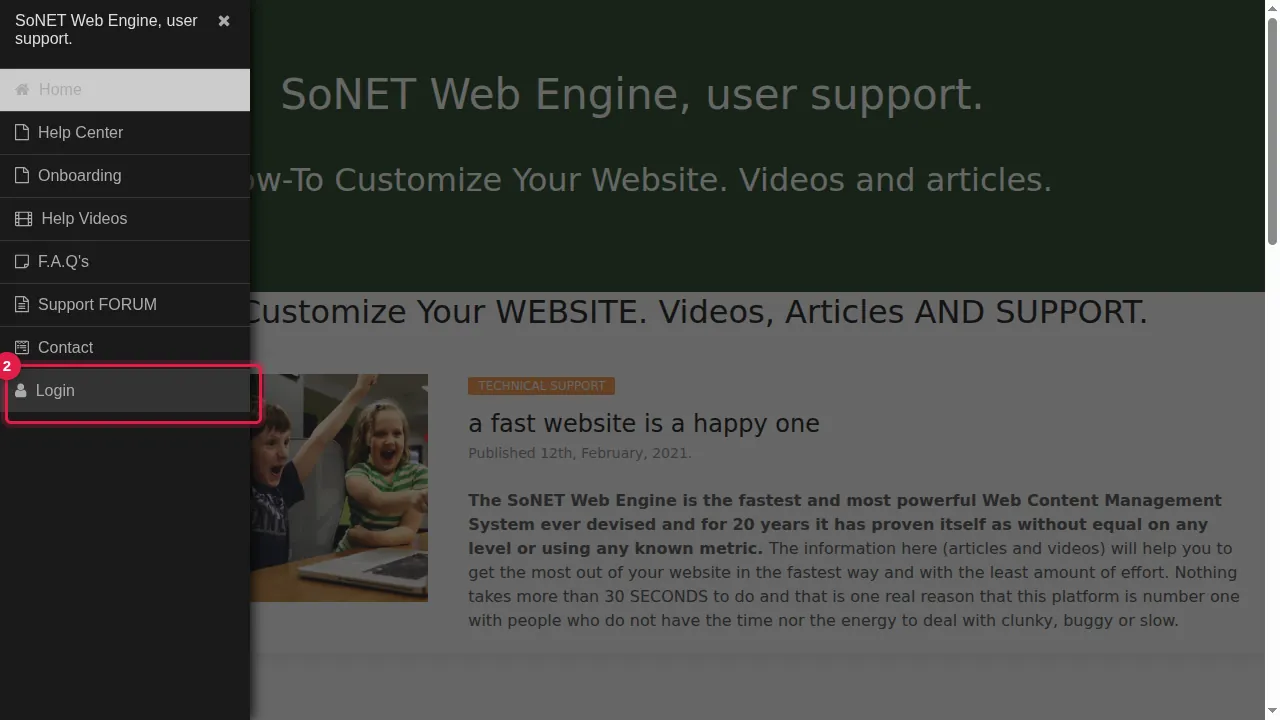
Step 2. Click Login at the bottom of the menu. (You can also type your site's address followed by /login.)
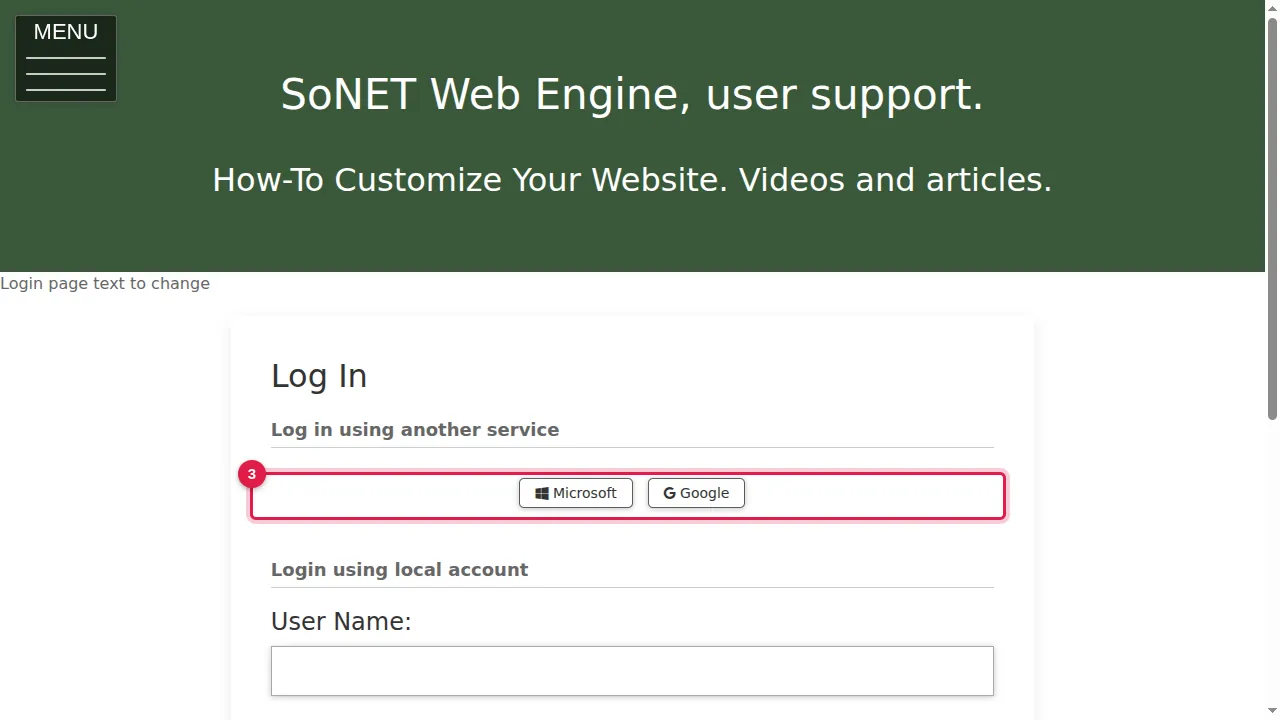
Step 3. If your account uses Microsoft or Google, click that button to log in with it.
Step 4. Otherwise, type your user name in the User Name box.
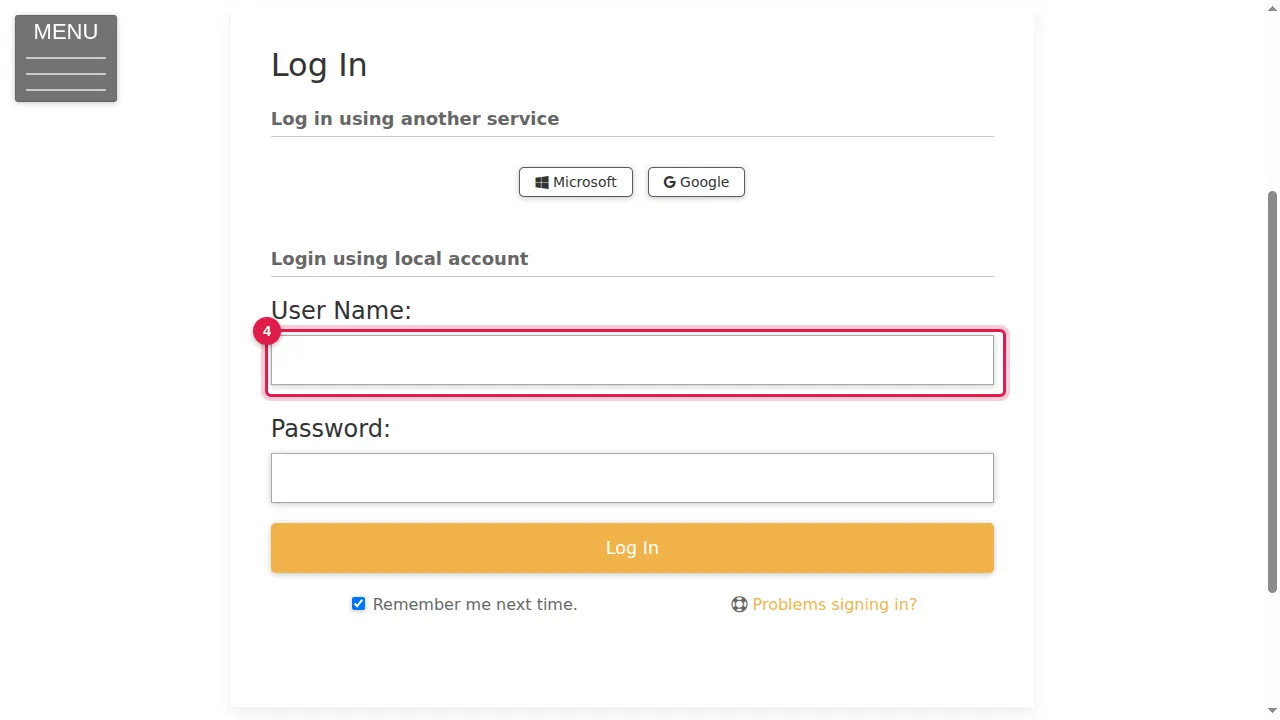
Step 5. Type your password in the Password box.
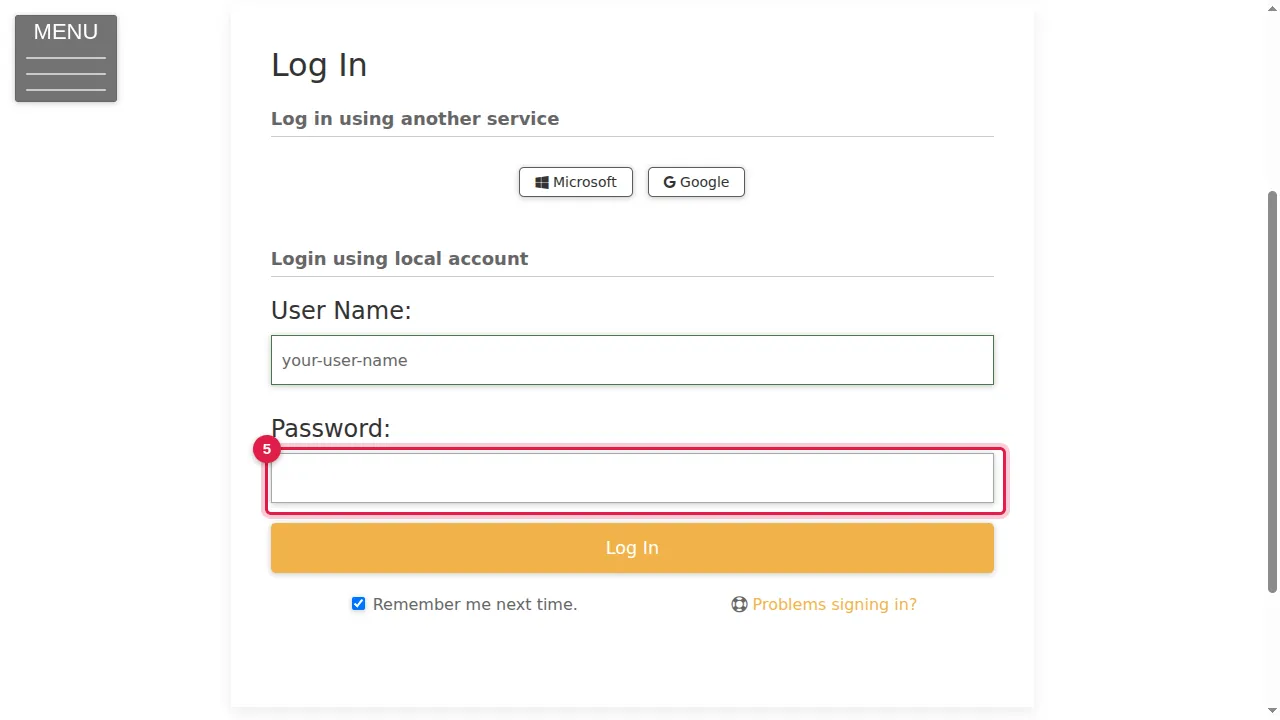
Step 6. Leave "Remember me next time" ticked if you want to stay logged in on this device; untick it on a shared computer.
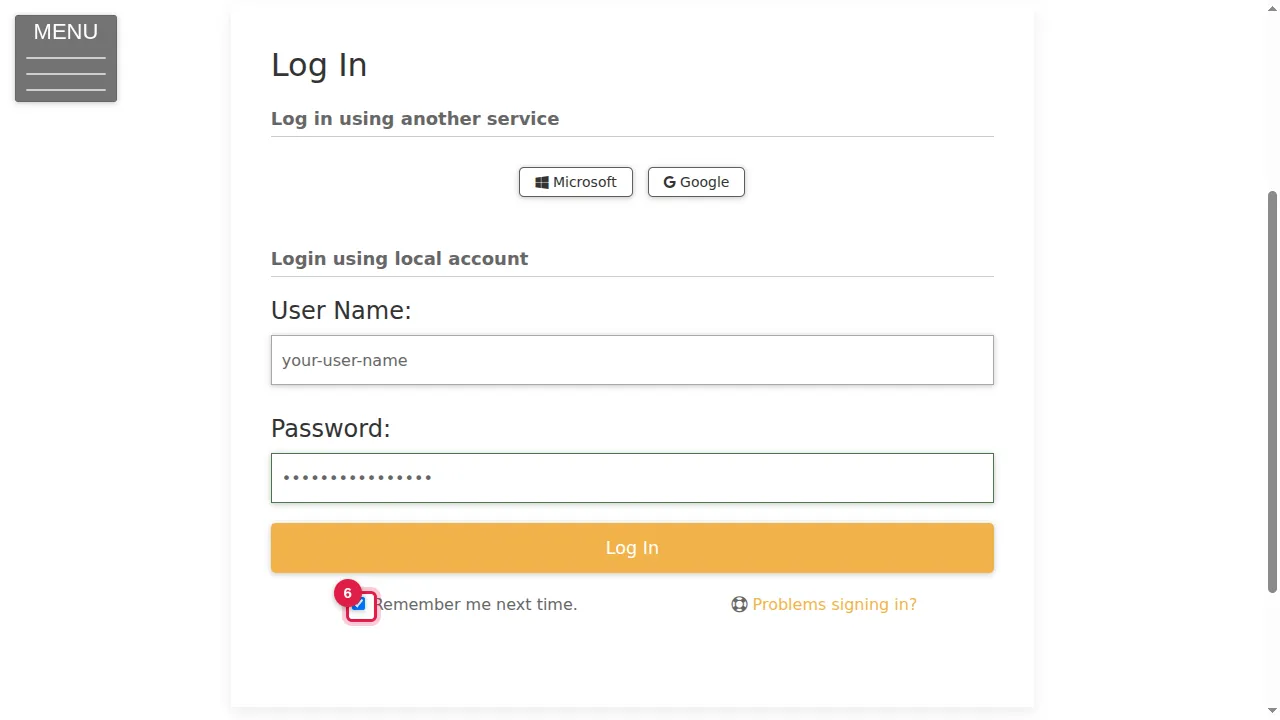
Step 7. Click Log In.
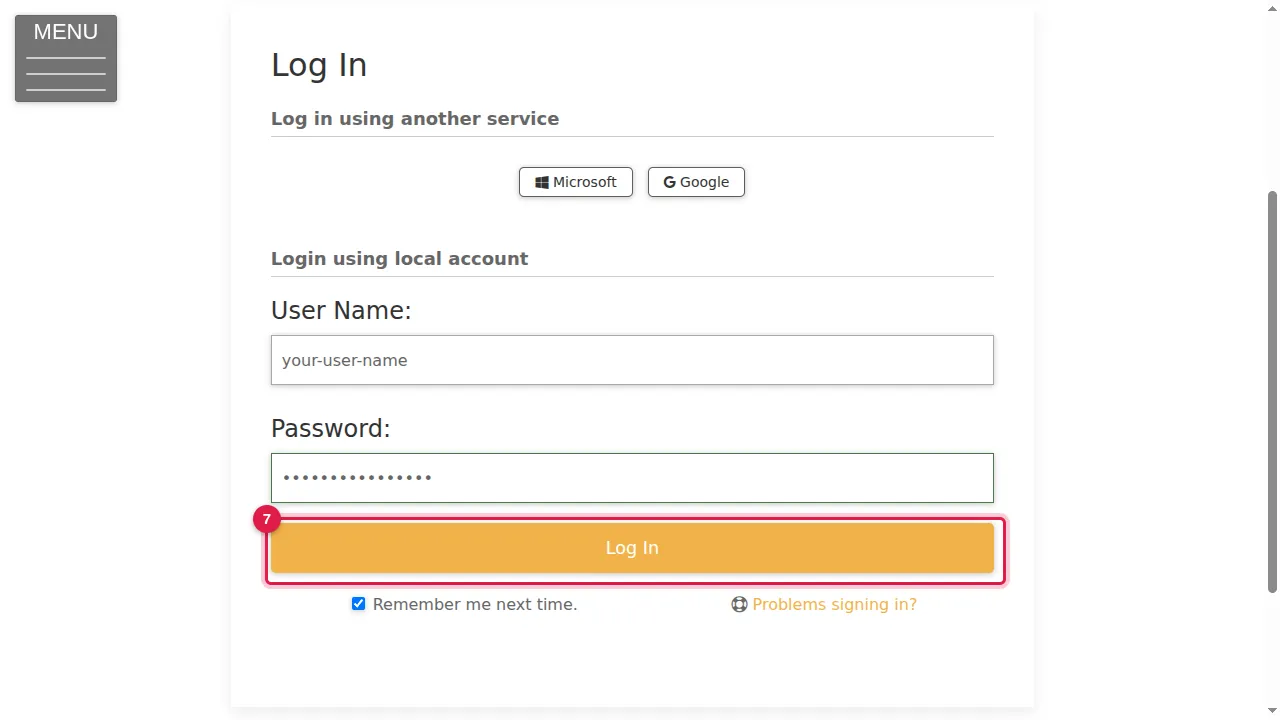
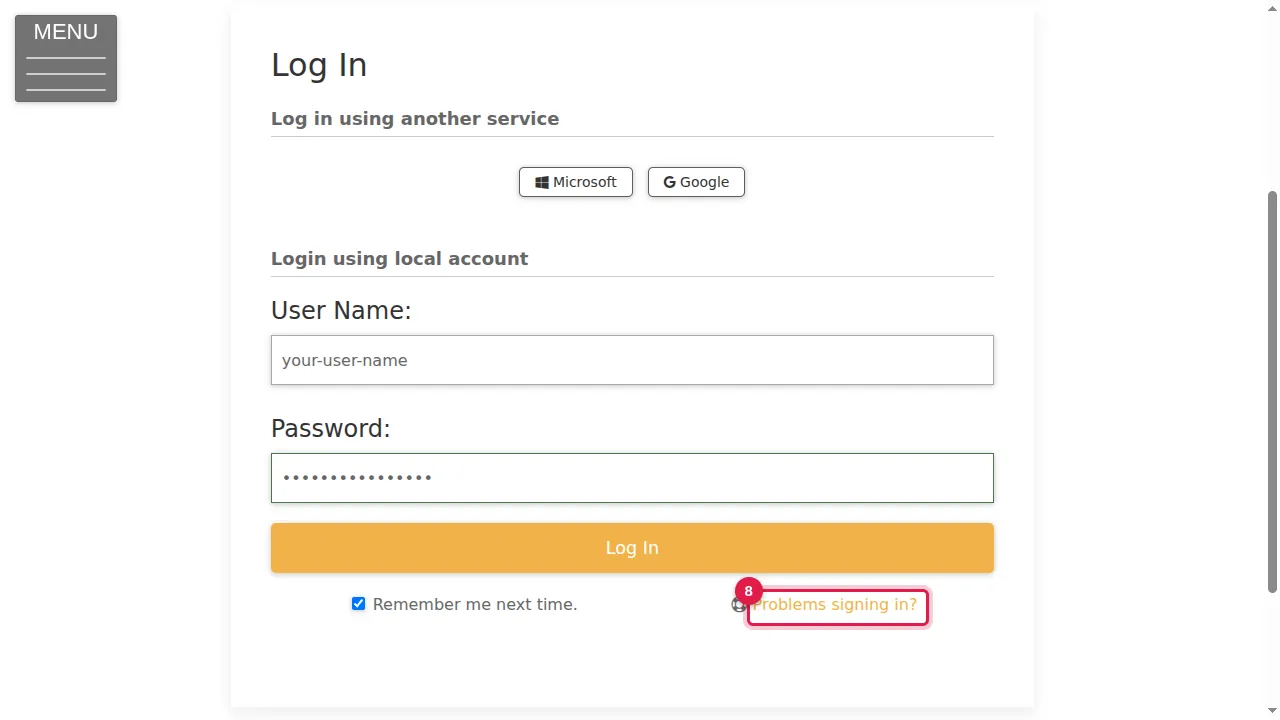
Step 8. Forgot your password? Click "Problems signing in?". Type your user name or e-mail address and the code from the picture, then click "Email me a link to choose a new password".
What you see when you are logged in
Step 9. Once you are logged in, you see your website with extra tools. Click ADMIN at the top right to open the admin menu.
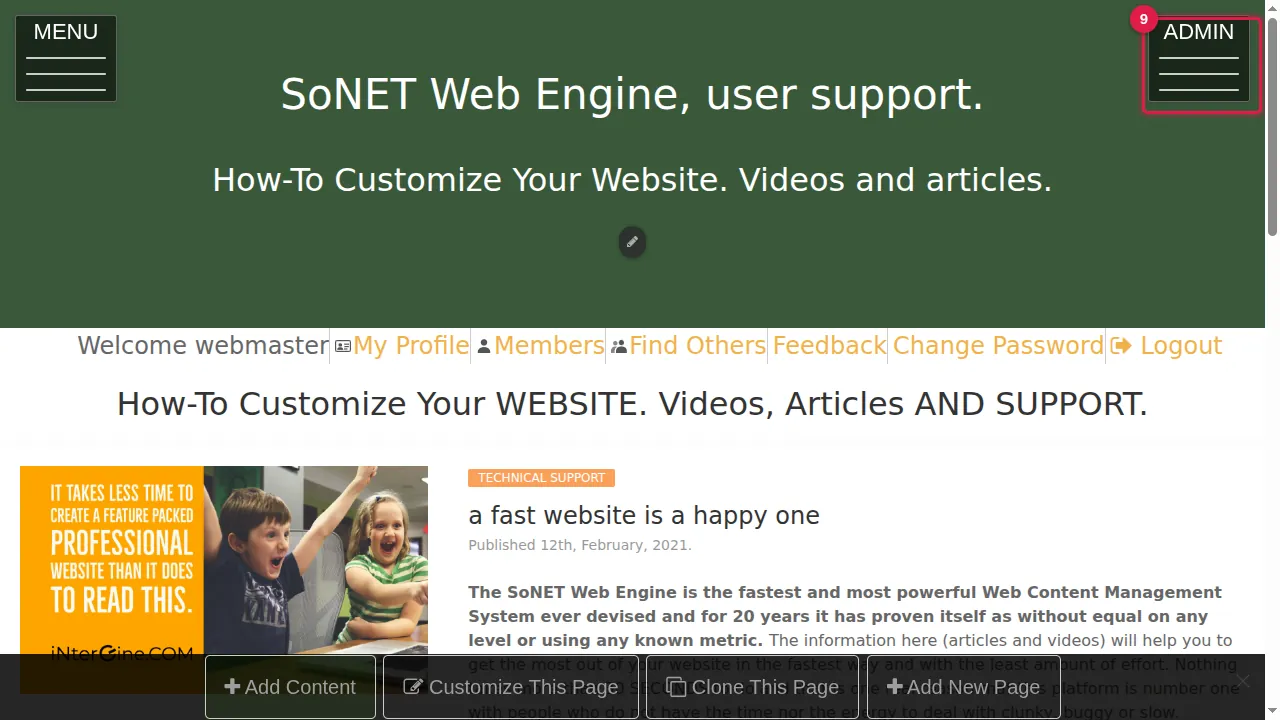
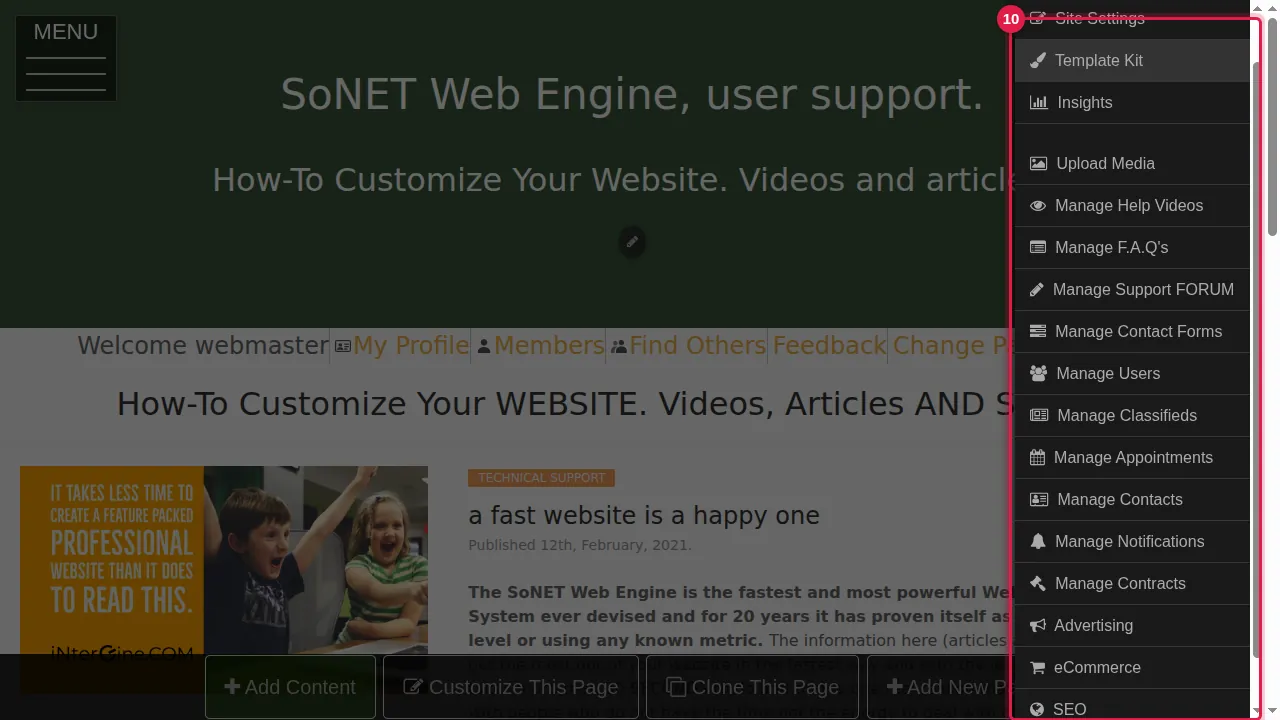
Step 10. The admin menu leads to every admin screen: Site Settings, Template Kit, Insights, Upload Media, the gallery, F.A.Q. and blog, forms, users, classifieds, appointments, contacts, notifications, contracts, advertising, eCommerce, SEO and integrations. Close it with the X at its top.
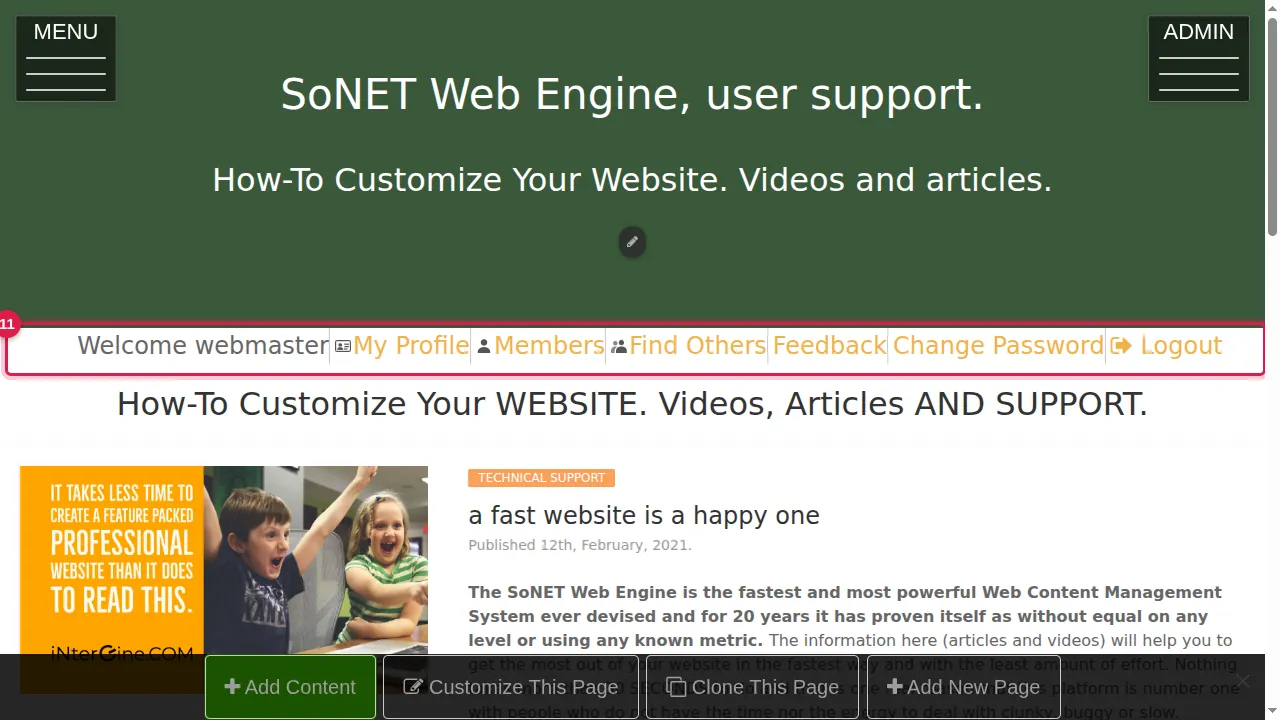
Step 11. Under the header you find your account links: My Profile, Members, Find Others, Feedback, Change Password and Logout.
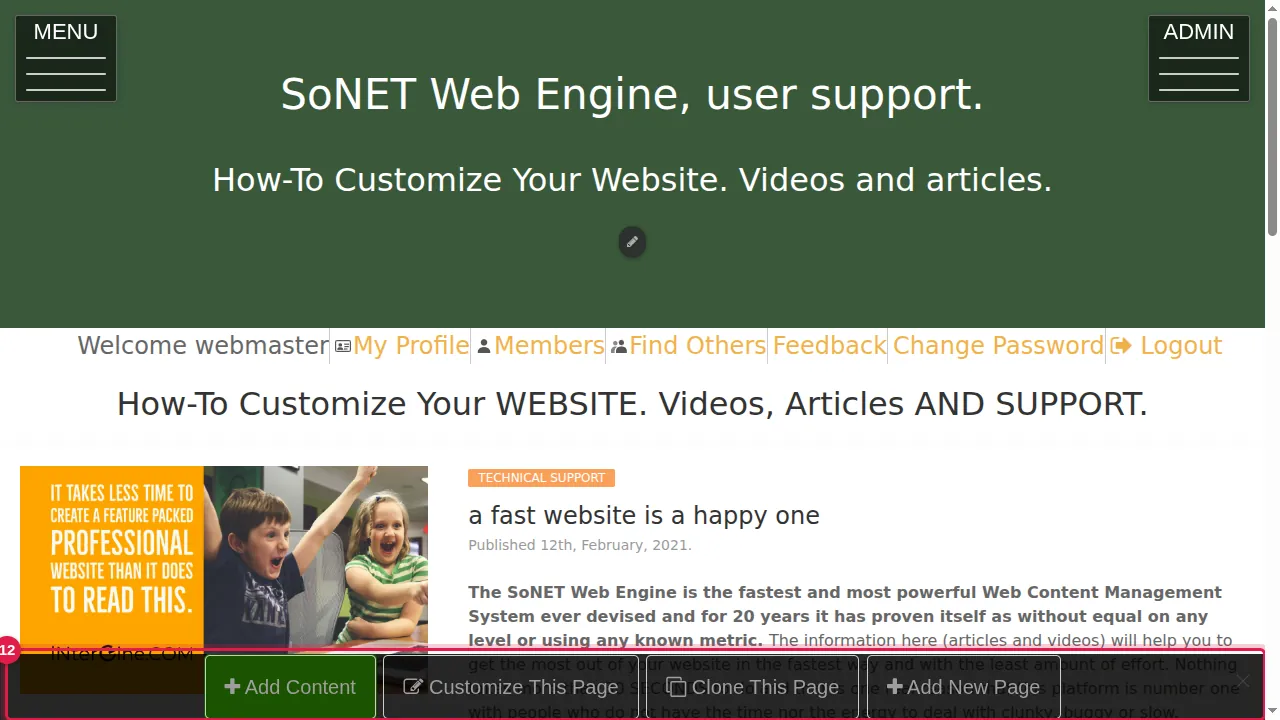
Step 12. At the bottom of every page are the page tools: Add Content, Customize This Page, Clone This Page and Add New Page.
Change your password
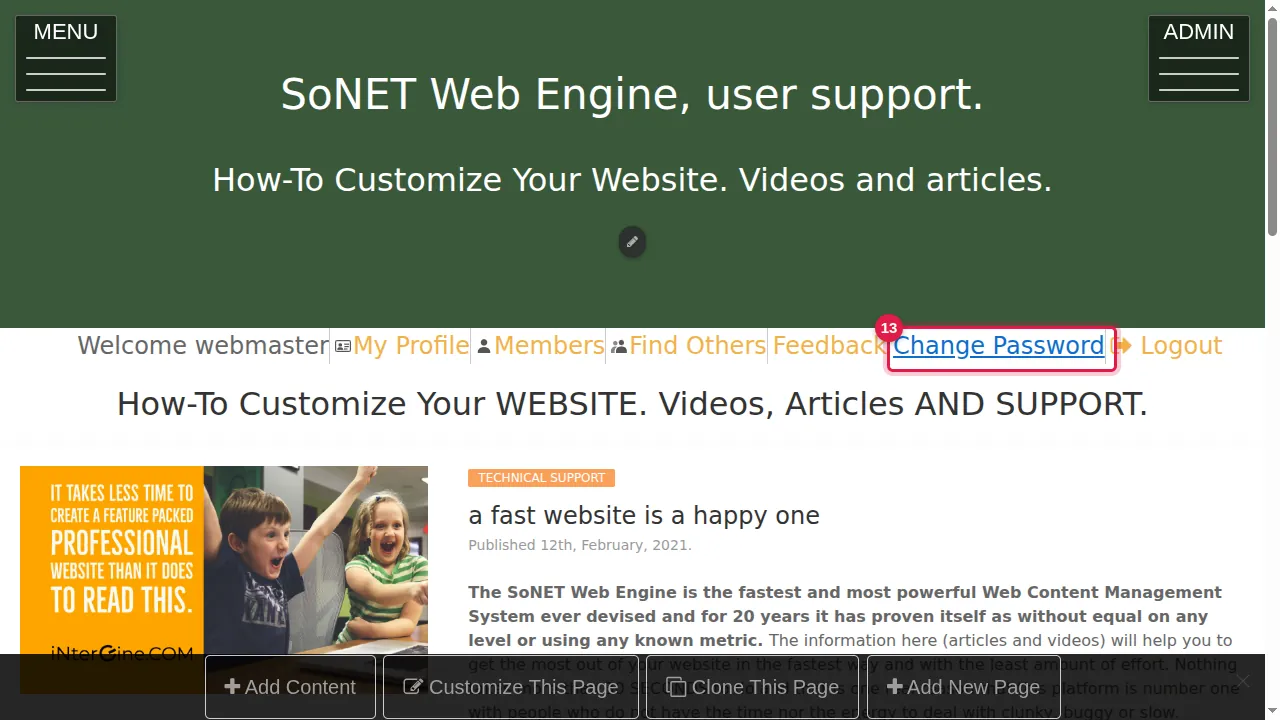
Step 13. To change your password, click Change Password under the header.
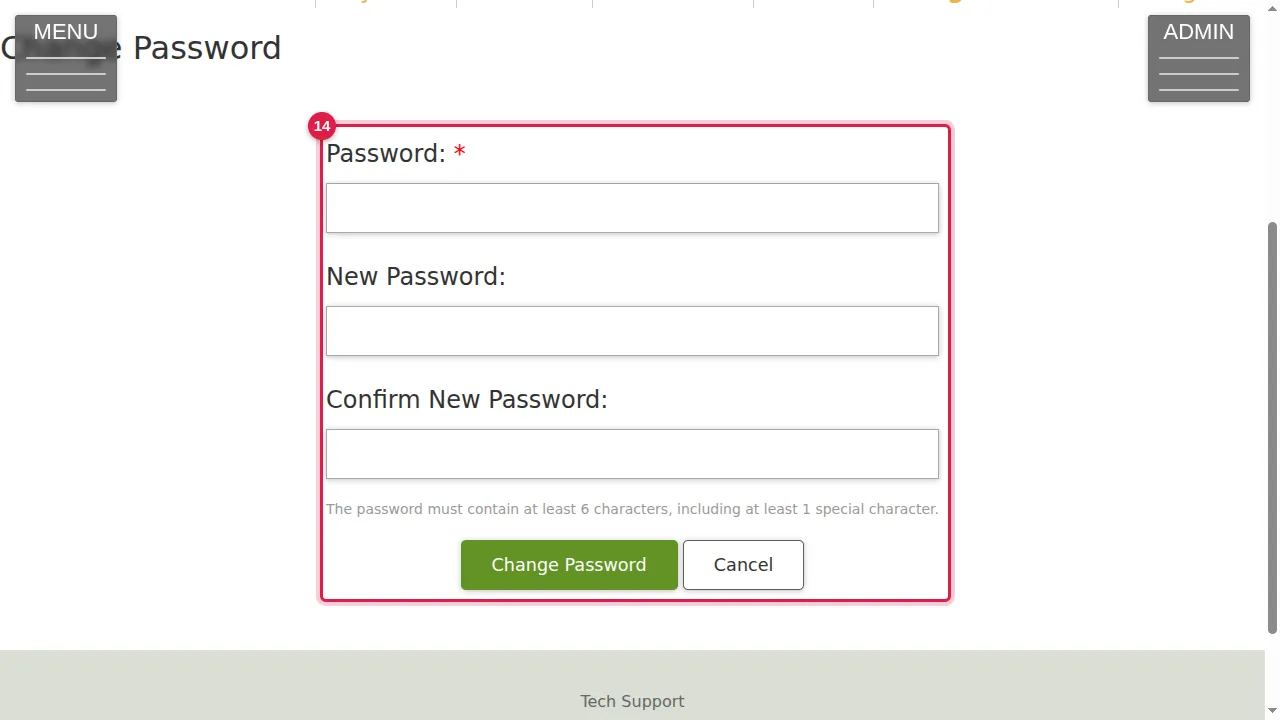
Step 14. Type your current password, then your new password twice. It must have at least 6 characters, including at least 1 special character (for example ! or #). Click Change Password. Cancel leaves without changing it.
Log out
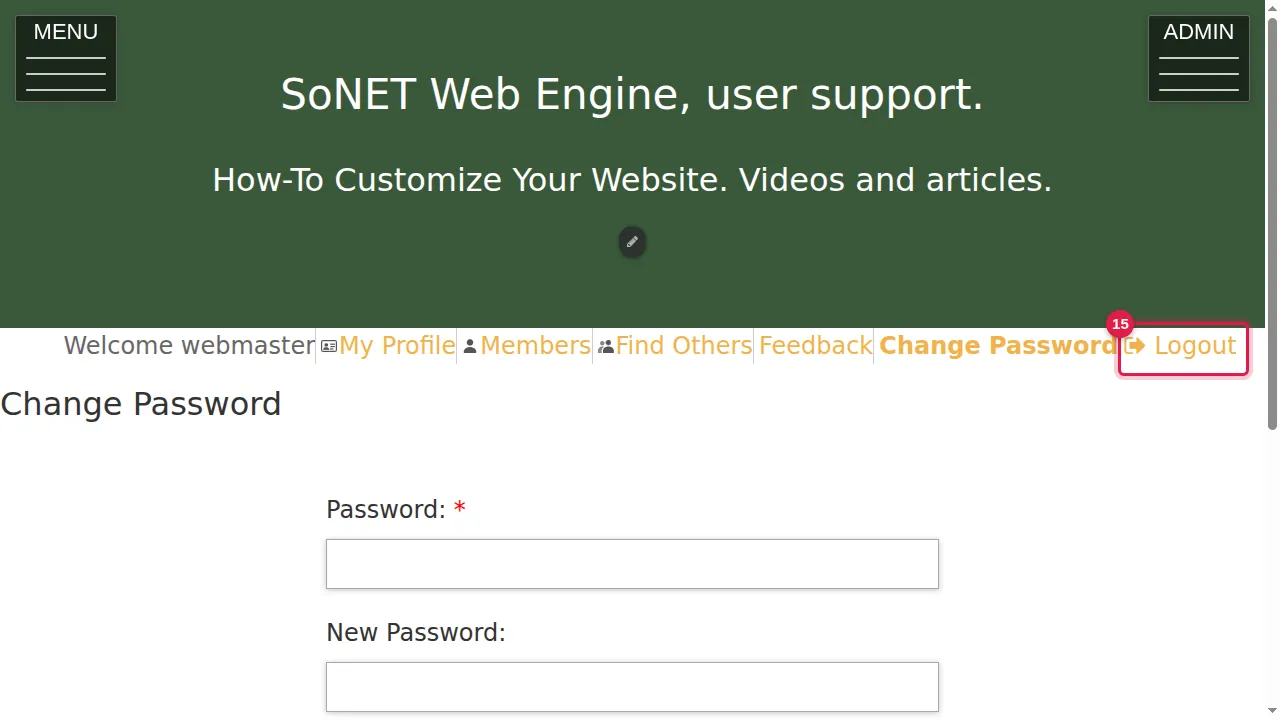
Step 15. To log out, click Logout under the header.
Check it worked
After logging in you see the ADMIN button at the top right. After logging out it is gone, and the menu shows Login again.
Good to know
- The MENU at the top left is the same menu your visitors see. The ADMIN menu at the top right is only shown to you.
- You can stop people from logging in with Microsoft or Google: Admin › Site Settings › Privacy Levels › "do not allow social logins".
- Log out when you use a computer that other people share.
Related help
Shown on the 2026 version of the SoNET Web Engine. Last checked 20 October 2026. Something different on your screen? Tell us through the Contact page.