Help Center Getting Started
Change your site's title and subtitle
The title and subtitle are the two lines at the top of your website (the header). Your home page has its own header, and all your other pages share one header. Here is how to change each.
Watch it done: a short silent video with captions · 1:53. The steps below show the same thing picture by picture.
Before you start
- Log in to your website as its administrator.
Change the header on your home page
Step 1. Log in and open your home page. The title and subtitle are at the top of the page.
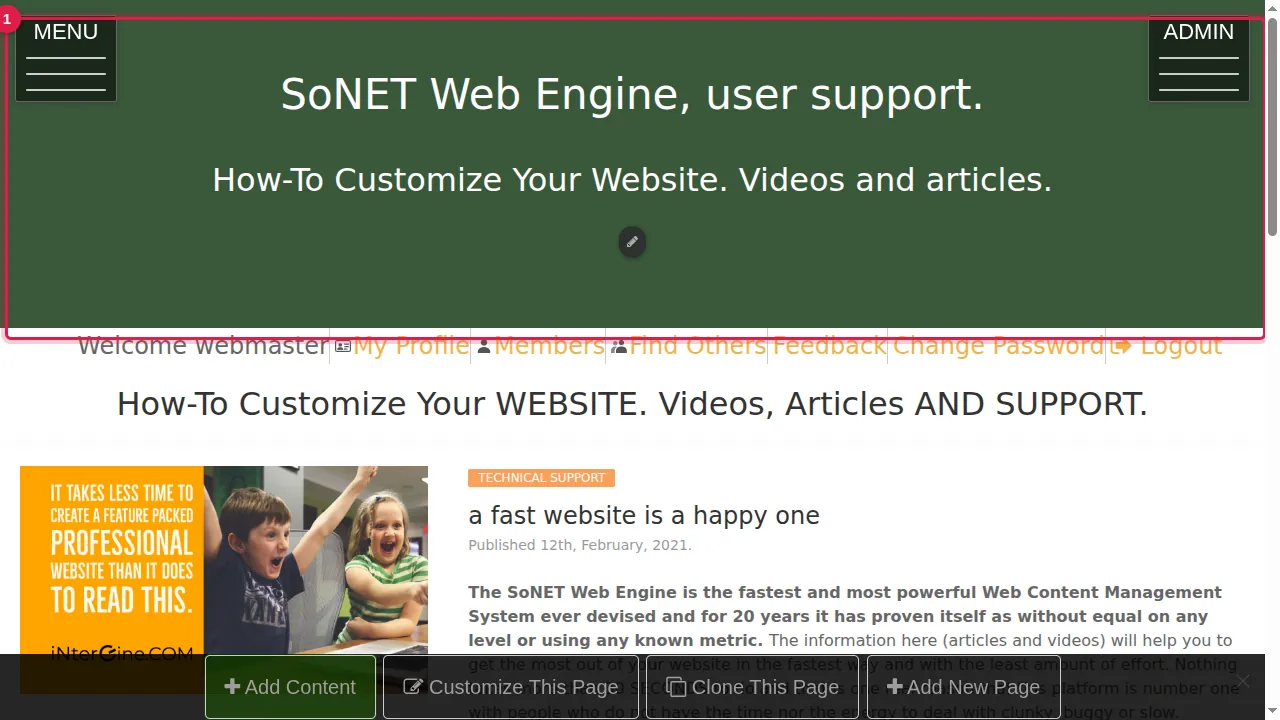
Step 2. Click the pencil under the subtitle. When you point at it, it says "Edit this page's header".
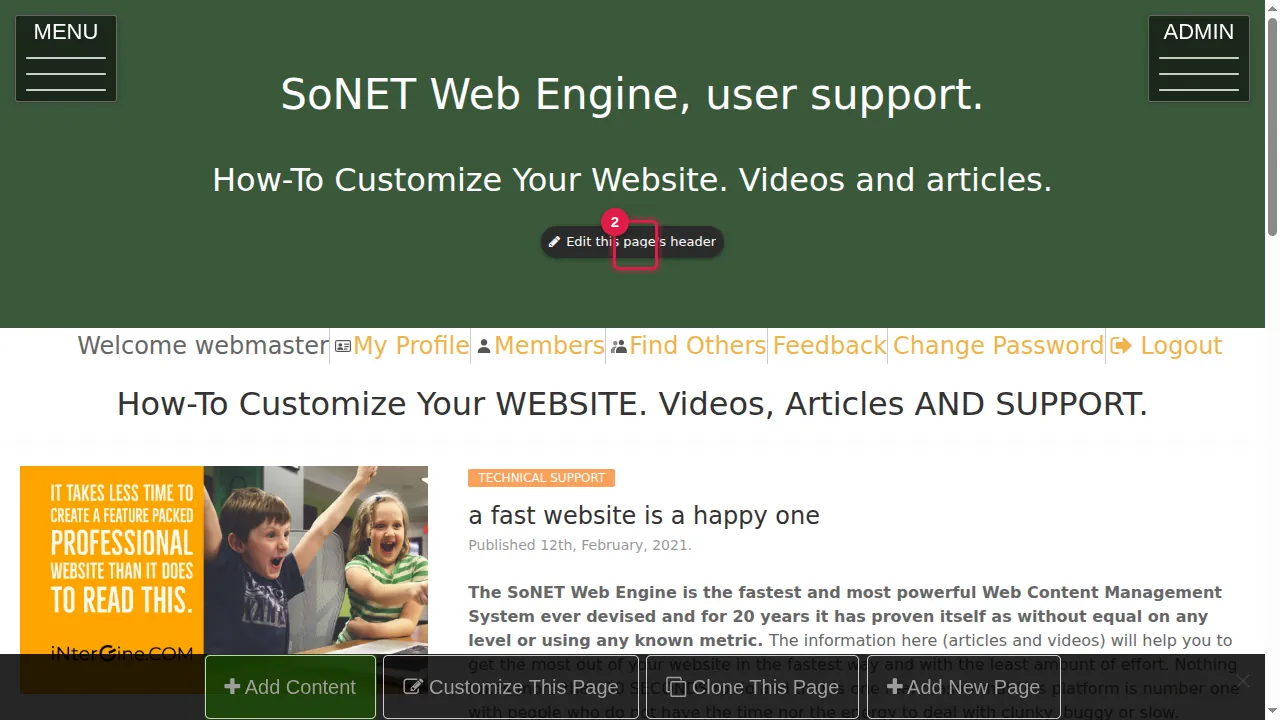
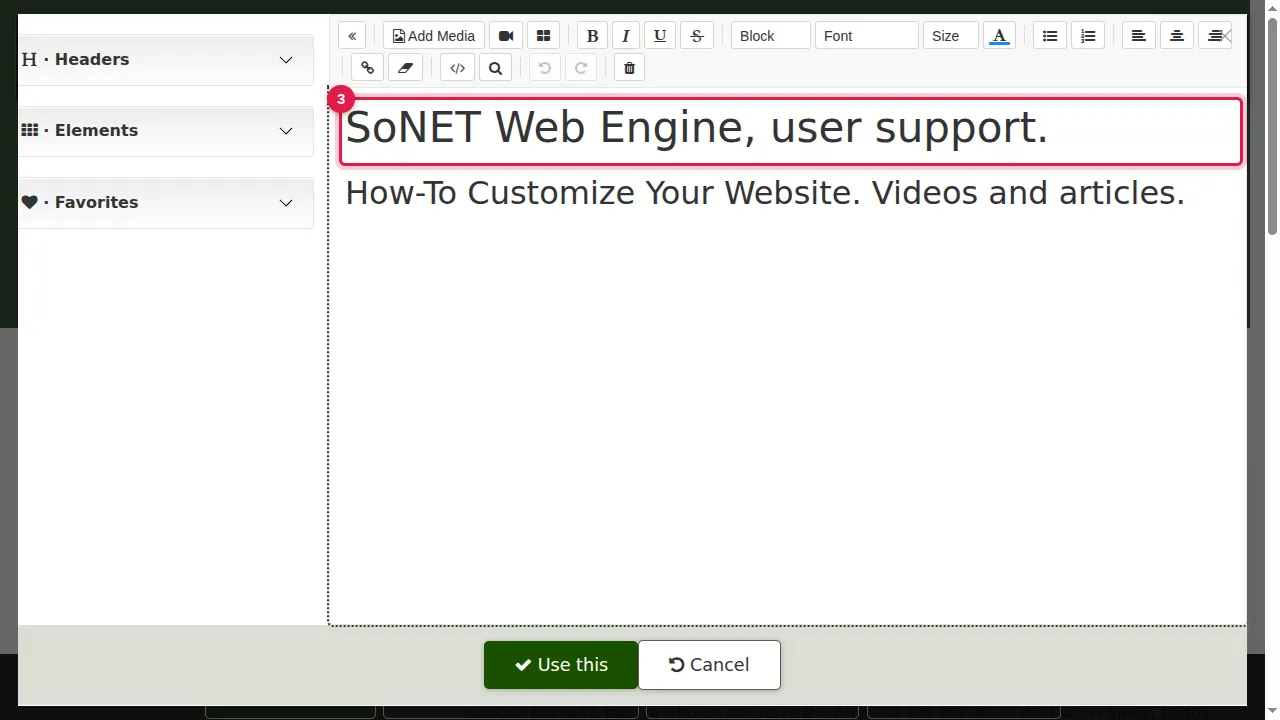
Step 3. The header editor opens. Click at the end of the title line, select the old title and type your new one.
Step 4. Do the same on the subtitle line: select the old subtitle and type the new one.
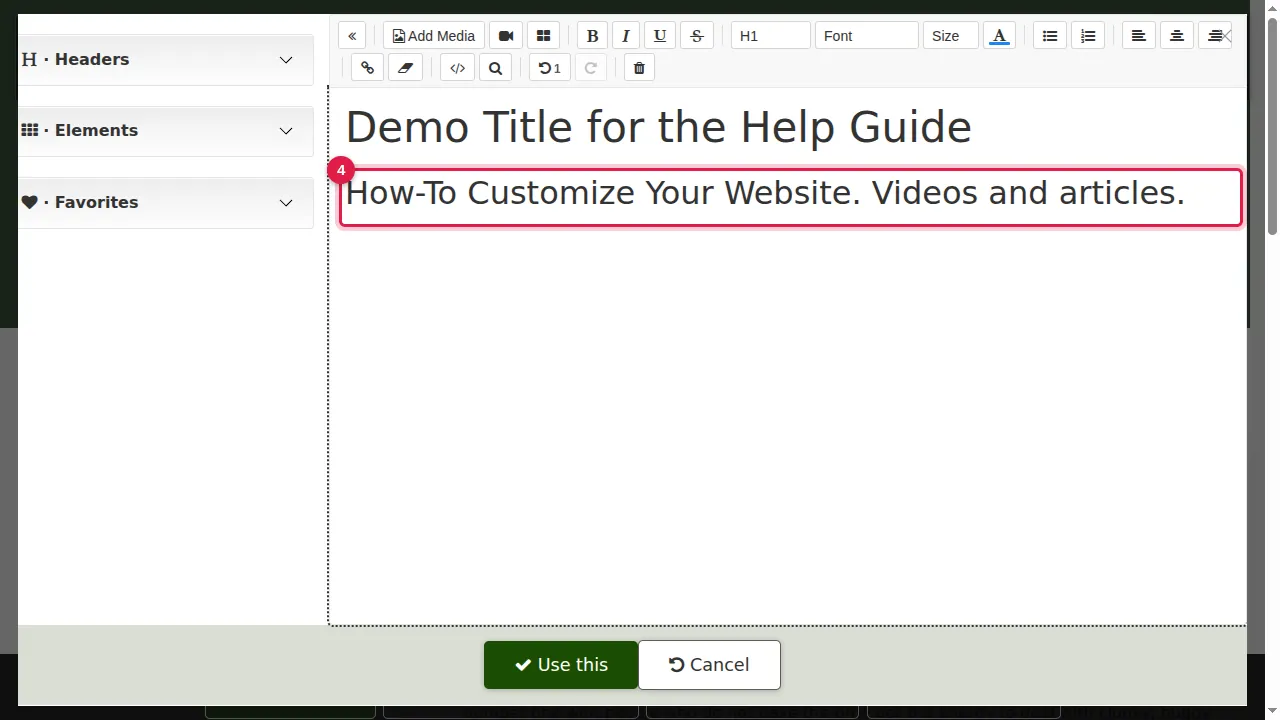
Step 5. Click Use this to save. (Cancel closes the editor without saving.)
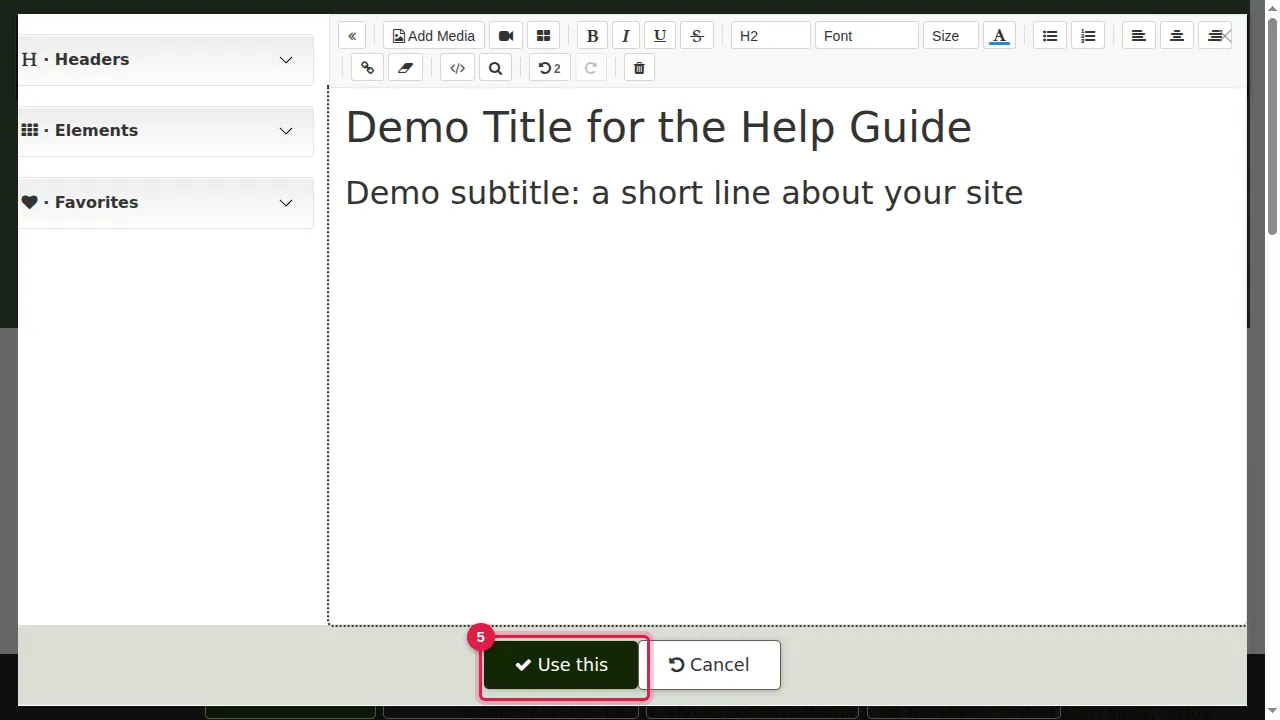
Step 6. The home page now shows your new title and subtitle.
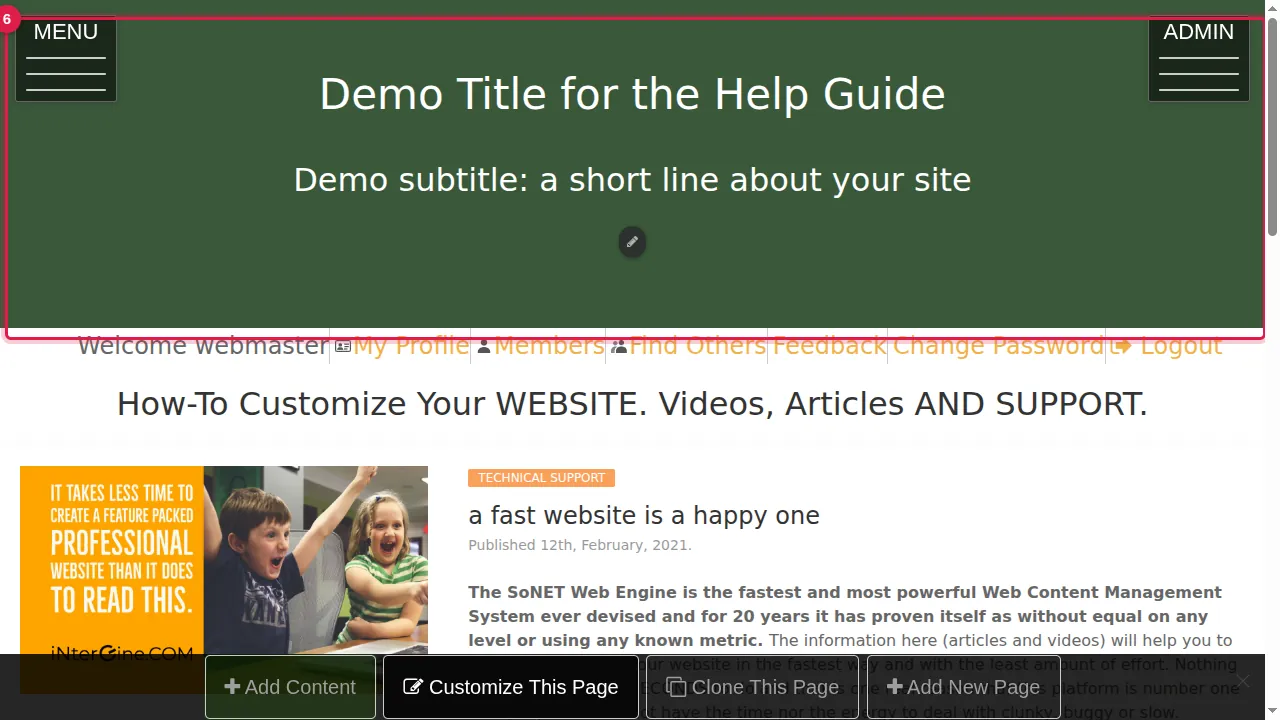
Other pages keep their own header
Step 7. Open any other page, for example your forum or blog.
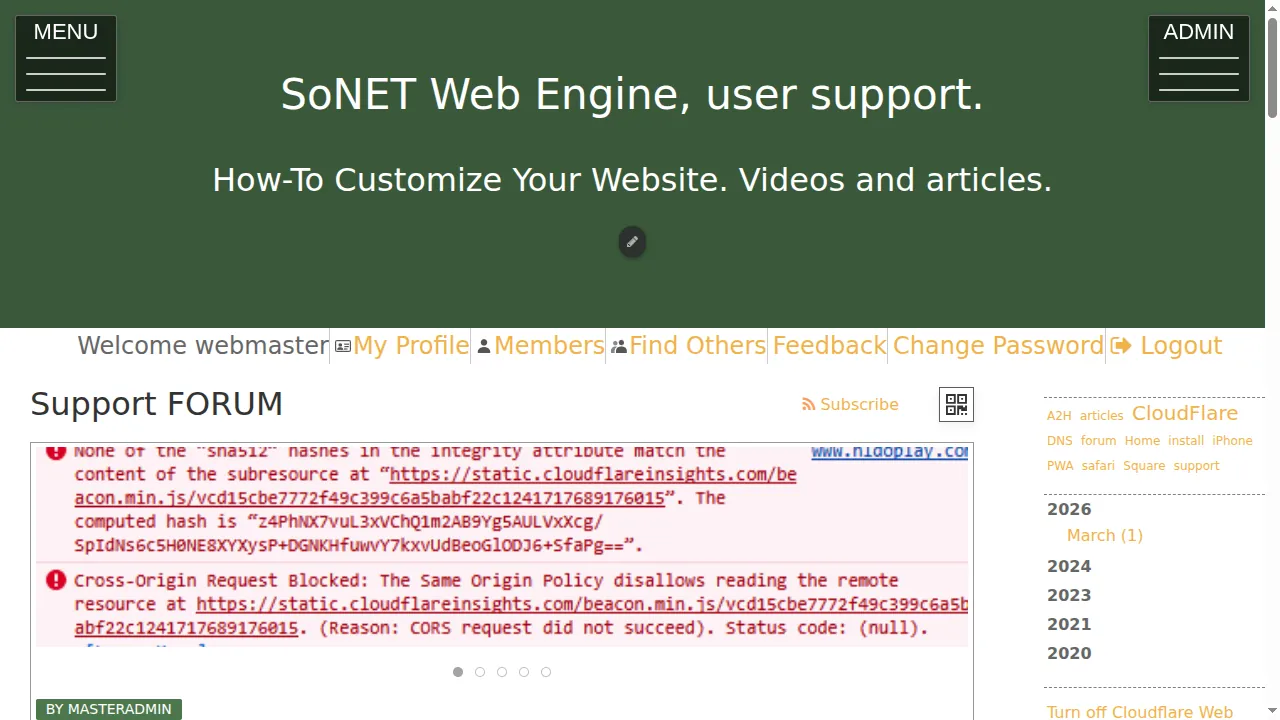
Step 8. It still shows its old header: the pencil changes only the page you are on.
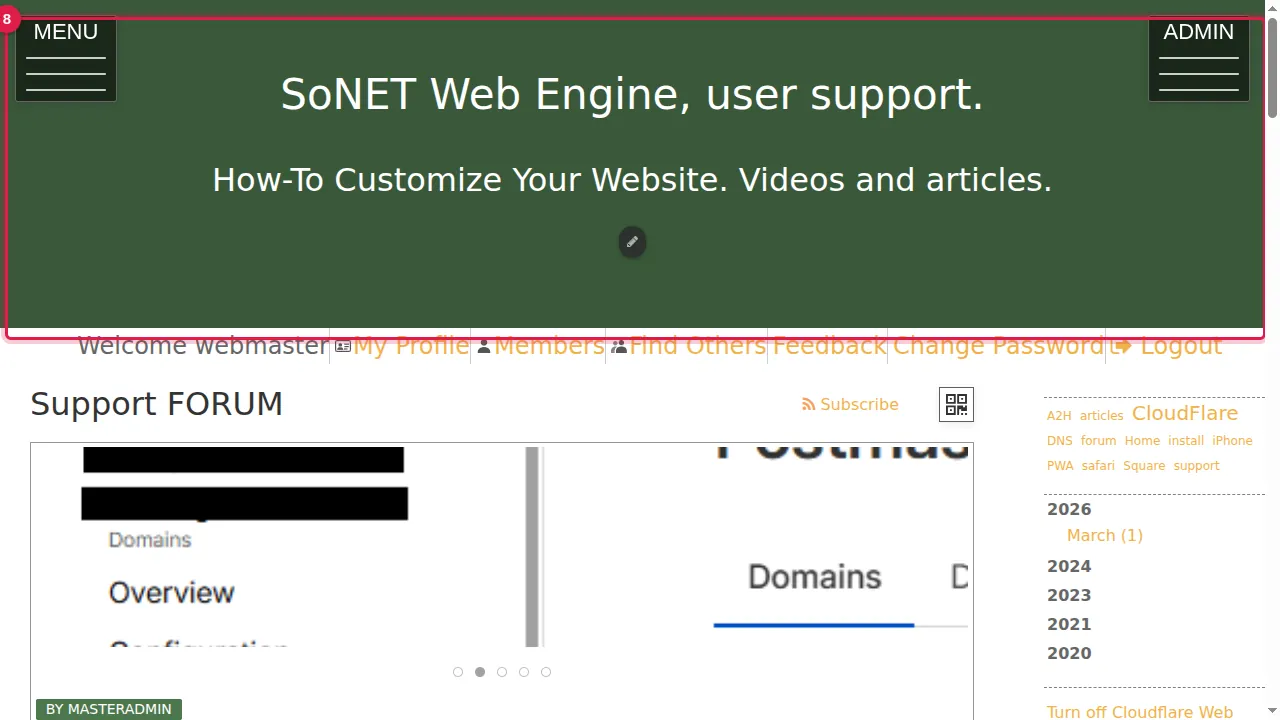
Change the header on all other pages at once
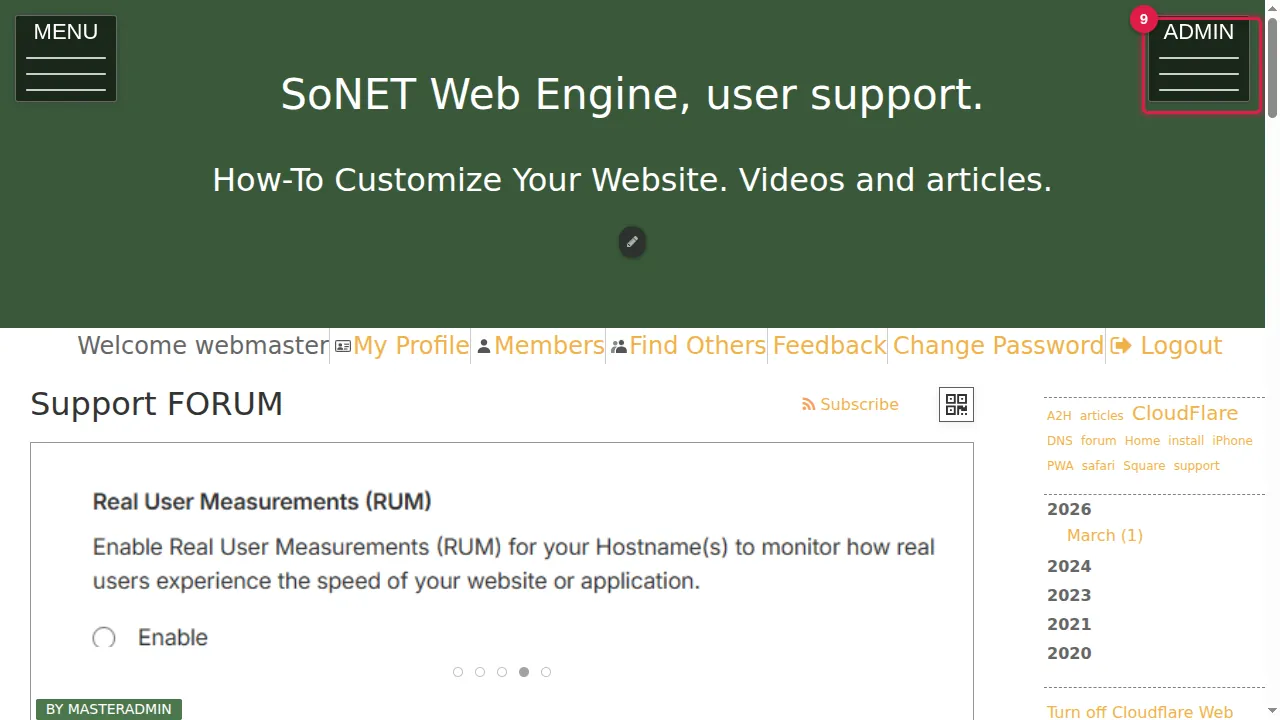
Step 9. To change the header of all other pages at once, click ADMIN at the top right.
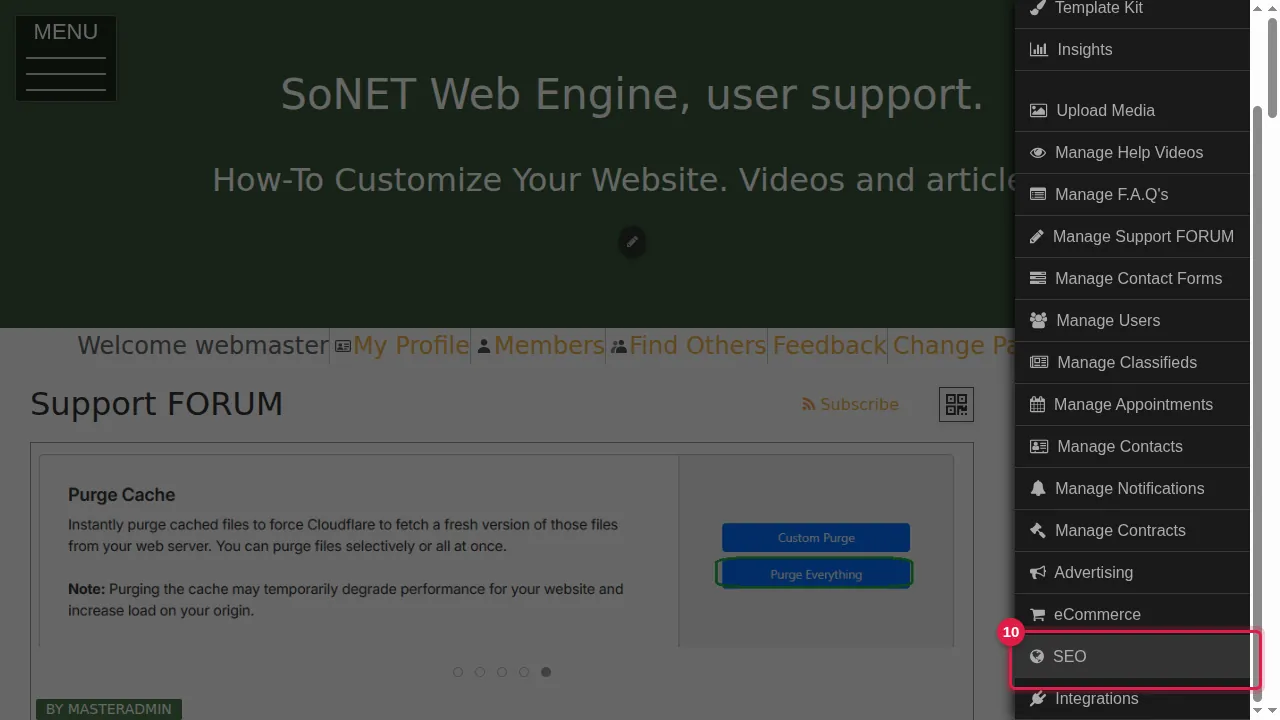
Step 10. In the admin menu, click SEO.
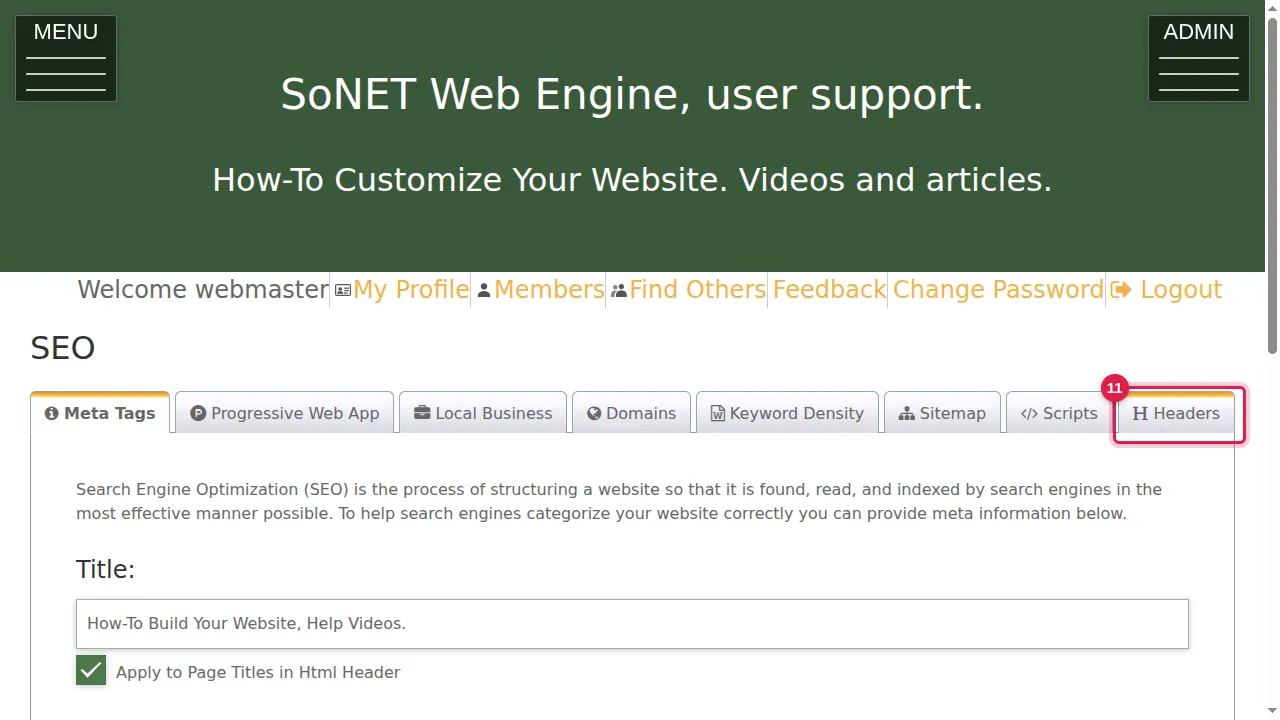
Step 11. Open the Headers tab.
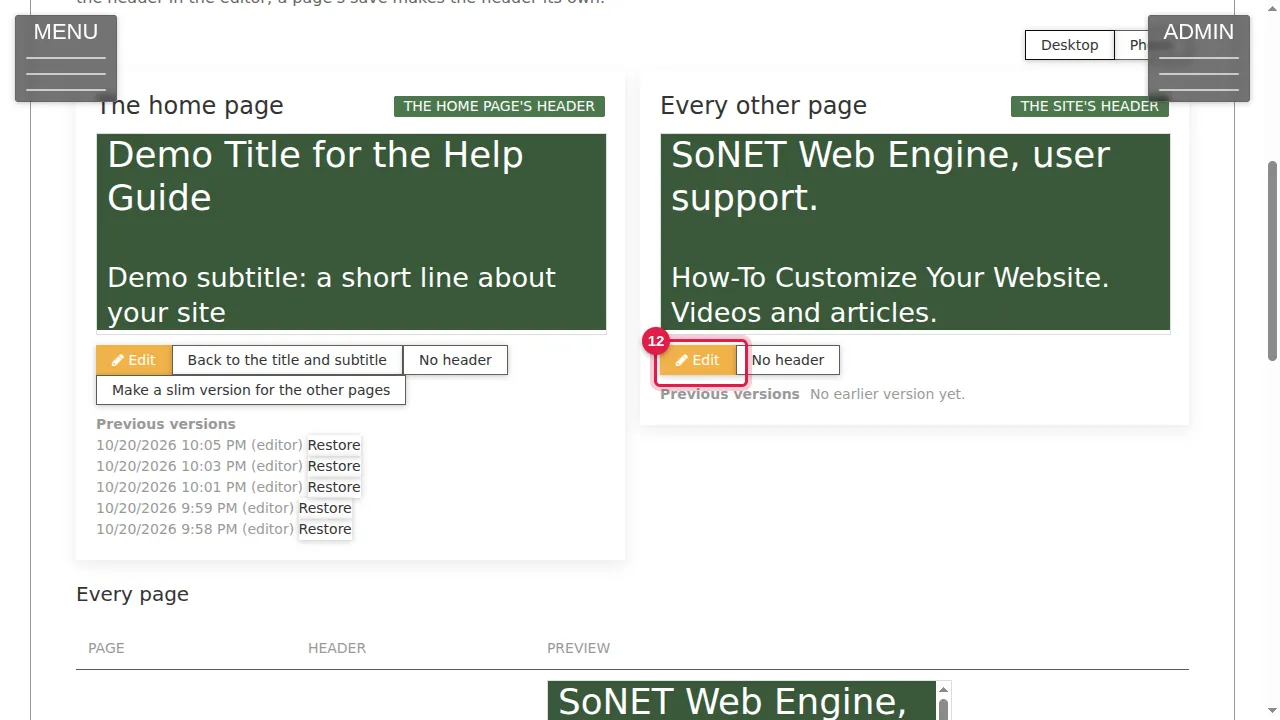
Step 12. Under "Every other page", click Edit. The same header editor opens: change the title and subtitle and click Use this. Every page that does not have a header of its own then shows it.
Check it worked
Log out (or open your site in a private window) and look at the top of the home page and of another page.
Good to know
- Saving a page's header with its own pencil gives that page a header of its own. From then on it no longer follows the "Every other page" header.
- Admin › SEO › Headers shows the header of every page in one list, with a Desktop and a Phone preview.
- Changed your mind? Under the home page's header in Admin › SEO › Headers, "Previous versions" lists your earlier saves; click Restore next to one to bring it back.
- The header editor is the same editor you use for page sections: you can also change fonts, sizes and colours there.
Shown on the 2026 version of the SoNET Web Engine. Last checked 20 October 2026. Something different on your screen? Tell us through the Contact page.