Help Center Pages & Editing
More widgets: import a site, create a website, apps, AI prompt results
Four more widgets: Import Remote Site recreates an existing website as a new SoNET site, Create Website lets someone make a new SoNET website, App shows one of your apps, and AI Prompt Results shows the answer to a question you write.
Watch it done: a short silent video with captions · 1:49. The steps below show the same thing picture by picture.
Before you start
- Log in and open the page that should get the widget.
- How to add any widget: see Add a widget to a page.
Add a widget
Step 1. Click Customize This Page, then Add content at the end of the page, and open the Widgets tab. Click a widget to add it, then click its gear ("This widget's settings").
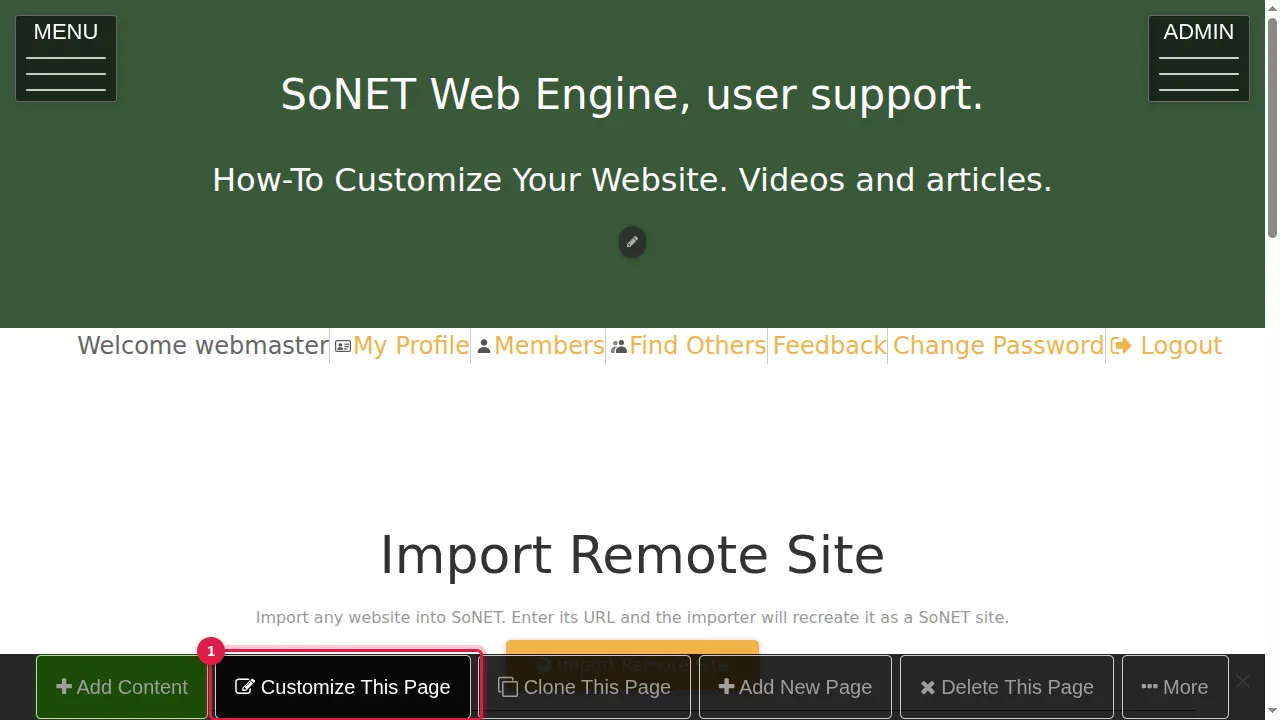
The settings of each widget
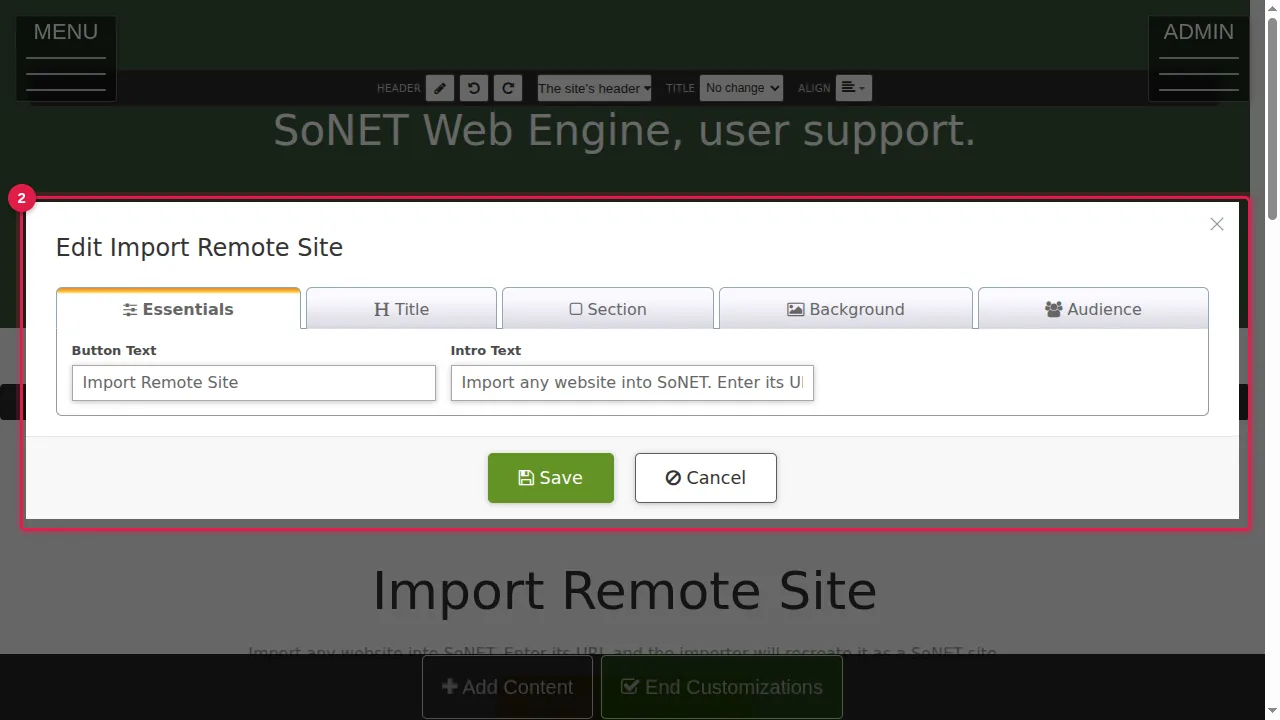
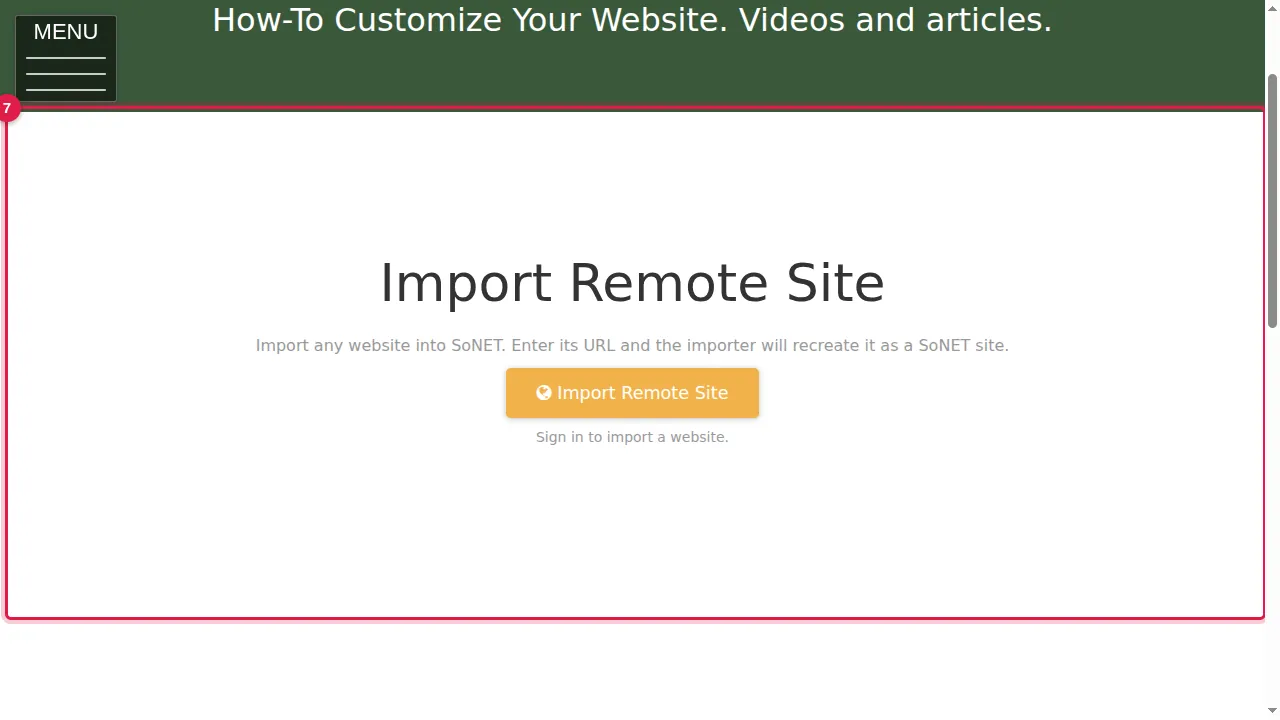
Step 2. Import Remote Site: someone enters a website's address and the importer recreates it as a new SoNET site. Set the Button Text and the Intro Text shown above the button.
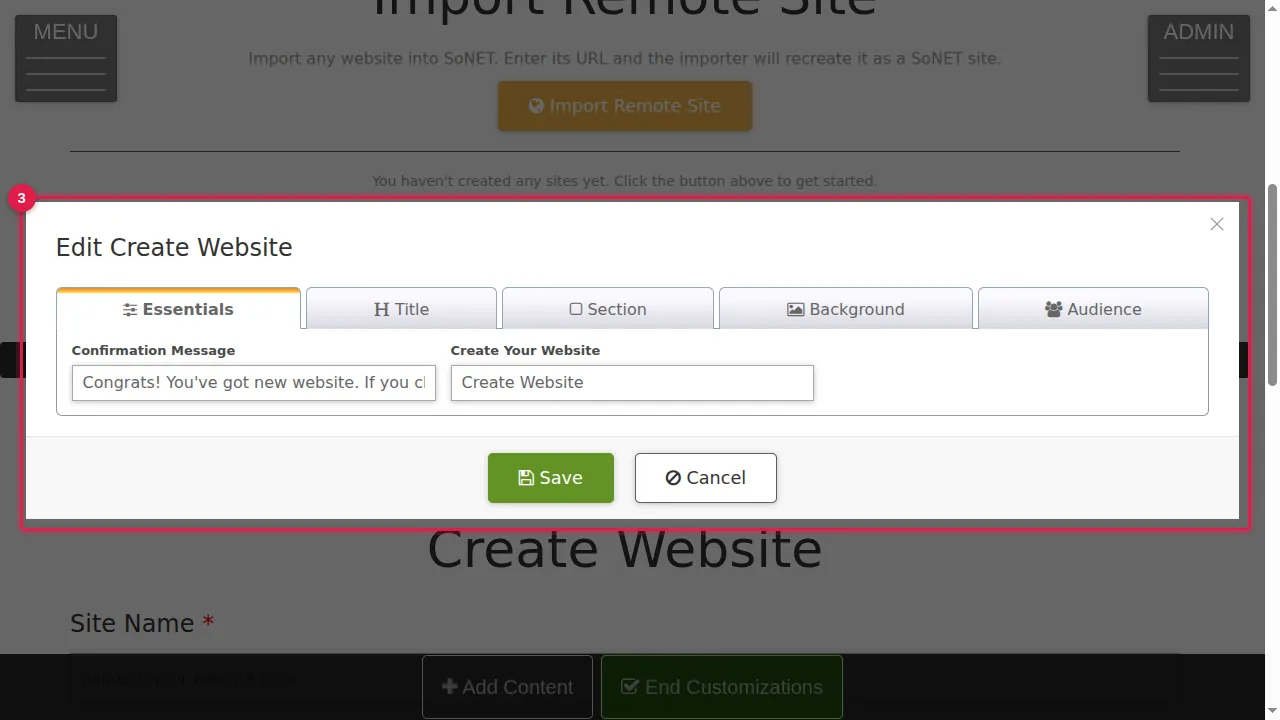
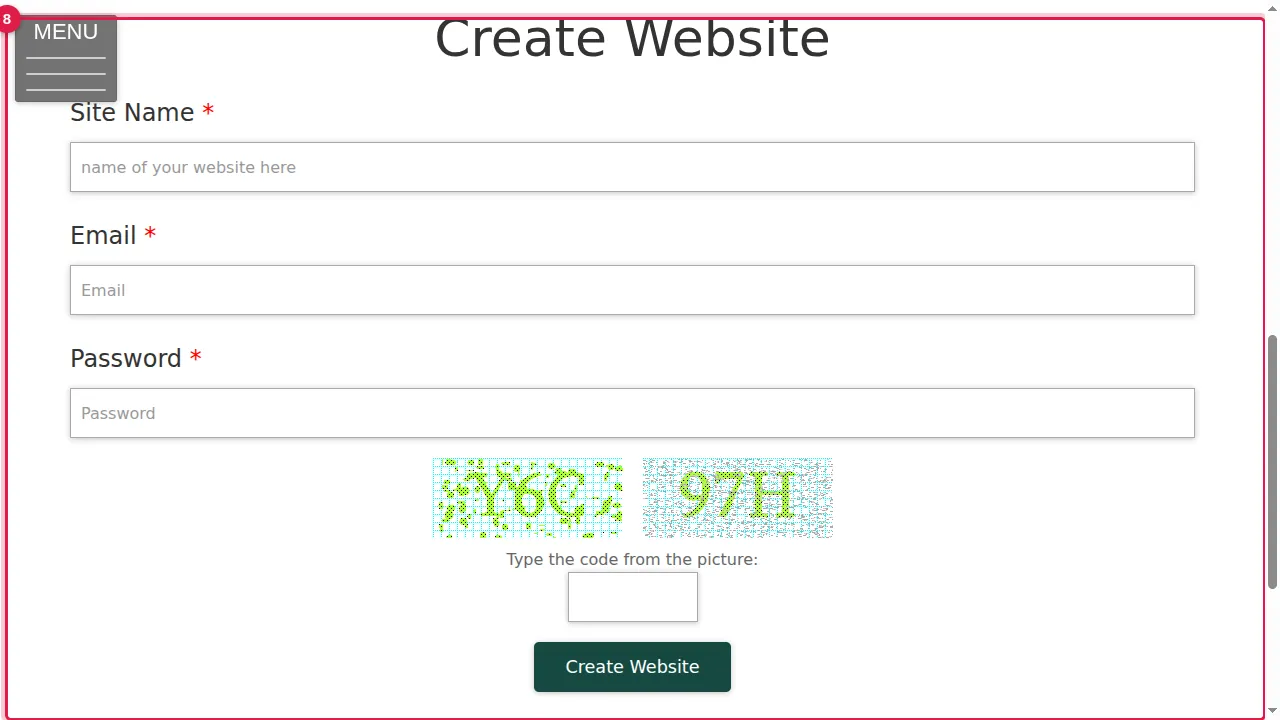
Step 3. Create Website: lets someone make a new SoNET website. Set the Confirmation Message (shown when the website is made) and the text of the Create Website button.
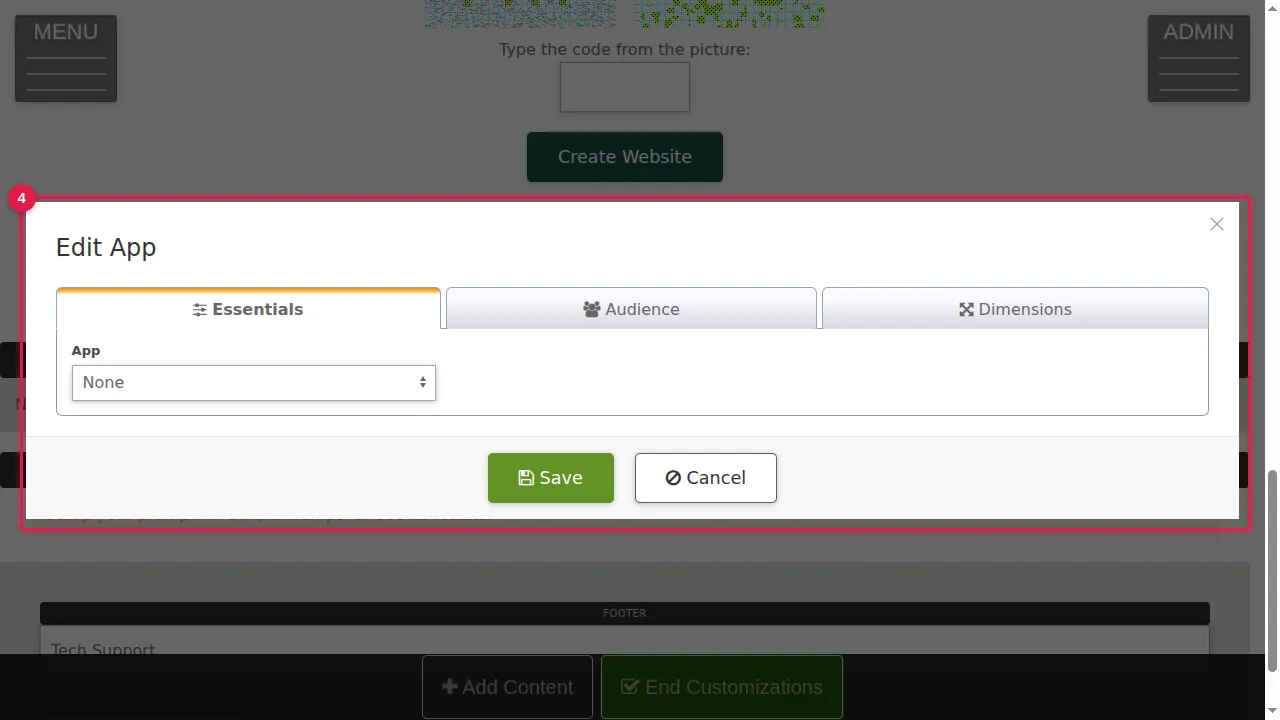
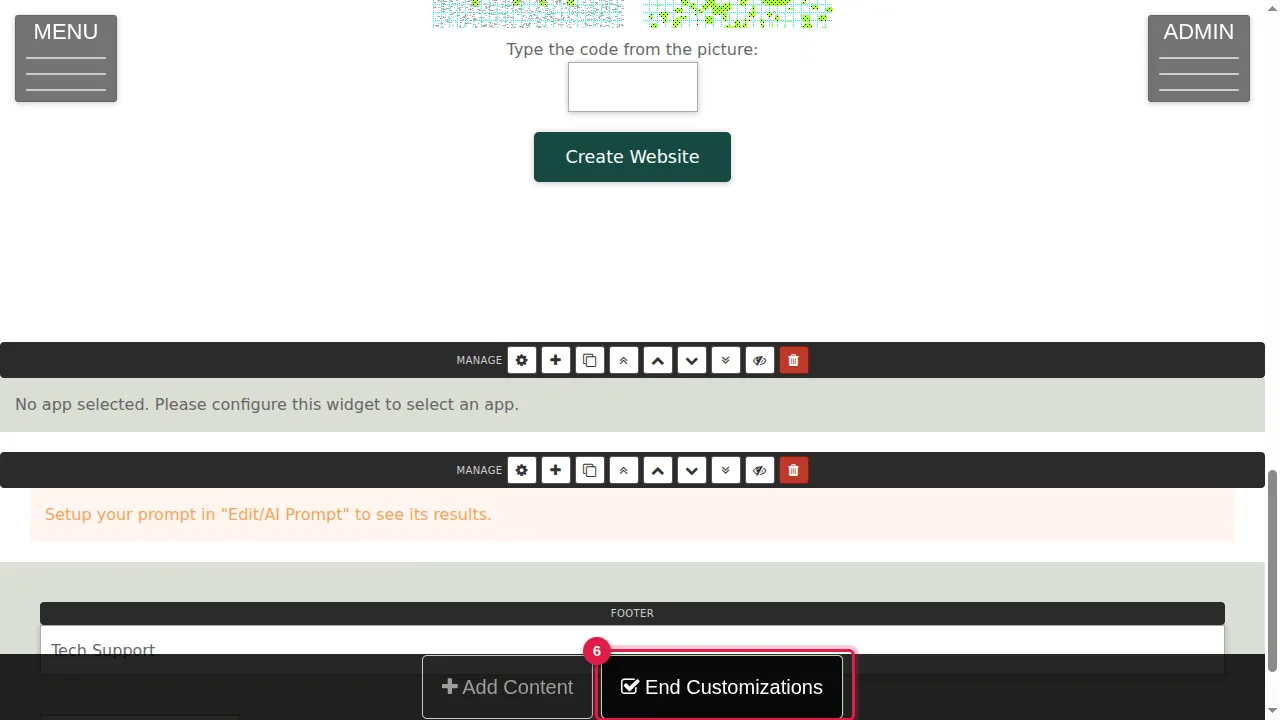
Step 4. App: choose one of your site's apps in the list. The Dimensions tab sets its height (70vh by default) or Auto height. Until you choose one, you see "No app selected".
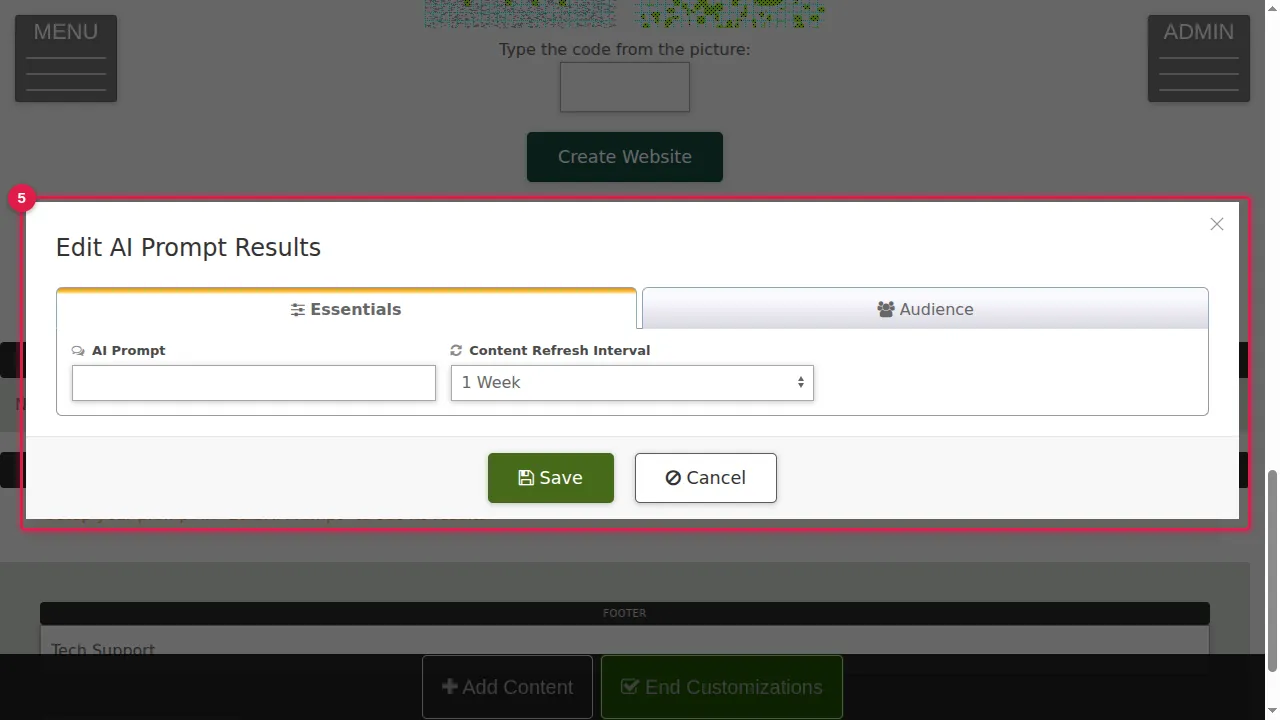
Step 5. AI Prompt Results: type your question in AI Prompt and choose how often the answer is refreshed, from every hour to once a week. Until you write a prompt, you see a reminder to set it up.
What visitors see
Step 6. Click Save in each widget's settings, then End Customizations.
Step 7. A visitor who is not logged in sees the Import Remote Site button with "Sign in to import a website."
Step 8. Create Website: a visitor types a site name, an e-mail address, a password and the picture code, then clicks Create Website.
Check it worked
Open the page in a private window and look at each widget as a visitor.
Good to know
- Read the answer of an AI Prompt Results widget before you leave it on a public page, and check it again after it refreshes.
- The Onboarding page of this site uses the Create Website widget.
Related help
Shown on the 2026 version of the SoNET Web Engine. Last checked 22 October 2026. Something different on your screen? Tell us through the Contact page.