Help Center Pages & Editing
Widgets for selling, forms, calls and feeds
Seven widgets put your store, your forms, a call button and news from other sites on any page: Product Gallery, Store, Form, Live Call, RSS Reader, HubSpot Form and Salesforce Form. Here is what each one does and the settings that matter.
Watch it done: a short silent video with captions · 2:52. The steps below show the same thing picture by picture.
Before you start
- Log in and open the page that should get the widget.
- How to add any widget: see Add a widget to a page.
Add a widget
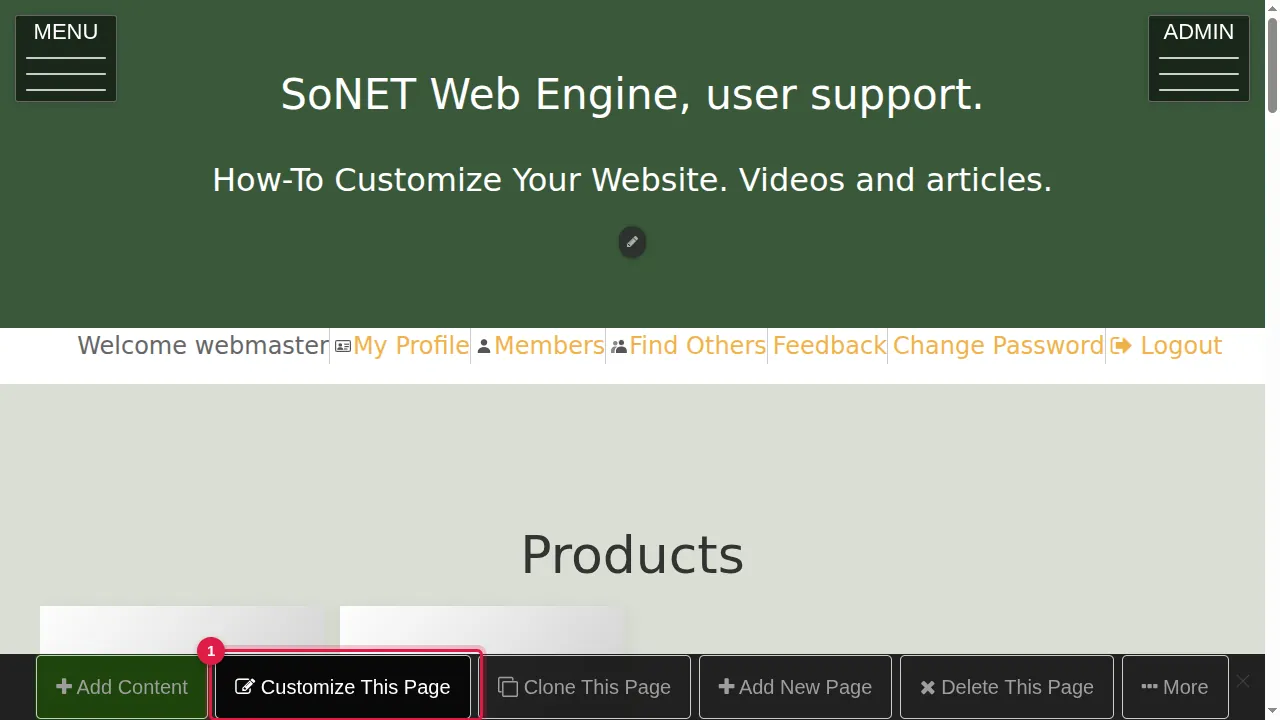
Step 1. Click Customize This Page, then Add content at the end of the page, and open the Widgets tab. Click a widget to add it, then click its gear ("This widget's settings"). The settings below are on the Essentials tab; every widget also has an Audience tab (who can see it), and most have Title, Section and Background tabs.
The settings of each widget
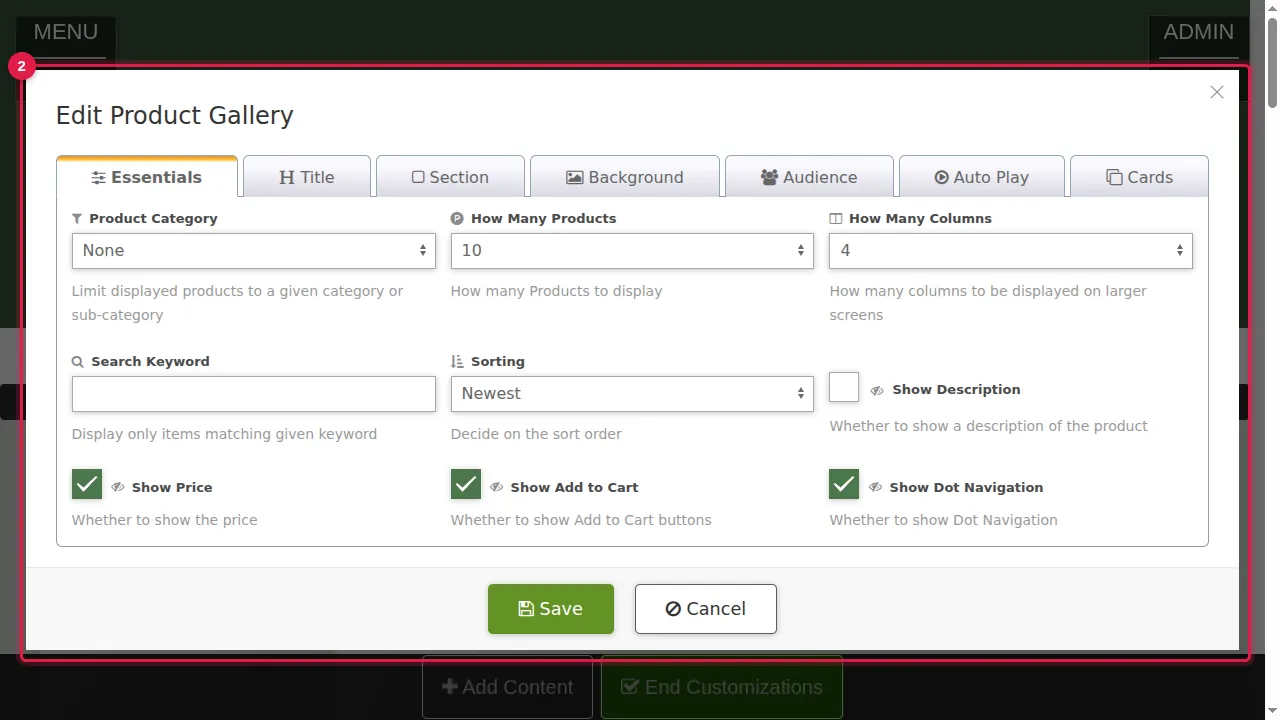
Step 2. Product Gallery: products from your store in a row that slides. Choose a product category (or all), how many products, how many columns, a keyword, the order (Newest, Price low to high or high to low, Name A to Z or Z to A), and whether to show the description, the price and an Add to Cart button. The Auto Play tab makes the row slide by itself.
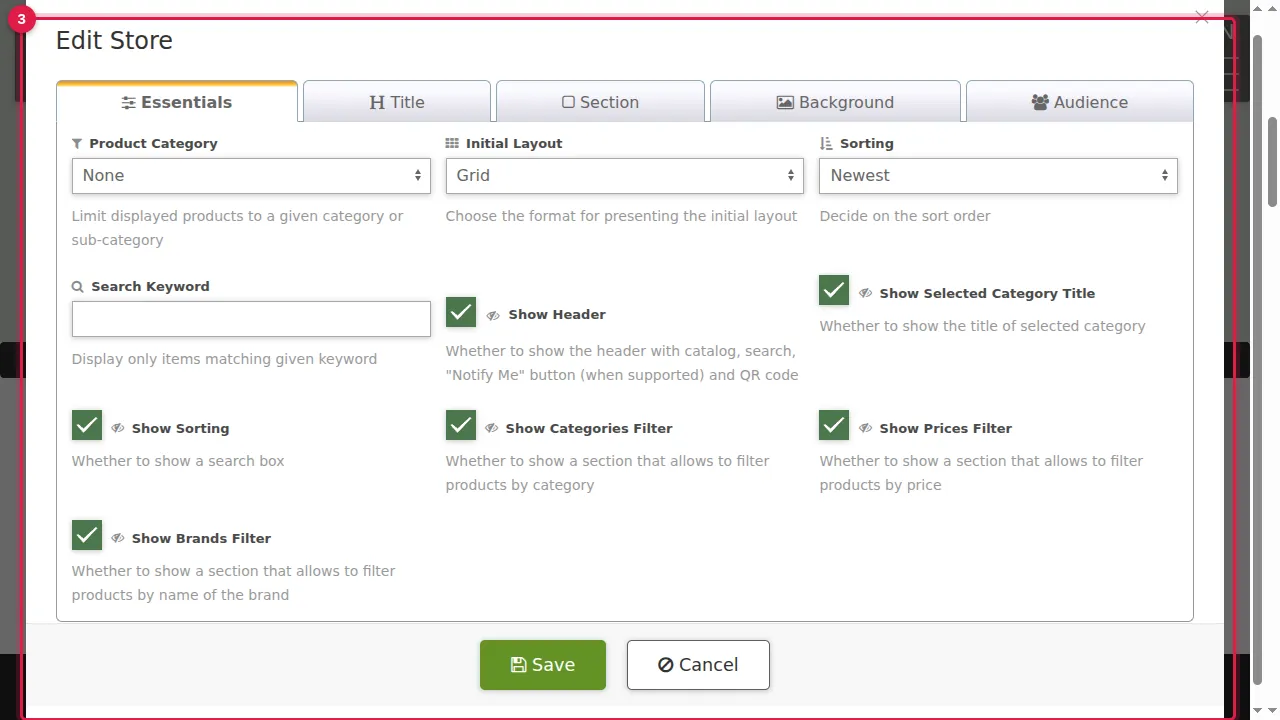
Step 3. Store: your whole store on a page. Choose a category (or all), Grid or List, the order and a keyword, and which parts to show: header, category title, sorting, and the category, price and brand filters.
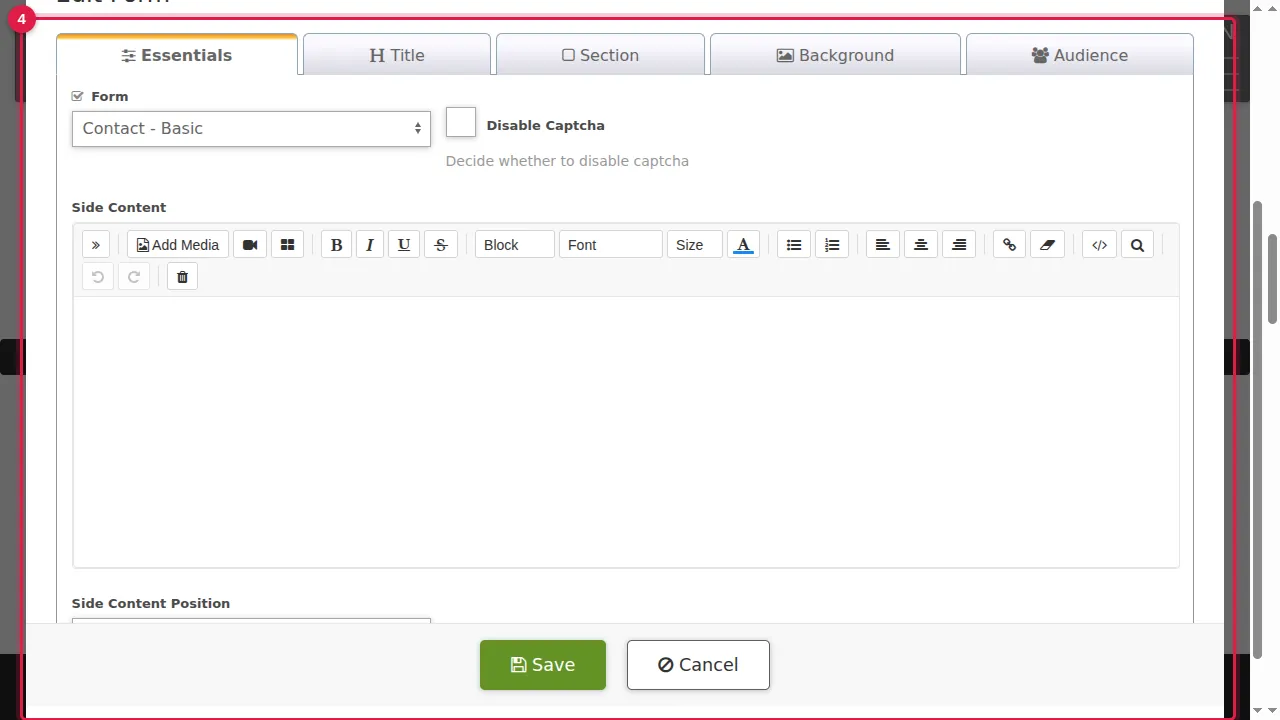
Step 4. Form: choose one of your forms in the list. You can turn off the picture code (captcha) and put your own text next to the form, on the left or right. In this example: Contact - Basic.
Step 5. Live Call: choose Video call, Audio call or Video and audio. The Buttons tab sets the buttons' look and text. In this example: Video and audio.
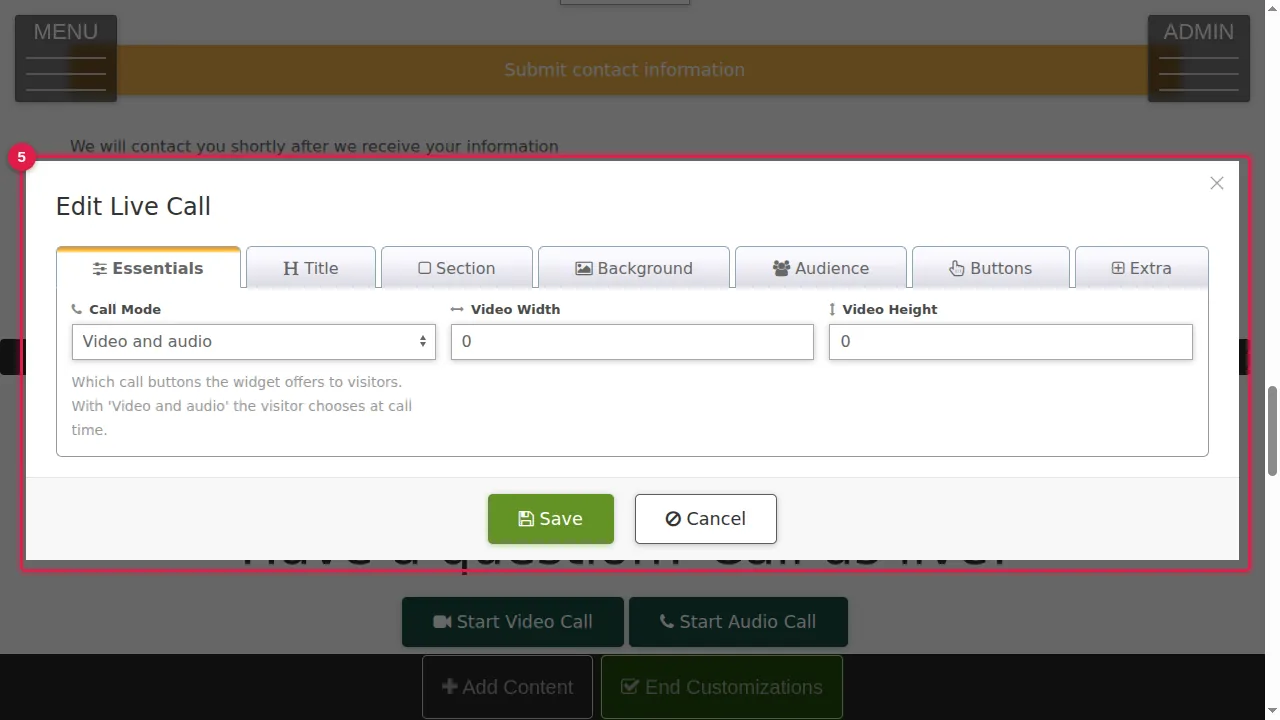
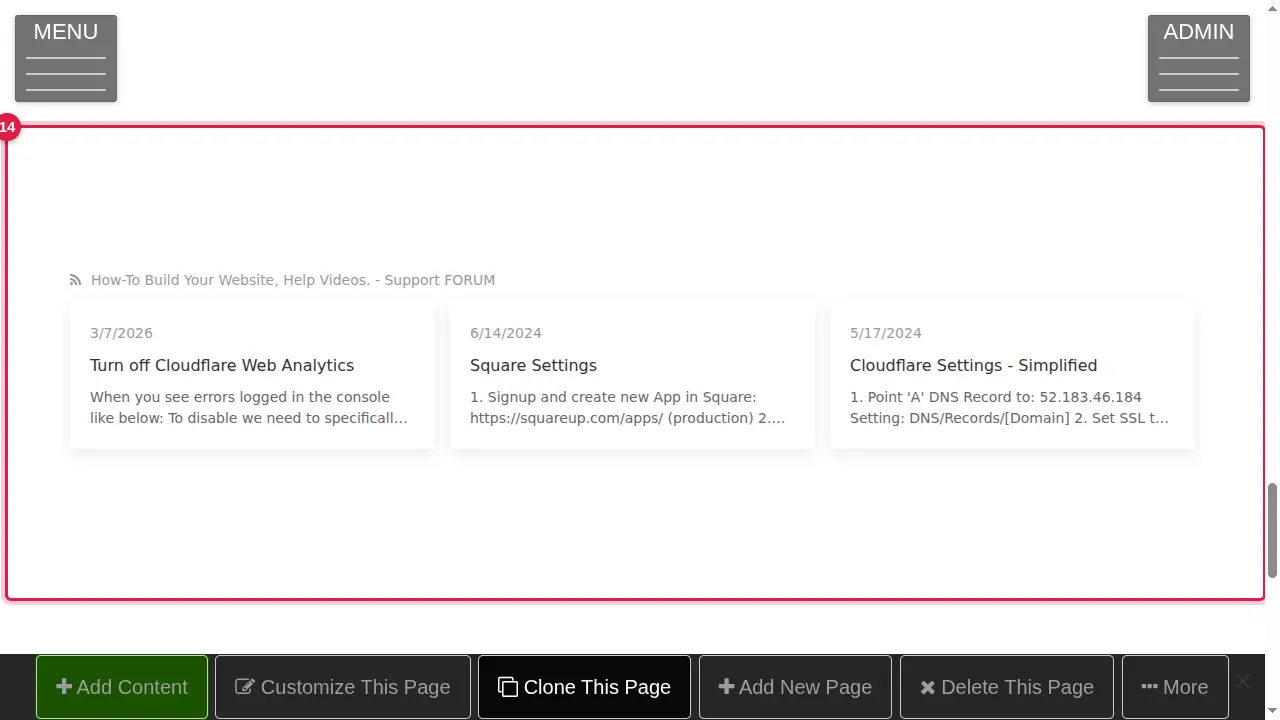
Step 6. RSS Reader: paste the address of a news feed (RSS), choose how many items, and whether to show their dates and descriptions. In this example: this site's own blog feed, 3 items.
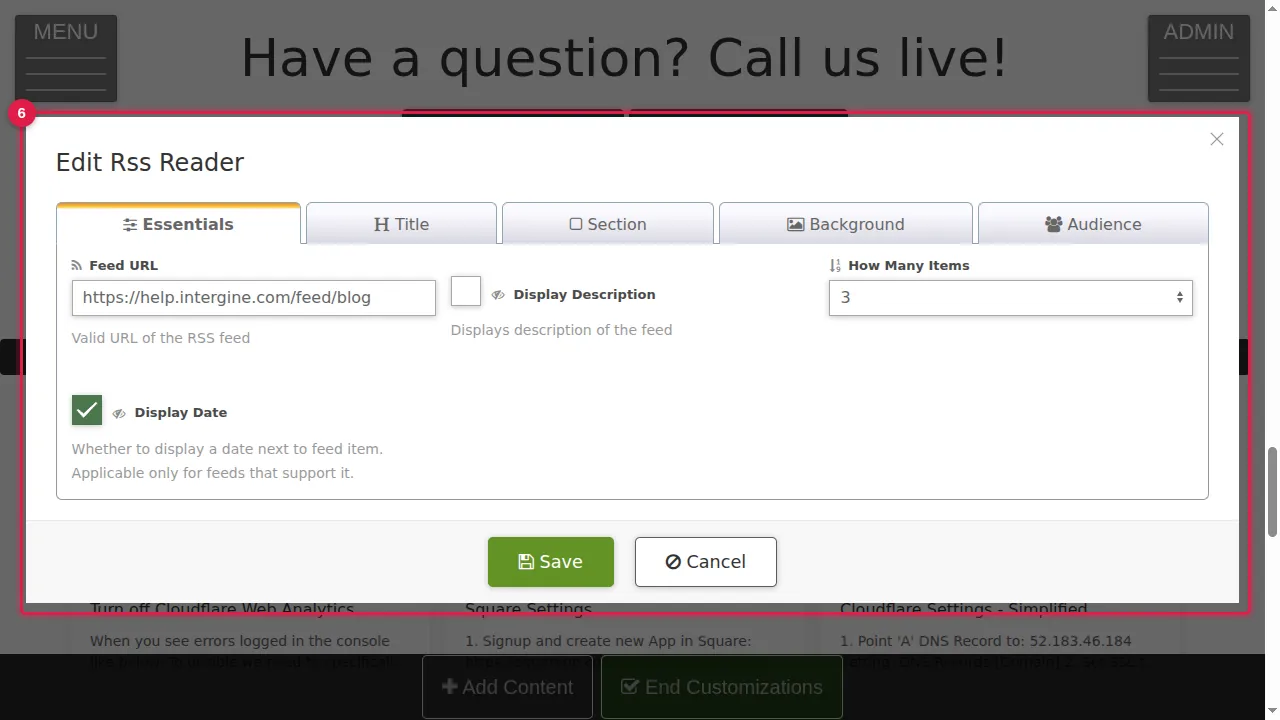
Step 7. HubSpot Form: paste the embed code of a form you made in your HubSpot account.
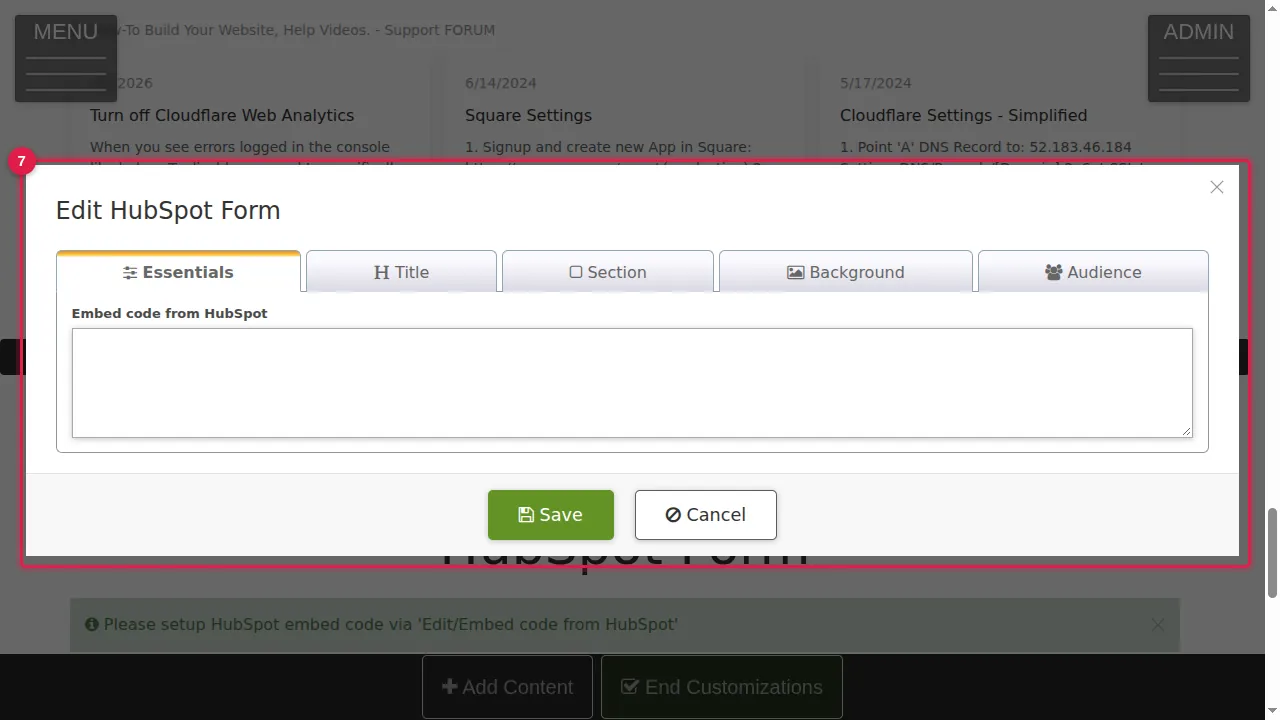
Step 8. Salesforce Form: paste the HTML of a web form you made in Salesforce. Like the Form widget, it can have your own text next to it.
What visitors see
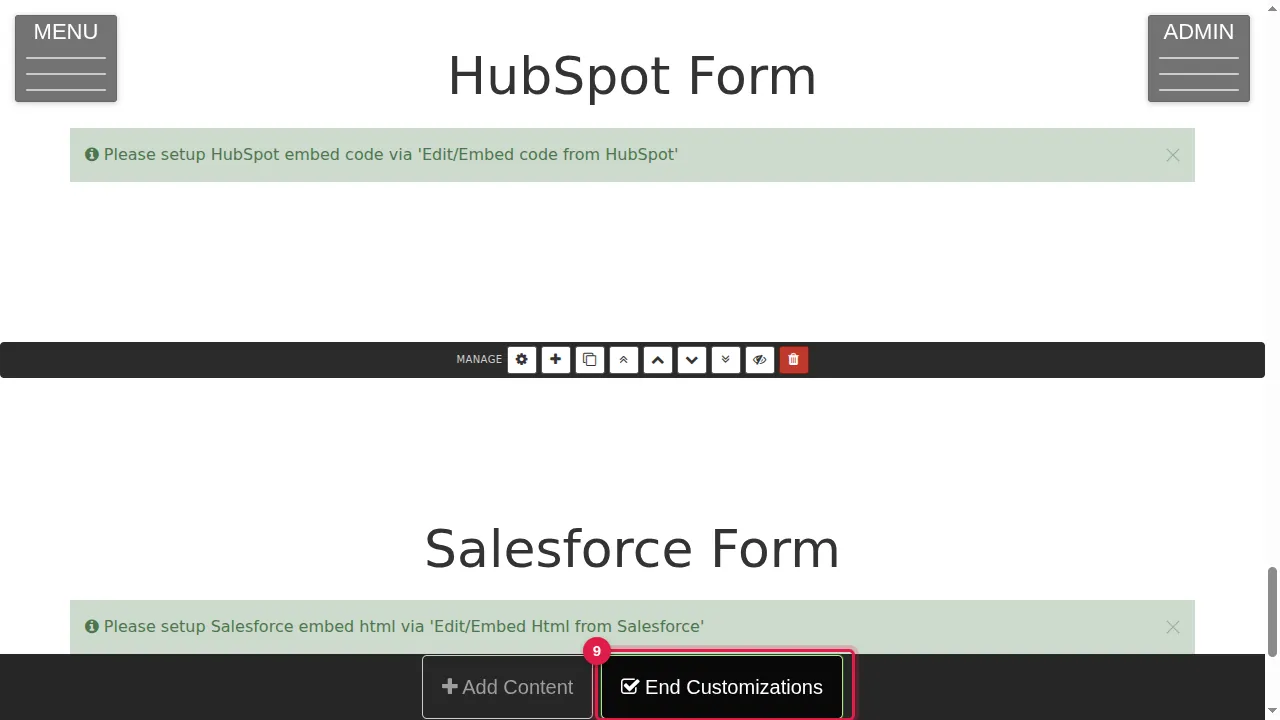
Step 9. Click Save in each widget's settings, then End Customizations.
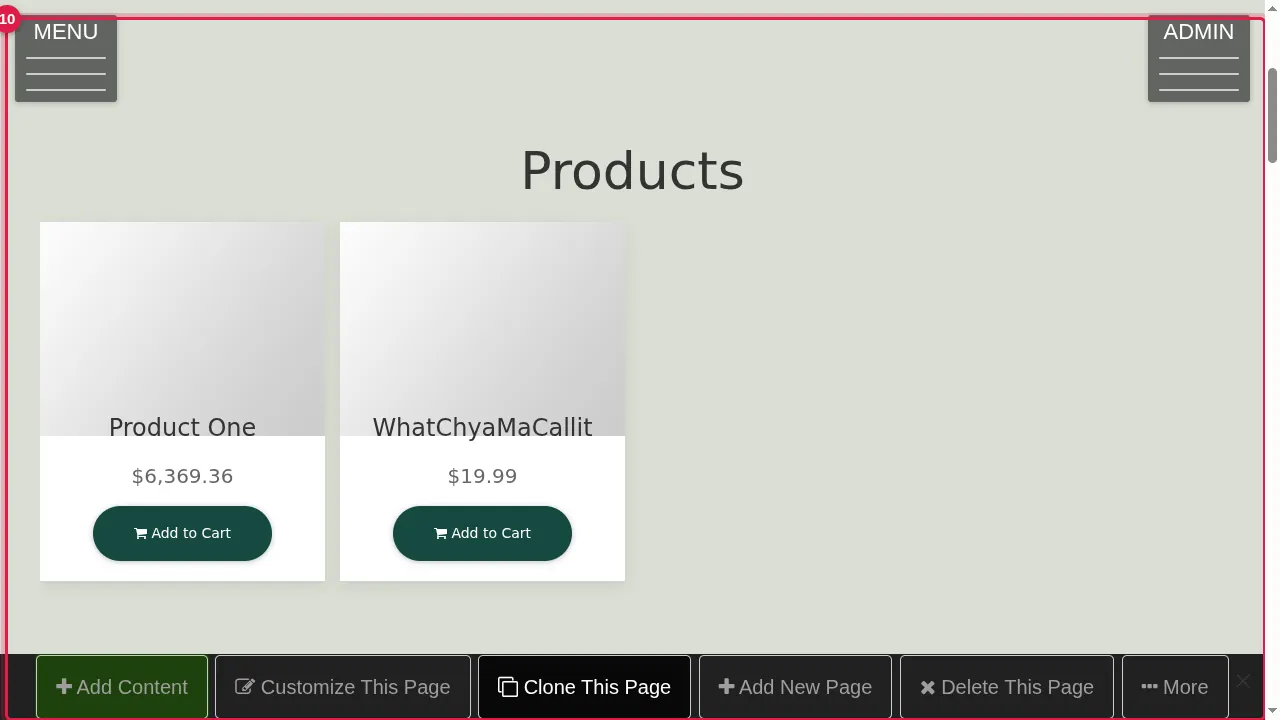
Step 10. Product Gallery: visitors slide through your products and can add one to the cart.
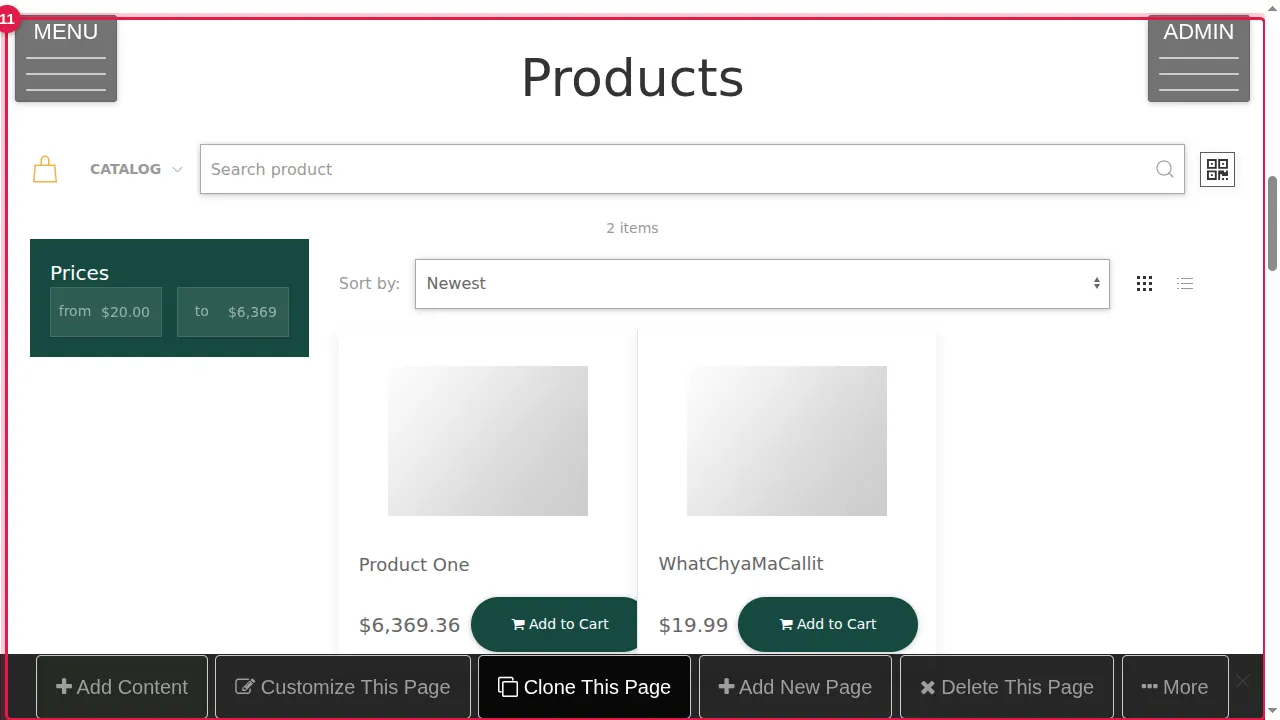
Step 11. Store: your products with sorting and filters.
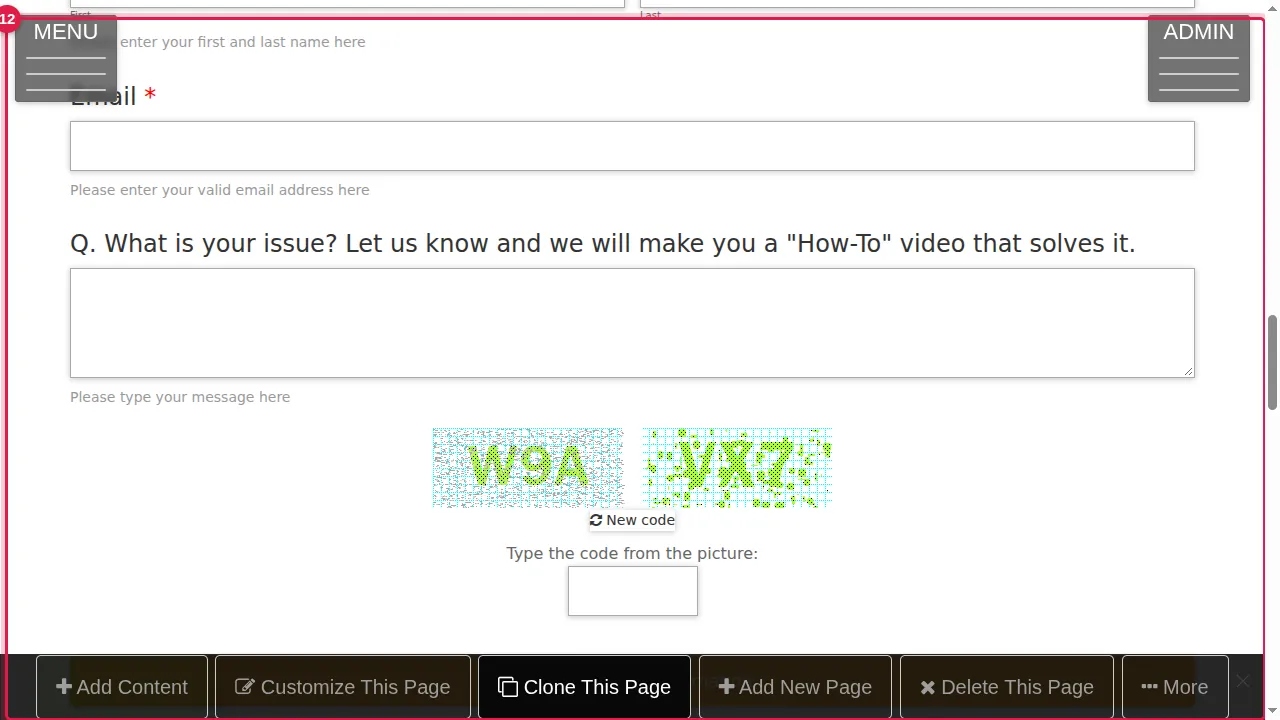
Step 12. Form: visitors fill it in and send it; you read what they sent in Forms › Results.
Step 13. Live Call: the call buttons. They show while you are available for live calls (Site Settings › Live Call).
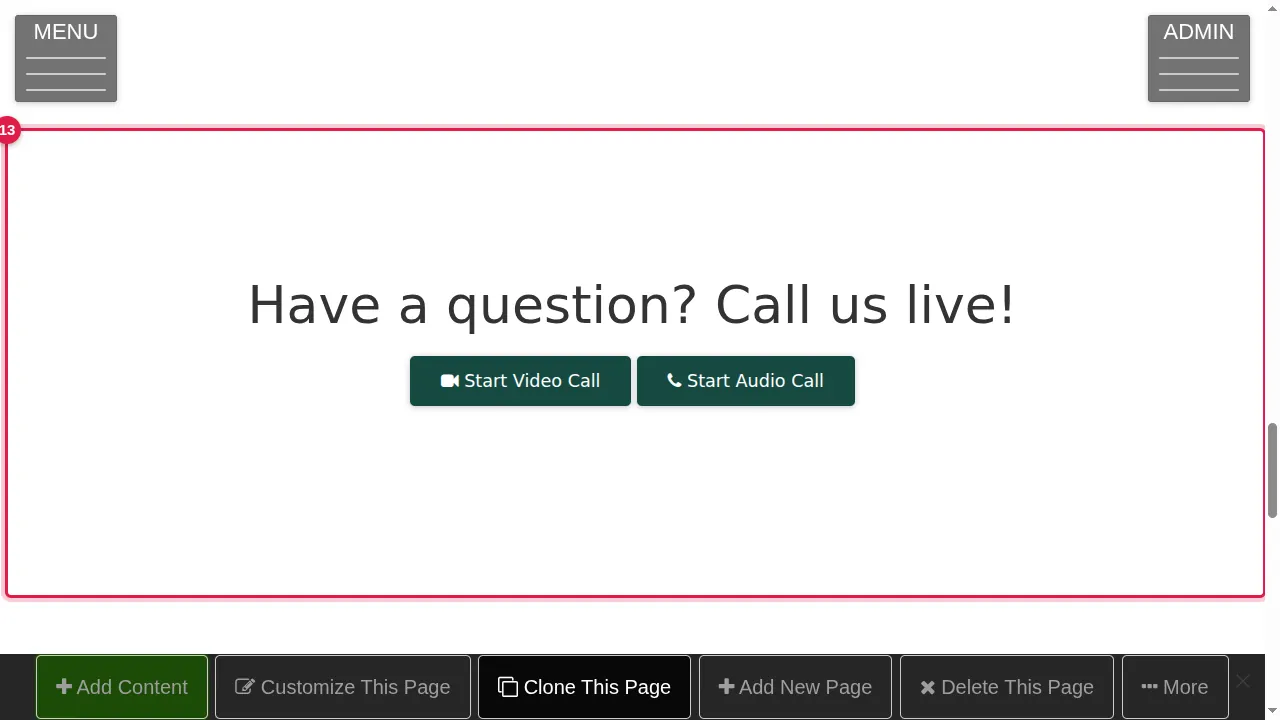
Step 14. RSS Reader: the newest items of the feed, each linking to its page.
Check it worked
Open the page in a private window: the products, the form and the call buttons show, and the feed lists its newest items.
Good to know
- Link a form's own address (/f/…) when you want a page with just the form.
- Turn the call buttons off in Site Settings › Live Call while nobody can answer.
Related help
Shown on the 2026 version of the SoNET Web Engine. Last checked 22 October 2026. Something different on your screen? Tell us through the Contact page.