Help Center Site Settings
Live Call: let visitors call you from your site
Live Call lets visitors start a call with you from your site. Say when you are available, write an away note, make your phone ring, and check that calls work.
Watch it done: a short silent video with captions · 1:05. The steps below show the same thing picture by picture.
Before you start
- Log in as the site owner.
- Open ADMIN › Site Settings.
Availability
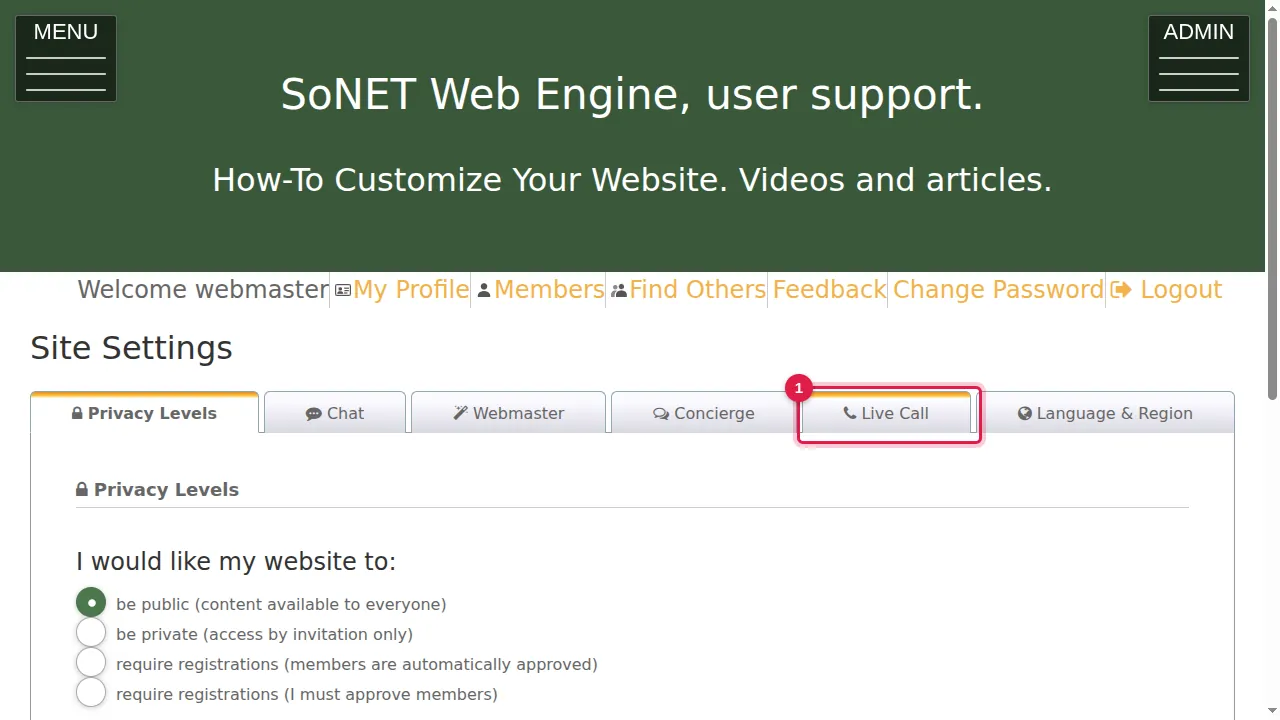
Step 1. Click the Live Call tab.
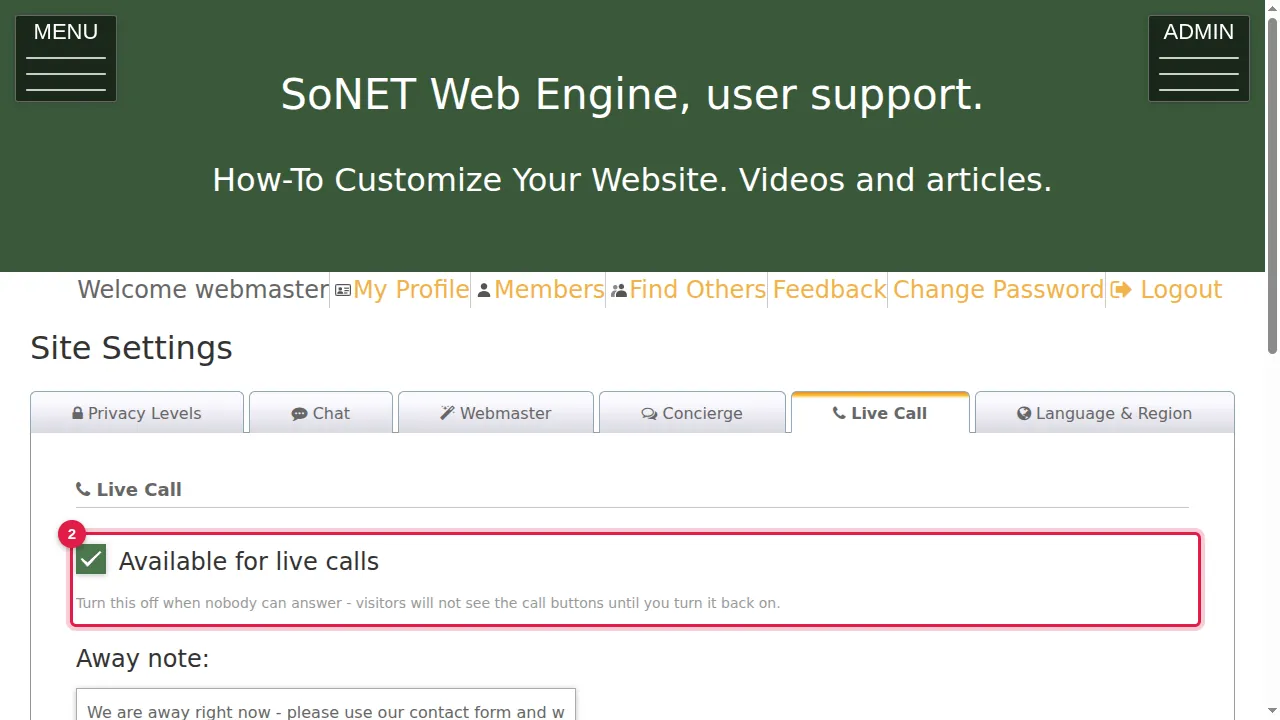
Step 2. Available for live calls: turn it off when nobody can answer. Visitors will not see the call buttons until you turn it back on.
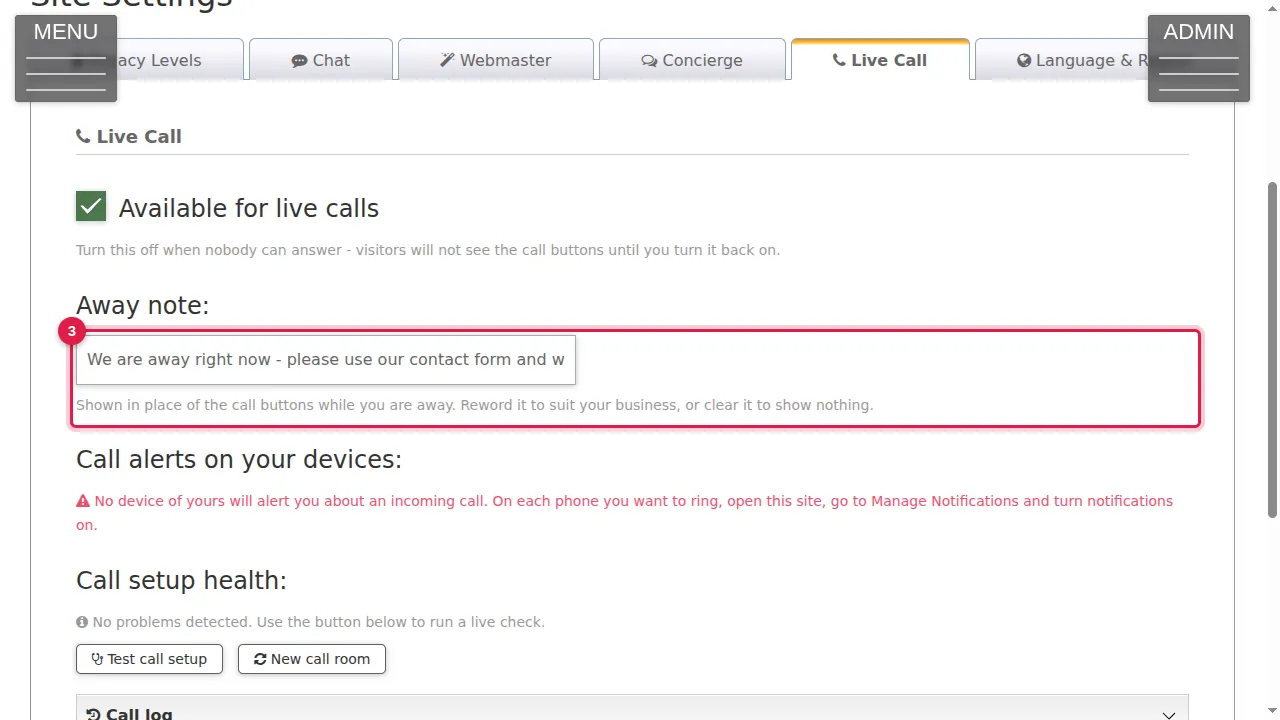
Step 3. Away note: shown in place of the call buttons while you are away. Reword it to suit your business, or clear it to show nothing.
Call alerts and checks
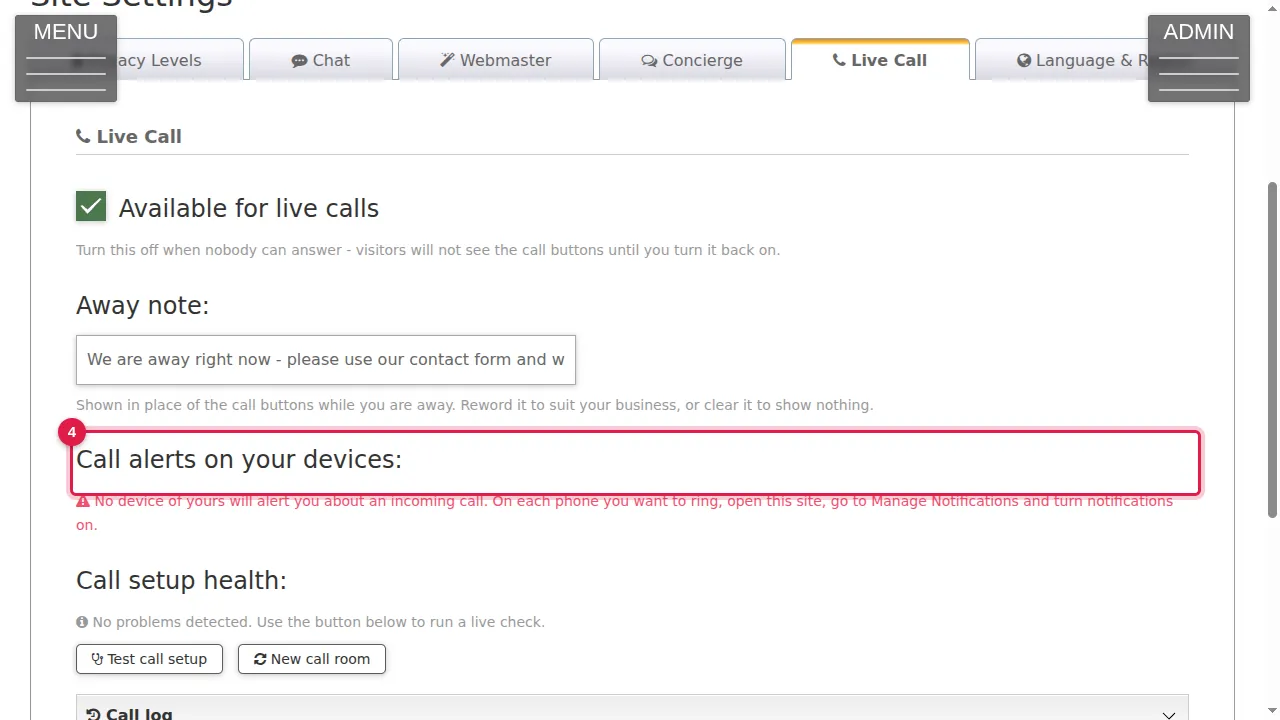
Step 4. Call alerts on your devices: shows which of your devices will ring for an incoming call. Here none does yet: on each phone you want to ring, open your site, go to Manage Notifications and turn notifications on (see Notifications).
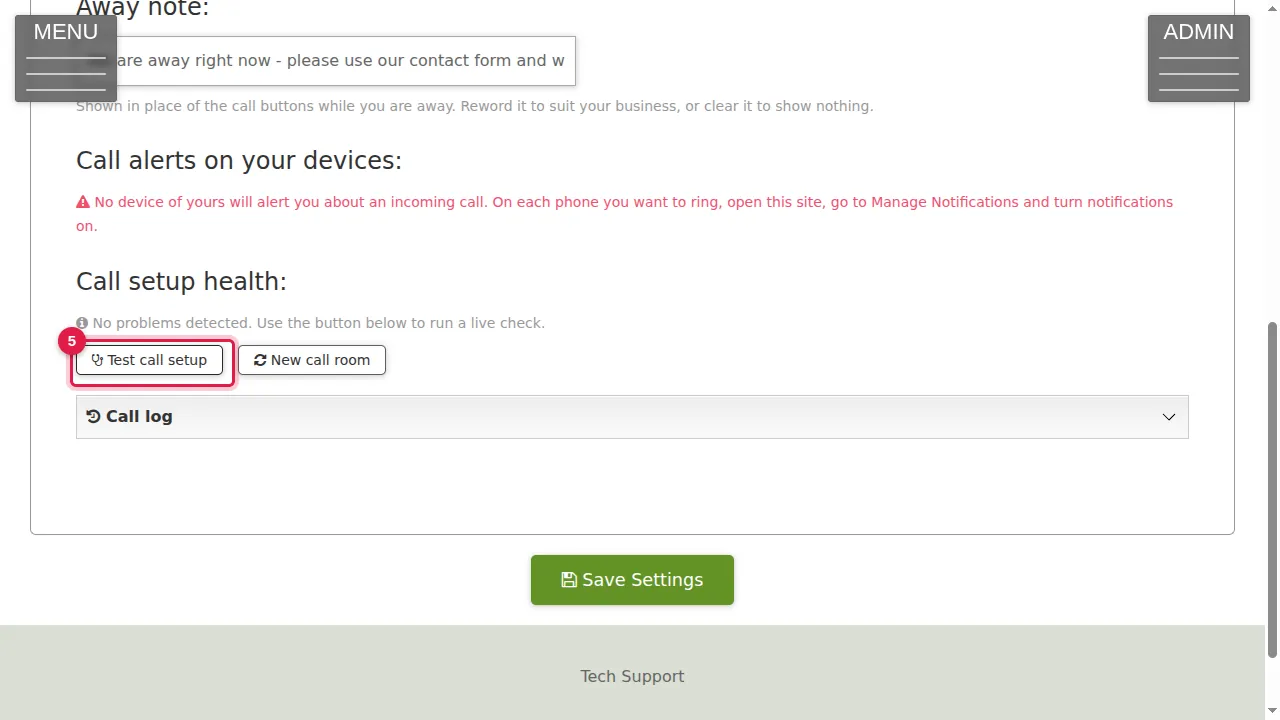
Step 5. Call setup health: click Test call setup to run a live check.
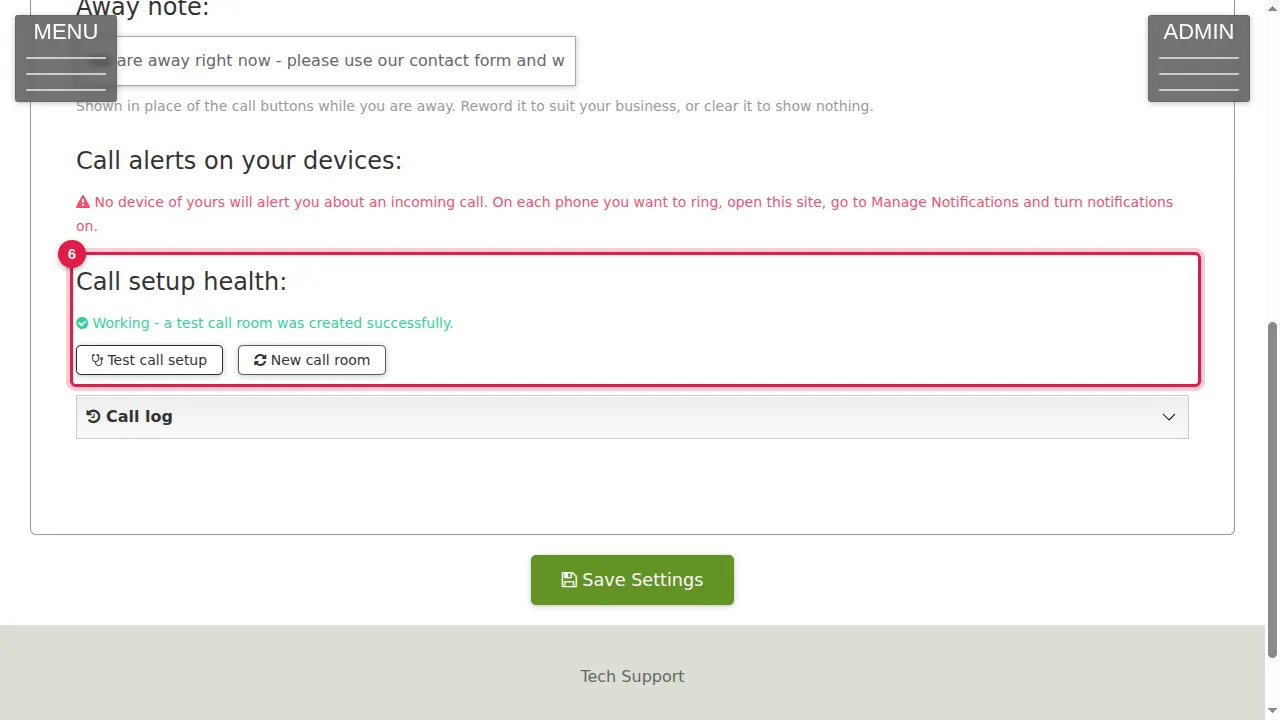
Step 6. The result appears under Call setup health (here: "Working - a test call room was created successfully").
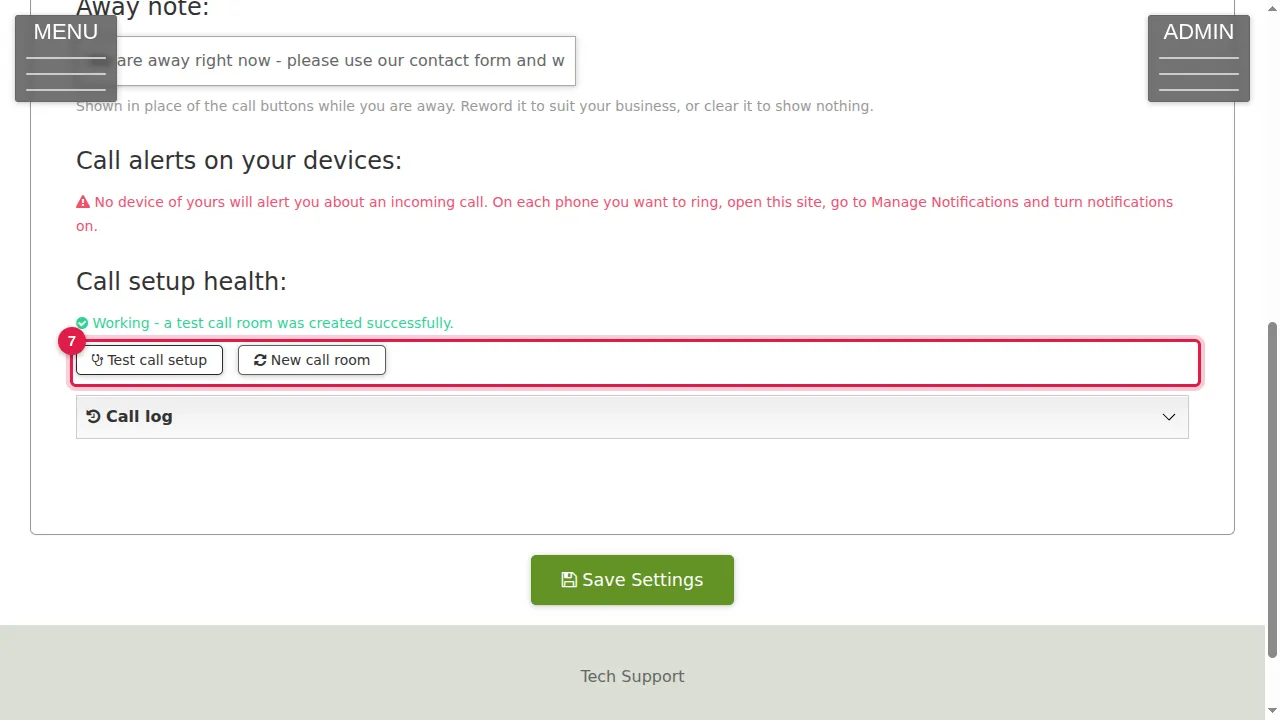
Step 7. New call room is next to it, and Call log below lists your calls. Click Save Settings after any change. (In this demonstration nothing was changed.)
Check it worked
Run Test call setup after any change: it should say Working.
Good to know
- Turn on notifications on your phone, so a call rings even when the site is not open.
Related help
Shown on the 2026 version of the SoNET Web Engine. Last checked 22 October 2026. Something different on your screen? Tell us through the Contact page.