Help Center Notifications
Notifications: what you and your users are told
Get real-time (push) notifications on your phone or computer, turn each notification on or off, and change the words of the messages sent to you and to your users.
Watch it done: a short silent video with captions · 1:13. The steps below show the same thing picture by picture.
Before you start
- Log in as the site owner, on the device that should receive notifications.
- Open ADMIN › Notifications.
Get notifications on this device
Step 1. Real-time notifications (also called push notifications) arrive on the device you subscribe from. Click Notify Me, then allow notifications if your browser asks.
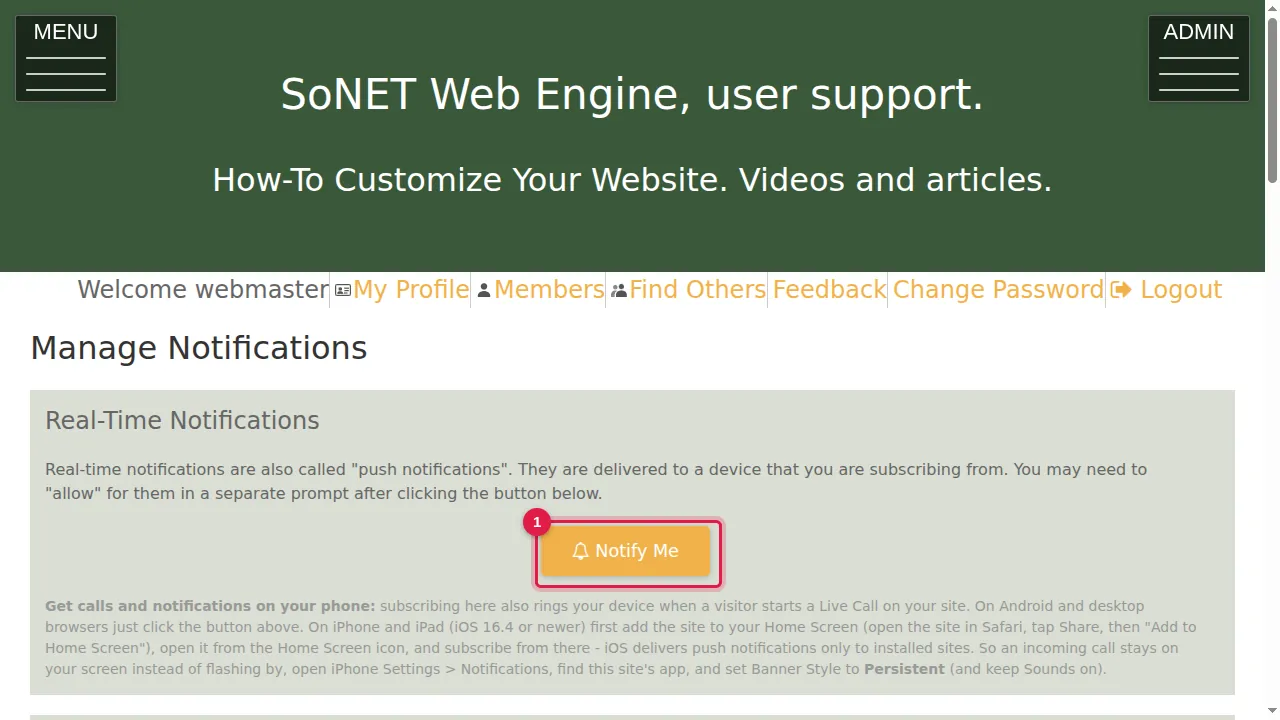
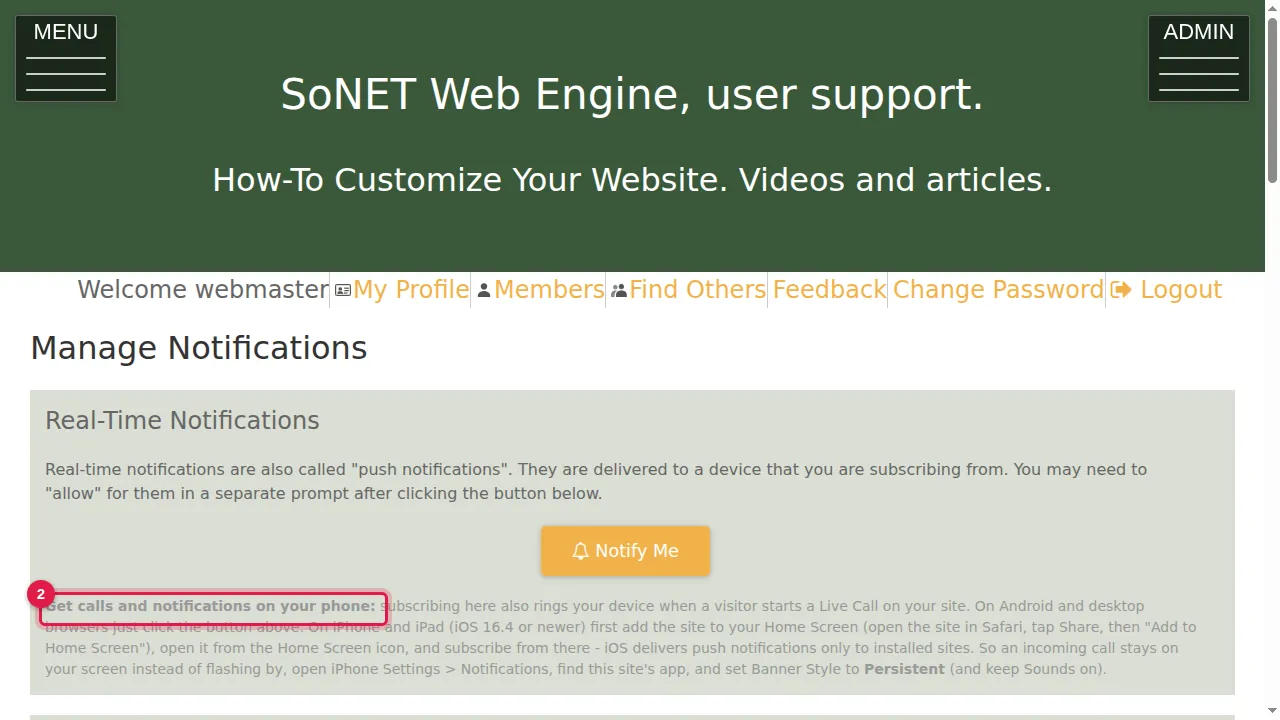
Step 2. Subscribing also rings your device when a visitor starts a Live Call on your site. On Android and desktop browsers just click Notify Me. On iPhone and iPad (iOS 16.4 or newer) first add the site to your Home Screen (in Safari: Share, then Add to Home Screen), open it from that icon and subscribe there.
Choose which notifications
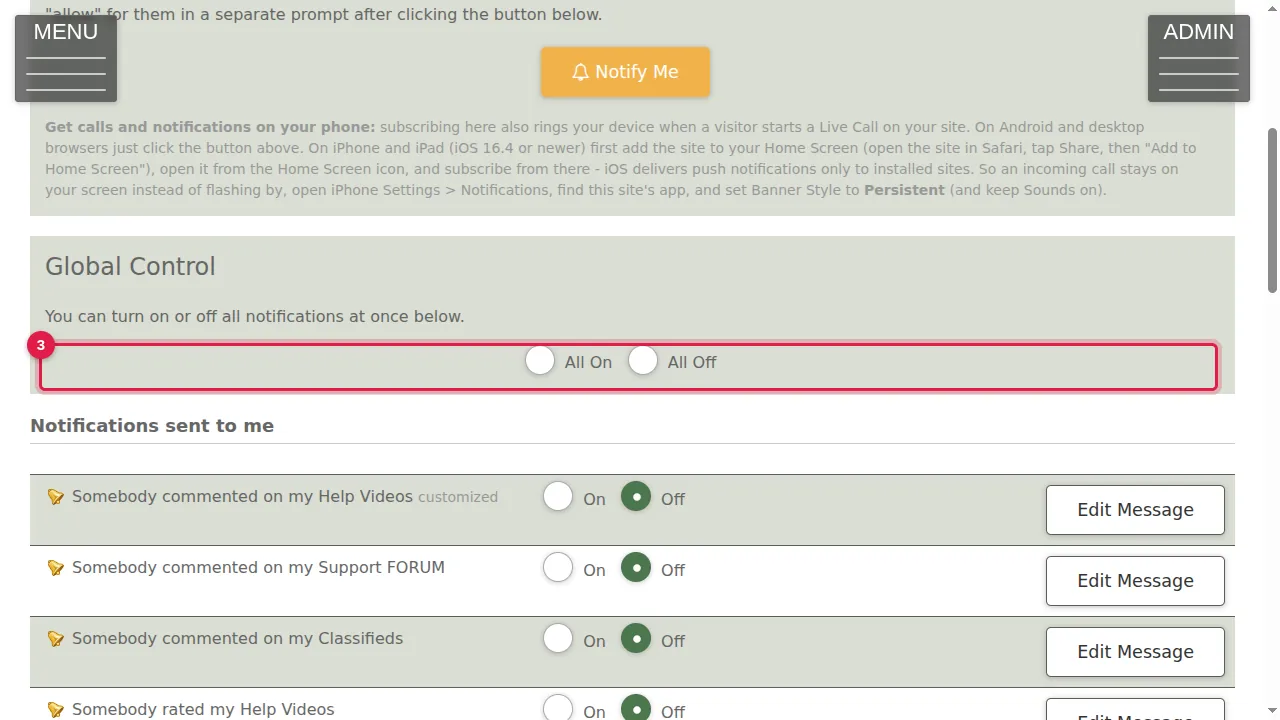
Step 3. Global Control: All On or All Off turns every notification on or off at once.
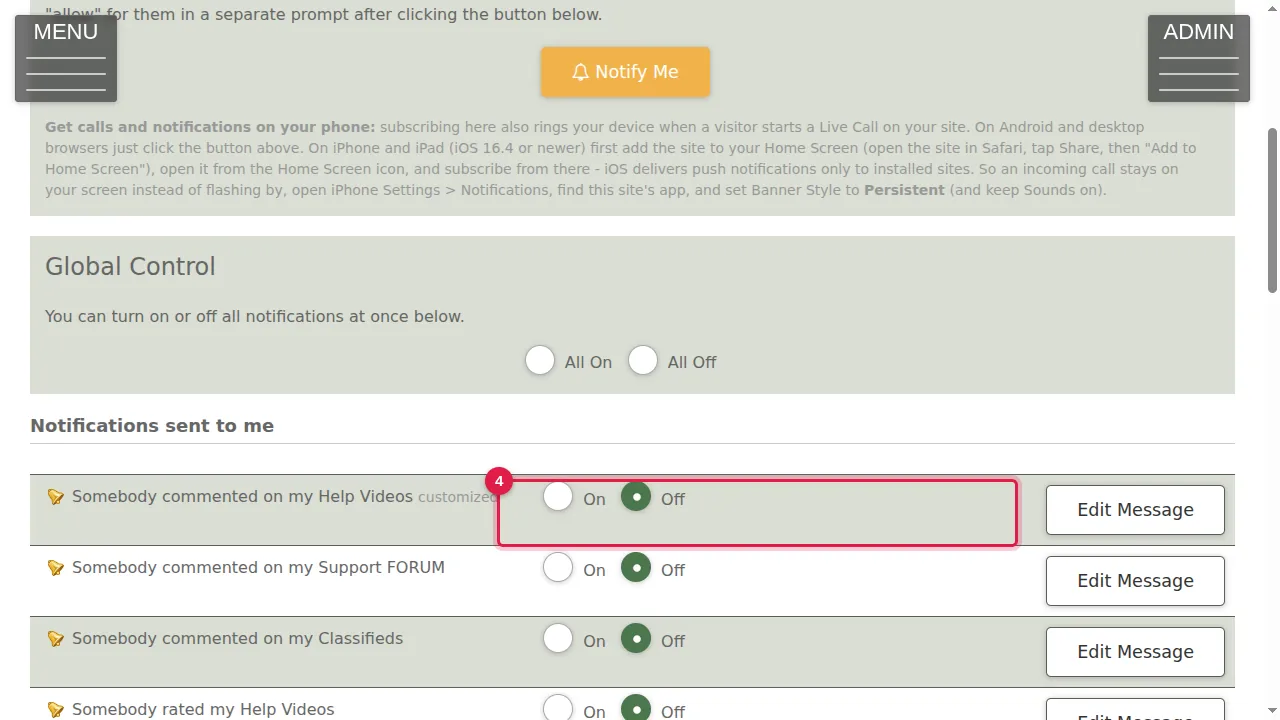
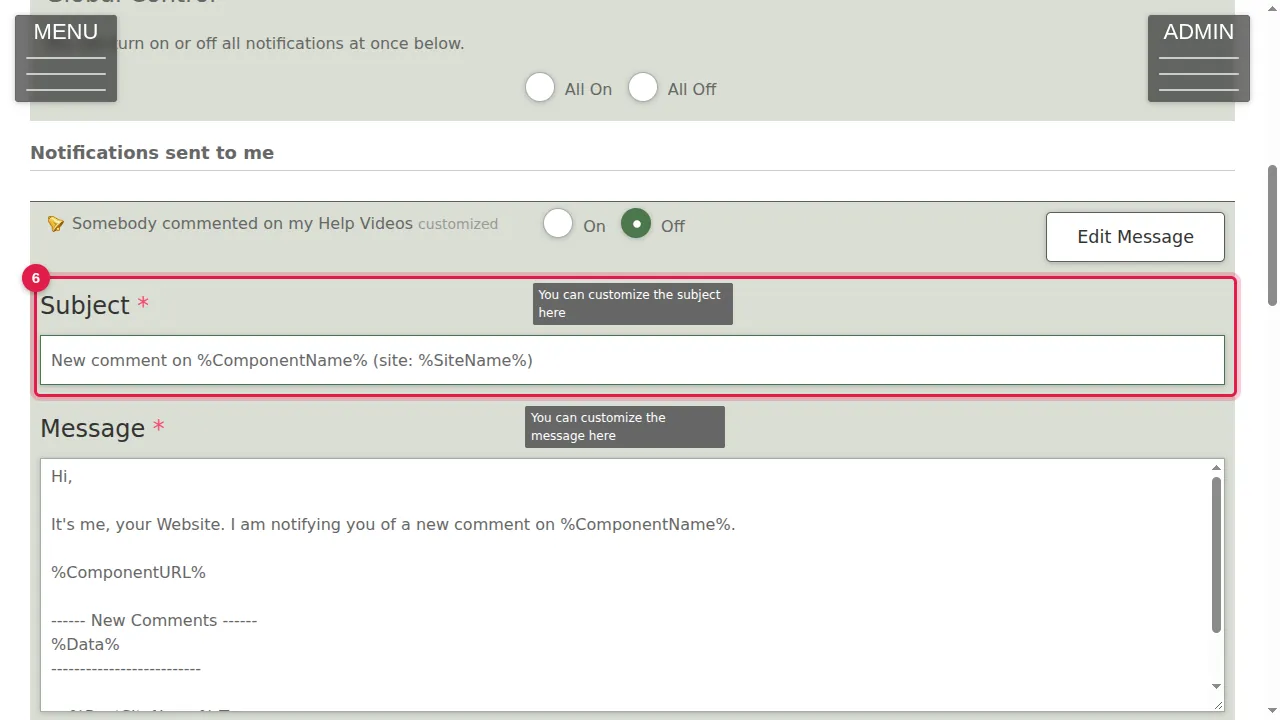
Step 4. Notifications sent to me: each event (comments, ratings, new orders, out of stock, domain status, new form data, missed Live Call) has its own On and Off.
Change a message
Step 5. Edit Message changes the words of that notification.
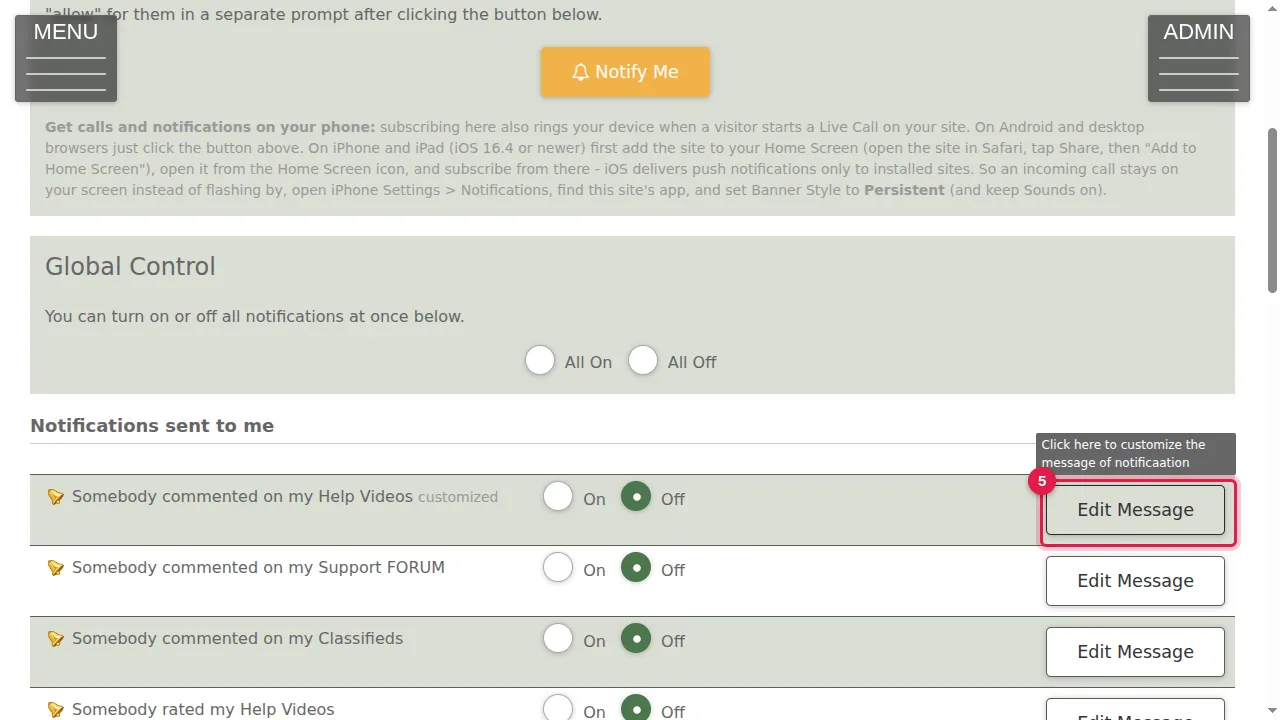
Step 6. Change the Subject and the Message. Words between % signs, such as %SiteName% or %ComponentName%, are filled in for you. Click Save Changes, or Cancel. (Cancelled in this demonstration.)
Notifications for your users and appointments
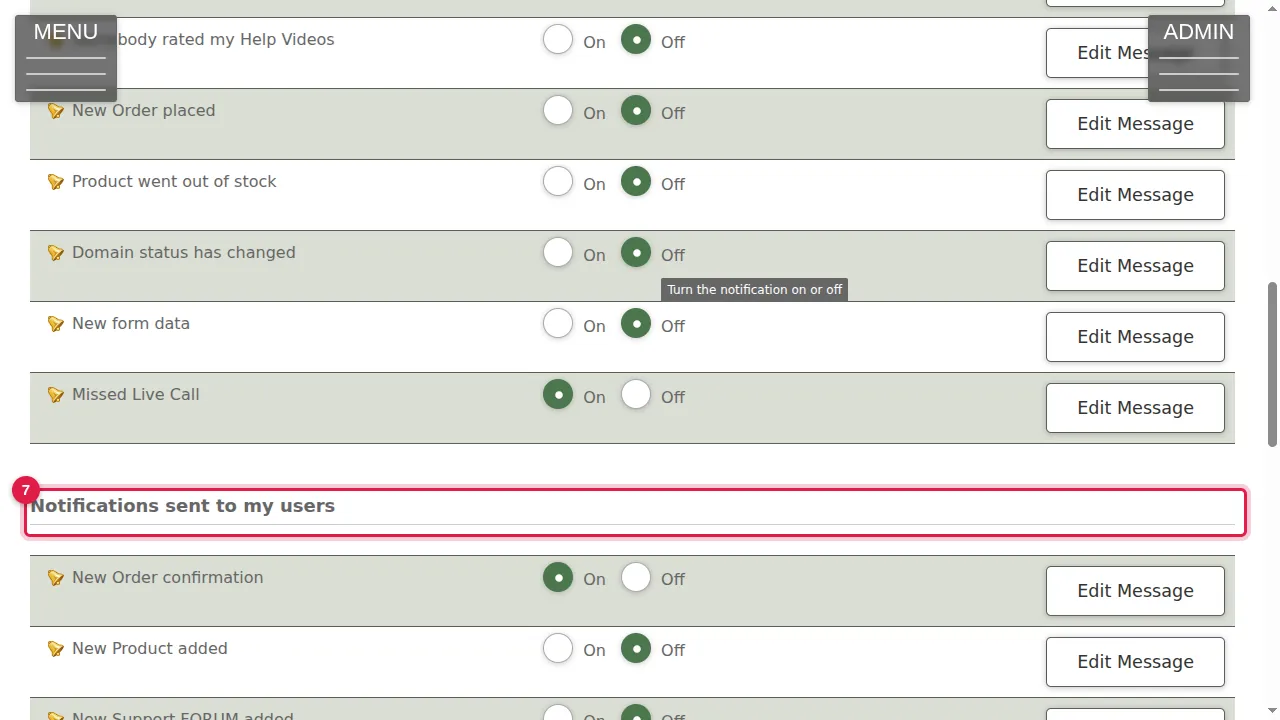
Step 7. Notifications sent to my users: order confirmations, new products, and new posts in your blog, gallery and F.A.Q.
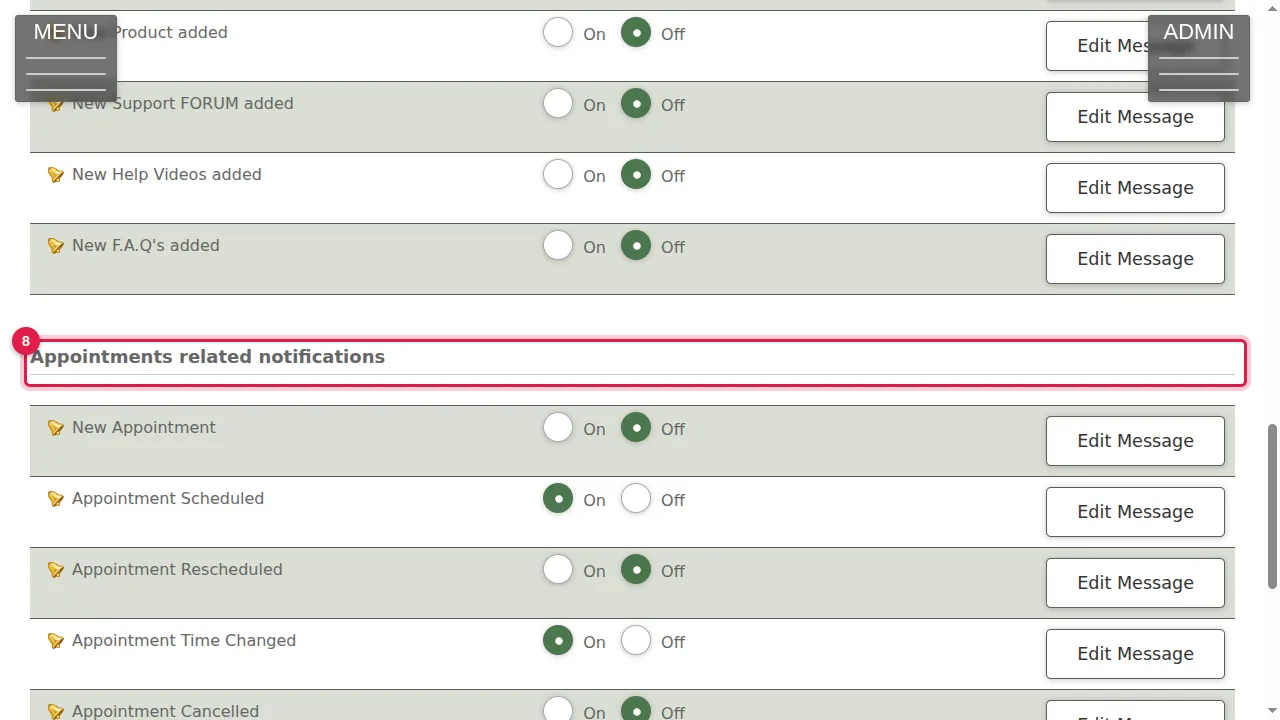
Step 8. Appointments related notifications: a new appointment, scheduled, rescheduled, time changed, cancelled, and proposed new times.
Check it worked
Turn on one notification you care about and check that it arrives on your device.
Good to know
- On iPhone, set the site's Banner Style to Persistent (Settings › Notifications) so an incoming call stays on screen.
Related help
Shown on the 2026 version of the SoNET Web Engine. Last checked 21 October 2026. Something different on your screen? Tell us through the Contact page.