Help Center Getting Started
Your profile, Members and Find Others
The links under the header take you to your own profile, to the list of your website's members, and to a search of the other websites on the SoNET Web Engine.
Watch it done: a short silent video with captions · 1:18. The steps below show the same thing picture by picture.
Before you start
- Log in to your website.
My Profile
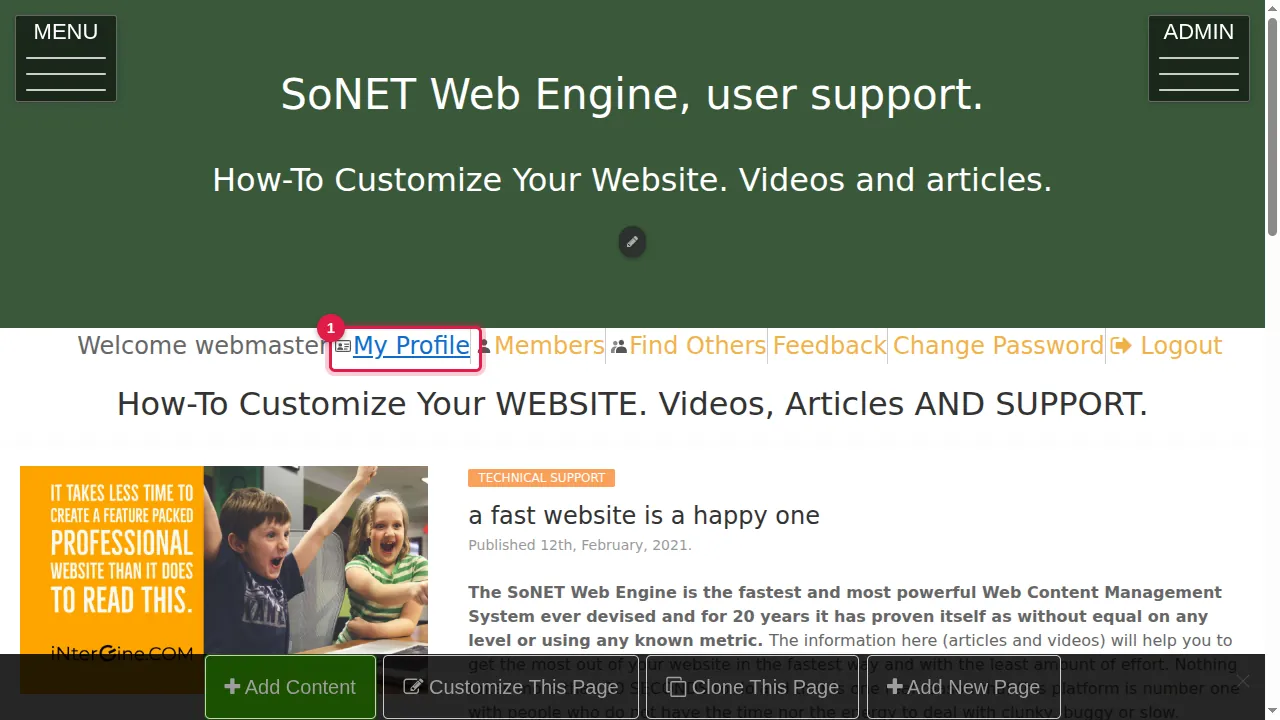
Step 1. Under the header, click My Profile.
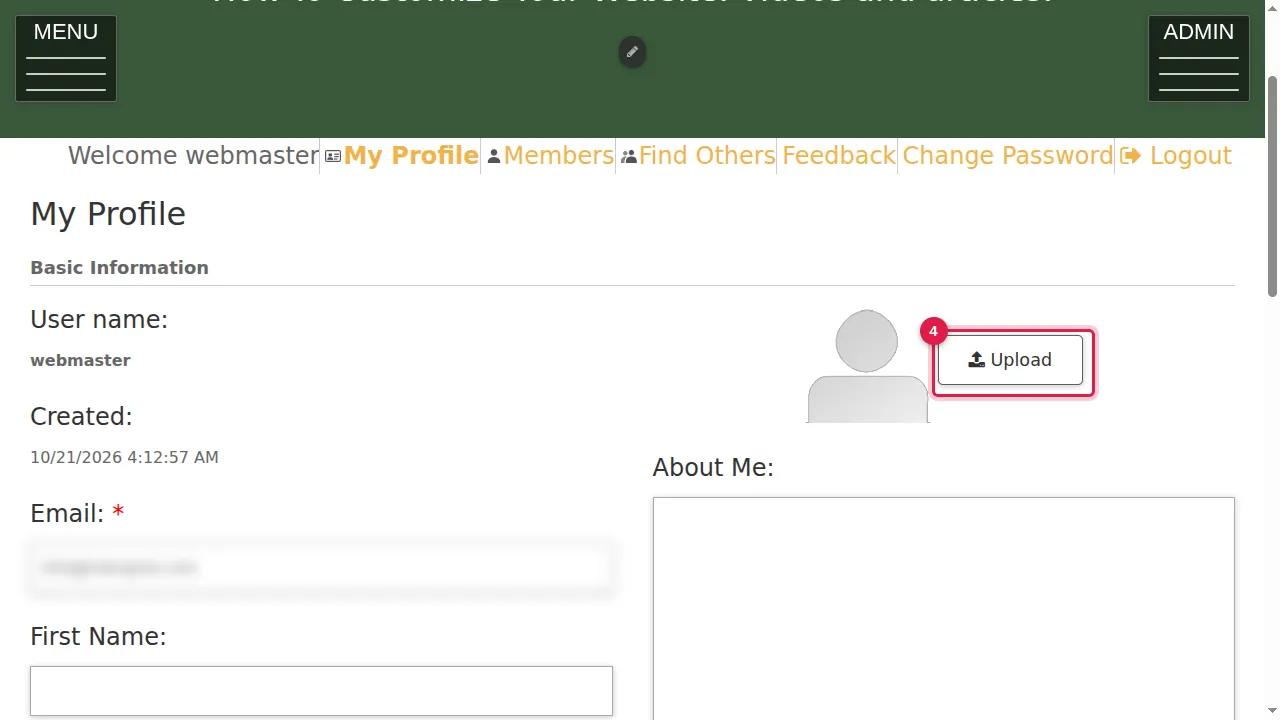
Step 2. Your profile shows your user name and the date your account was created, with boxes for your details.
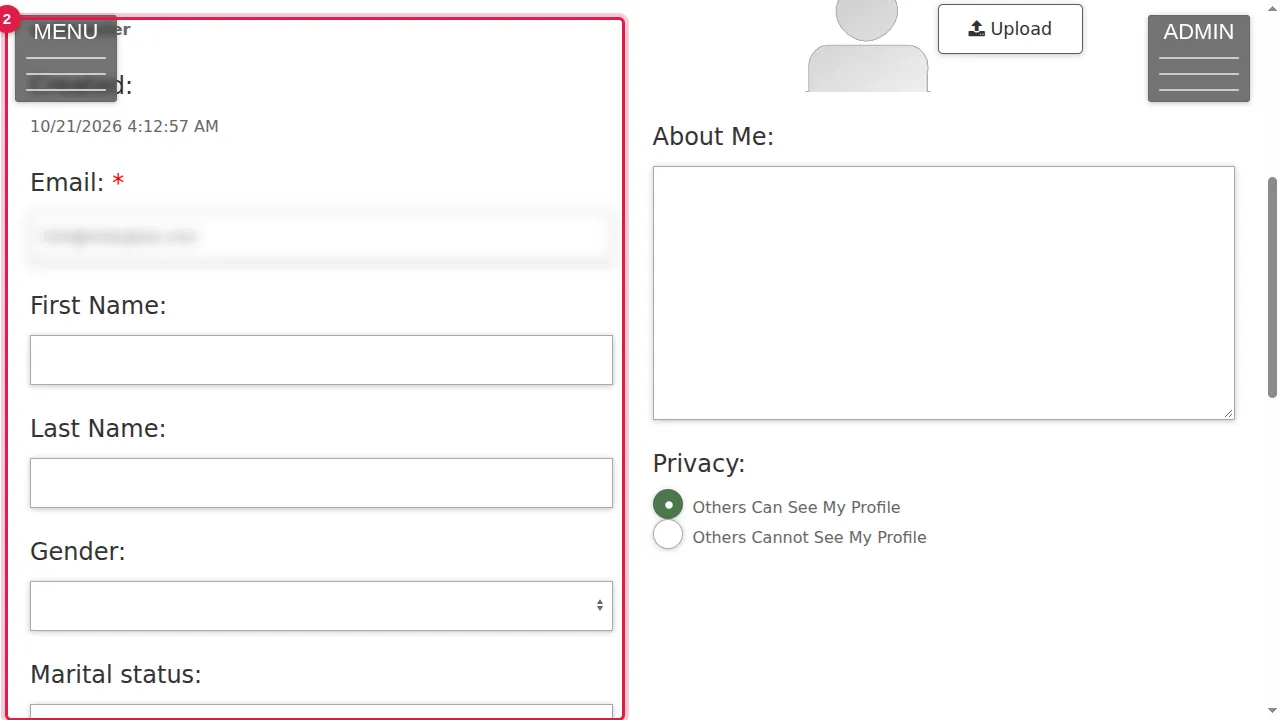
Step 3. Fill in your e-mail address (required), first and last name, gender, marital status, city and country.
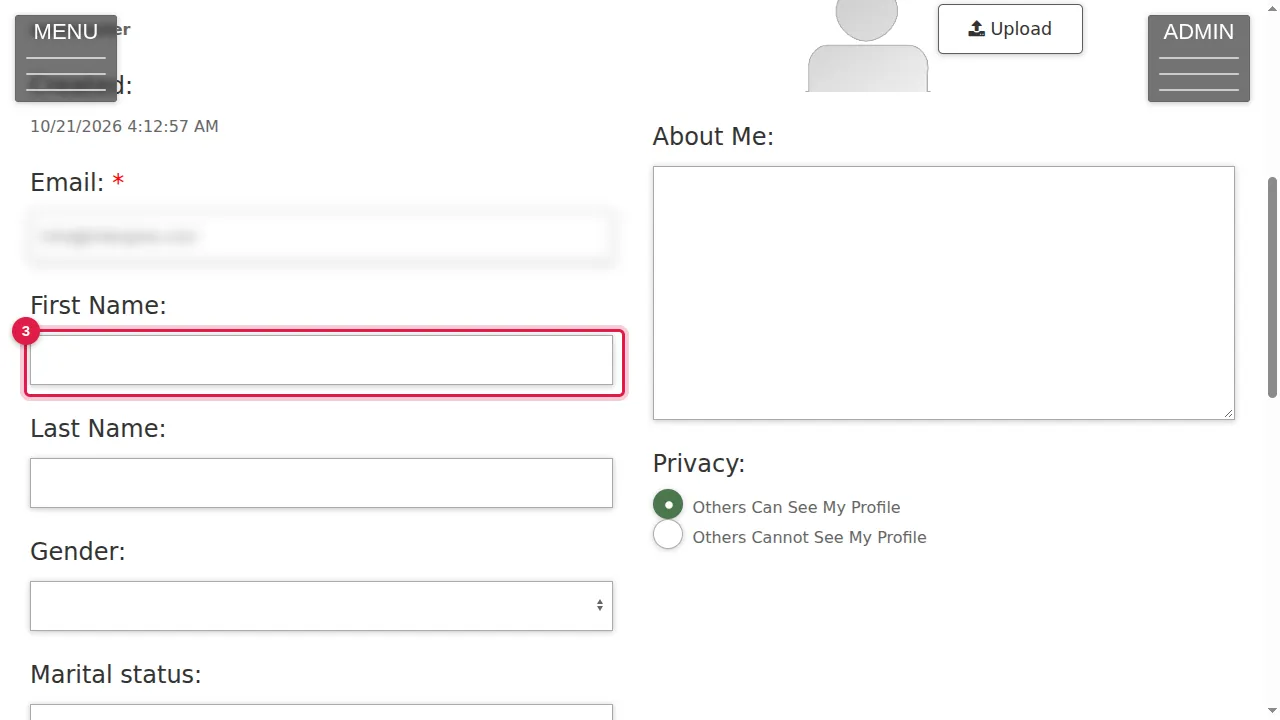
Step 4. Click Upload to add a picture of yourself.
Step 5. Write a few words about yourself under About Me.
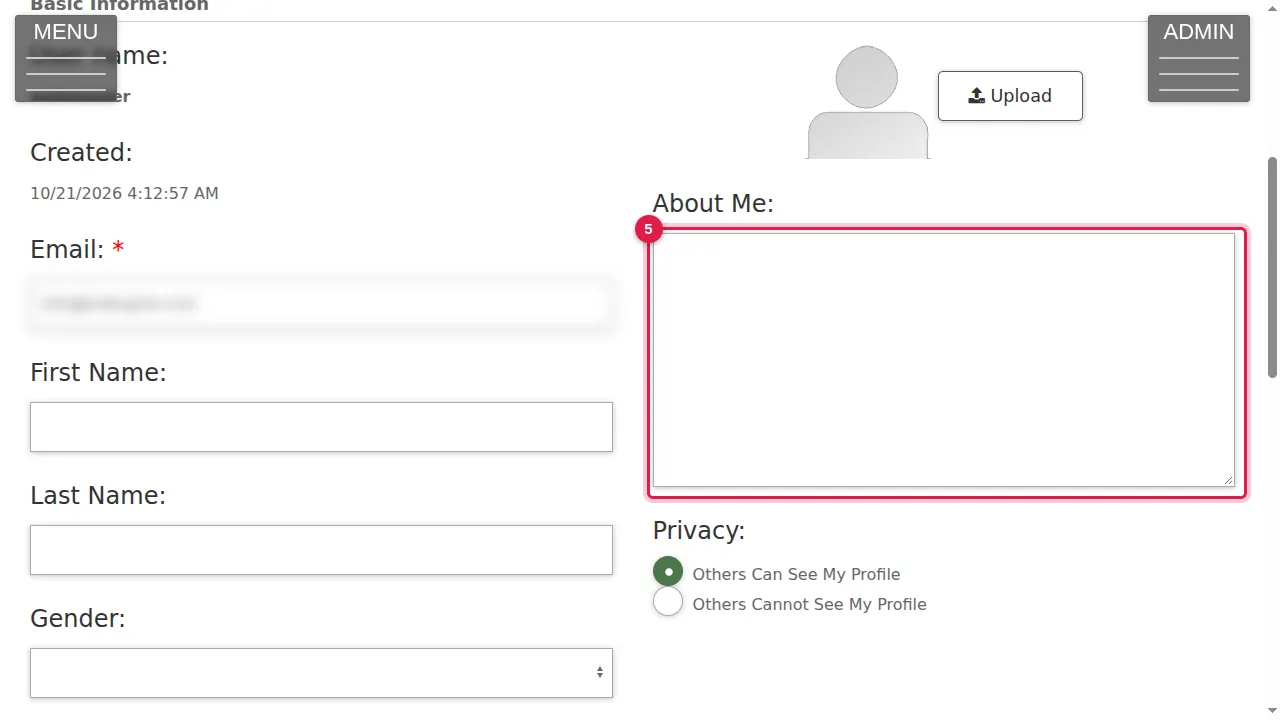
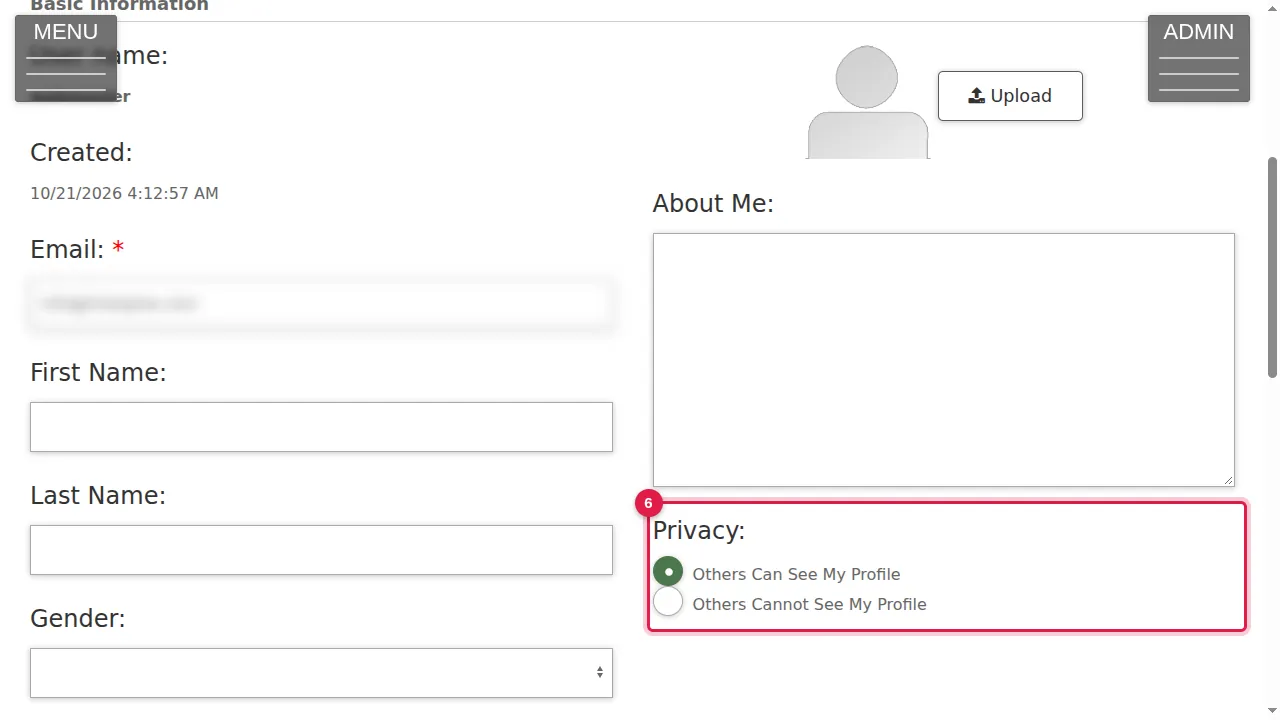
Step 6. Under Privacy, choose "Others Can See My Profile" or "Others Cannot See My Profile".
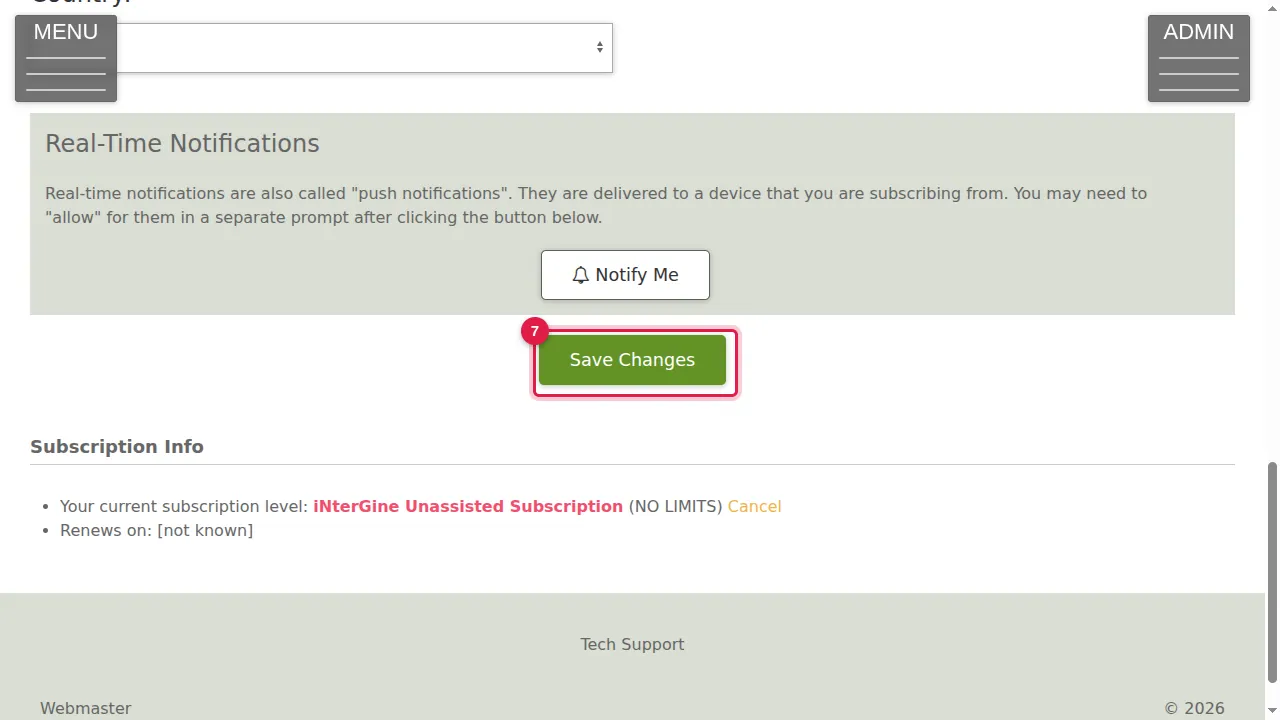
Step 7. Click Save Changes. On the same page you can also turn on real-time notifications (Notify Me) and see your subscription.
Members
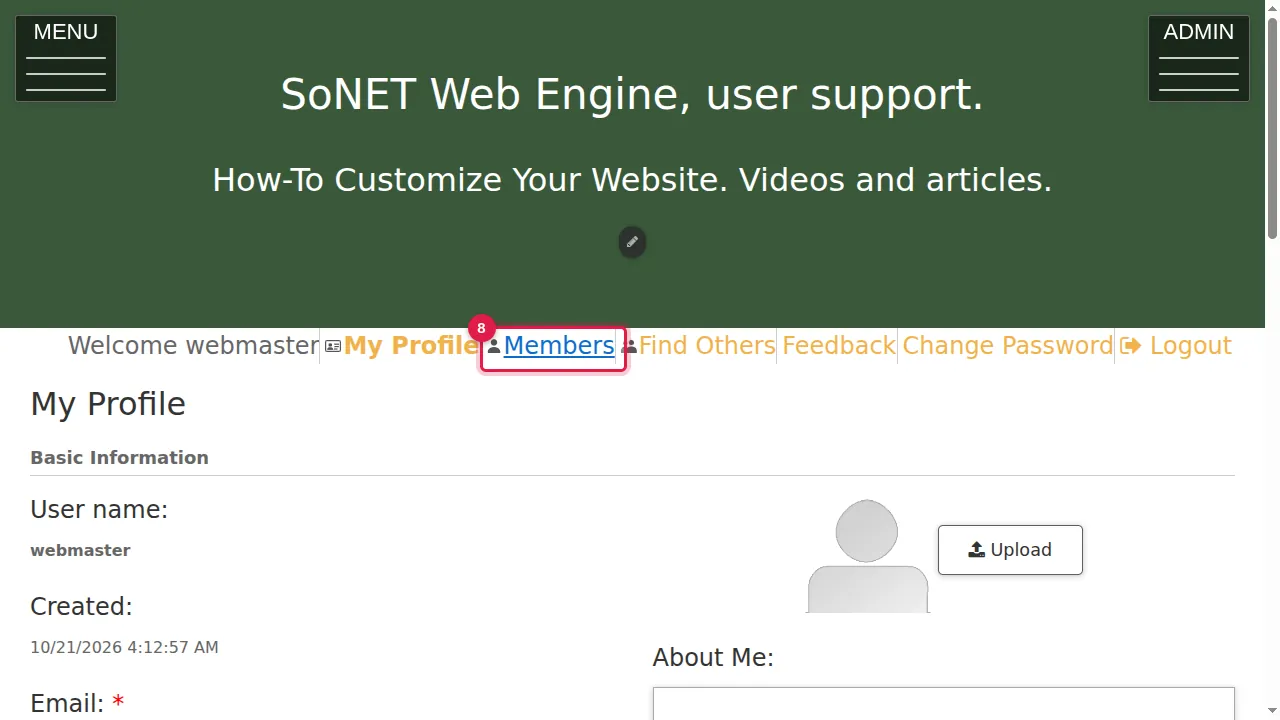
Step 8. Click Members under the header.
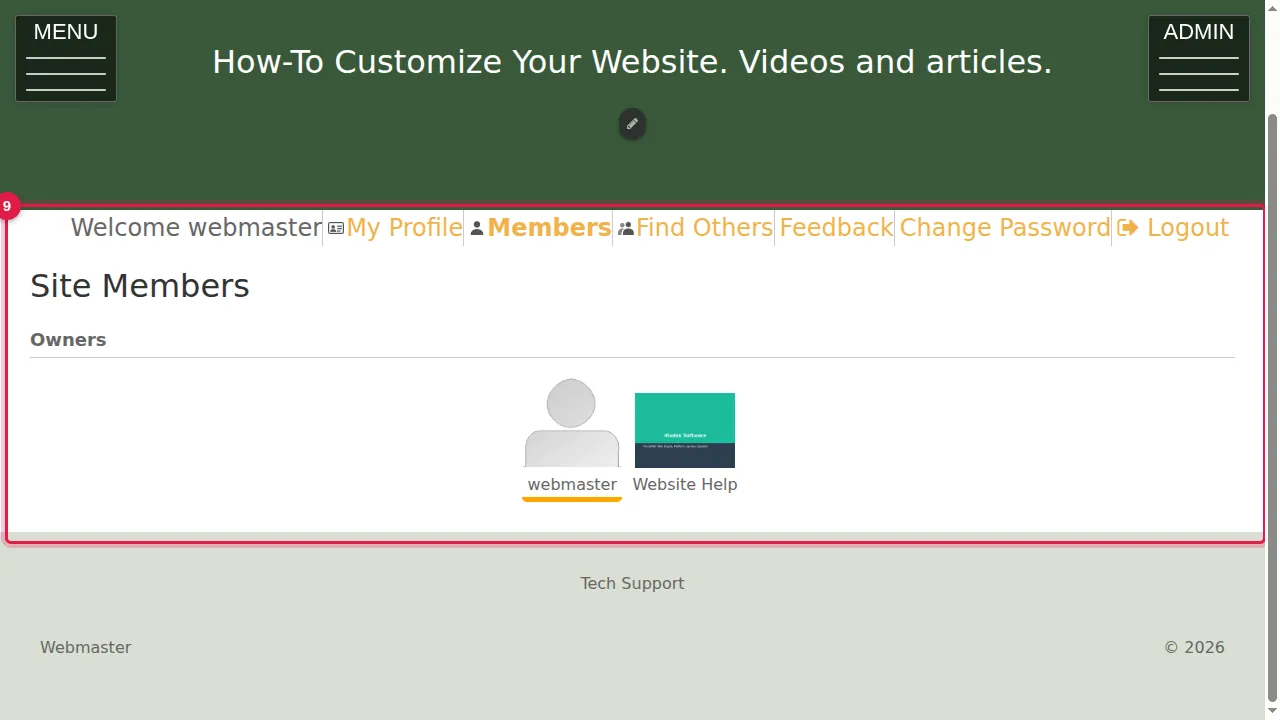
Step 9. Site Members lists the people of your website, grouped by their role (for example Owners).
Find Others
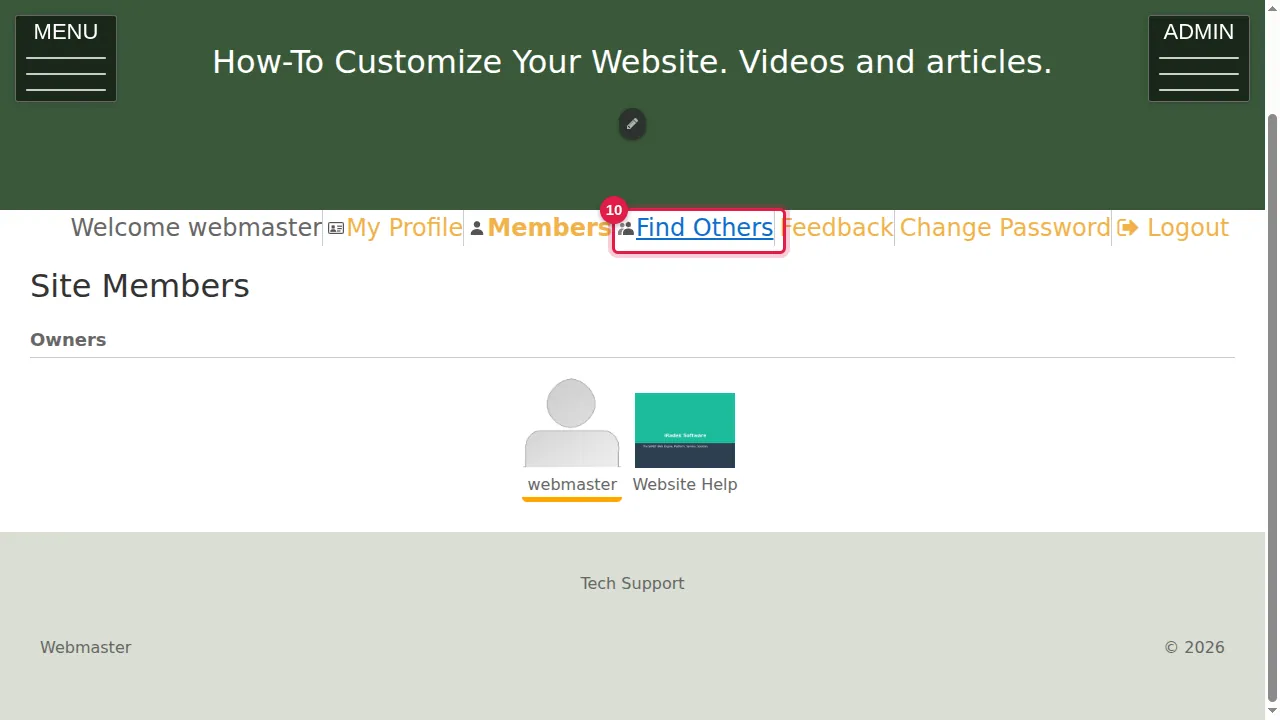
Step 10. Click Find Others under the header.
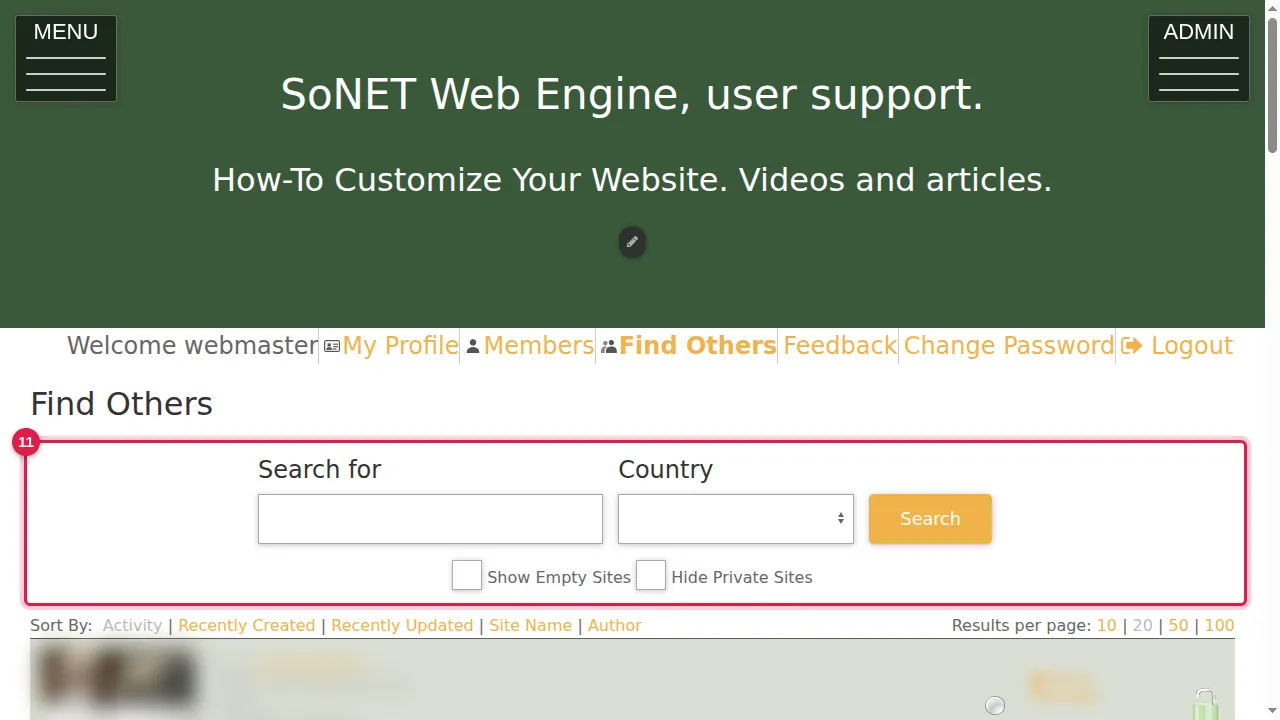
Step 11. Search the other websites by words or by country. Tick "Show Empty Sites" or "Hide Private Sites" to narrow the list, and sort it by activity, date, name or author.
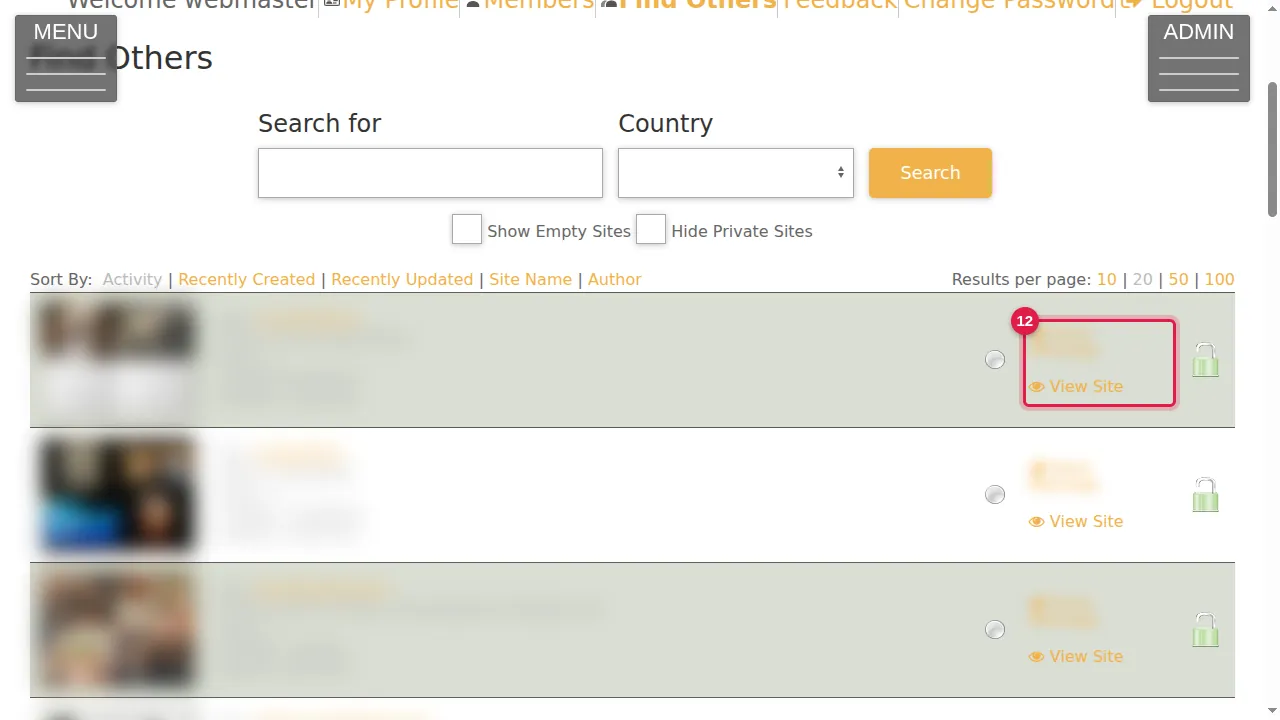
Step 12. Each website in the list has Send Message and View Site.
Check it worked
After Save Changes, open My Profile again: your details are still there.
Good to know
- My Profile also shows your subscription (level and renewal date).
- Notify Me on My Profile turns on real-time (push) notifications on the device you are using.
Related help
Shown on the 2026 version of the SoNET Web Engine. Last checked 20 October 2026. Something different on your screen? Tell us through the Contact page.