Help Center Appointments
Appointments: settings
Set up appointments on your site: what your bookings are called, your time zone, how long an appointment lasts or whether it takes a full day, and where to see the appointments people have booked.
Watch it done: a short silent video with captions · 1:33. The steps below show the same thing picture by picture.
Before you start
- Log in as the site owner.
- Open ADMIN › Appointments.
Settings
Step 1. Appointments has five tabs. Click Settings.
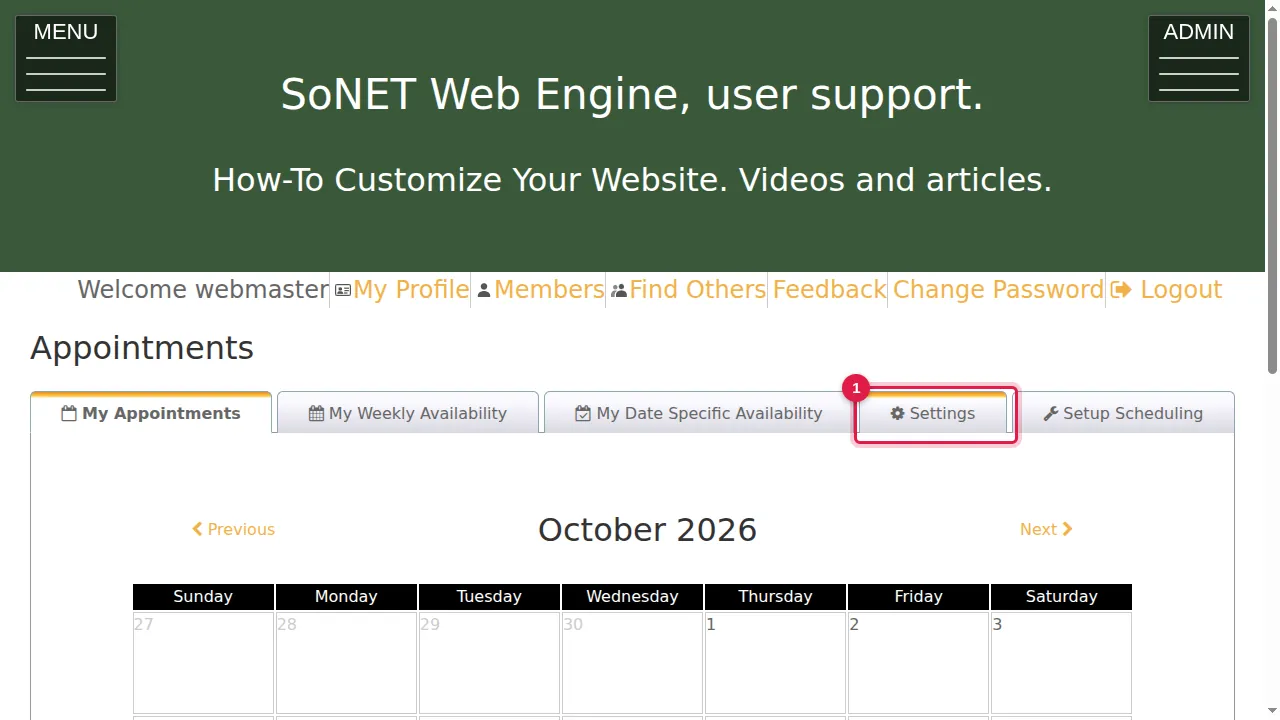
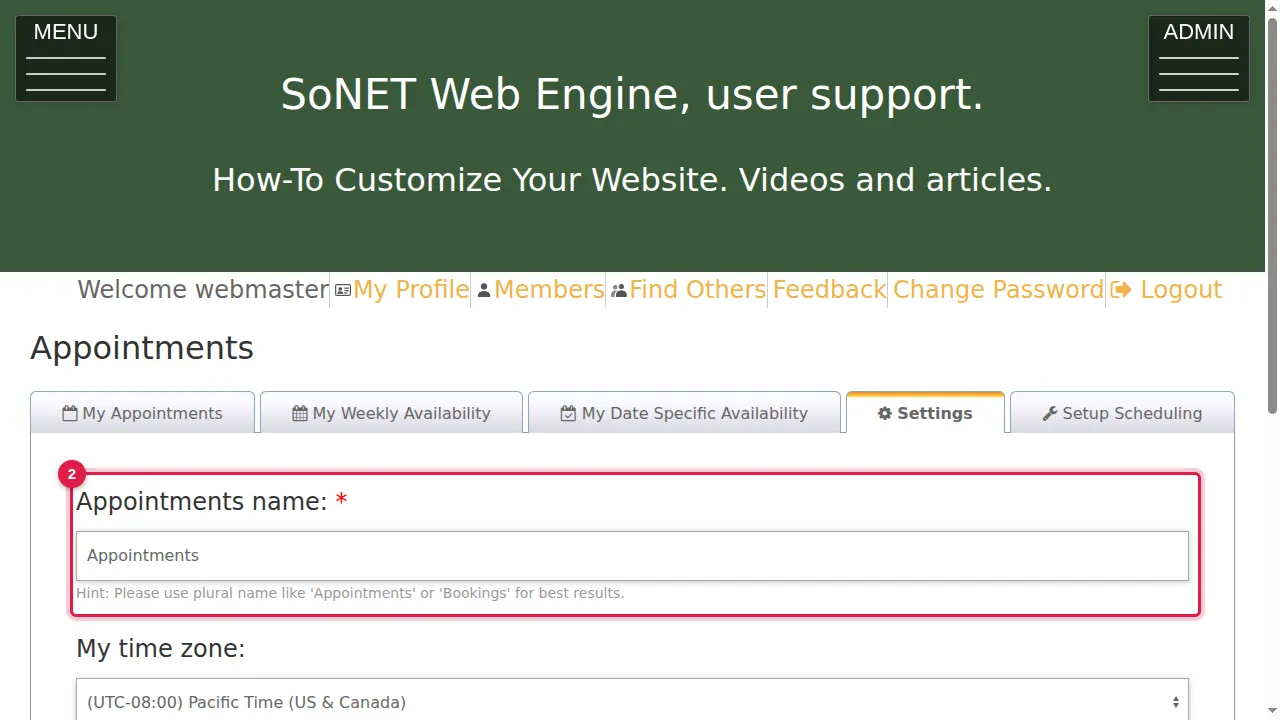
Step 2. Appointments name: what your bookings are called on your site. Use a plural name, like Appointments or Bookings. It is required.
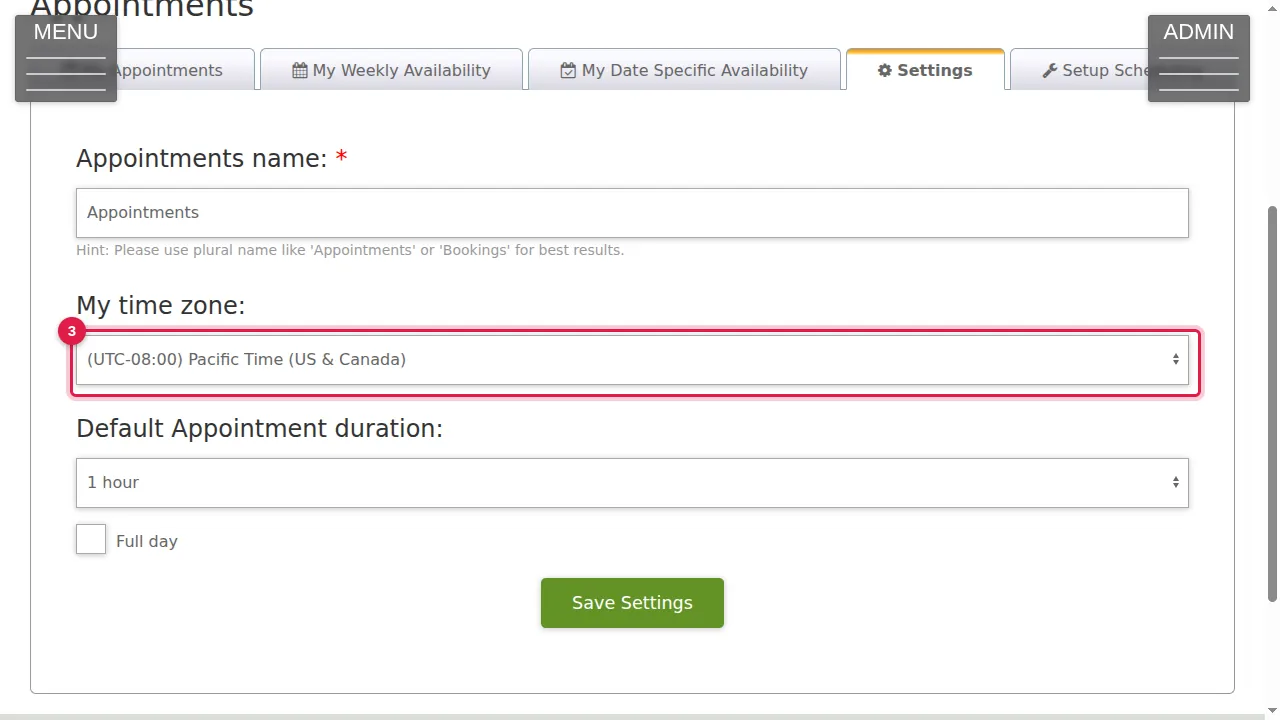
Step 3. My time zone: choose the time zone your available hours are in.
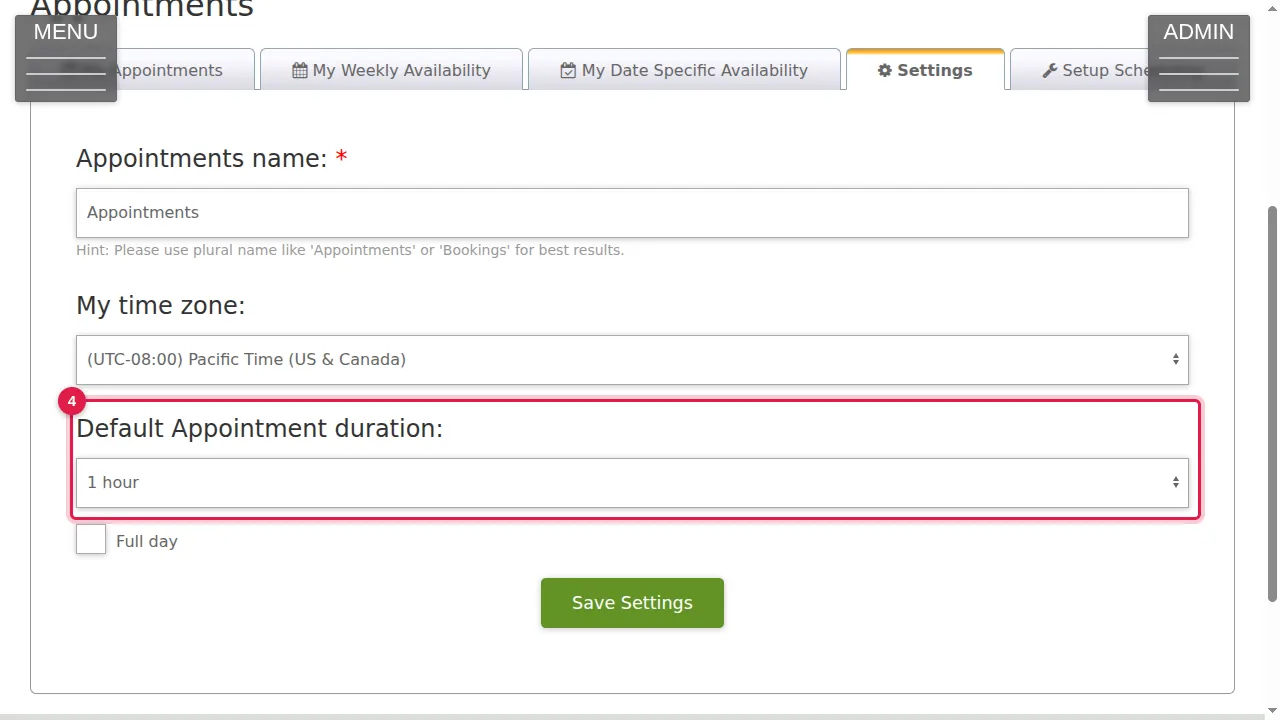
Step 4. Default Appointment duration: how long one appointment lasts, from 15 minutes to 10 hours.
Step 5. Full day: tick it if each booking takes a whole day.
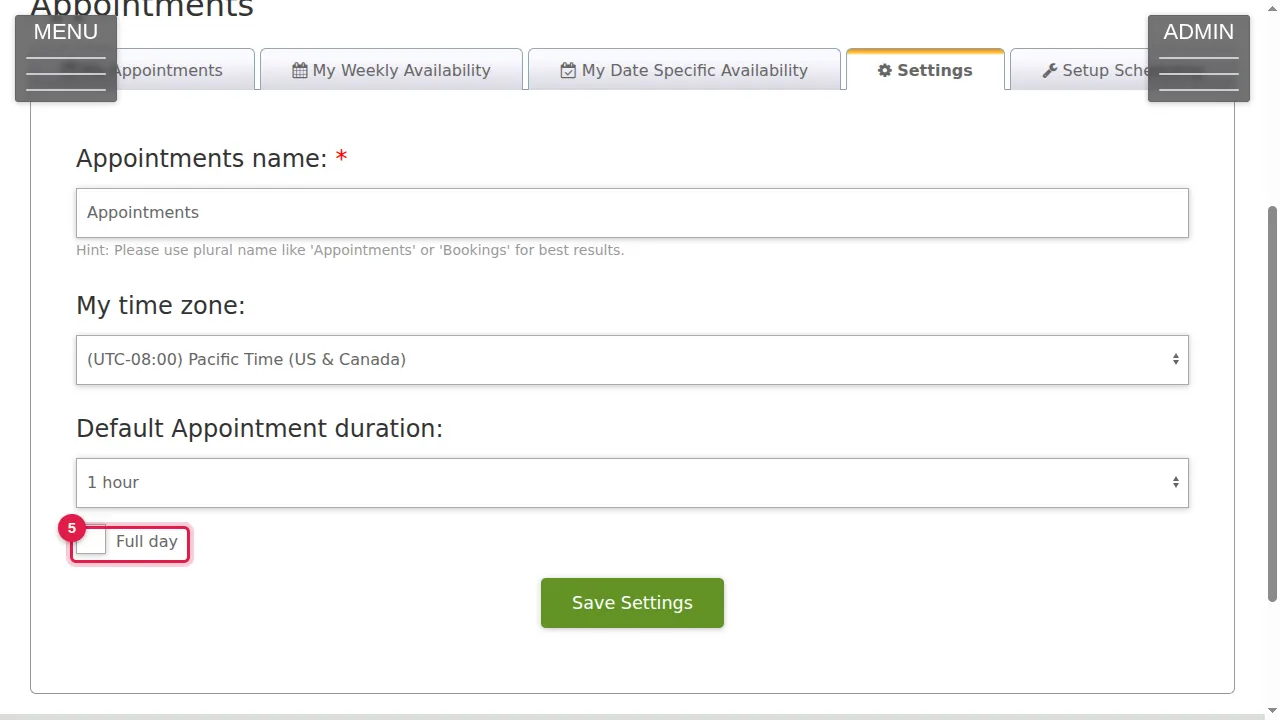
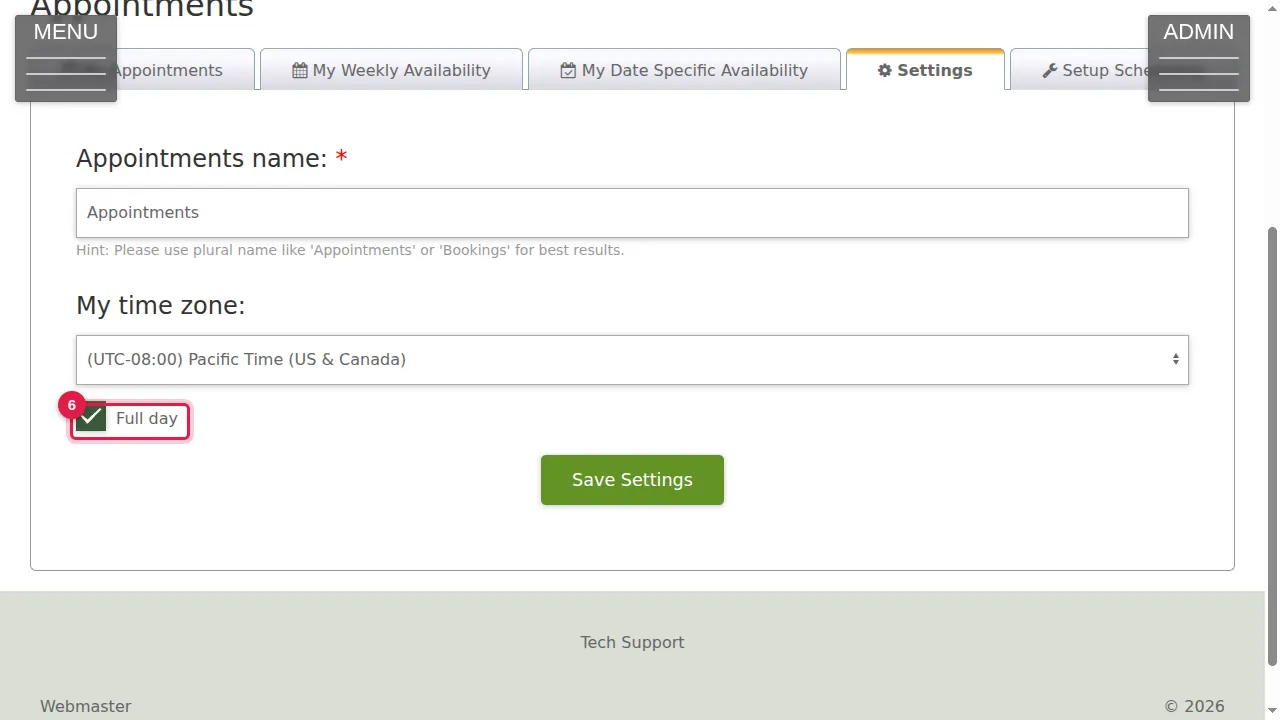
Step 6. With Full day ticked, the duration list disappears. Untick it for bookings of a set length.
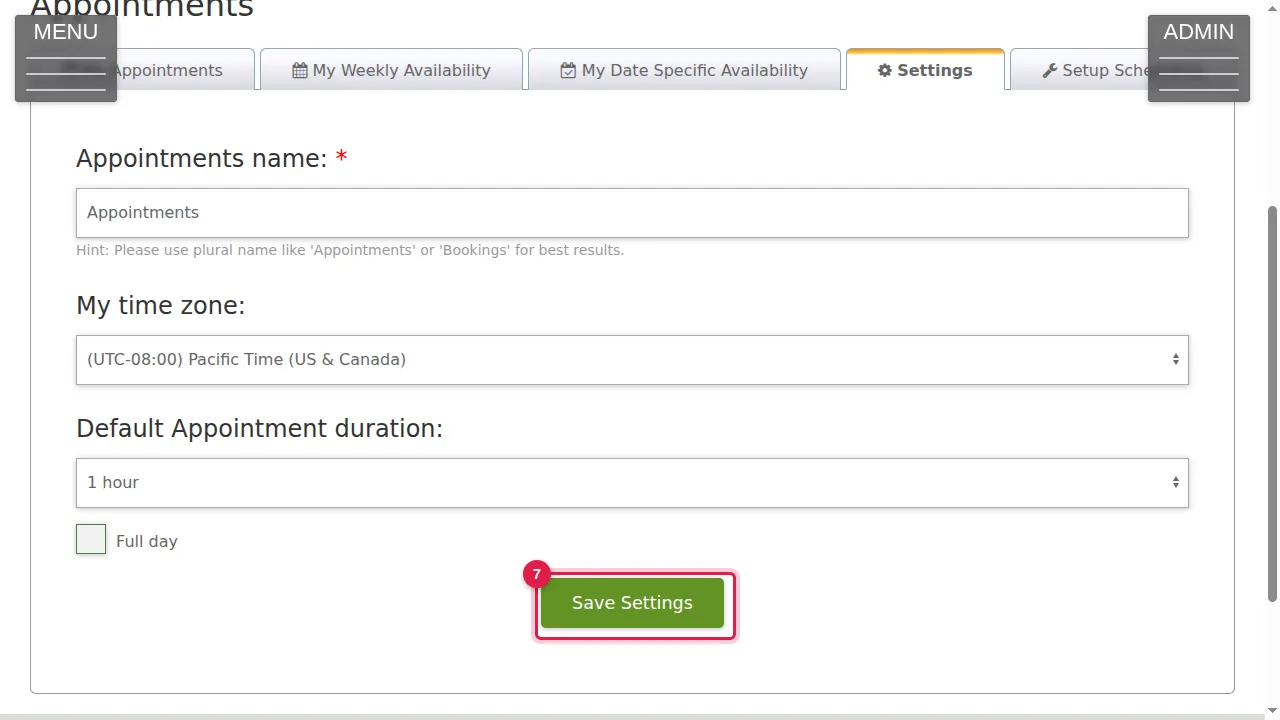
Step 7. Click Save Settings to keep your changes. (In this demonstration nothing was changed.)
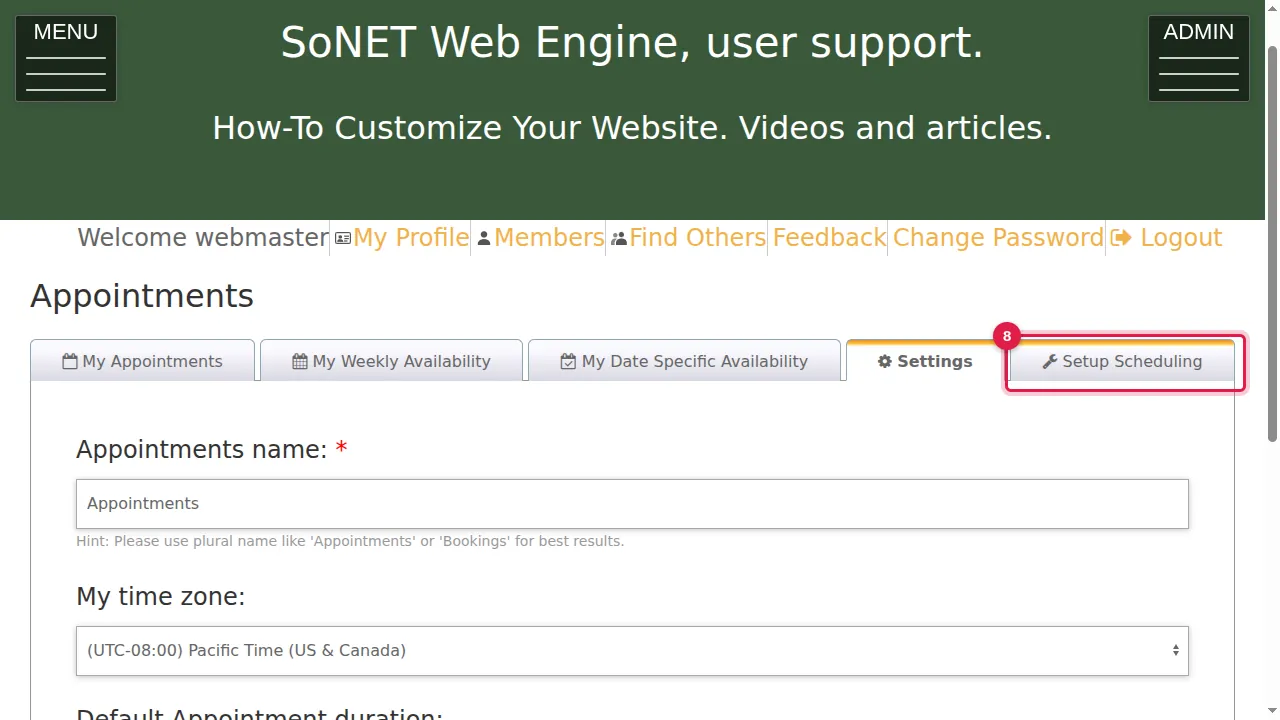
Setup Scheduling
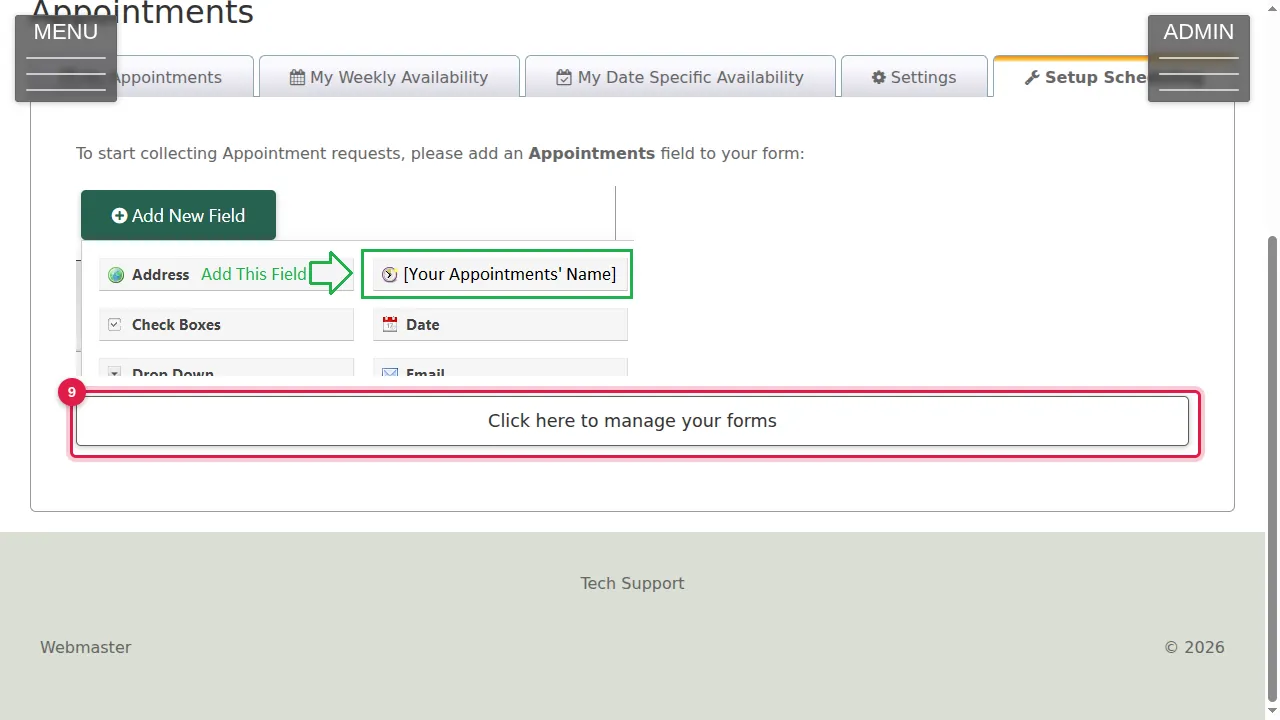
Step 8. The Setup Scheduling tab tells you how people book: with a form that has an Appointments field.
Step 9. Click here to manage your forms opens your forms, where you add that field (see Take bookings with a form).
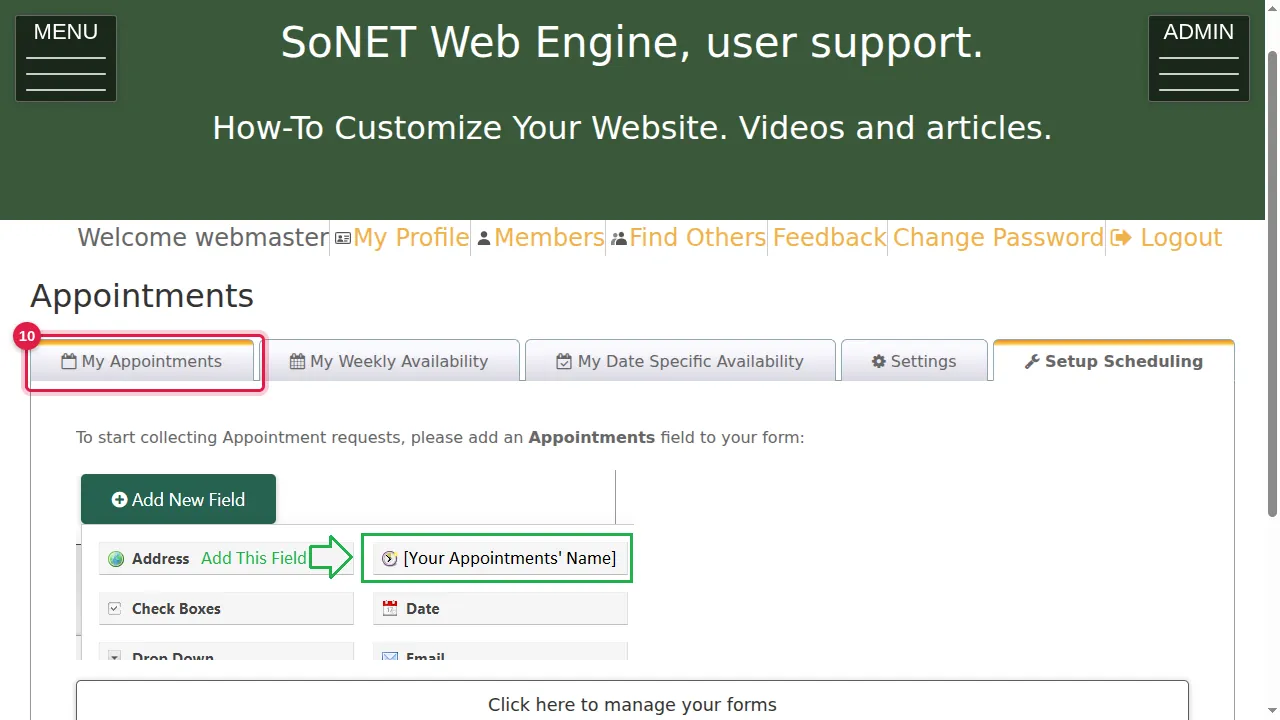
My Appointments
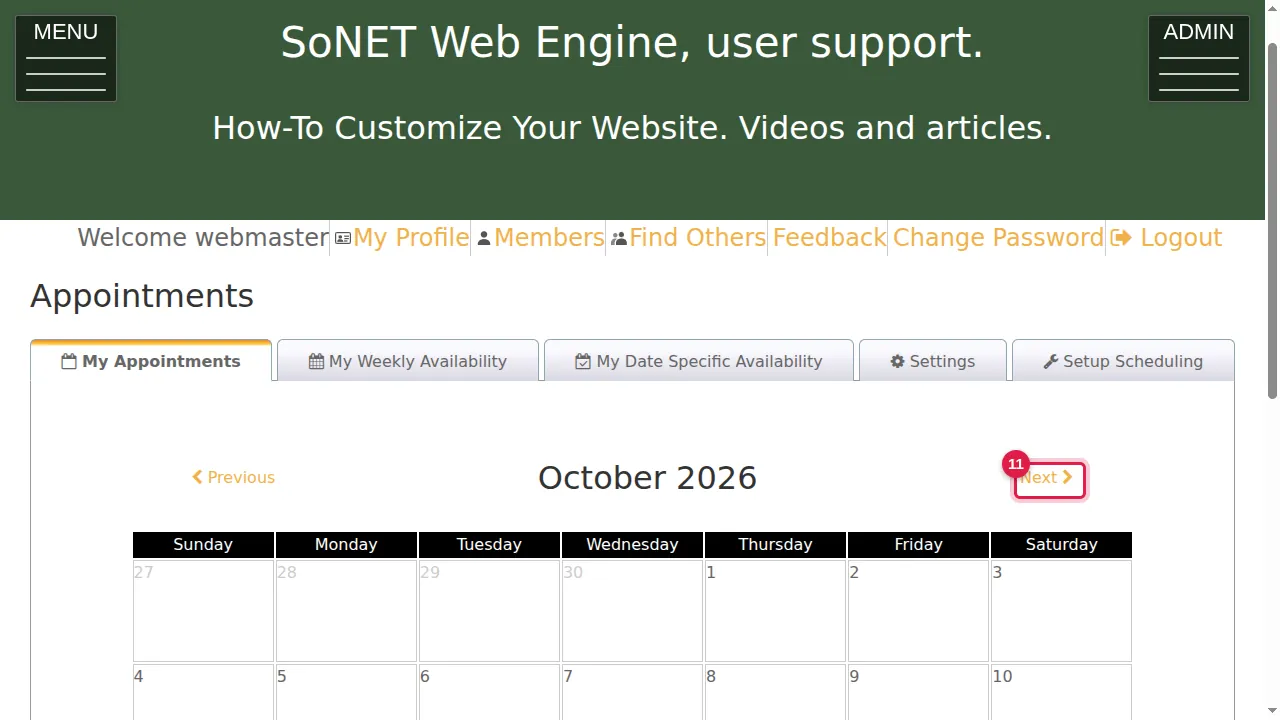
Step 10. The My Appointments tab is a calendar of the appointments people have booked.
Step 11. Previous and Next move to the month before or after.
Check it worked
Open the Settings tab again and see that your name, time zone and duration were kept.
Good to know
- Set your available hours next, in My Weekly Availability (see Set your available hours).
Related help
Shown on the 2026 version of the SoNET Web Engine. Last checked 21 October 2026. Something different on your screen? Tell us through the Contact page.