Help Center Forms
Create a form and its fields
Make your own form: give it a name and a send button, then add the fields you need from 19 field types (text, choices, name, e-mail, phone, address, date, file upload, appointments and more) and put them in order.
Watch it done: a short silent video with captions · 3:19. The steps below show the same thing picture by picture.
Before you start
- Log in as the site owner.
Start a new form
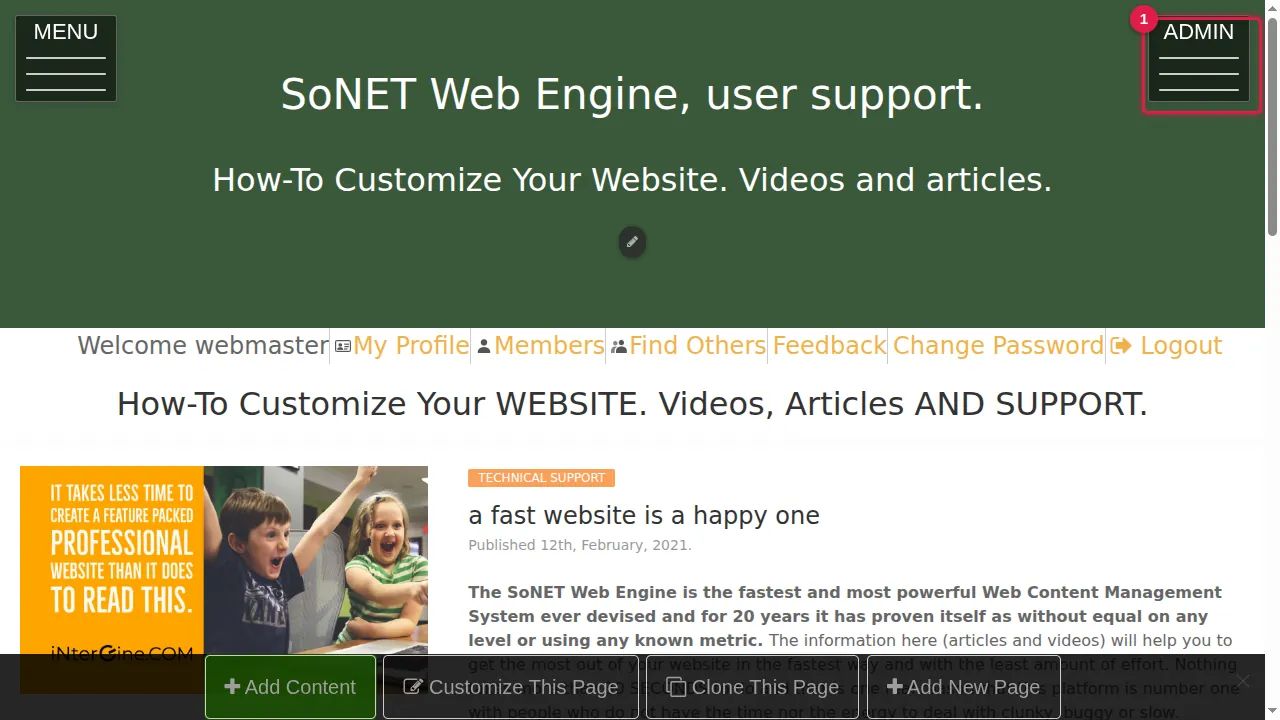
Step 1. Open the ADMIN menu.
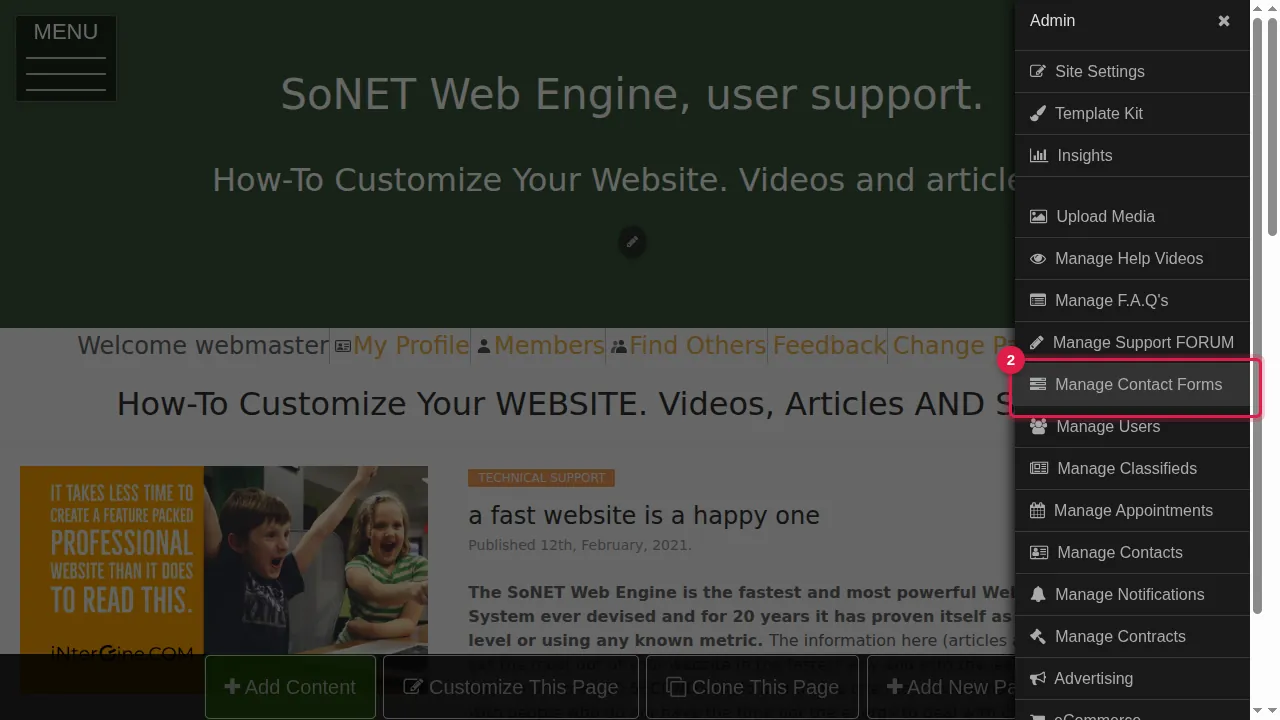
Step 2. Click Manage Contact Forms.
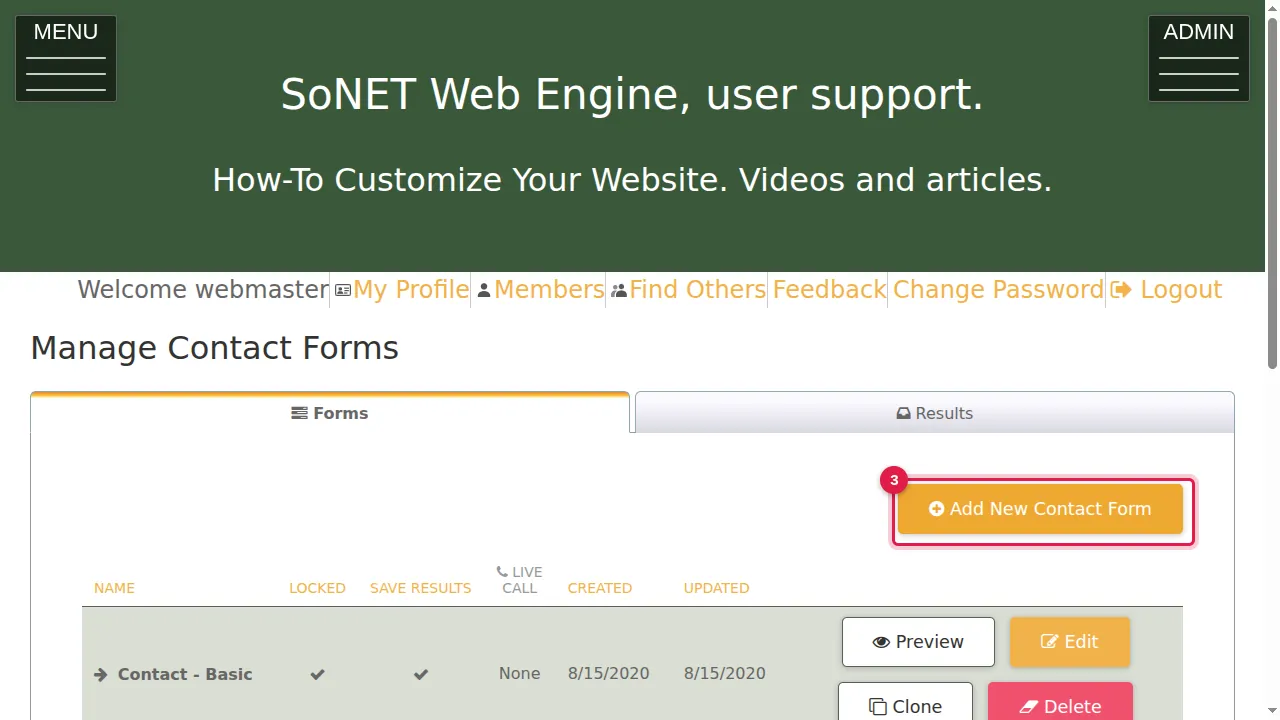
Step 3. The Forms tab lists your forms. Click Add New Contact Form.
Name and button
Step 4. Name: the form's name. It is the only field you must fill in at the top.
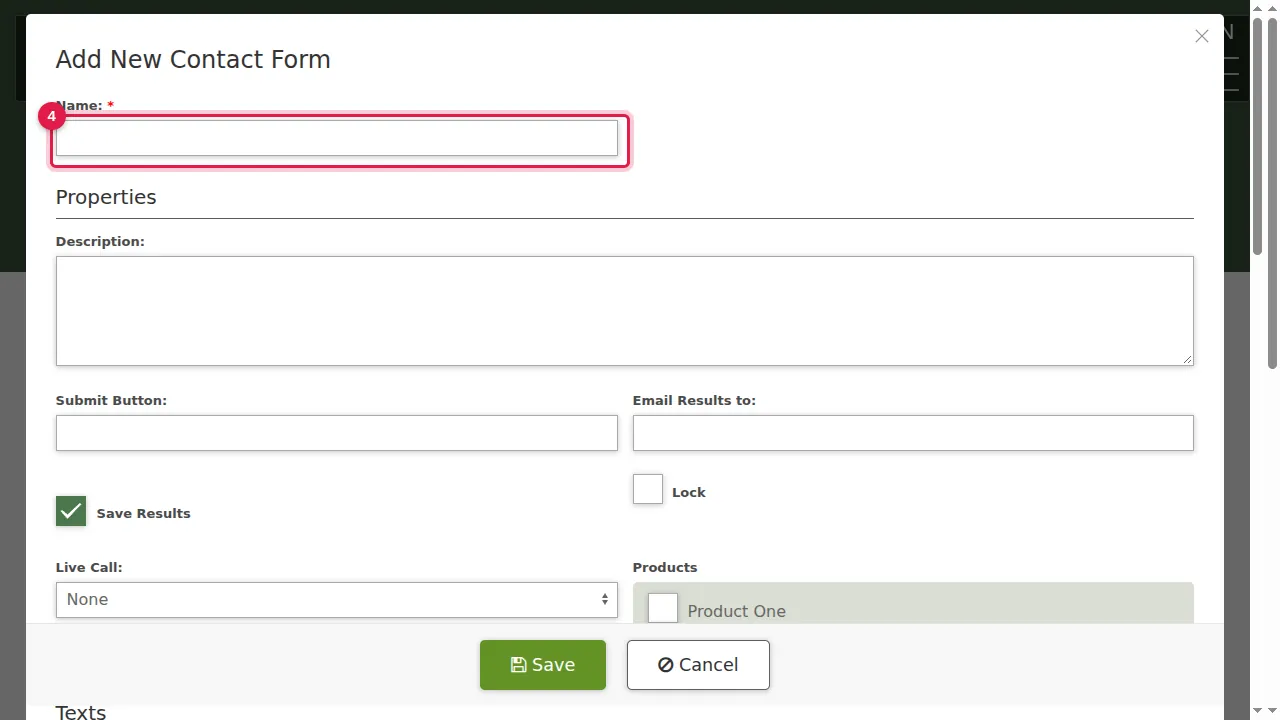
Step 5. Description: a short note about the form.
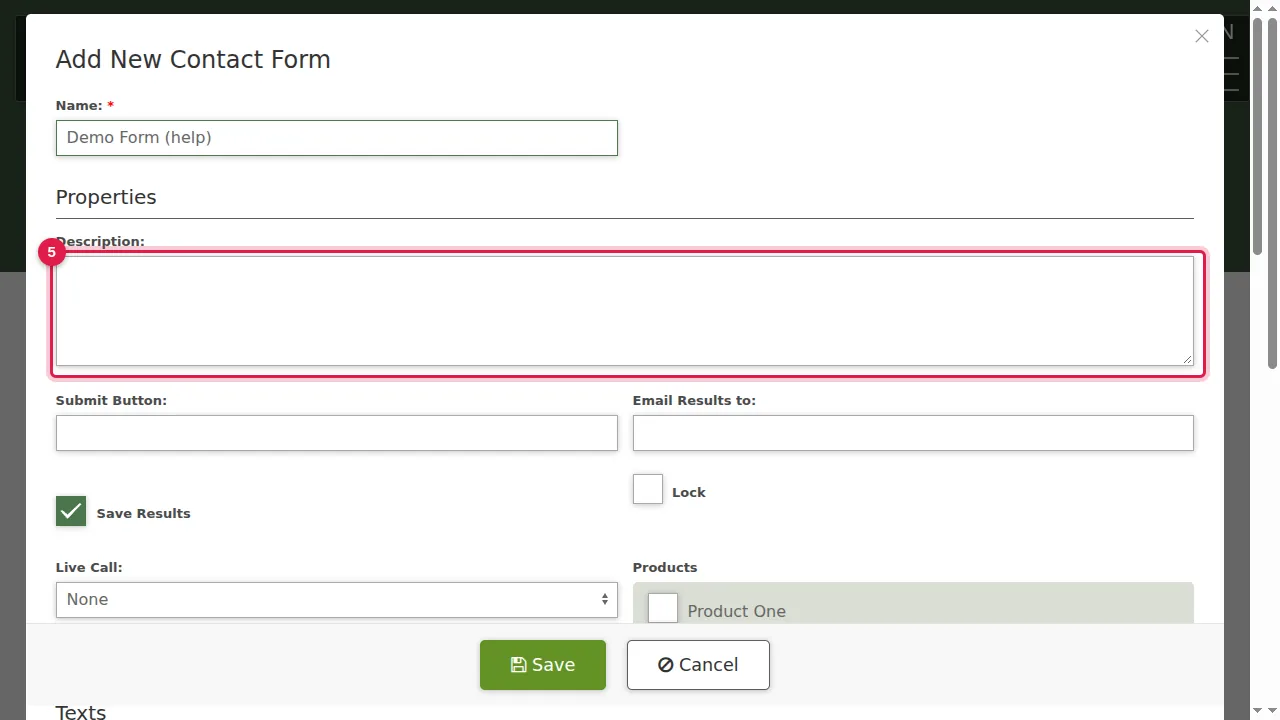
Step 6. Submit Button: the text on the send button.
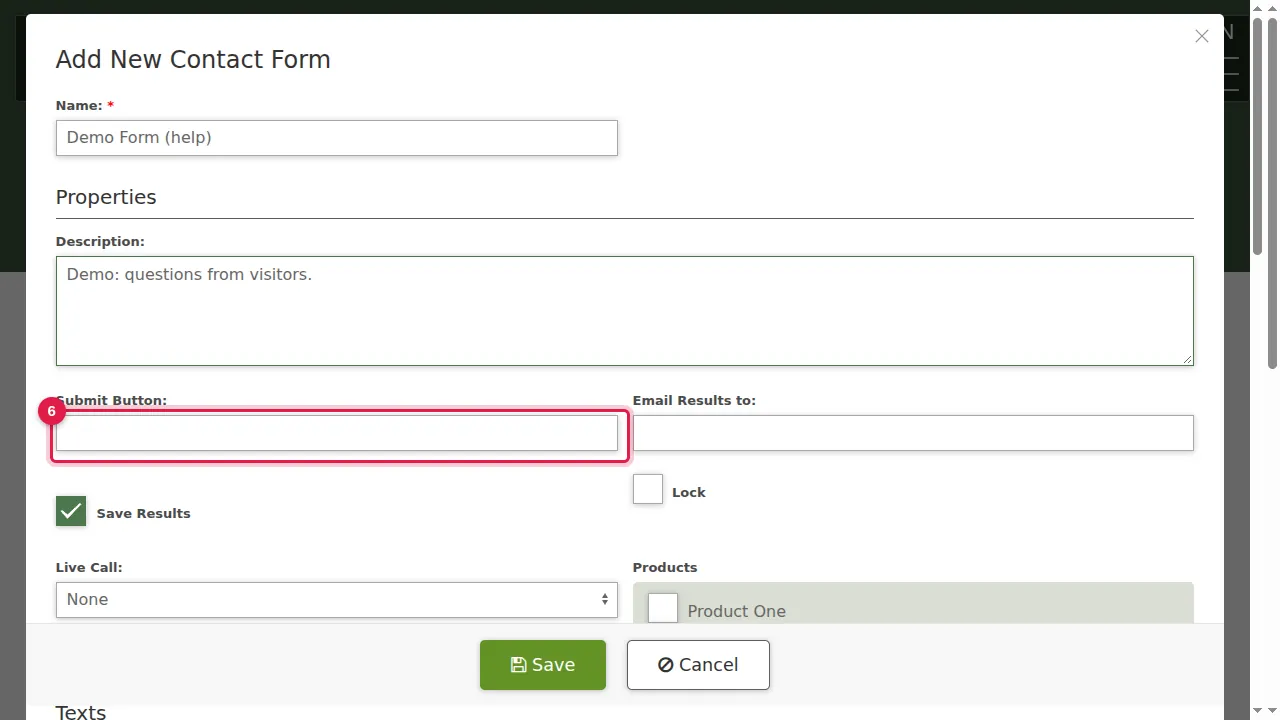
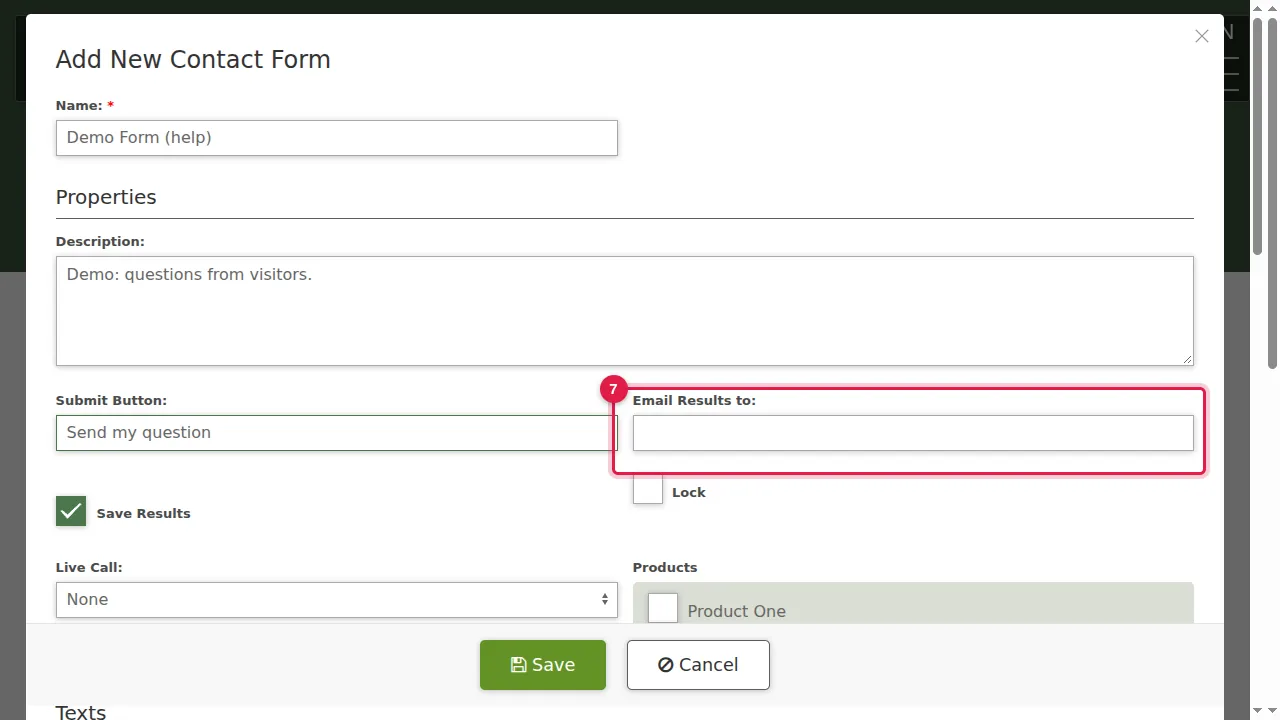
Step 7. Email Results to, Save Results, Lock and Live Call are the form's settings: see Form settings.
Add fields
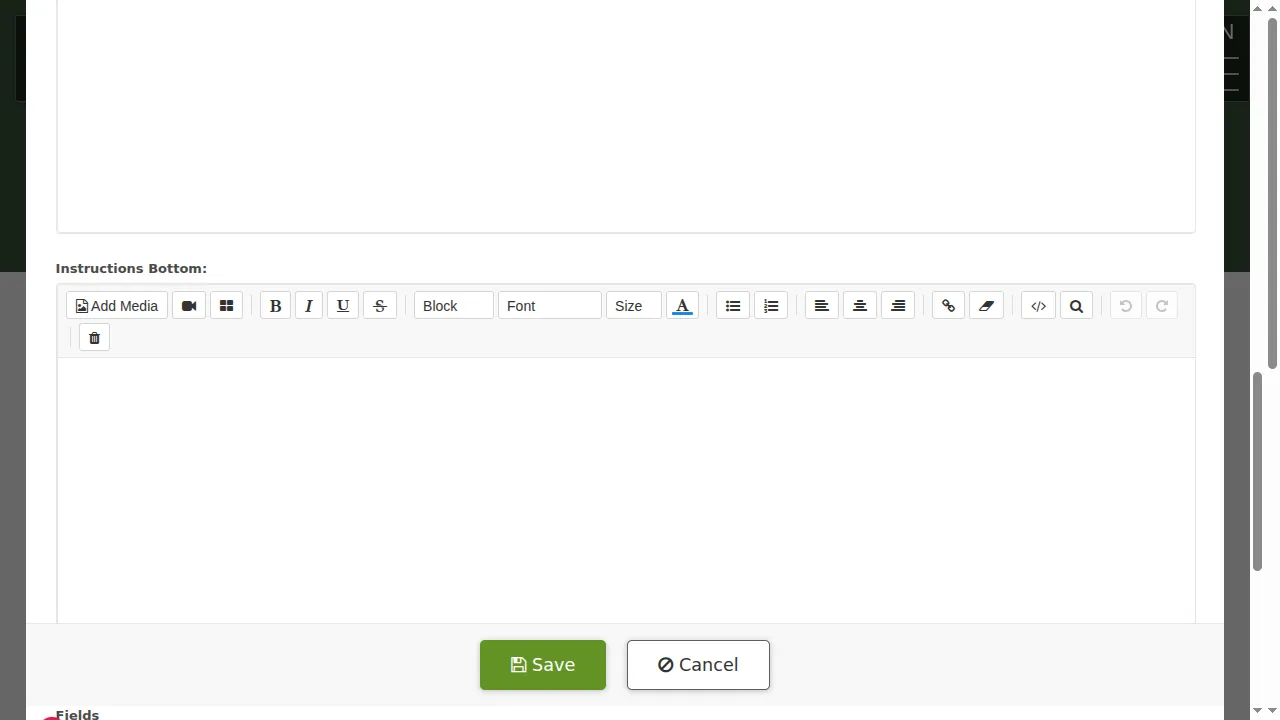
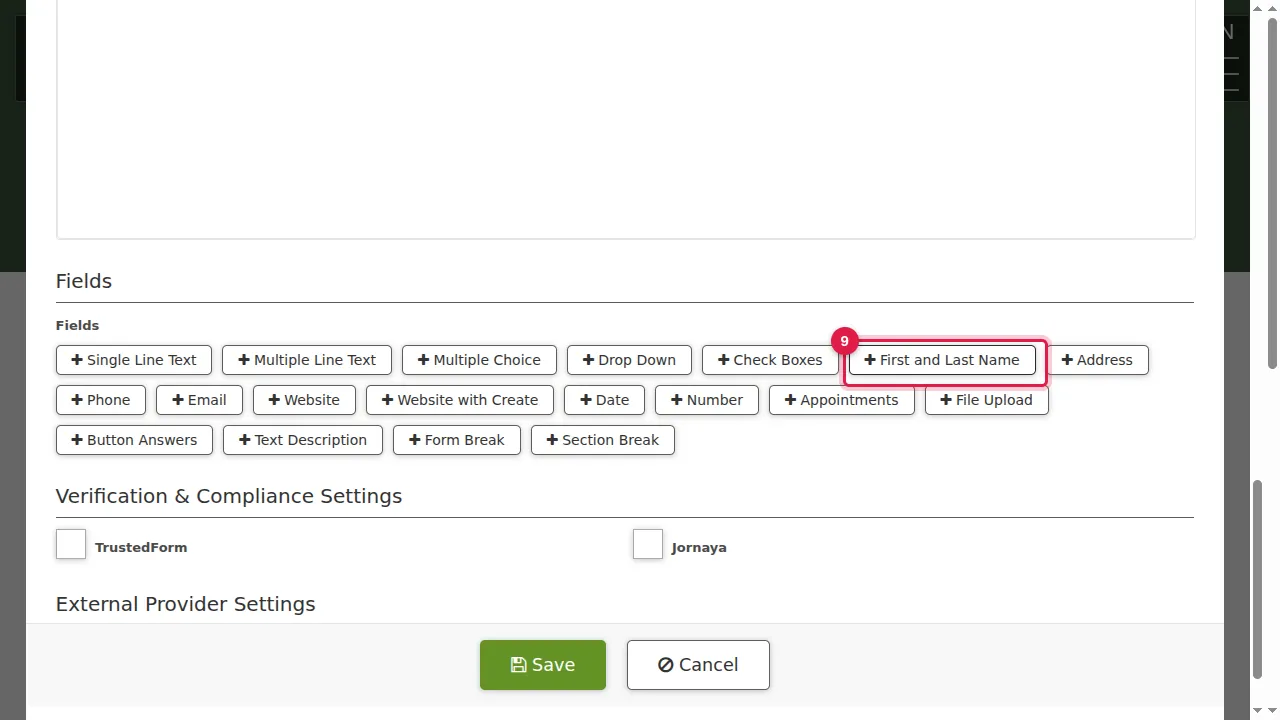
Step 8. Under Fields, each button adds a field of that type at the end of the form: Single Line Text, Multiple Line Text, Multiple Choice, Drop Down, Check Boxes, First and Last Name, Address, Phone, Email, Website, Website with Create, Date, Number, Appointments, File Upload, Button Answers, Text Description, Form Break and Section Break.
Step 9. Click First and Last Name to add it.
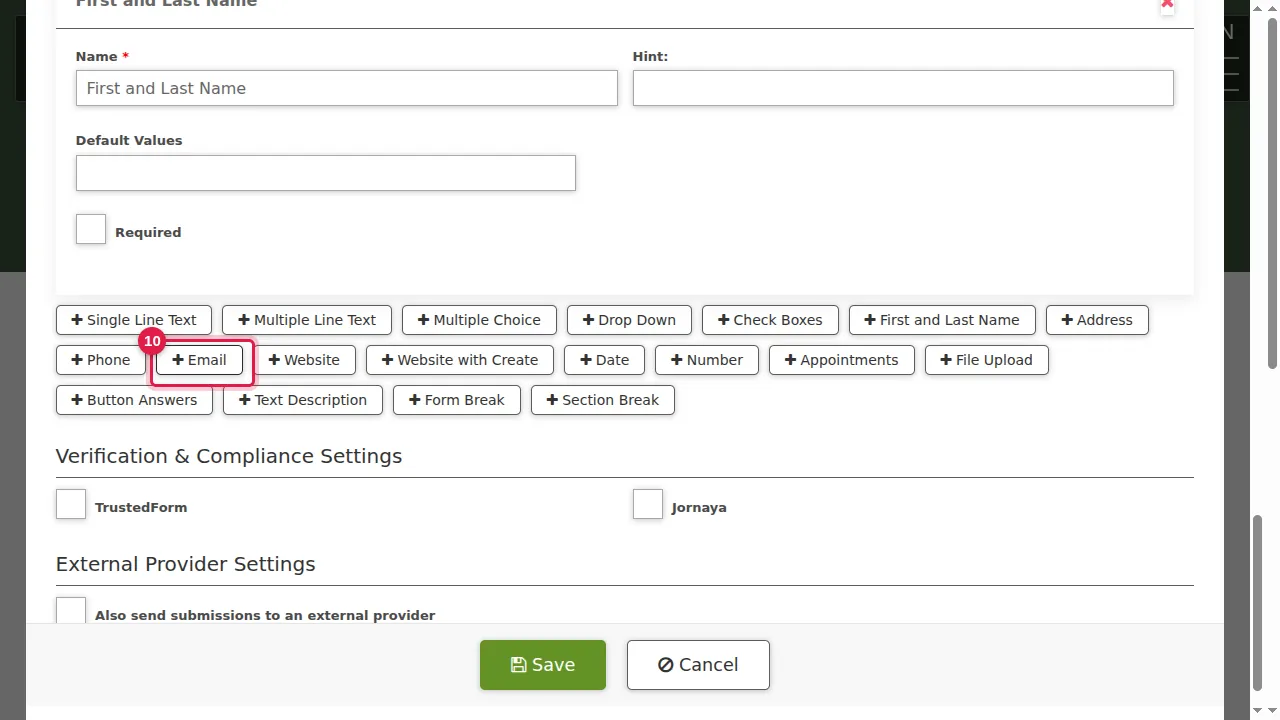
Step 10. Click Email.
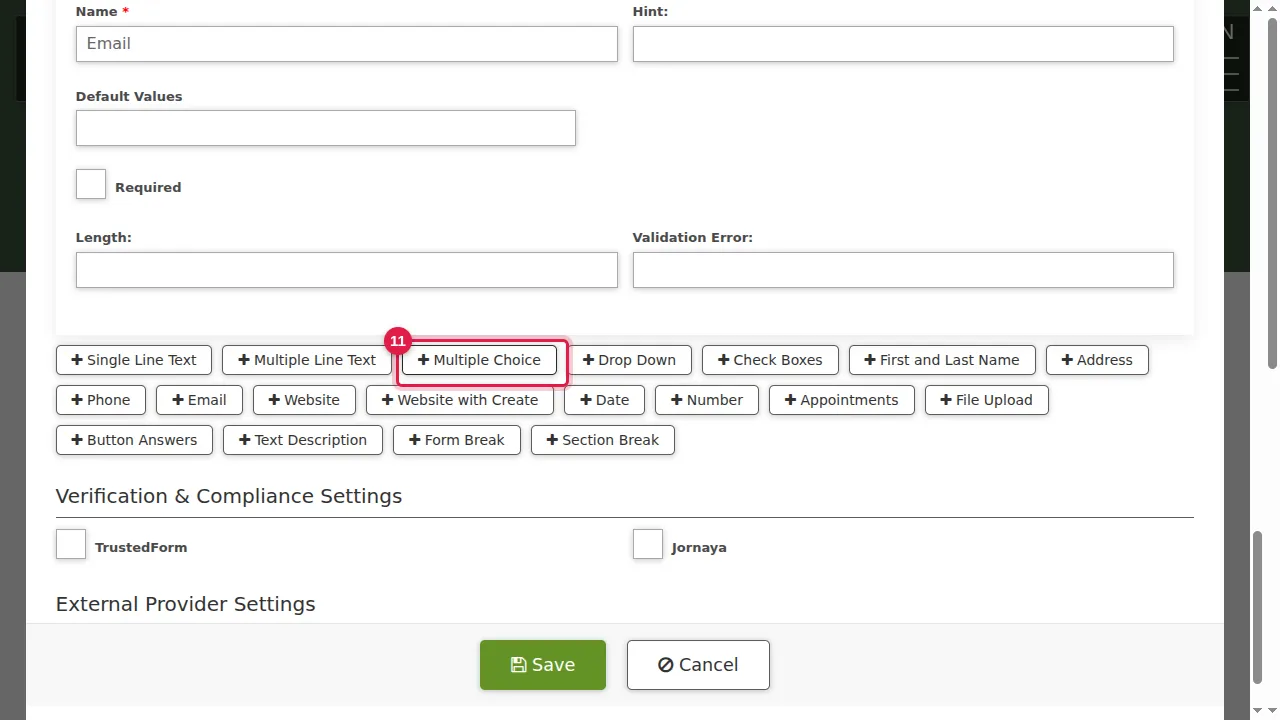
Step 11. Click Multiple Choice.
Step 12. Every field has a Name: the question your visitors answer. Type it over the sample name.
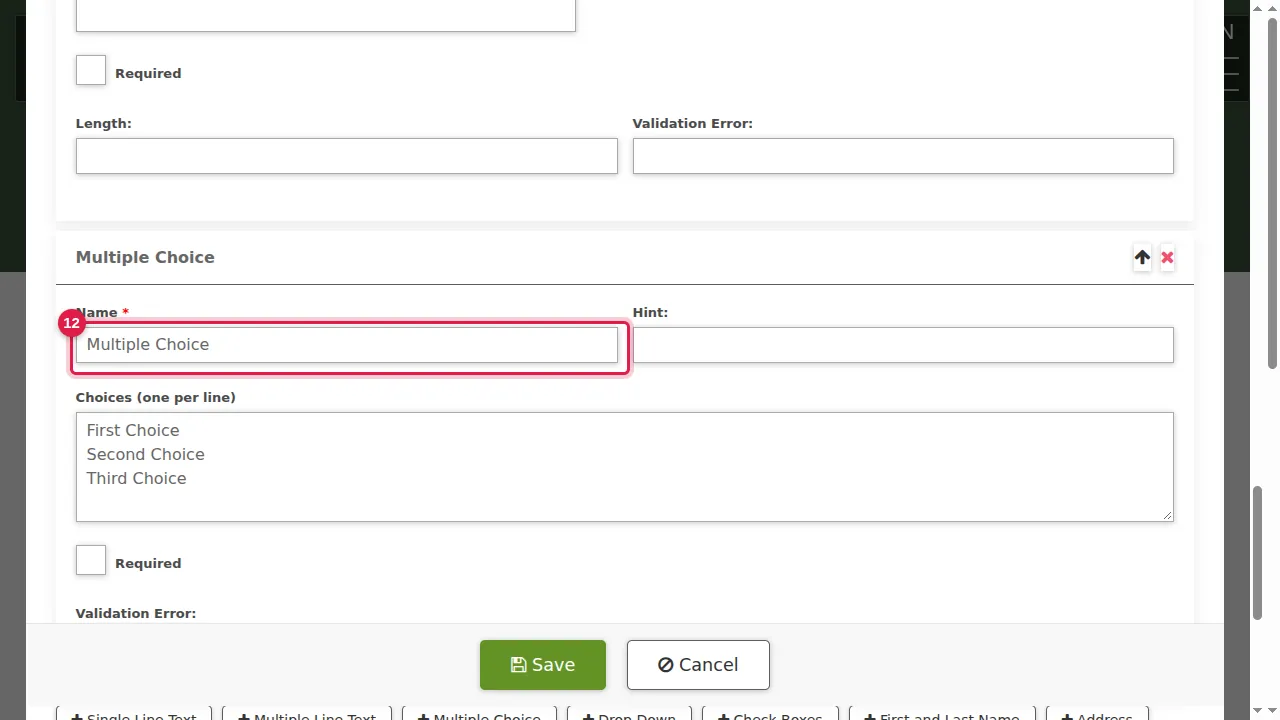
Step 13. A choice field starts with sample choices.
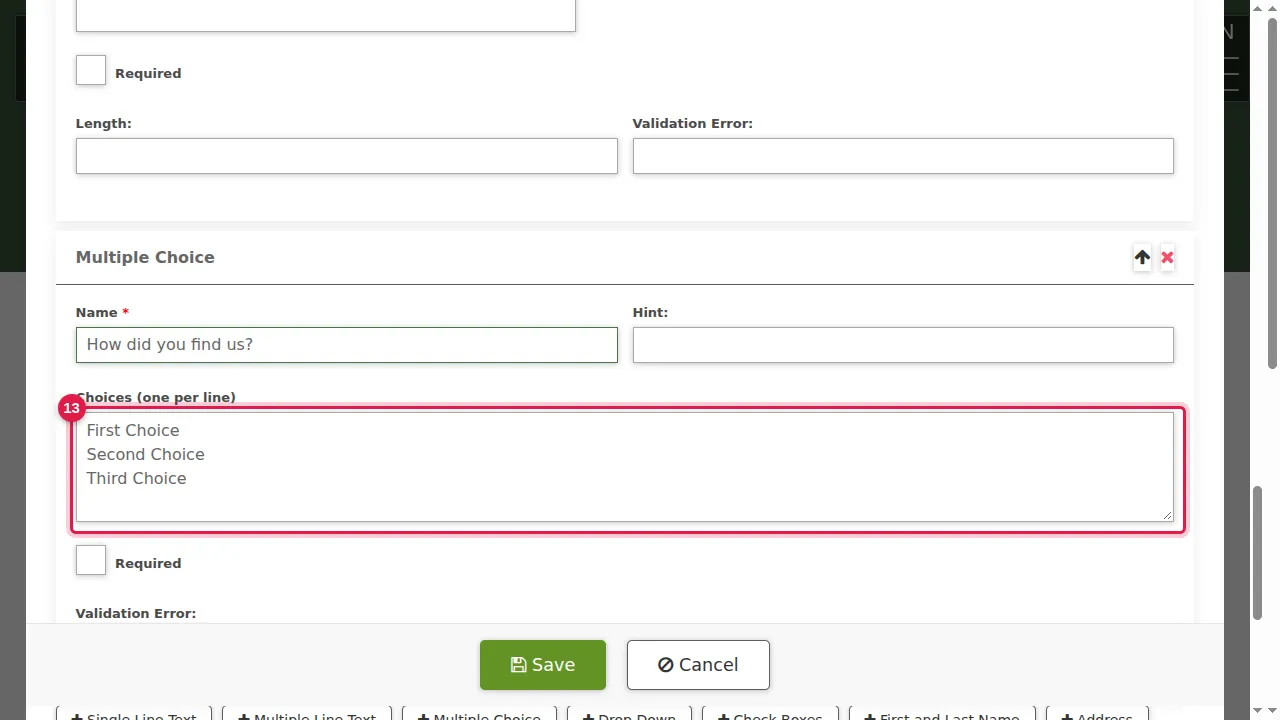
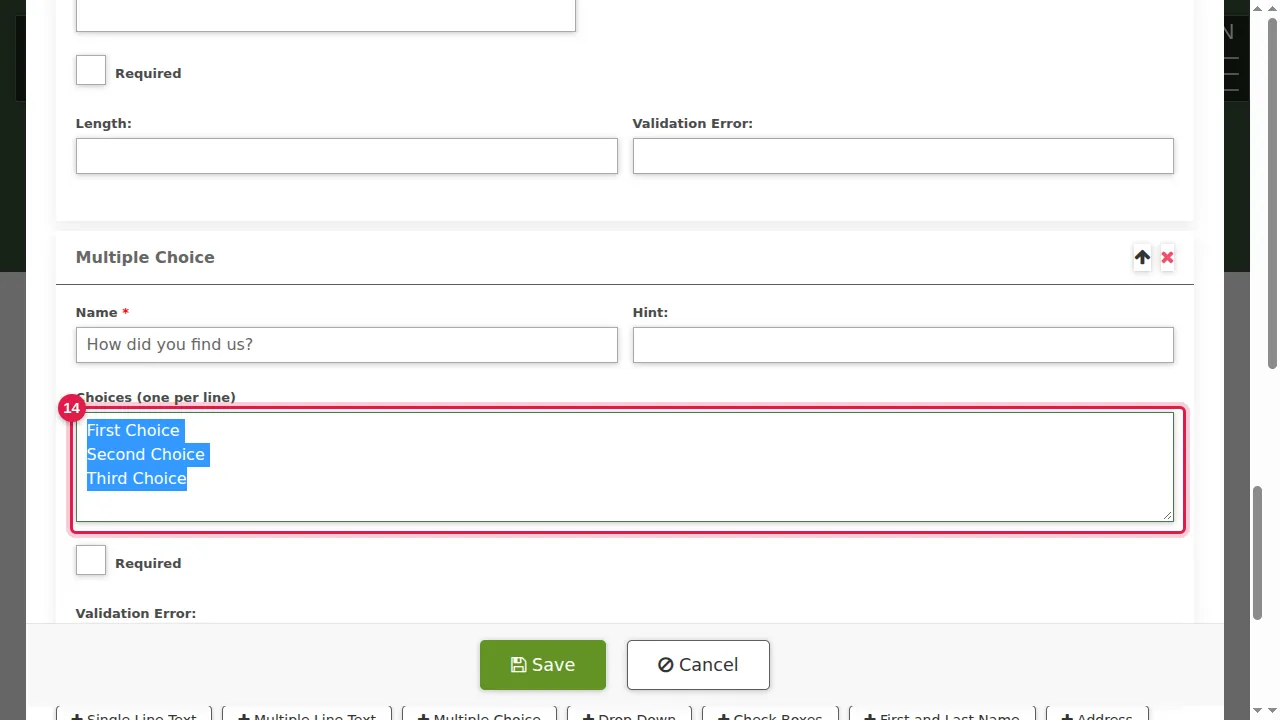
Step 14. Select them all (Ctrl+A) and type your own choices, one per line.
Required, order and save
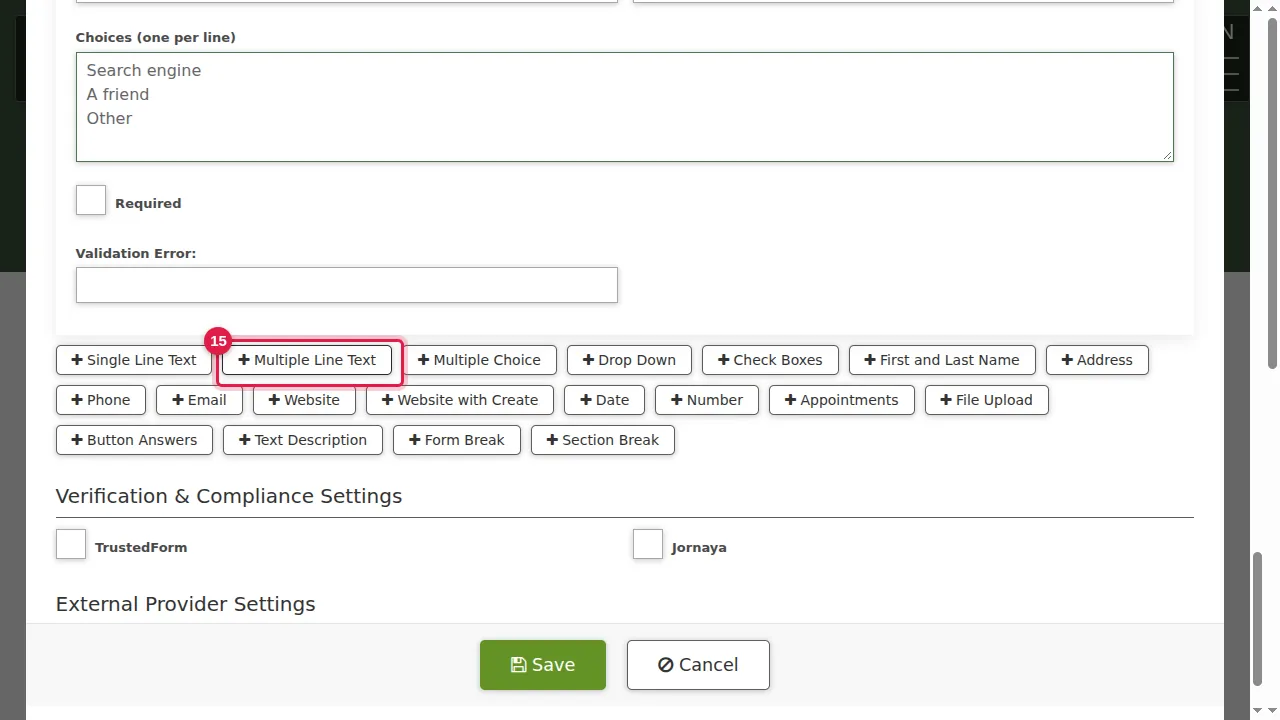
Step 15. Click Multiple Line Text for a longer answer.
Step 16. Name it.
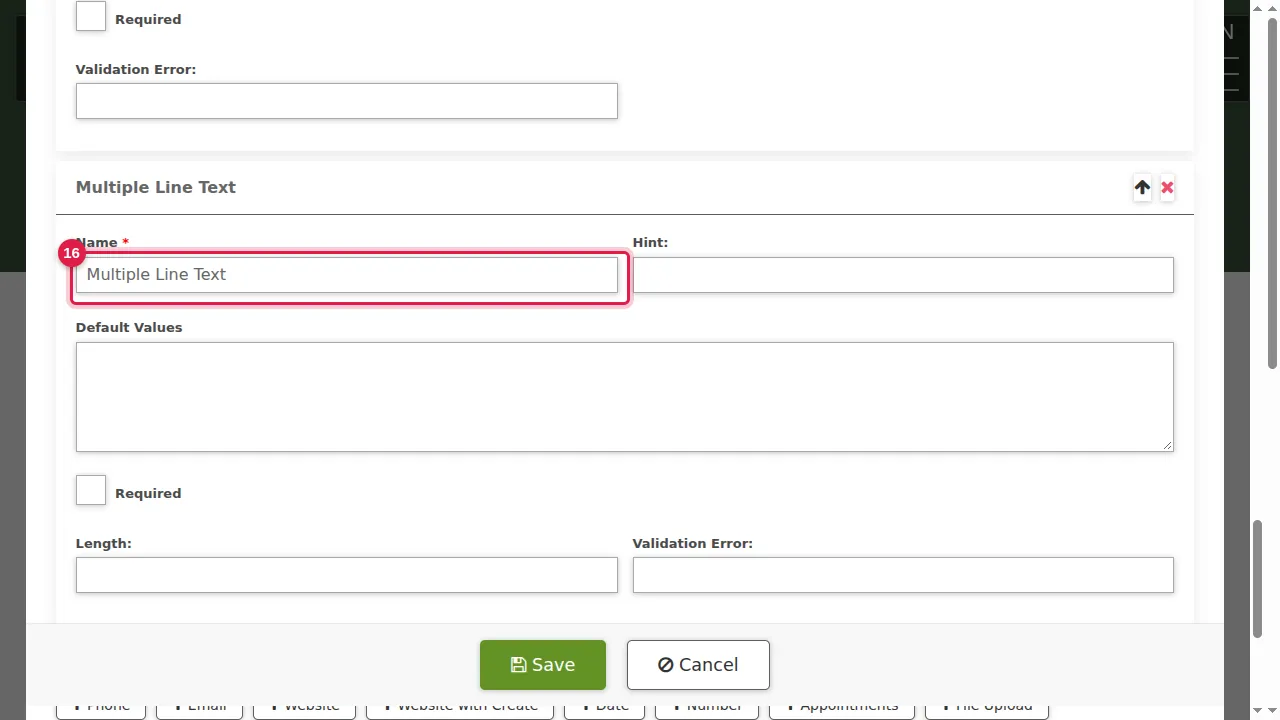
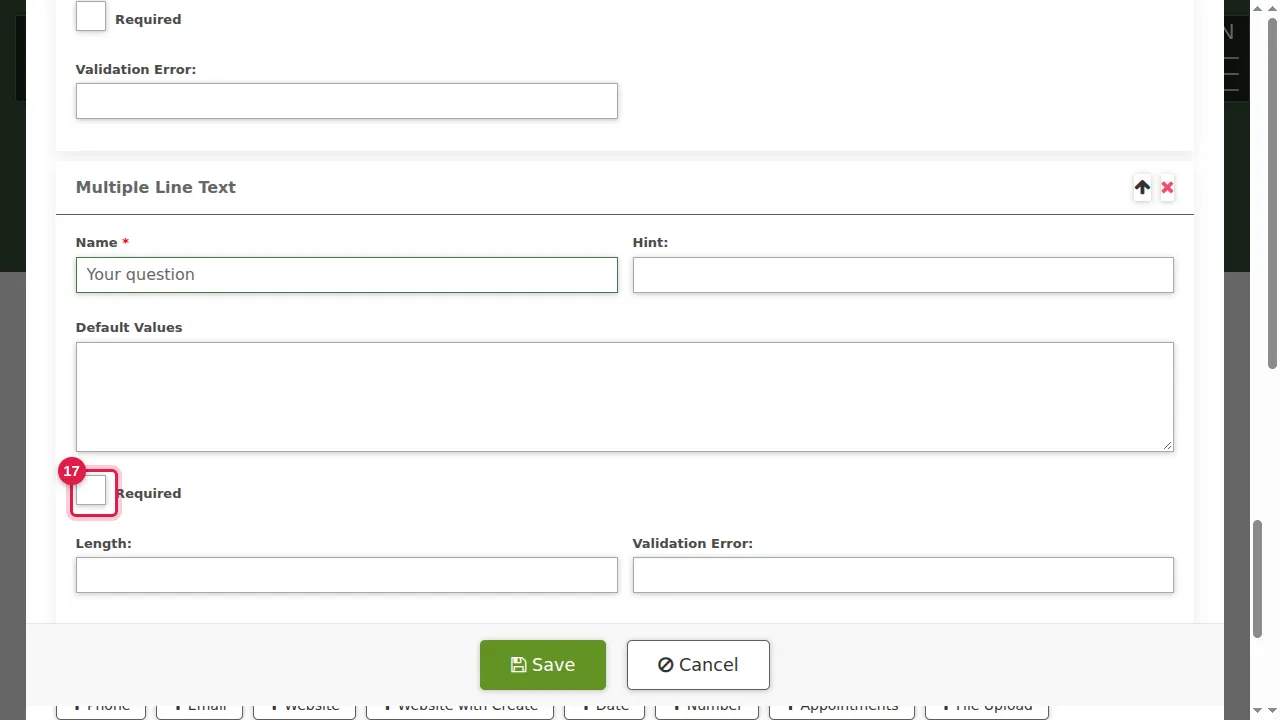
Step 17. Tick Required: the form cannot be sent with this field empty. Text fields also have a Hint, Default Values, a Length and a Validation Error message.
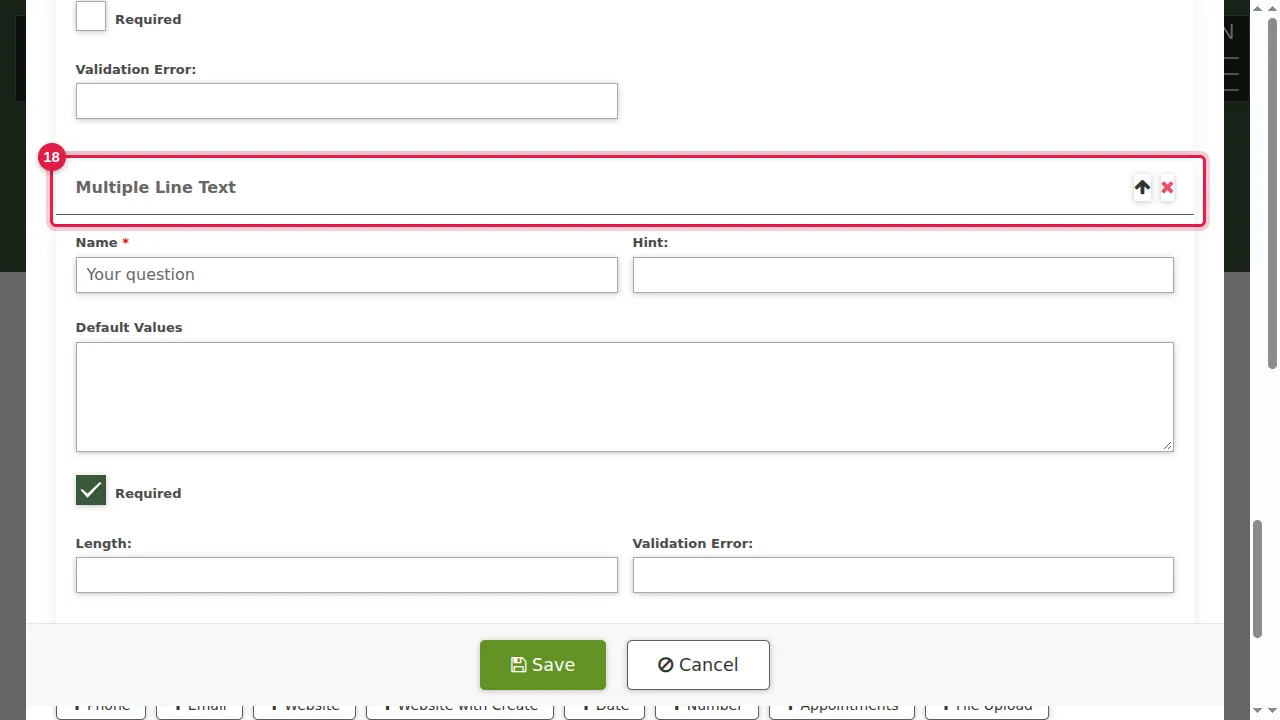
Step 18. The arrow at the top right of a field moves it up or down; the red cross removes it.
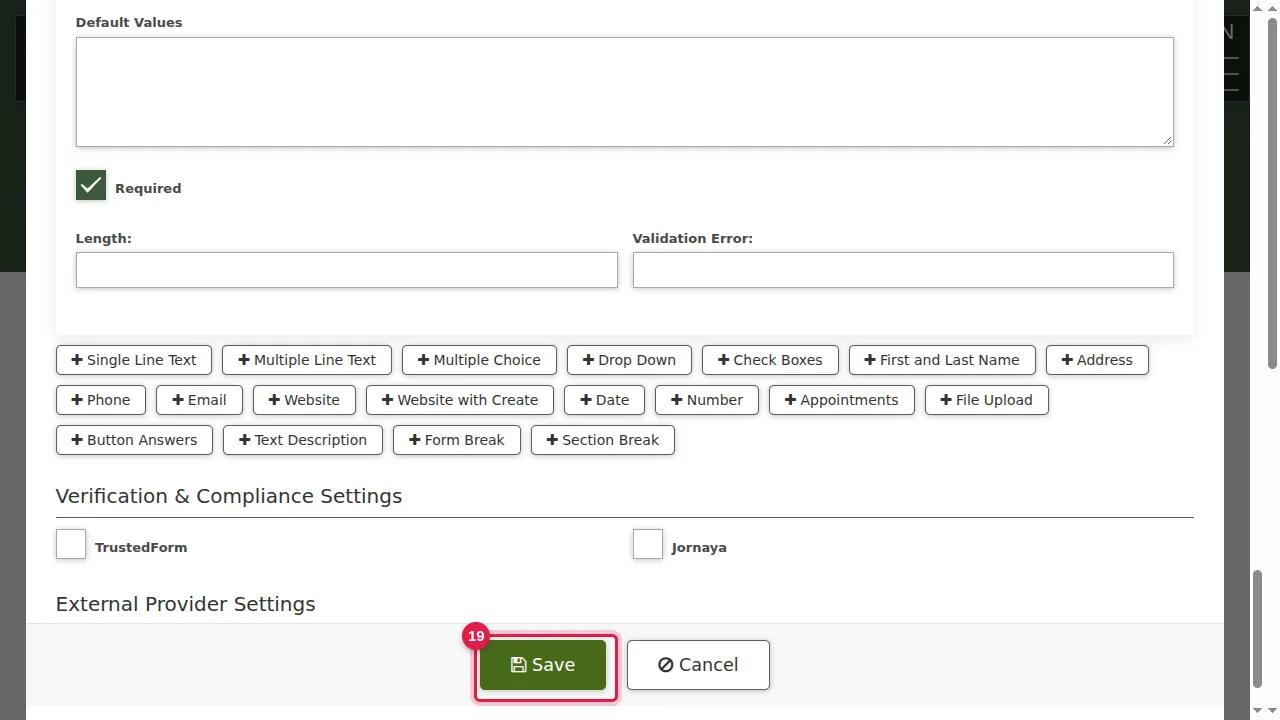
Step 19. Click Save.
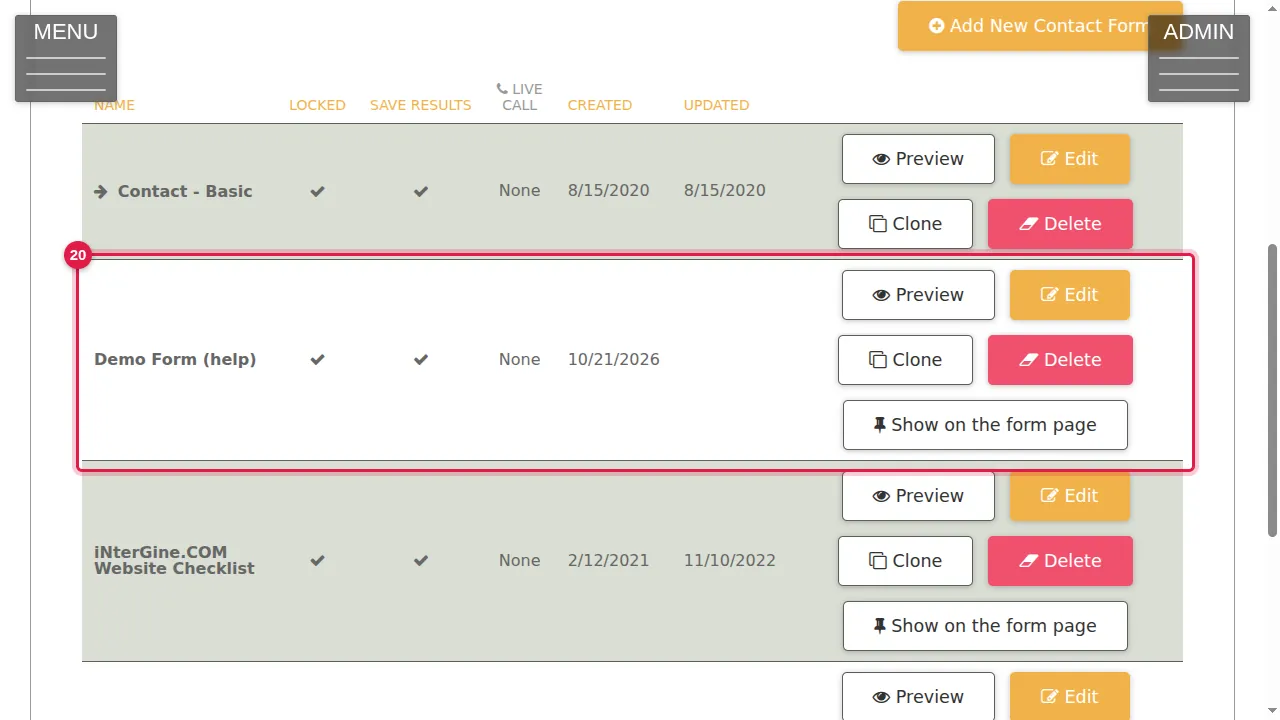
Step 20. The new form is in the list, with Preview, Edit, Clone, Delete and Show on the form page.
Check it worked
Click Preview on the form's row to look at your form.
Related help
Shown on the 2026 version of the SoNET Web Engine. Last checked 21 October 2026. Something different on your screen? Tell us through the Contact page.