Help Center Appointments
Set your available hours
Colour the hours people can book: your usual hours for every week in My Weekly Availability, and changes for particular dates (an extra day, a day off) in My Date Specific Availability.
Watch it done: a short silent video with captions · 2:48. The steps below show the same thing picture by picture.
Before you start
- Log in as the site owner.
- Open ADMIN › Appointments.
Your weekly hours
Step 1. Click the My Weekly Availability tab.
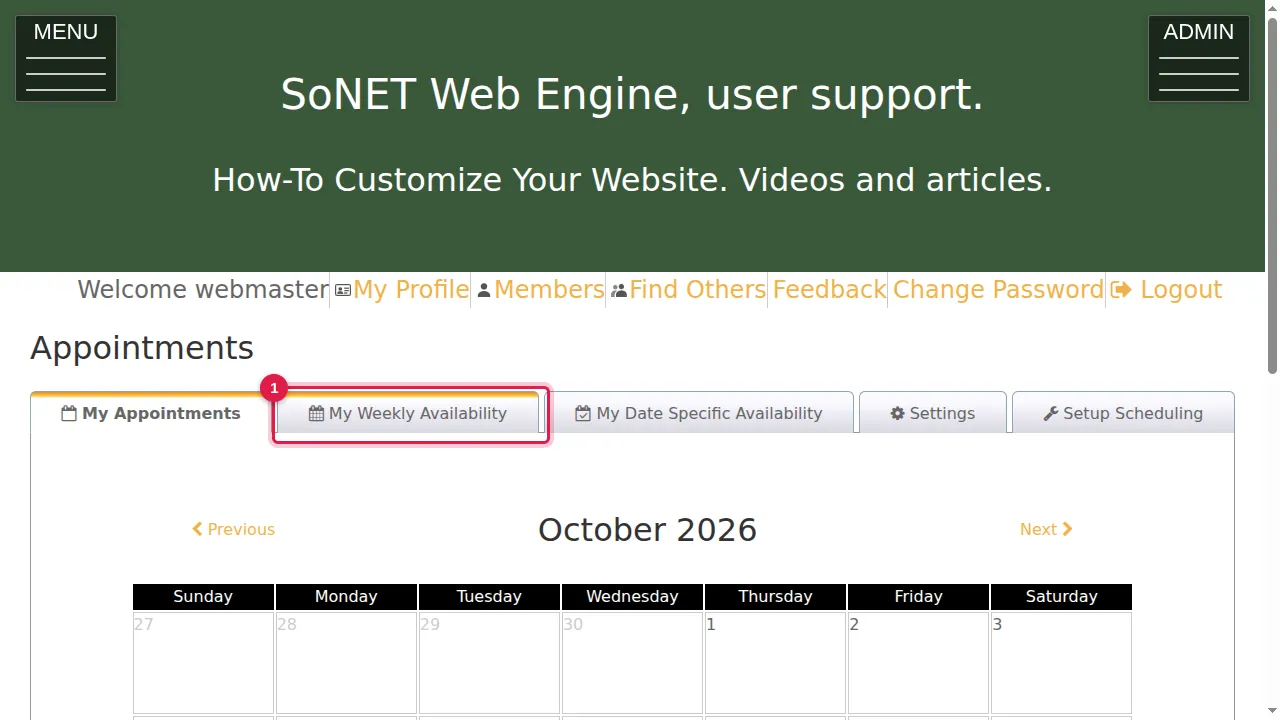
Step 2. Green cells are the hours people can book, every week. Each cell is a 15-minute block. Here the hours are Monday to Friday, 8:00 AM to 5:00 PM.
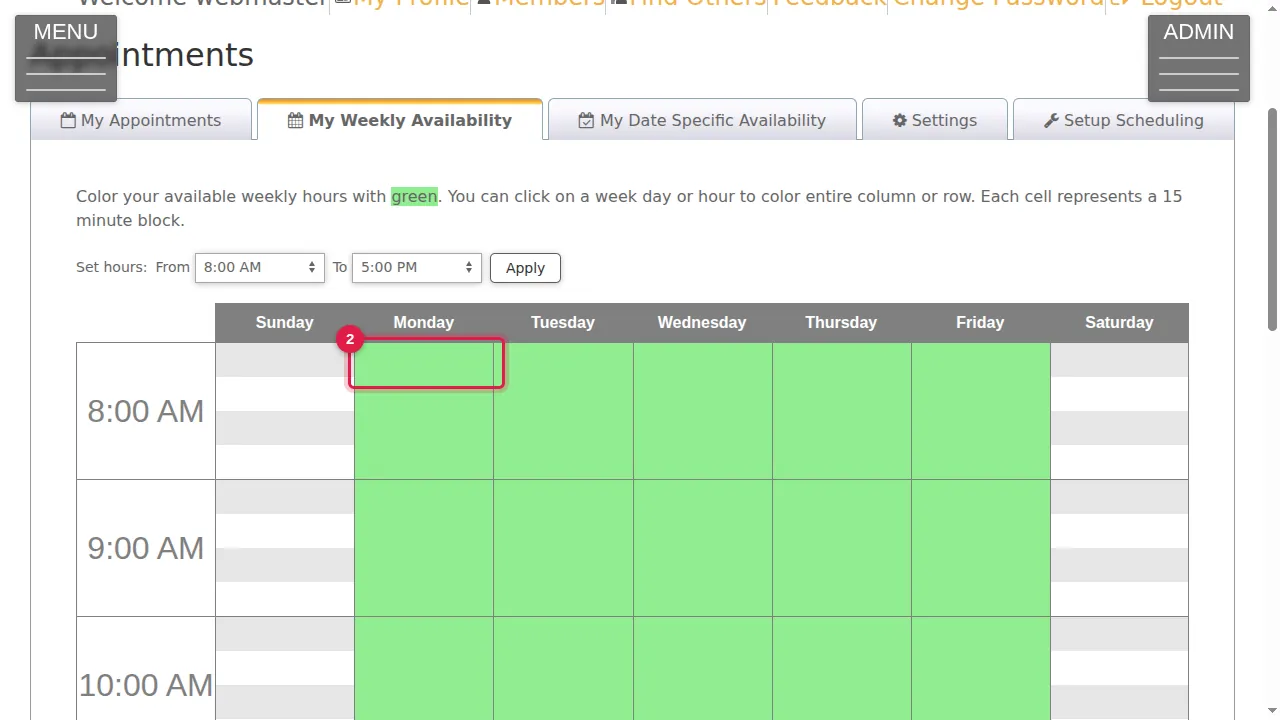
Step 3. Click a cell to make it green.
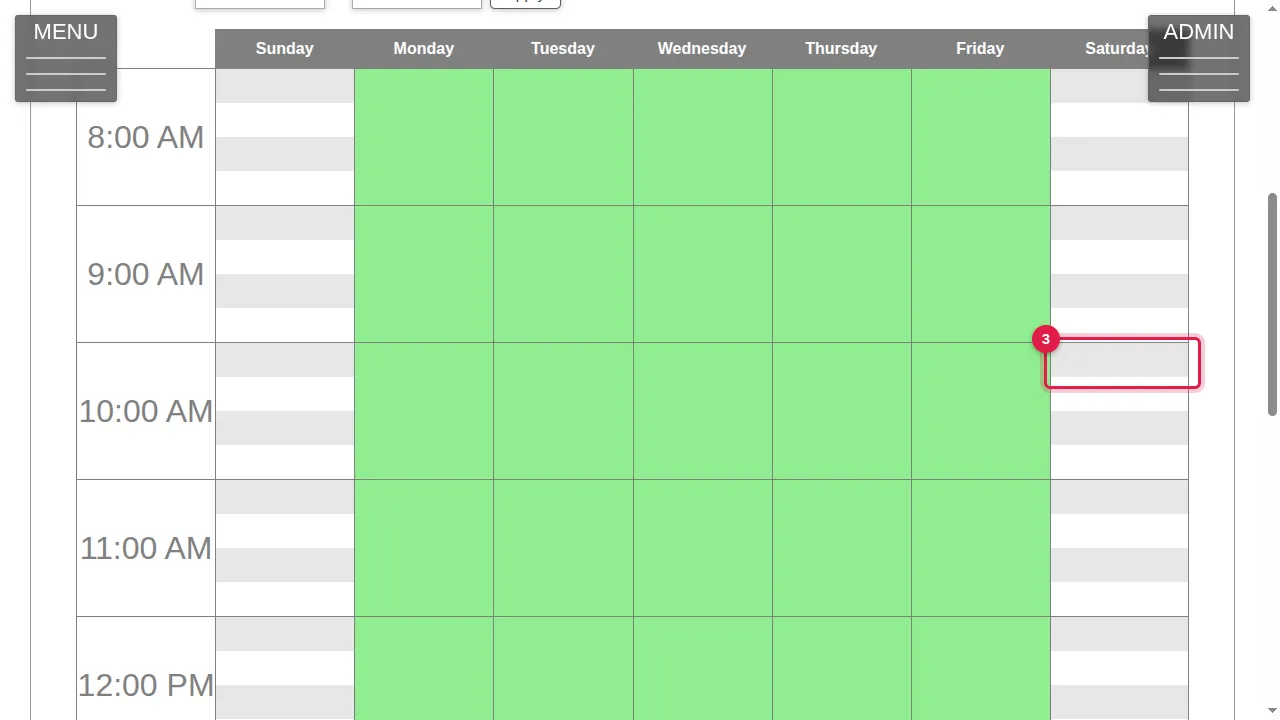
Step 4. Click it again to clear it. Each click is saved straight away; there is no Save button.
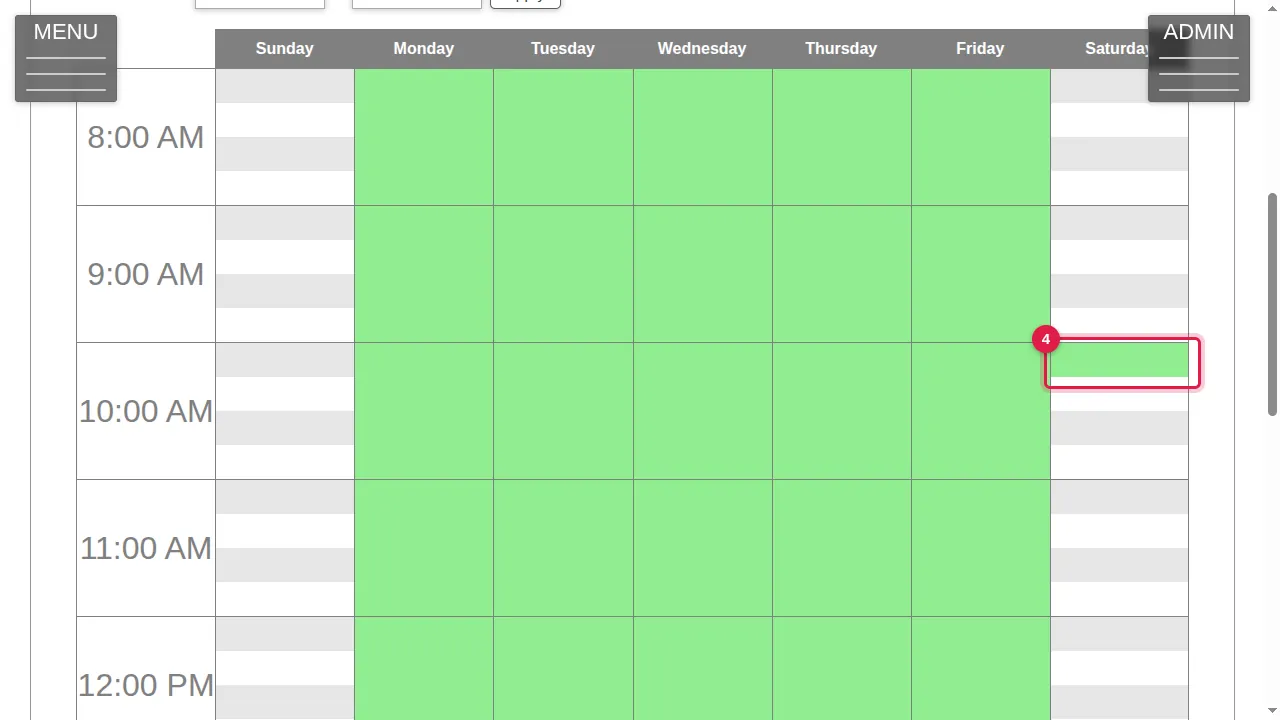
Step 5. Click a day's name at the top to colour that whole day.
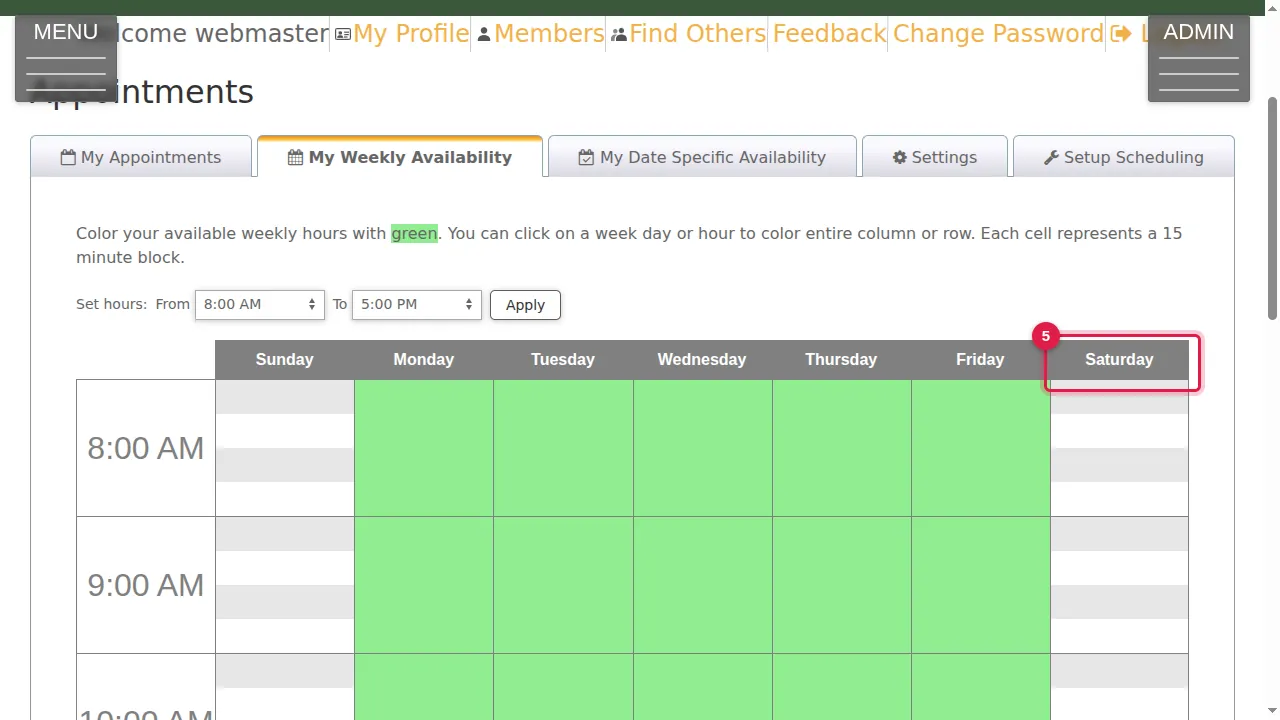
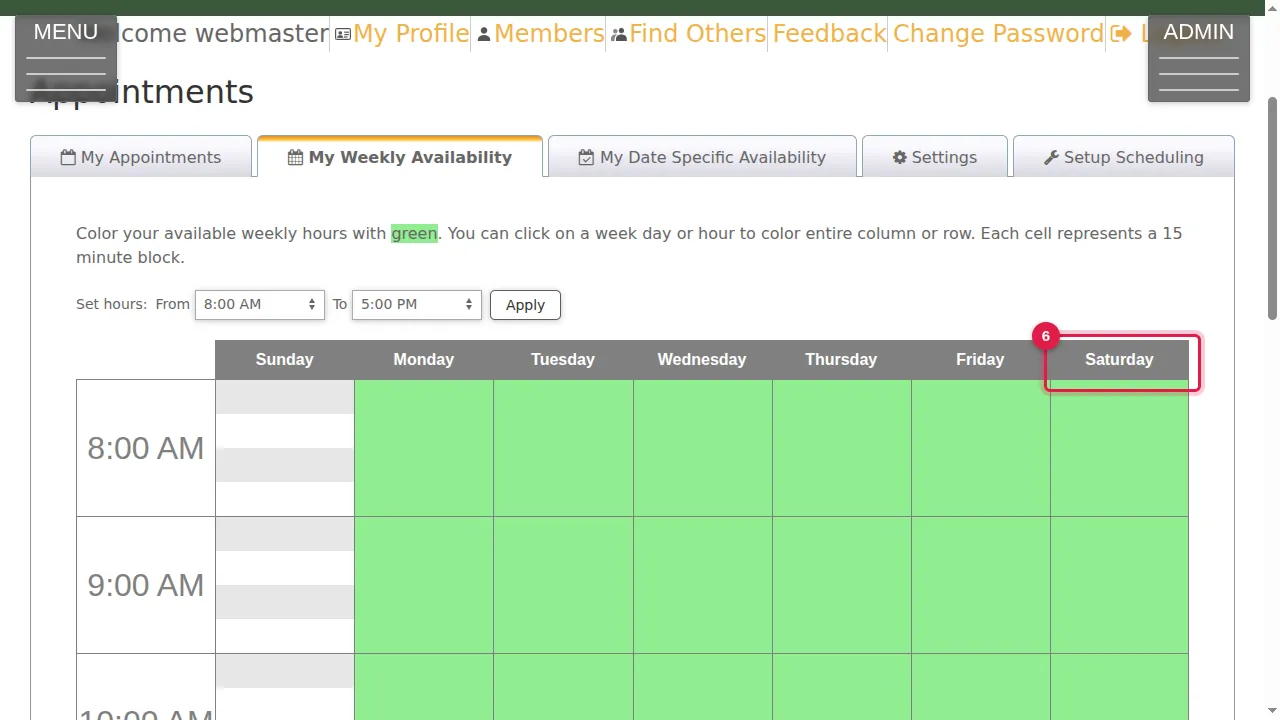
Step 6. Click the day's name again to clear the whole day. (In the same way, clicking an hour on the left colours or clears that whole row, for every day.)
Show more hours
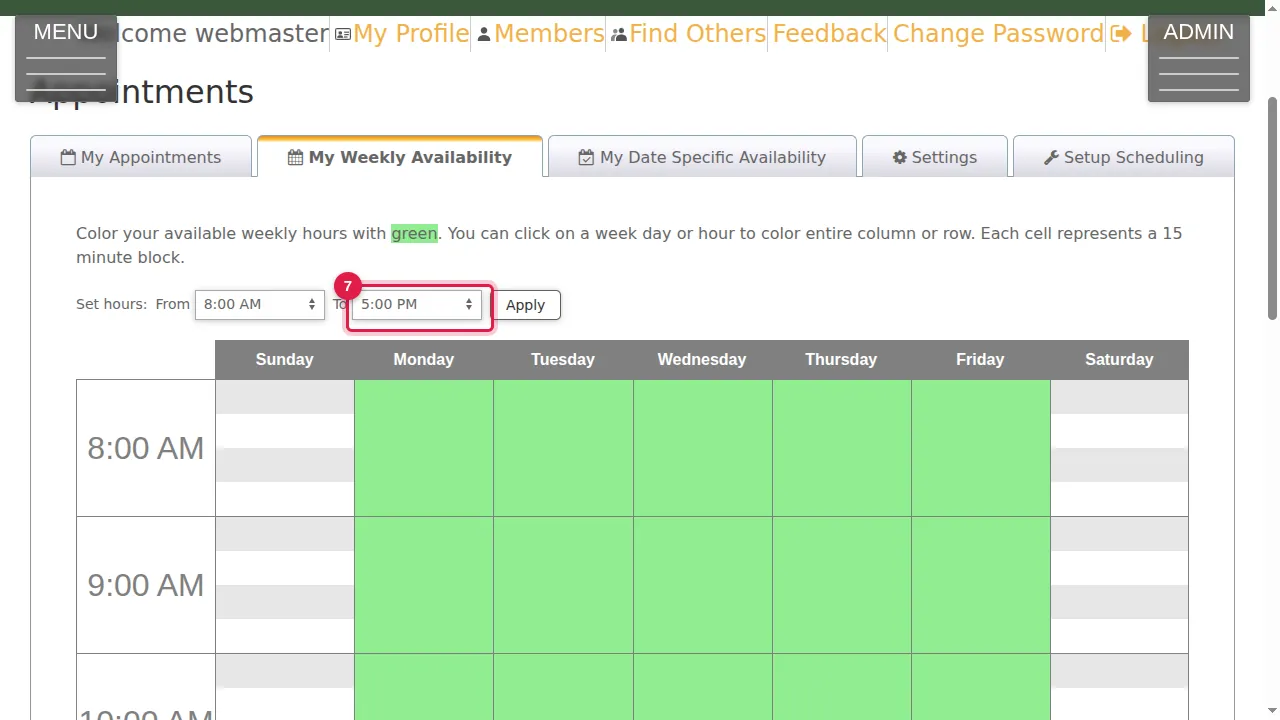
Step 7. Set hours chooses which hours the grid shows. Choose a later time in To, for example to add evening hours.
Step 8. Click Apply.
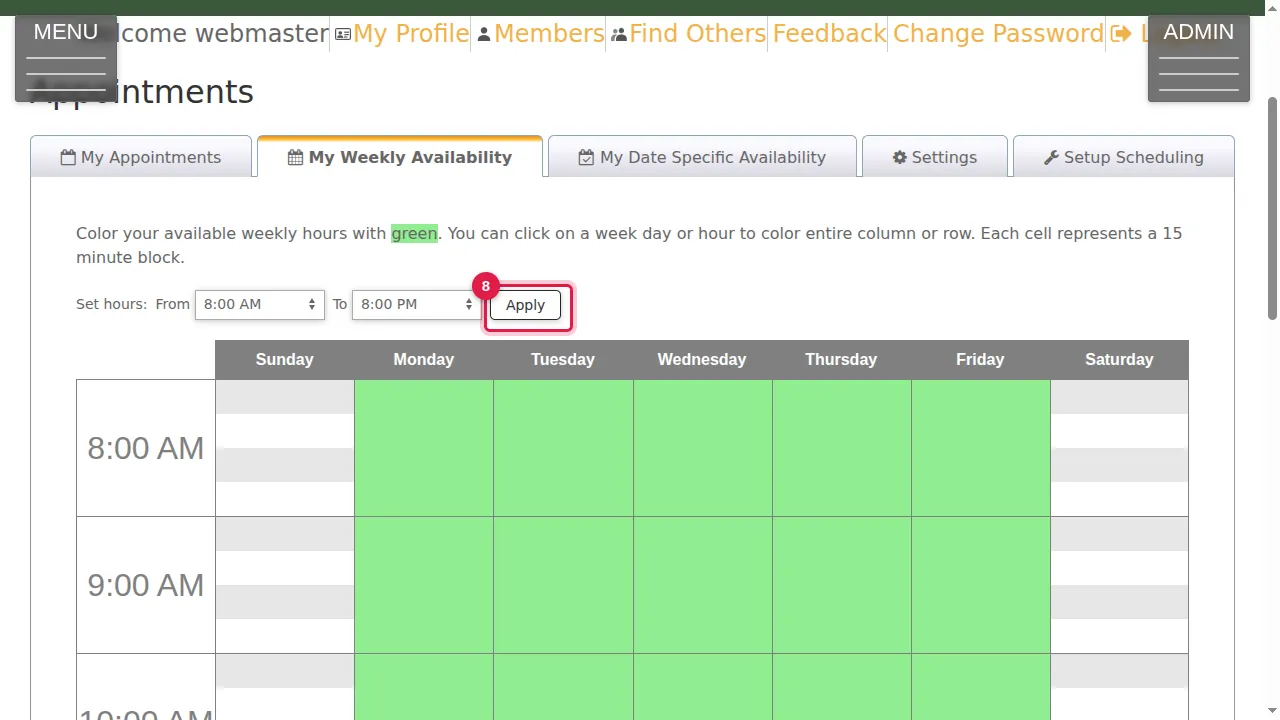
Step 9. The grid now goes on into the evening, so you can colour those hours too. Apply only changes the grid you see; it does not make any hours available.
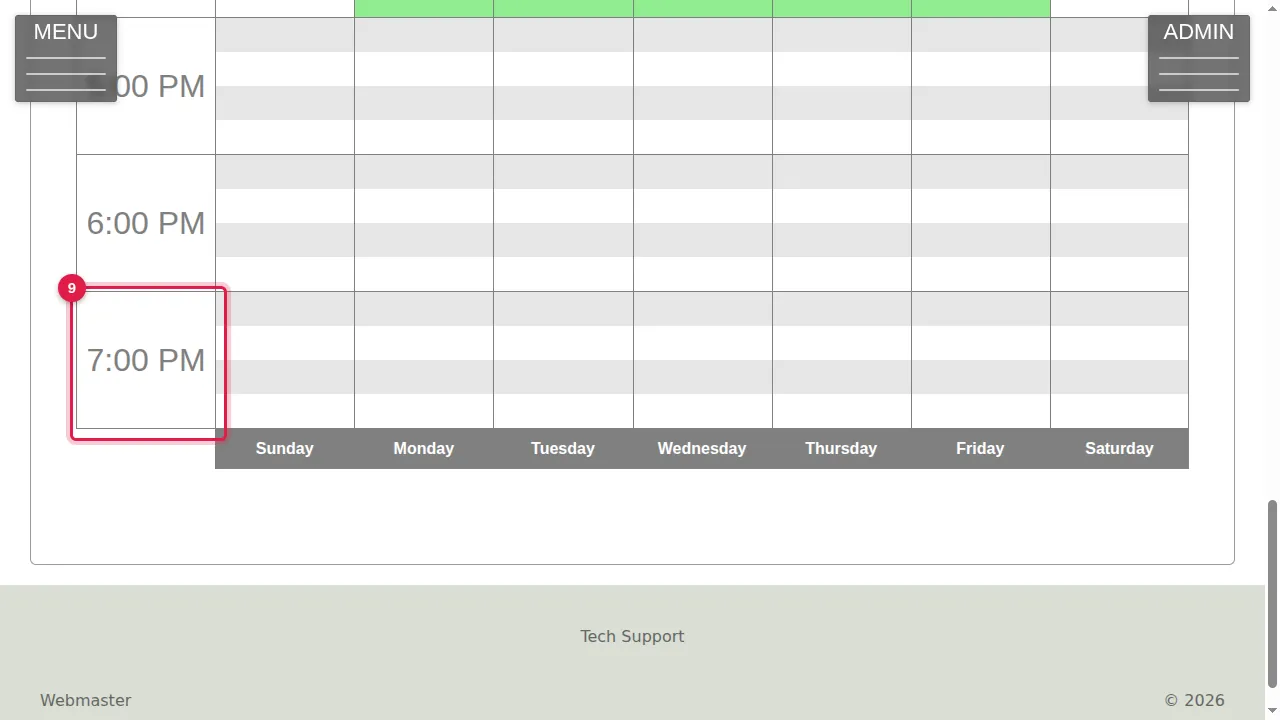
Particular dates
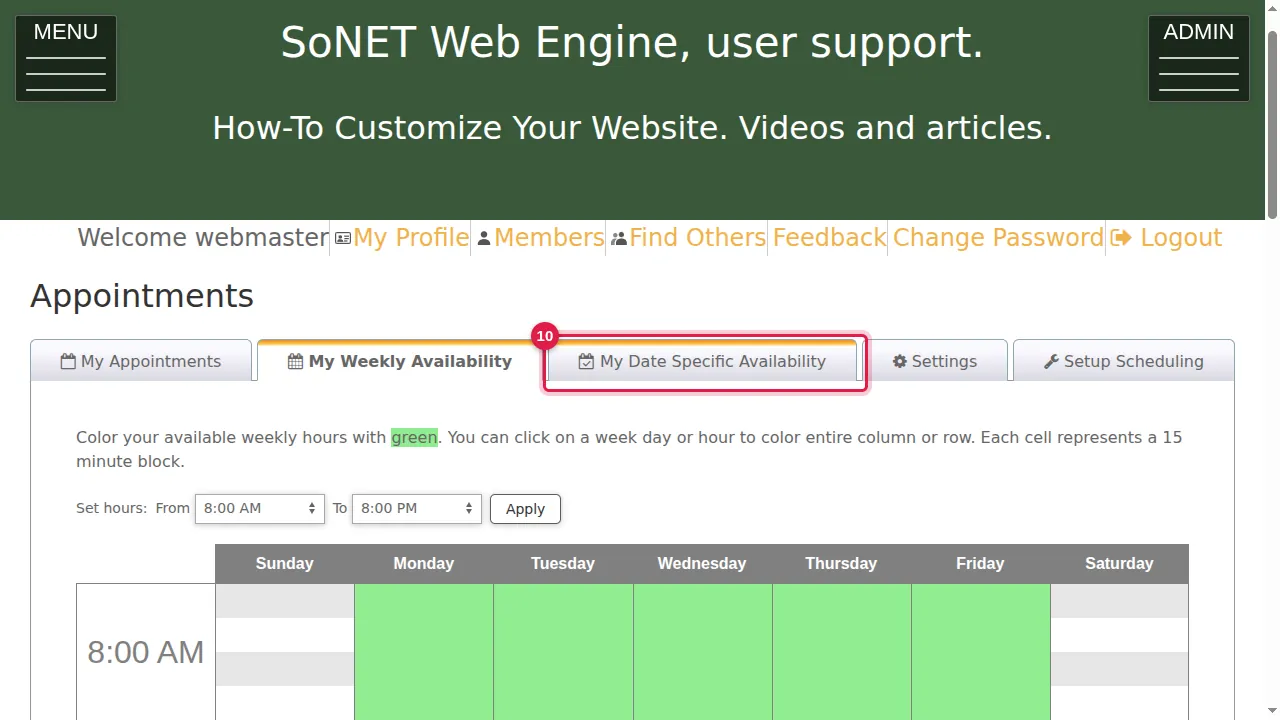
Step 10. Click the My Date Specific Availability tab. It shows one week of the calendar, starting from your weekly hours.
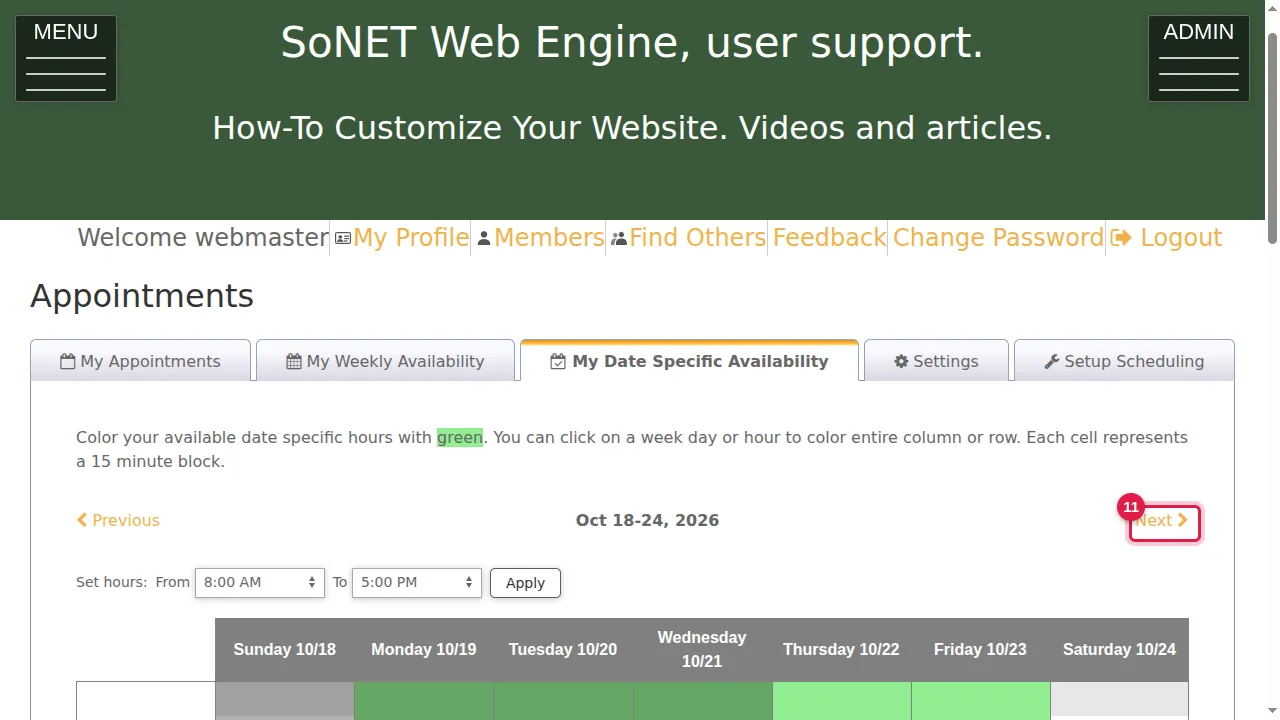
Step 11. Previous and Next move to the week before or after.
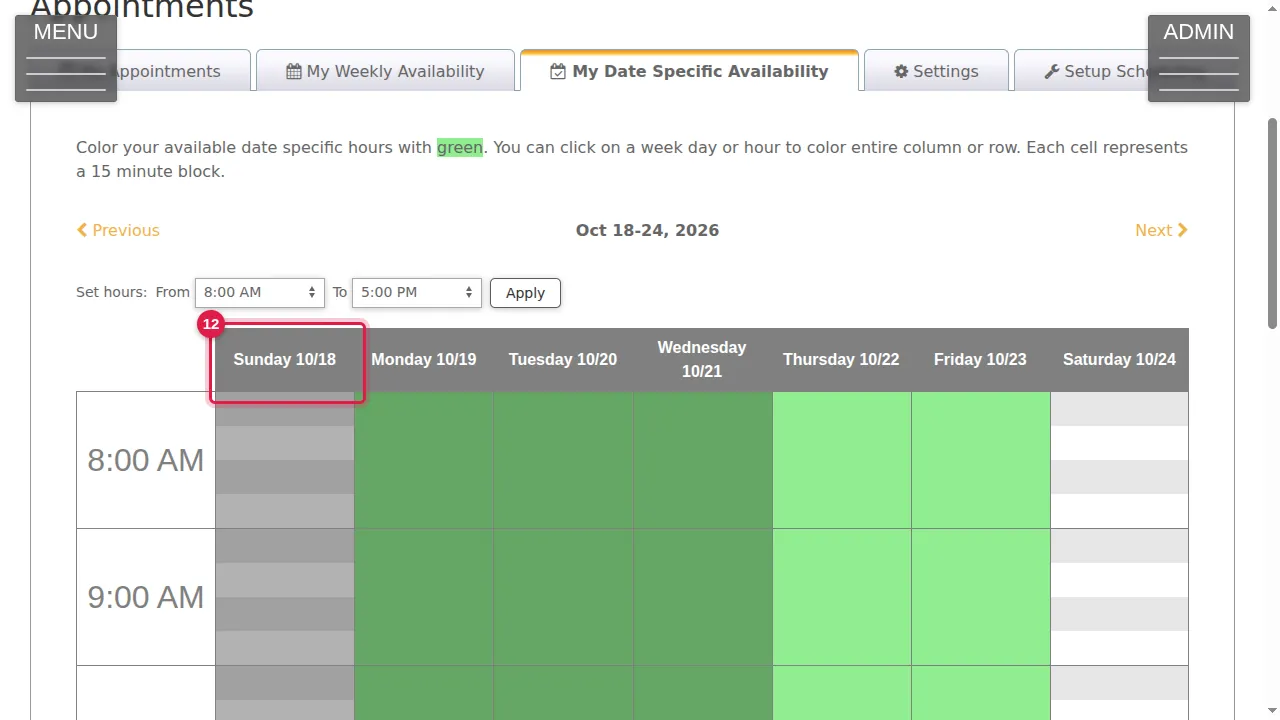
Step 12. Days that are already past are shaded darker.
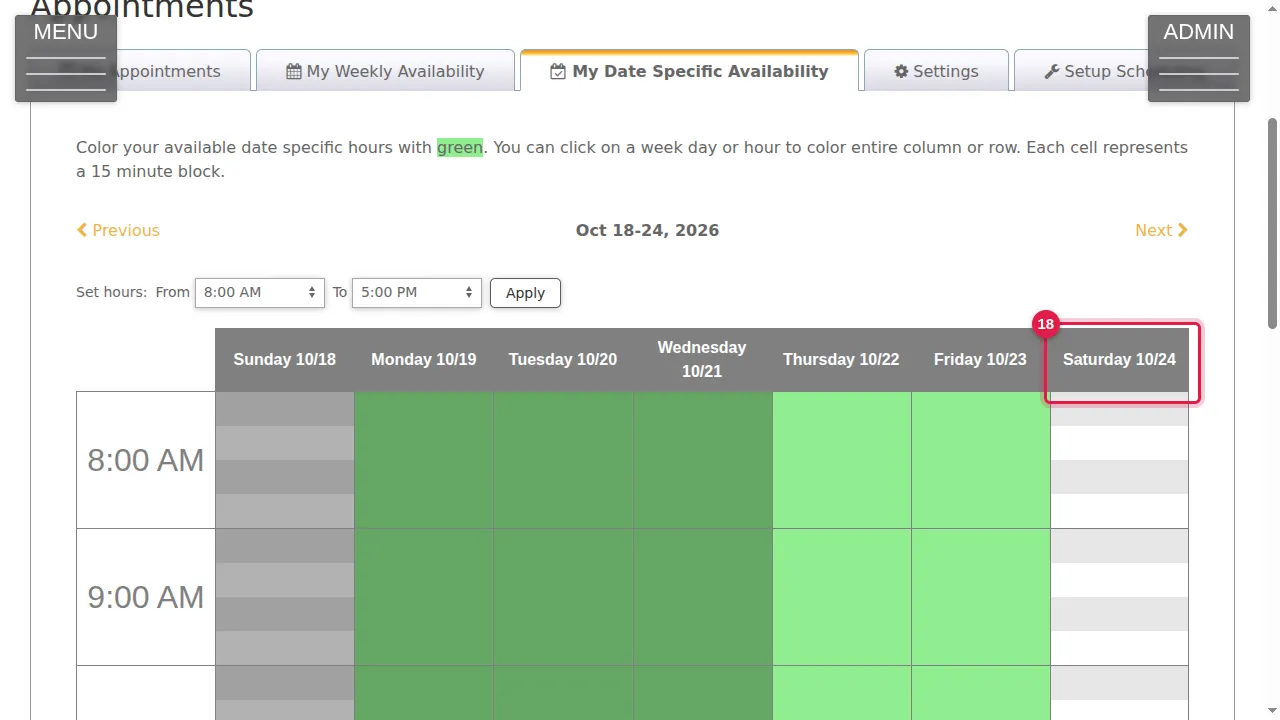
Step 13. Click a date at the top (here Saturday 10/24) to open that one day.
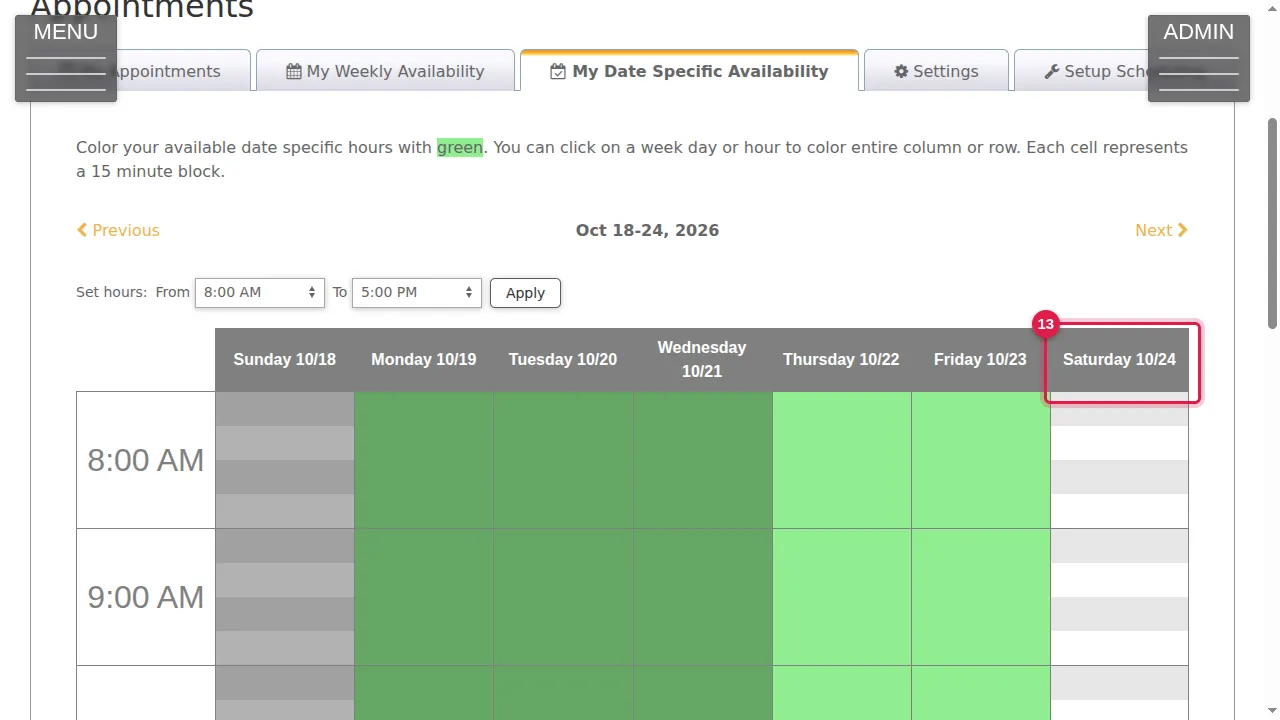
Step 14. That Saturday is now green, for that date only. Click Next to see the week after.
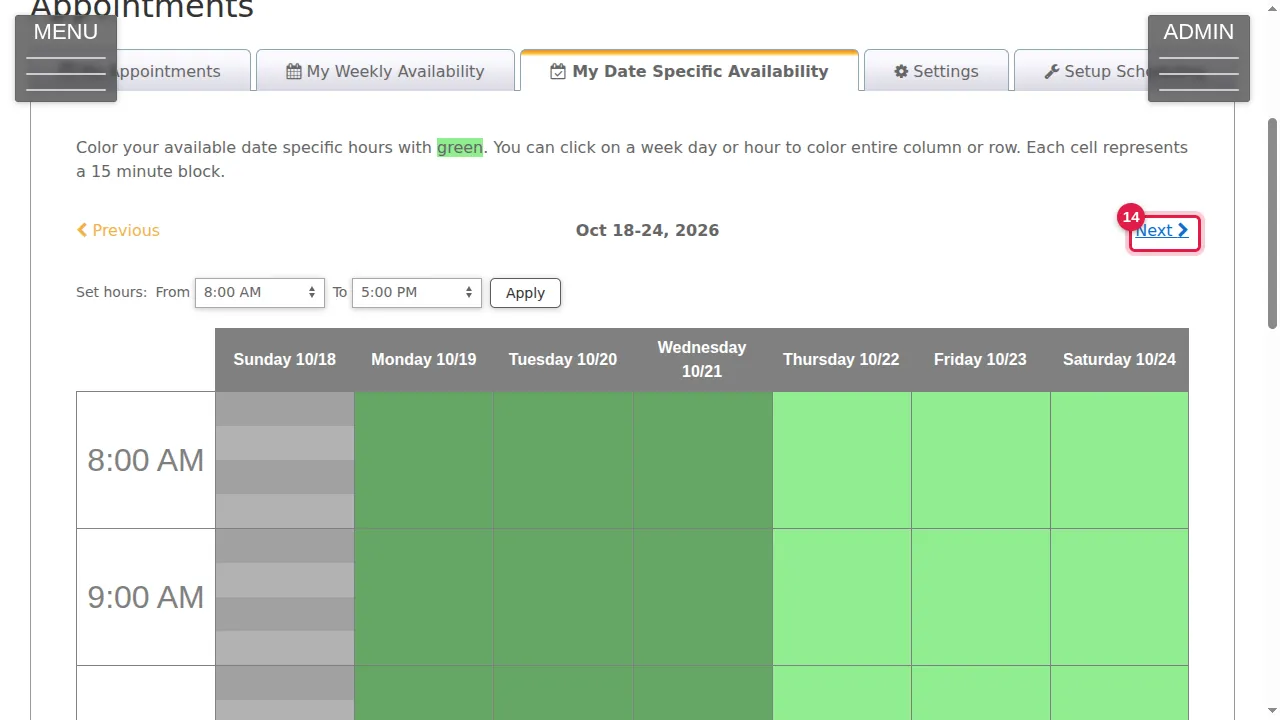
Step 15. Saturday 10/31 still follows your weekly hours. A change on this tab affects only the date you changed.
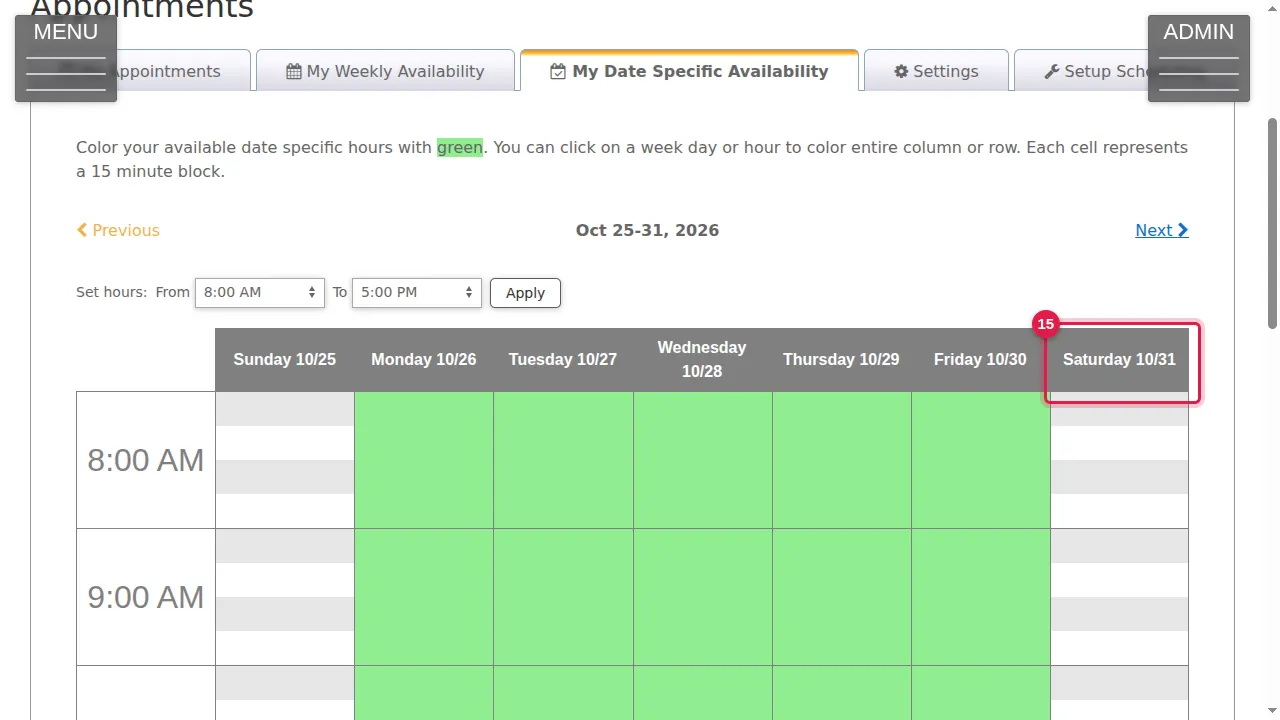
Step 16. Click Previous to go back.
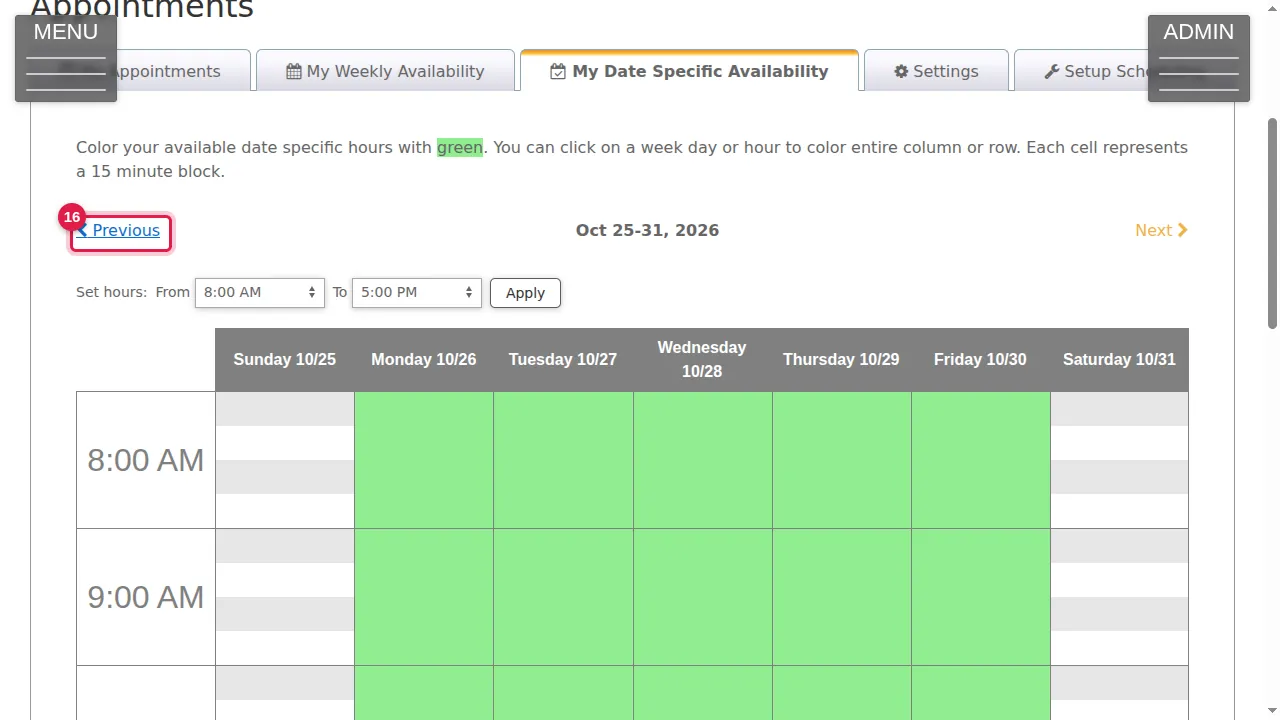
Step 17. Click Saturday 10/24 again to clear it.
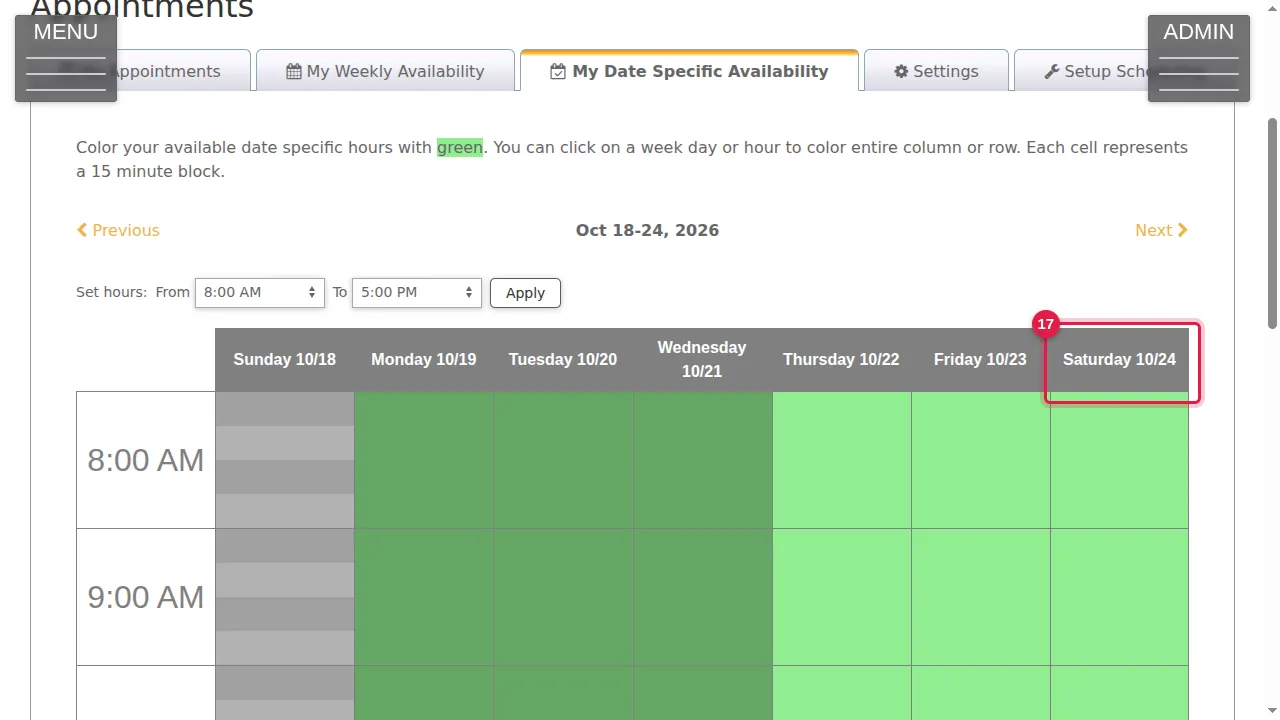
Step 18. That Saturday is back to your weekly hours. Changes on this tab are also saved straight away.
Check it worked
Open the tab again later: the green hours you set are still there.
Good to know
- Use My Date Specific Availability for holidays: clear the day there, and your weekly hours stay as they are.
Related help
Shown on the 2026 version of the SoNET Web Engine. Last checked 21 October 2026. Something different on your screen? Tell us through the Contact page.