Help Center Forms
Form settings
The settings of a form: where results are e-mailed, whether they are kept, locking the form, a live call button, the texts above and below the fields, the thank-you text visitors see after sending, and lead-certification and external-provider options.
Watch it done: a short silent video with captions · 1:46. The steps below show the same thing picture by picture.
Before you start
- Log in as the site owner.
- Have a form (see Create a form and its fields).
Open the form
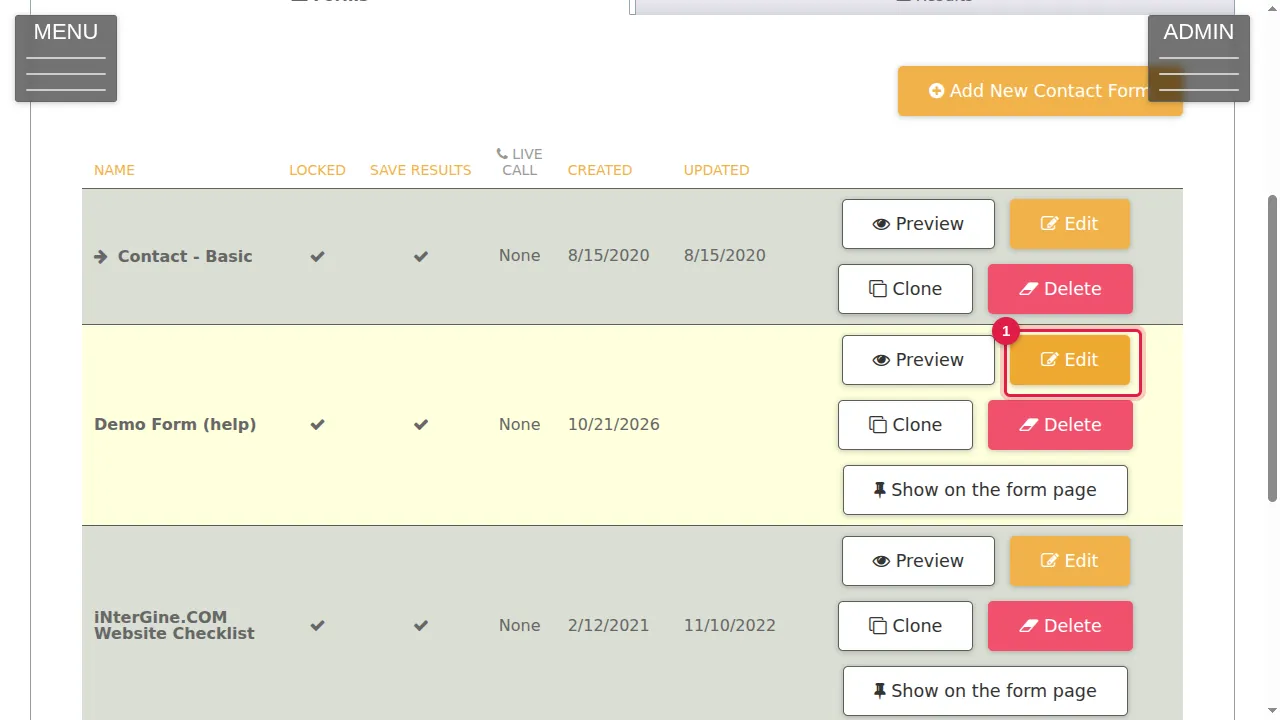
Step 1. In ADMIN › Manage Contact Forms, click Edit on the form's row.
Results and lock
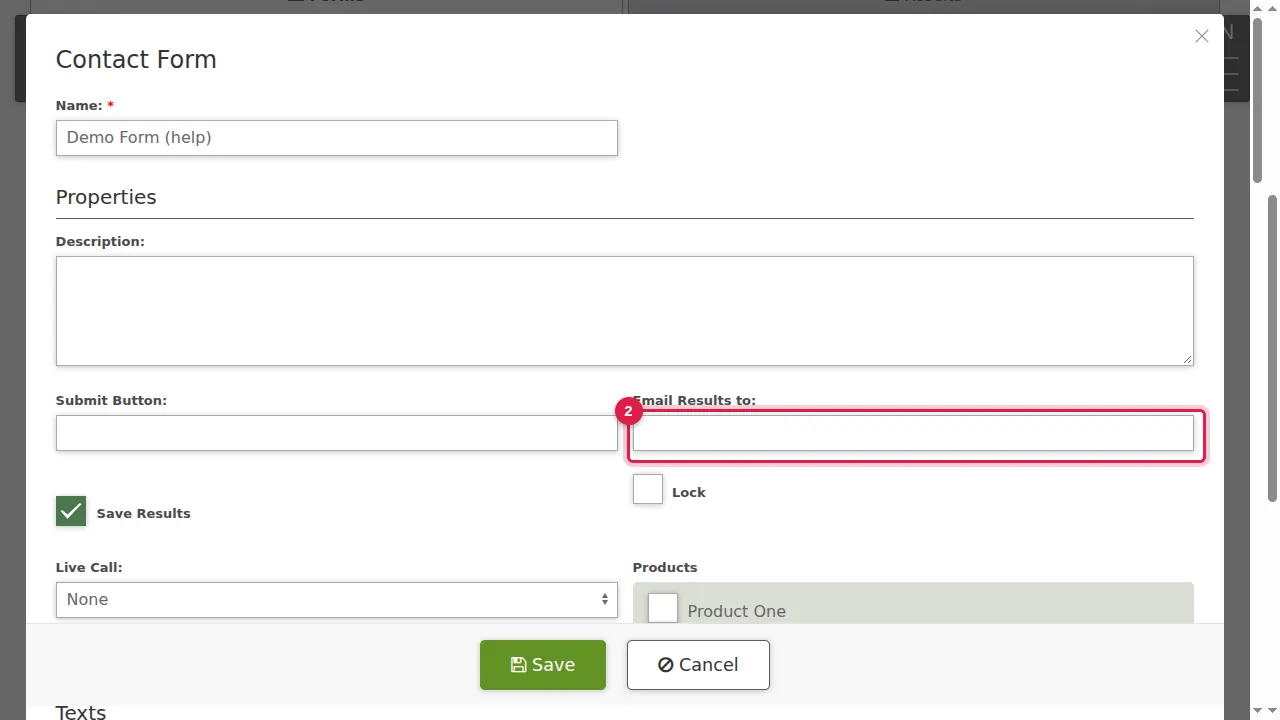
Step 2. Email Results to: the e-mail address that receives each result.
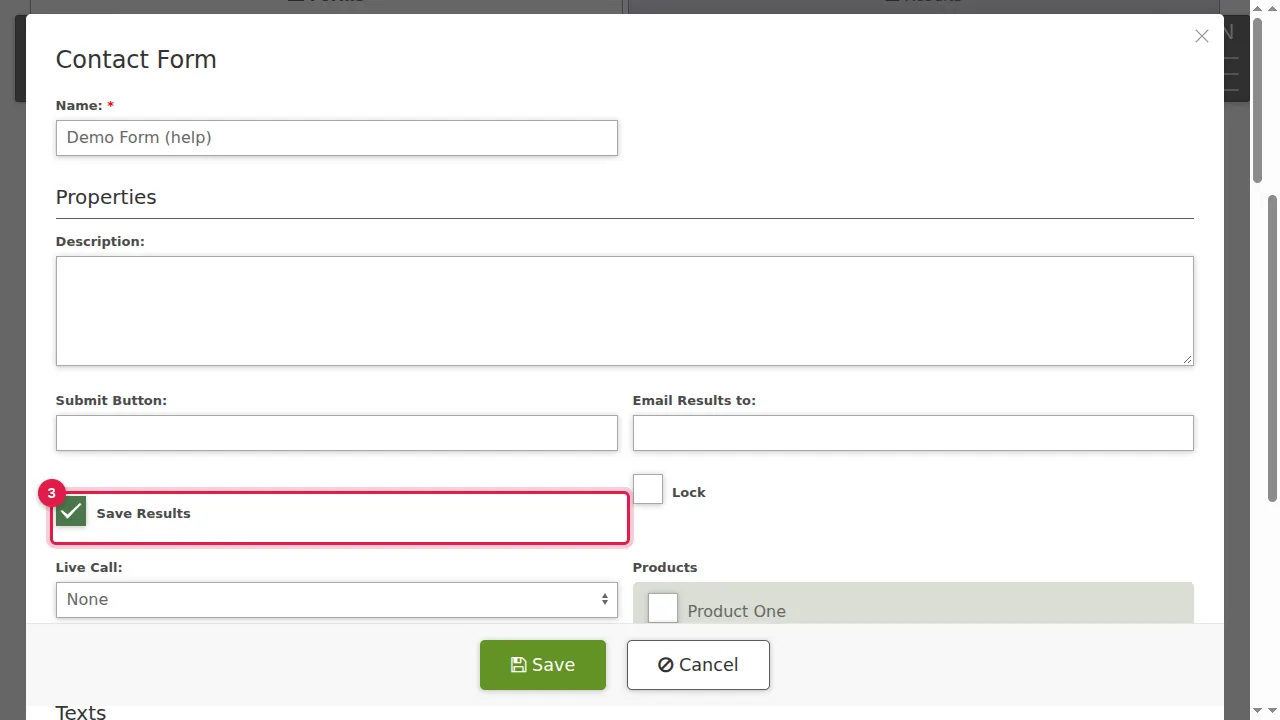
Step 3. Save Results keeps every result in the Results tab (it is ticked for a new form).
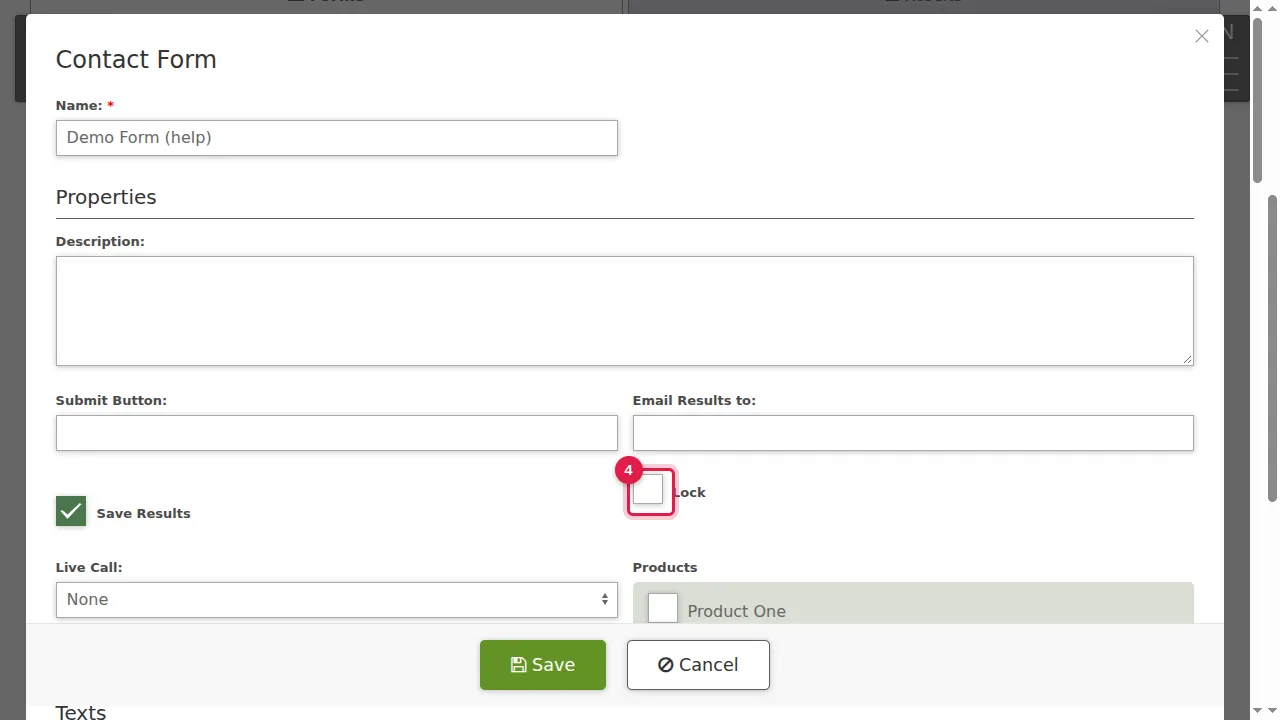
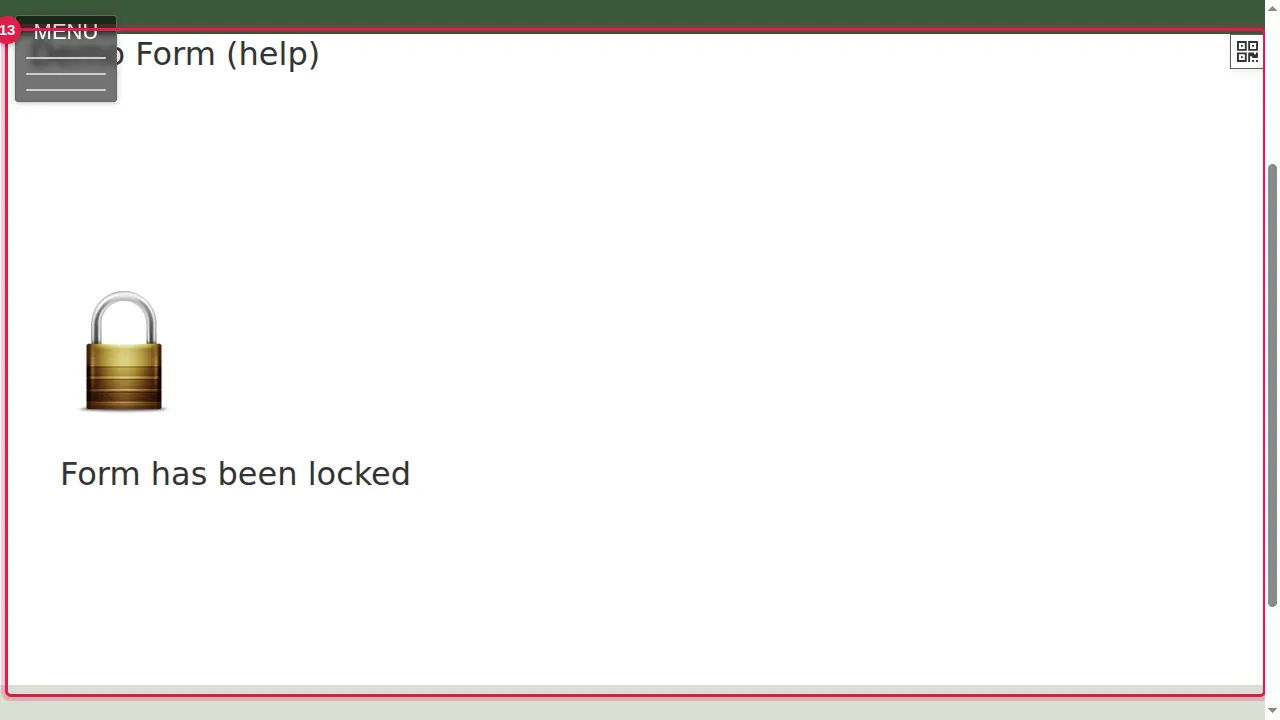
Step 4. Lock closes the form: visitors see "Form has been locked" instead of the fields. Untick it to open the form again.
Live call and products
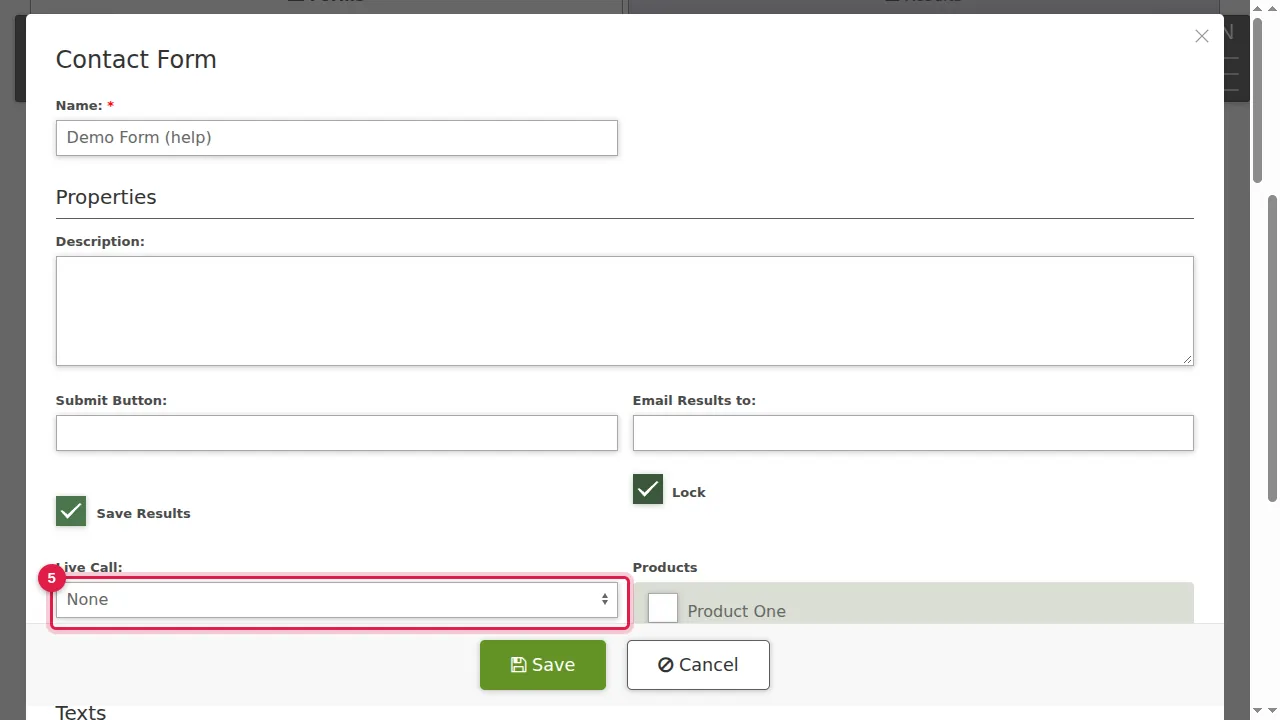
Step 5. Live Call: None, Video call, Audio call or Video and audio.
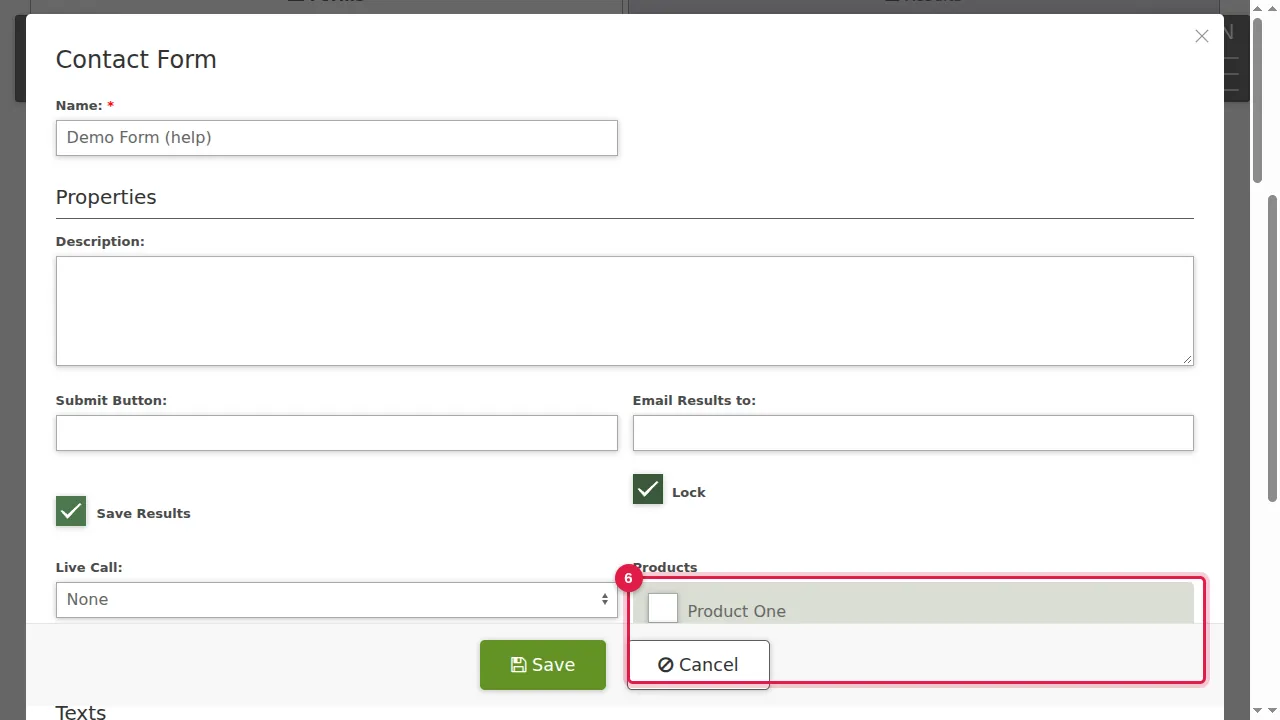
Step 6. Products lists your store's products, to tick for this form.
Texts
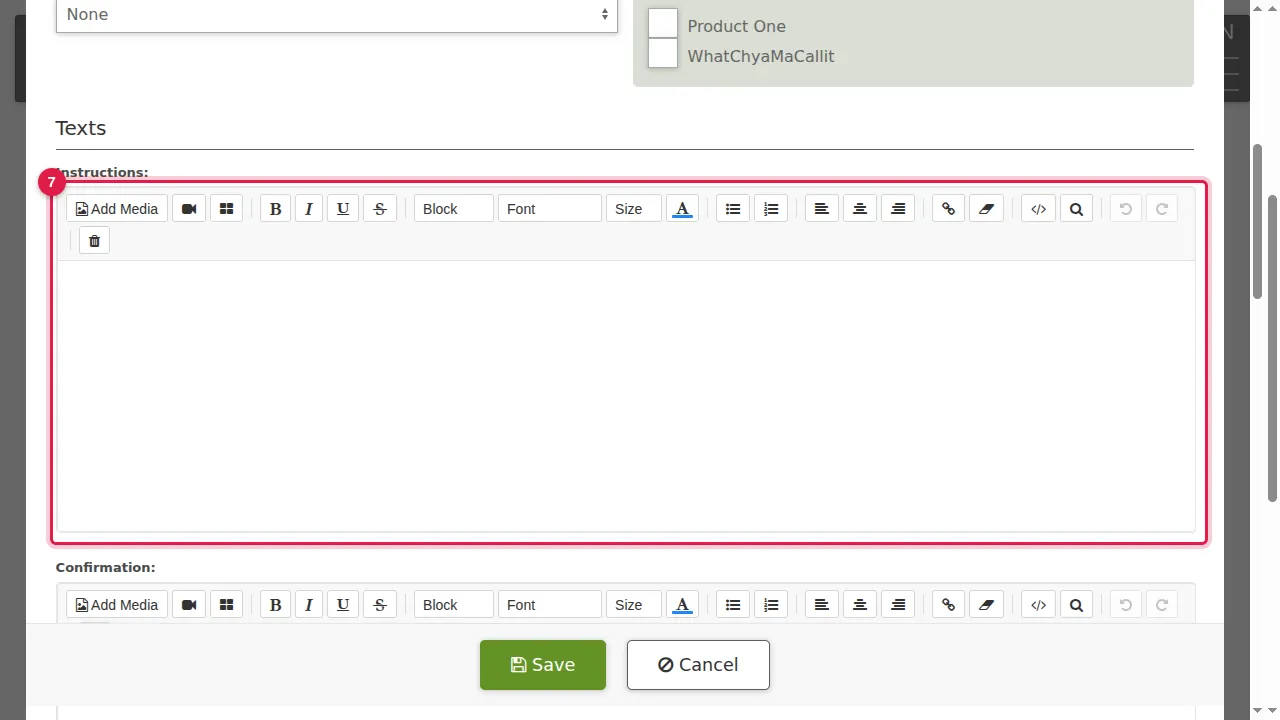
Step 7. Instructions: a text shown above the fields. You write it in the same editor as your pages.
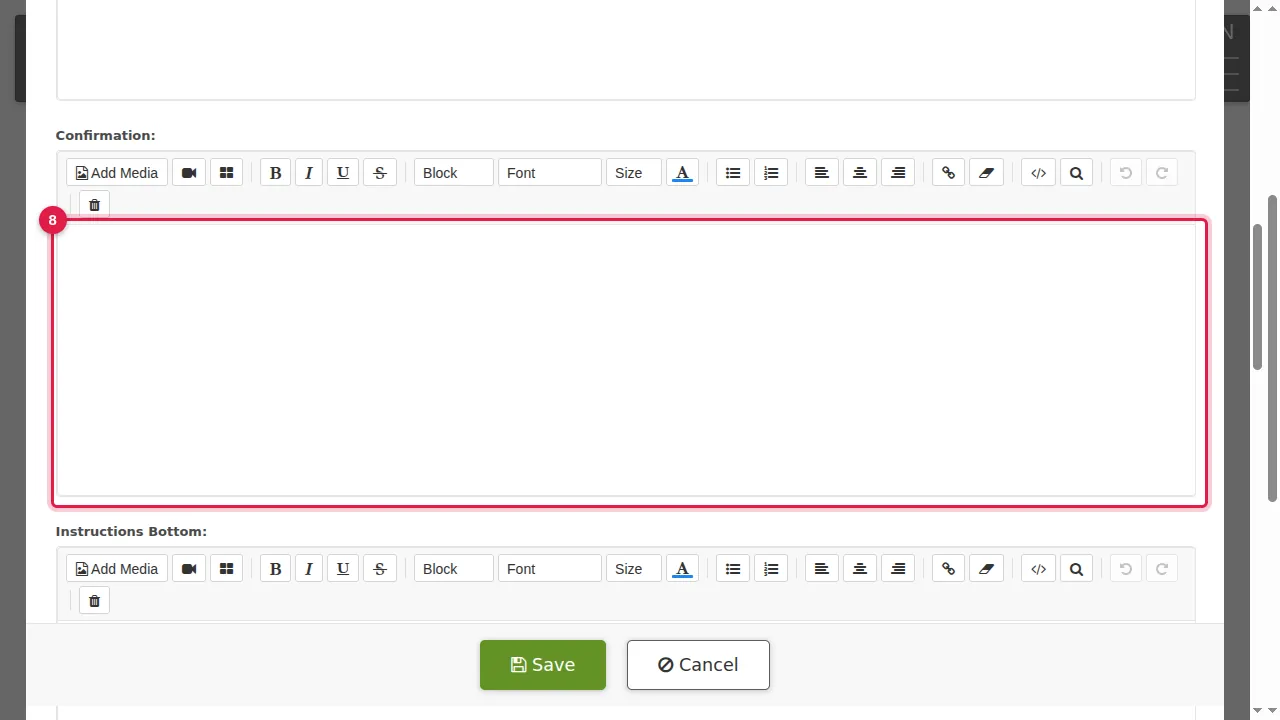
Step 8. Confirmation: the text visitors read after they send the form, for example a thank-you and when you will answer.
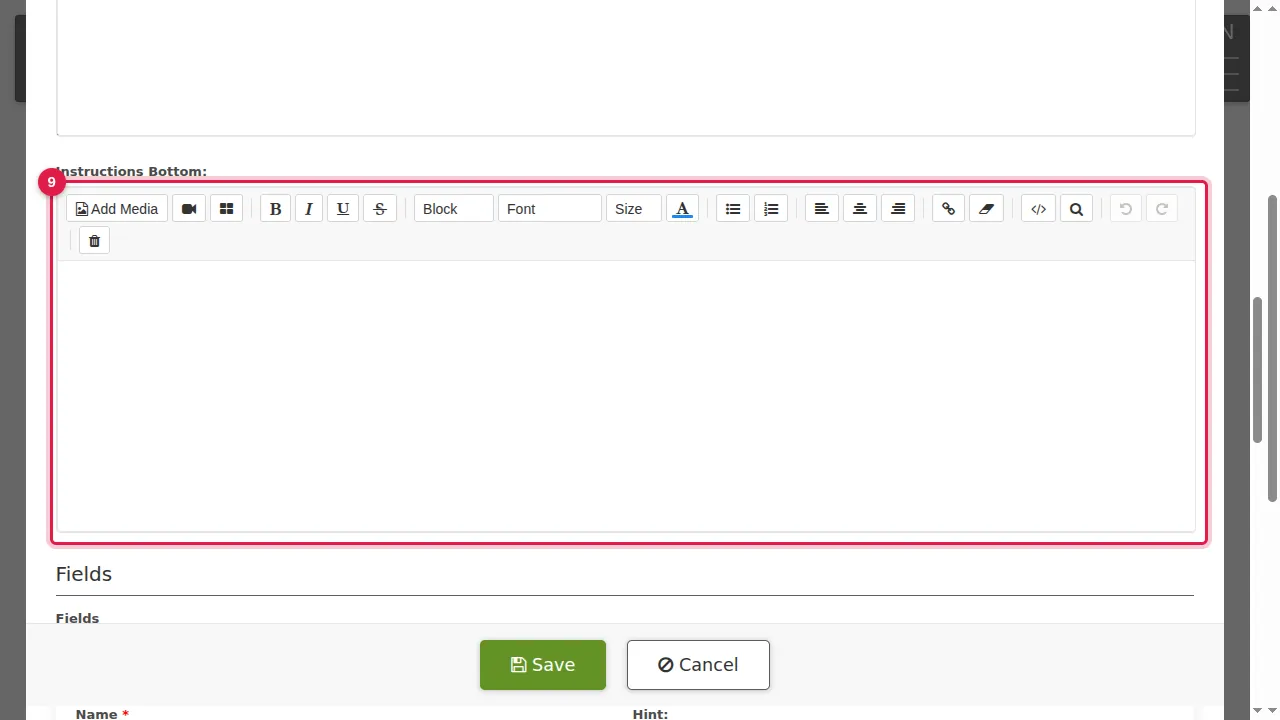
Step 9. Instructions Bottom: a text shown below the fields.
Other services and save
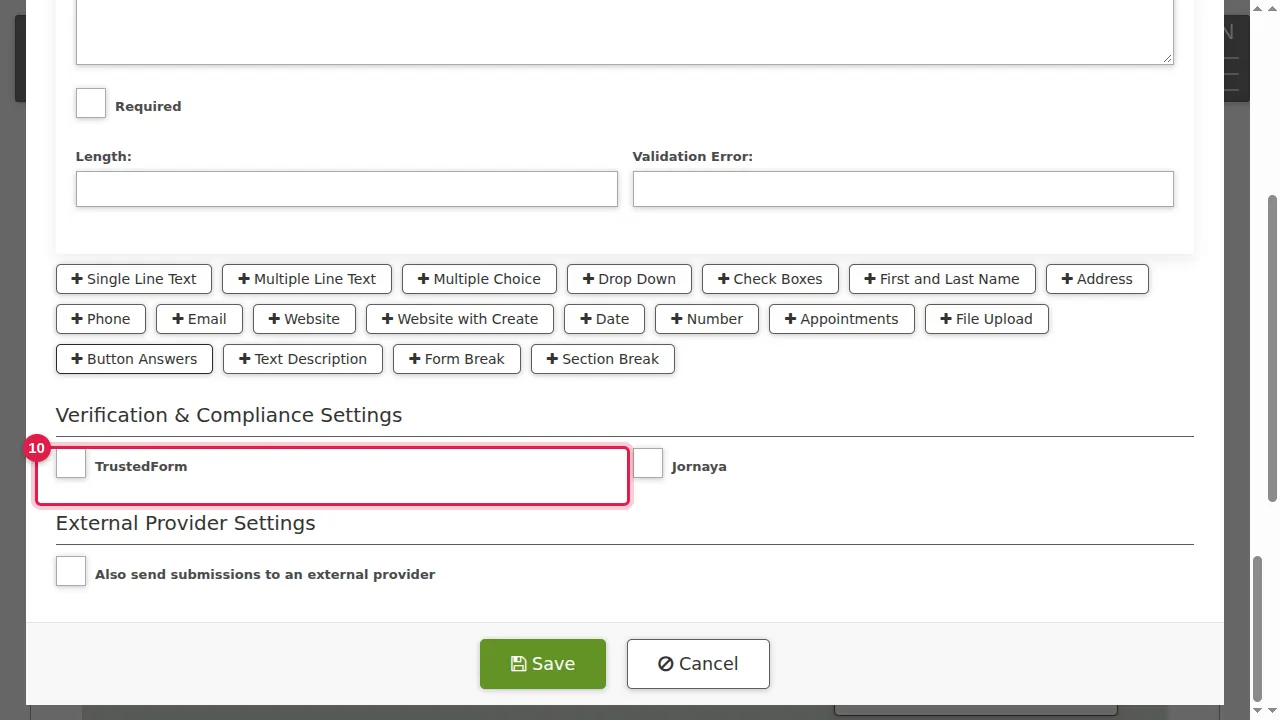
Step 10. TrustedForm and Jornaya are lead-certification services; tick one only if you use that service.
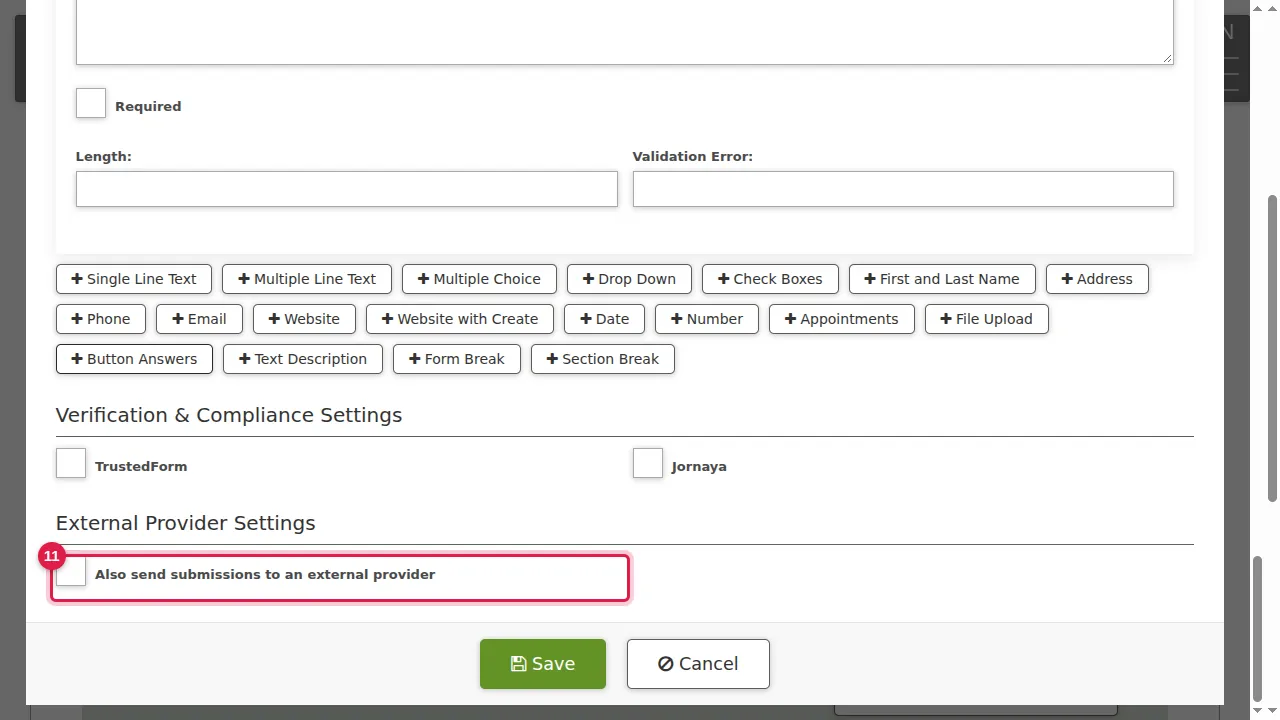
Step 11. Also send submissions to an external provider: for sending results on to another system.
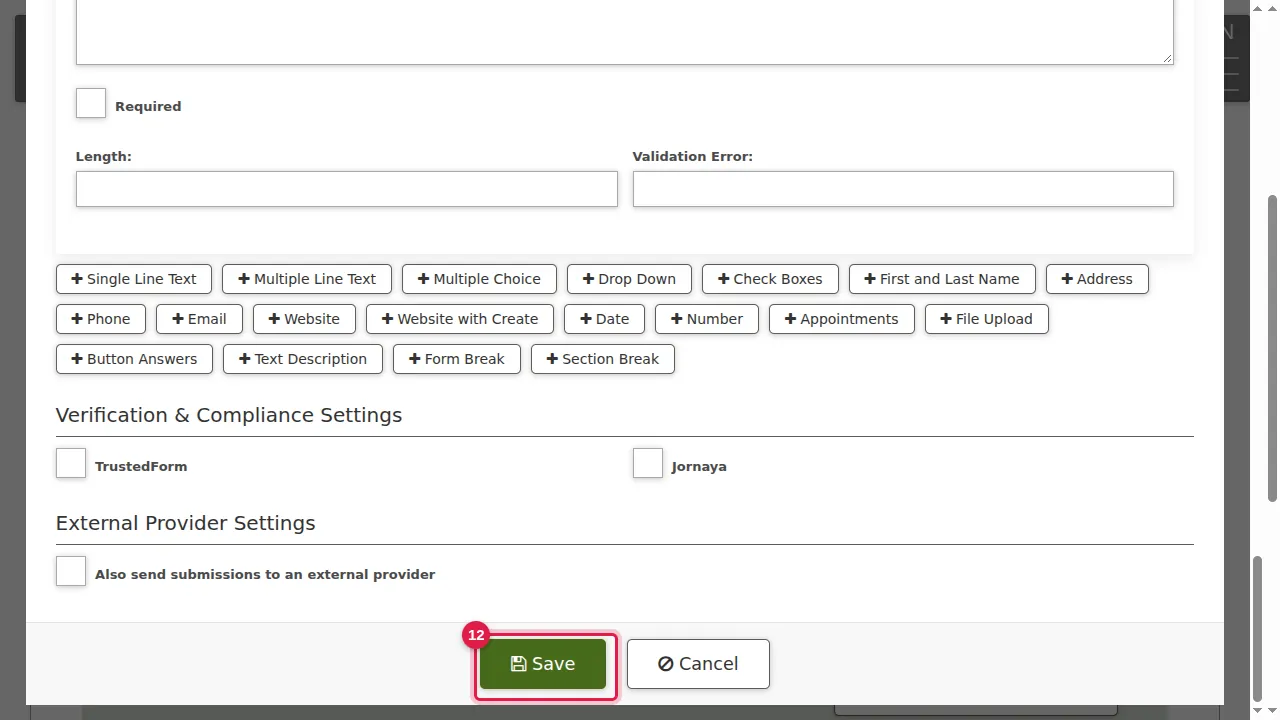
Step 12. Click Save.
What visitors see when it is locked
Step 13. This is what a visitor sees when the form is locked.
Check it worked
Open the form's address in a private window to see what your visitors see.
Related help
Shown on the 2026 version of the SoNET Web Engine. Last checked 21 October 2026. Something different on your screen? Tell us through the Contact page.