Help Center Media & Videos
Your tools on a gallery folder
When you are logged in, every gallery folder shows extra tools under its title: Edit Mode to delete single pictures, a list that sets who may see the folder, Share for a link that works for 3 days, and Description for a few words under the folder's title.
Watch it done: a short silent video with captions · 2:00. The steps below show the same thing picture by picture.
Before you start
- Log in as the site owner.
- Have a gallery folder with at least one picture (see Upload photos).
Open the folder
Step 1. Open your gallery and click the button at the top right with the gallery's name (its left part, next to ADMIN). It lists the folders.
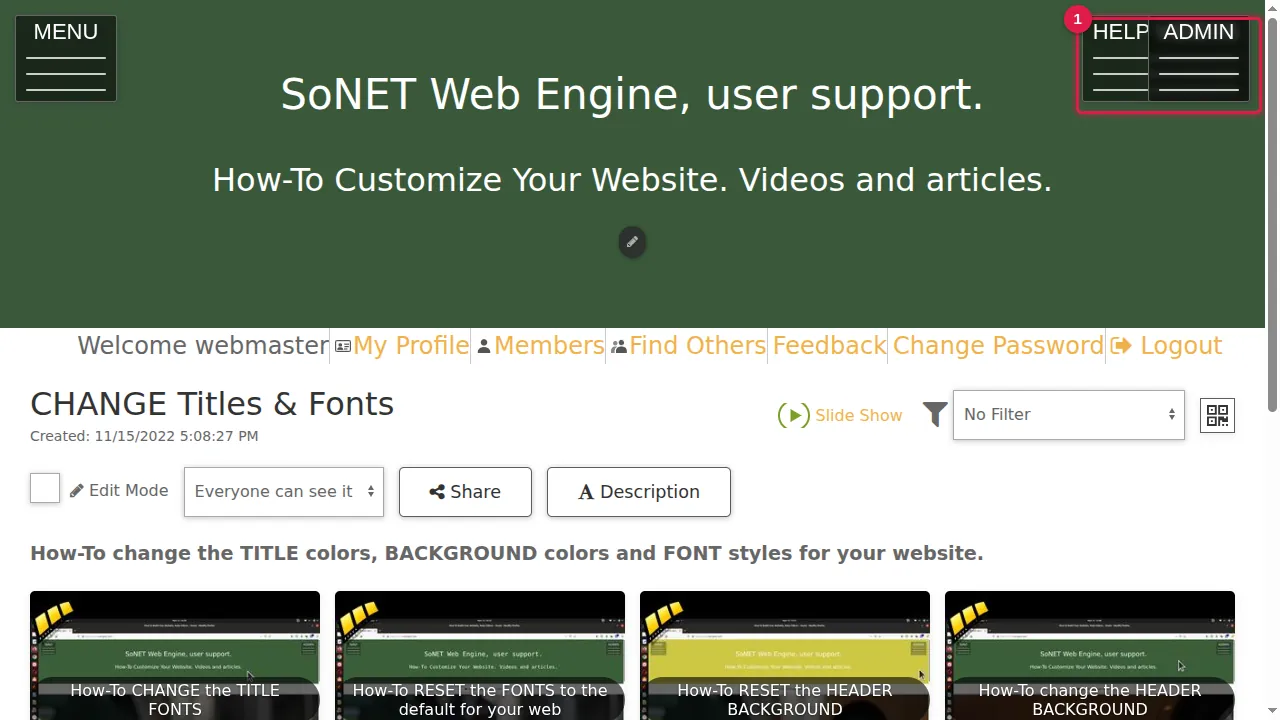
Step 2. Click the folder.
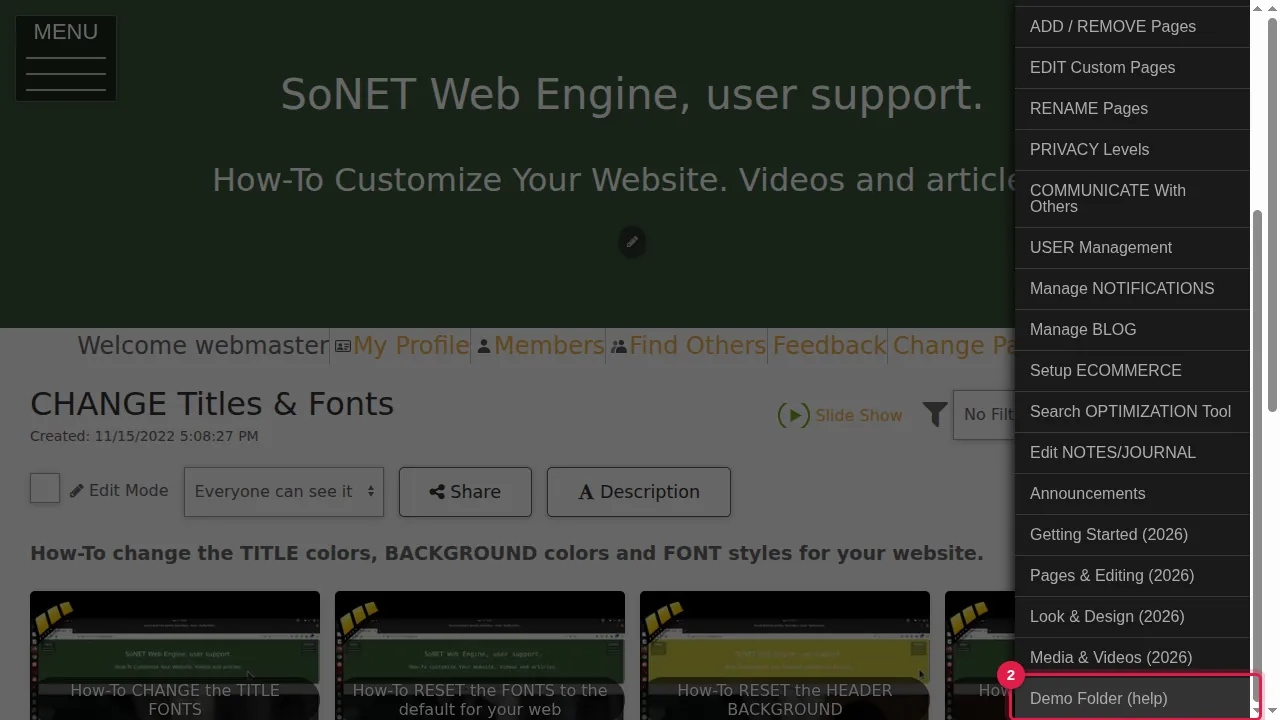
Step 3. Under the folder's title, only you see these tools: Edit Mode, the visibility list, Share and Description.
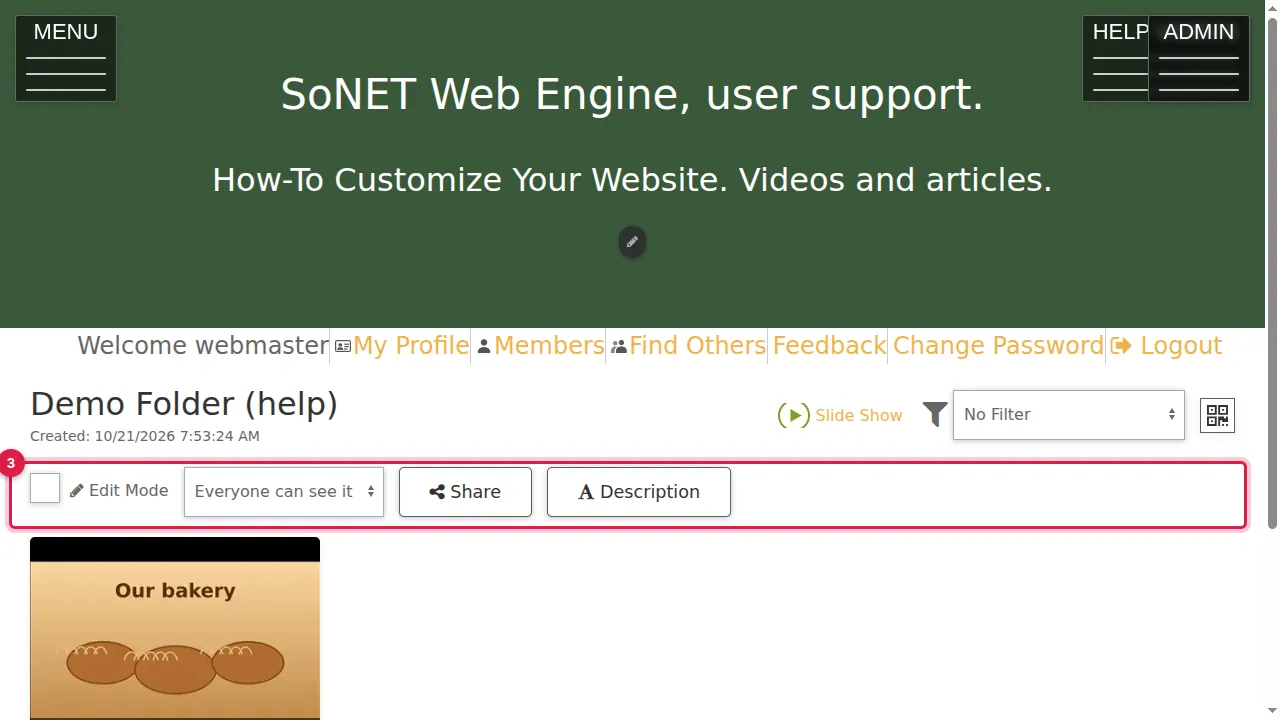
Edit Mode: delete single pictures
Step 4. Tick Edit Mode.
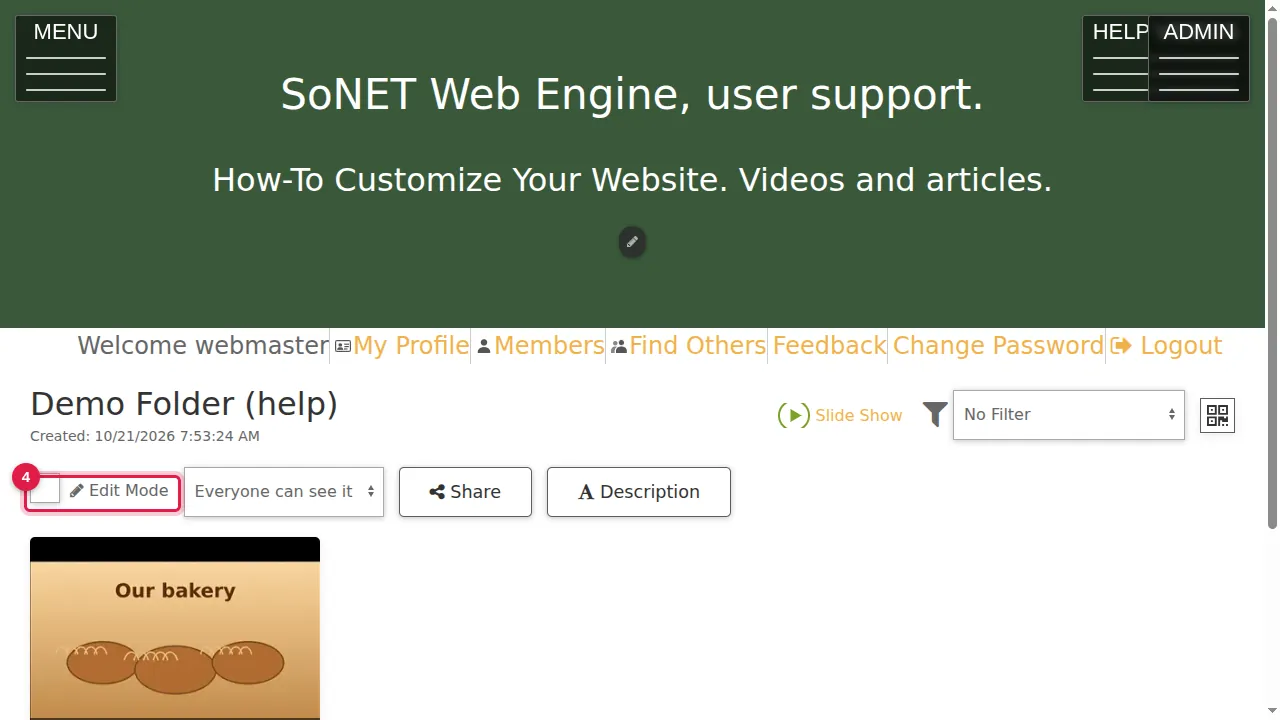
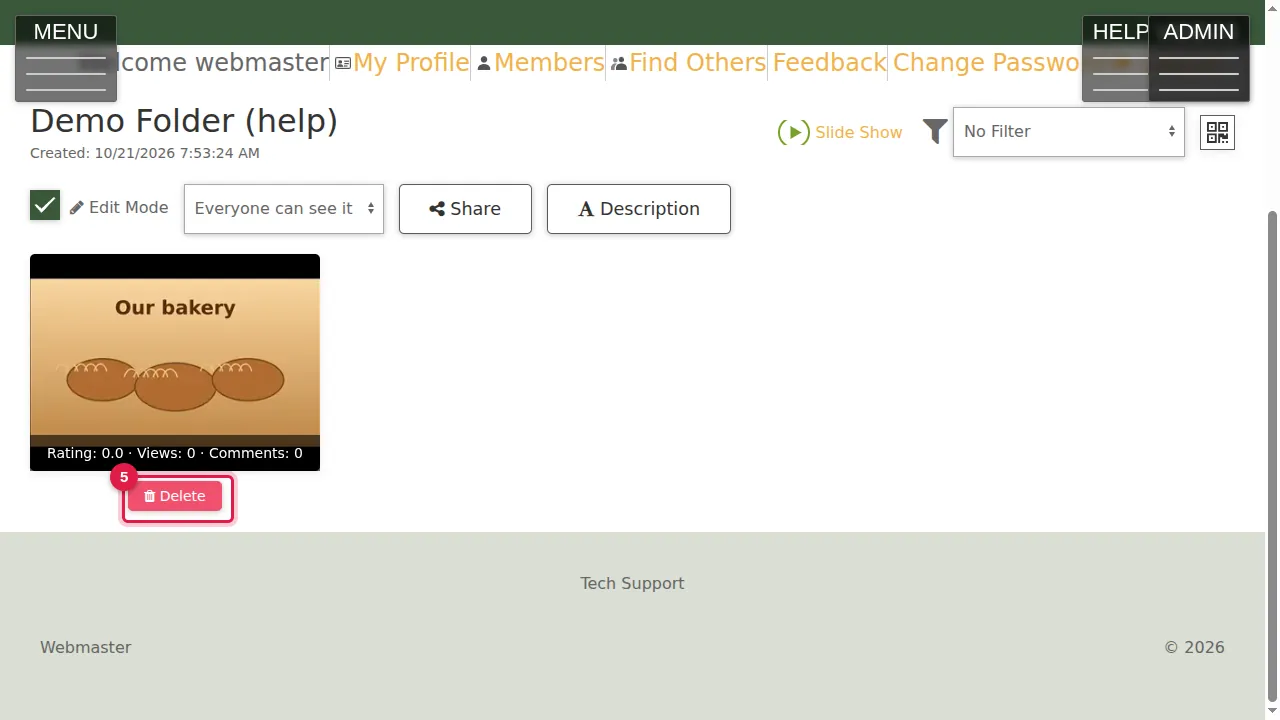
Step 5. Each picture now has a Delete button under it. Untick Edit Mode when you are done.
Who can see it
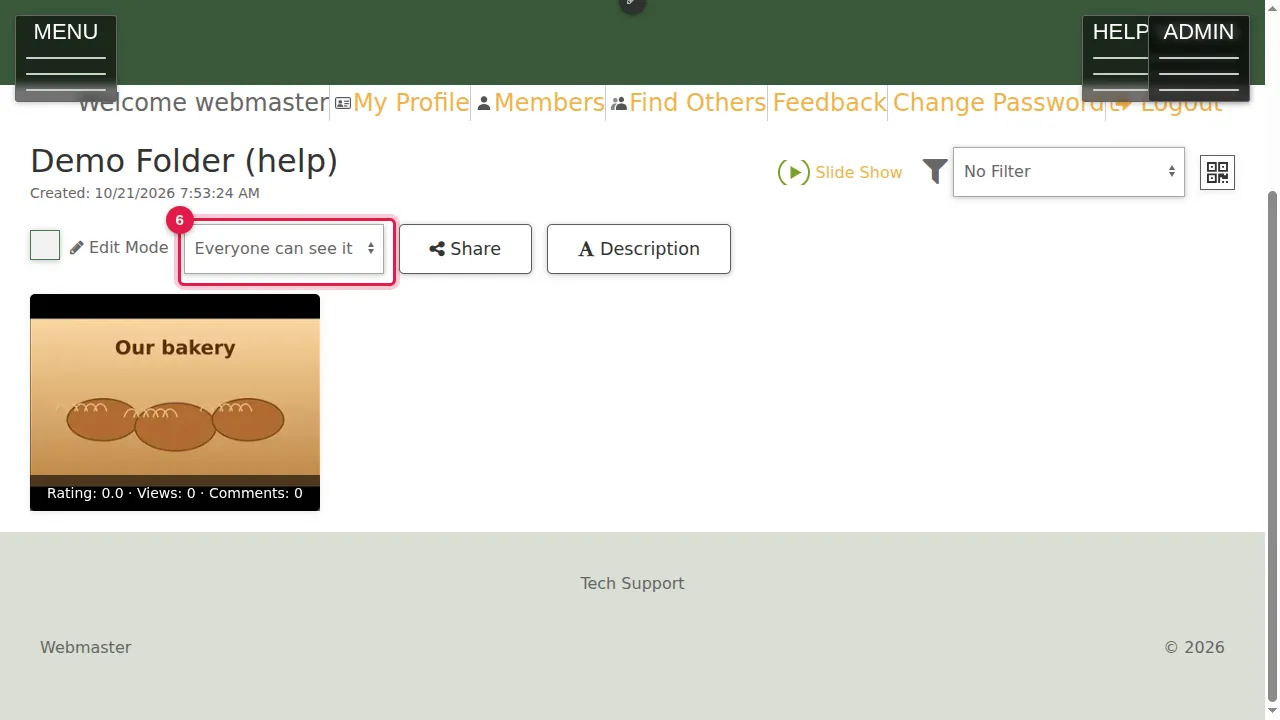
Step 6. This list sets who can see the folder: everyone, admins only, or a group or member of your site. Your choice is saved at once ("Changes saved"). Visitors who are not allowed and open the folder get the login page.
Share a link
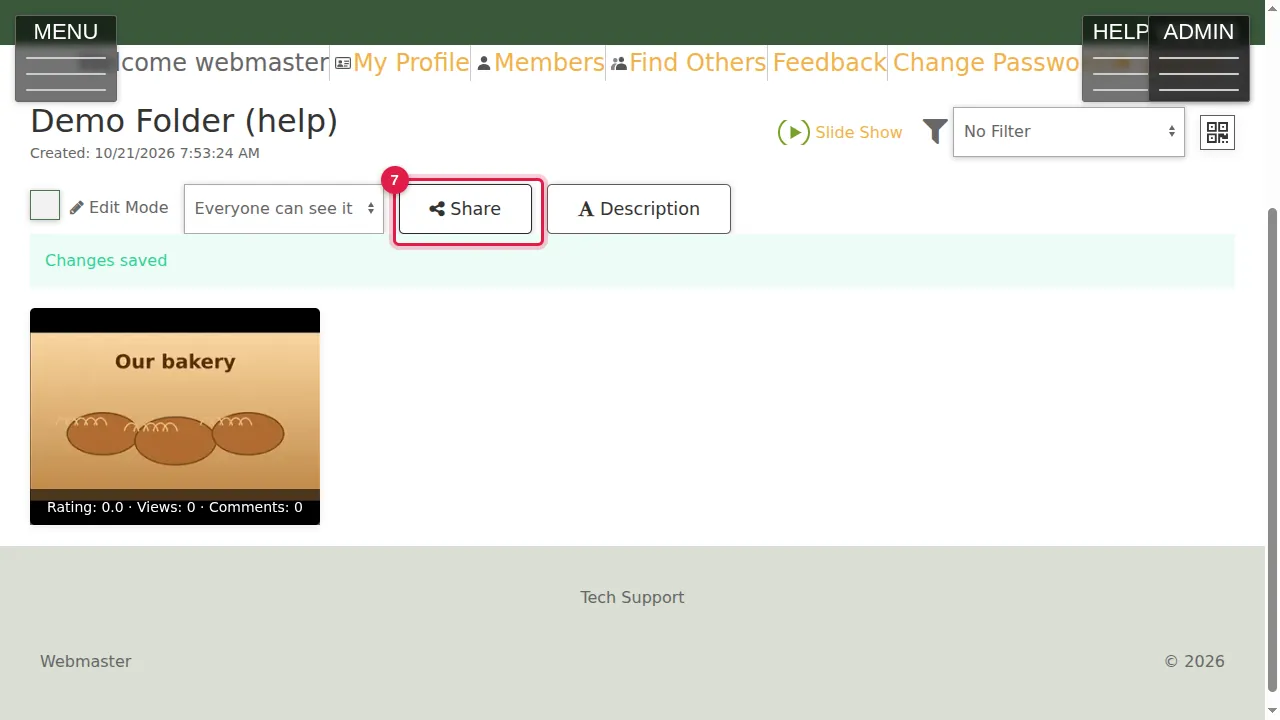
Step 7. Share makes a link to this folder.
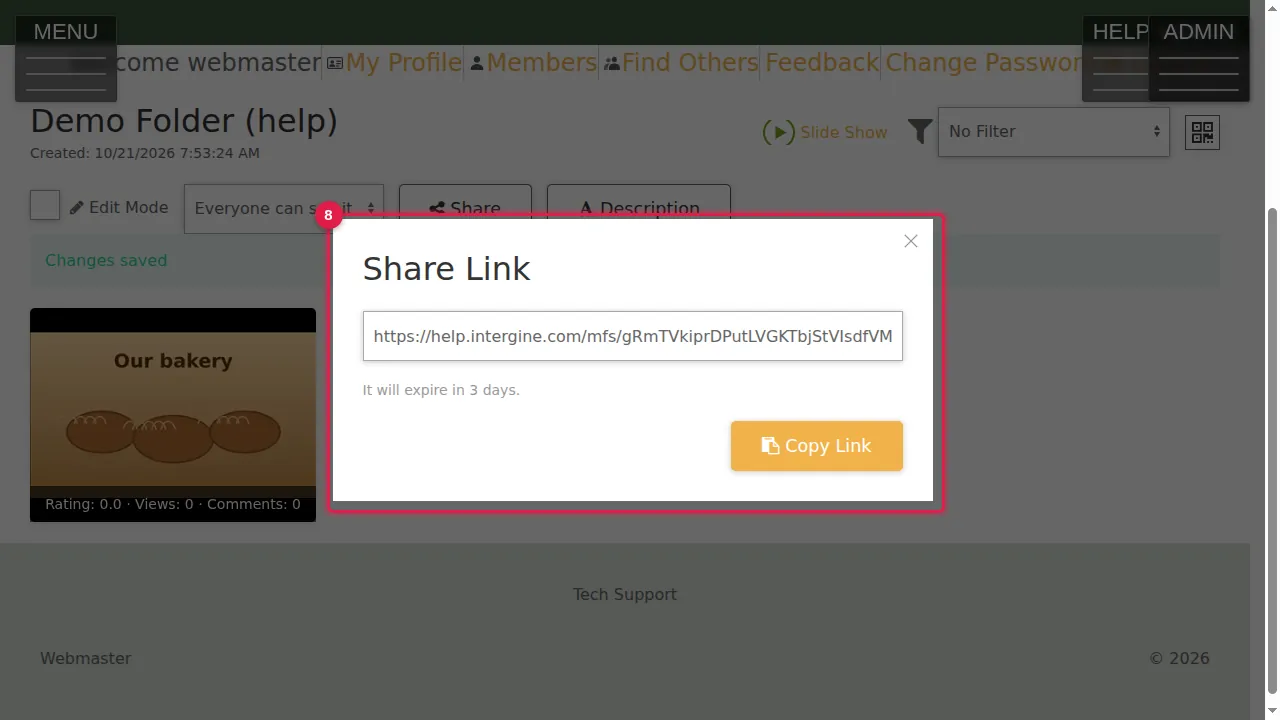
Step 8. The link works for 3 days. Click Copy Link and send it to anyone you like.
Description
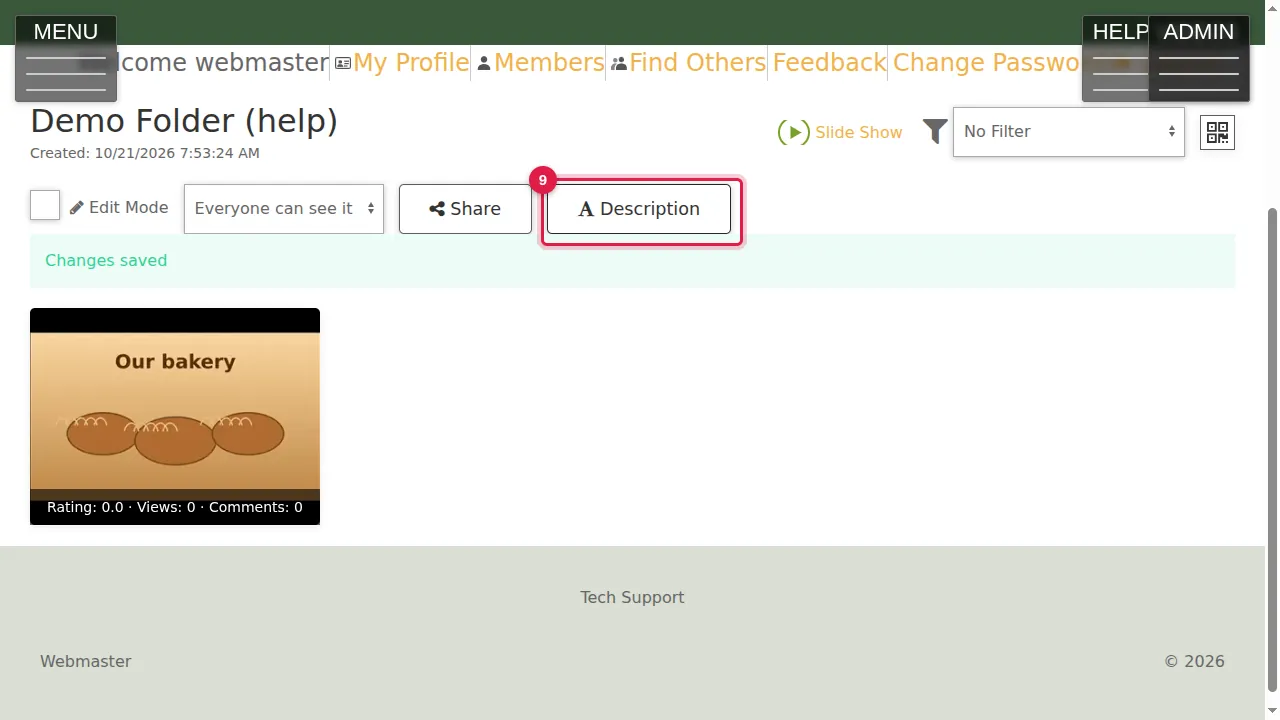
Step 9. Description opens a box for a short text about the folder.
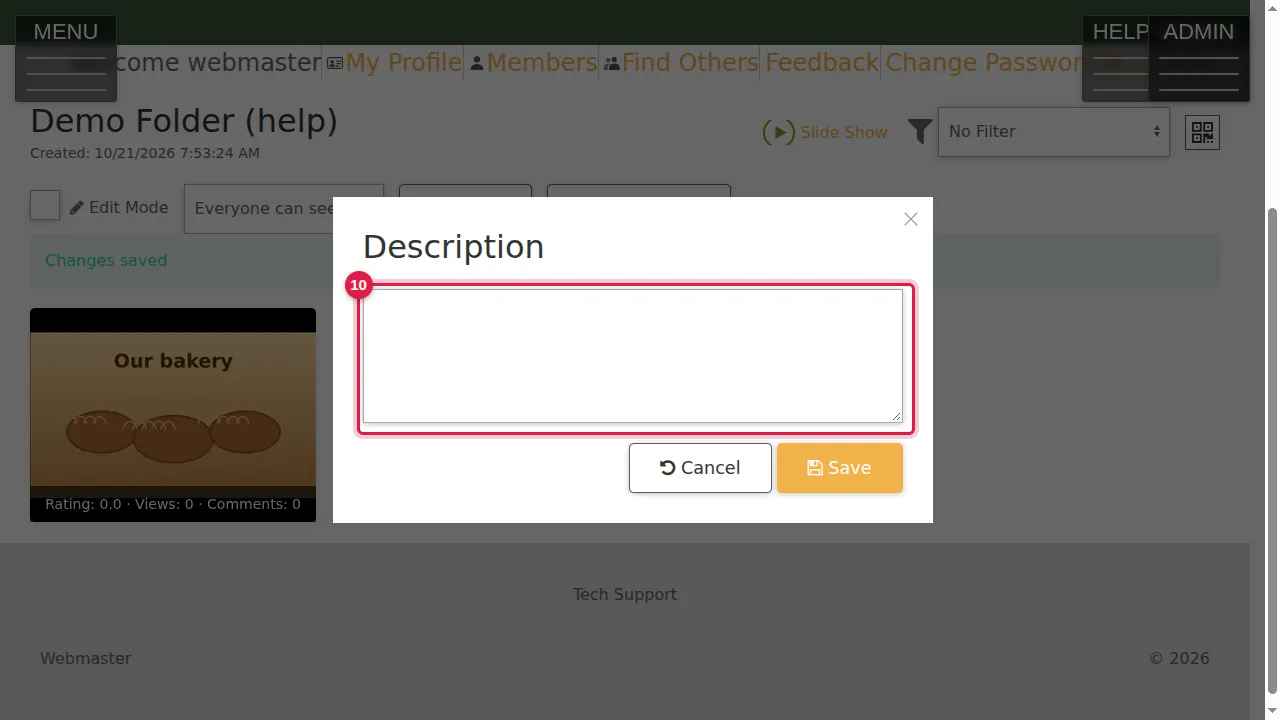
Step 10. Type the description and click Save.
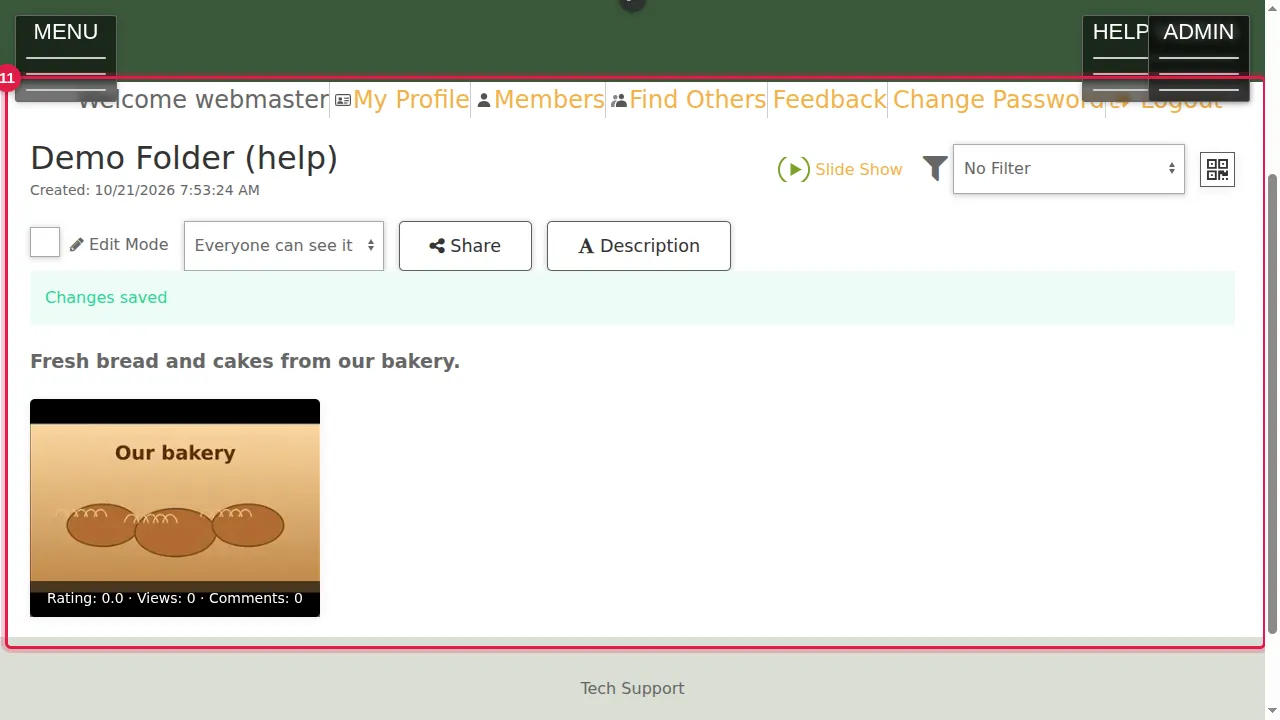
Step 11. The description now shows under the folder's title, for you and your visitors.
Check it worked
Open the folder in a private window: you see the description, and none of the owner tools.
Good to know
- To delete a whole folder with its pictures, use Manage gallery folders.
Related help
Shown on the 2026 version of the SoNET Web Engine. Last checked 21 October 2026. Something different on your screen? Tell us through the Contact page.