Help Center Media & Videos
Manage gallery folders and their pictures
In your gallery's admin page you rename folders, sort their pictures, give pictures a title, description and link, turn or delete pictures, change the order of folders, remake thumbnails and delete folders.
Watch it done: a short silent video with captions · 2:32. The steps below show the same thing picture by picture.
Before you start
- Log in to your website.
Open the folder list
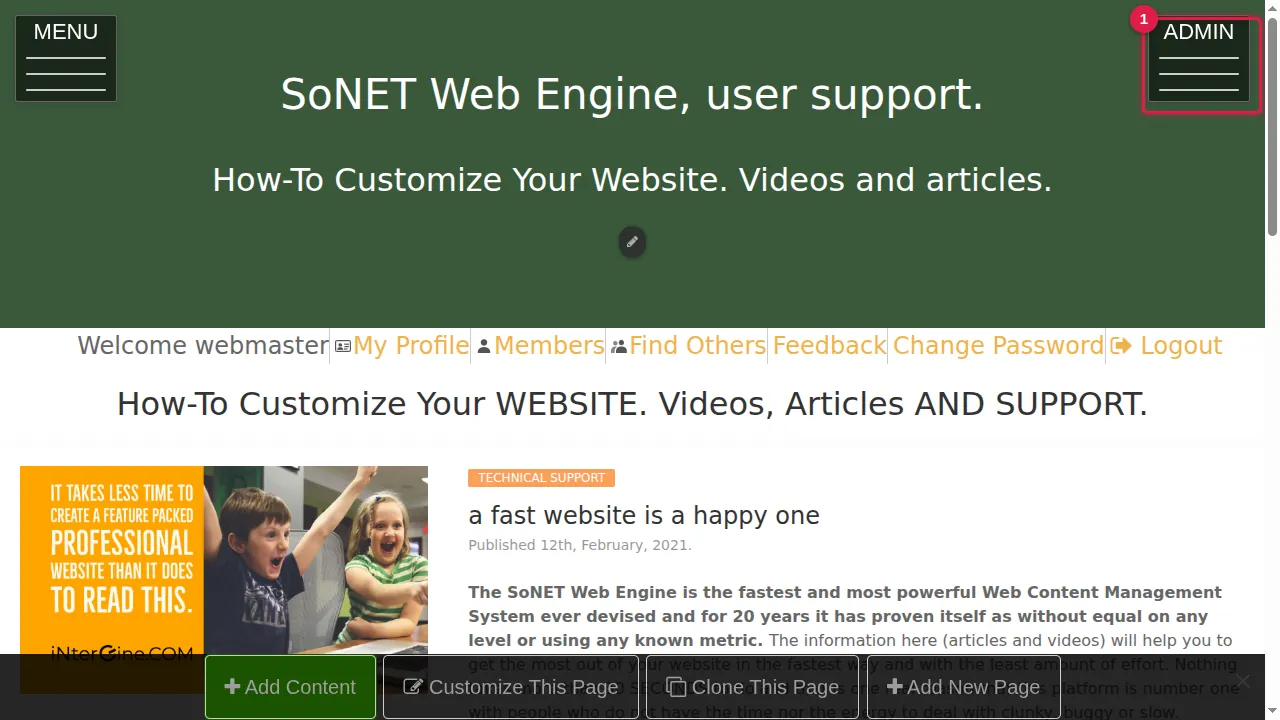
Step 1. Click ADMIN at the top right.
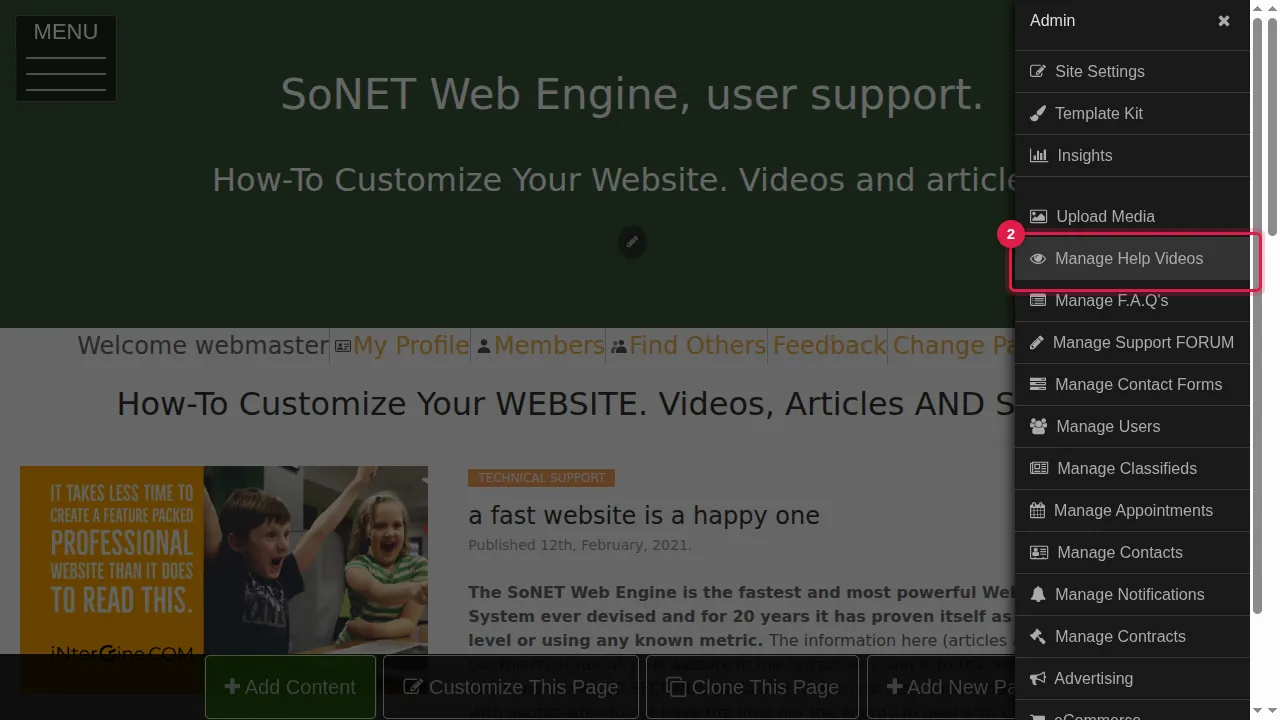
Step 2. Click your gallery's Manage item. Here the gallery is called Help Videos, so it is "Manage Help Videos".
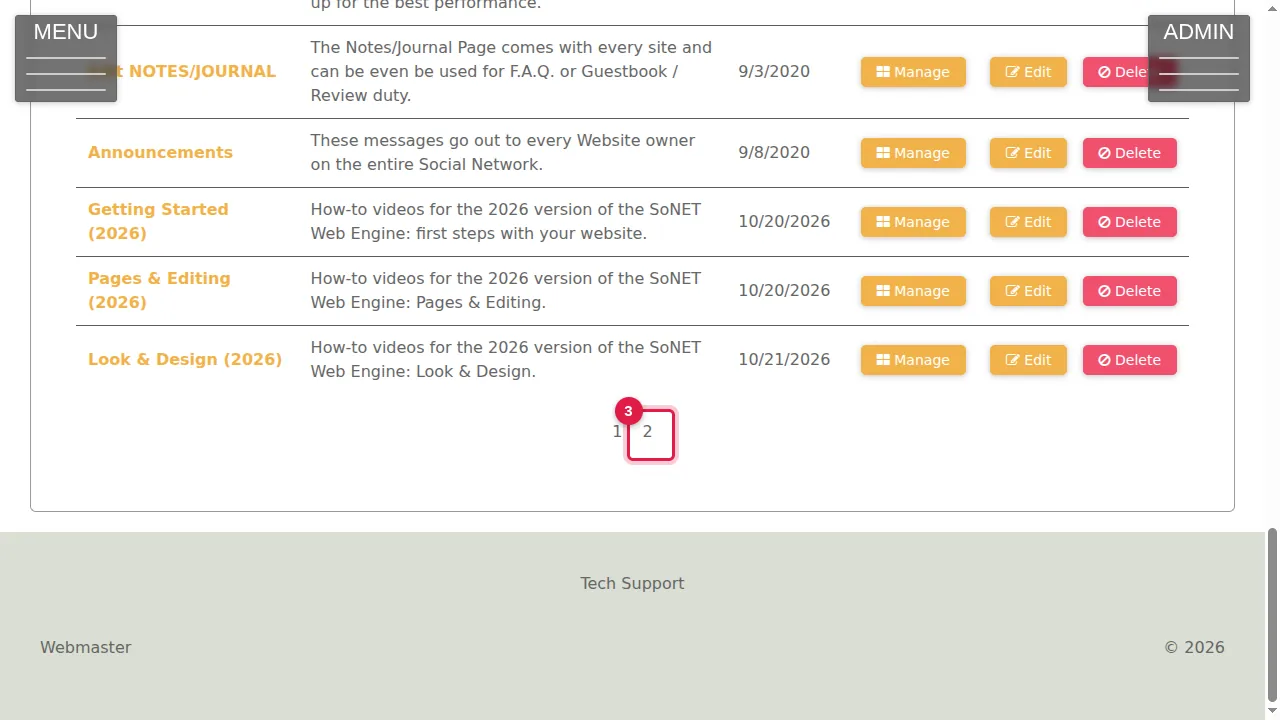
Step 3. The Media tab lists every folder with its description and date, and Manage, Edit and Delete buttons. A long list has more pages: the page numbers are below it.
Rename a folder
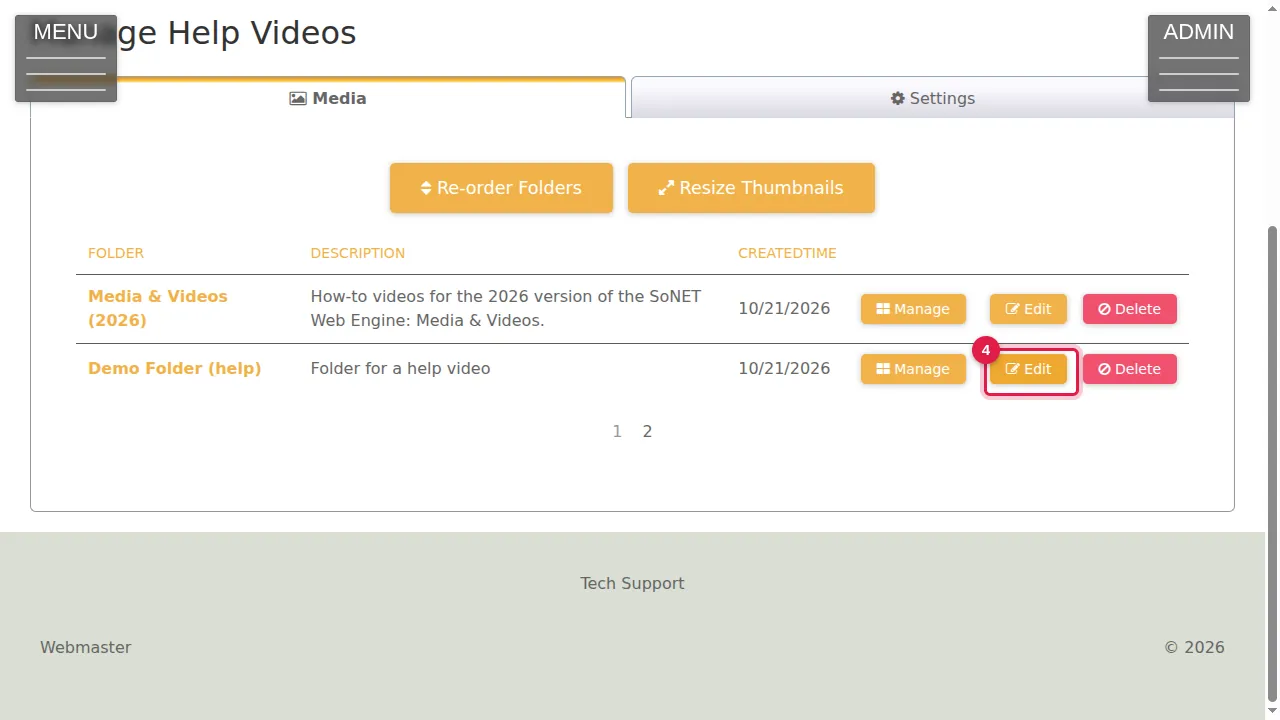
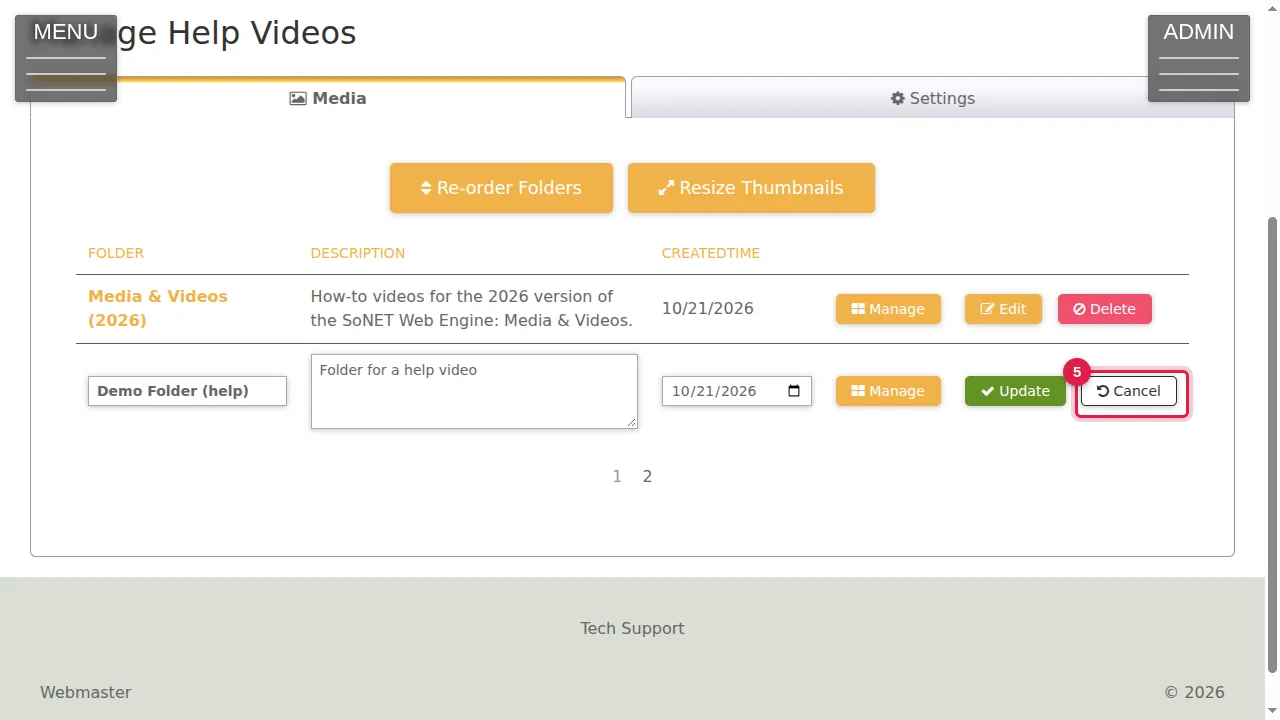
Step 4. Edit lets you change the folder's name, description and date right in the list.
Step 5. Click Update to keep the change, or Cancel to leave it as it was.
Manage a folder's pictures
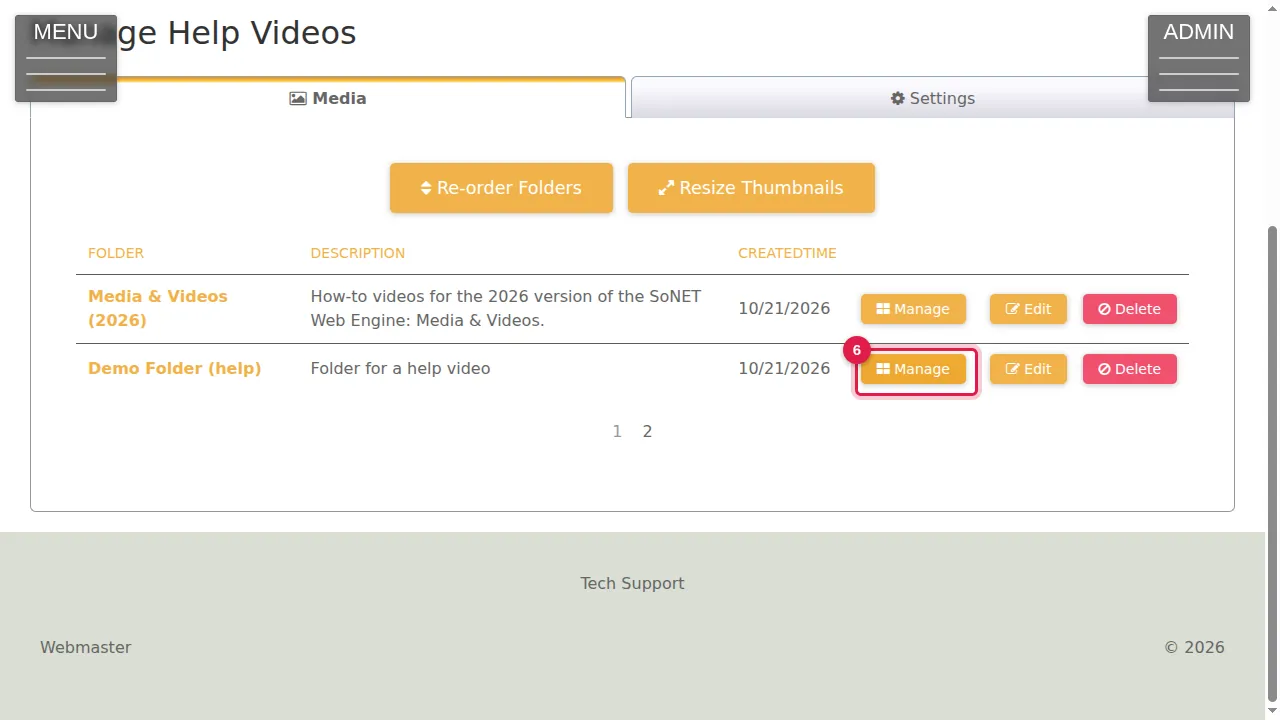
Step 6. Manage opens the folder's pictures, videos and sound files.
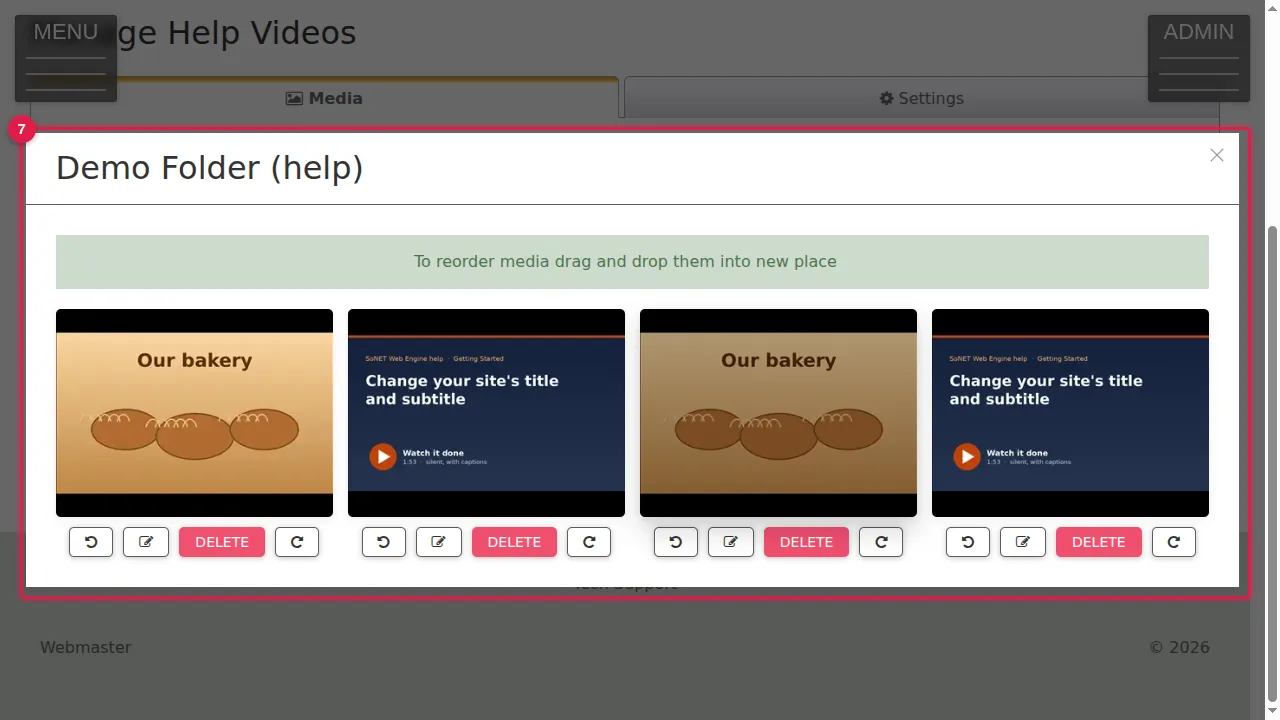
Step 7. Drag them to change their order. Under each one: the curved arrows turn a picture left or right, and DELETE removes it.
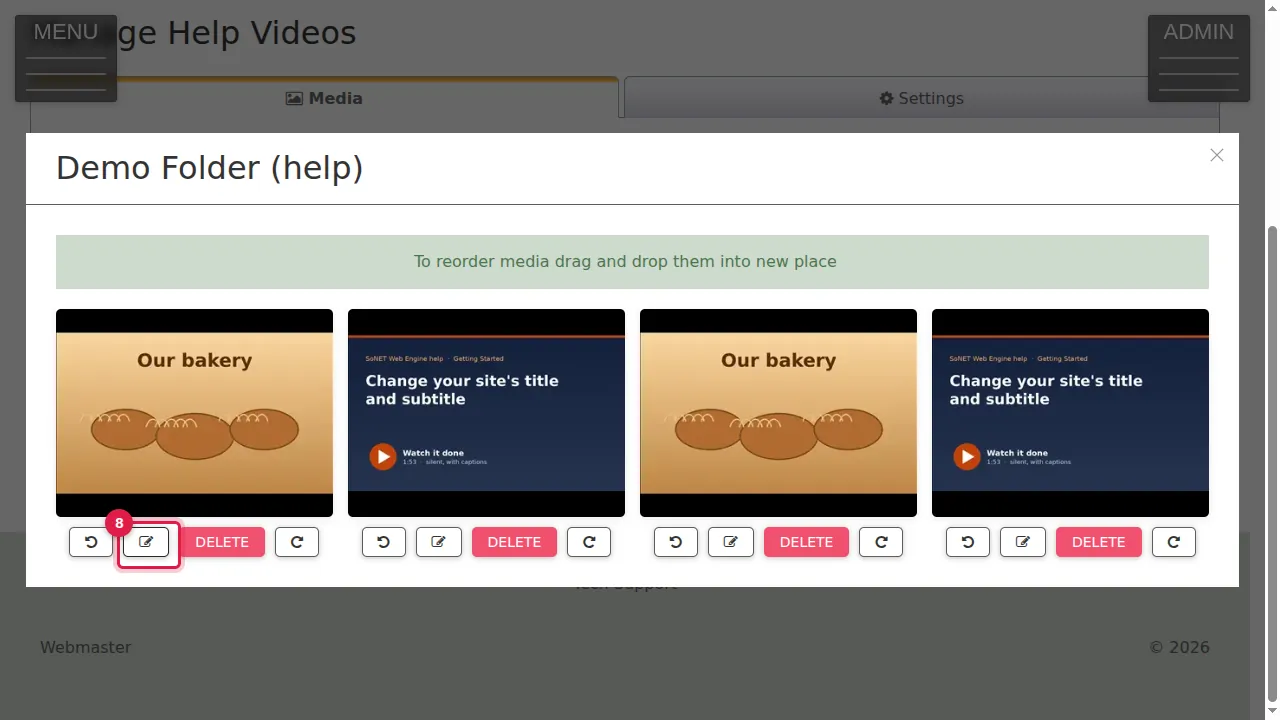
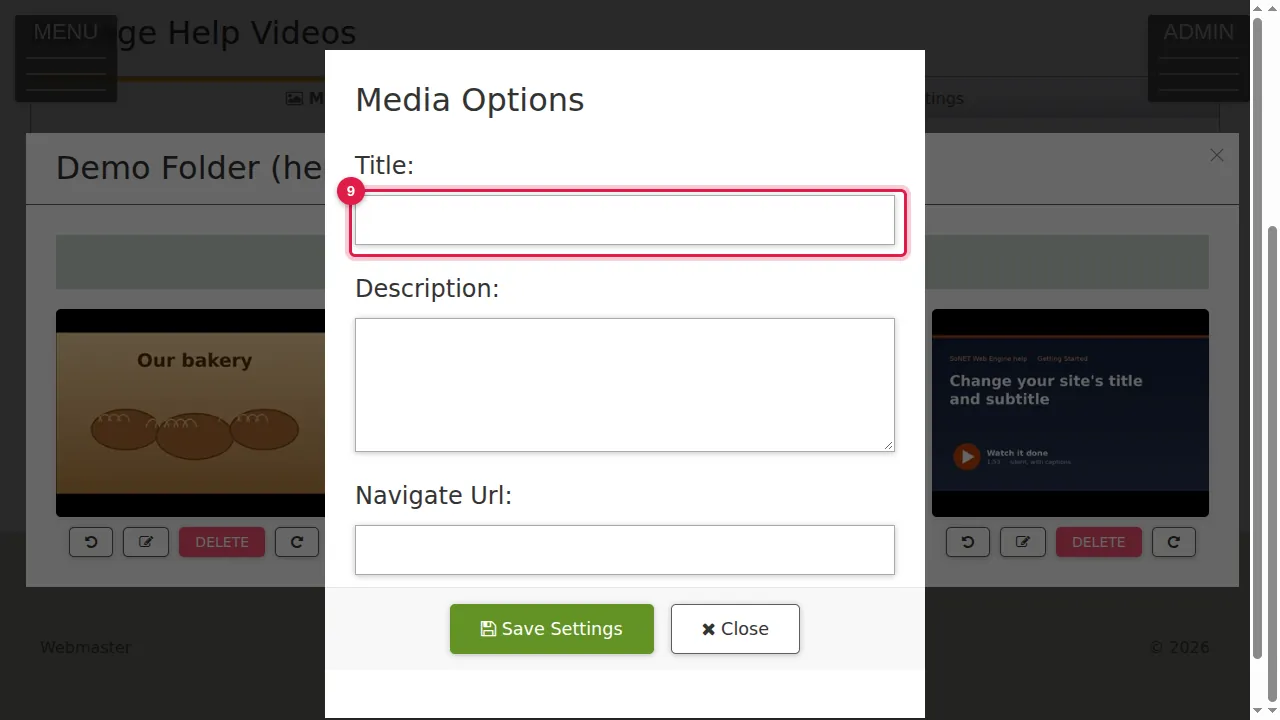
Step 8. The pencil (Edit Options) opens Media Options: a title, a description and a Navigate Url (a link the picture leads to).
Step 9. Type the title, then click Save Settings.
Folder order, thumbnails and deleting
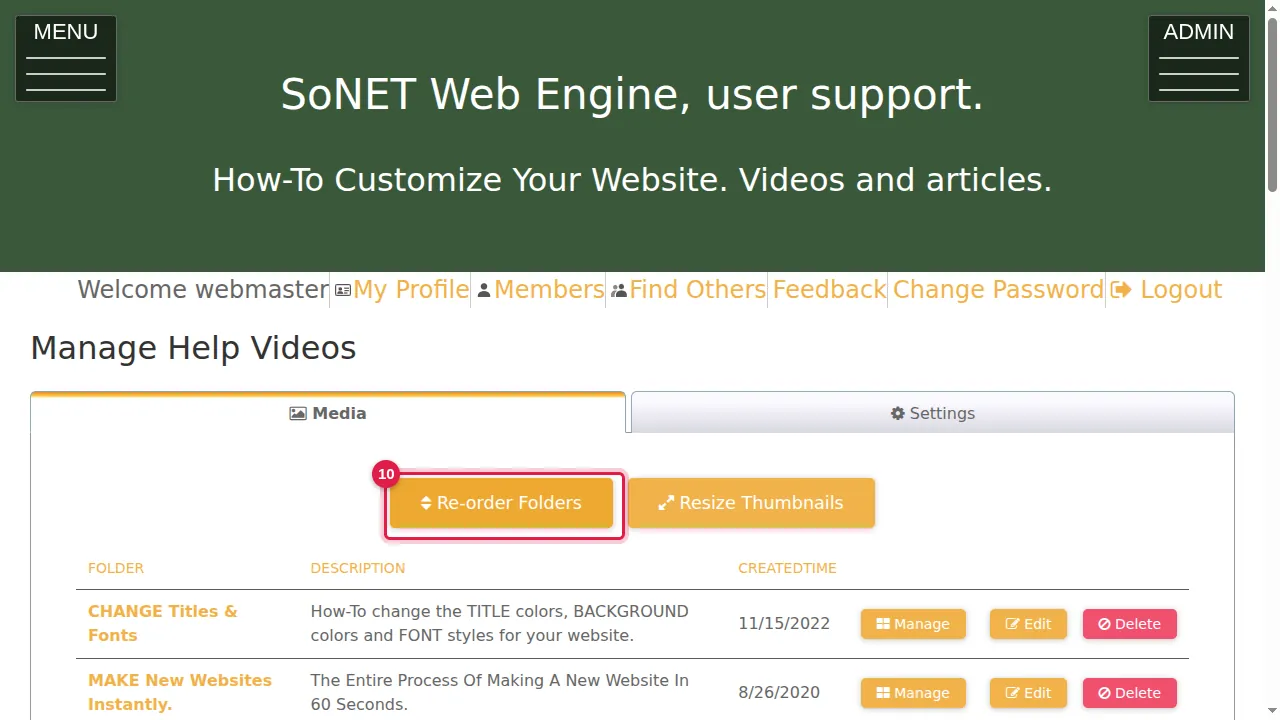
Step 10. Re-order Folders lets you drag folders by the handle in each row; click Finish Re-ordering when you are done.
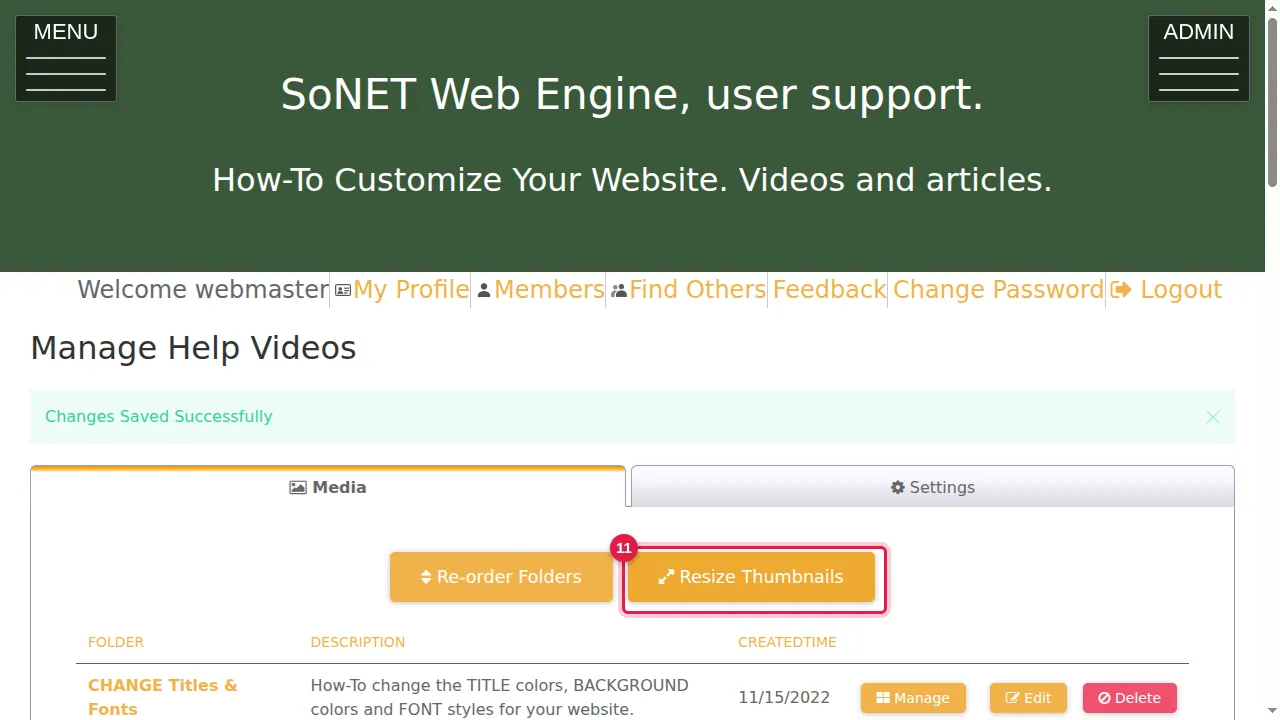
Step 11. Resize Thumbnails remakes the small preview pictures in the size and mode you choose, for one folder or all folders. It can take a while.
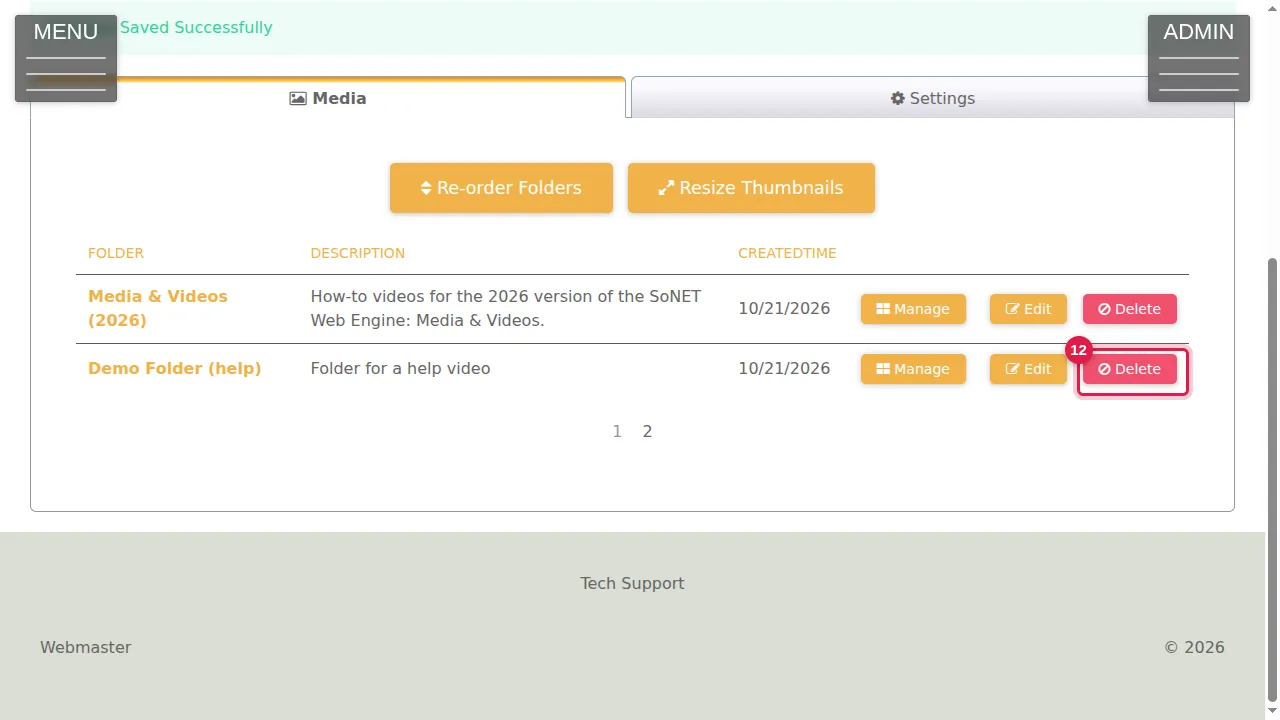
Step 12. Delete removes a folder together with all its pictures and videos.
Check it worked
Open the gallery (Help Videos in your menu) as a visitor and look at the folder.
Good to know
- A picture with a Navigate Url opens that link when clicked in the gallery, instead of showing the picture larger.
- Deleted folders and pictures cannot be brought back: download anything you want to keep first.
Related help
Shown on the 2026 version of the SoNET Web Engine. Last checked 21 October 2026. Something different on your screen? Tell us through the Contact page.