Help Center Media & Videos
Upload videos and audio
Upload Media is not only for pictures: videos and audio files go up the same way, even together with pictures, and appear in your gallery folder.
Watch it done: a short silent video with captions · 1:18. The steps below show the same thing picture by picture.
Before you start
- Have the video (for example MP4) or audio file (for example MP3) on your computer.
- Log in and open ADMIN › Upload Media.
Upload
Step 1. In Upload Media, choose the folder: an existing one, or New Folder.
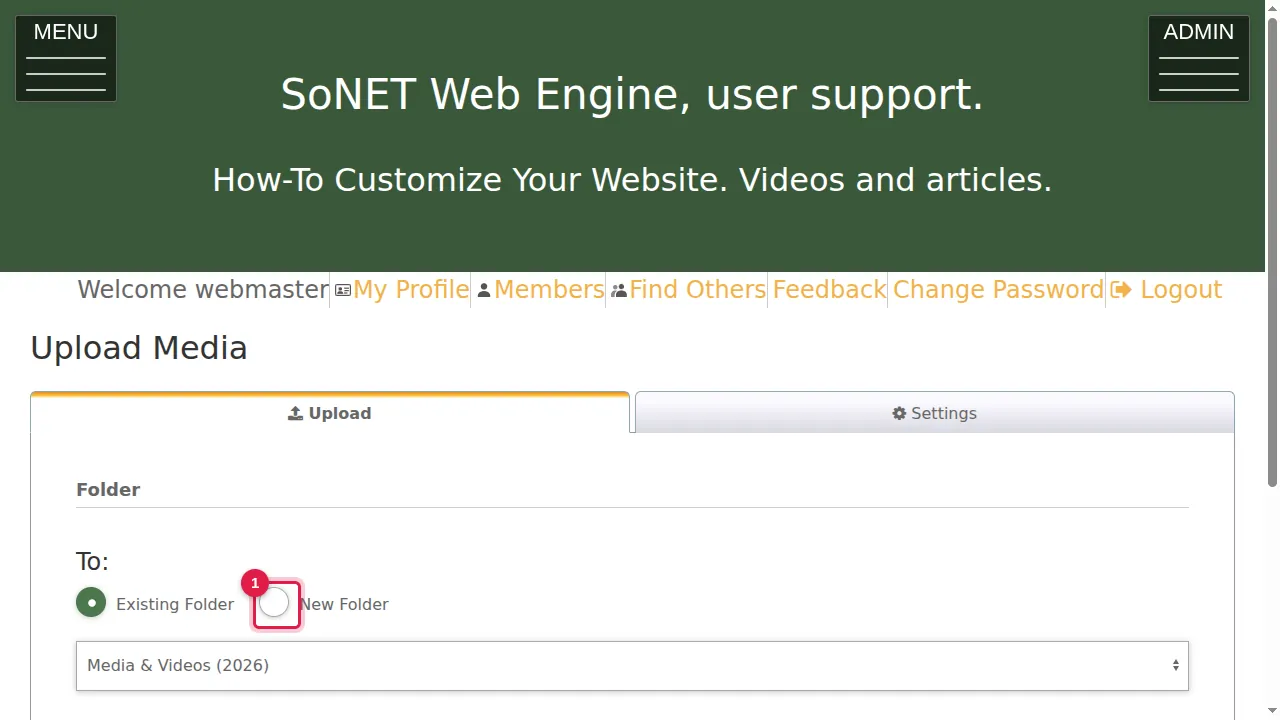
Step 2. For a new folder, type its name.
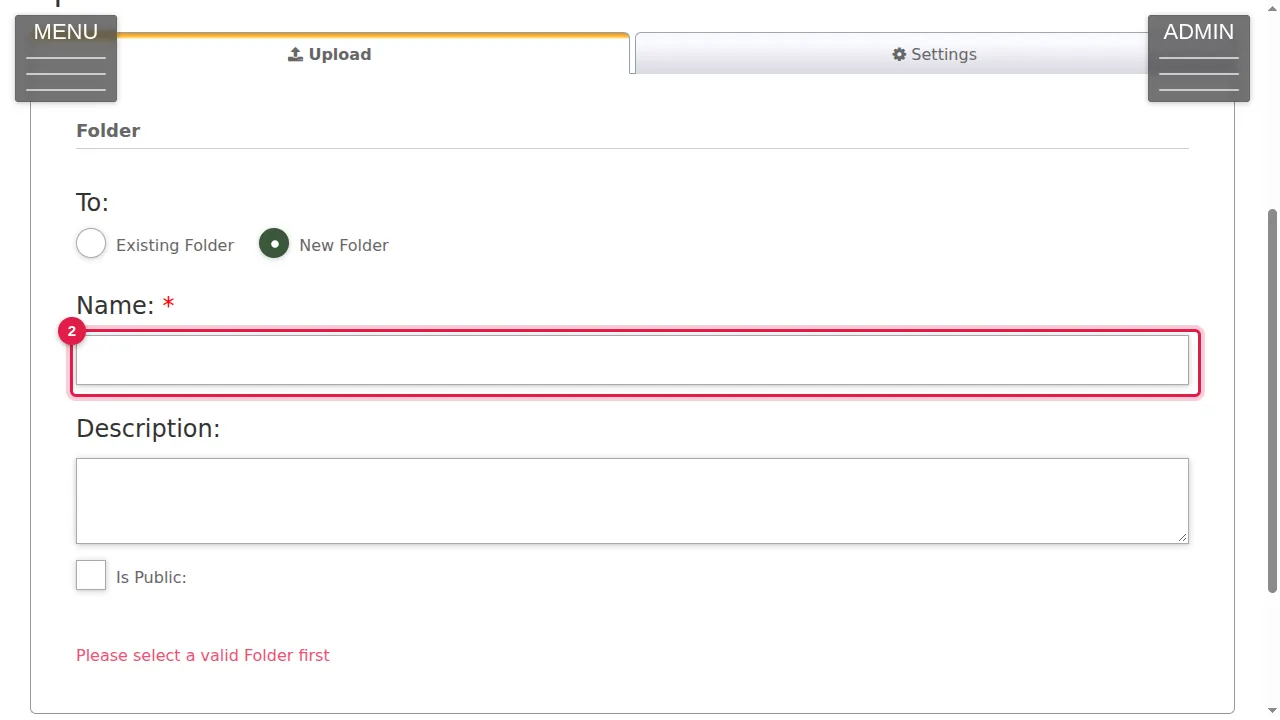
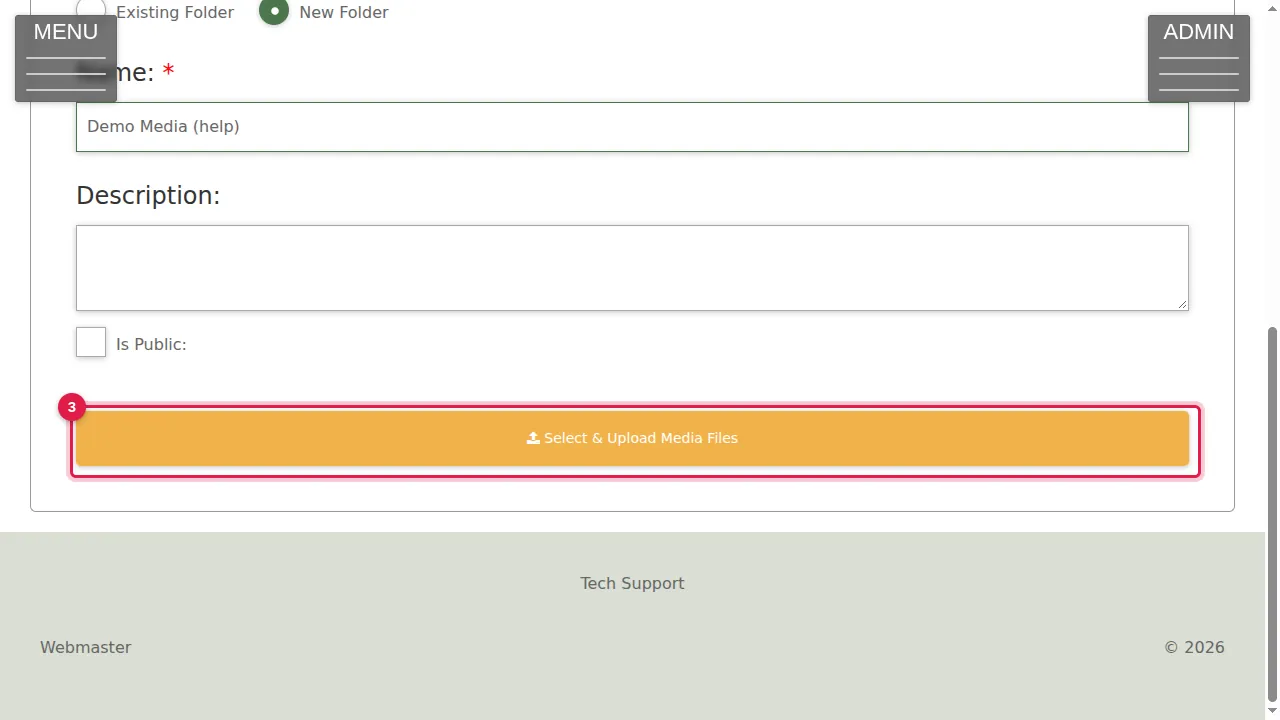
Step 3. Click Select & Upload Media Files and choose your video and audio files (several at once is fine).
See them in the gallery
Step 4. When "Upload completed" appears, click "You can open the folder here".
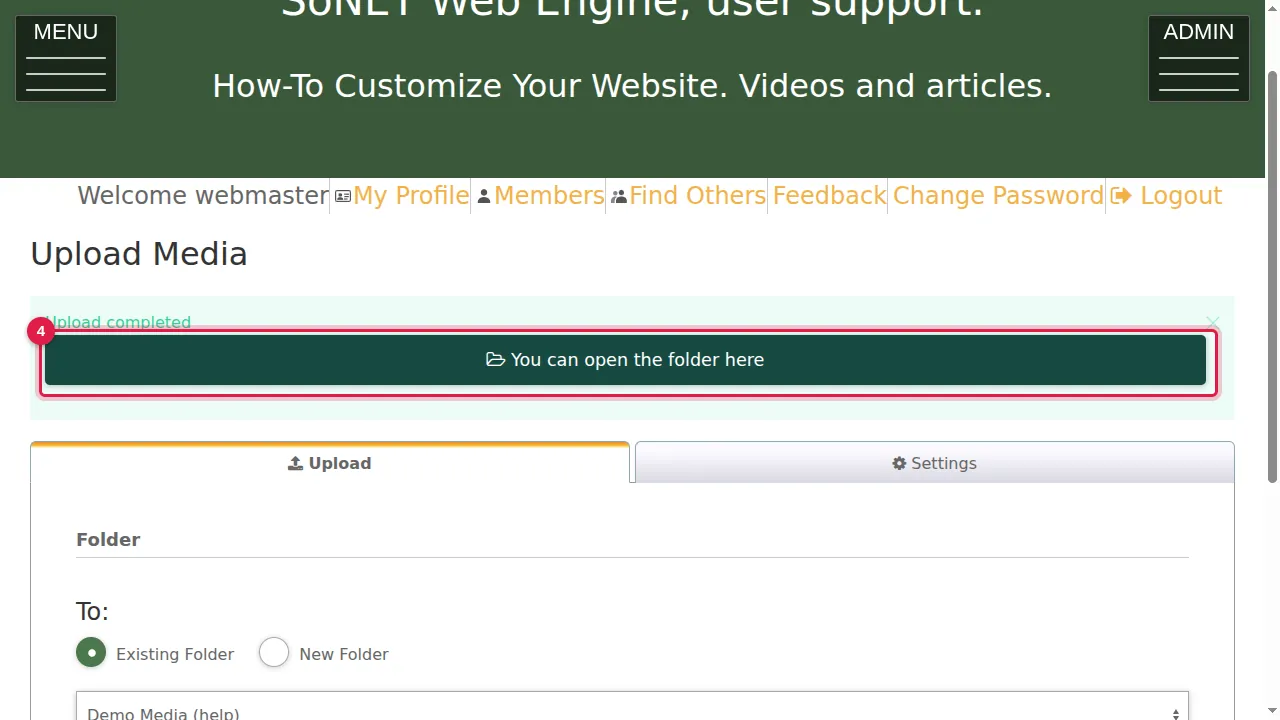
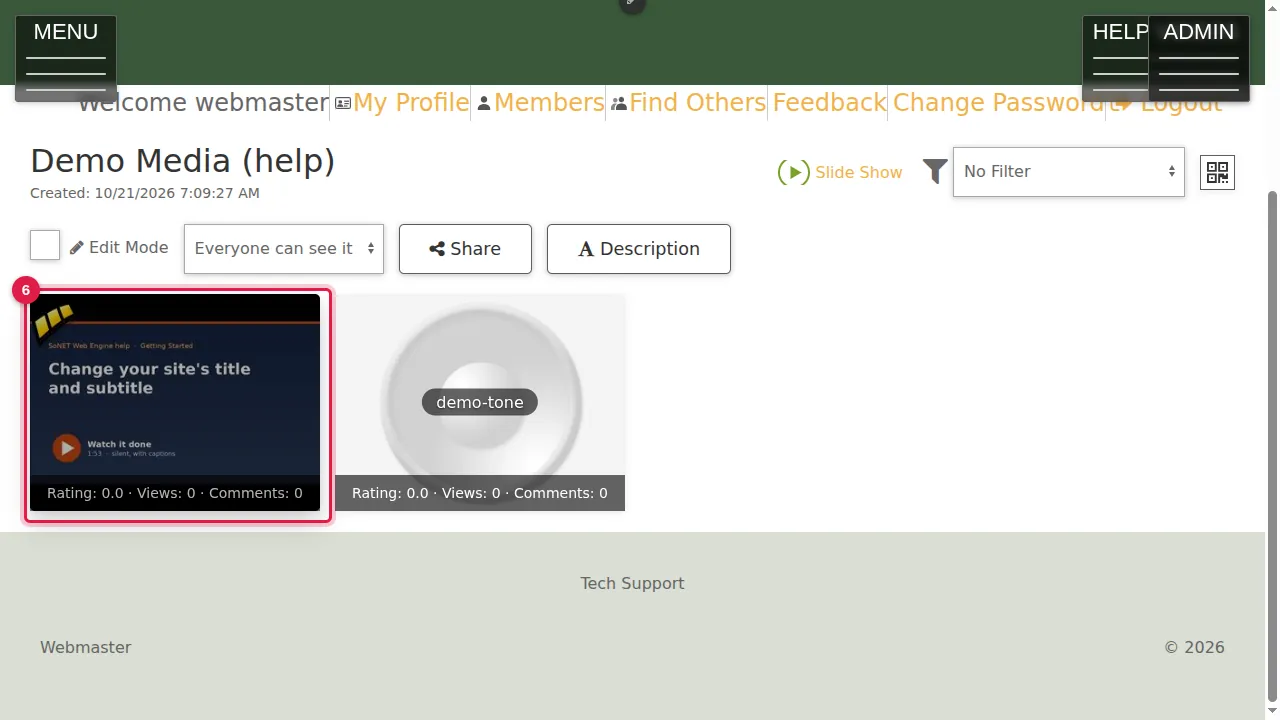
Step 5. In the gallery folder a video shows its first picture with a film-strip mark, and an audio file shows a speaker.
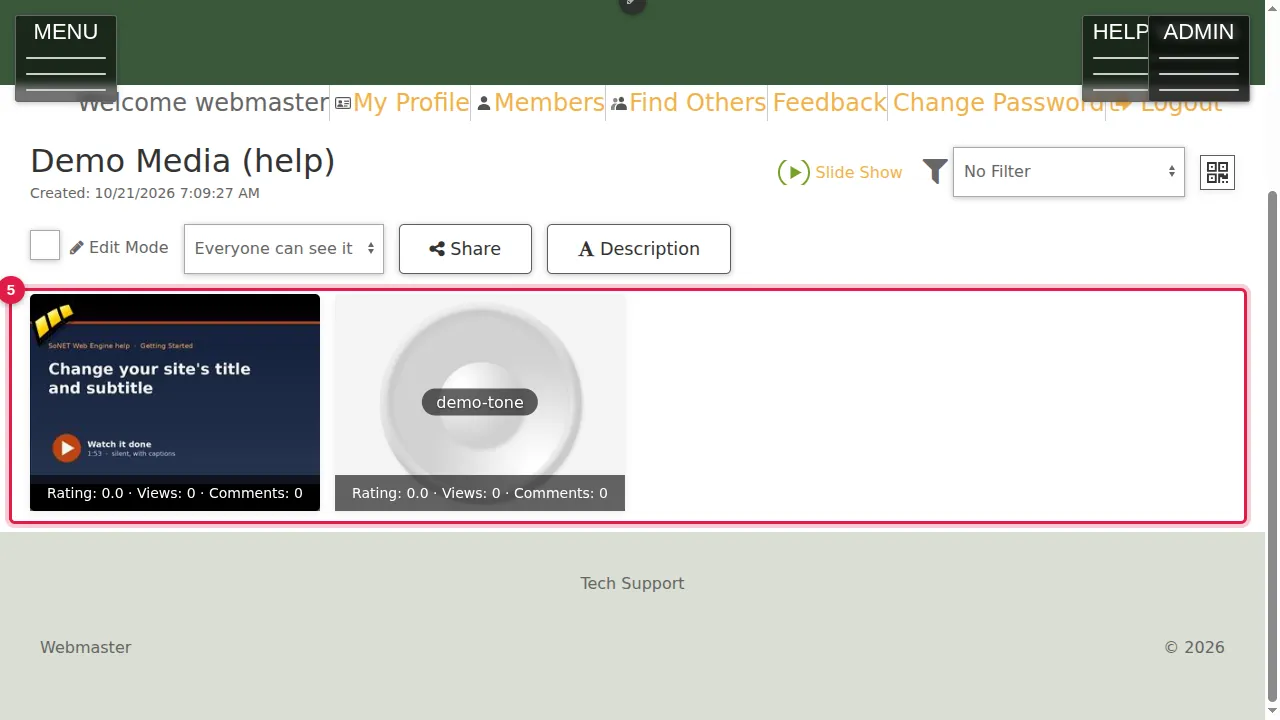
Step 6. Click a video or audio file to play it.
Check it worked
Open the folder as a visitor (log out or use a private window) and play the video.
Good to know
- Short videos load faster. Save them as MP4 (H.264), the format every browser plays.
- The first frame of a video is its gallery picture: start your video with a title picture so the gallery looks tidy.
Related help
Shown on the 2026 version of the SoNET Web Engine. Last checked 21 October 2026. Something different on your screen? Tell us through the Contact page.