Help Center Pages & Editing
Add pictures and videos to a section
Put a picture from your computer into any section with Add Media, or add a YouTube or Vimeo video with the camera button.
Watch it done: a short silent video with captions · 1:30. The steps below show the same thing picture by picture.
Before you start
- Have the picture on your computer (JPG, PNG or WebP), or the address of the YouTube or Vimeo video.
- Log in, open the page, click Customize This Page and then the pencil of the section.
Add a picture
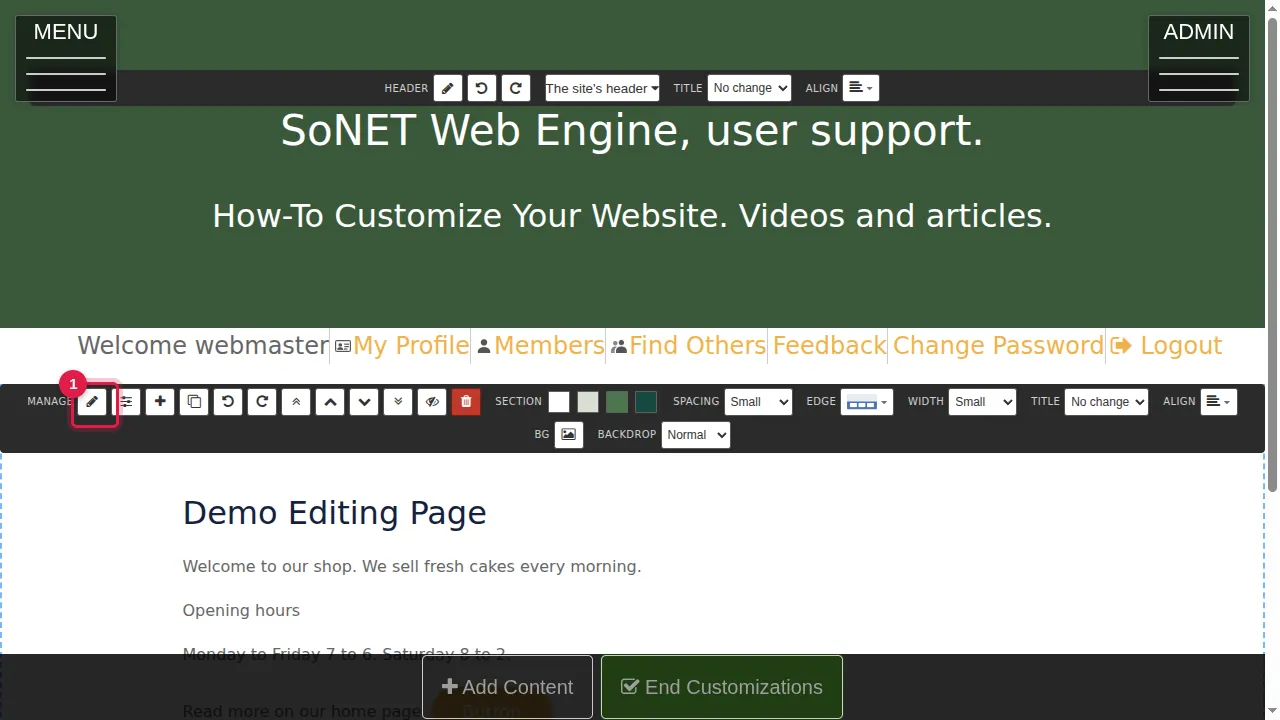
Step 1. Click Customize This Page, then the pencil of the section.
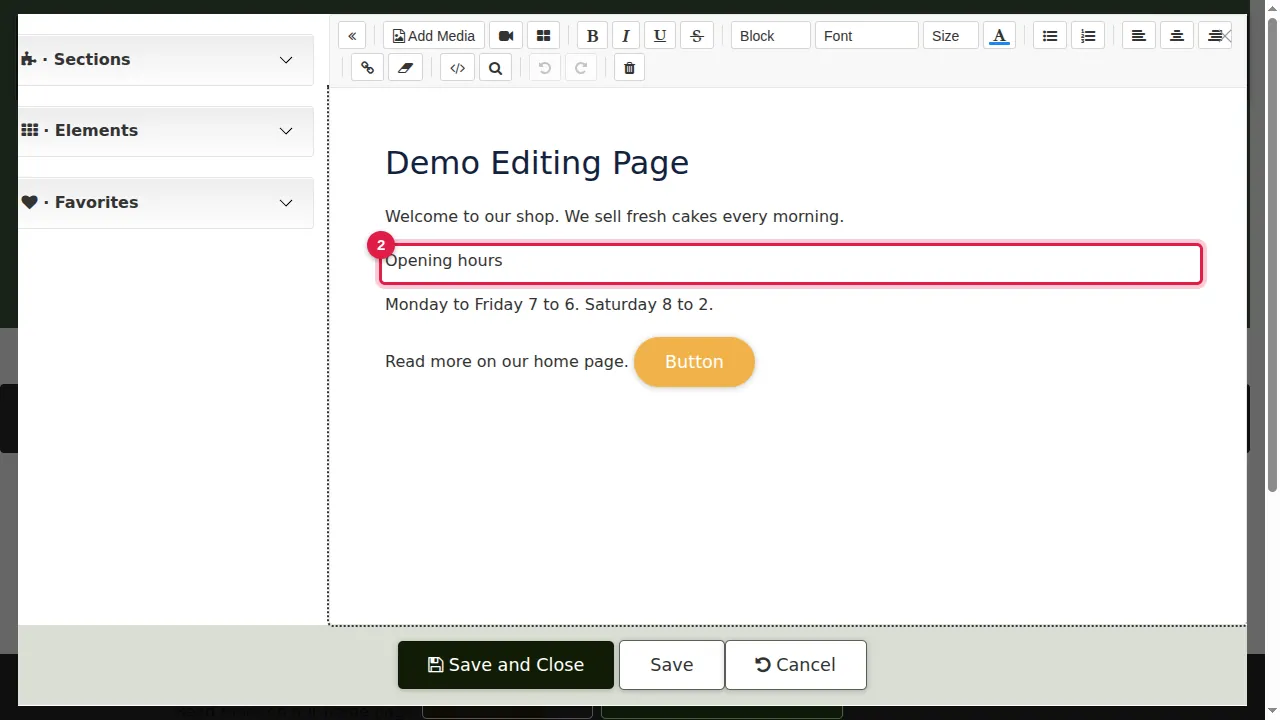
Step 2. Click in the text where the picture should go.
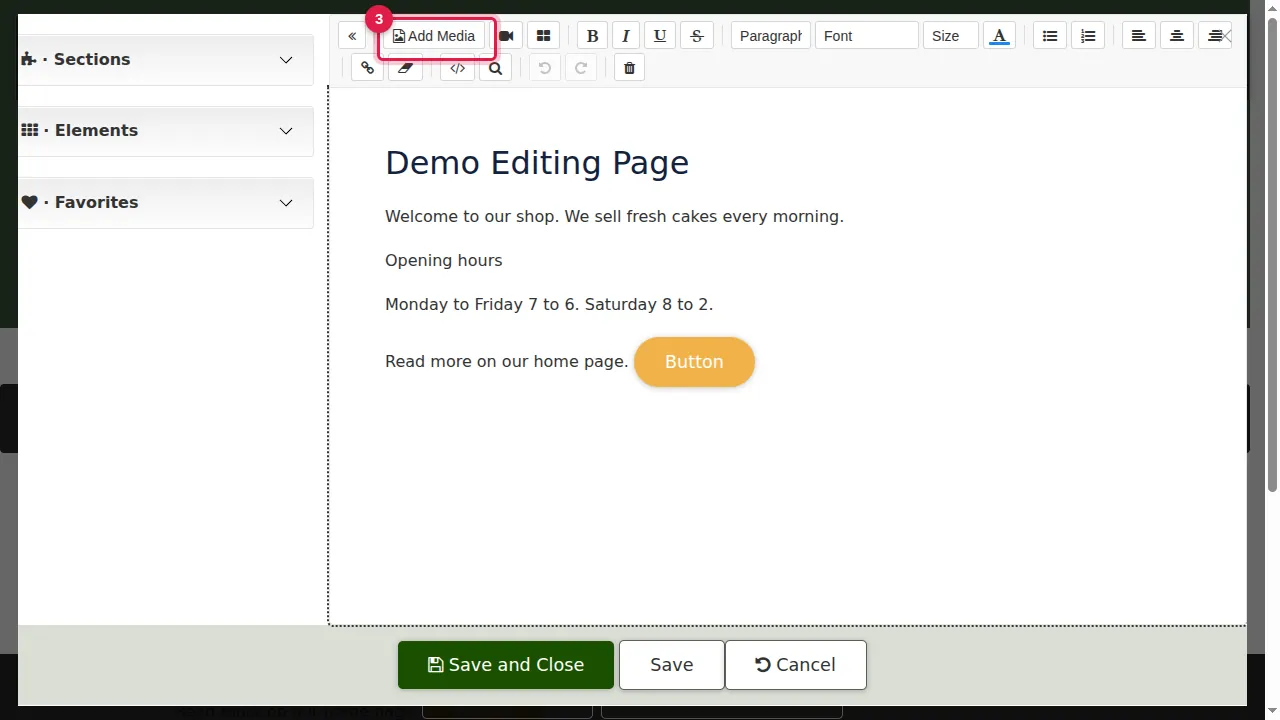
Step 3. Click Add Media and choose the picture on your computer.
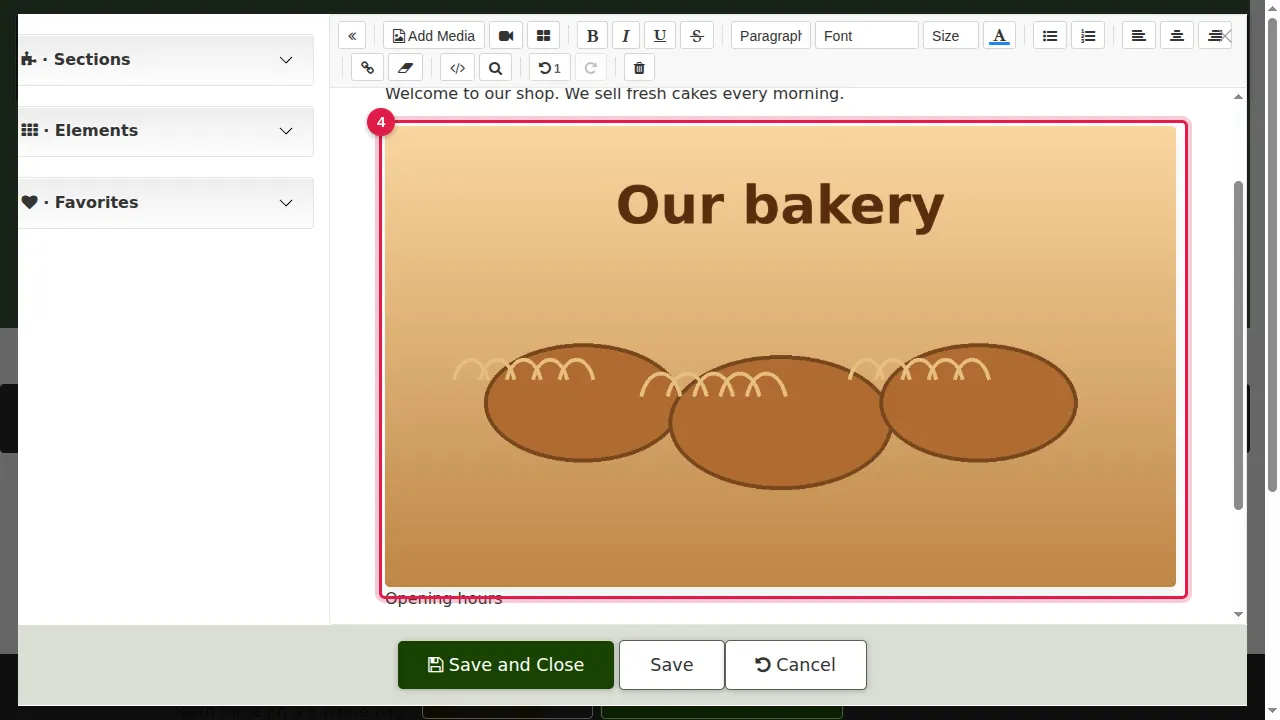
Step 4. The picture is uploaded and placed at the cursor. Click it to select it; drag the small square at its bottom-right corner to make it smaller or bigger.
Add a YouTube or Vimeo video
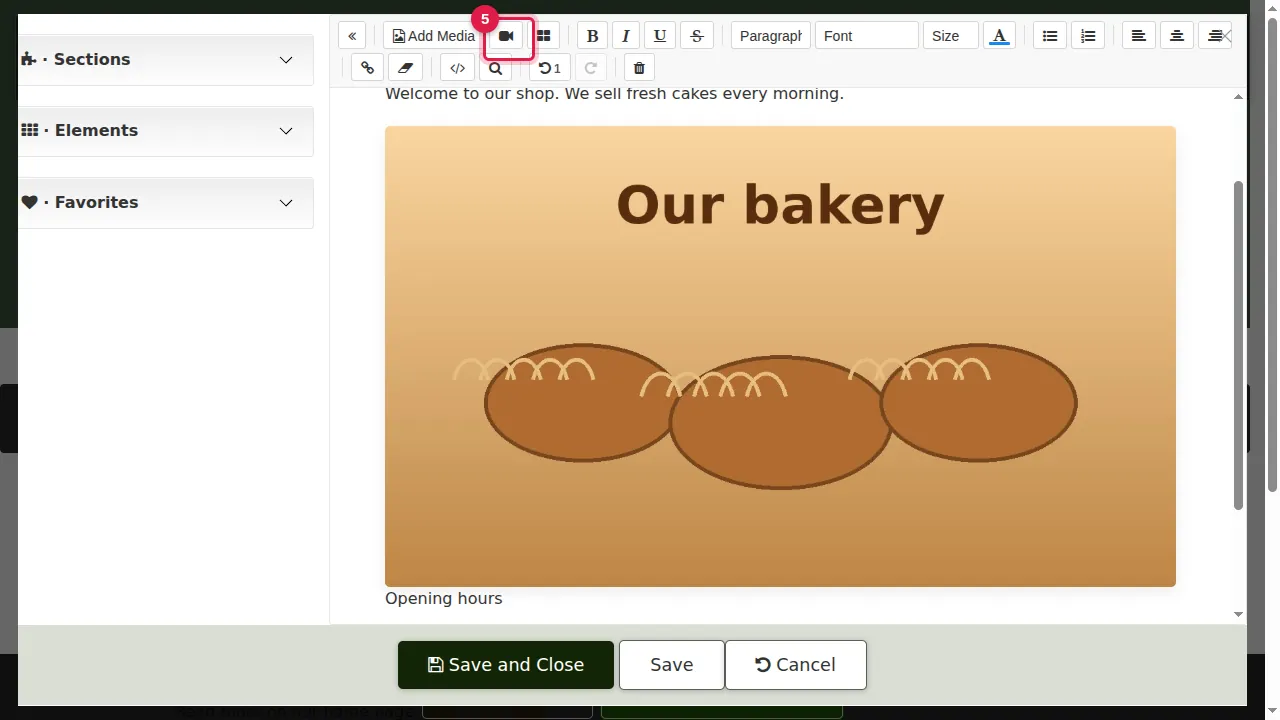
Step 5. For a video, click the camera button (Insert video).
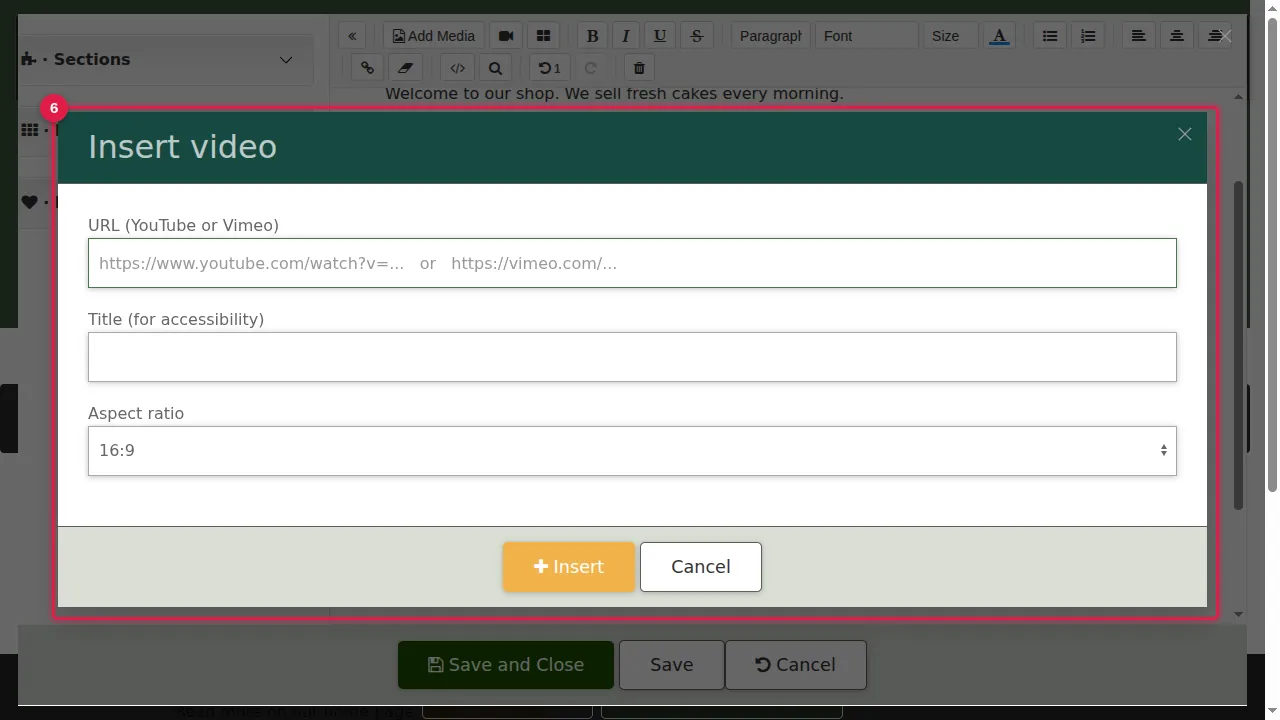
Step 6. Paste the video's YouTube or Vimeo address, type a short title (it helps blind visitors), choose its shape (16:9, 4:3, 21:9 or 1:1) and click Insert.
Save
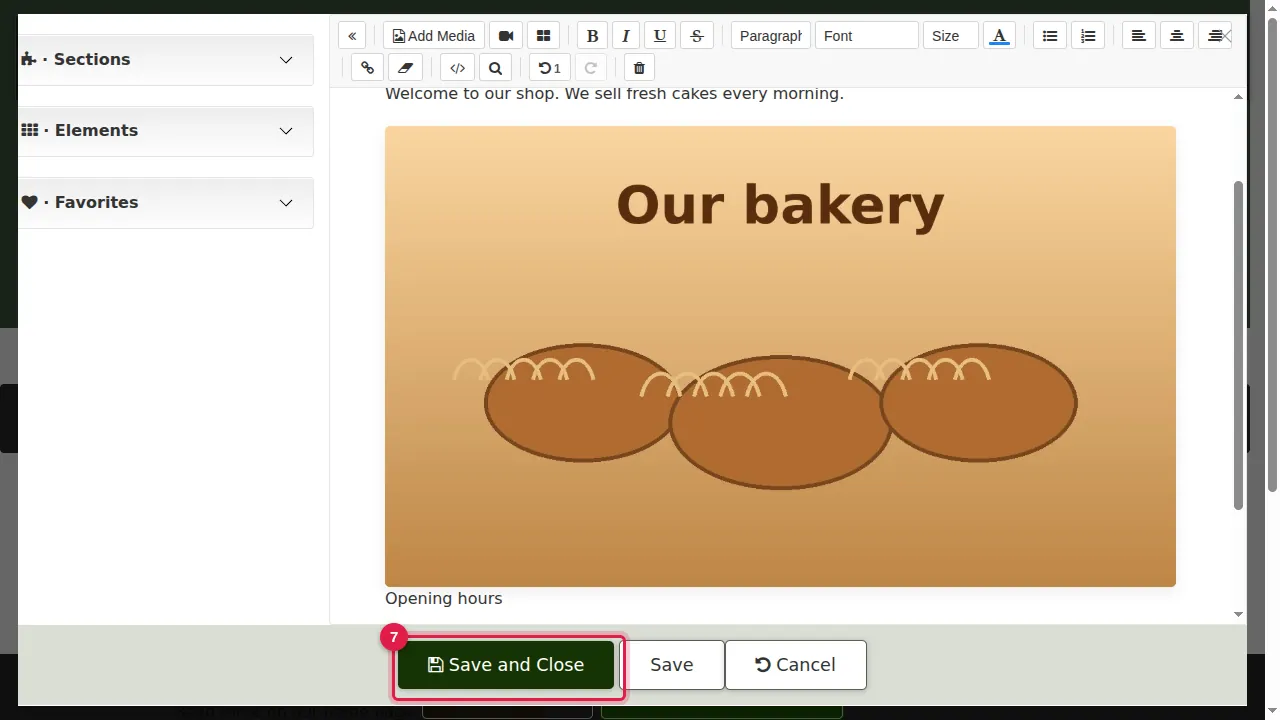
Step 7. Click Save and Close.
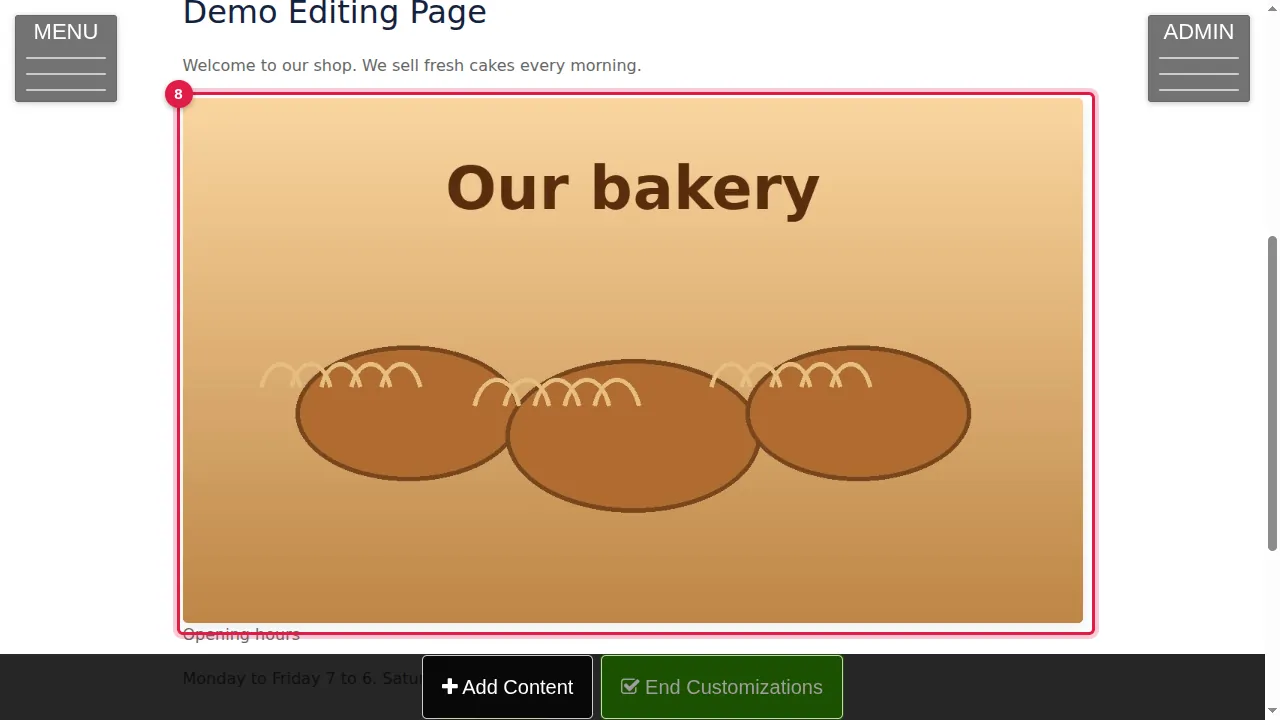
Step 8. The picture is on your page.
Check it worked
Click End Customizations and look at the page; open it on your phone too.
Good to know
- Describe your pictures for blind visitors and search engines: switch to the HTML view (</>), find the picture's line and type a short description between the quotes of alt="".
- Pictures added this way belong to the page; they do not appear in your gallery.
- The button next to the camera (Insert template) offers ready-made layouts you can insert at the cursor.
Related help
Shown on the 2026 version of the SoNET Web Engine. Last checked 21 October 2026. Something different on your screen? Tell us through the Contact page.