Help Center Pages & Editing
Ready-made sections and elements, HTML view and find & replace
The section editor's side panel holds ready-made content you can drop into your page with one click. The toolbar also has an HTML view for advanced changes and a Find and replace tool.
Watch it done: a short silent video with captions · 2:46. The steps below show the same thing picture by picture.
Before you start
- Log in, open the page, click Customize This Page and then the pencil of the section you want to change.
Insert ready-made content
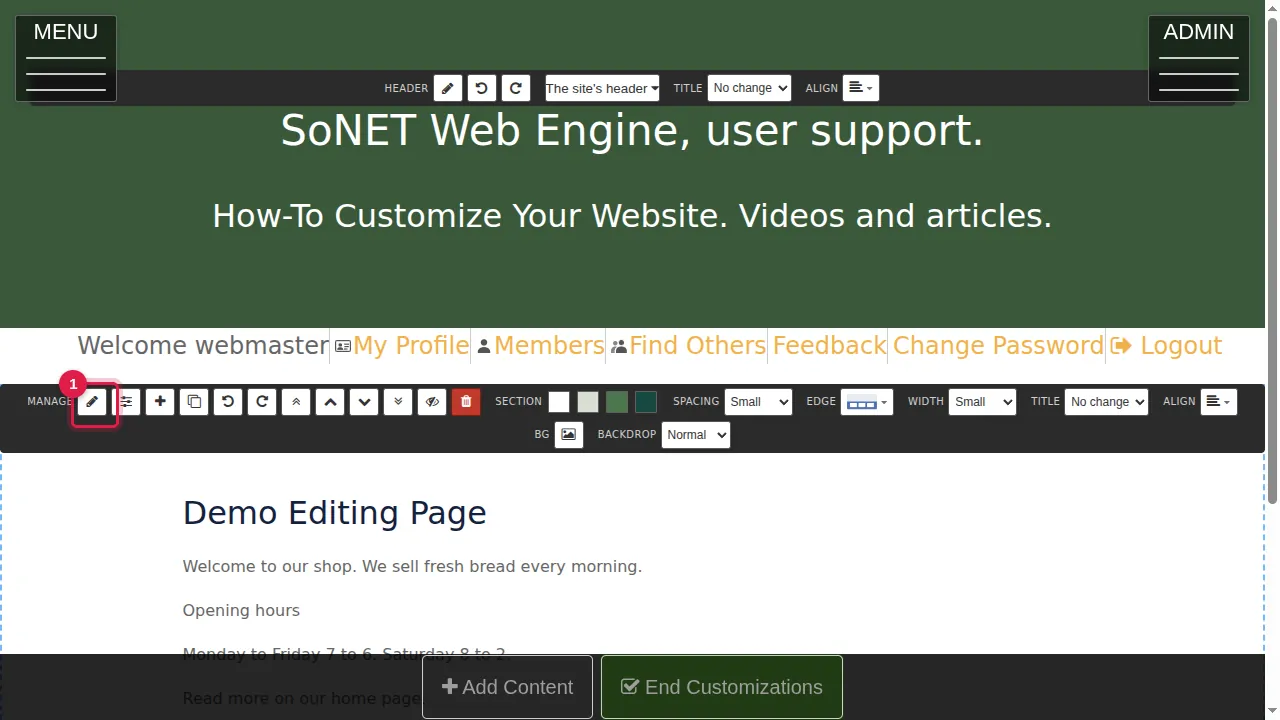
Step 1. Click Customize This Page, then the pencil of the section. The section editor opens with a side panel on the left.
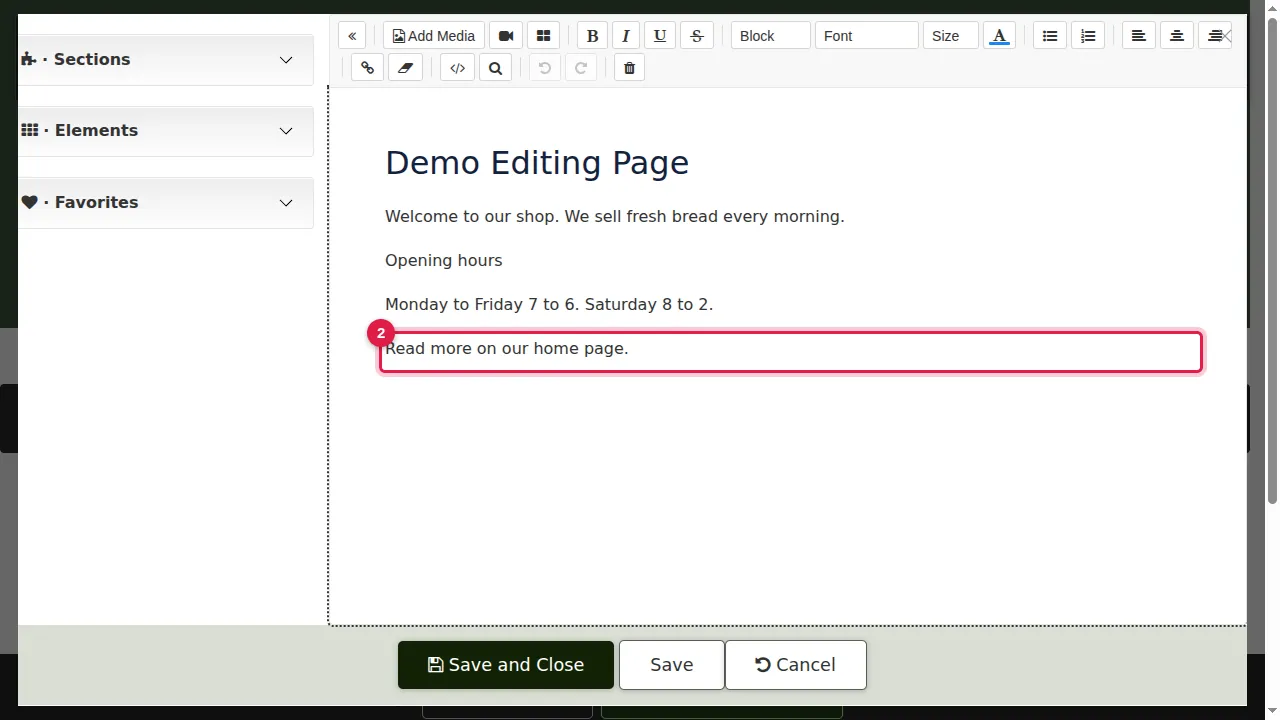
Step 2. Click in the text where the new content should go; the cursor marks the spot.
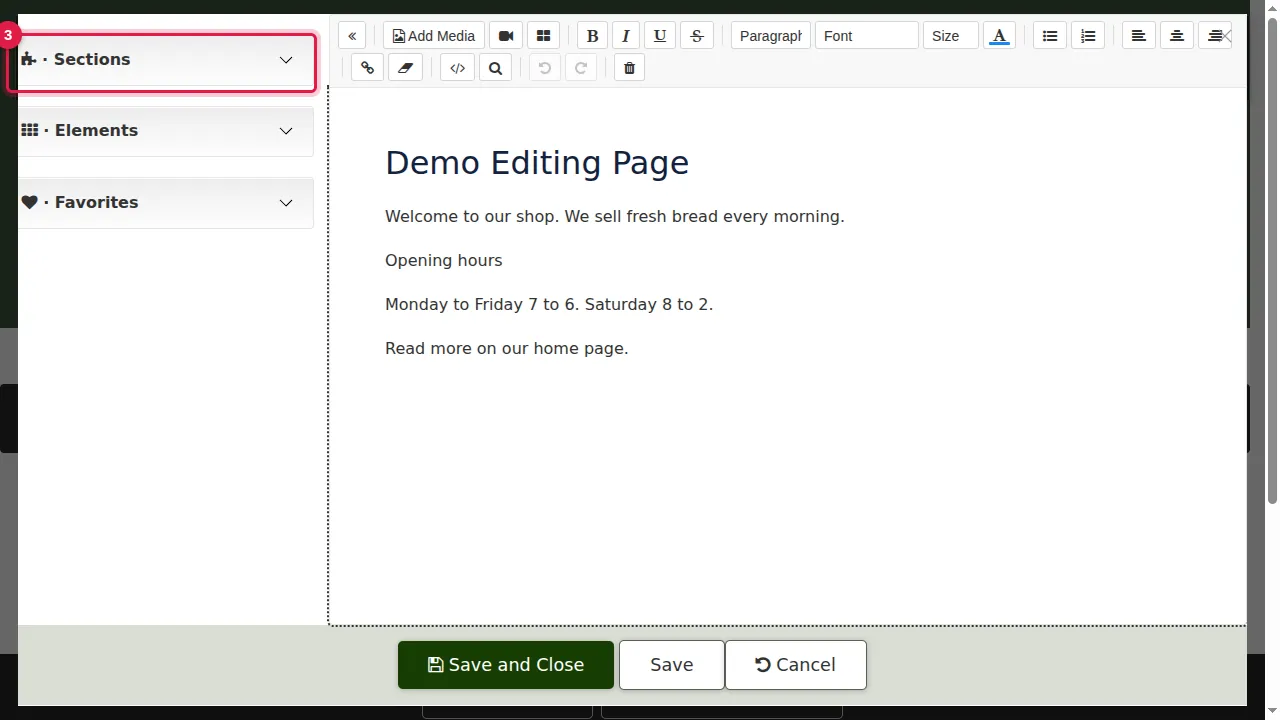
Step 3. Sections are complete, ready-made blocks: promotions, articles, FAQ, benefits, testimonials, services, team, pricing, contact buttons and links, galleries, map, slider, business hours, YouTube videos, reviews, dining menu, products from your store, footer, divider and more.
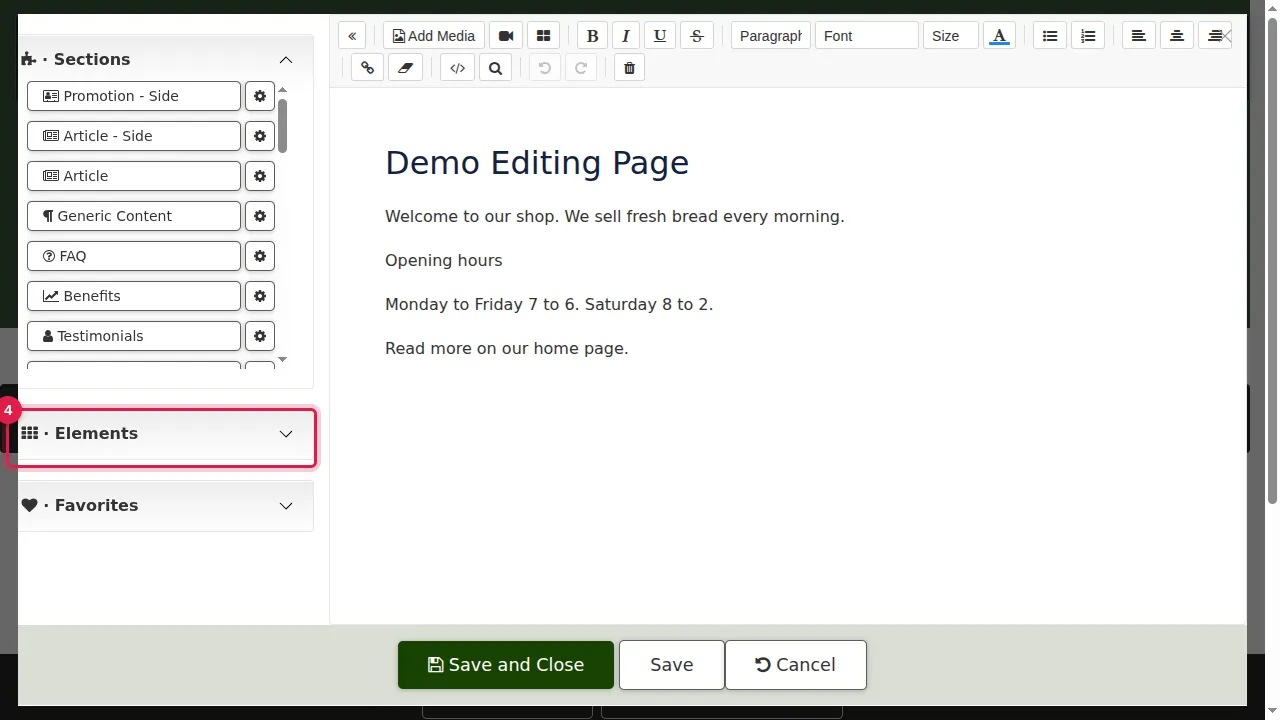
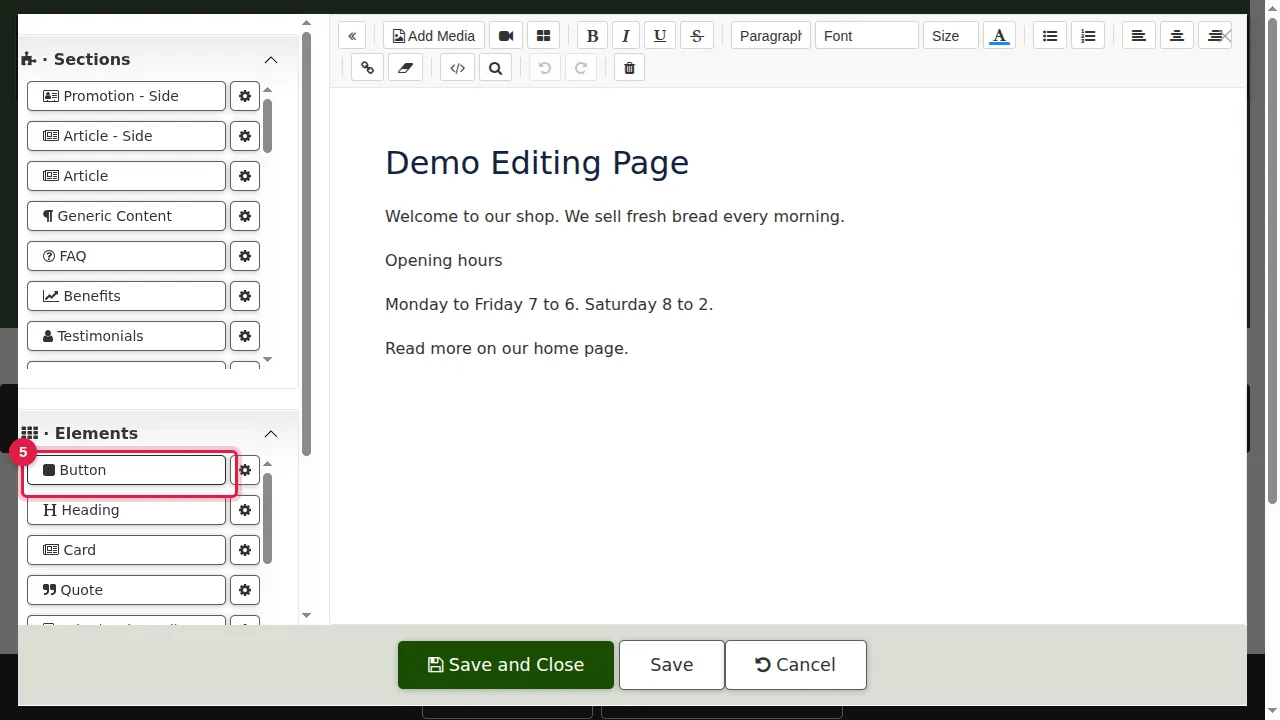
Step 4. Elements are smaller pieces: button, heading, card, quote, tabs, accordion, columns, list, alert, grid, slider, table, countdown, modal dialog, overlay, Add to Cart, event and single post.
Step 5. Click an item to put it at the cursor. Here a Button is added at the end of the last line.
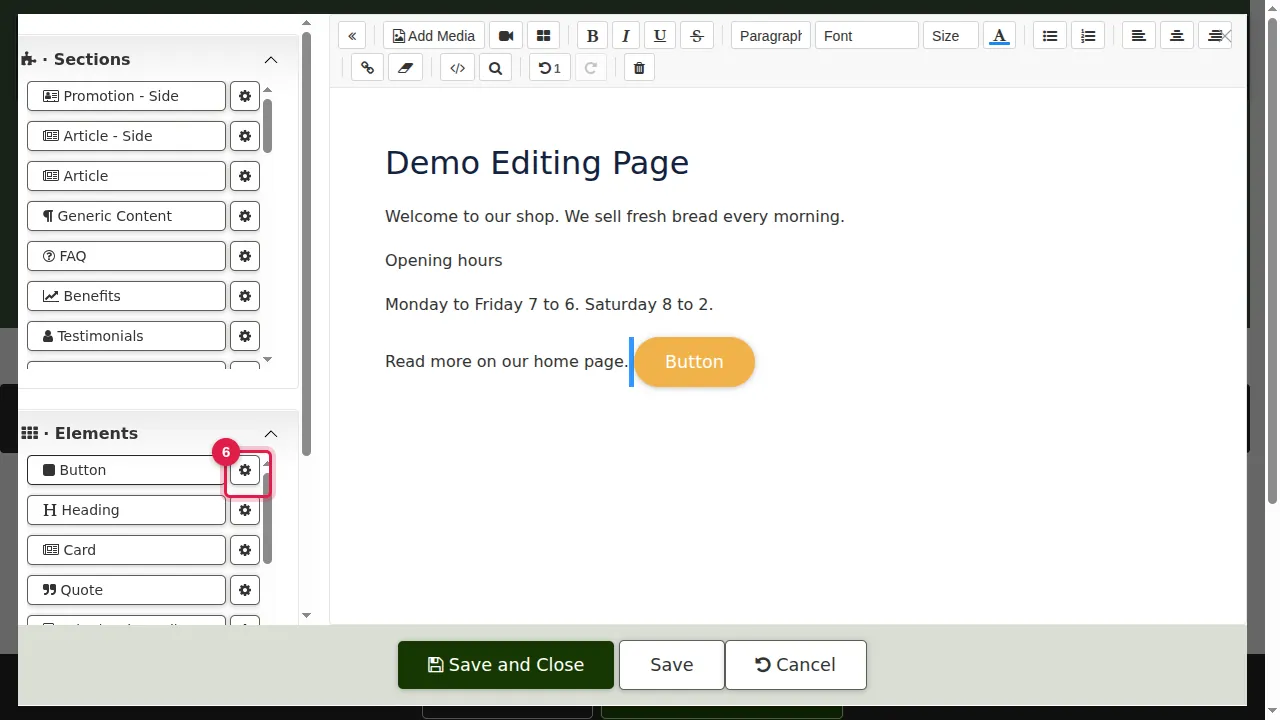
Step 6. The gear next to an item lets you set its options (for example a button's text, link and look) before you insert it.
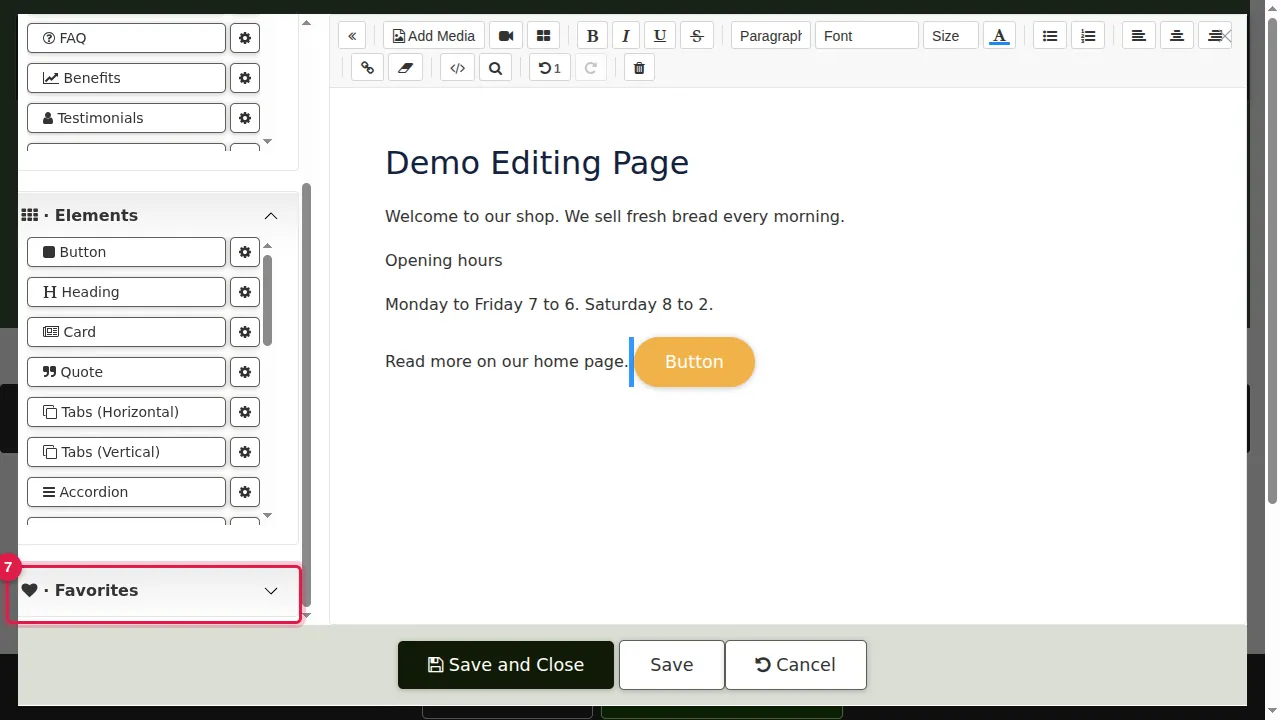
Step 7. Favorites keeps content you saved for later, so you can use it again on any page.
The HTML view
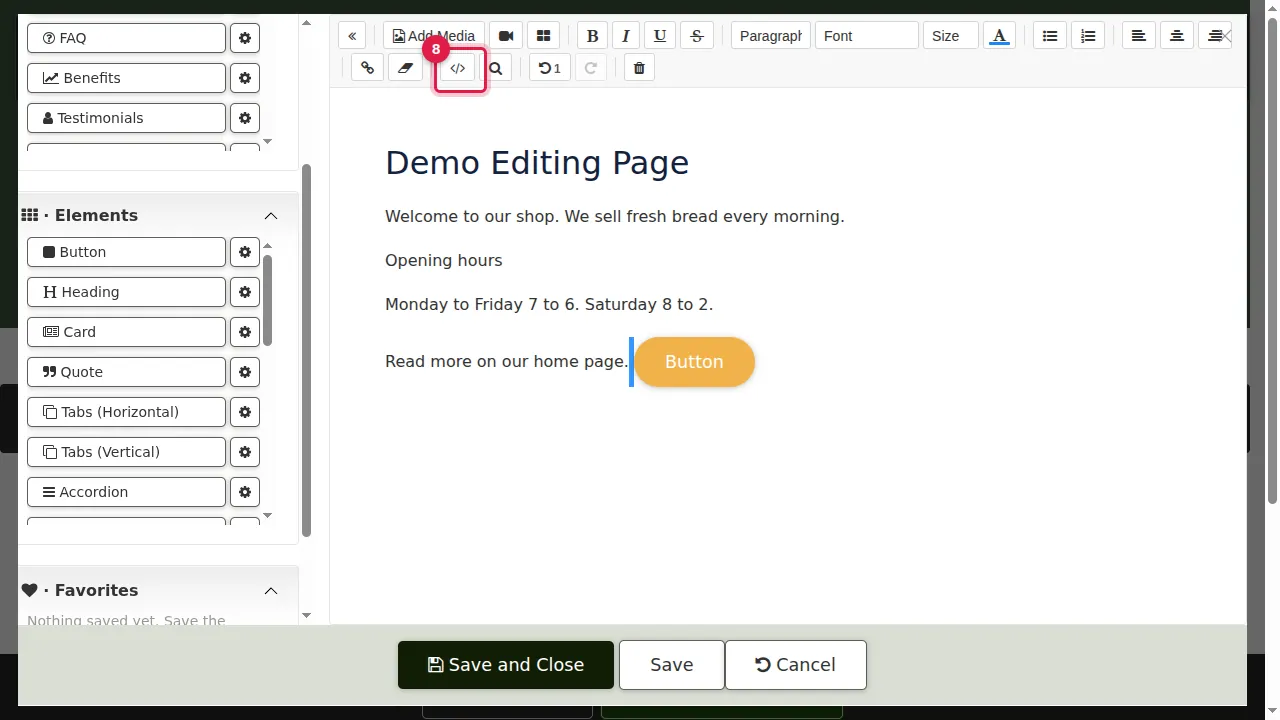
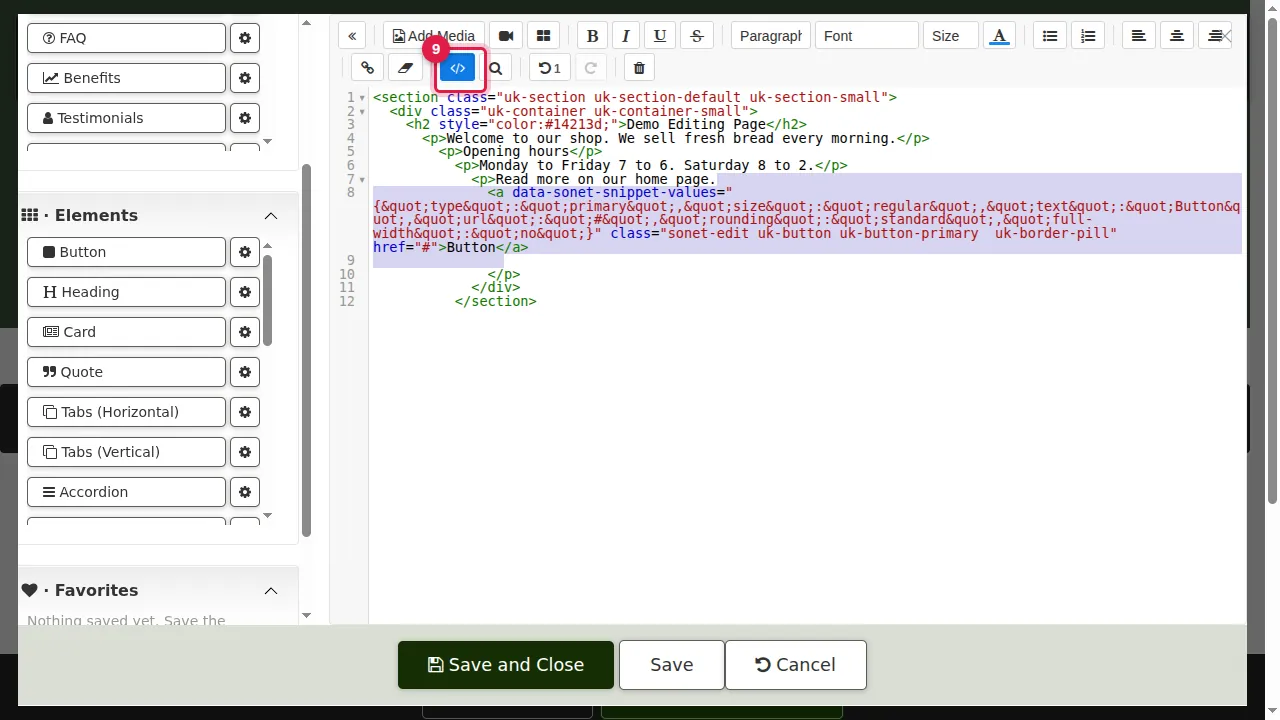
Step 8. </> switches the section to its HTML code, with line numbers, for advanced changes.
Step 9. Click </> again to go back to the normal view.
Find and replace
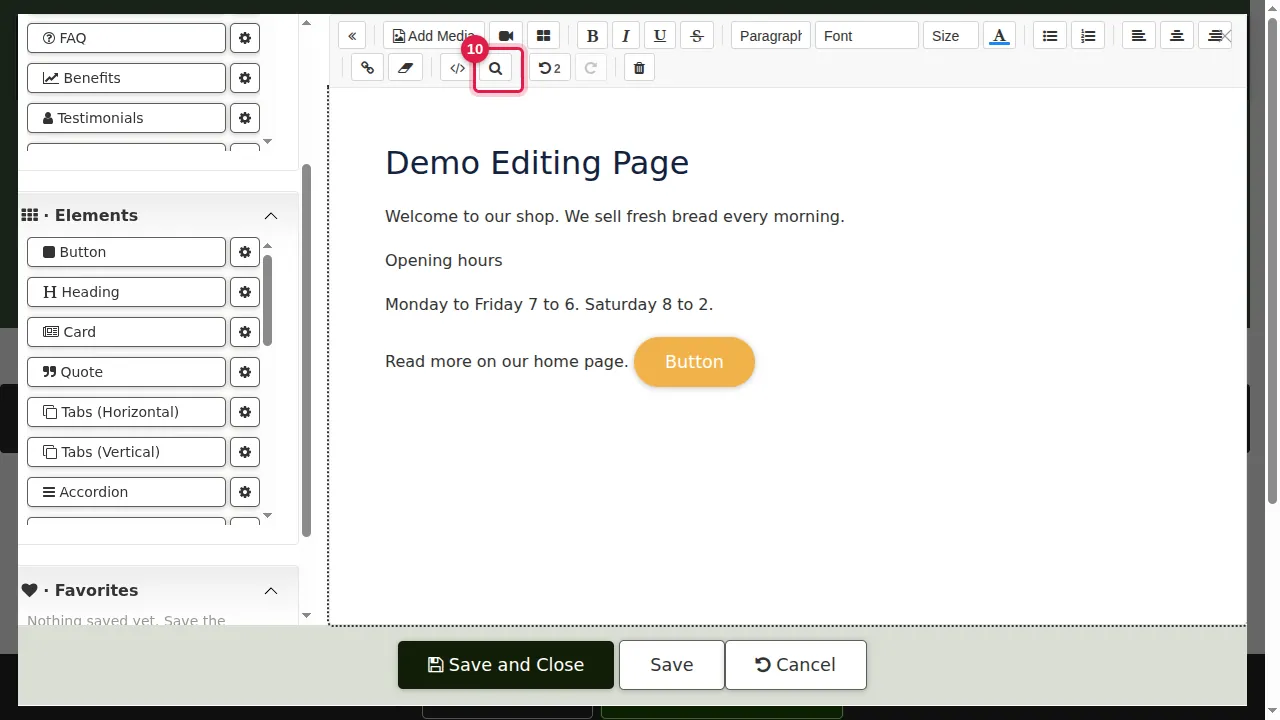
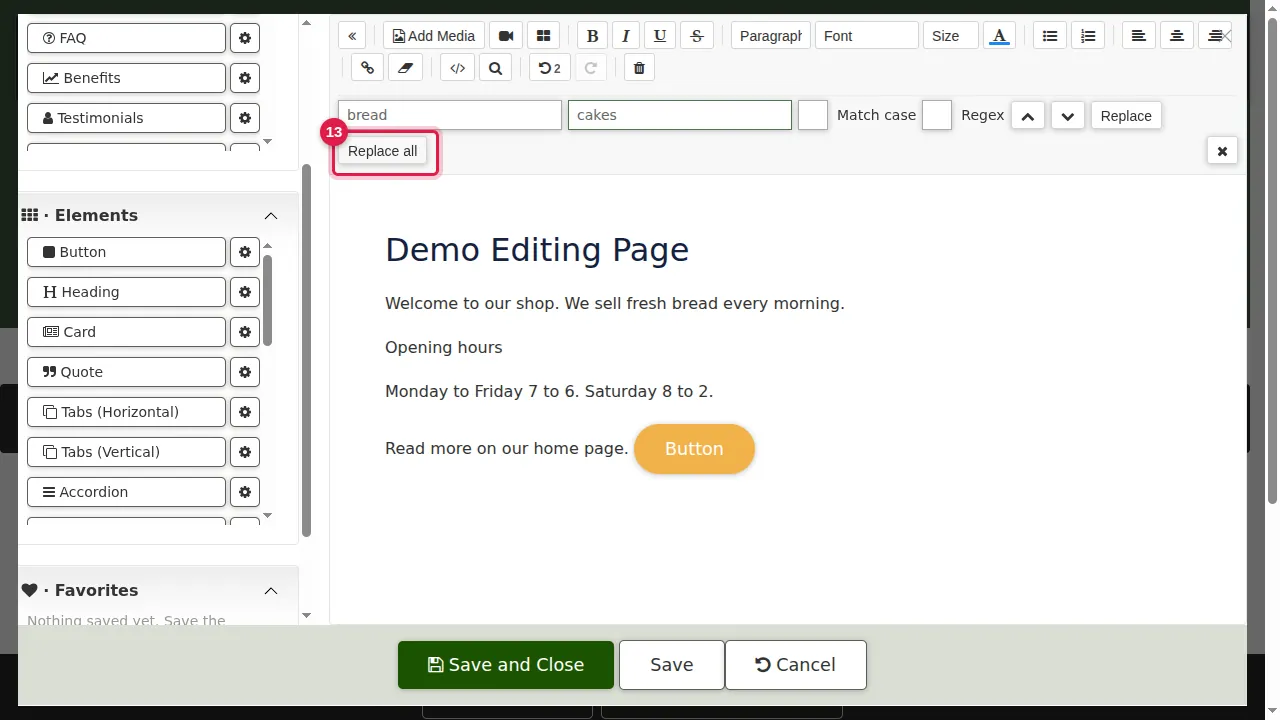
Step 10. The magnifier opens Find and replace.
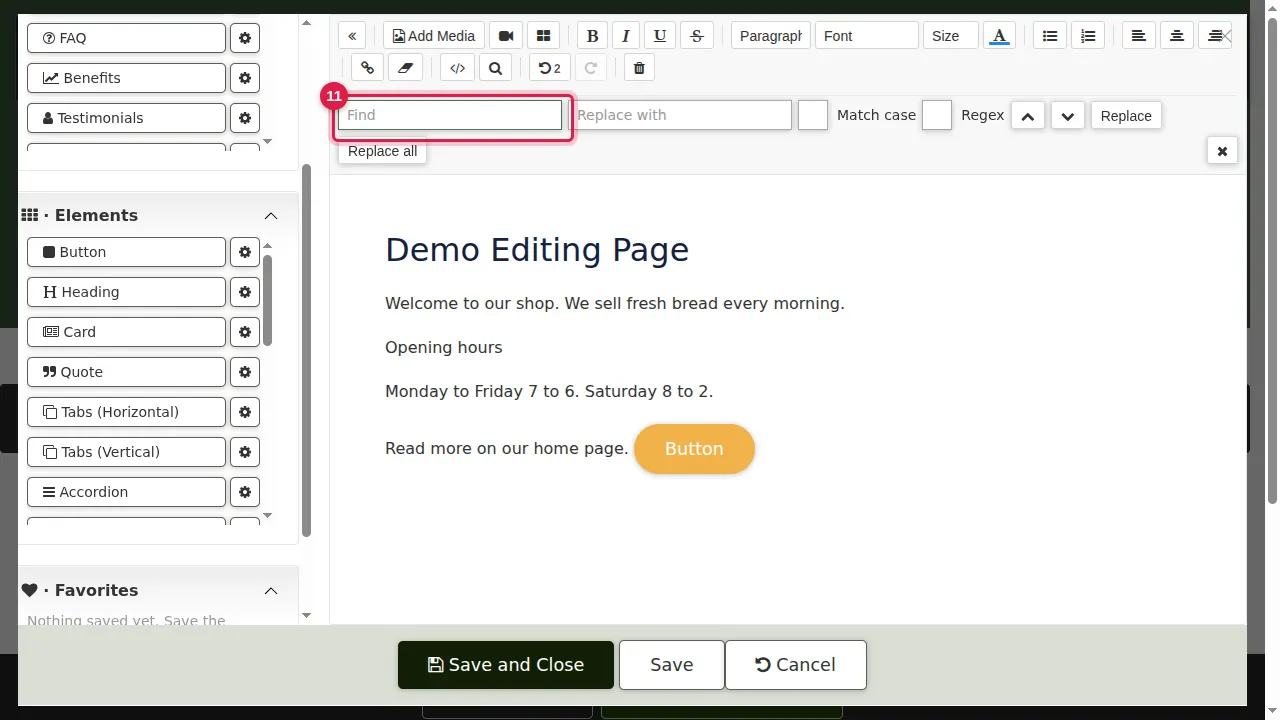
Step 11. Type the word or words to find. Next and Previous jump between matches; tick Match case or Regex for exact or pattern searches.
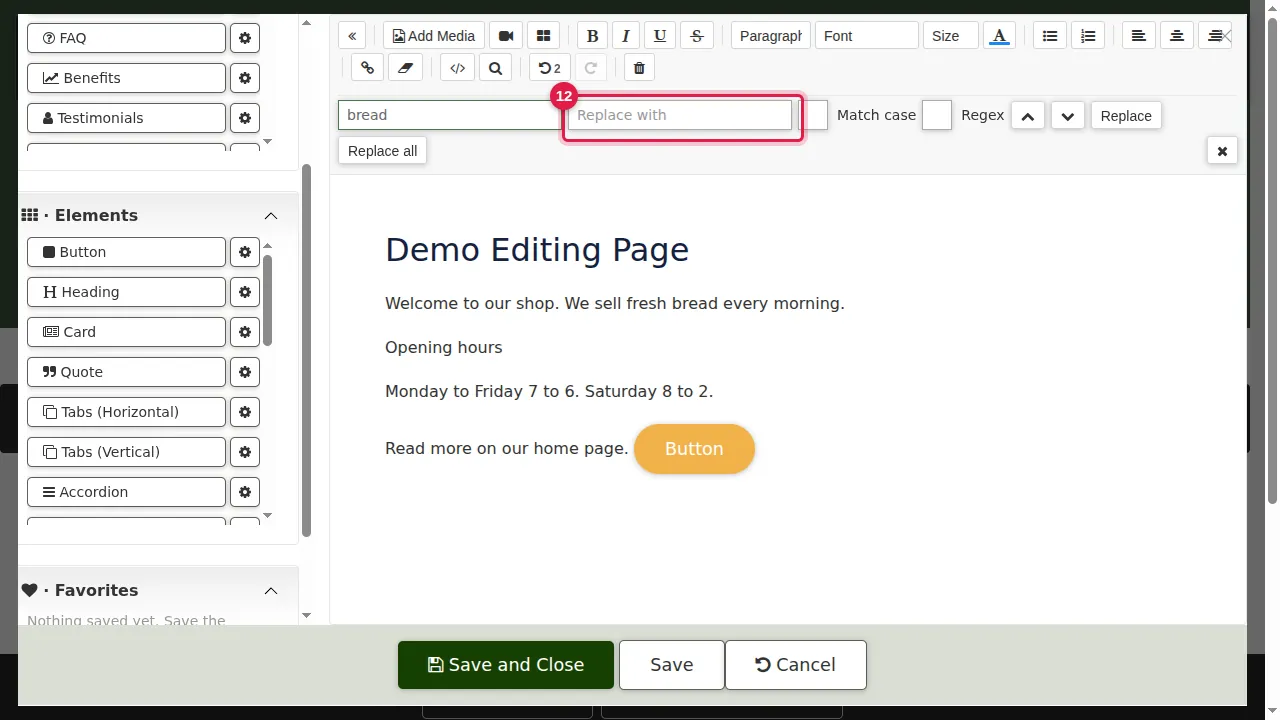
Step 12. Type what should replace them.
Step 13. Click Replace all, or Replace to change one match at a time. The × closes the bar.
Save
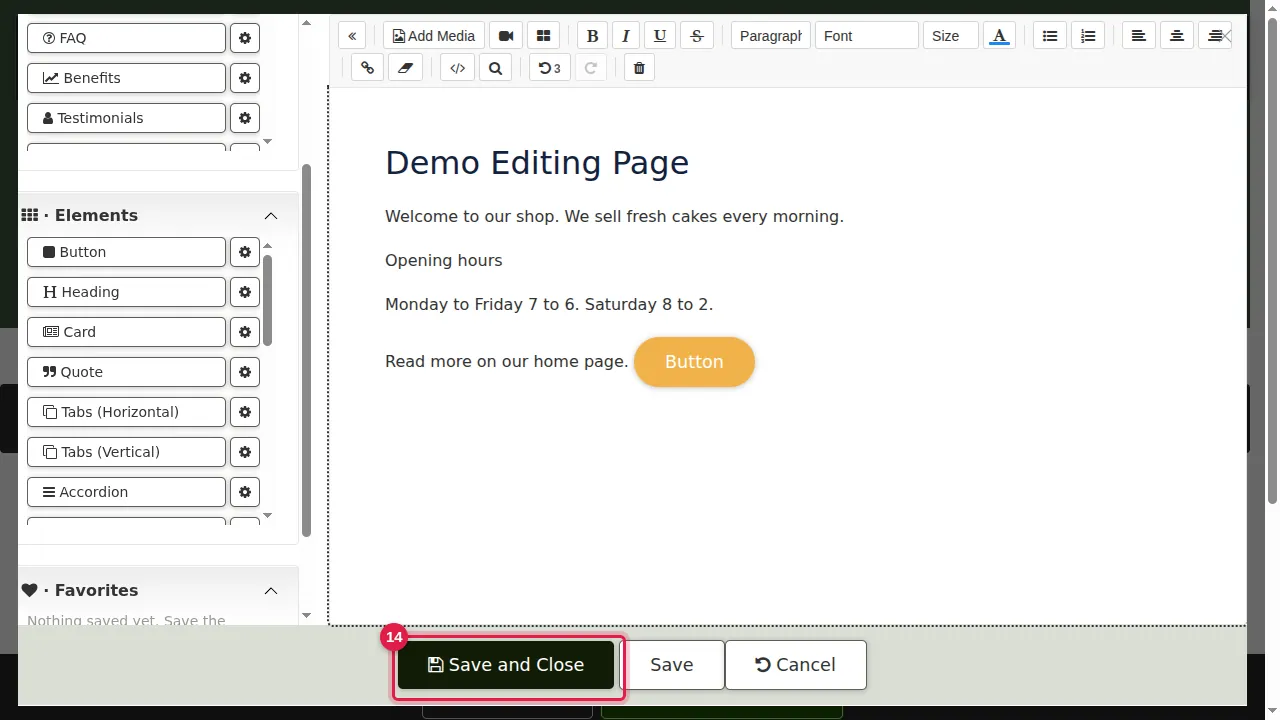
Step 14. Click Save and Close.
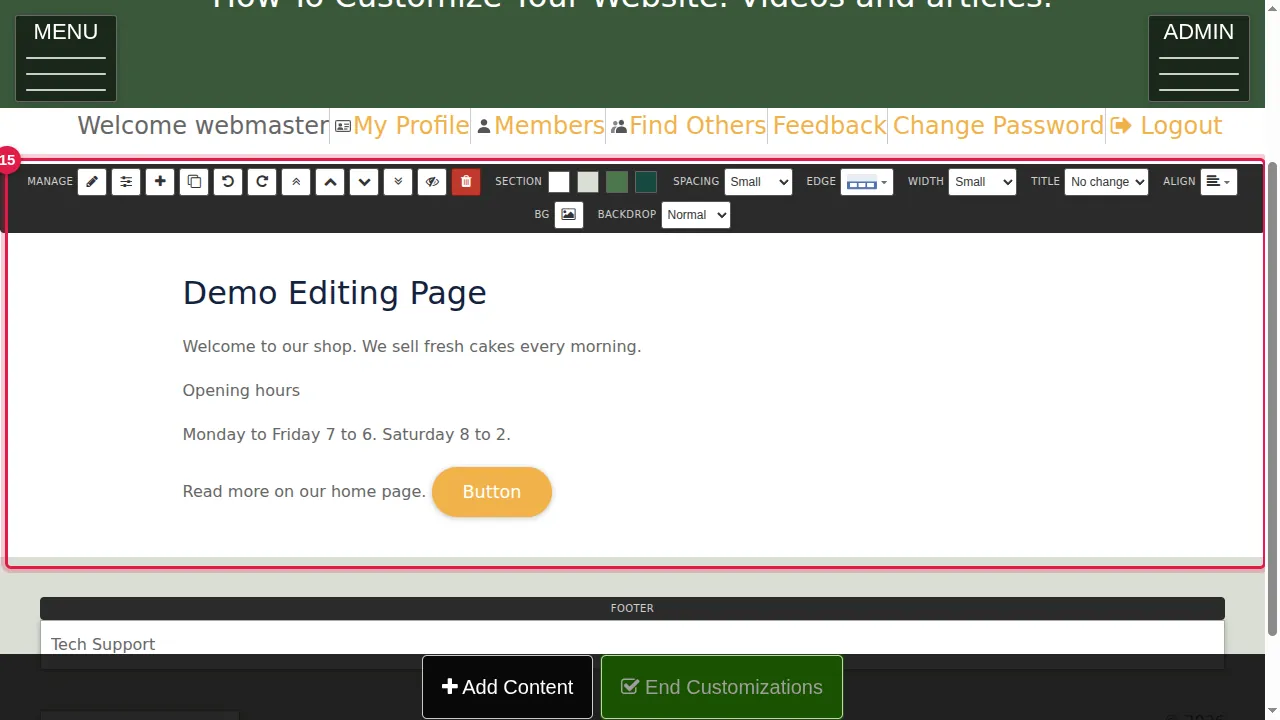
Step 15. The page shows the new button, and "bread" has become "cakes".
Check it worked
Click End Customizations and look at the page as your visitors see it.
Good to know
- Made a mistake? Undo (Ctrl+Z) in the editor takes back the last change; Cancel closes the editor without saving anything.
Related help
Shown on the 2026 version of the SoNET Web Engine. Last checked 21 October 2026. Something different on your screen? Tell us through the Contact page.