Help Center Media & Videos
Upload photos
Upload Media puts pictures from your computer into a folder of your site's gallery, in one go. You can add them to a folder you have, or make a new folder on the spot.
Watch it done: a short silent video with captions · 1:34. The steps below show the same thing picture by picture.
Before you start
- Have the pictures ready on your computer.
- Log in to your website.
Choose the folder
Step 1. Click ADMIN at the top right.

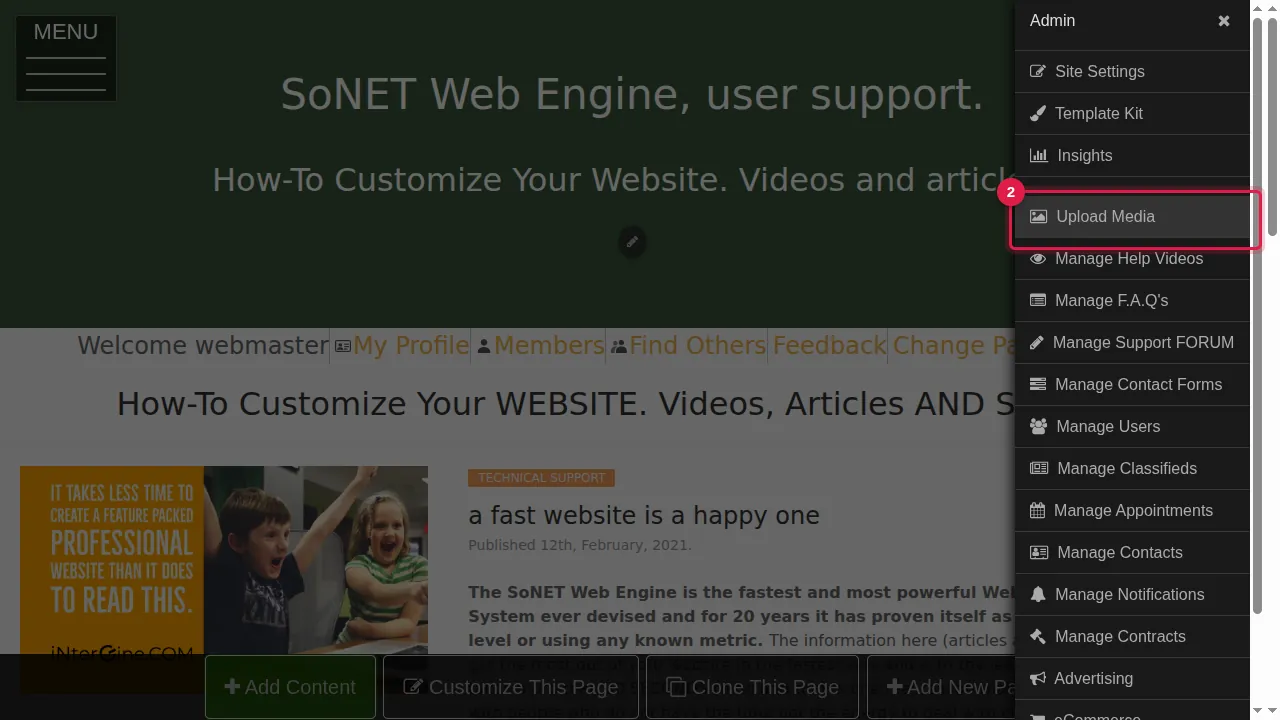
Step 2. Click Upload Media.
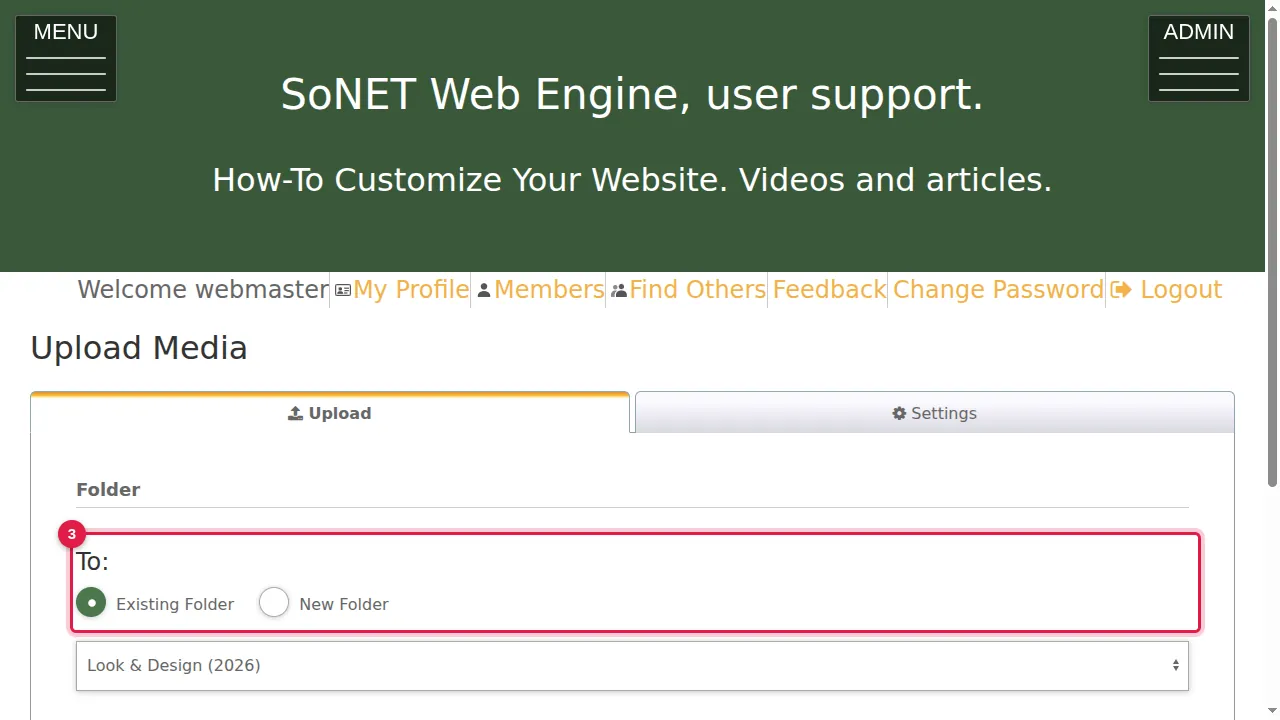
Step 3. Under Folder › To, choose Existing Folder (then pick it in the list) or New Folder.
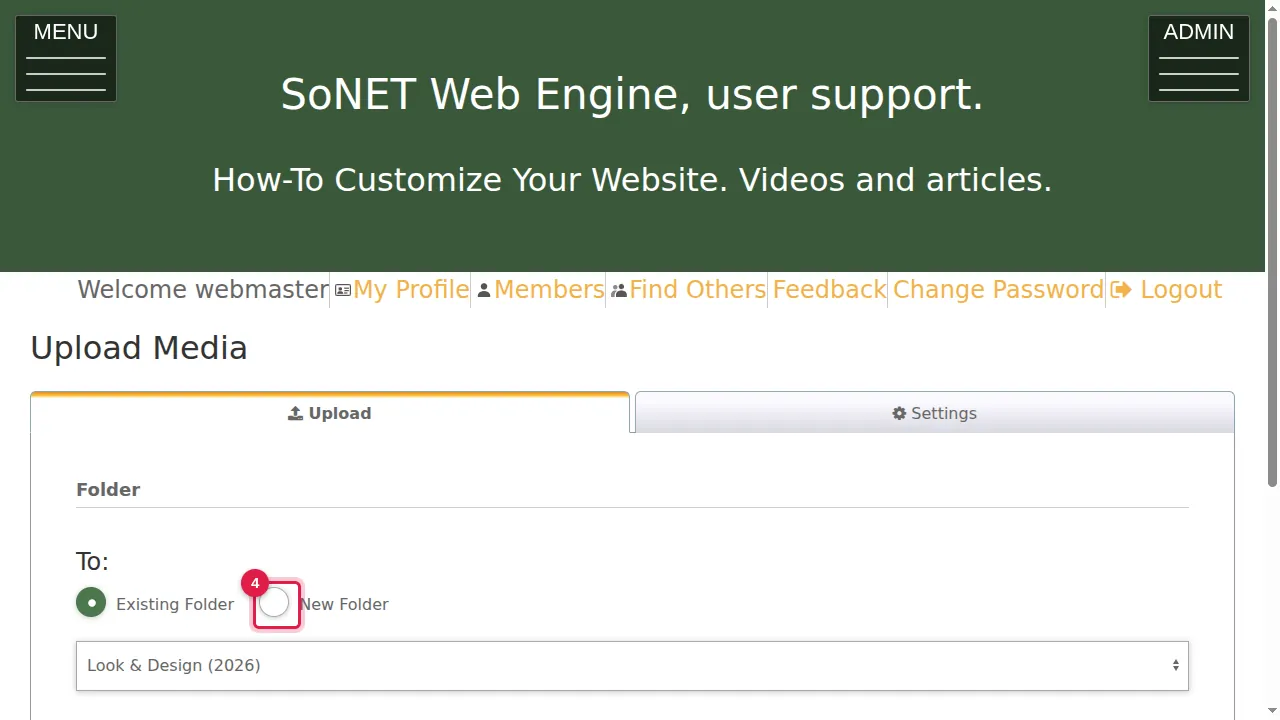
Step 4. Here: New Folder.
Step 5. Type the new folder's name.
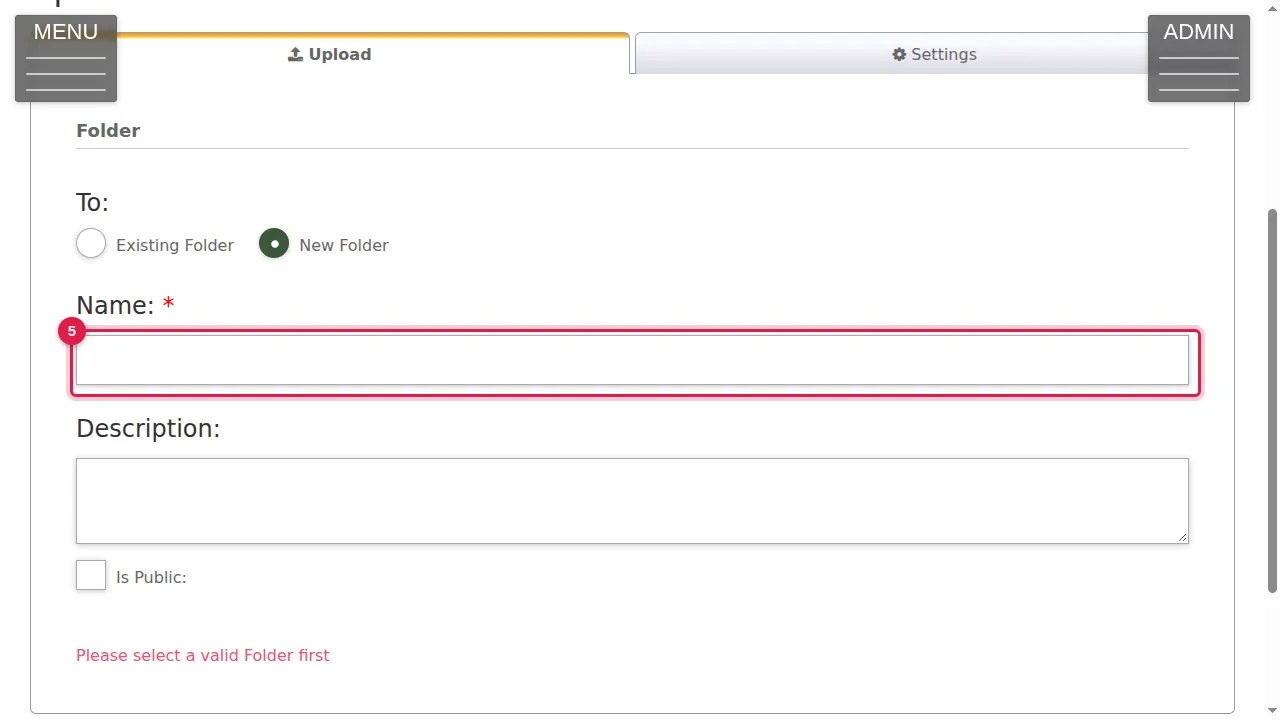
Step 6. Type a description if you like. The new folder also has an "Is Public" box.
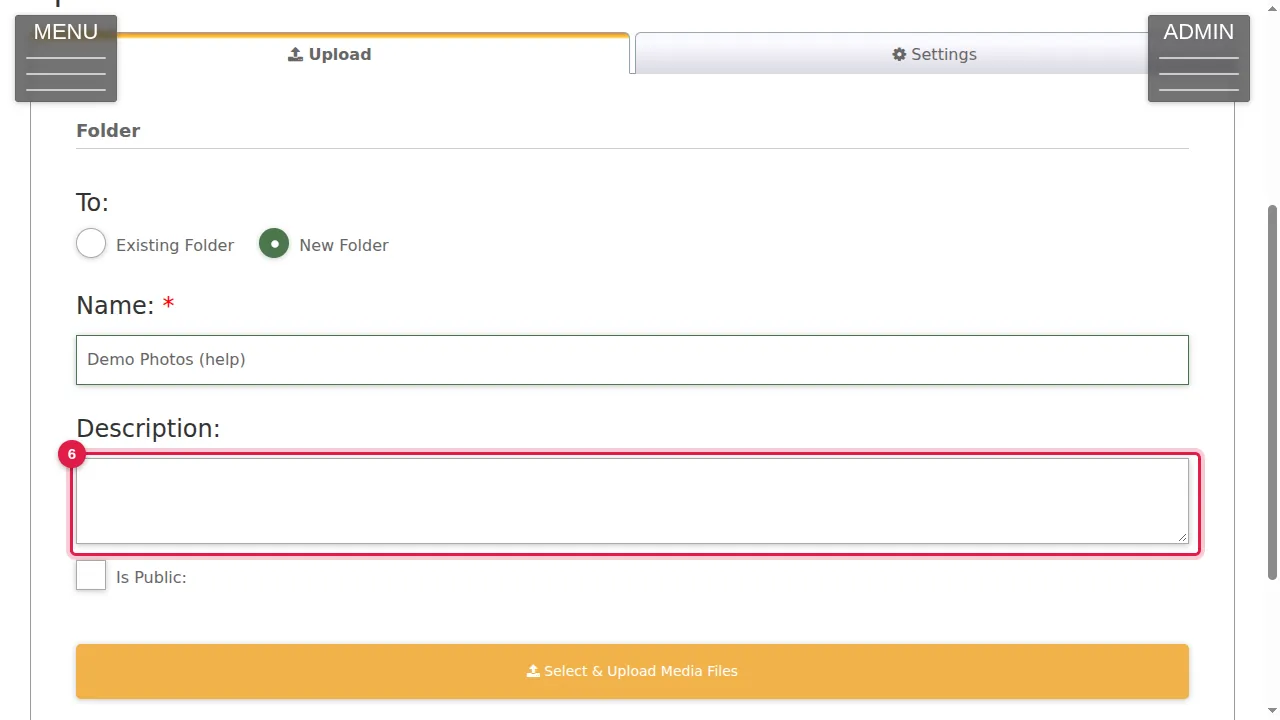
Upload
Step 7. Click Select & Upload Media Files and choose the pictures on your computer (you can choose several at once). They are uploaded straight away.
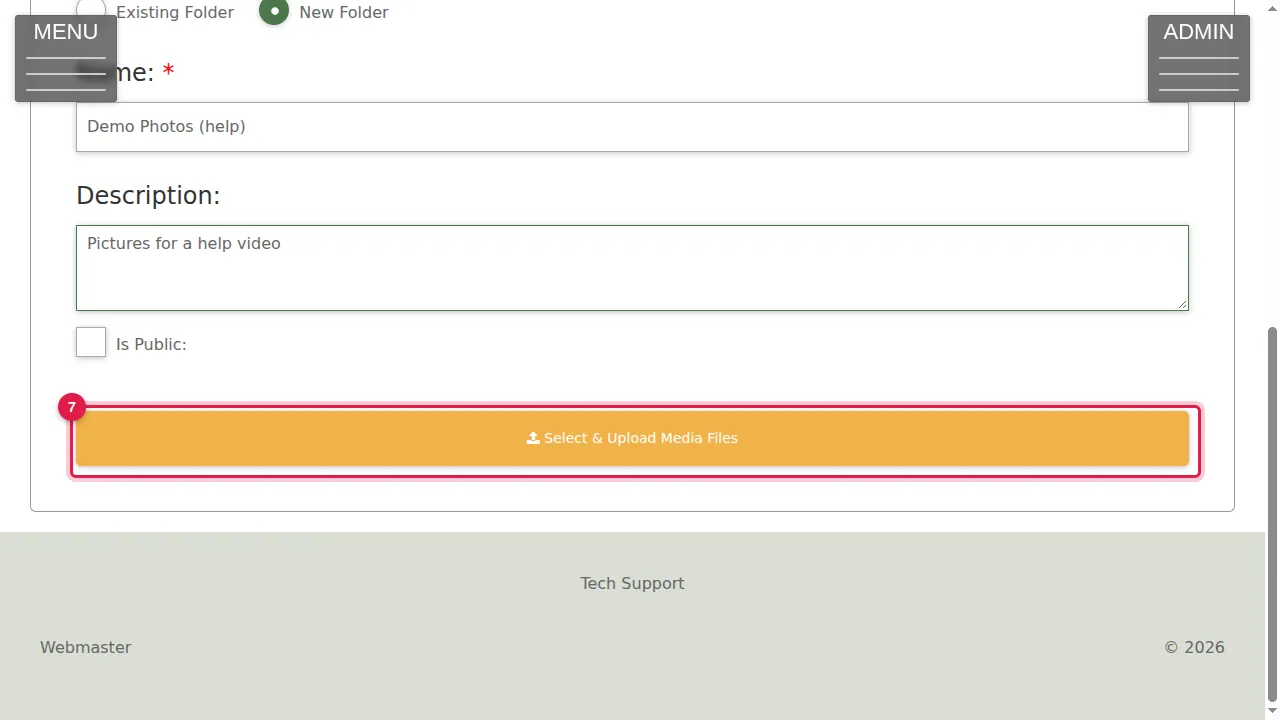
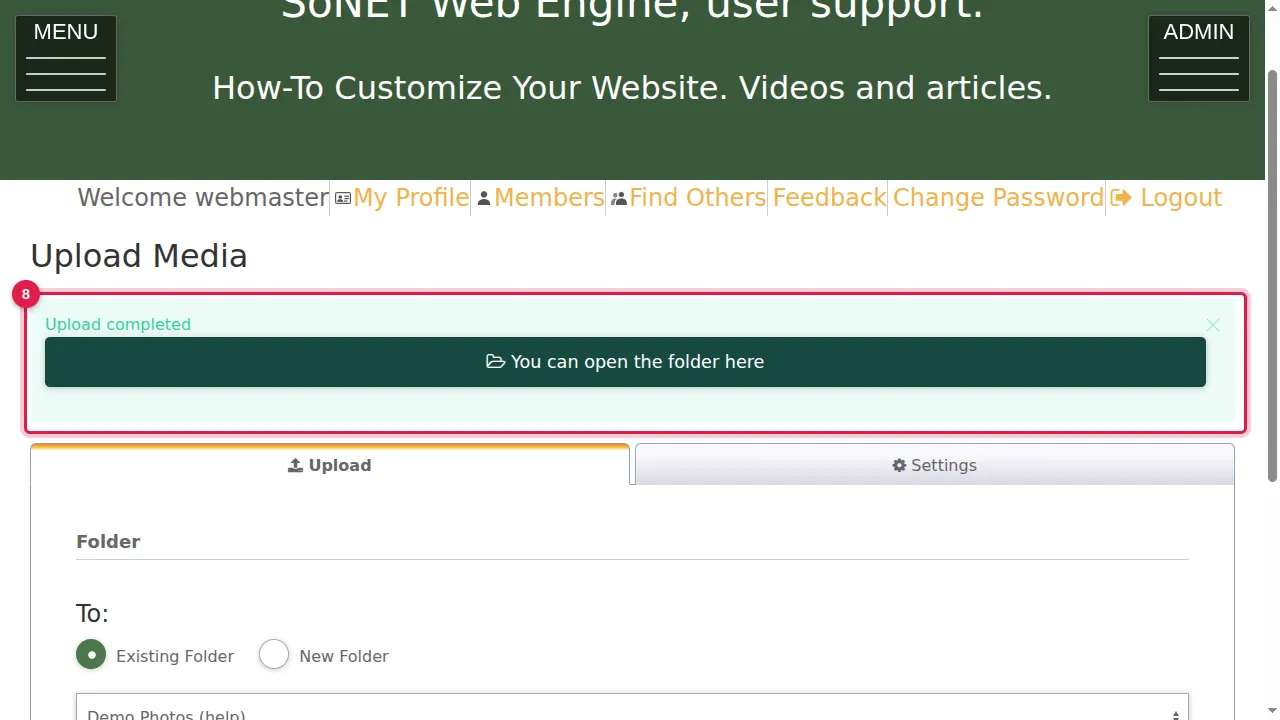
Step 8. "Upload completed" appears, with a button to open the folder.
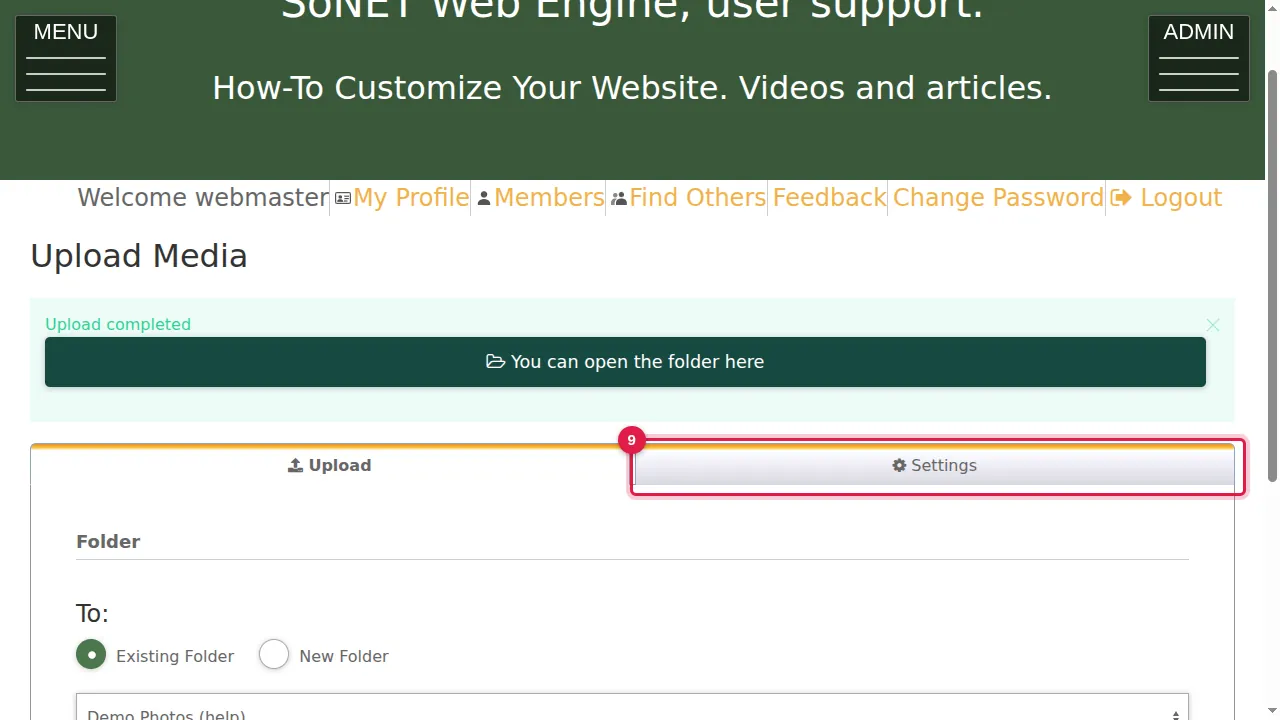
Upload settings
Step 9. The Settings tab sets the default folder (Month and Year, Day, Month and Year, or Always ask), the size your photos are stored at (Standard 1280, Medium 1600, Large 1920 or Extra Large 3840 pixels wide) and the size of the small preview pictures. Click Save Settings after a change.
Check it worked
Click "You can open the folder here" and look at your pictures in the gallery.
Good to know
- Videos and audio are uploaded the same way, from their own Upload Media pages.
- Pictures that belong to one page are better added in the page editor with Add Media: they then stay with that page instead of going into the gallery.
Related help
Shown on the 2026 version of the SoNET Web Engine. Last checked 21 October 2026. Something different on your screen? Tell us through the Contact page.