Help Center Pages & Editing
Edit the menu: rename, reorder, icons, show or hide pages
Edit Menu lets you rename the items of your menu, give them icons, change their order, hide pages from the menu, put hidden pages back and add links.
Watch it done: a short silent video with captions · 1:42. The steps below show the same thing picture by picture.
Before you start
- Log in to your website.
Open Edit Menu
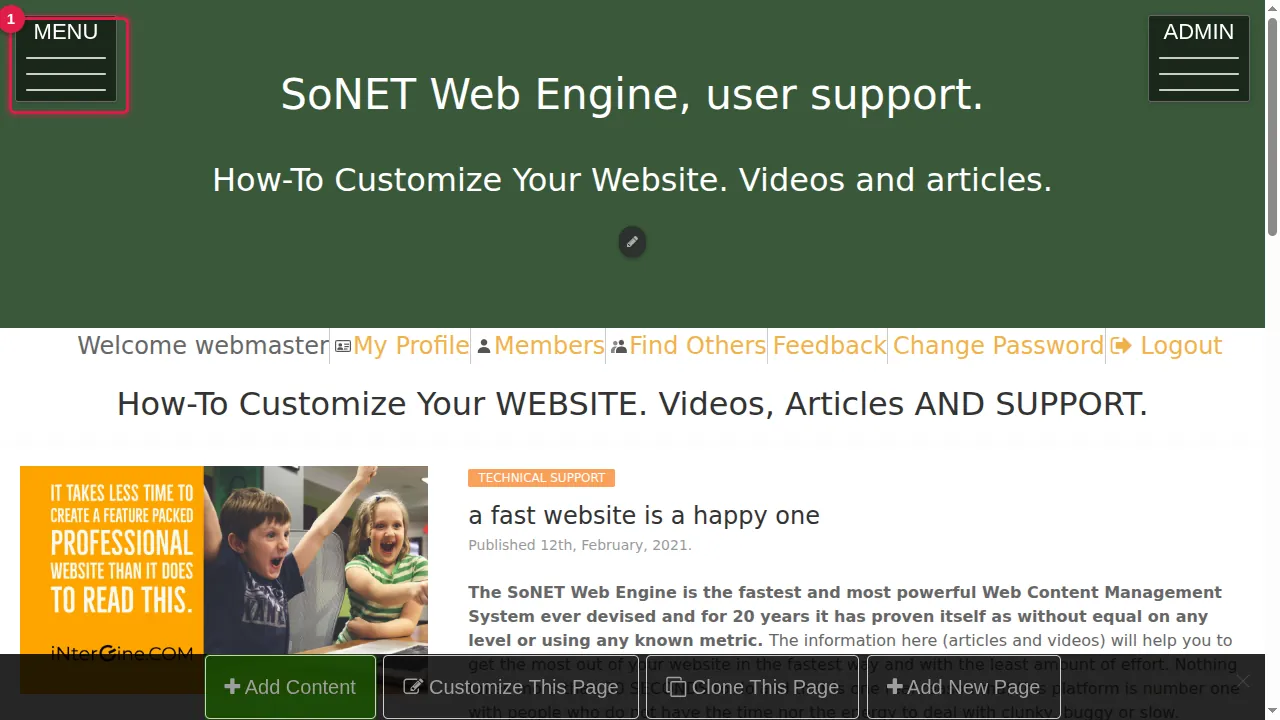
Step 1. Open the MENU at the top left.
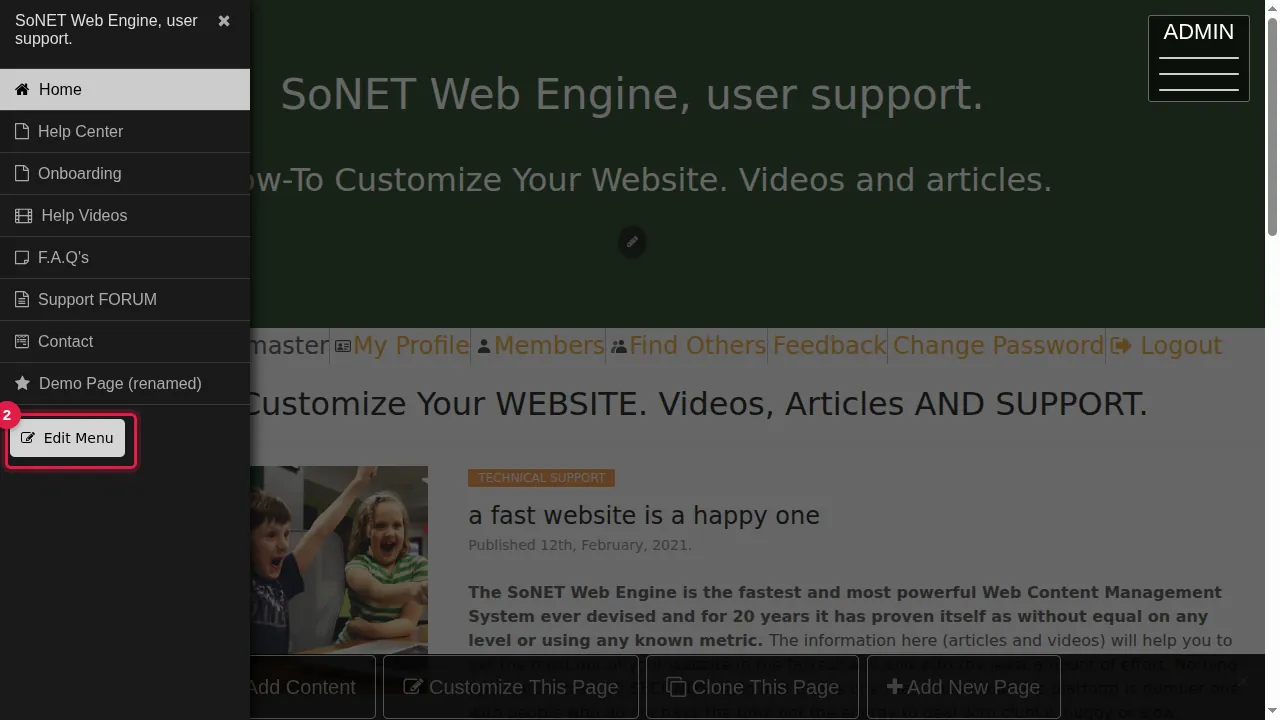
Step 2. Click Edit Menu at the bottom of the menu.
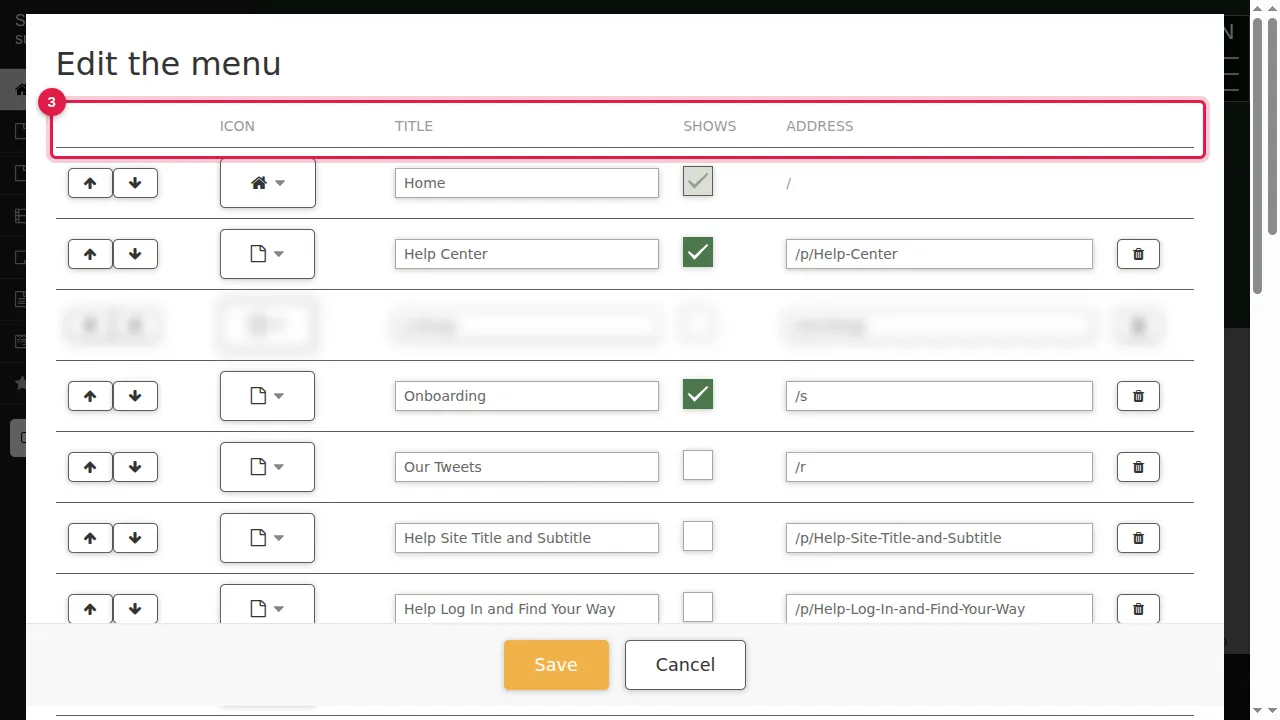
Step 3. "Edit the menu" lists every item of your menu. Each row has arrows, an icon, the title, a Shows box and the page's address.
Change a menu item
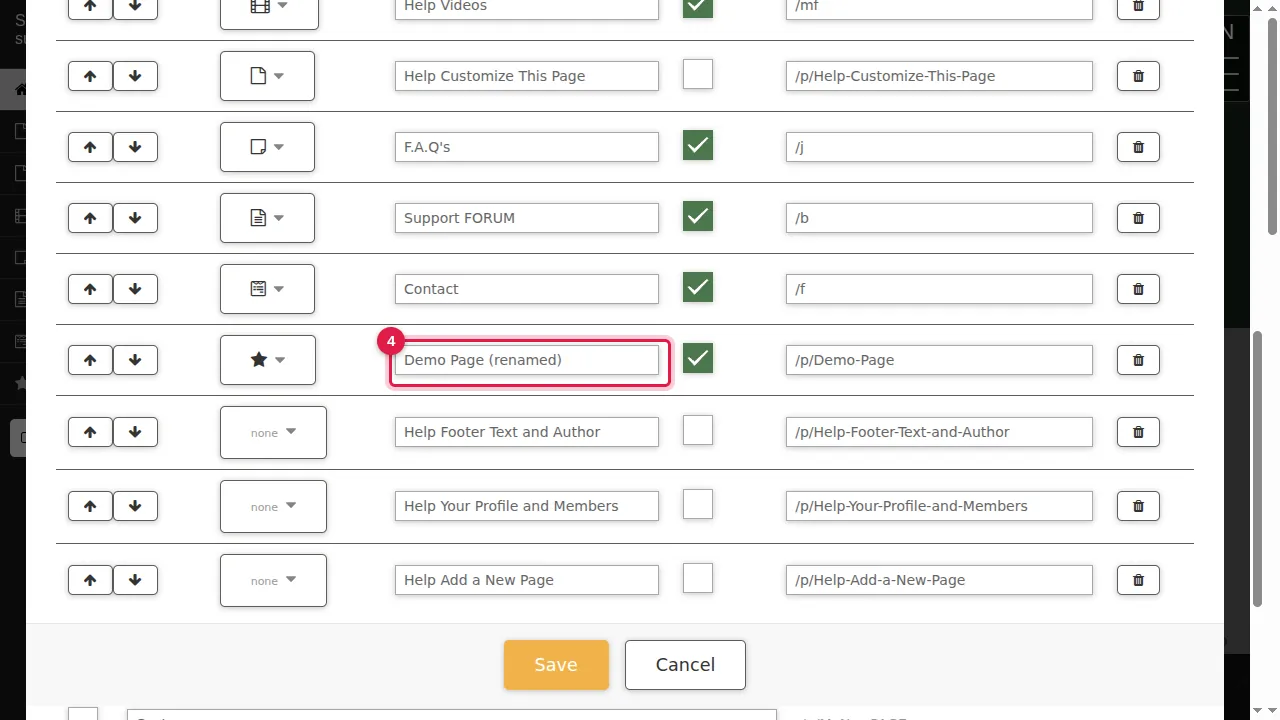
Step 4. To rename an item, change its title. The page keeps its address.
Step 5. To give it an icon, click its icon button.
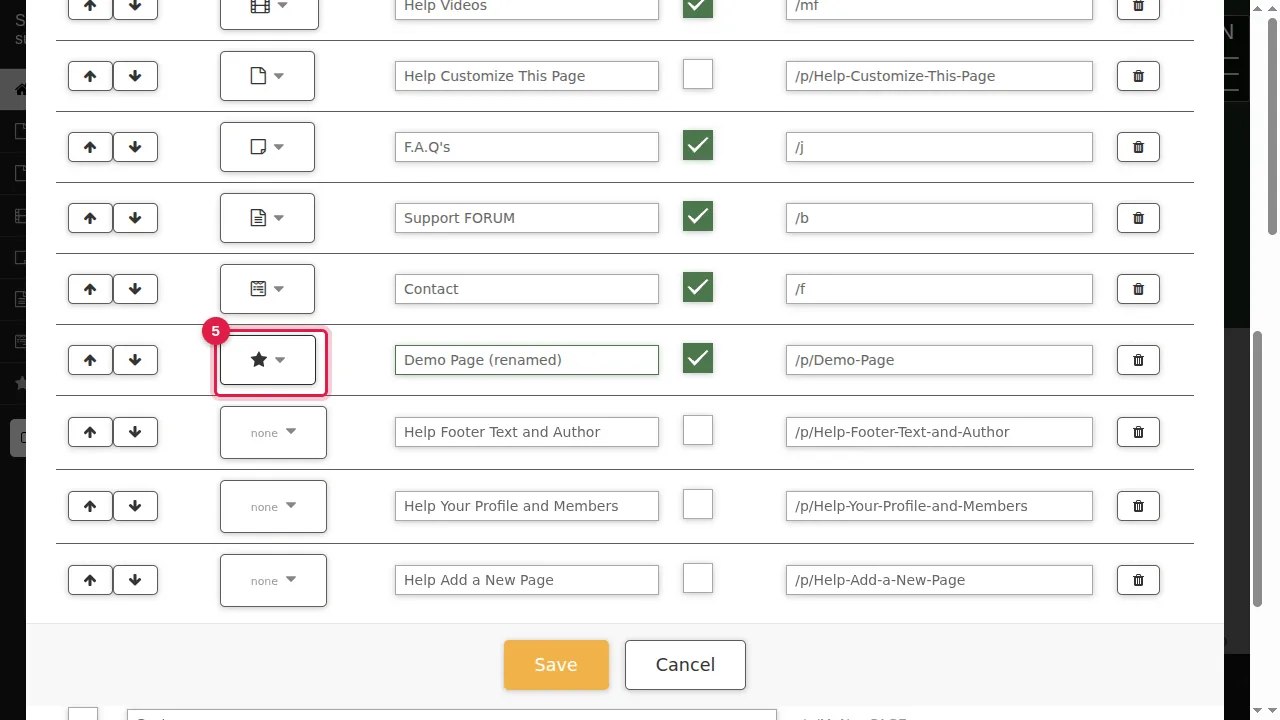
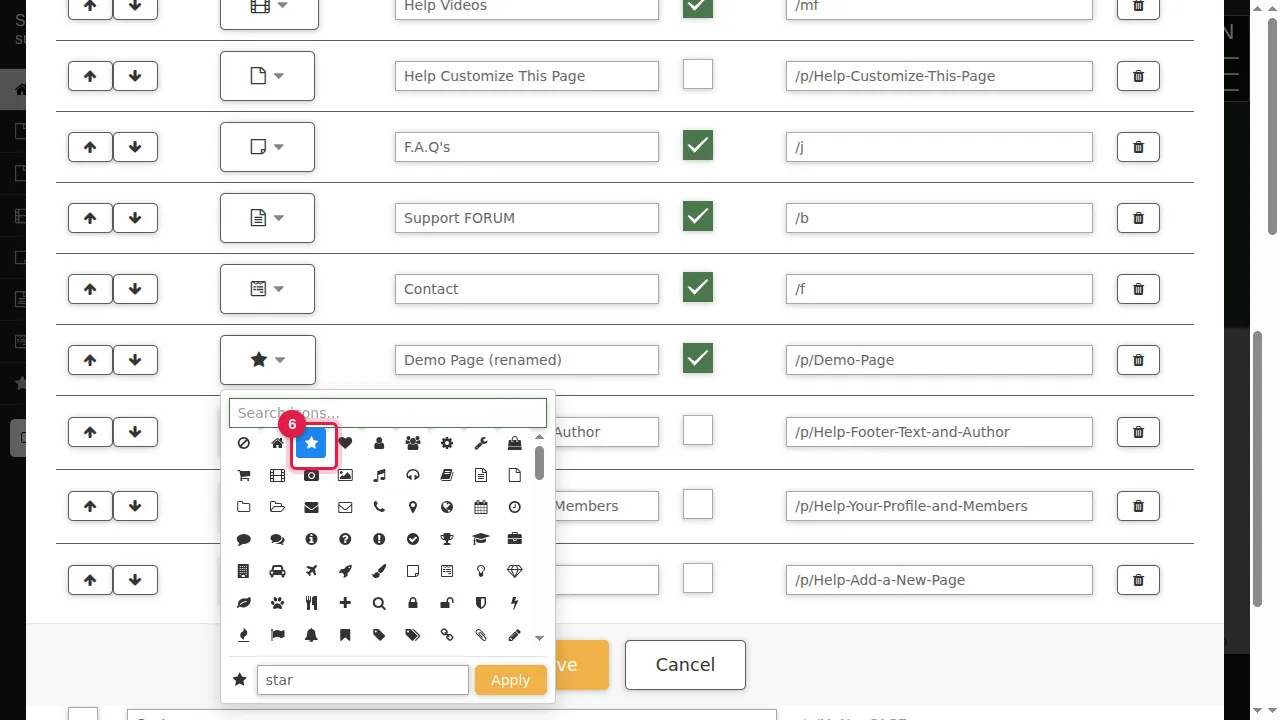
Step 6. Pick an icon, or type in the search box to find one by name.
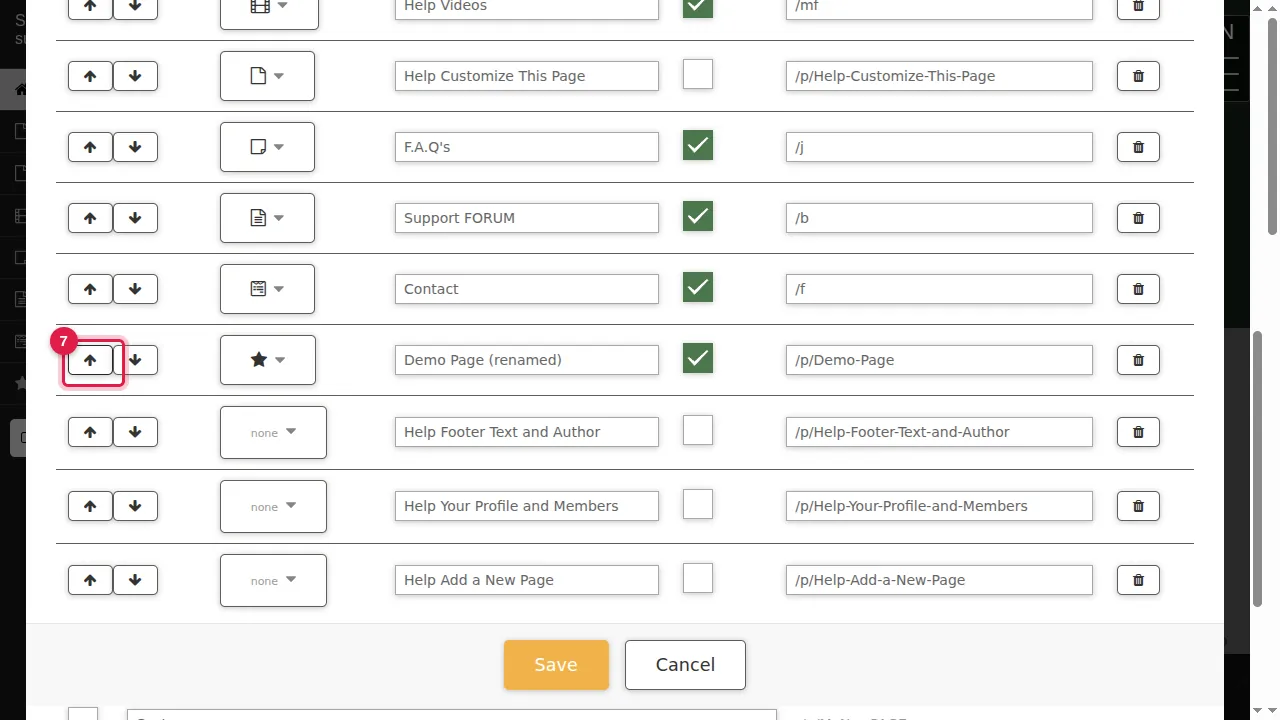
Step 7. The arrows move the item one place up or down in this list. Pages hidden from the menu are in the list too, so it can take more than one click before the change shows in the menu.
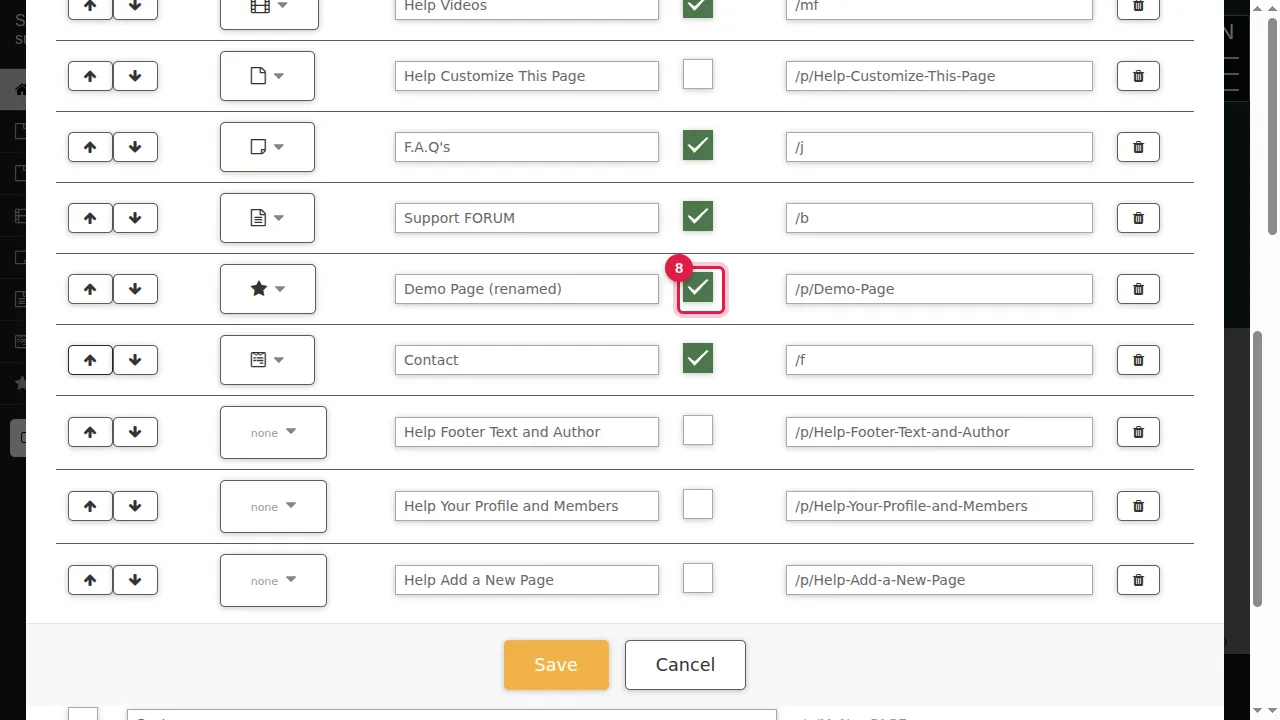
Step 8. Untick Shows to hide the page from the menu; the page itself stays and can still be opened by its address.
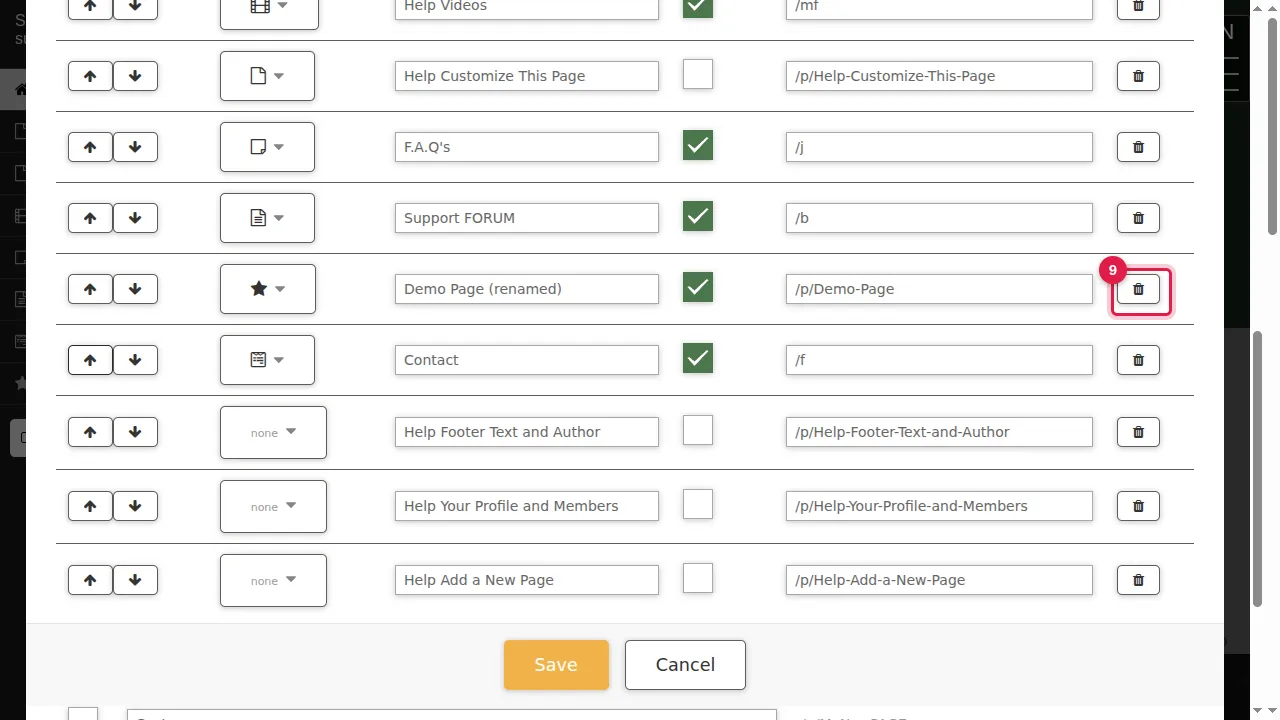
Step 9. The bin removes the item from the menu (the page itself is kept).
Put a hidden page in the menu
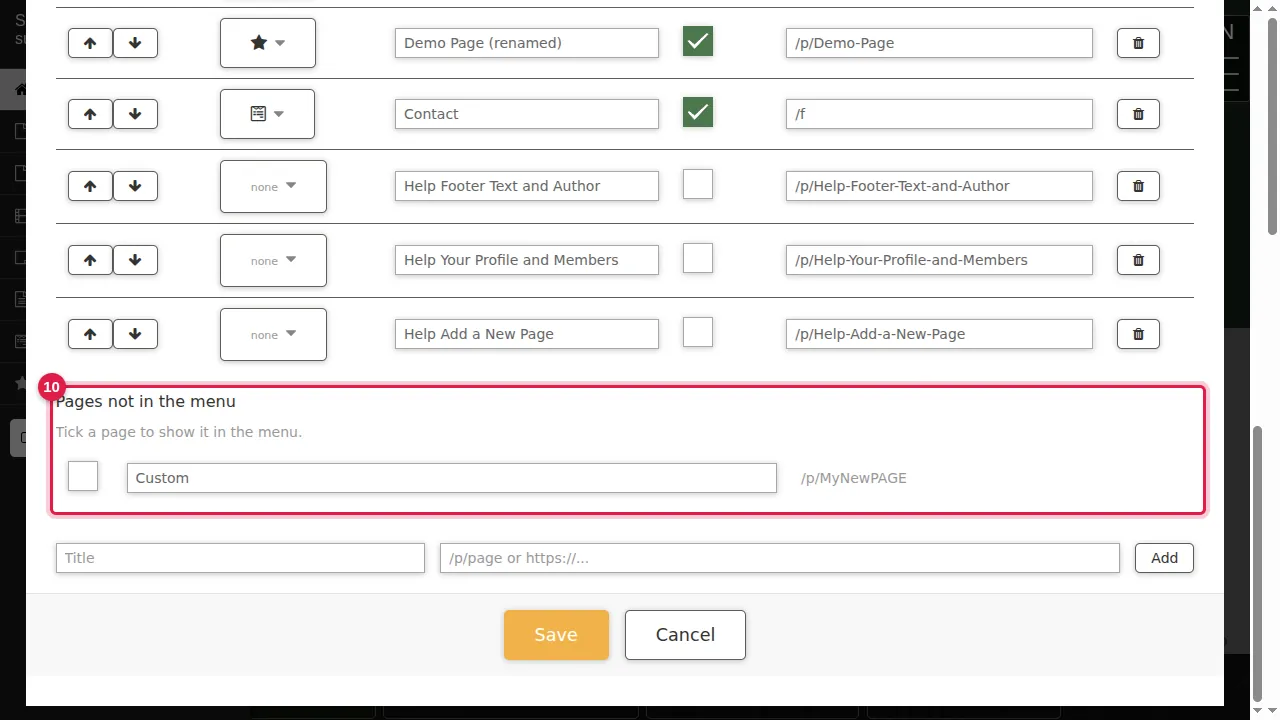
Step 10. Below the list, "Pages not in the menu" shows your other pages: tick one to put it in the menu. At the very bottom you can also add a link: type a title and a page address or a web address (https://…) and click Add.
Save
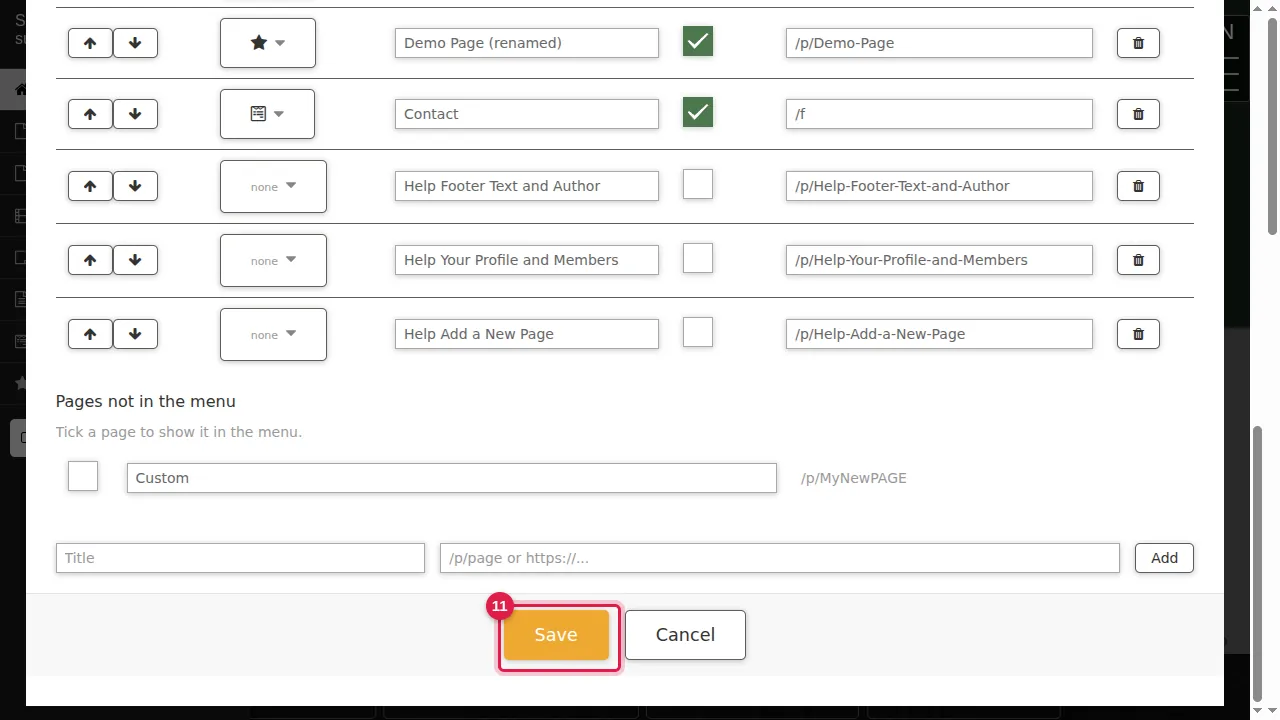
Step 11. Click Save. (Cancel closes without saving.)
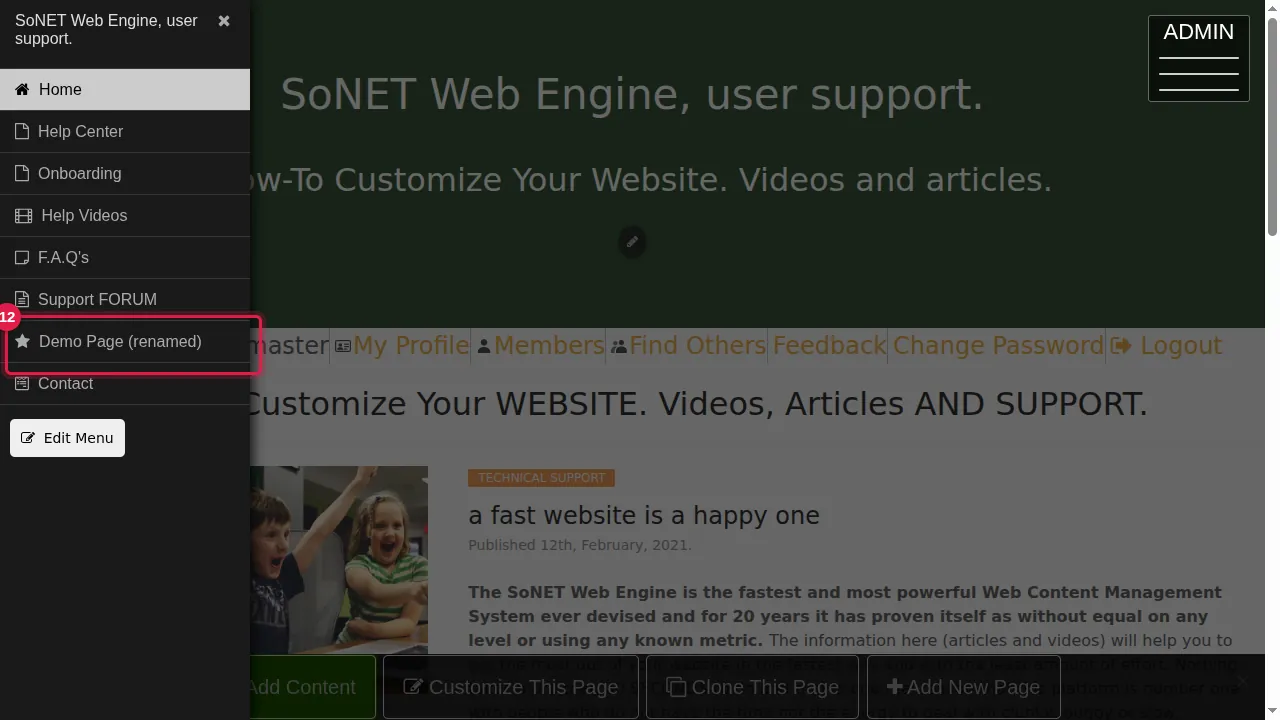
Step 12. The menu now shows your changes.
Check it worked
Log out (or open a private window) and open the MENU.
Good to know
- The Home item cannot be hidden.
- Renaming a menu item also changes the page's title (the name in the browser tab), but not its address, so links to the page keep working.
Related help
Shown on the 2026 version of the SoNET Web Engine. Last checked 21 October 2026. Something different on your screen? Tell us through the Contact page.