Help Center Site Settings
Concierge: a helper that answers your visitors
The Concierge is a small helper for your visitors. They ask about your business, your offerings or your hours, and it answers from your site's own content. Here is how to set it up and what visitors see.
Watch it done: a short silent video with captions · 1:37. The steps below show the same thing picture by picture.
Before you start
- Log in as the site owner.
- Open ADMIN › Site Settings.
Switch it on
Step 1. Click the Concierge tab.
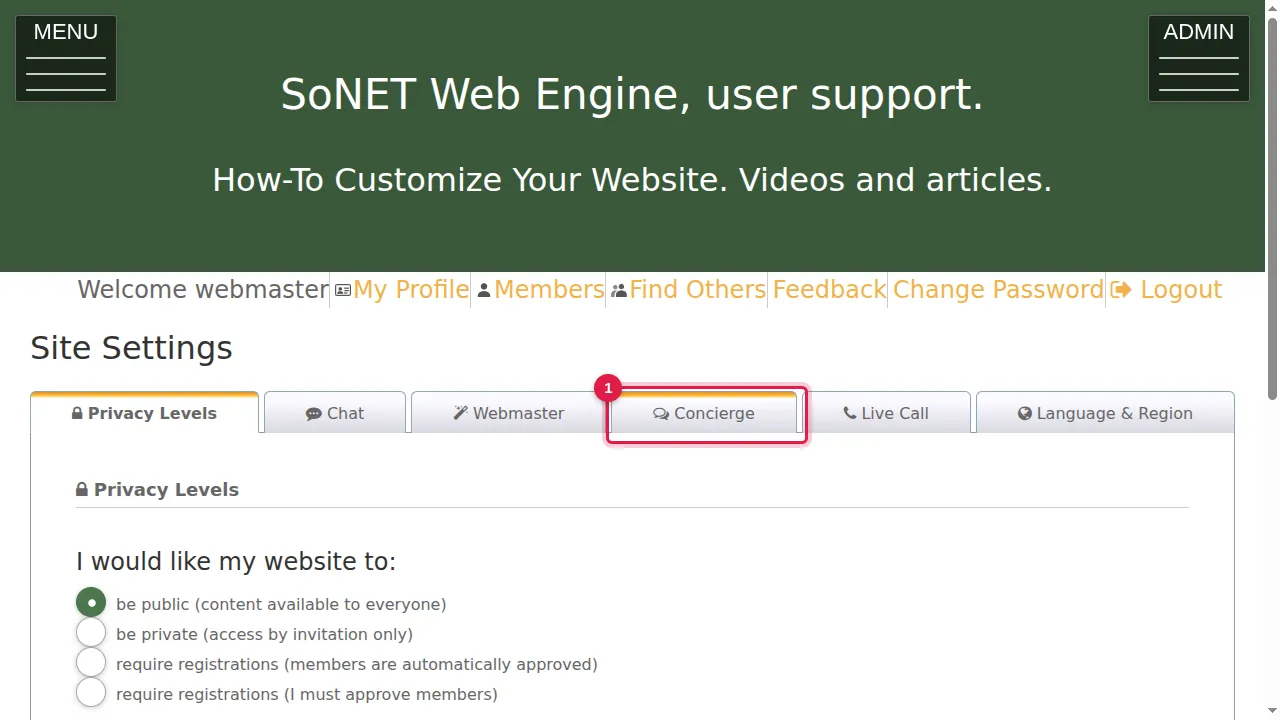
Step 2. Read what it does: visitors ask questions about your site and get answers grounded in your site's own content, in their own language. It declines anything else. What visitors ask shows on your Insights dashboard. Your administrators never see it; they have the Webmaster instead.
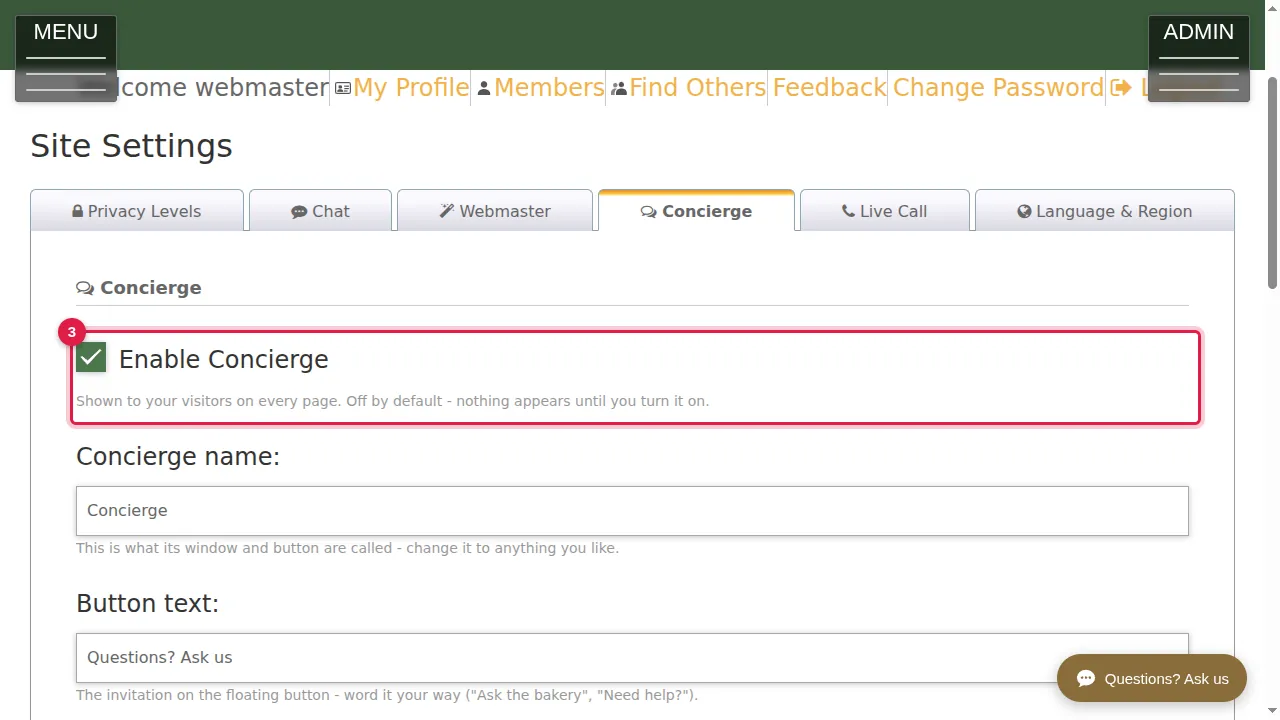
Step 3. Tick Enable Concierge to switch it on. It is off by default: nothing appears until you turn it on.
Set it up
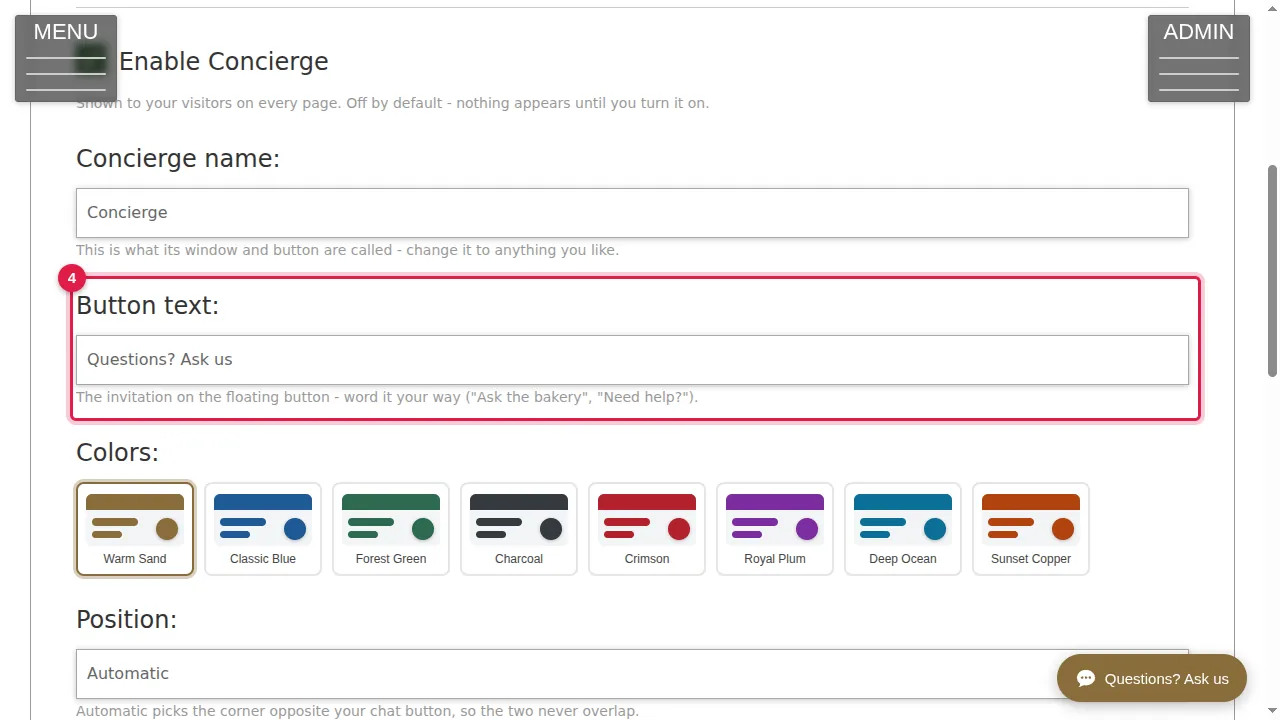
Step 4. Concierge name (what its window and button are called) and Button text (the invitation on the button, for example "Questions? Ask us").
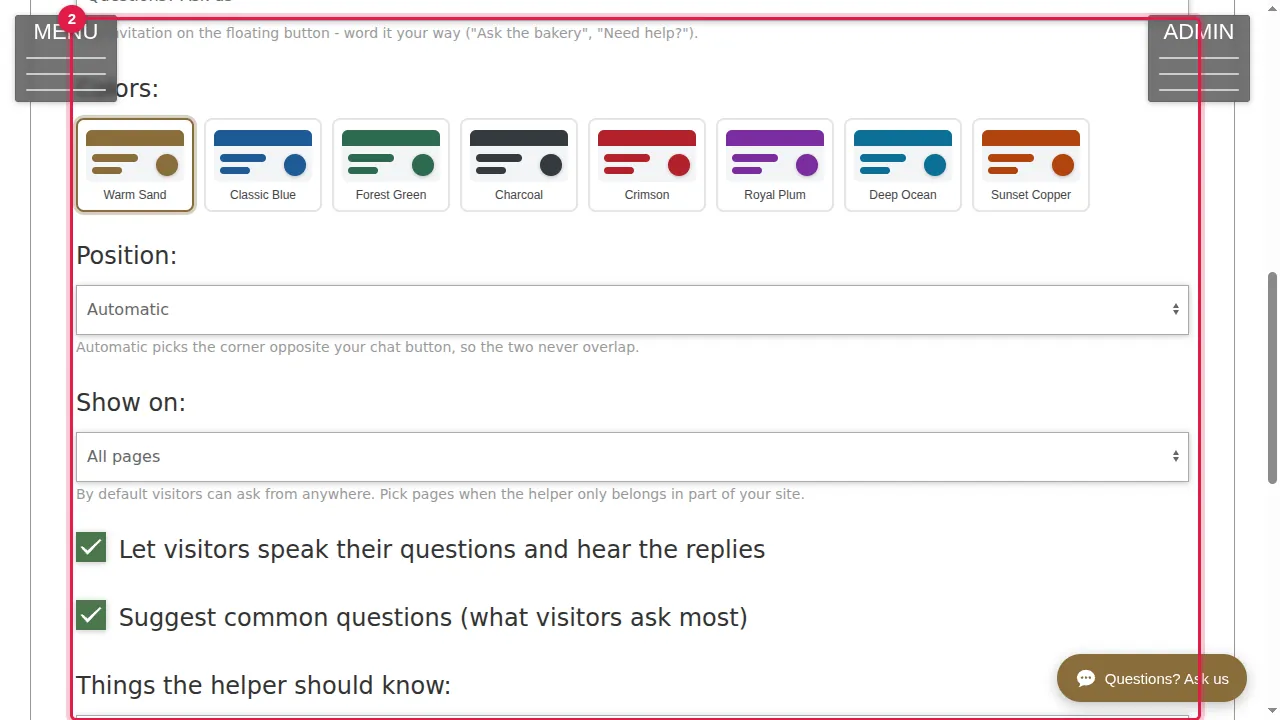
Step 5. Colors: eight colour schemes. Position: Automatic, Bottom-Right or Bottom-Left.
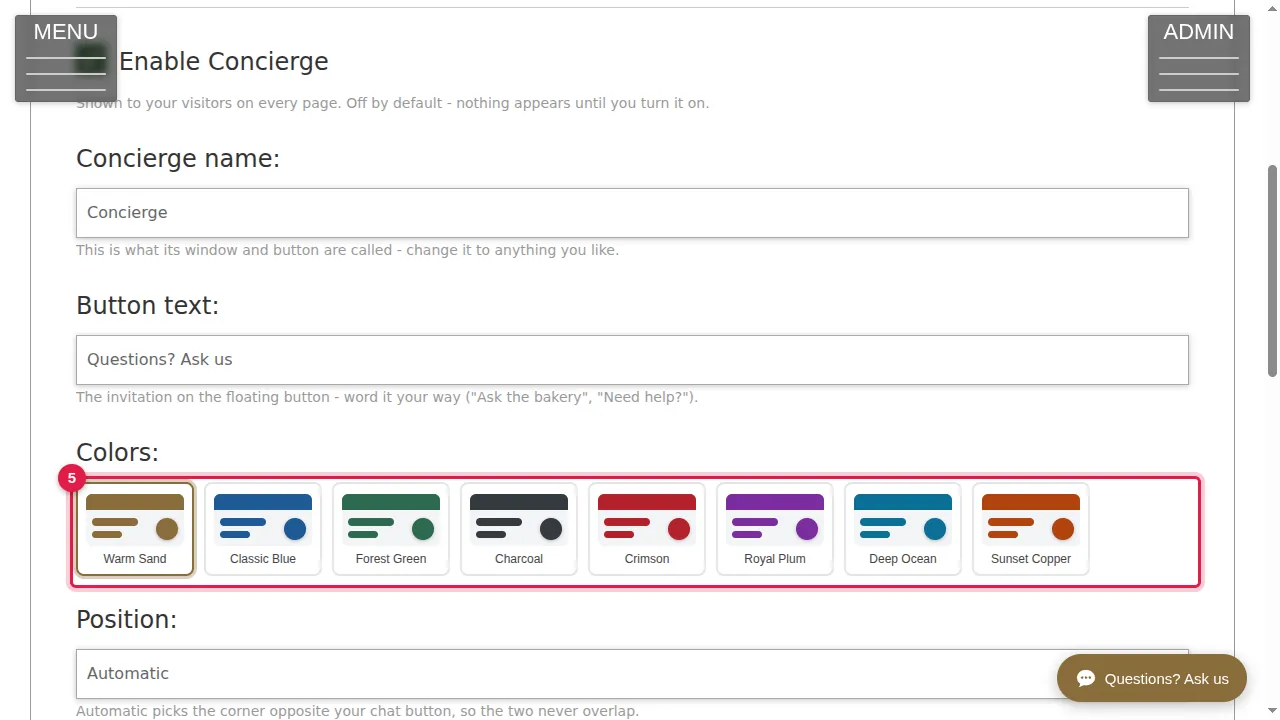
Step 6. Show on: All pages, Only the pages I choose, or All pages except the ones I choose. The last two show a list of your pages to tick.
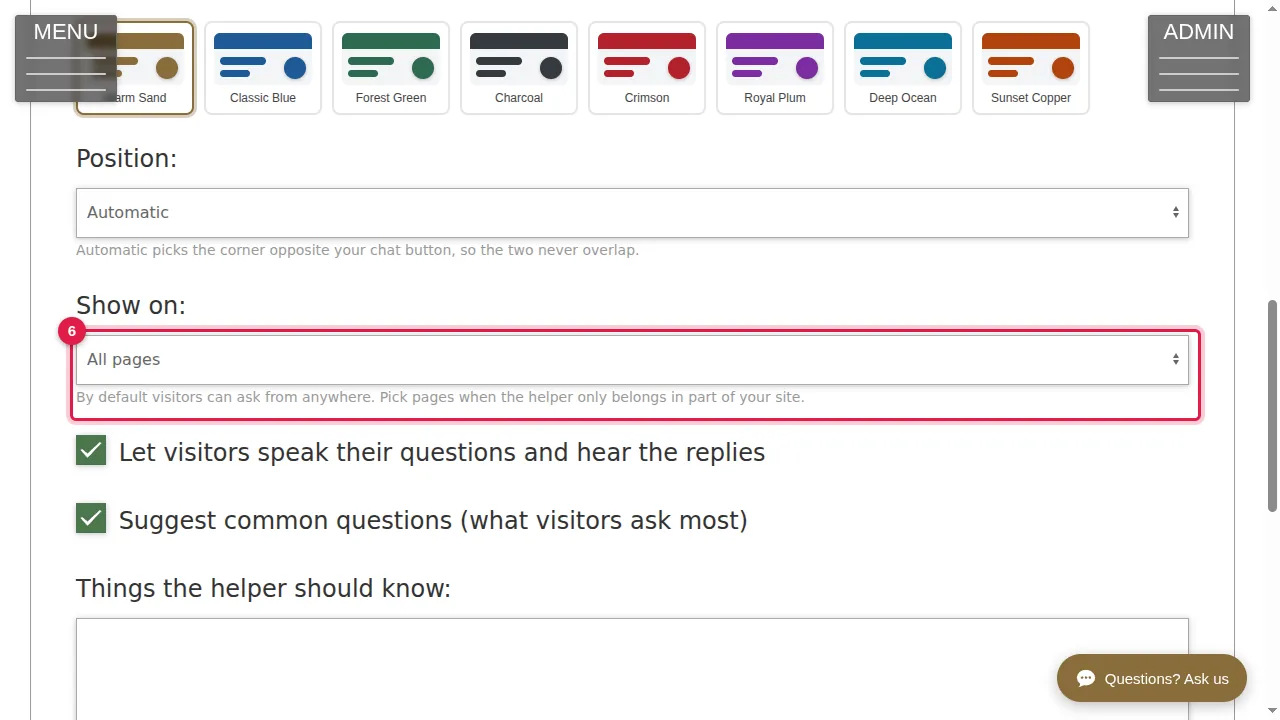
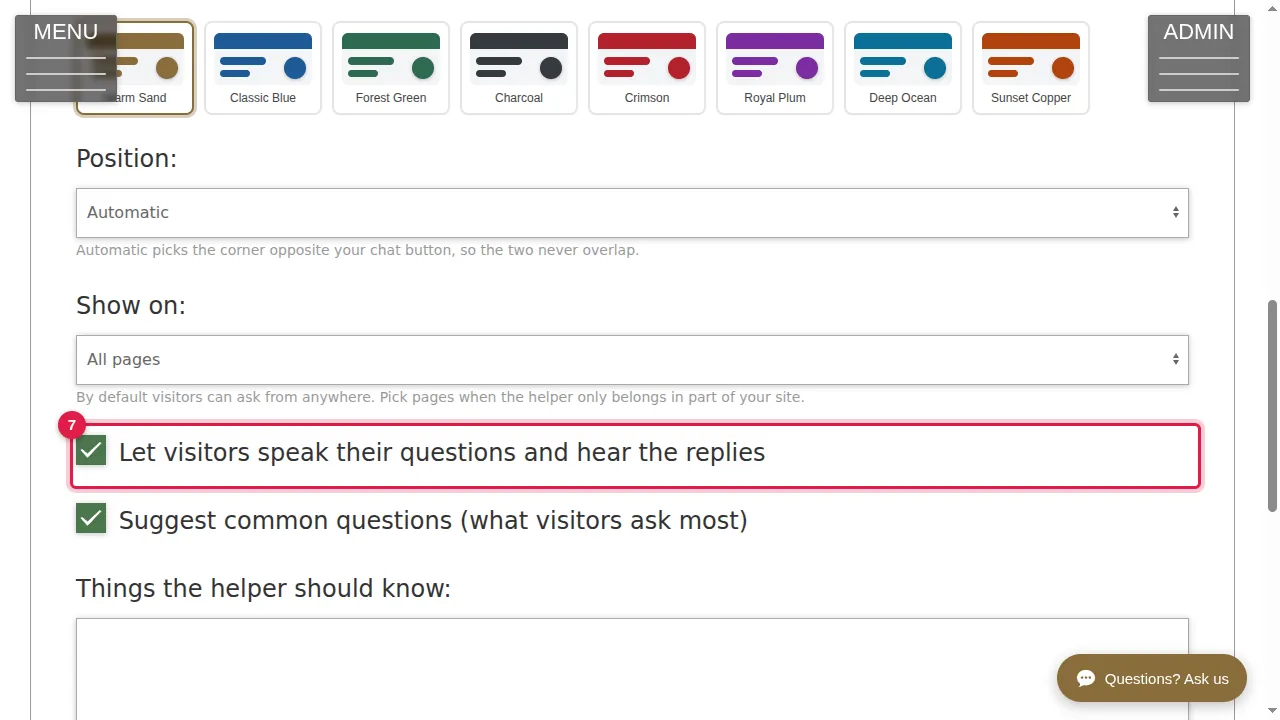
Step 7. Two options: "Let visitors speak their questions and hear the replies", and "Suggest common questions (what visitors ask most)".
Step 8. Things the helper should know: optional facts (for example parking, policies or history) added to what it reads on your site.
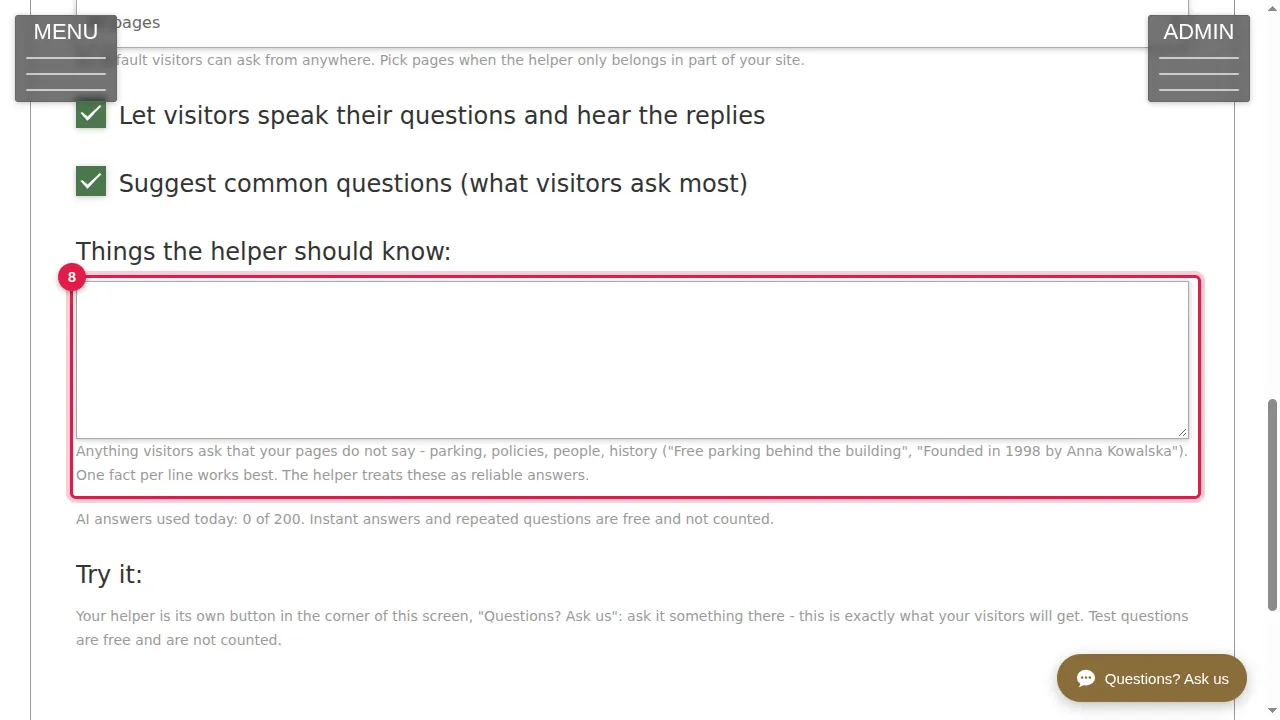
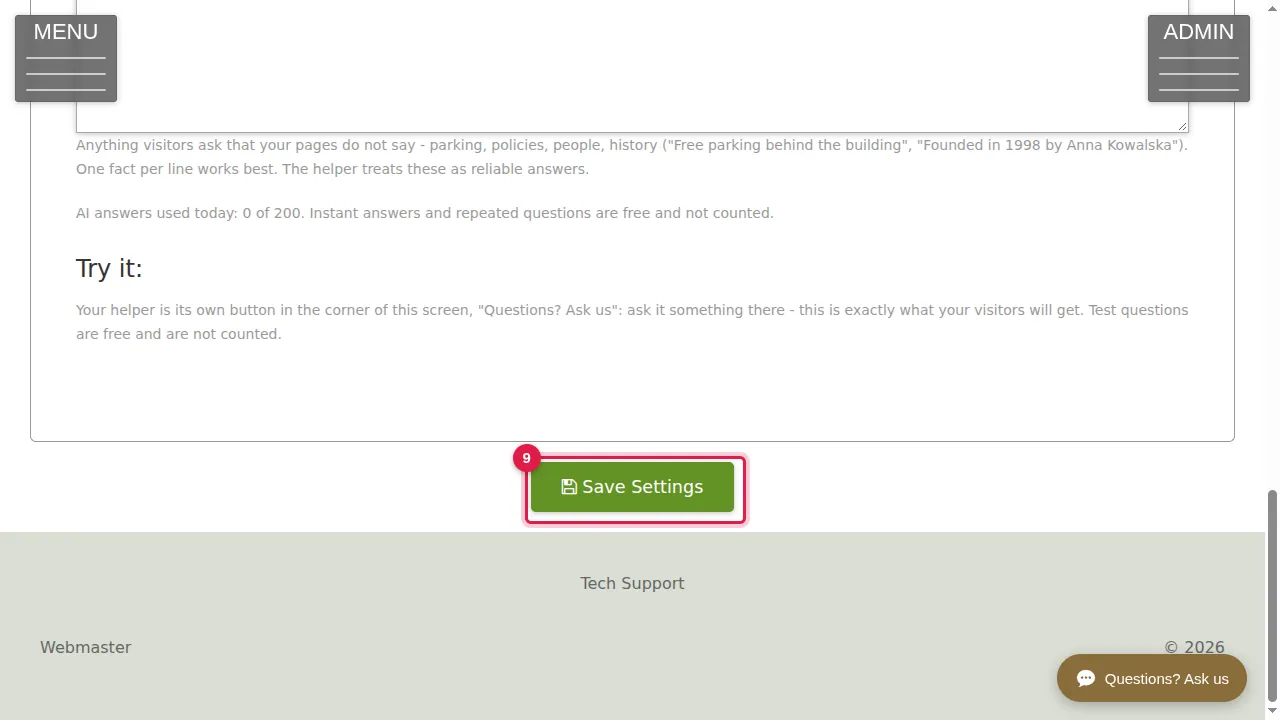
Step 9. Click Save Settings after any change. The settings page also has its own test button in the corner ("Try it"); test questions are free and not counted.
What visitors see
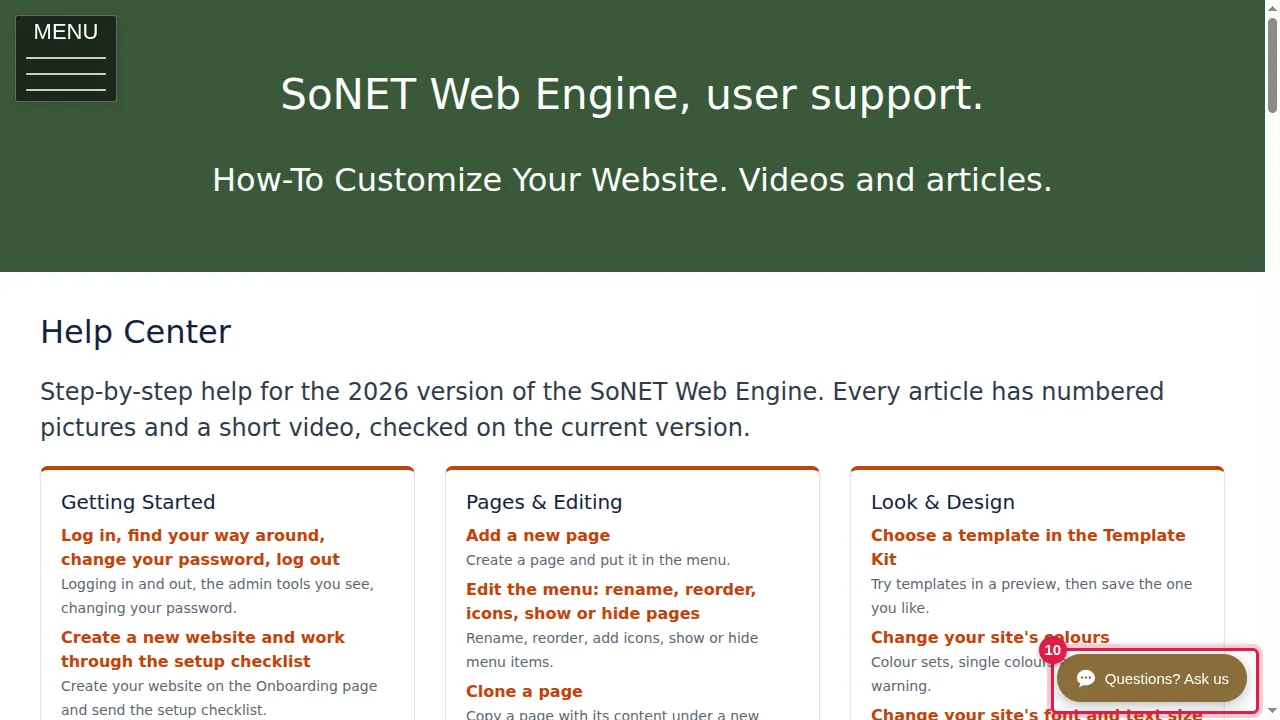
Step 10. Your visitors see the button in the corner of the page.
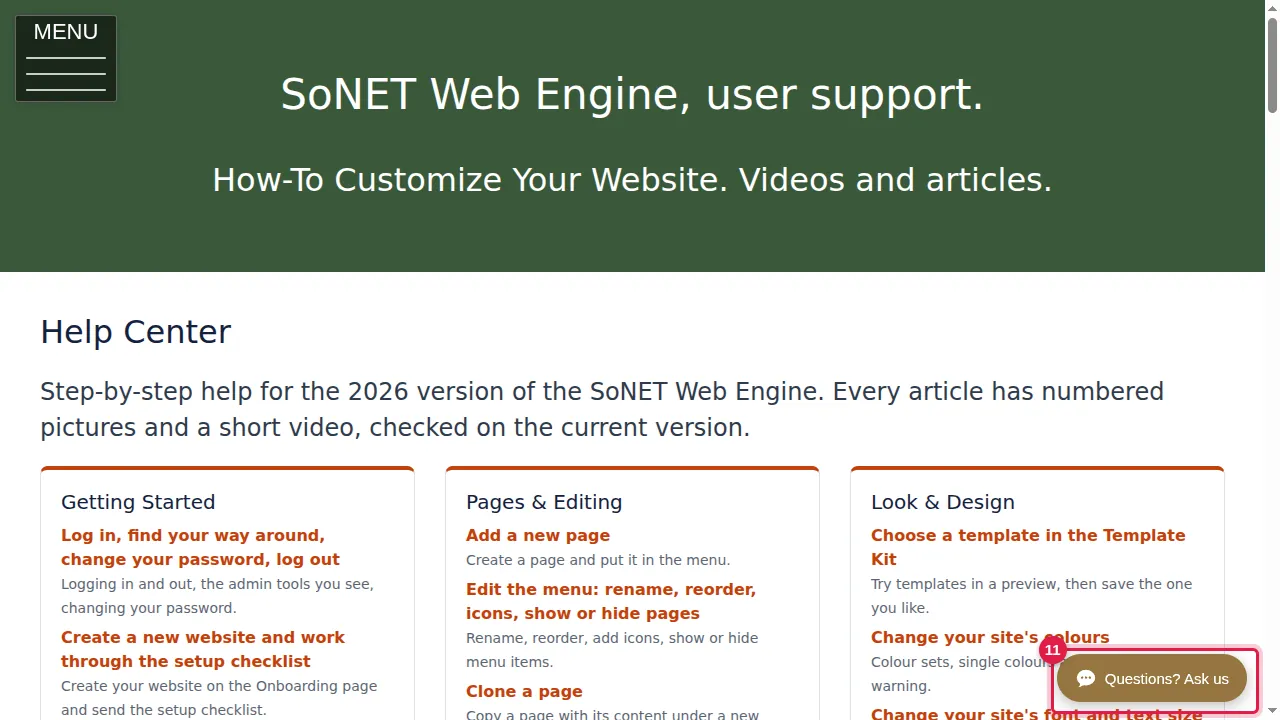
Step 11. A click opens the Concierge.
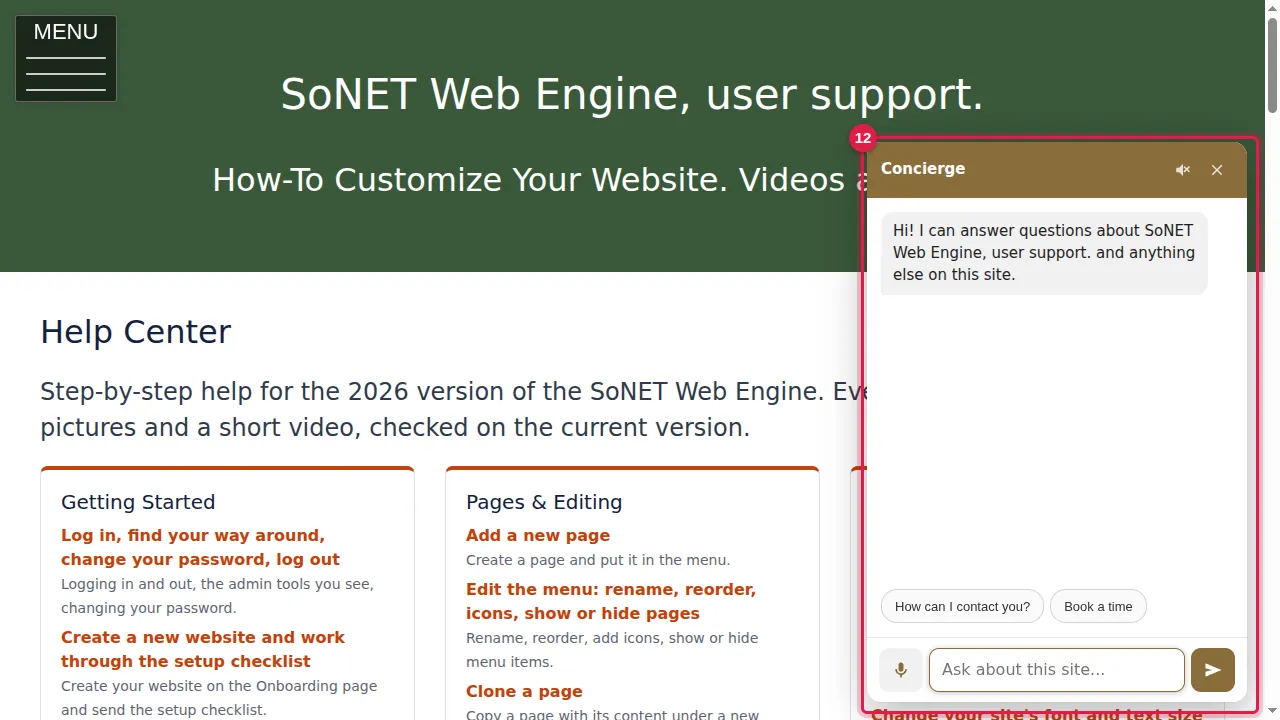
Step 12. It greets the visitor and offers suggested questions (for example "How can I contact you?" and "Book a time") and a box to type or speak a question. (In this demonstration the Concierge was switched off again afterwards.)
Check it worked
Open your site in a private window: the Concierge button is in the corner on the pages you chose. Logged in, you won't see it on your pages, so use the test button on the settings page.
Good to know
- Keep your Contact page and F.A.Q. up to date: the Concierge answers from your site's own content.
- Use Things the helper should know only for facts that are not on your site.
Related help
Shown on the 2026 version of the SoNET Web Engine. Last checked 22 October 2026. Something different on your screen? Tell us through the Contact page.