Help Center Blog & Forum
Write a blog post, save it as a draft, publish it
Write a new post for your blog: title, author, date, the text and tags. Save it as a draft until it is ready, then publish it with one click.
Watch it done: a short silent video with captions · 2:55. The steps below show the same thing picture by picture.
Before you start
- Log in as the site owner.
- Your blog can have its own name in your menu (on this site it is called Support FORUM). In the ADMIN menu it is listed as Manage followed by that name.
Start a new post
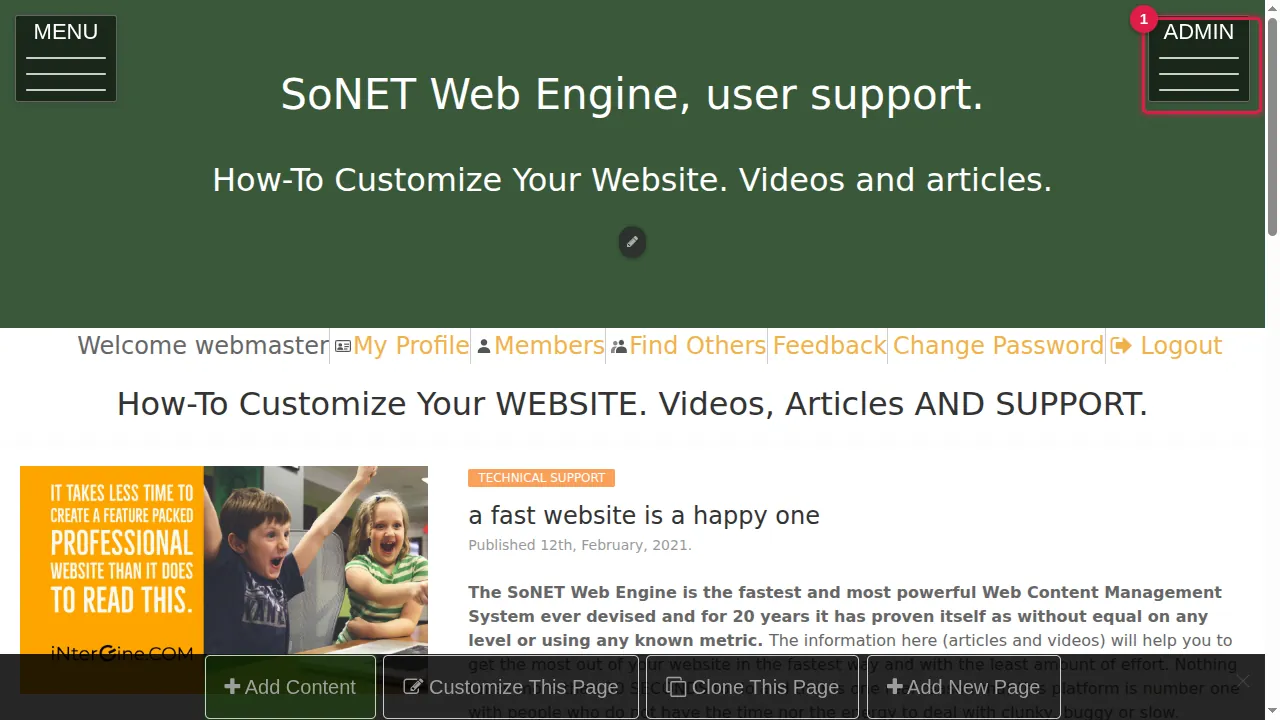
Step 1. Open the ADMIN menu.
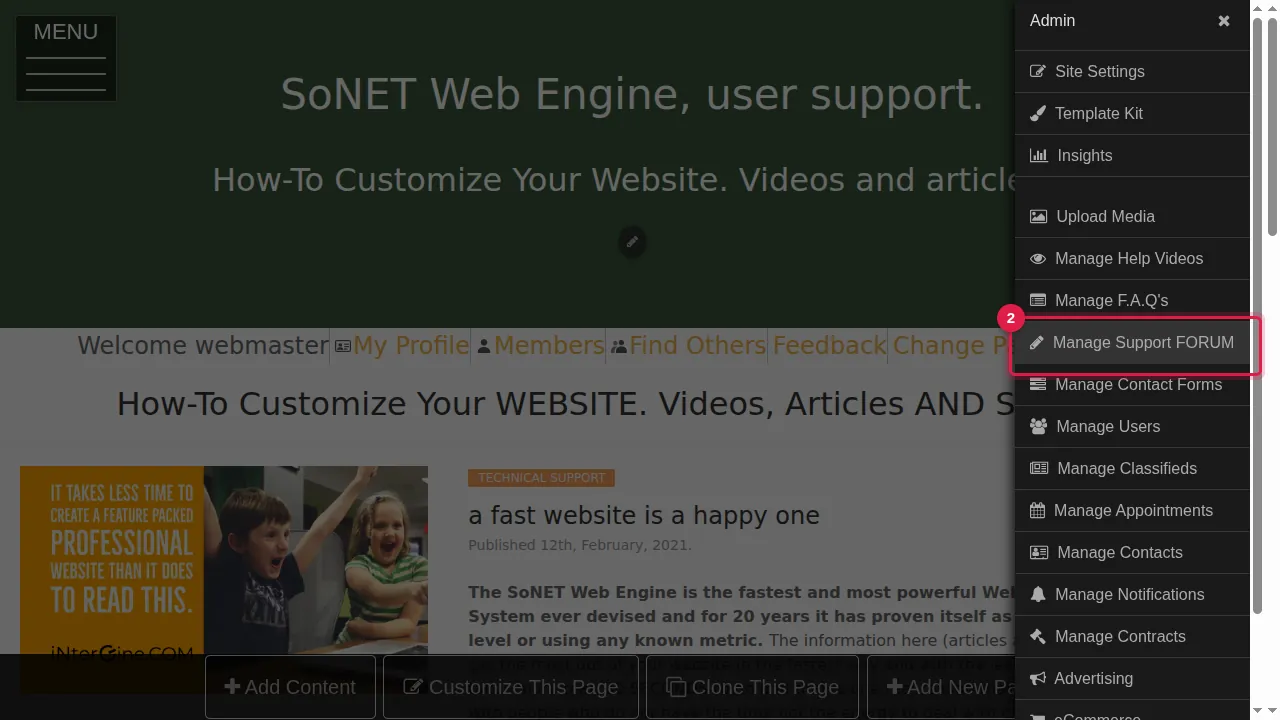
Step 2. Click Manage followed by your blog's name (here: Manage Support FORUM).
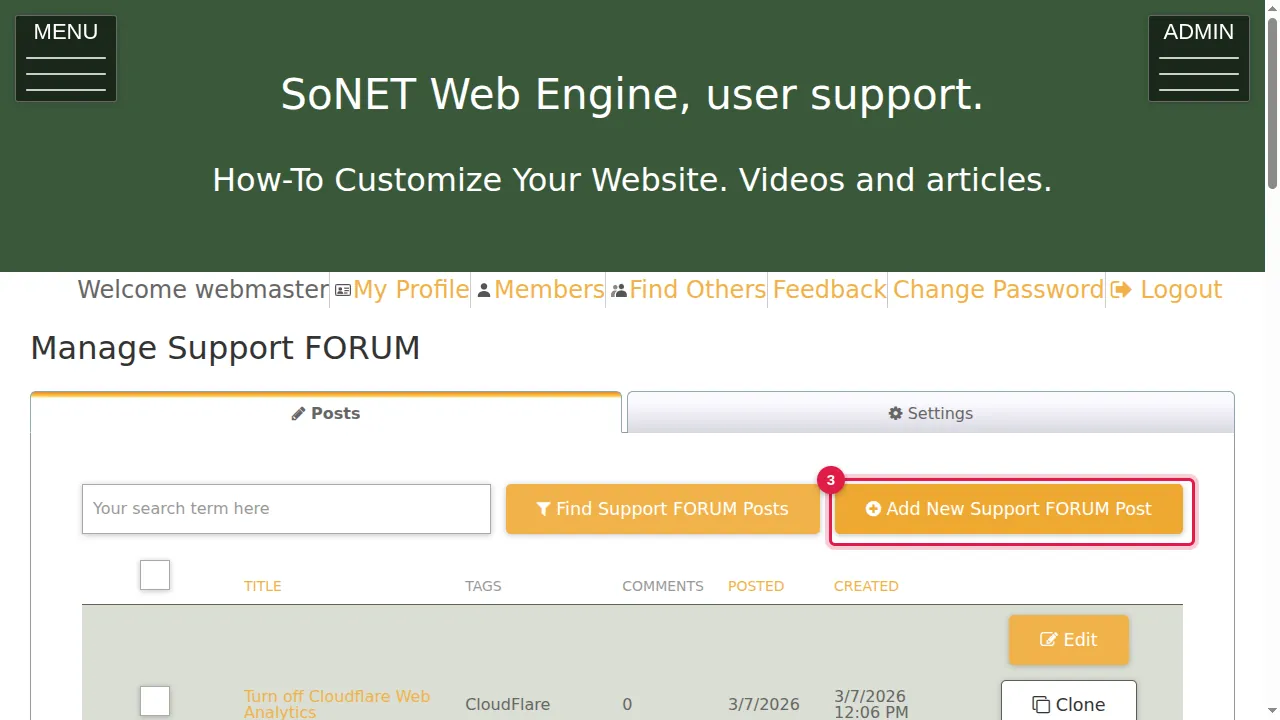
Step 3. You see the list of your posts. Click Add New … Post.
Fill it in
Step 4. Type the title. It is the only field you must fill in.
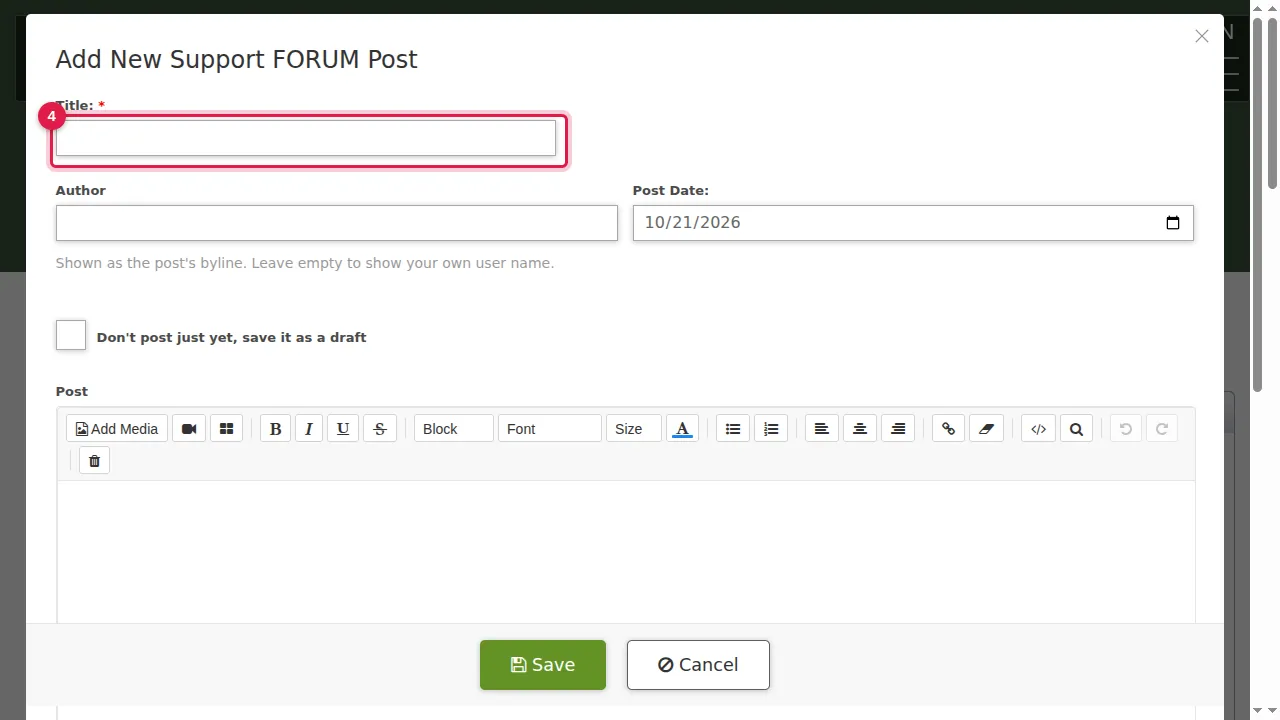
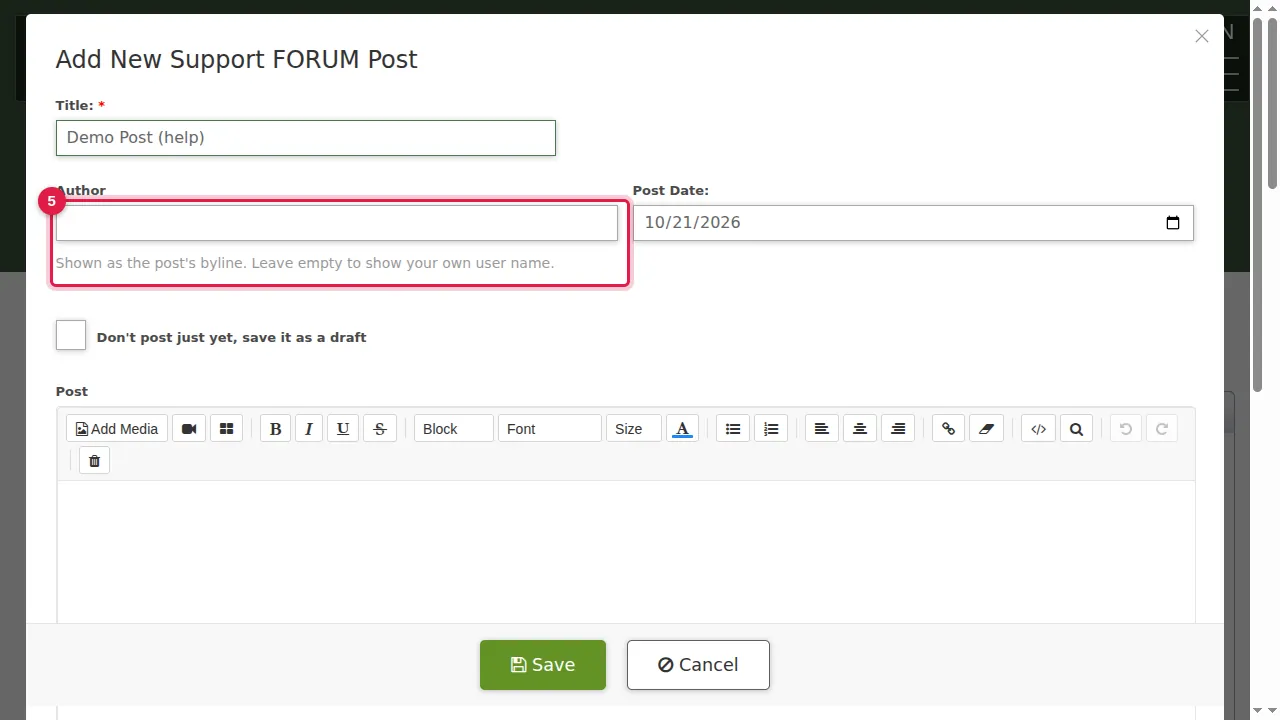
Step 5. Author is the byline shown with the post. Leave it empty to show your own user name.
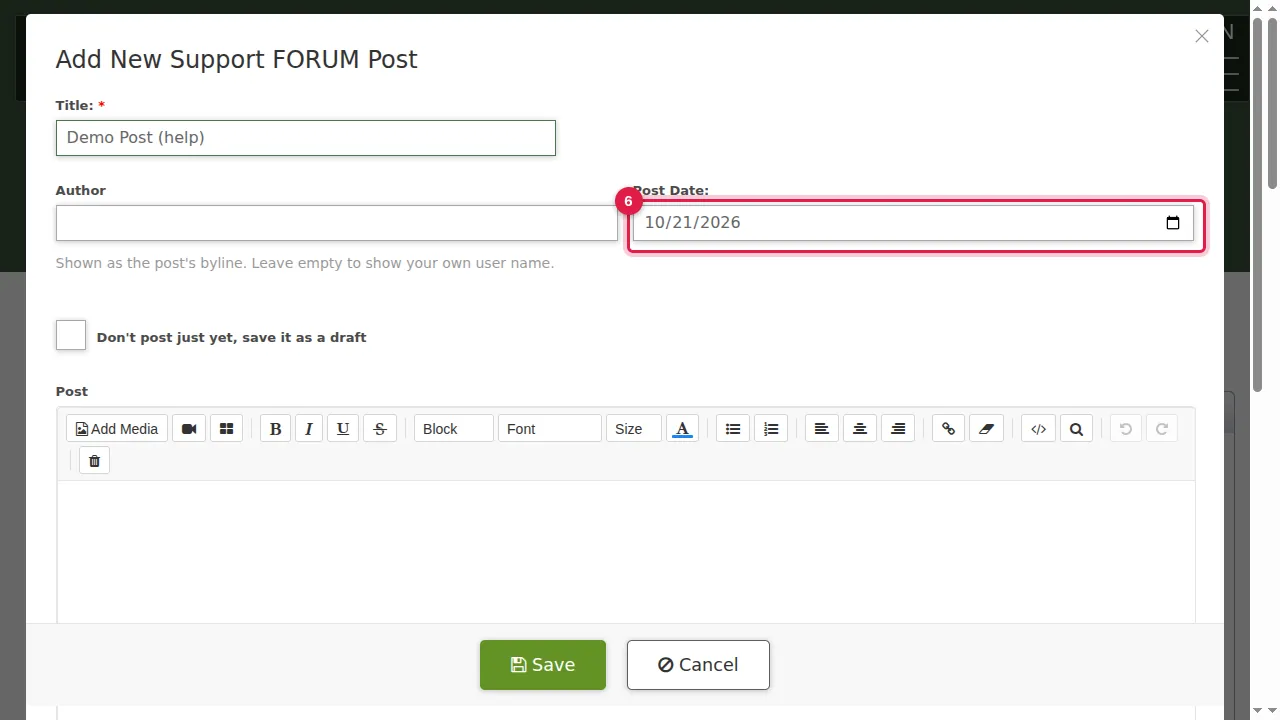
Step 6. Post Date is today. Pick another date if you like.
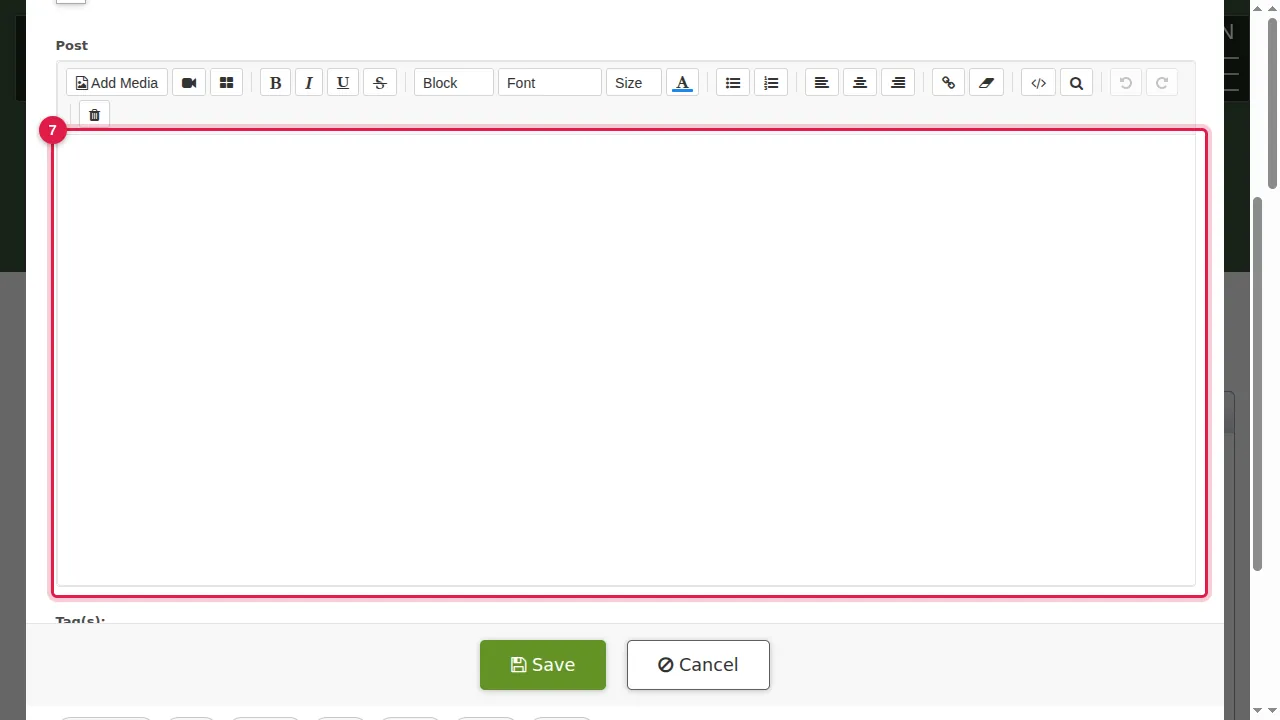
Step 7. Write the post in the editor under Post. It has the same tools as the page editor: text styles, links, Add Media for pictures and the video button.
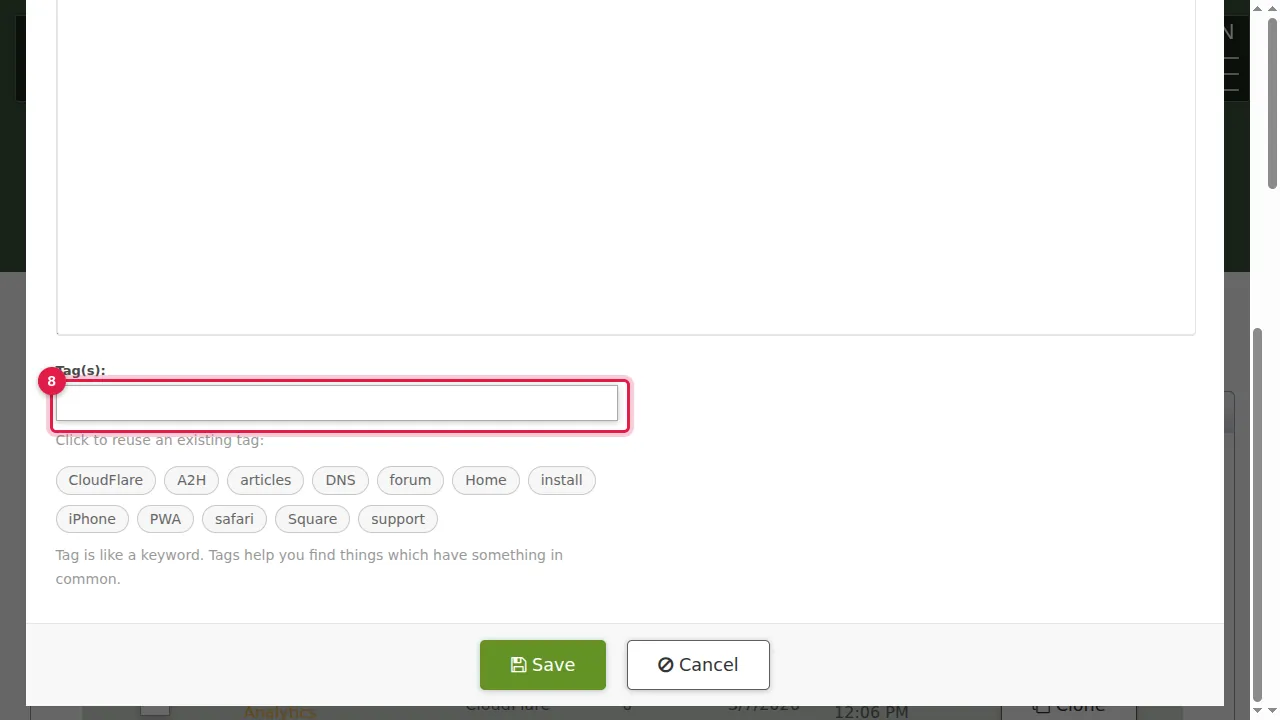
Step 8. Tags are words that group your posts, separated by commas. Under the box you can click a tag you used before.
Save it as a draft
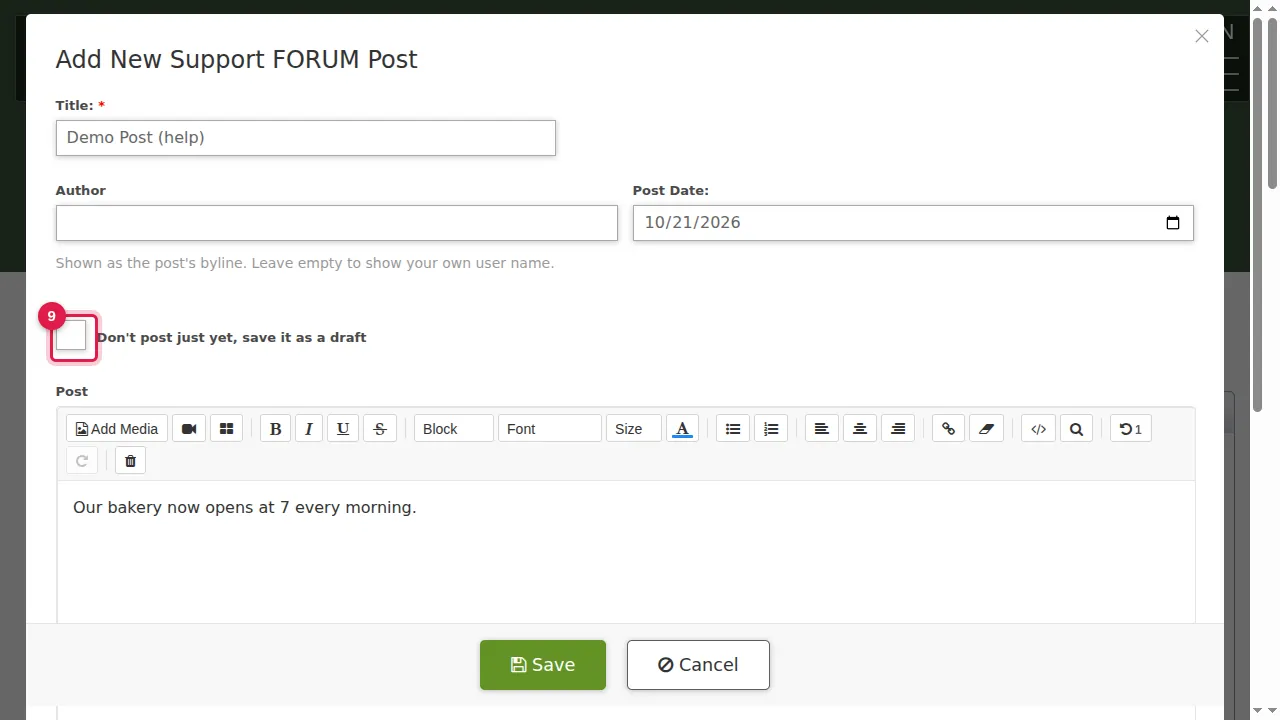
Step 9. Not ready to show it yet? Tick "Don't post just yet, save it as a draft".
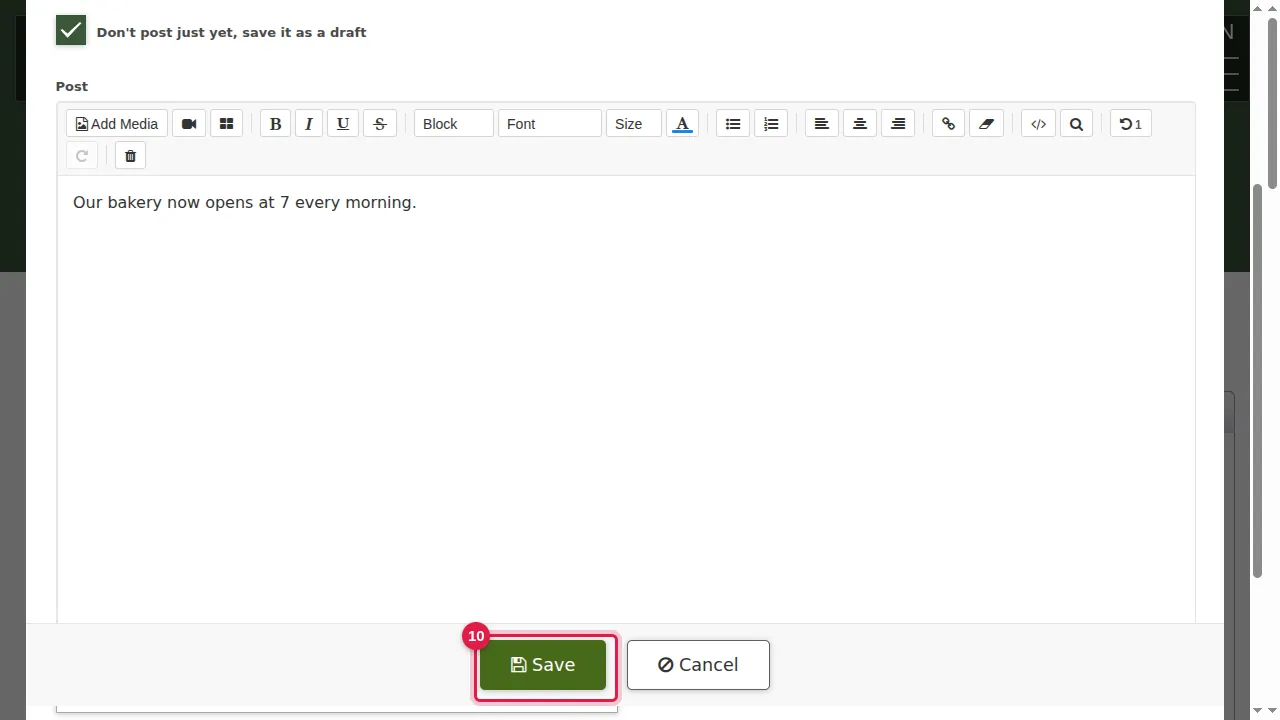
Step 10. Click Save.
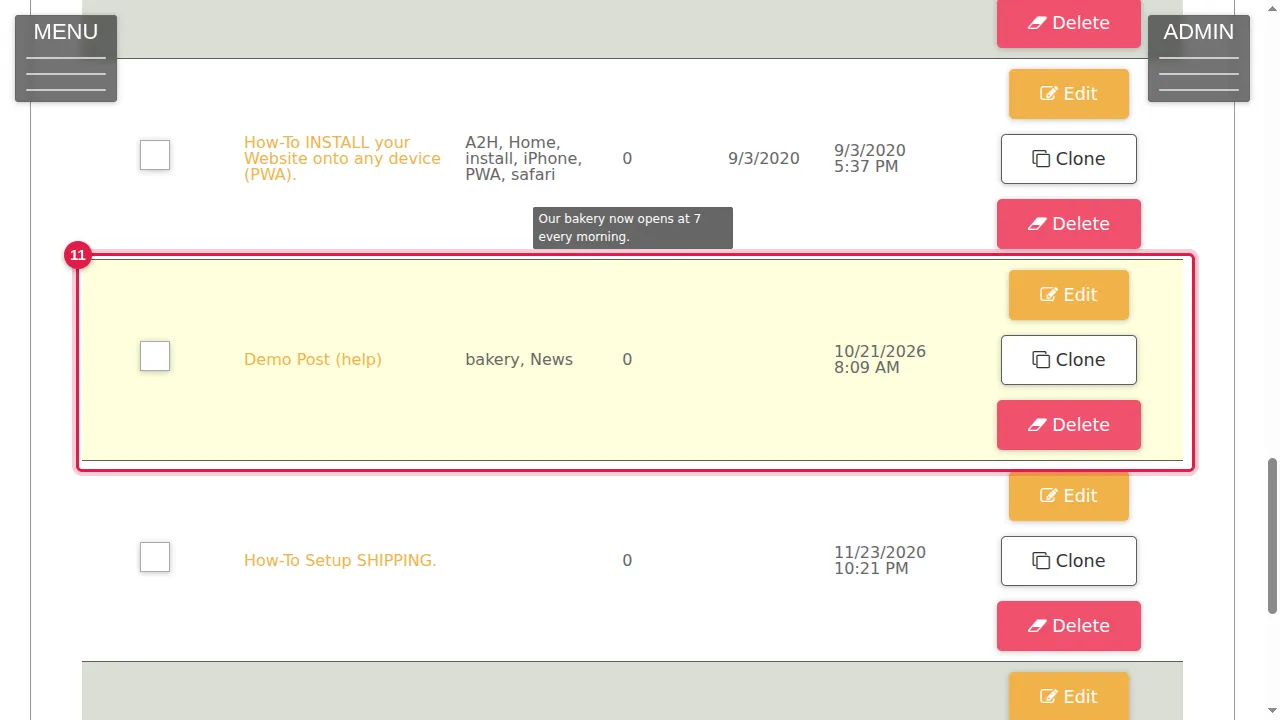
Step 11. The post is in your list. A draft has no POSTED date and is not shown on your blog page.
Publish it
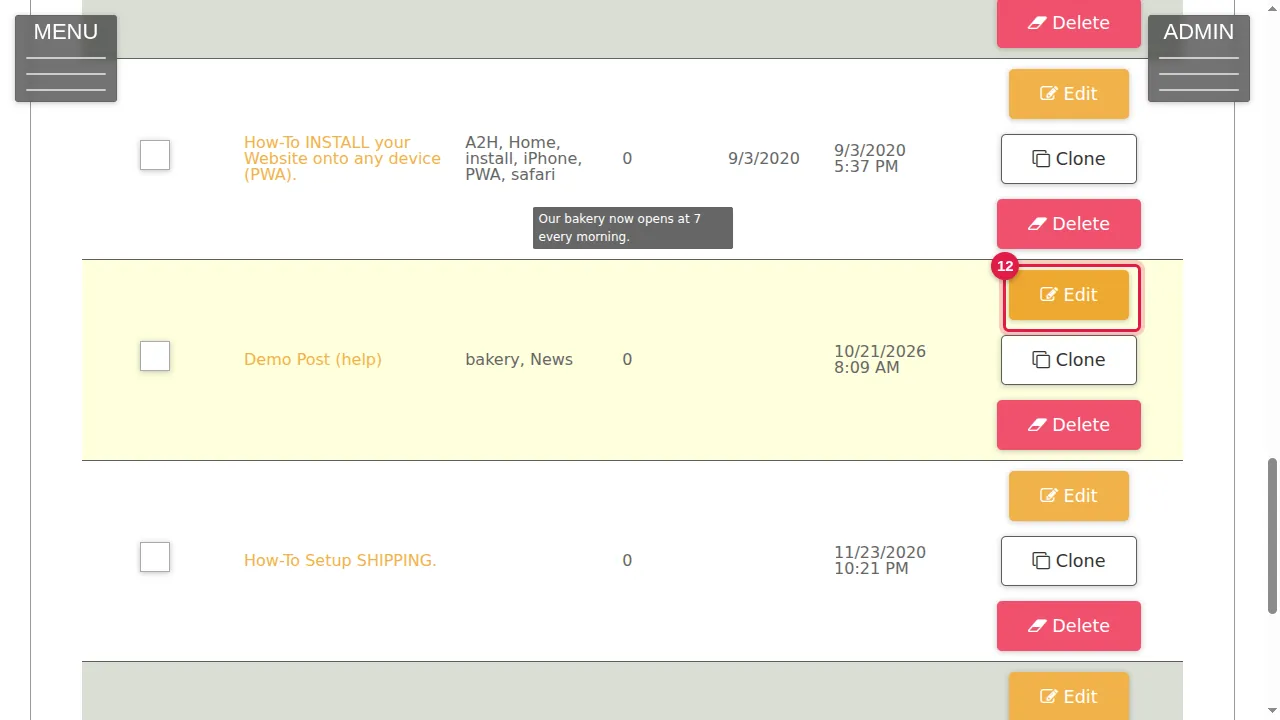
Step 12. When it is ready, click Edit on its row.
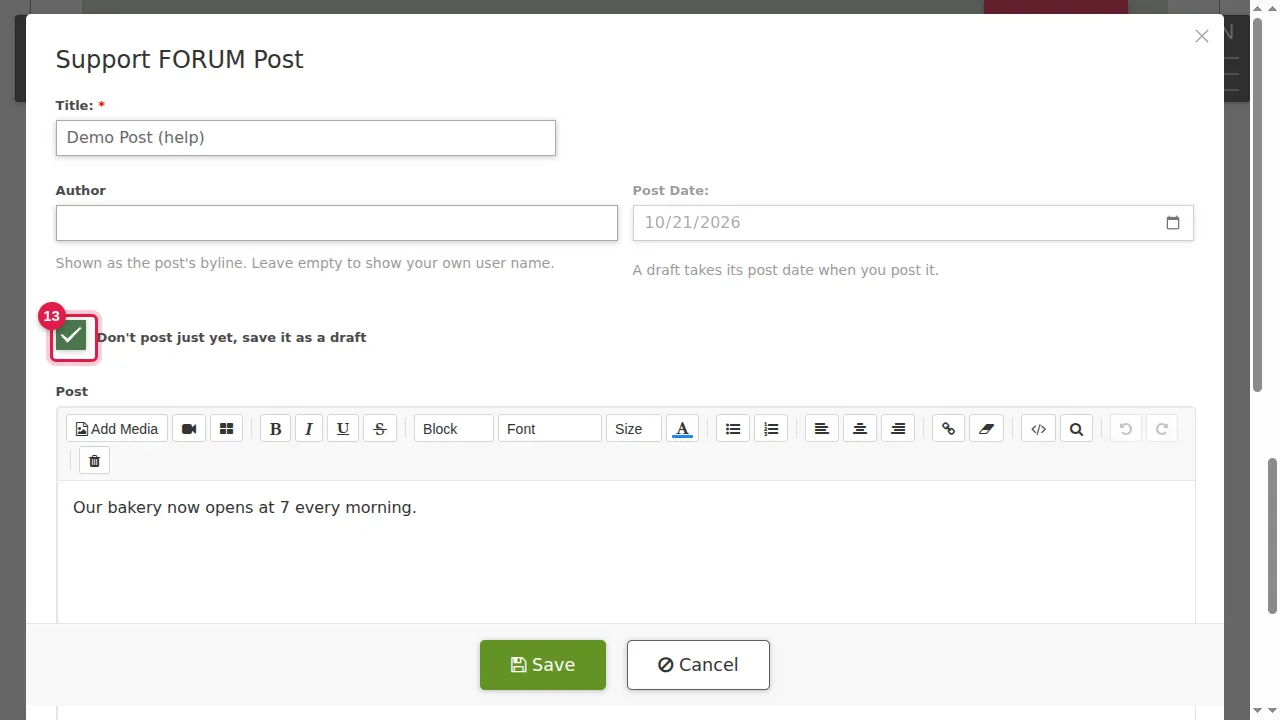
Step 13. Untick the draft box. A draft takes its post date when you post it.
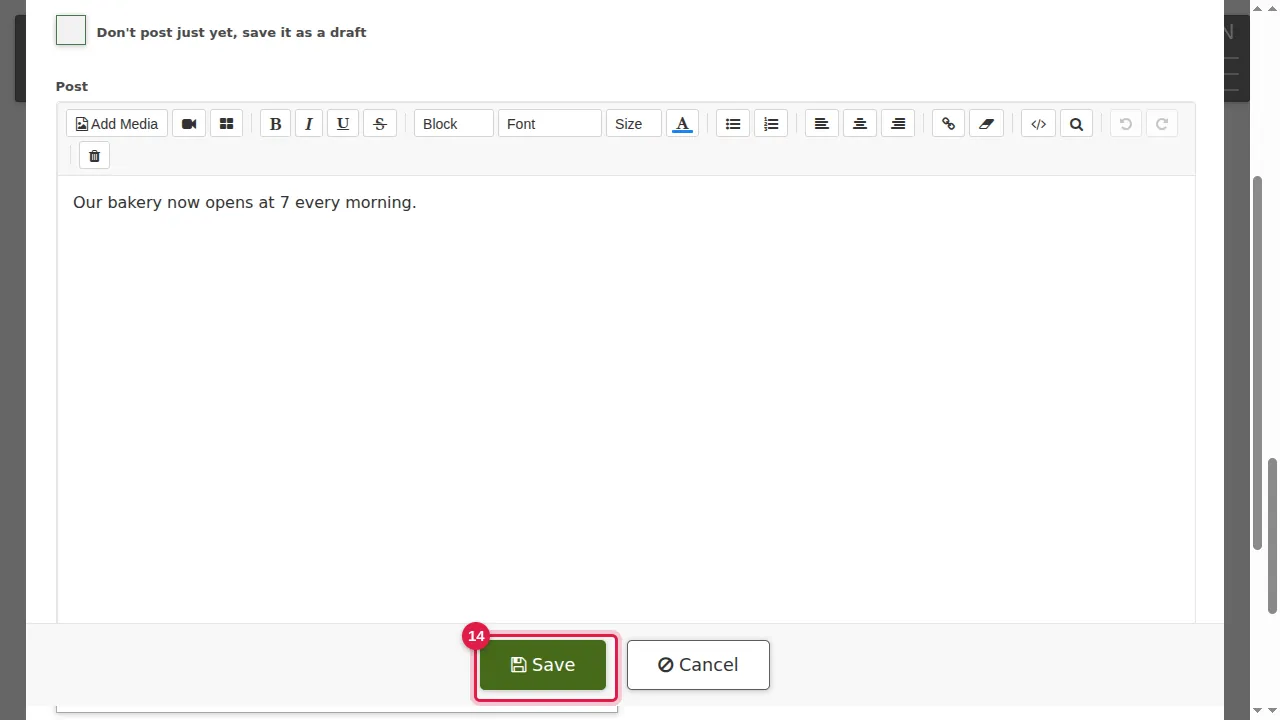
Step 14. Click Save: the post is published.
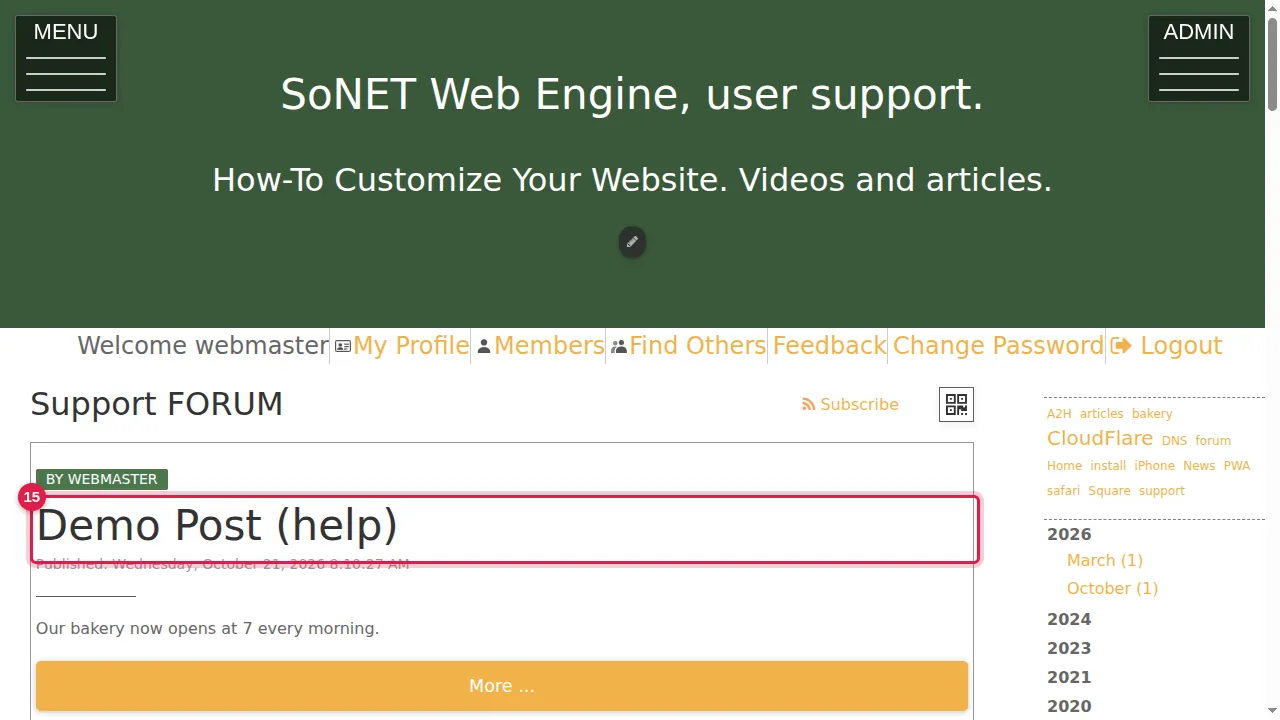
Step 15. Your visitors now see it on the blog page, with the byline, the date and a More … button that opens the whole post.
Check it worked
Open your blog in a private window: the new post is at the top, and its tags are in the tag list at the side.
Good to know
- Leave the draft box unticked when you write a post that is ready: Save then publishes it straight away.
Related help
Shown on the 2026 version of the SoNET Web Engine. Last checked 21 October 2026. Something different on your screen? Tell us through the Contact page.