Help Center Look & Design
Let the site suggest fonts
In the Template Kit's Font tab, Suggest fonts tells you which fonts would suit your site and why. You choose them yourself, preview, and save only if you like them.
Watch it done: a short silent video with captions · 0:17. The steps below show the same thing picture by picture.
Before you start
- Log in as the site owner.
- Open ADMIN › Template Kit.
Ask for fonts
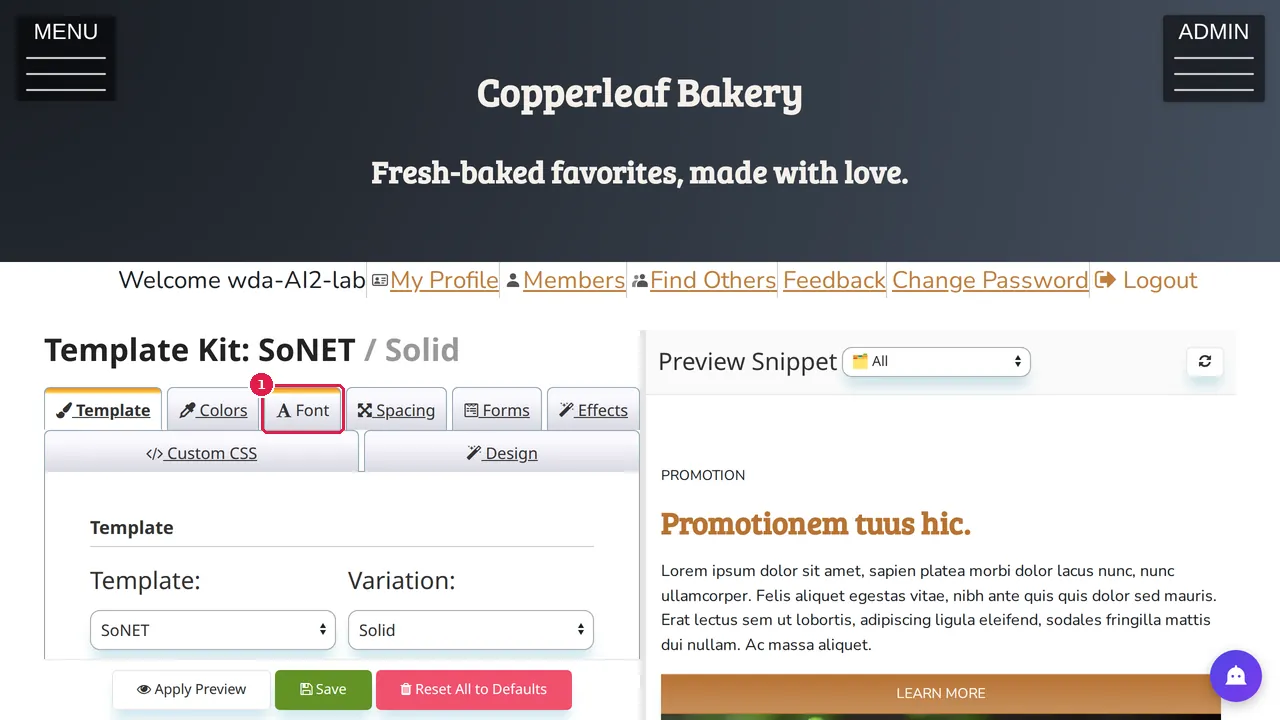
Step 1. In the Template Kit, open the Font tab.
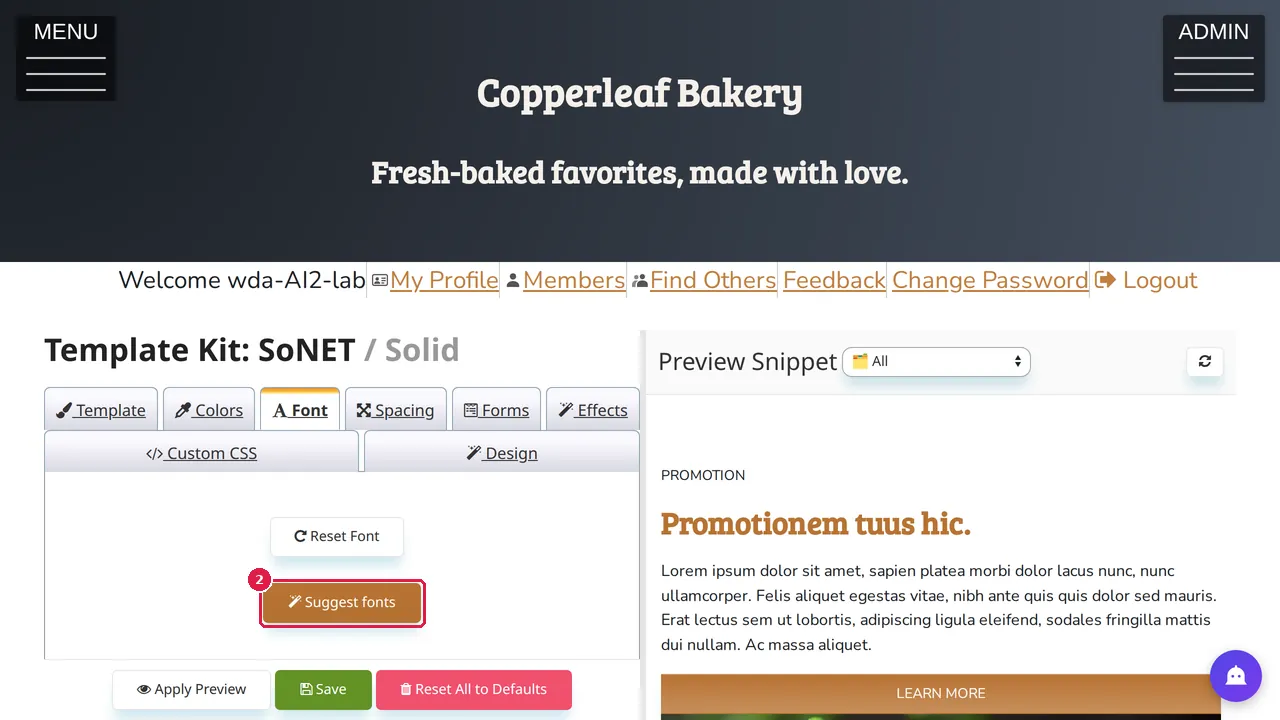
Step 2. Click Suggest fonts and wait a few seconds.
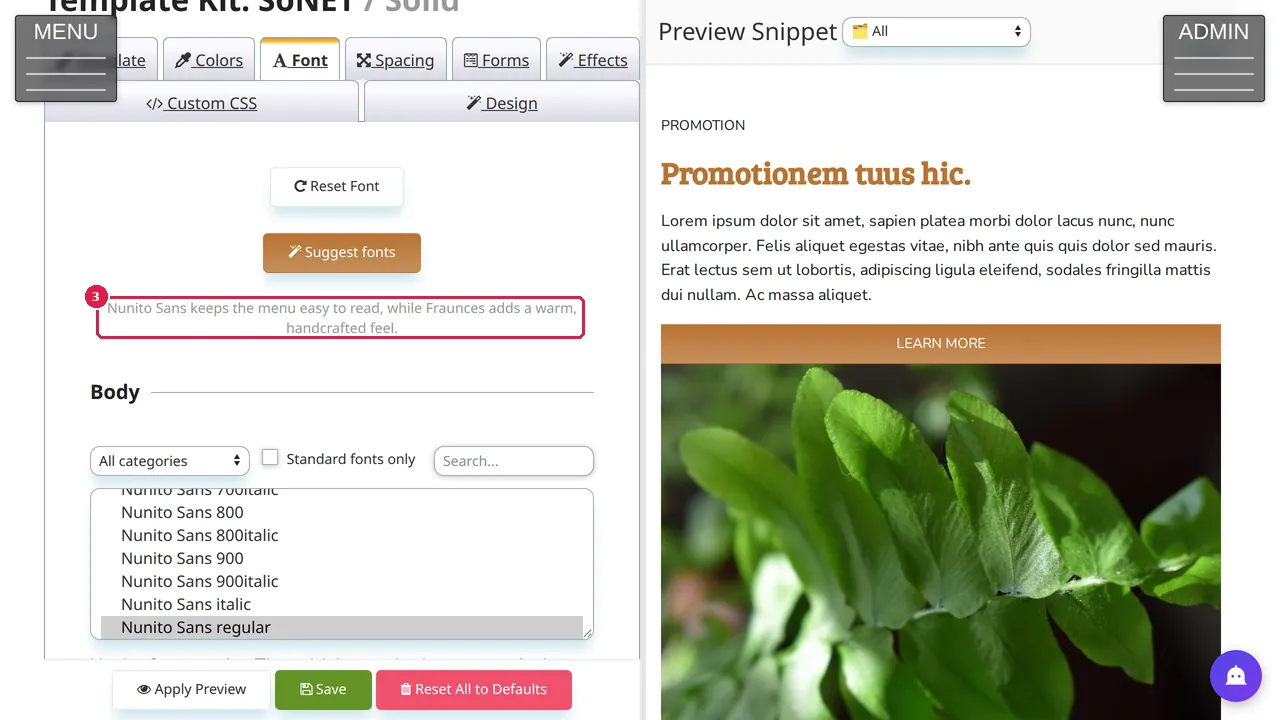
Step 3. Below the button a line says which fonts suit your site and why. In this example, for a bakery's demo site: "Nunito Sans keeps the menu easy to read, while Fraunces adds a warm, handcrafted feel." Pick the fonts in the lists below, click Apply Preview to try them, and Save to keep them. (Nothing was saved in this demonstration.)
Check it worked
After saving, open your site in a private window and read a page on your phone: the text must stay easy to read.
Good to know
- The suggestion is not kept: write it down or pick the fonts straight away.
Related help
Shown on the 2026 version of the SoNET Web Engine. Last checked 10 November 2026. Something different on your screen? Tell us through the Contact page.