Help Center Pages & Editing
Style a section: colours, spacing, width, heading, edge and background
In edit mode each section's toolbar has style controls next to MANAGE. They change the section's colours, spacing, width, heading size and position, its edge shape and its background picture or video, and the page shows the change at once.
Watch it done: a short silent video with captions · 2:27. The steps below show the same thing picture by picture.
Before you start
- Log in and open the page.
Find the style controls
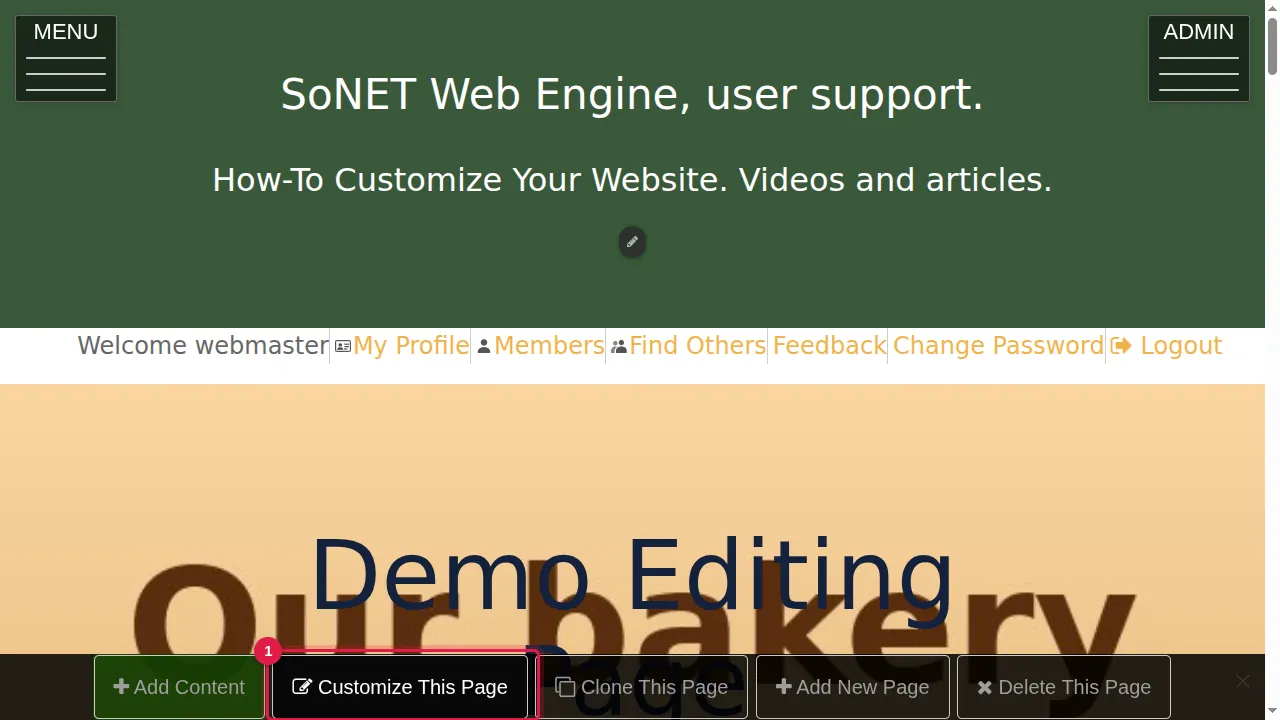
Step 1. Click Customize This Page in the bar at the bottom.
Step 2. Each section's toolbar has style controls after MANAGE. Every change is saved and shown at once.
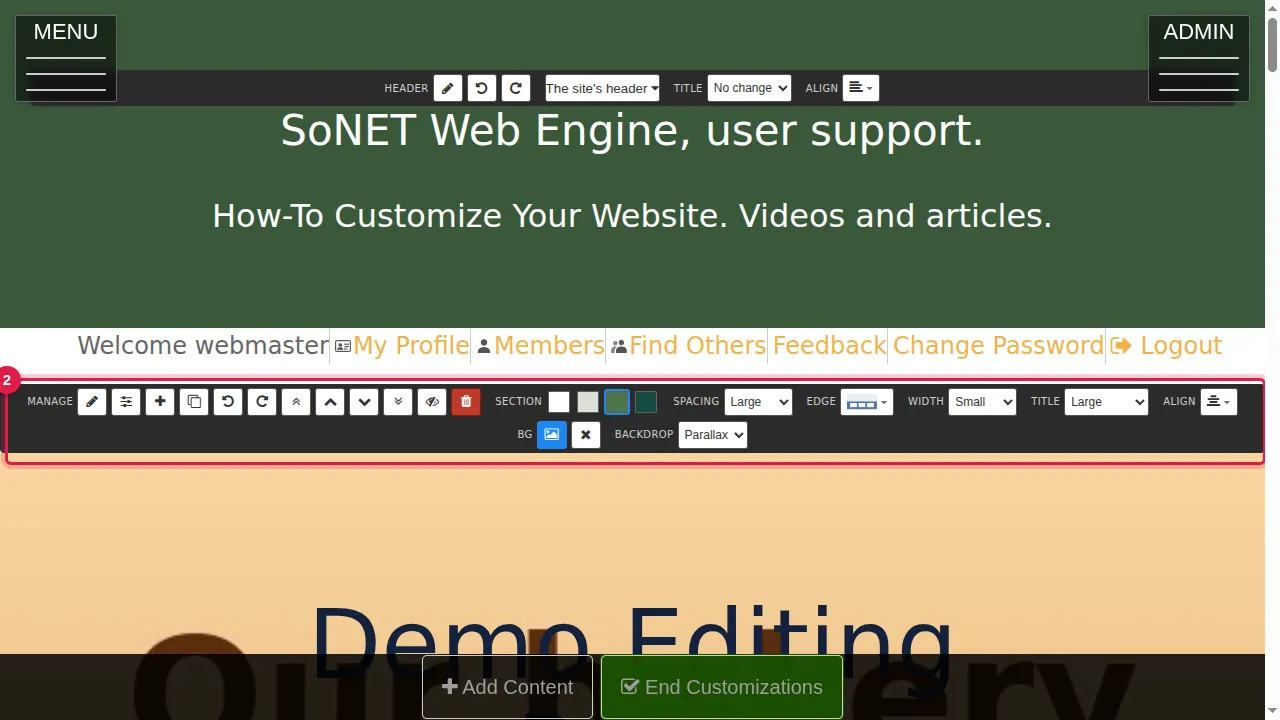
Colours, spacing and width
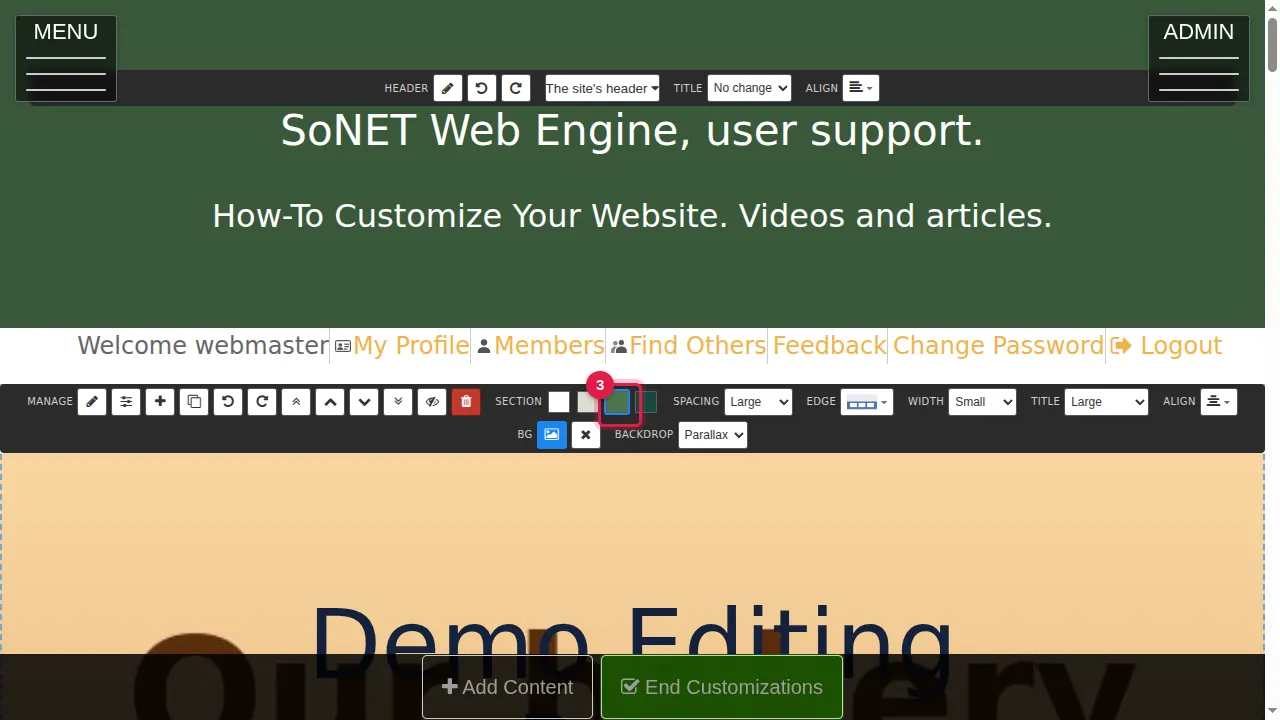
Step 3. SECTION picks the colour scheme: Default, Muted, Primary or Secondary. The colours come from your Template Kit.
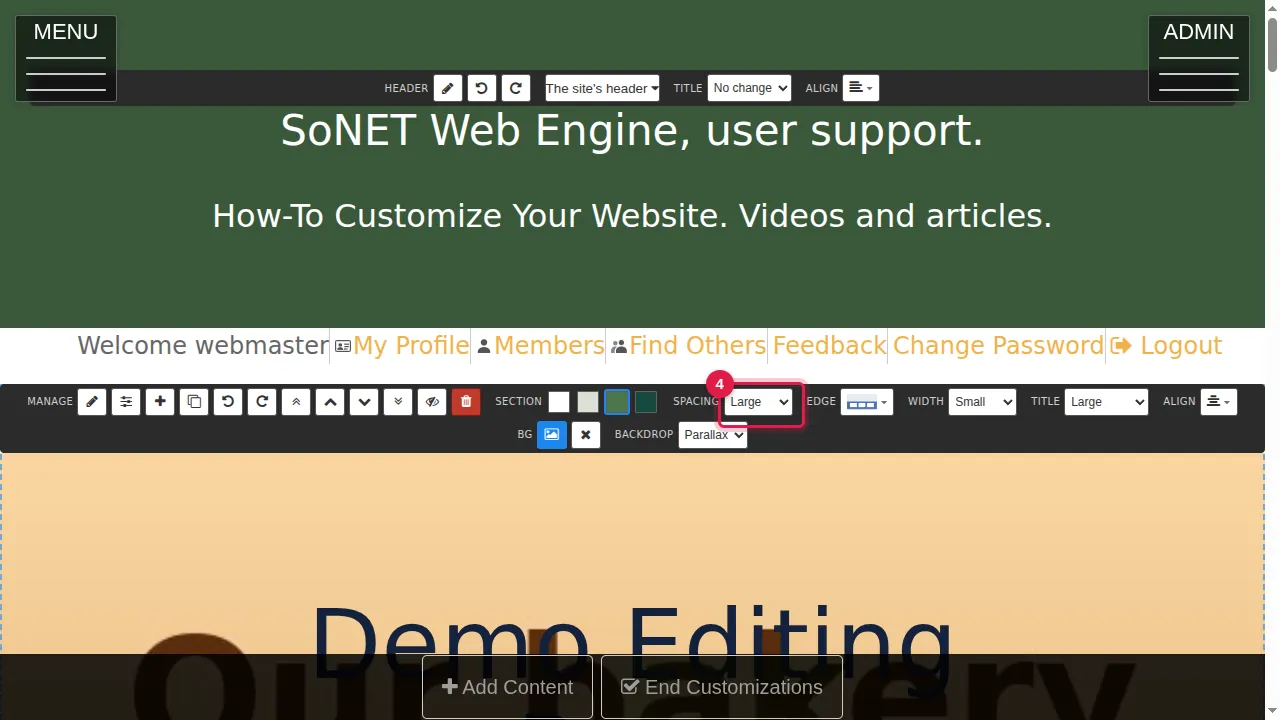
Step 4. SPACING sets the space above and below the section, from XSmall to XLarge.
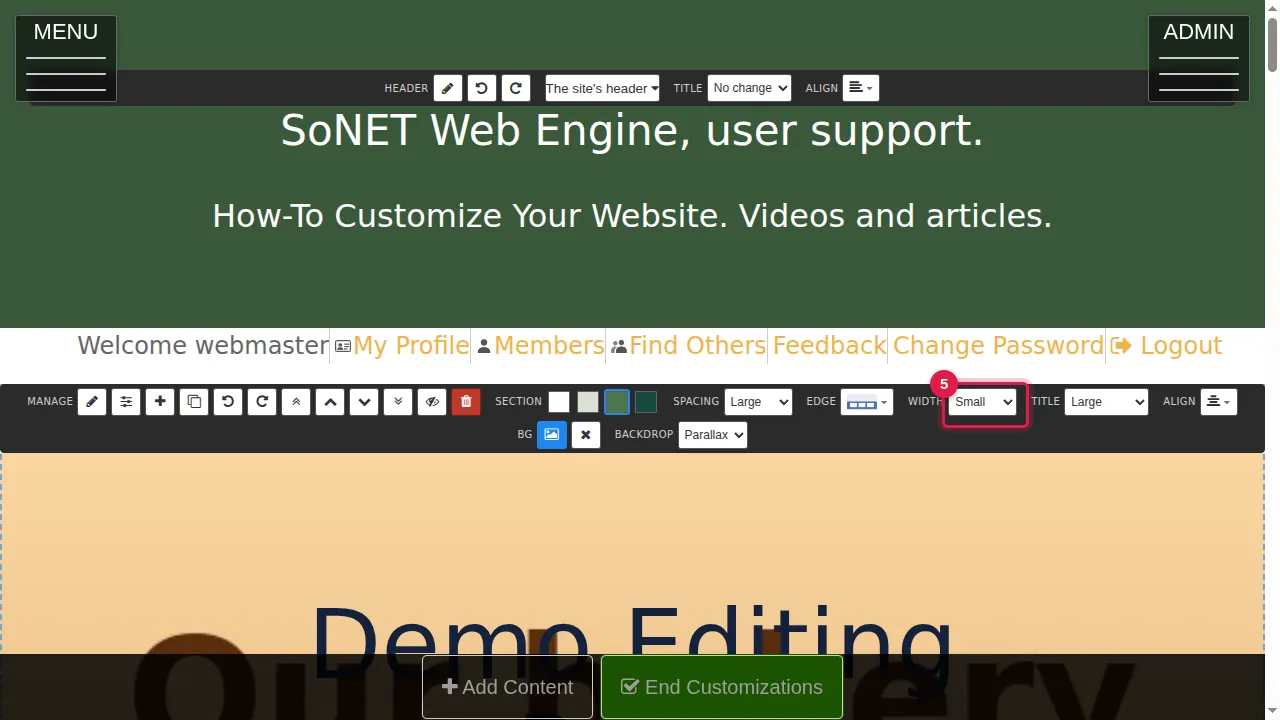
Step 5. WIDTH sets how wide the content may be, from XSmall to Expand (full width).
The section's heading
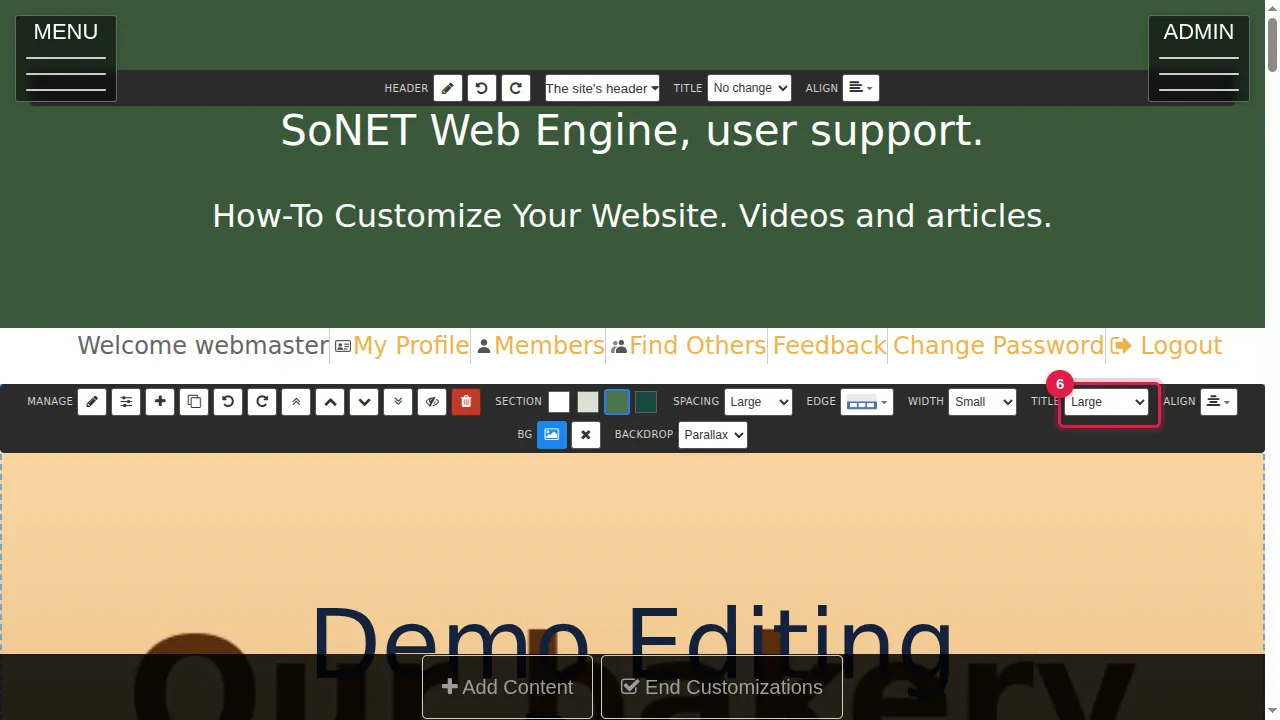
Step 6. TITLE sets the size of the section's heading, from Small to 2XLarge.
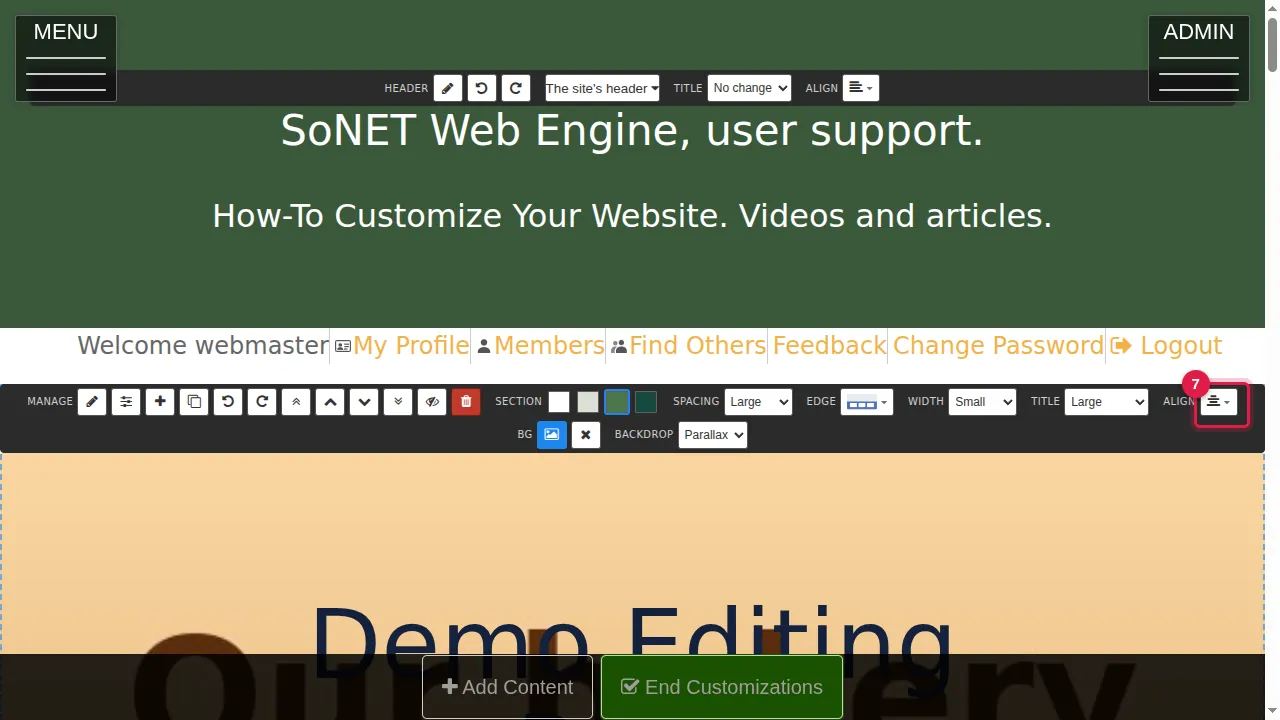
Step 7. ALIGN puts the heading on the left, in the centre or on the right.
Background and edge
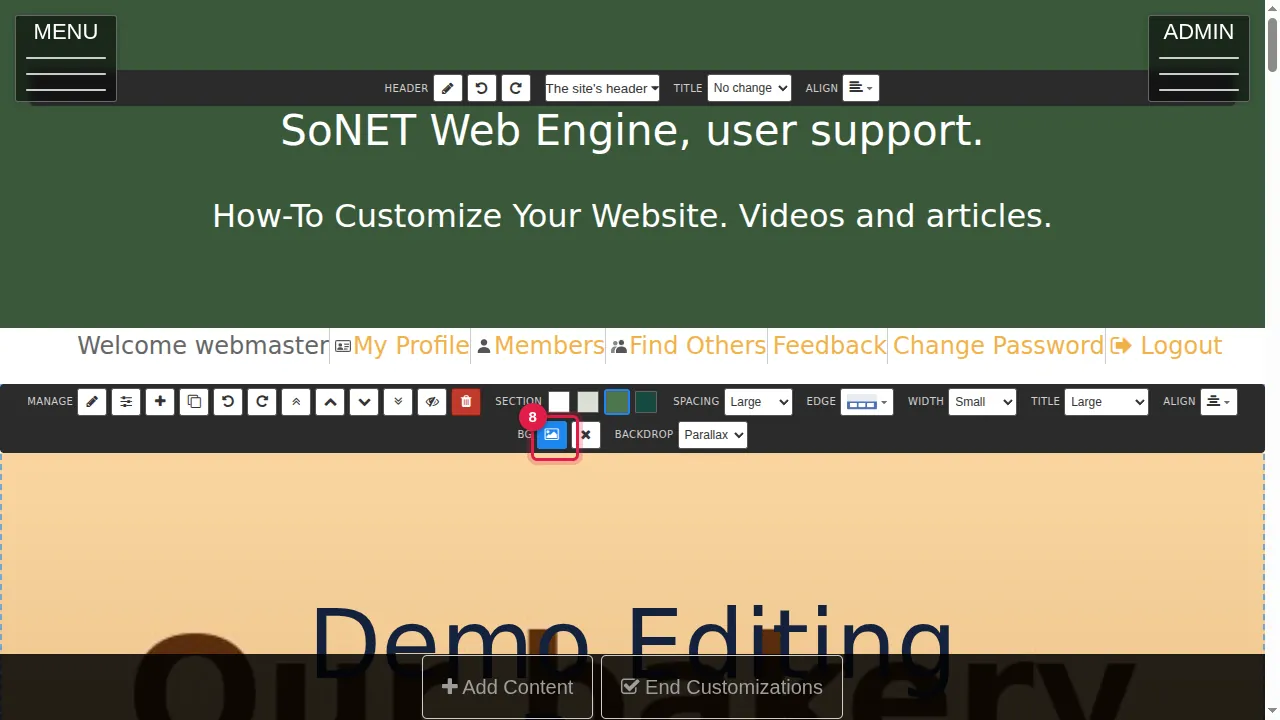
Step 8. BG puts a picture or video behind the section: click it and choose the file. The × next to it removes the background.
Step 9. BACKDROP decides how the background moves when visitors scroll: Normal, Fixed (stays still) or Parallax (moves slower than the page).
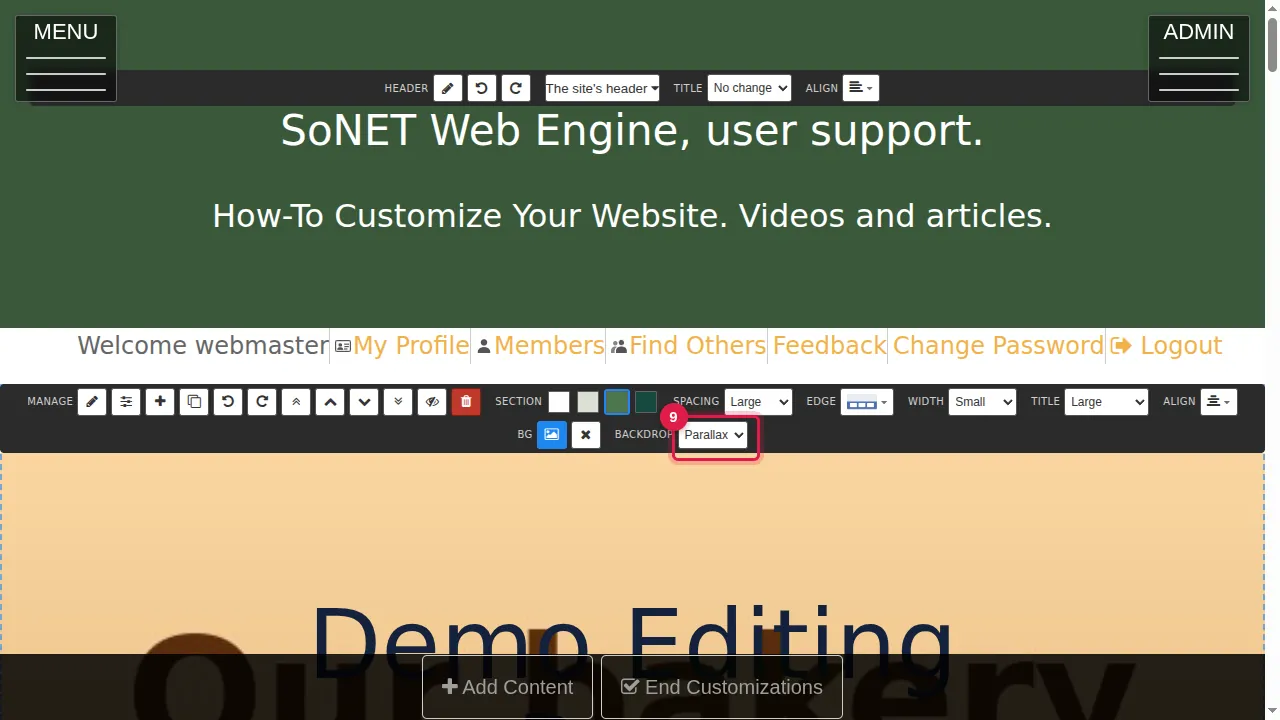
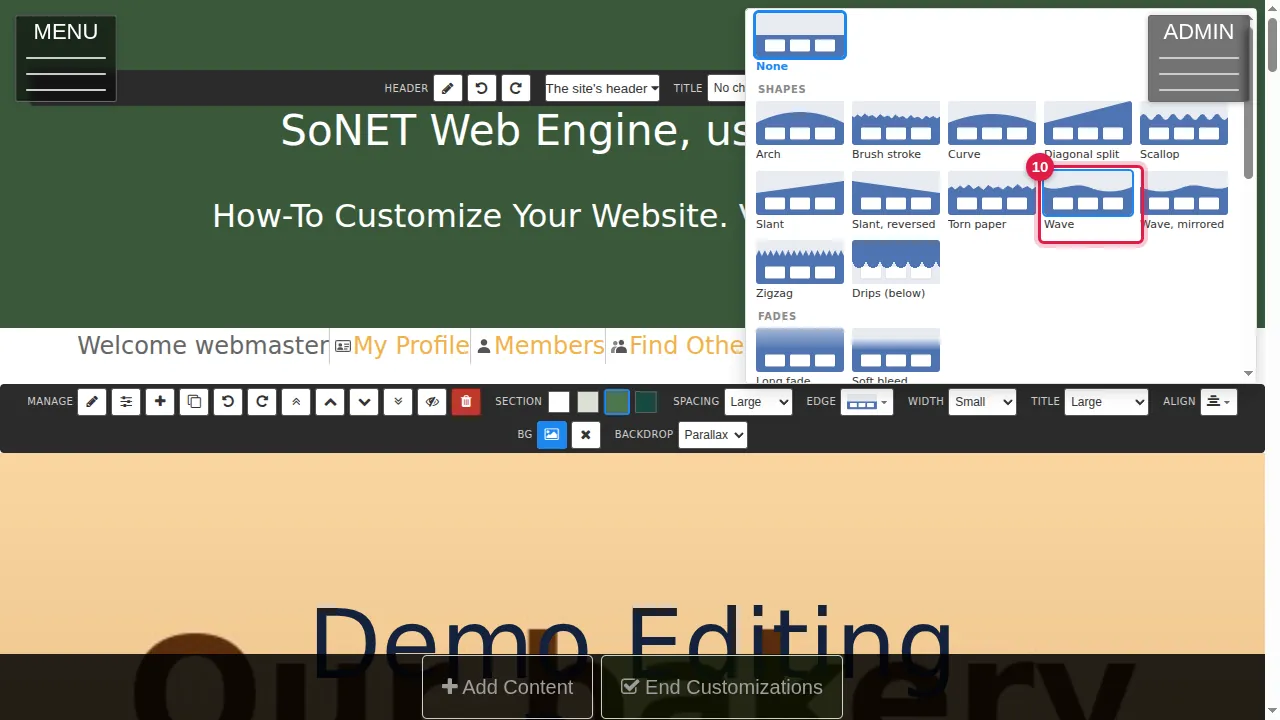
Step 10. EDGE shapes the line where this section meets the next one: arch, brush stroke, curve, diagonal split, scallop, slant, torn paper, wave, zigzag, drips, or a soft fade. Here: Wave.
See the result
Step 11. Click End Customizations.
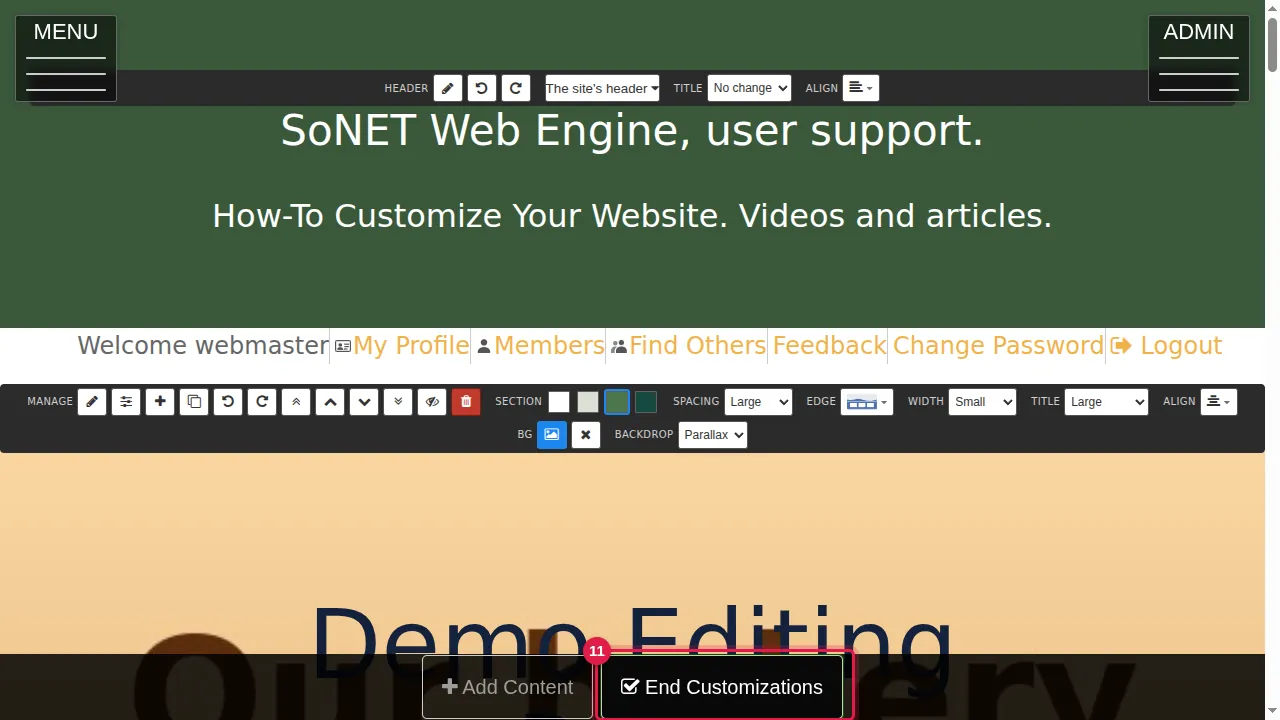
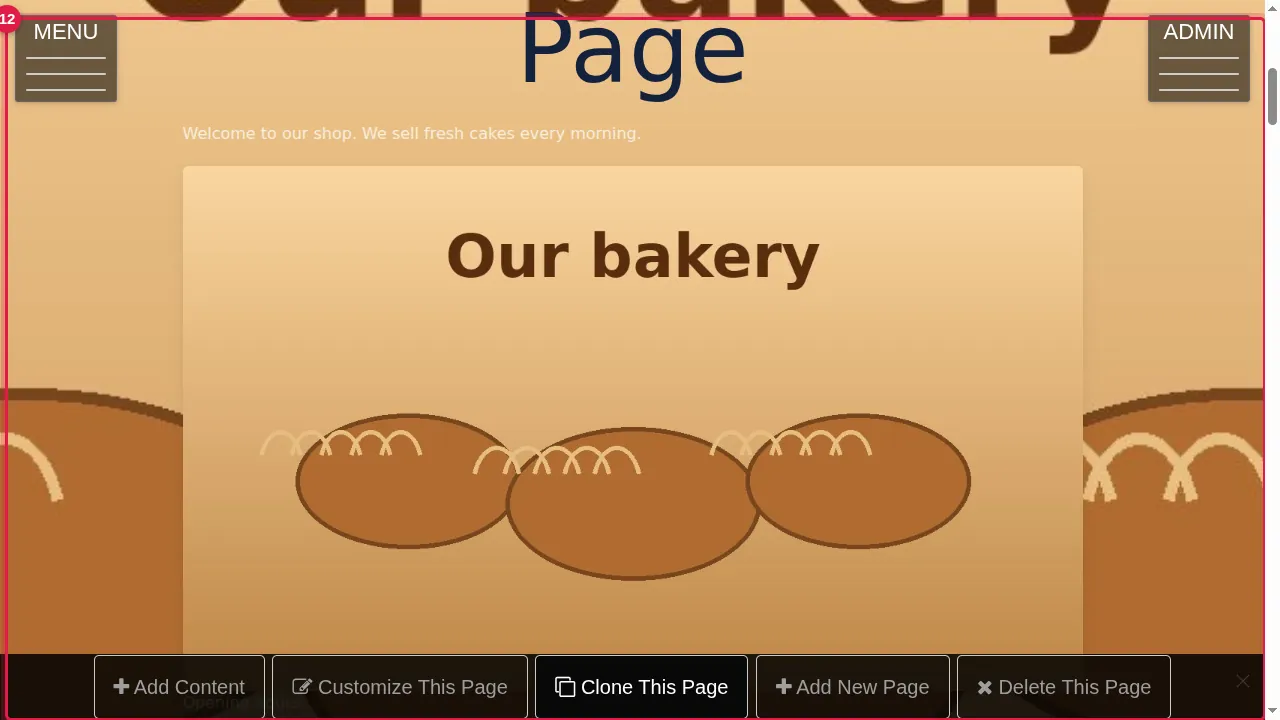
Step 12. The section shows its new colours, spacing, width, heading, background and edge.
Check it worked
Look at the page as a visitor, on a computer and on a phone.
Good to know
- Some sections have extra controls, for example COLUMNS (how many side by side) or the position of the picture next to the text.
- The undo button in MANAGE takes back the last change to the section.
Related help
Shown on the 2026 version of the SoNET Web Engine. Last checked 21 October 2026. Something different on your screen? Tell us through the Contact page.