Help Center Store
Store settings and your store page
The two store settings (where Continue Shopping goes, and your word for Brand) and a tour of your store page the way customers use it: search, categories, price range, sorting, a product page and the cart.
Watch it done: a short silent video with captions · 1:32. The steps below show the same thing picture by picture.
Before you start
- Log in as the site owner.
- Open ADMIN › eCommerce and click the Settings tab.
Store settings
Step 1. "Continue Shopping" Page: the page customers go to when they click Continue Shopping in the cart.
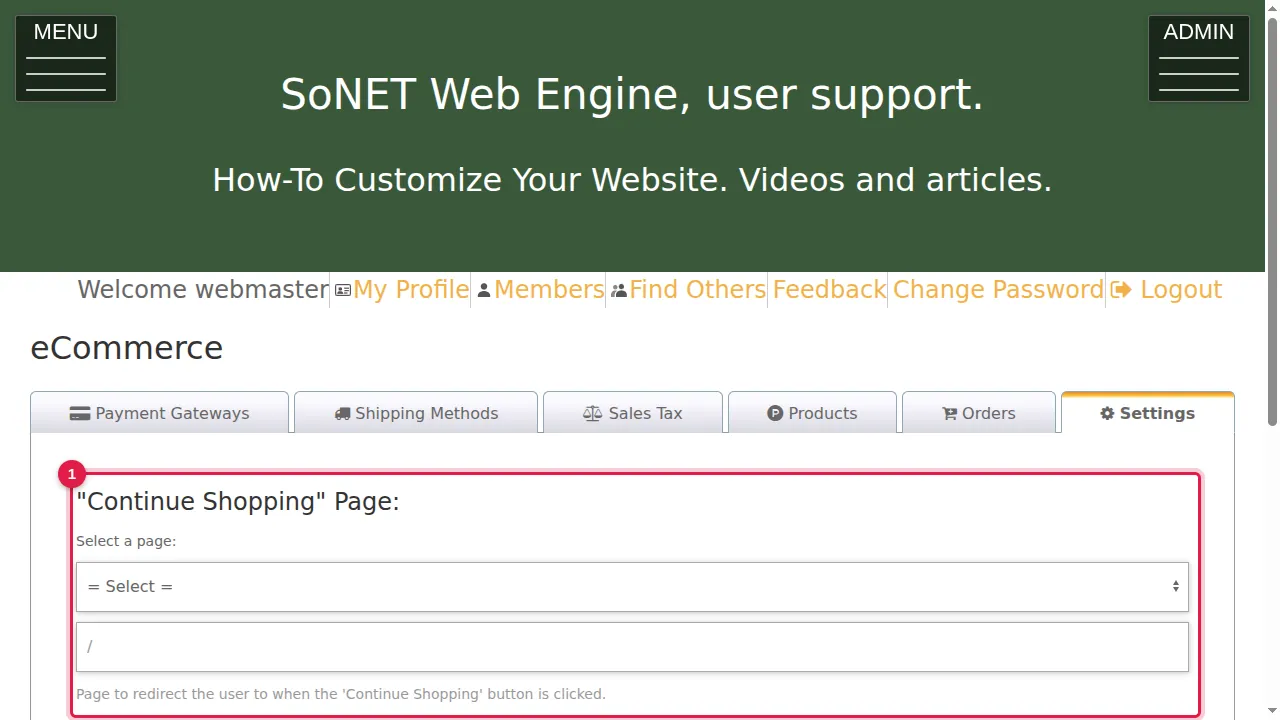
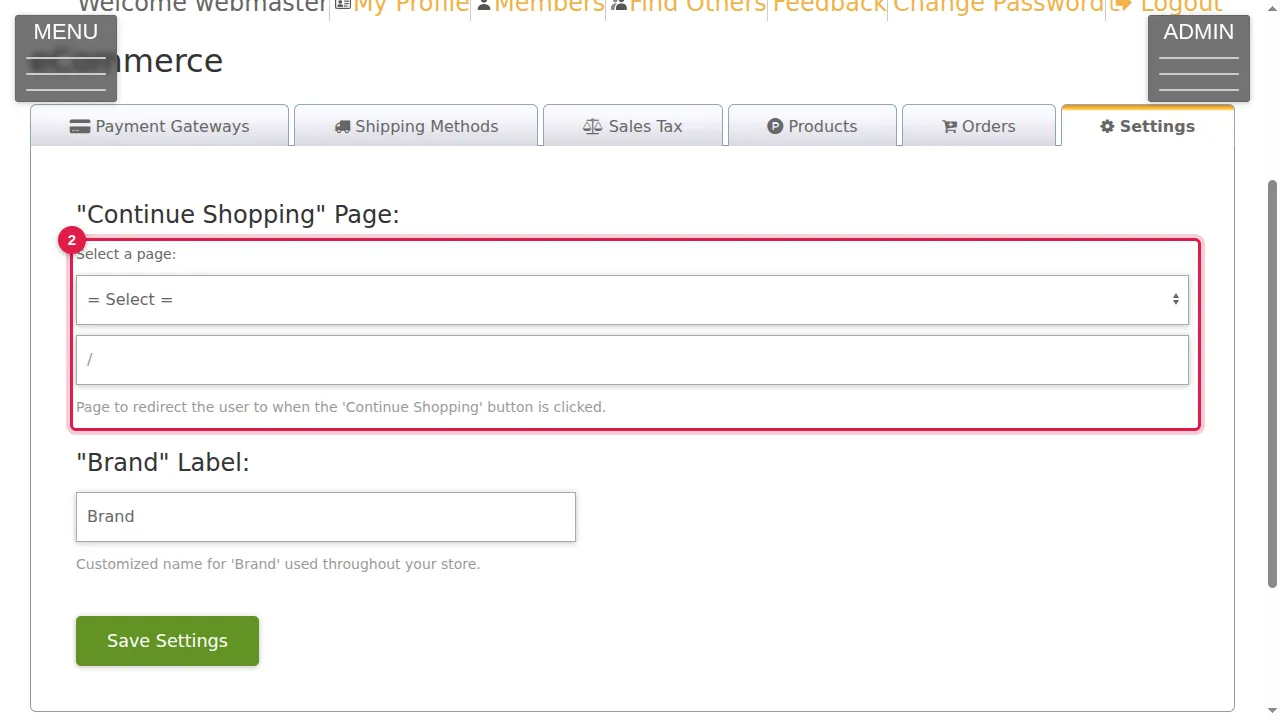
Step 2. Choose one of your pages from the list, or type another address in the box below it.
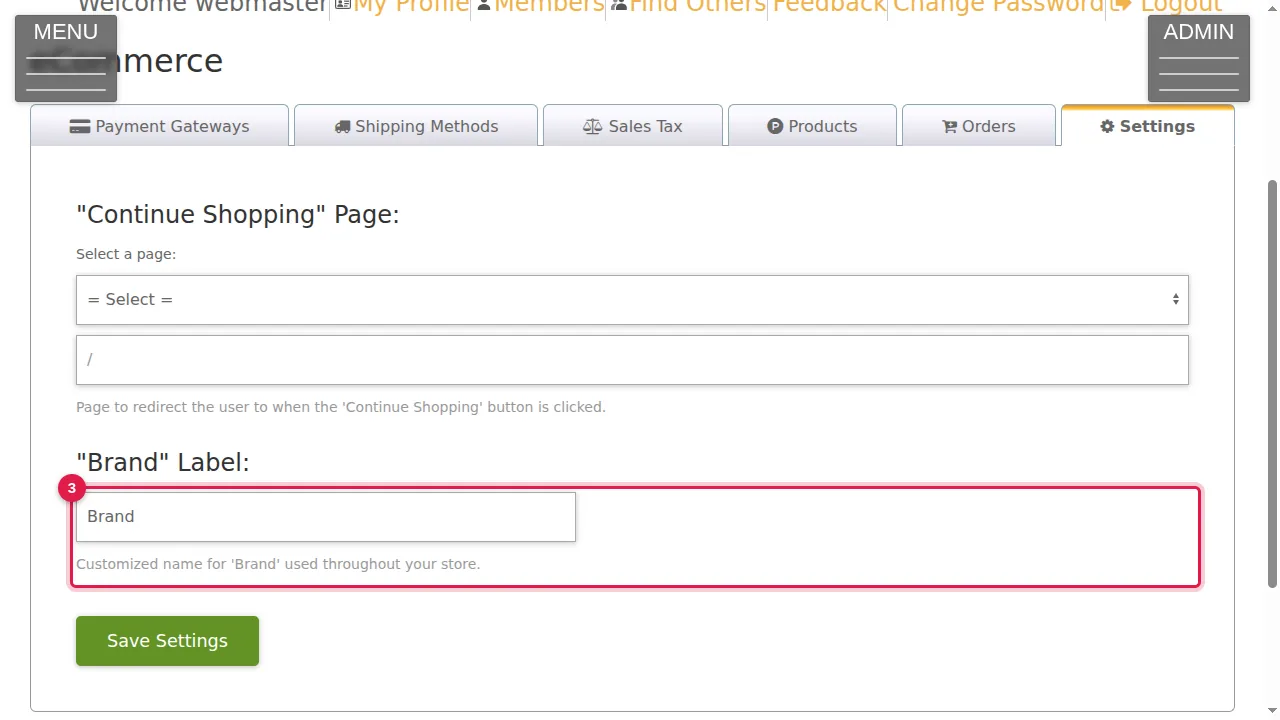
Step 3. "Brand" Label: the word used for a product's brand throughout your store (here: Brand).
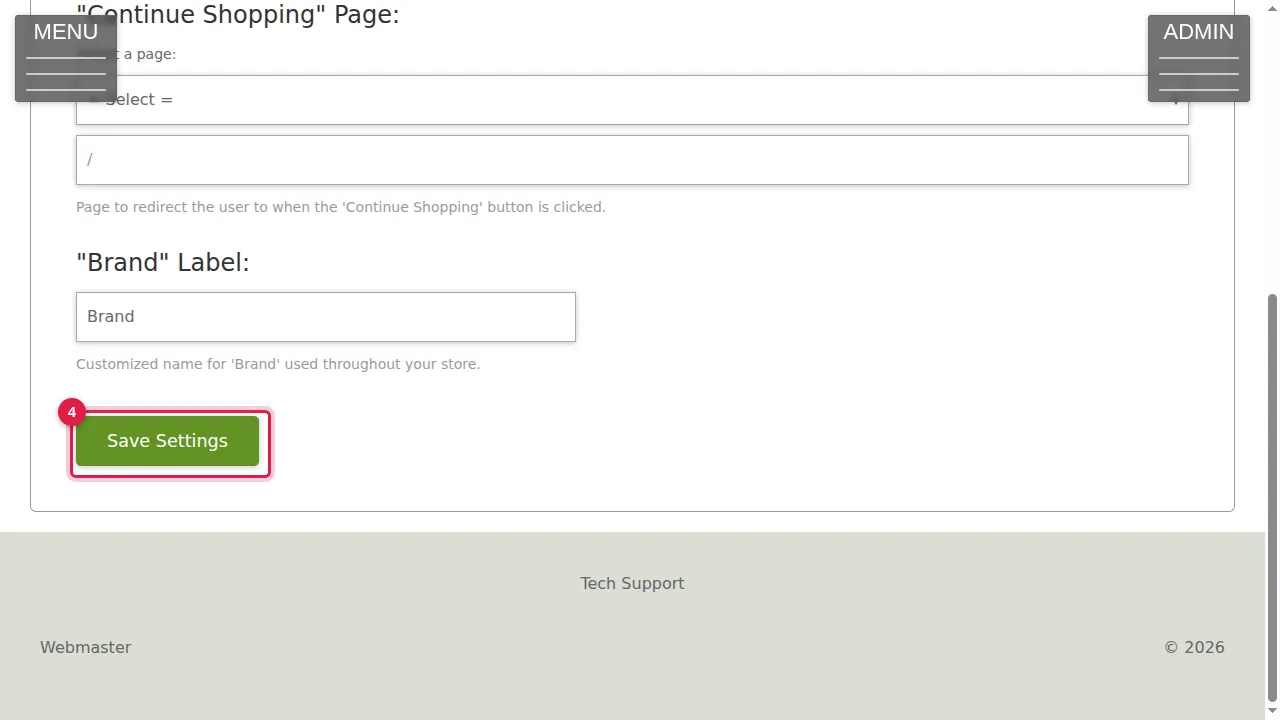
Step 4. Click Save Settings to keep your changes. (In this demonstration nothing was changed.)
Your store page
Step 5. Your store page, as visitors see it (here at /o). They can search your products…
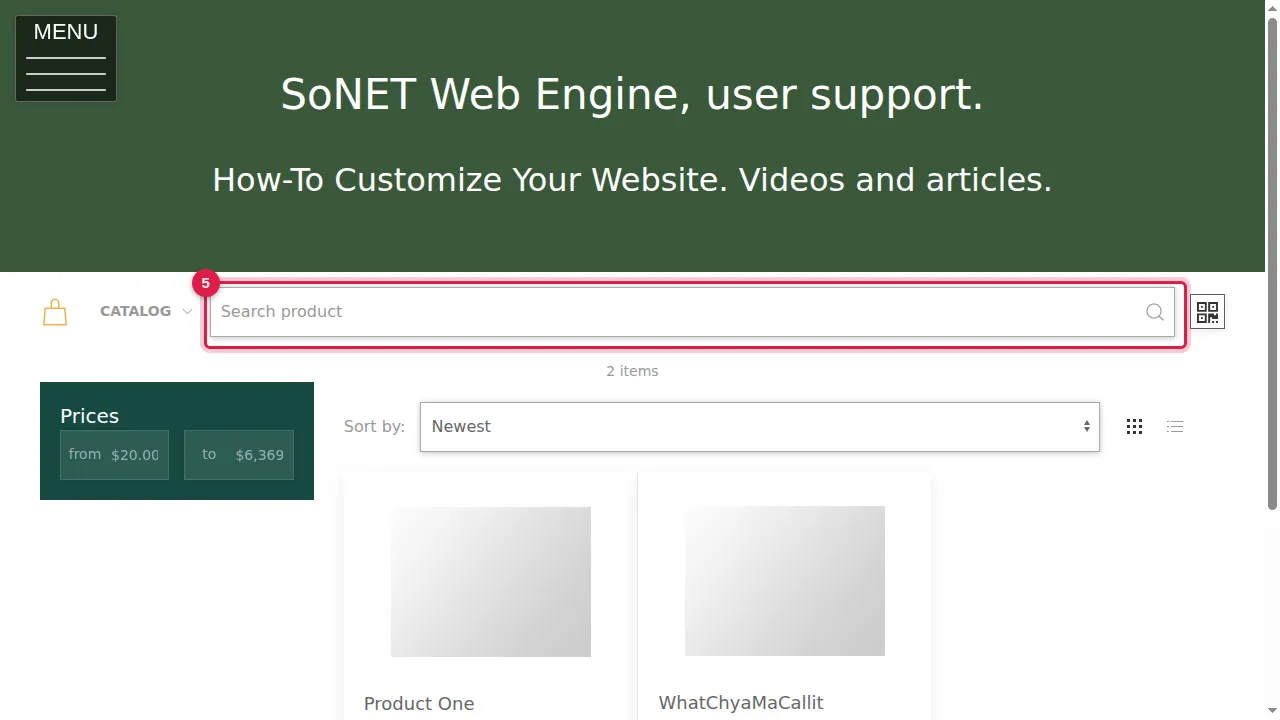
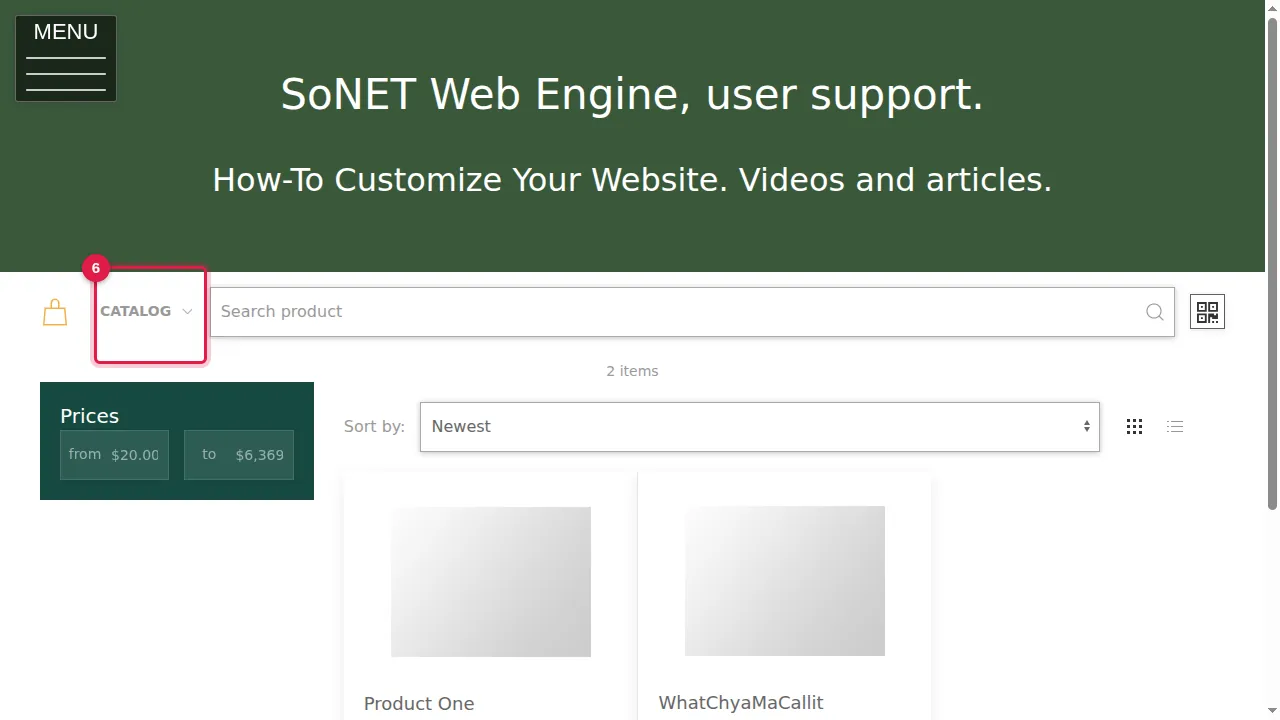
Step 6. …browse by category in CATALOG…
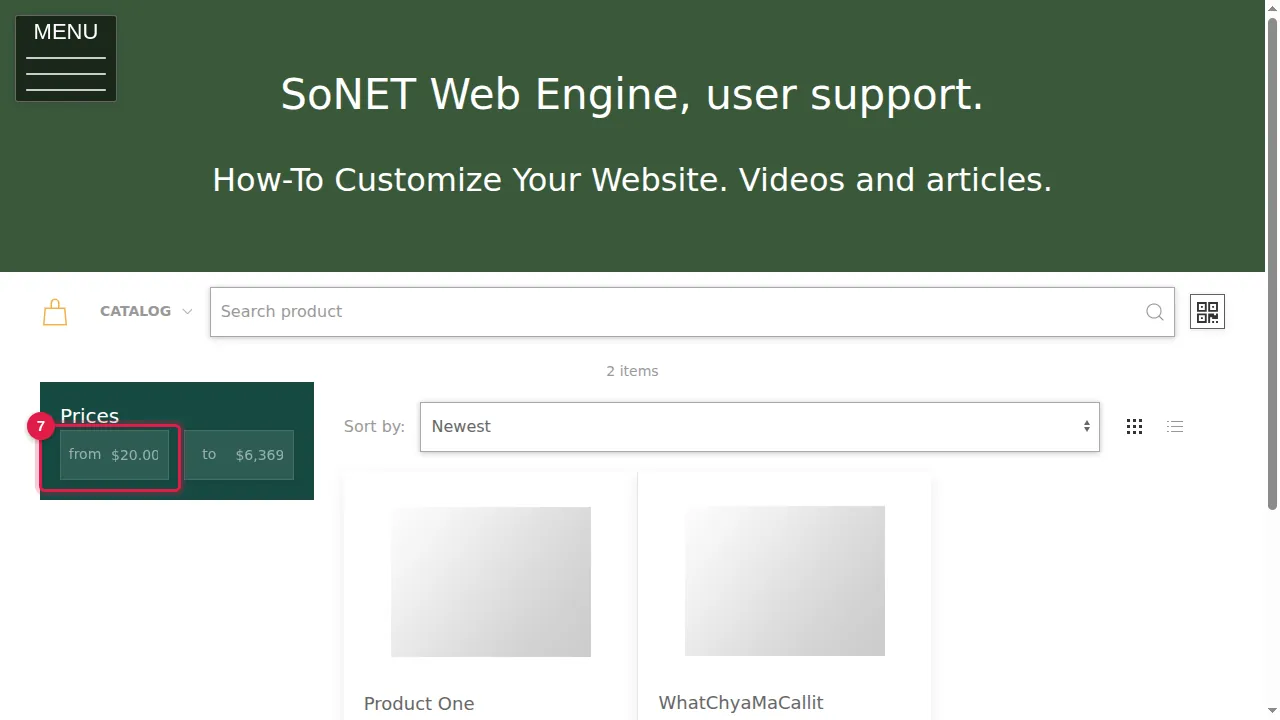
Step 7. …choose a price range under Prices…
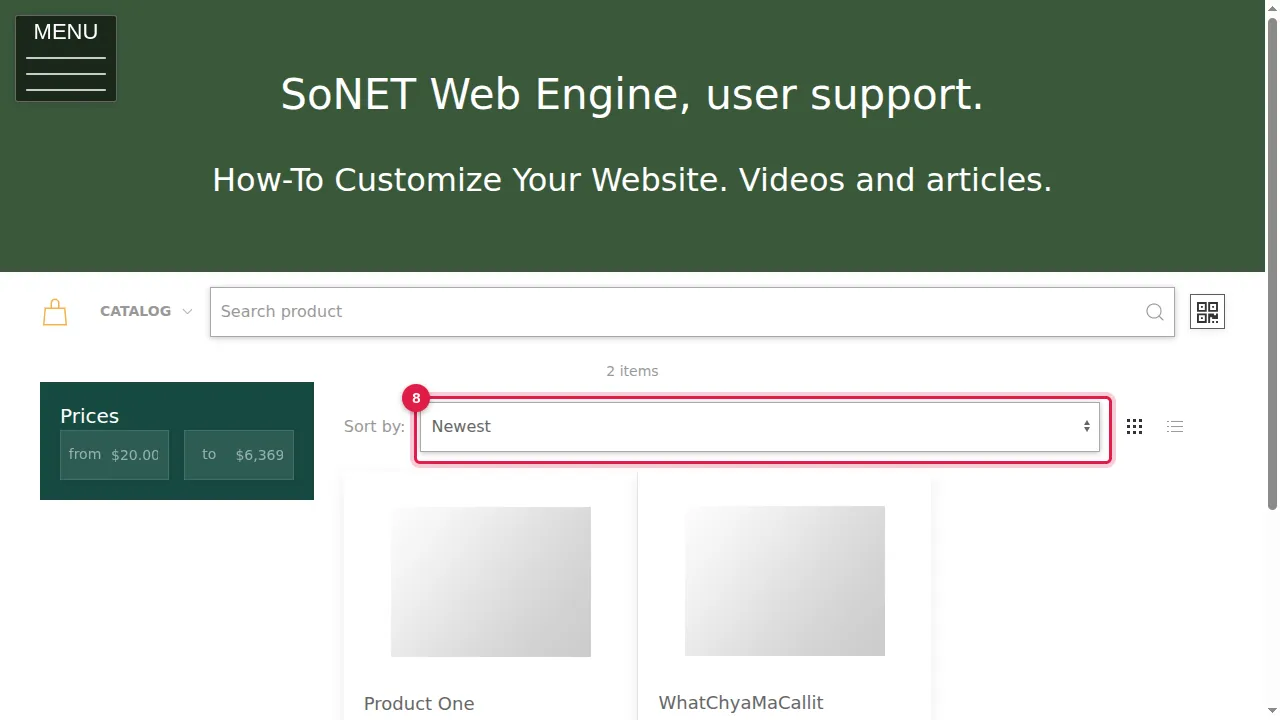
Step 8. …and sort, for example by newest or by price. The icons next to it switch between a grid and a list.
Product page and cart
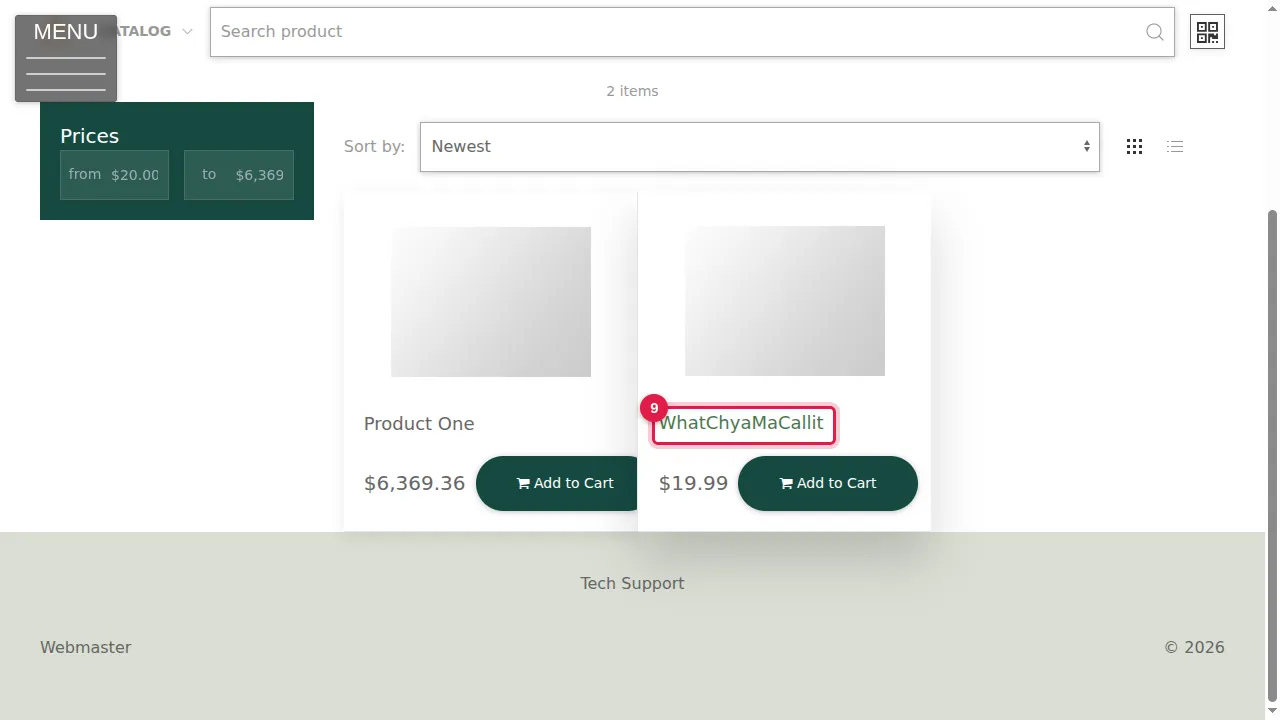
Step 9. Clicking a product's name opens its page.
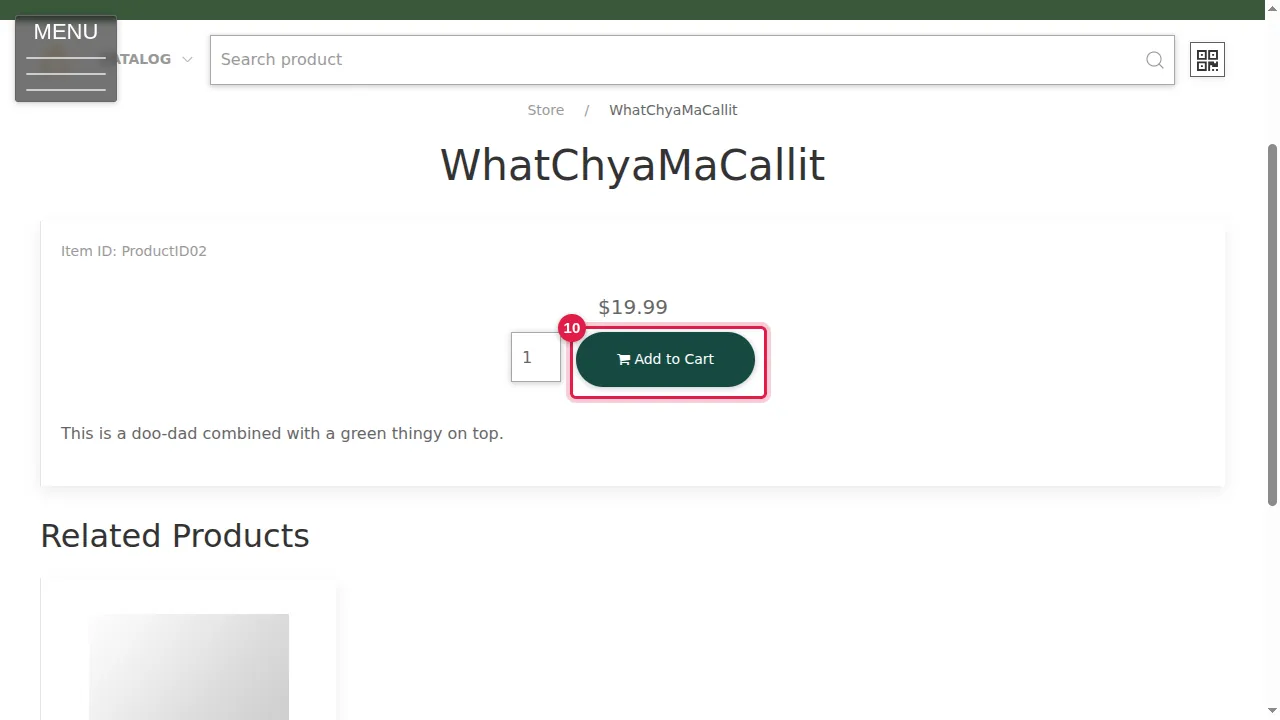
Step 10. The product page shows its pictures, Item ID, price, a quantity box, Add to Cart, the description, and related products below.
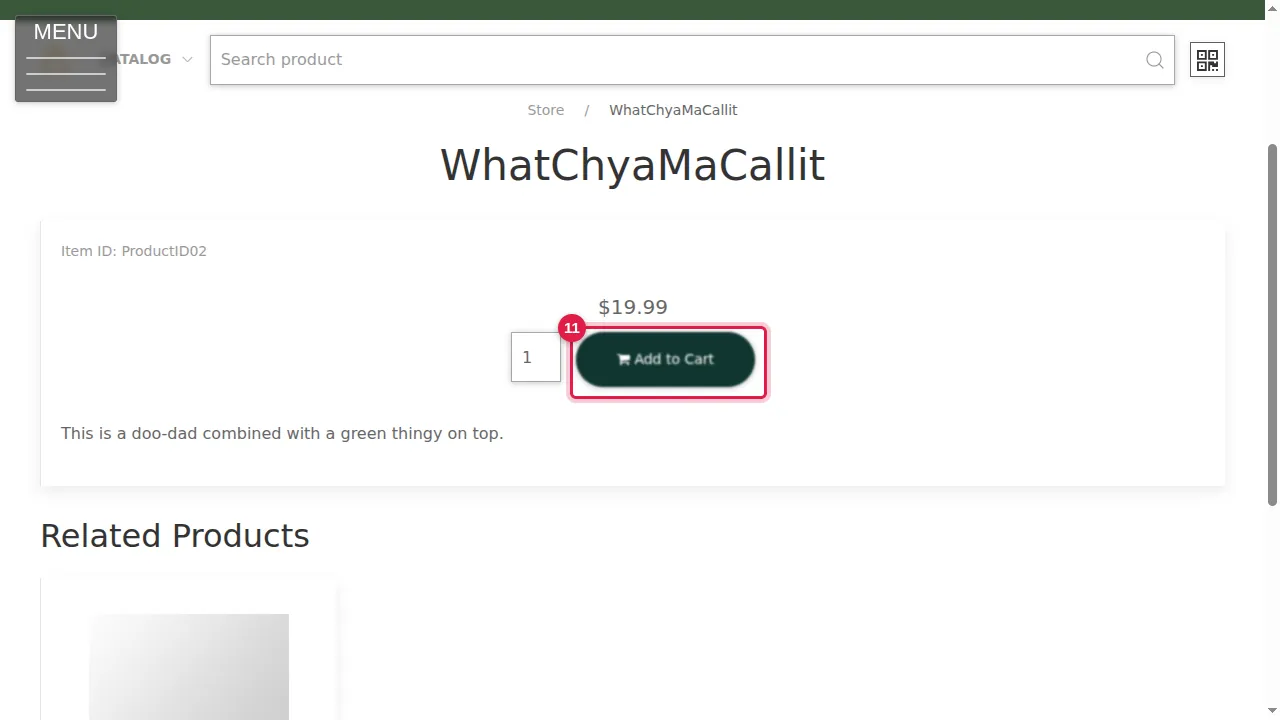
Step 11. Add to Cart puts it in the cart.
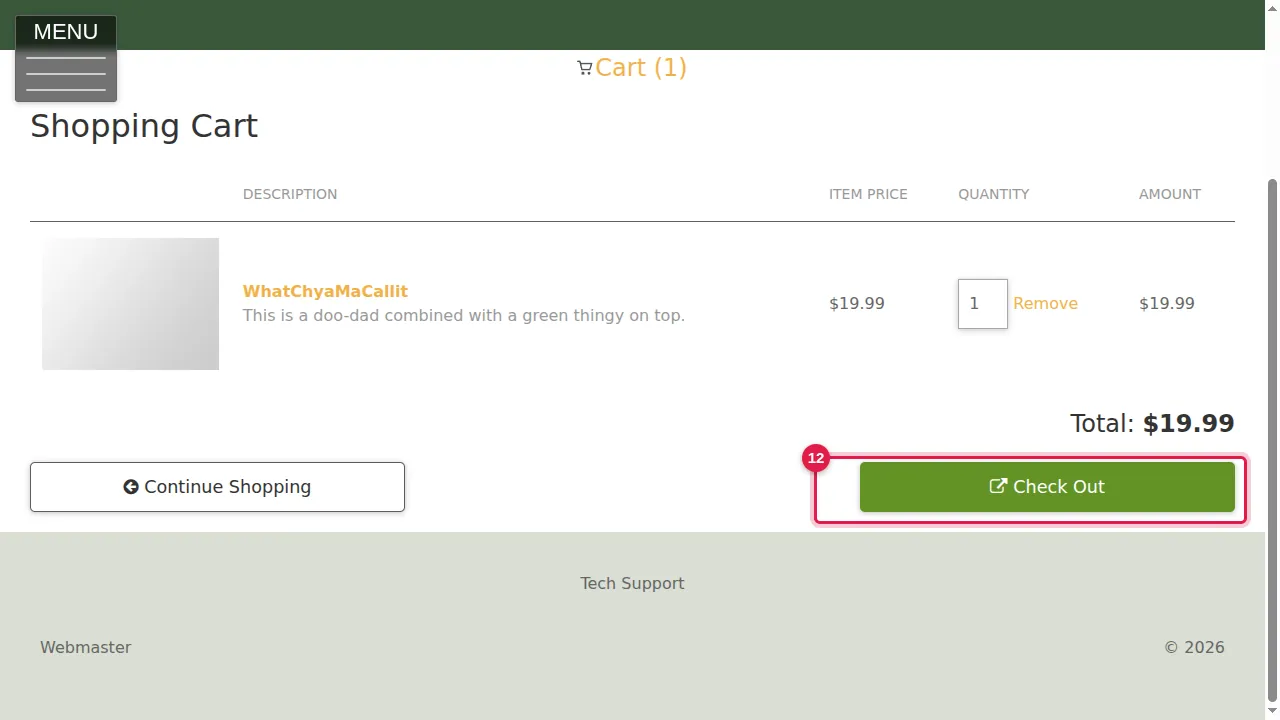
Step 12. The cart lists the items with their price, quantity and amount. Remove takes an item out; Continue Shopping goes to the page from the settings; Check Out goes to payment.
Check it worked
Walk through your own store in a private window, from the store page to the cart.
Related help
Shown on the 2026 version of the SoNET Web Engine. Last checked 21 October 2026. Something different on your screen? Tell us through the Contact page.