Help Center Store
Payment gateways: get paid in your store
Connect your store to a payment service so customers can pay by card: Authorize.NET, Authorize.NET (Accept Hosted), Elavon, PayPal (PayFlow), Open Edge, Square, Clover or Stripe. You need an account with that service and the keys it gives you.
Watch it done: a short silent video with captions · 1:37. The steps below show the same thing picture by picture.
Before you start
- Log in as the site owner.
- Open an account with a payment service and find its API keys in that service's own dashboard.
Open the payment gateways
Step 1. Open the ADMIN menu.

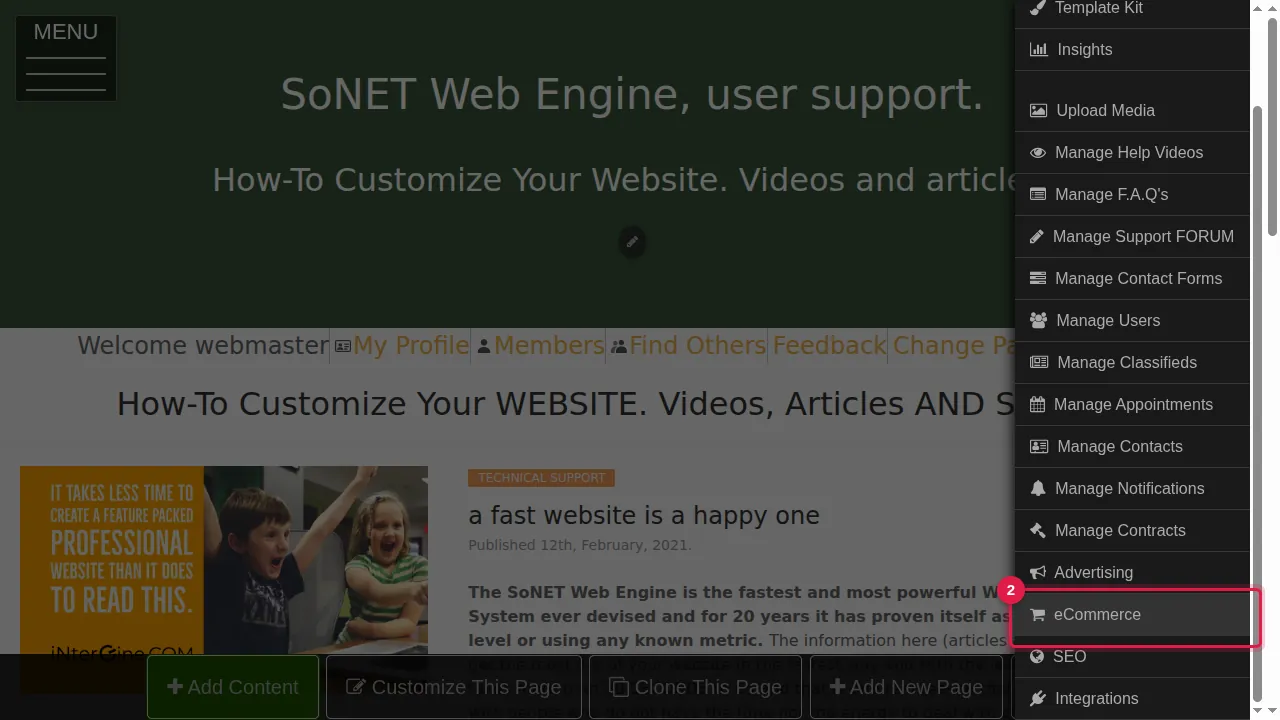
Step 2. Click eCommerce.
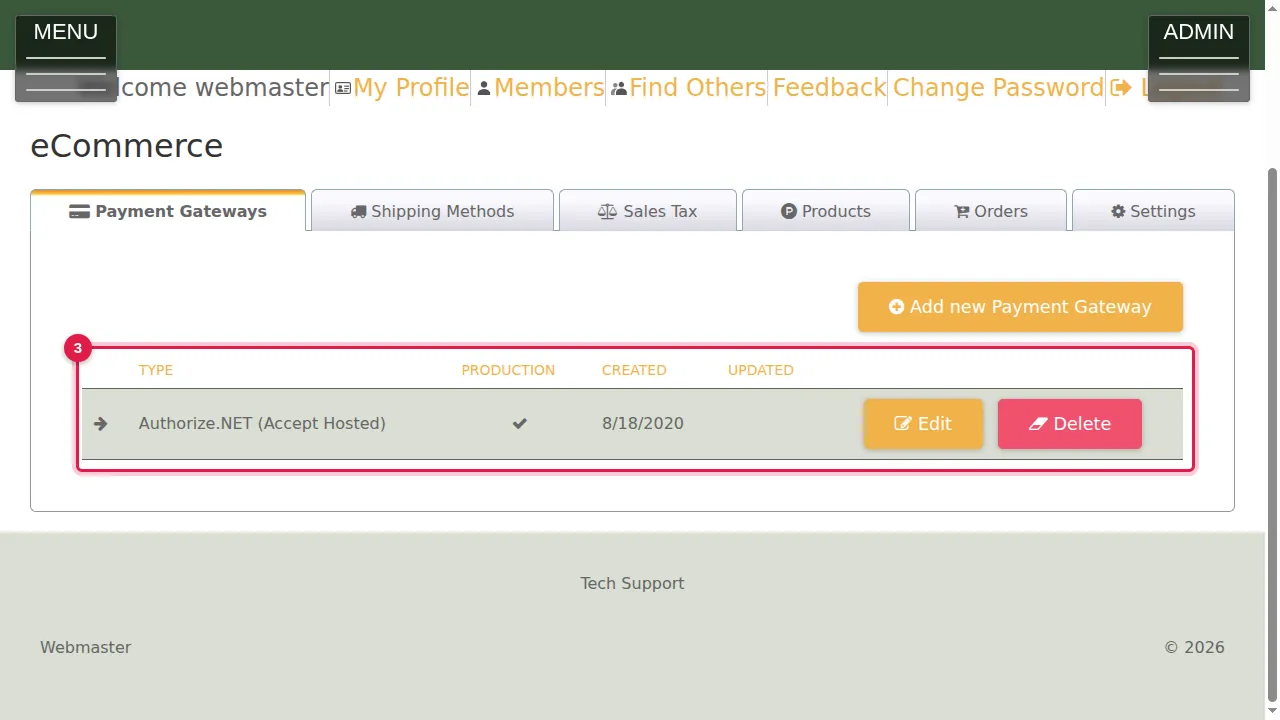
Step 3. The Payment Gateways tab lists the payment services your store is connected to, whether each one is in production, and Edit and Delete.
Add a gateway
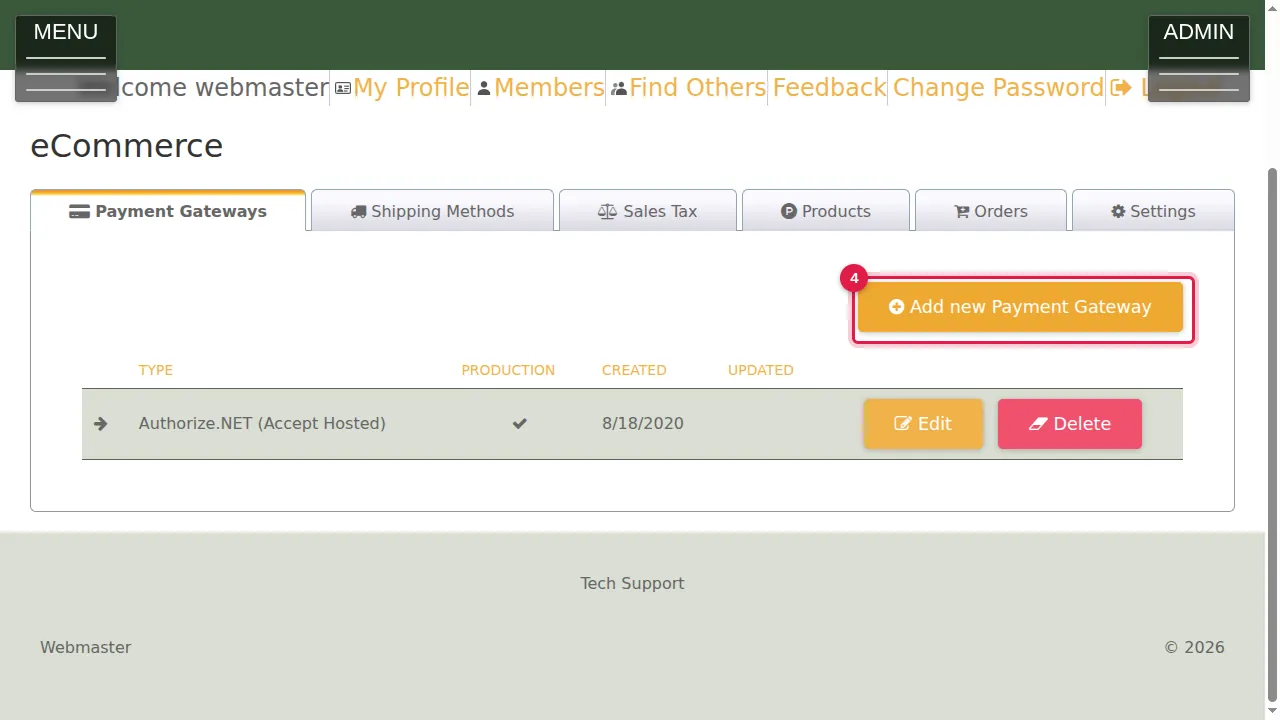
Step 4. Click Add new Payment Gateway.
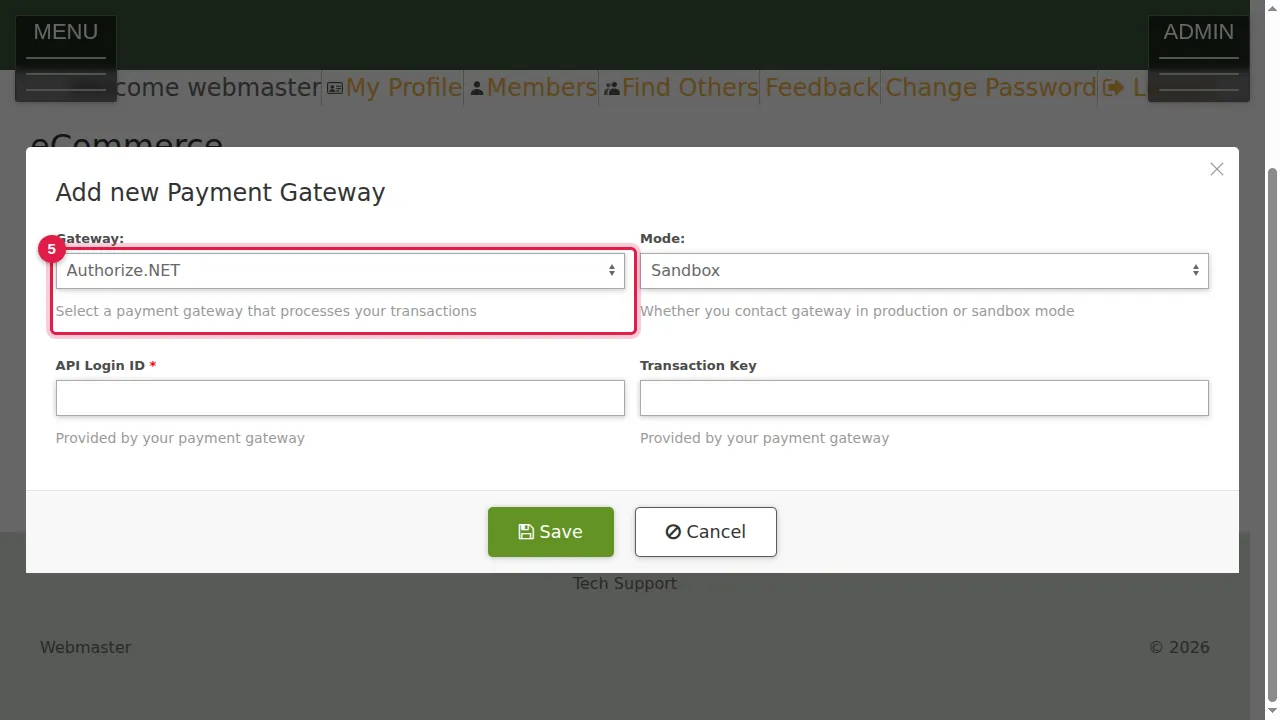
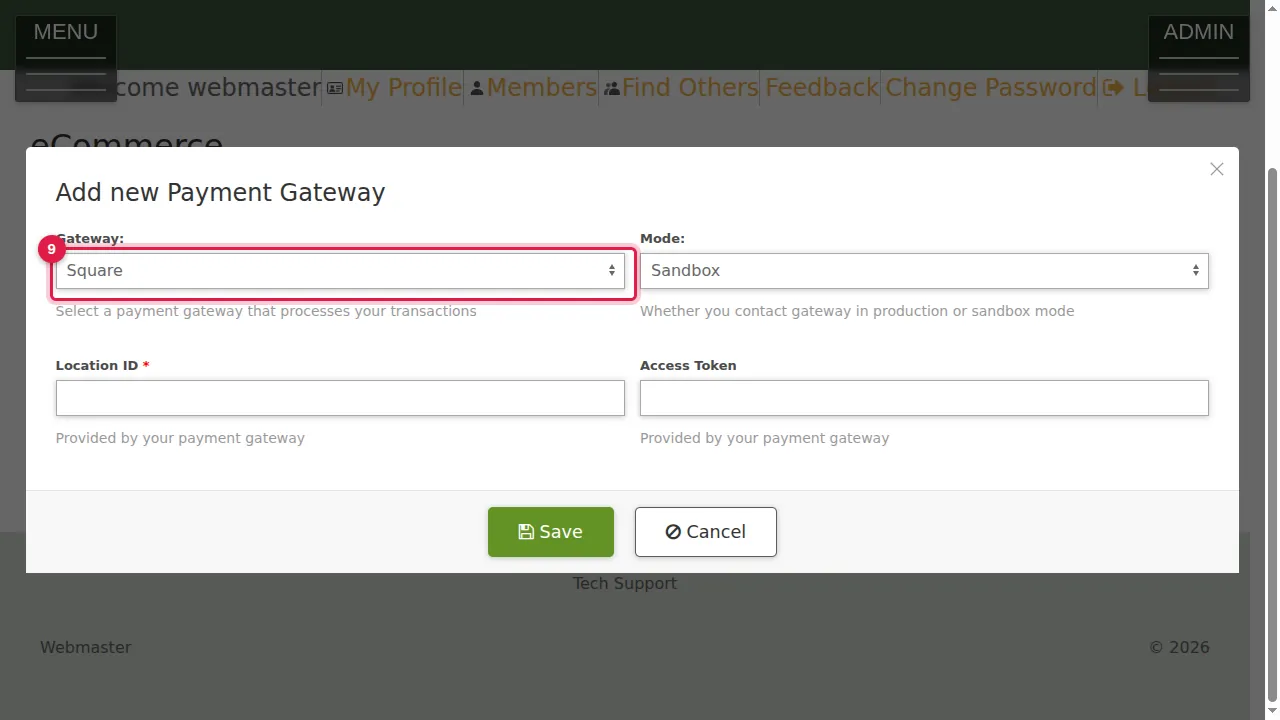
Step 5. Gateway: choose the payment service that processes your transactions.
Step 6. For example Square.
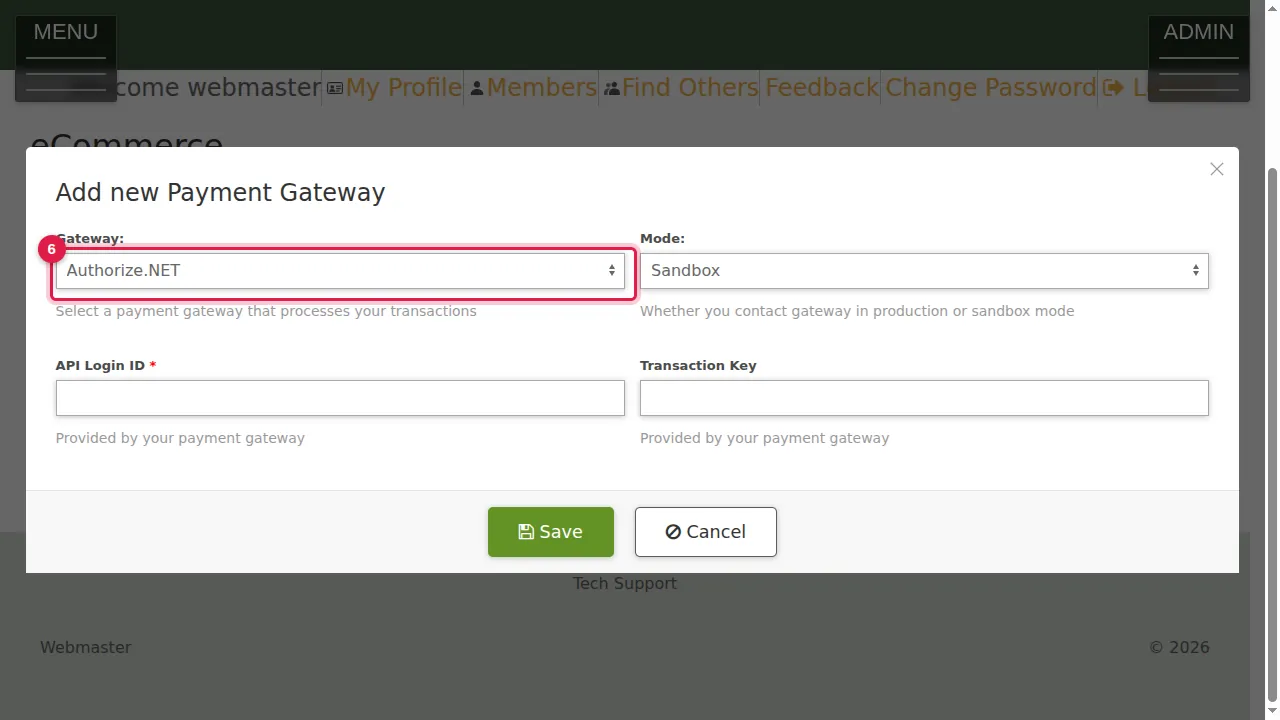
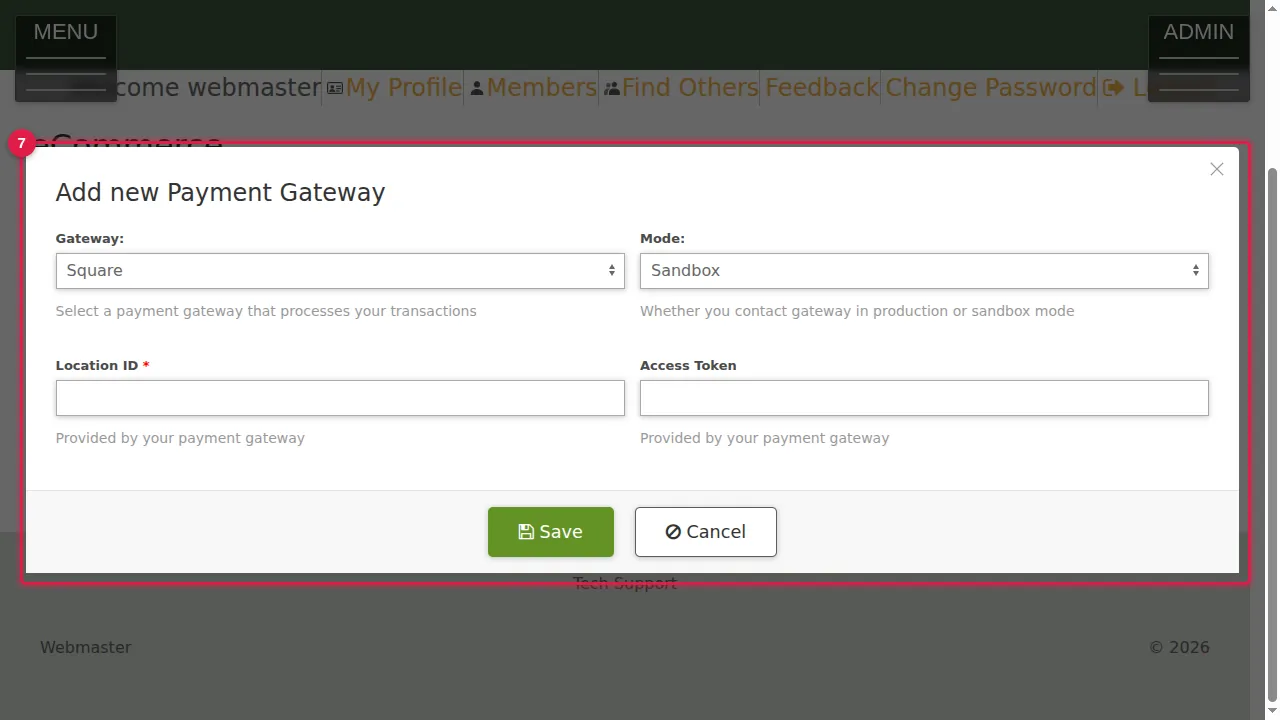
Step 7. Each service asks for the keys it gave you. Square: Location ID and Access Token. Authorize.NET: API Login ID and Transaction Key. Elavon: Merchant ID, User ID and PIN. PayPal (PayFlow): Merchant Login, User and Password. Open Edge: X Web ID, Terminal ID and Auth Key. Clover: Clover merchant ID and Private token.
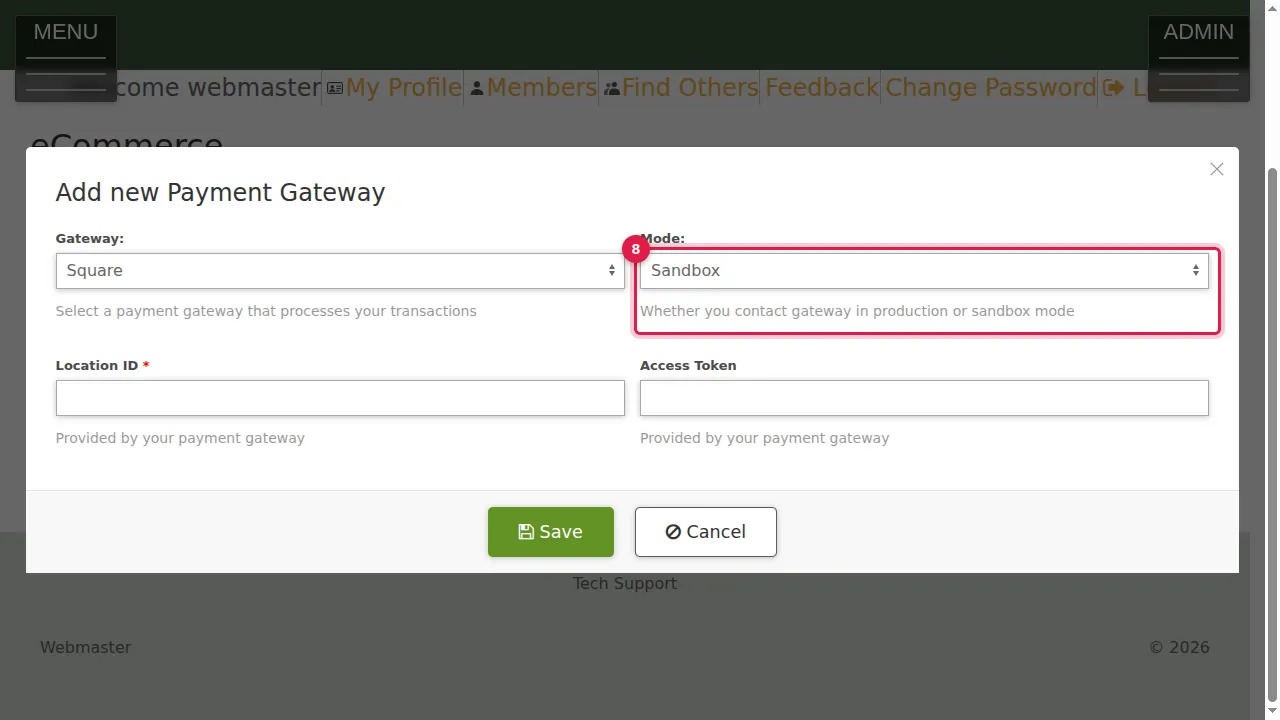
Step 8. Mode: Sandbox is for test payments with your service's test keys; Production takes real money.
Each service has its own keys
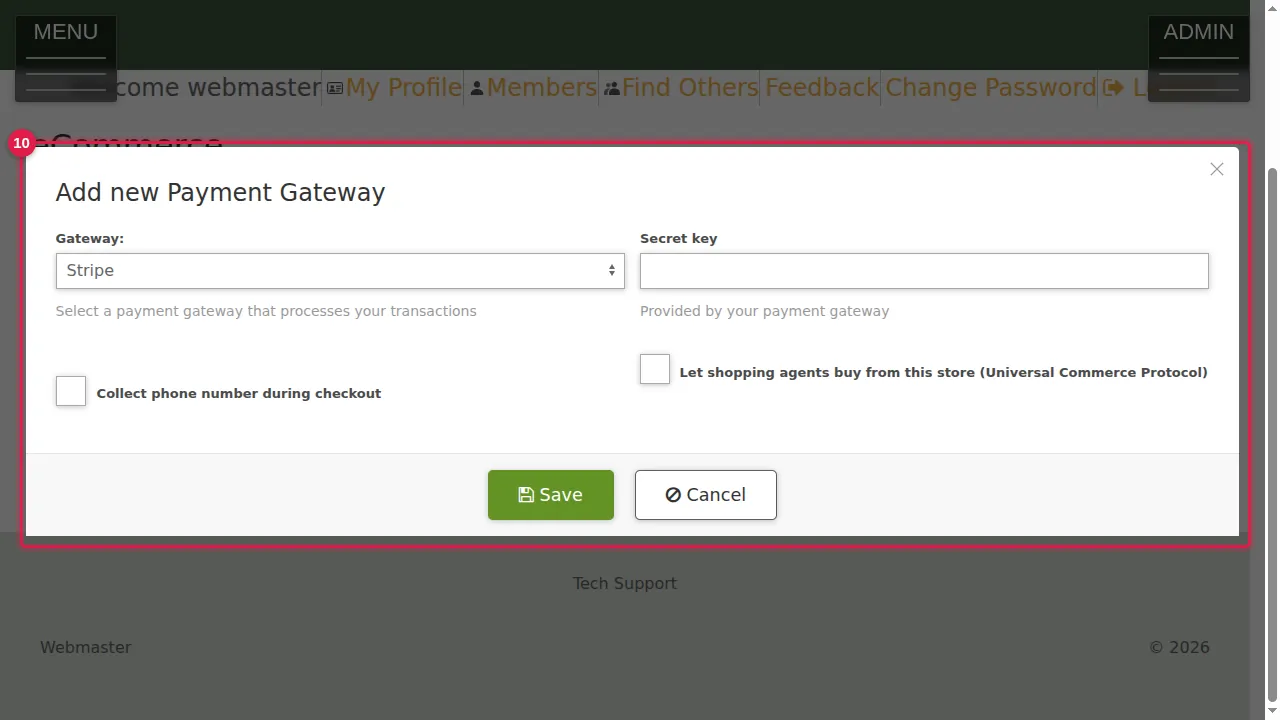
Step 9. Stripe asks only for the Secret key.
Step 10. Stripe also has its own options: collect a phone number during checkout, and let shopping agents buy from this store (Universal Commerce Protocol).
Save
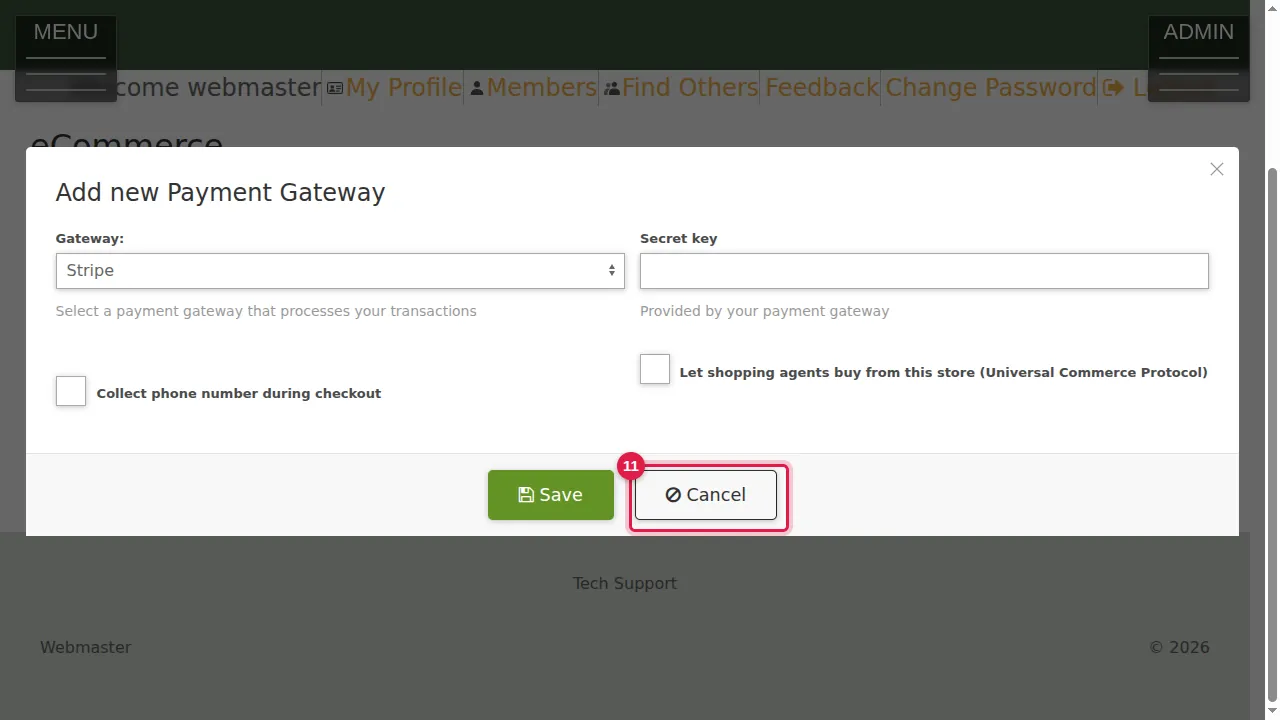
Step 11. Paste your keys and click Save. (In this demonstration: Cancel, nothing was saved.)
Check it worked
Make a test purchase in Sandbox mode first. When it works, edit the gateway, enter your production keys and choose Production.
Good to know
- Your keys are like a password to your money: never put them on a page or in an e-mail.
Shown on the 2026 version of the SoNET Web Engine. Last checked 21 October 2026. Something different on your screen? Tell us through the Contact page.