Help Center SEO & Search
Sitemap and scripts
See the sitemap your site makes for search engines (as a list of addresses or as the XML file), and add supported scripts such as structured data.
Watch it done: a short silent video with captions · 1:17. The steps below show the same thing picture by picture.
Before you start
- Log in as the site owner.
- Open ADMIN › SEO.
Sitemap
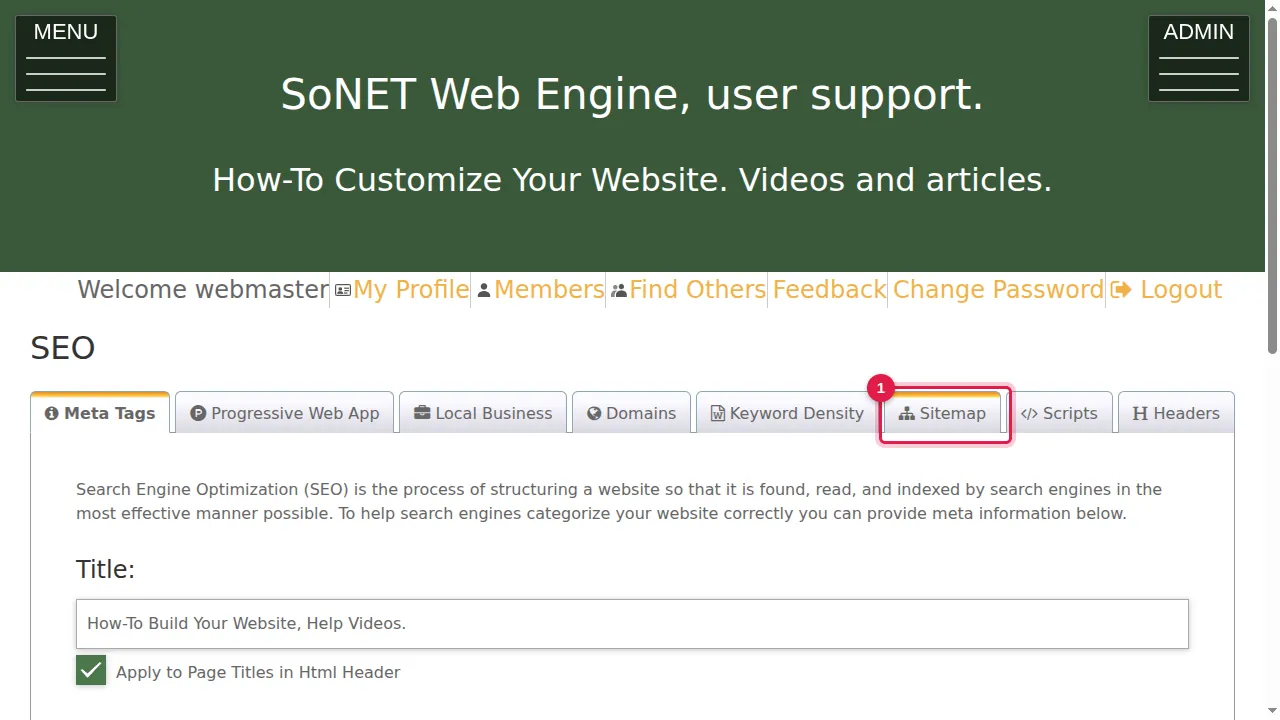
Step 1. Click the Sitemap tab.
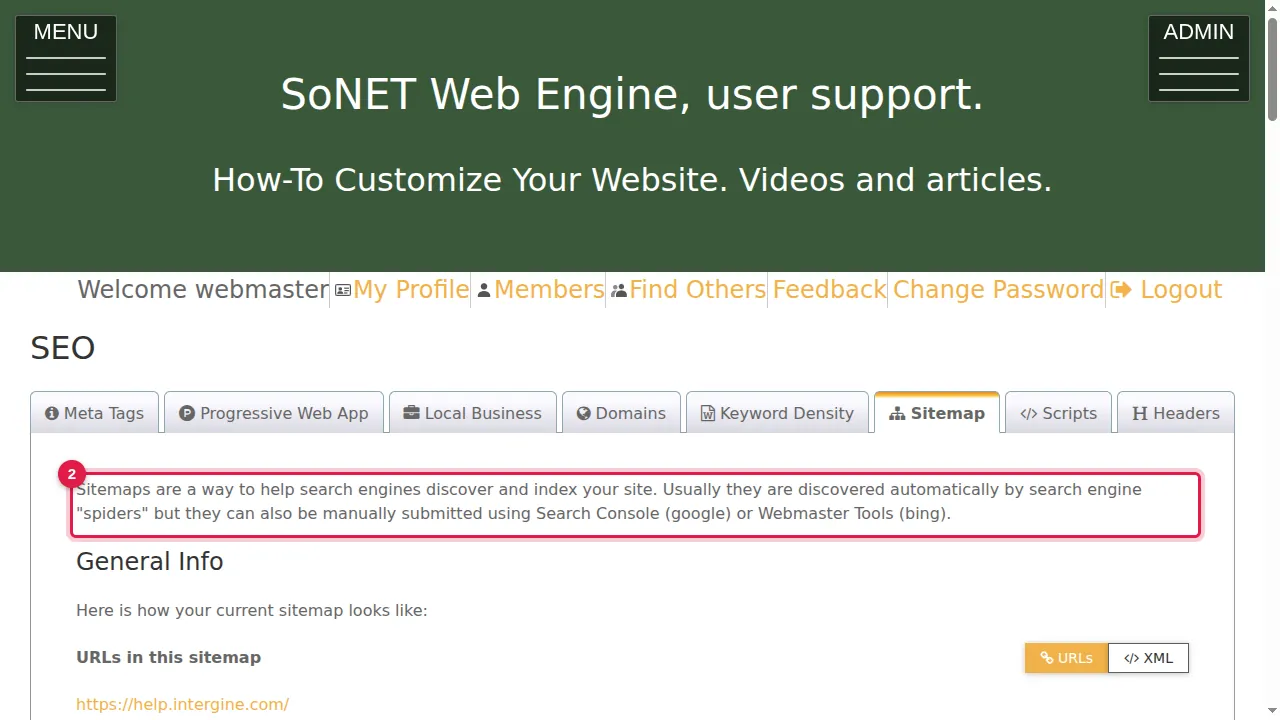
Step 2. A sitemap helps search engines discover and index your site. They usually find it by themselves, but you can also submit it in Google Search Console or Bing Webmaster Tools. Your sitemap is at your site's address followed by /sitemap.xml.
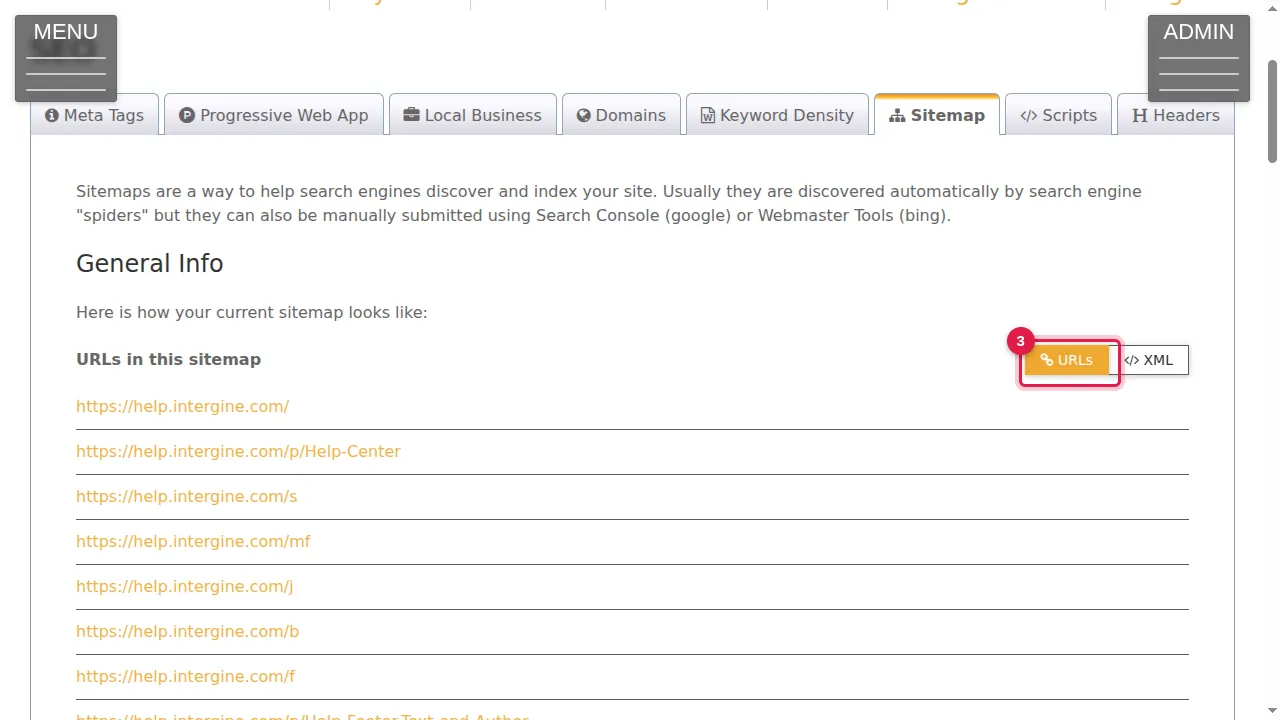
Step 3. URLs lists every address in your sitemap…
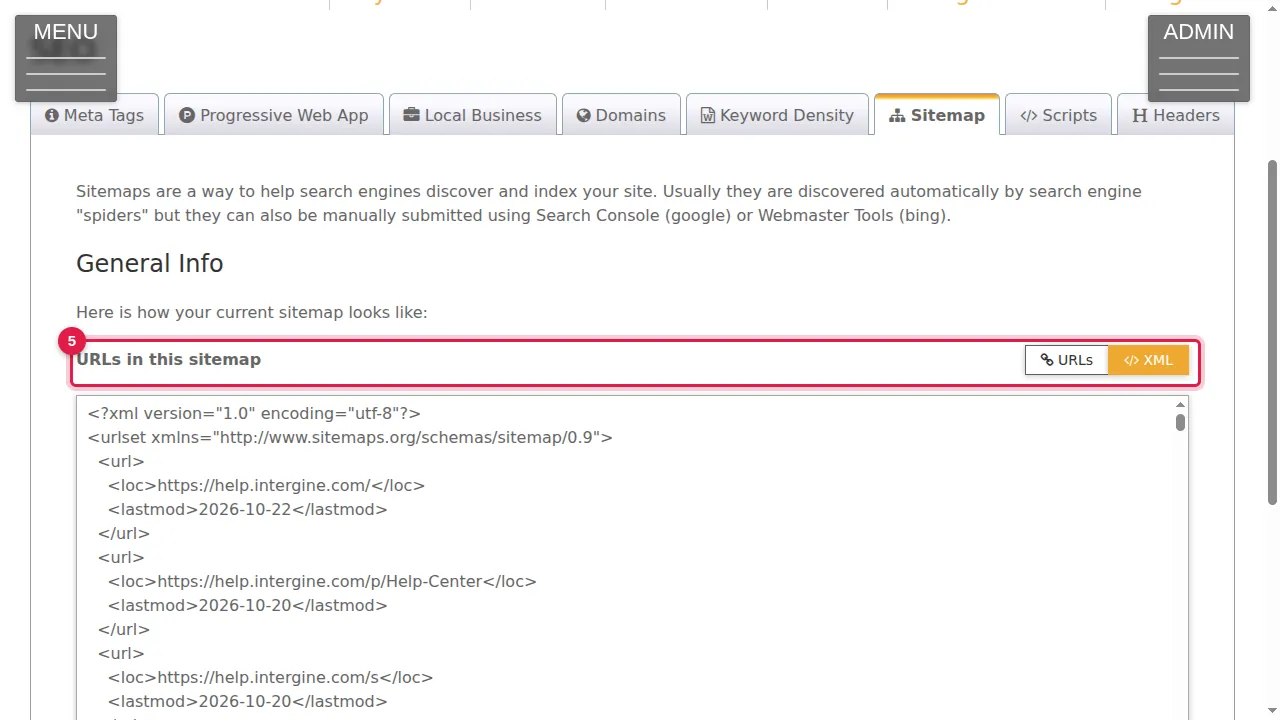
Step 4. …and XML shows the sitemap file itself…
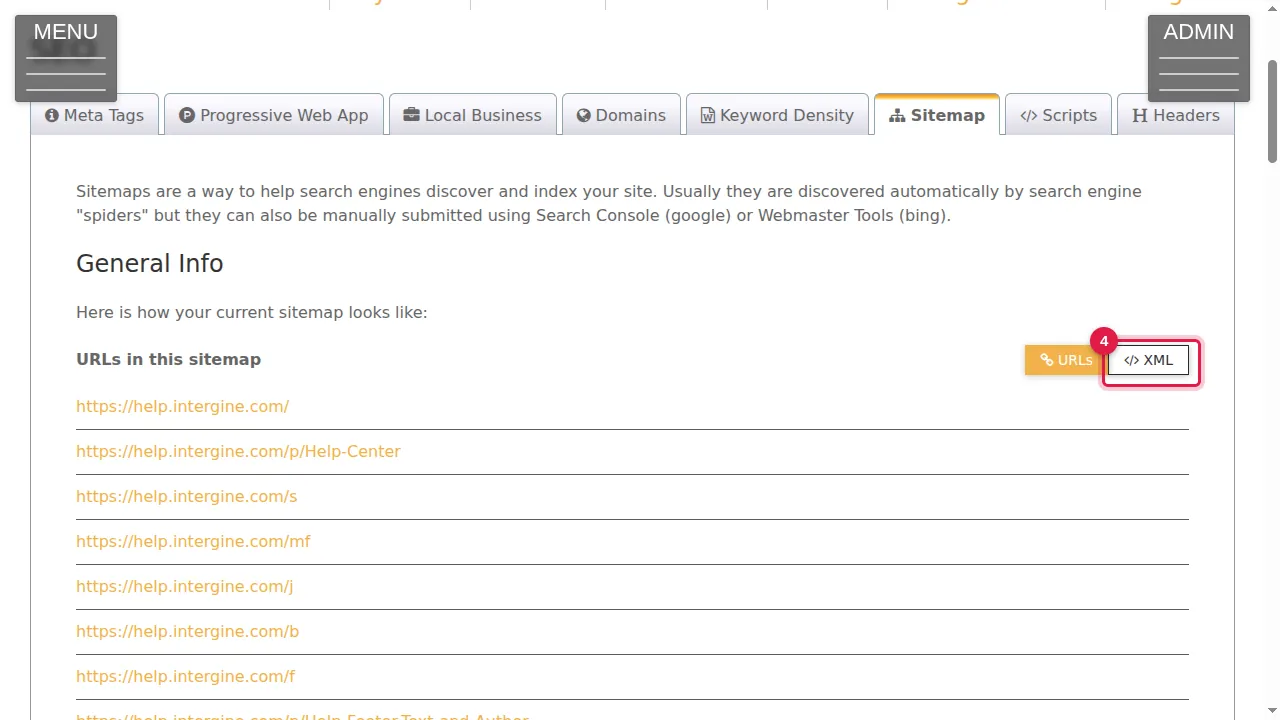
Step 5. …with each address and the date it was last changed, the way search engines read it.
Scripts
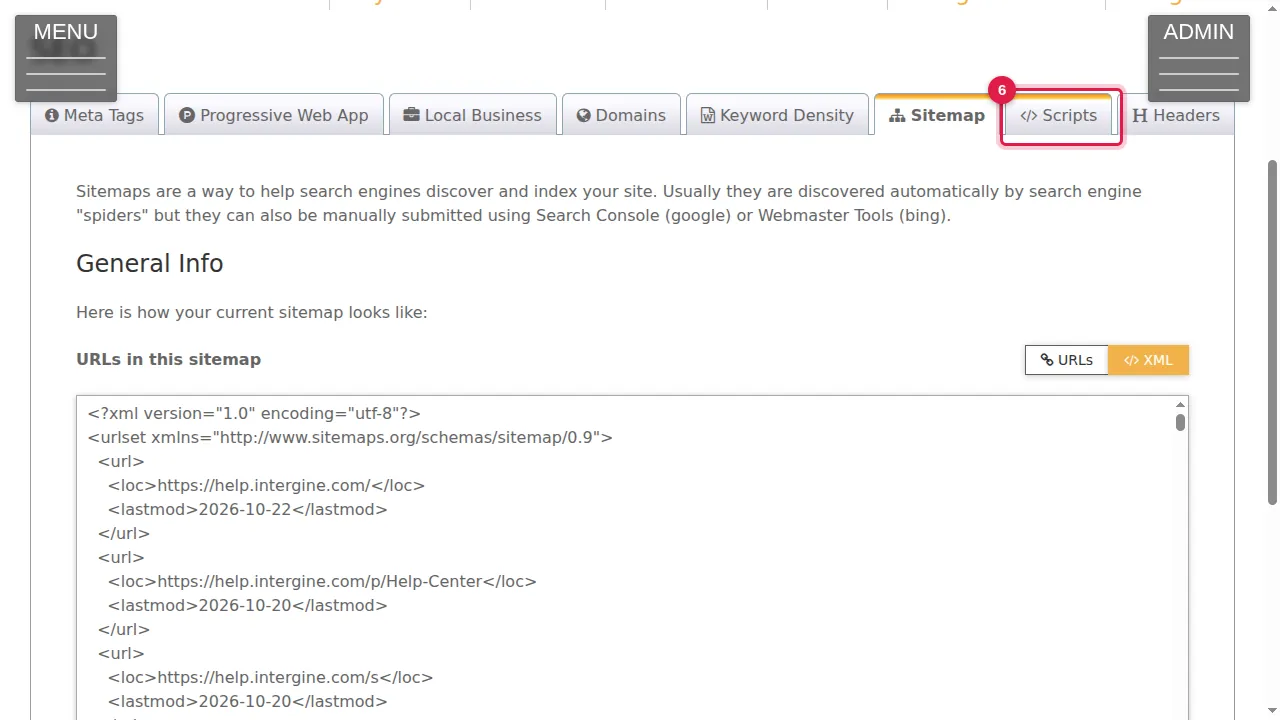
Step 6. Click the Scripts tab. Scripts can add features to your site, for example analytics. Only recognized scripts are supported.
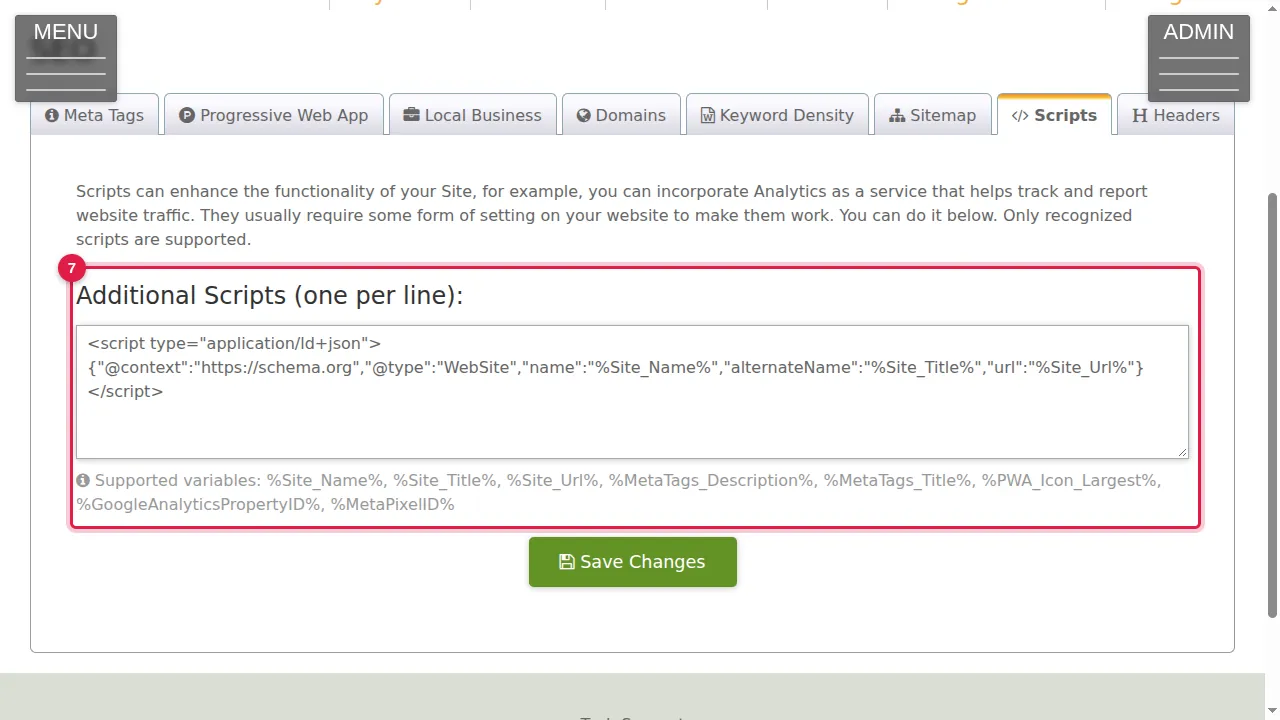
Step 7. Additional Scripts: one per line. This site already has structured data that tells search engines its name, title and address. Words between % signs, such as %Site_Name%, are filled in for you; the supported ones are listed under the box.
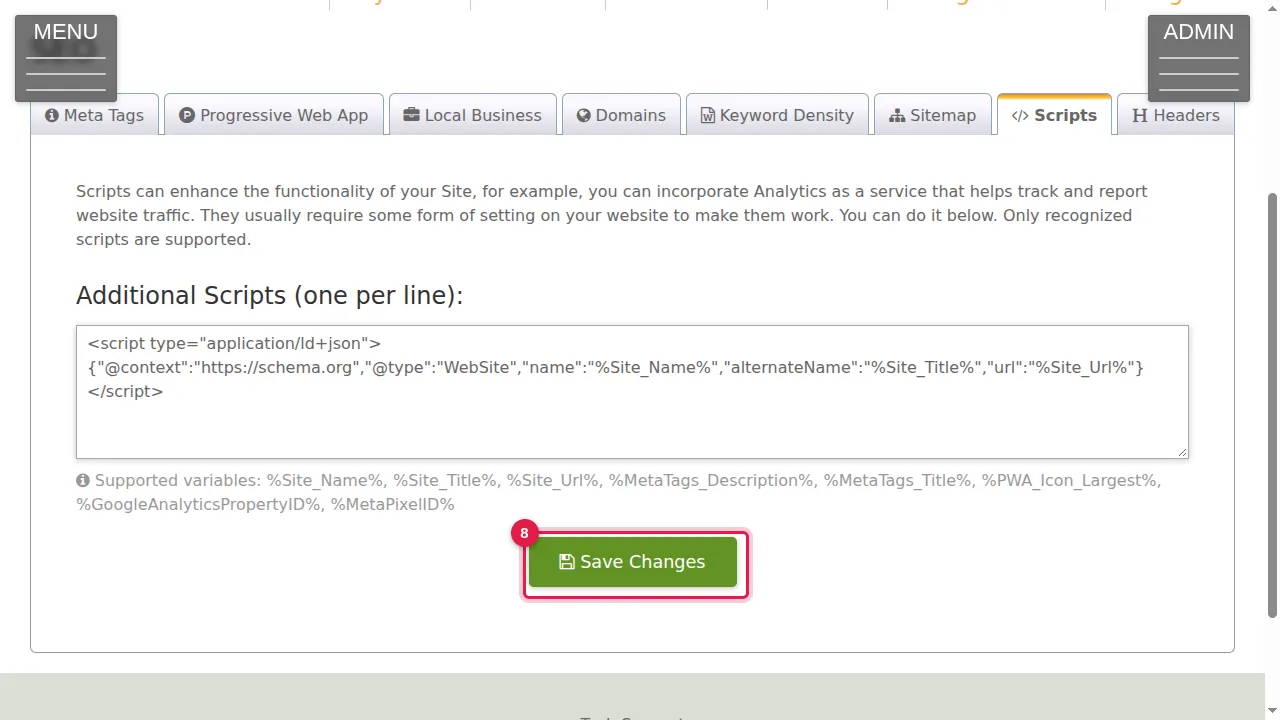
Step 8. Click Save Changes to keep them. (In this demonstration nothing was changed.)
Check it worked
Add /sitemap.xml to your site's address in your browser: every page you want found should be listed.
Good to know
- New pages are added to the sitemap for you; there is nothing to update by hand.
Related help
Shown on the 2026 version of the SoNET Web Engine. Last checked 22 October 2026. Something different on your screen? Tell us through the Contact page.