Help Center Integrations & Insights
Integrations: Google Analytics and Meta Pixel
Connect your site to Google Analytics or to Meta (Facebook) Analytics by pasting your ID and setting the integration to Active.
Watch it done: a short silent video with captions · 1:21. The steps below show the same thing picture by picture.
Before you start
- Log in as the site owner.
- Have your Google Analytics Property ID or Meta Pixel ID ready.
- Open ADMIN › Integrations.
Your integrations
Step 1. The Integrations tab lists the services your site can connect to, with their STATUS (Active or Inactive), whether they are CONFIGURED, and when they were created and updated.
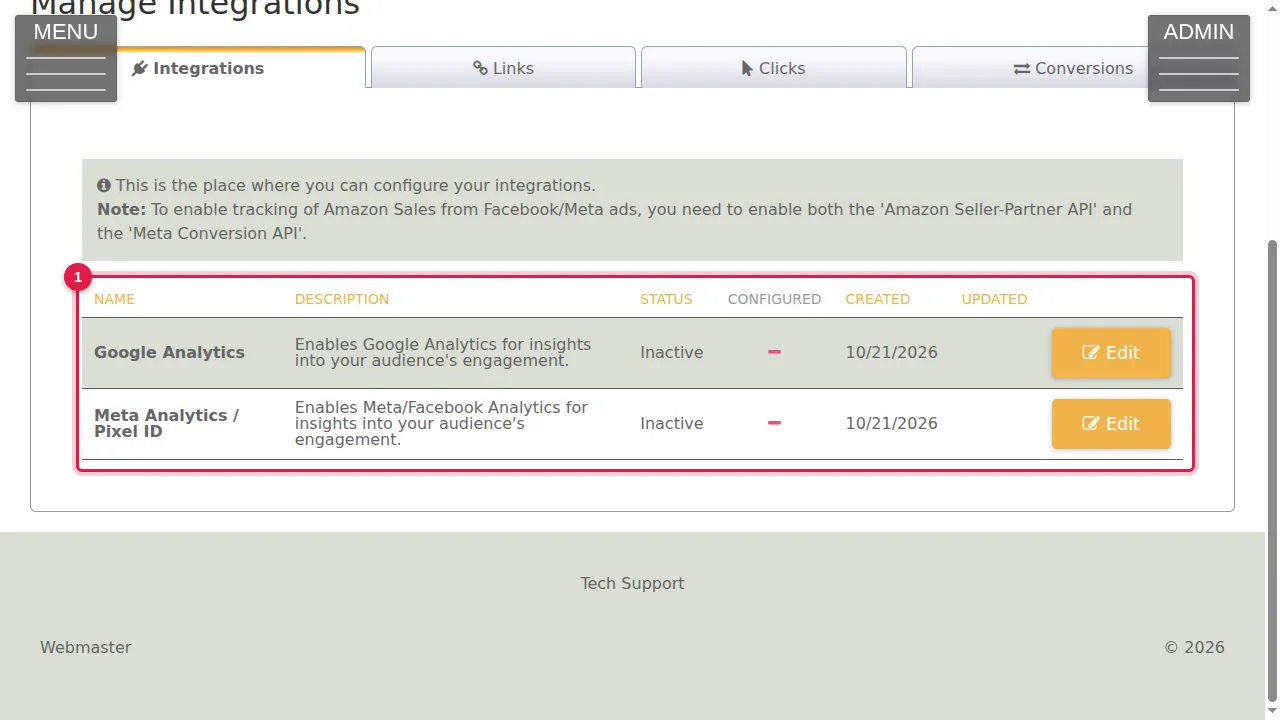
Google Analytics
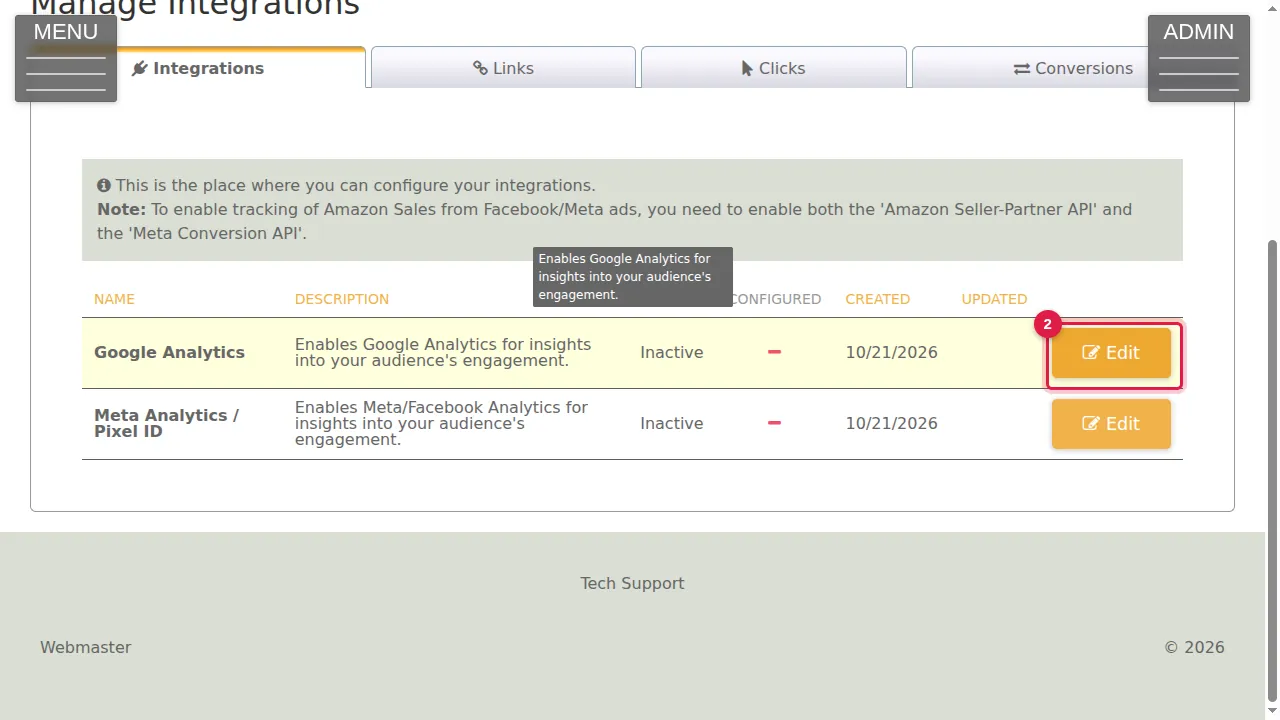
Step 2. Click Edit next to Google Analytics.
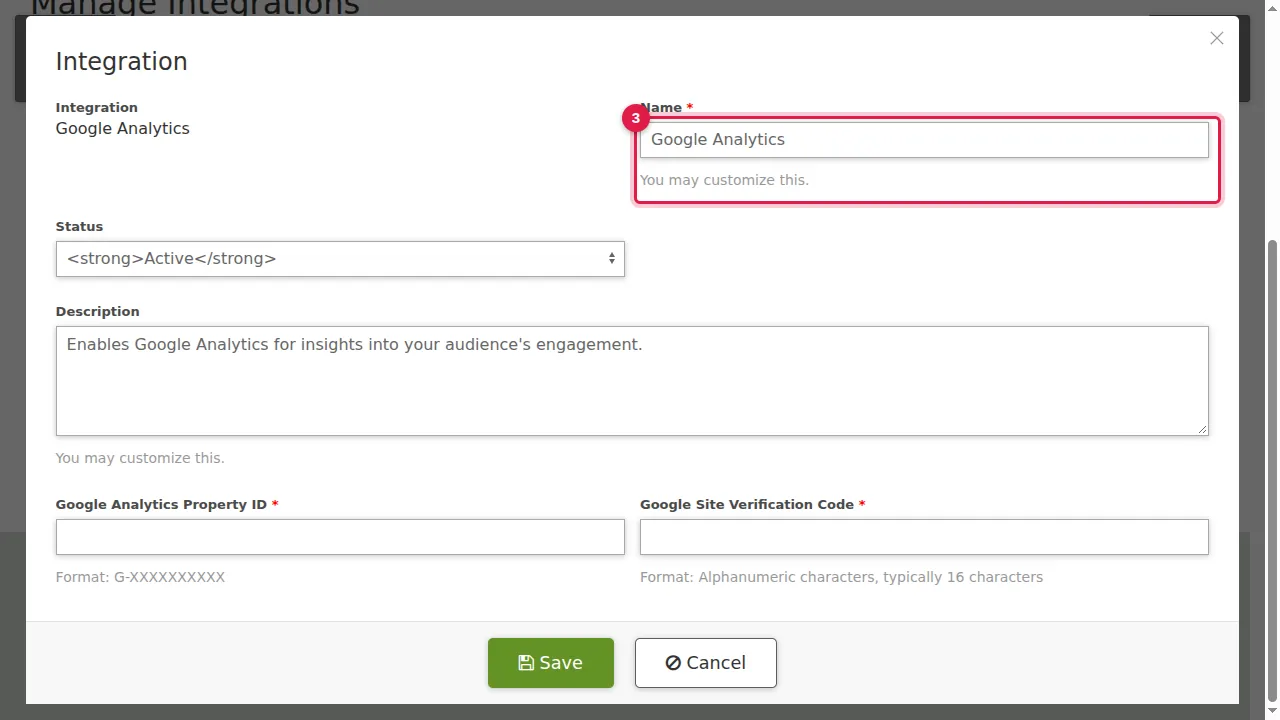
Step 3. Name and Description: you may change them to suit you.
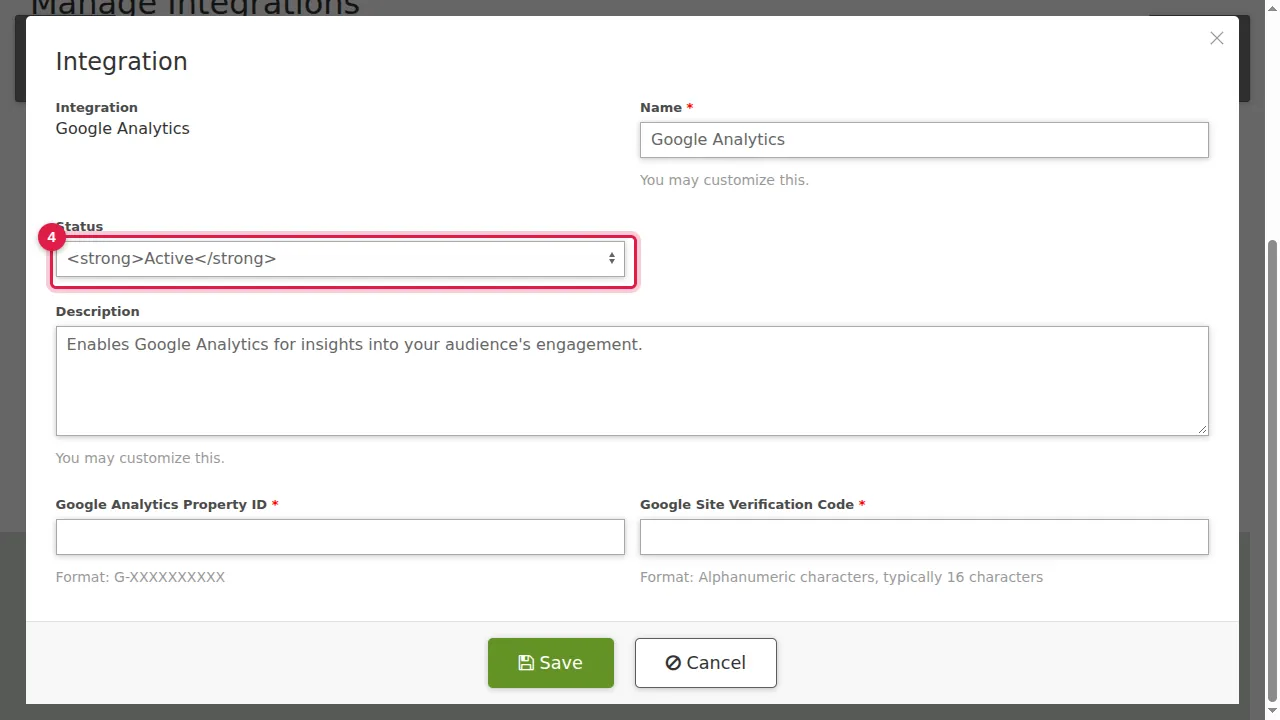
Step 4. Status: choose Active to turn the integration on, or Inactive to turn it off.
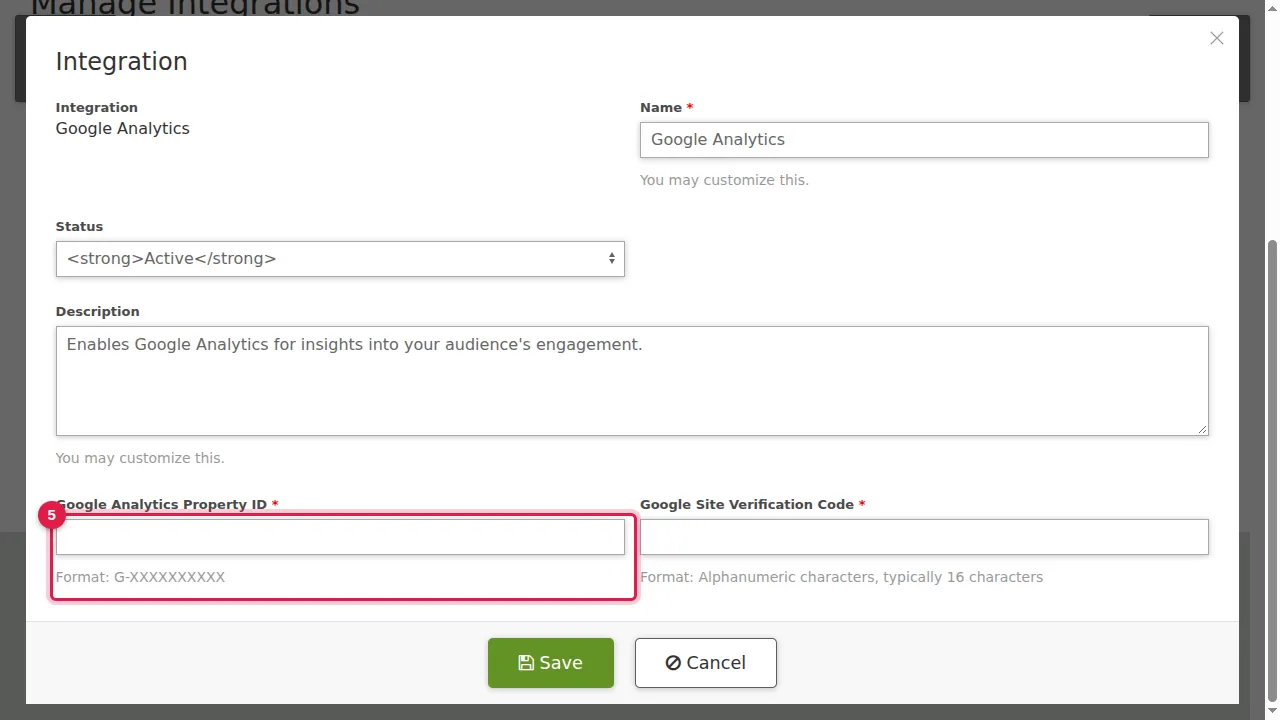
Step 5. Google Analytics Property ID: paste your ID, in the format G-XXXXXXXXXX.
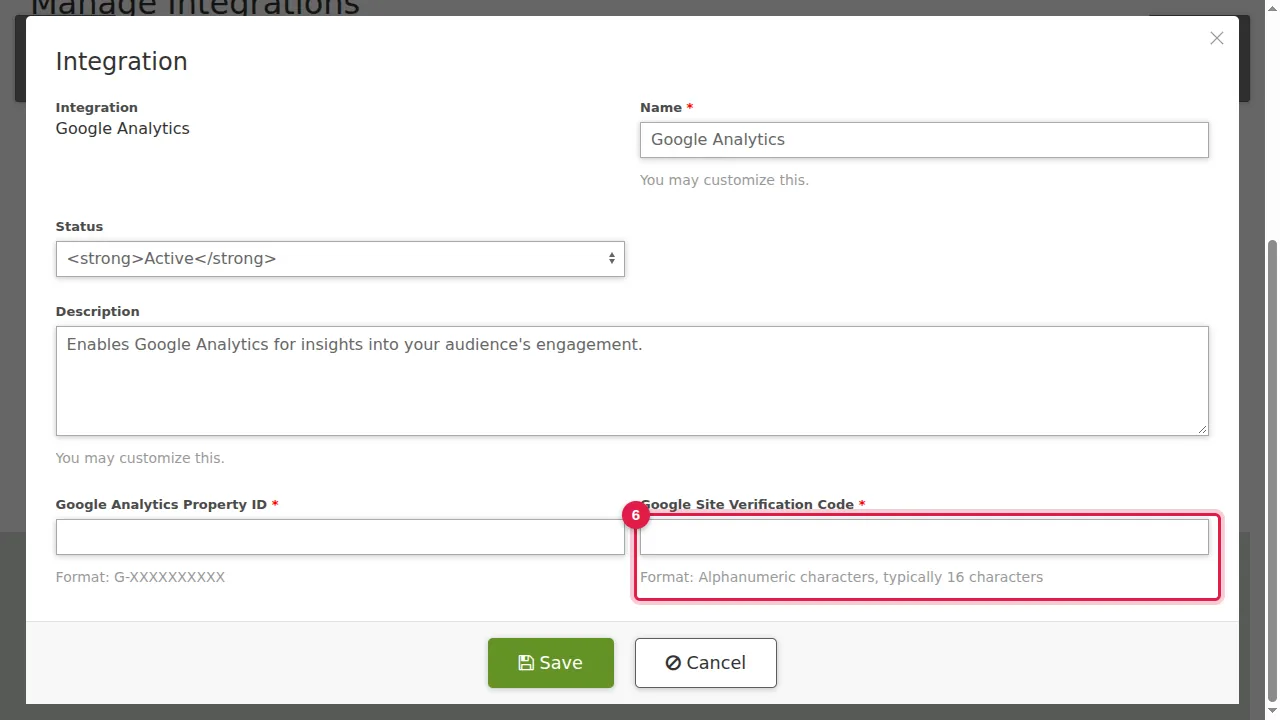
Step 6. Google Site Verification Code: paste the code Google gives you (letters and numbers, usually 16). Then click Save. (Cancelled in this demonstration.)
Meta Analytics / Pixel ID
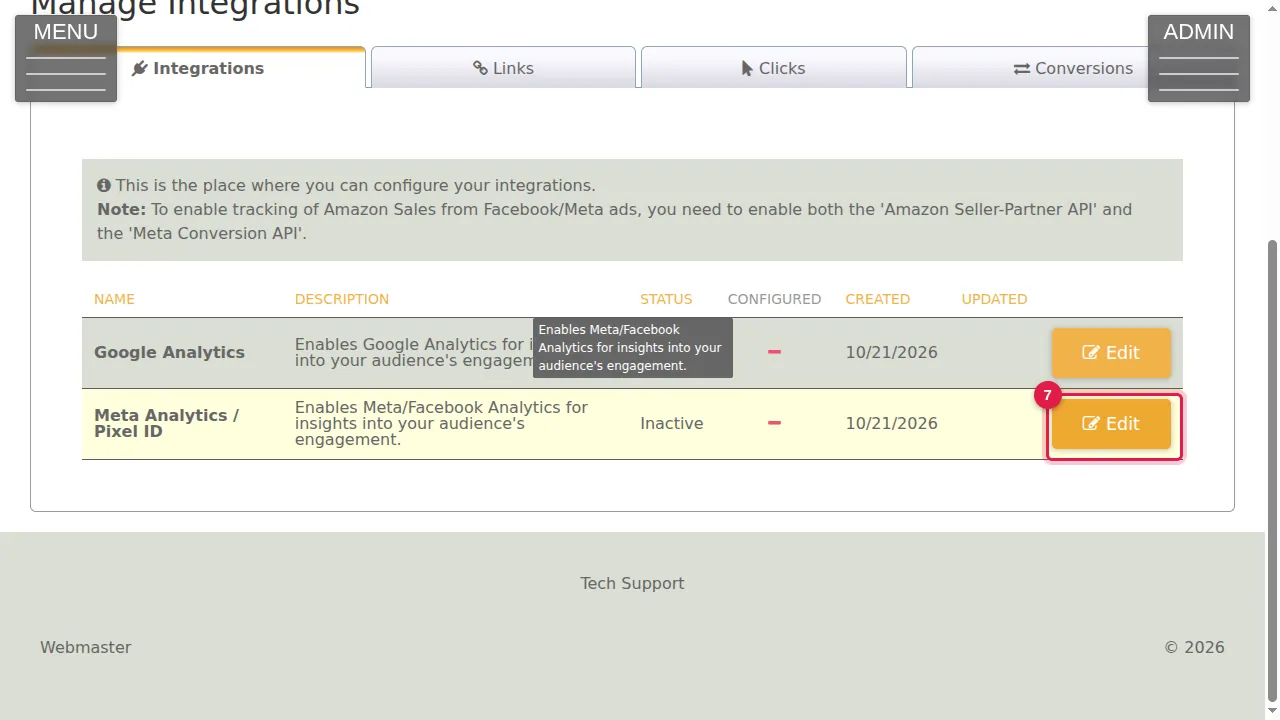
Step 7. For Meta (Facebook) Analytics, click Edit next to Meta Analytics / Pixel ID.
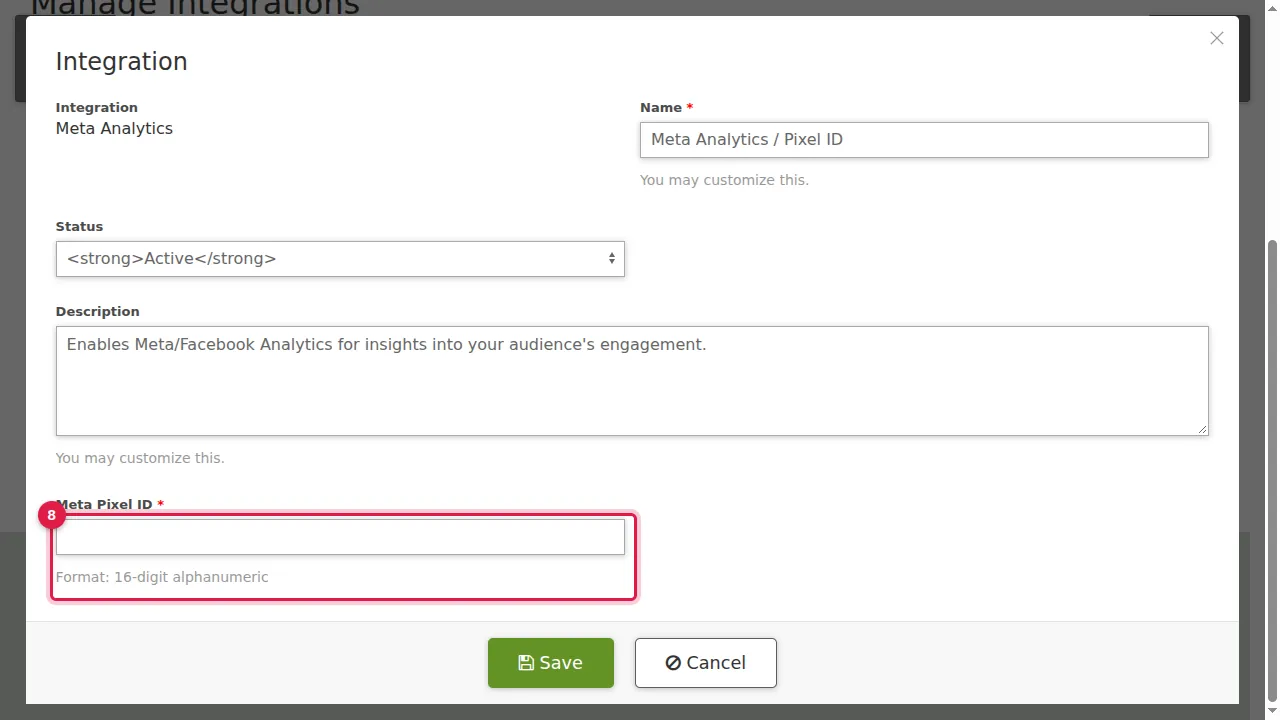
Step 8. Paste your Meta Pixel ID, choose Active and click Save. (Cancelled in this demonstration.)
Check it worked
After saving, the list shows the integration as Active and configured.
Good to know
- Prefer not to use third-party tracking? Insights counts your visitors on your own site, without cookies (see Insights).
Related help
Shown on the 2026 version of the SoNET Web Engine. Last checked 21 October 2026. Something different on your screen? Tell us through the Contact page.