Help Center Integrations & Insights
Links, clicks and conversions
Make short links to share in ads, posts or e-mails, see every click on them, and see the orders (conversions) that came from them.
Watch it done: a short silent video with captions · 2:19. The steps below show the same thing picture by picture.
Before you start
- Log in as the site owner.
- Open ADMIN › Integrations.
Make a short link
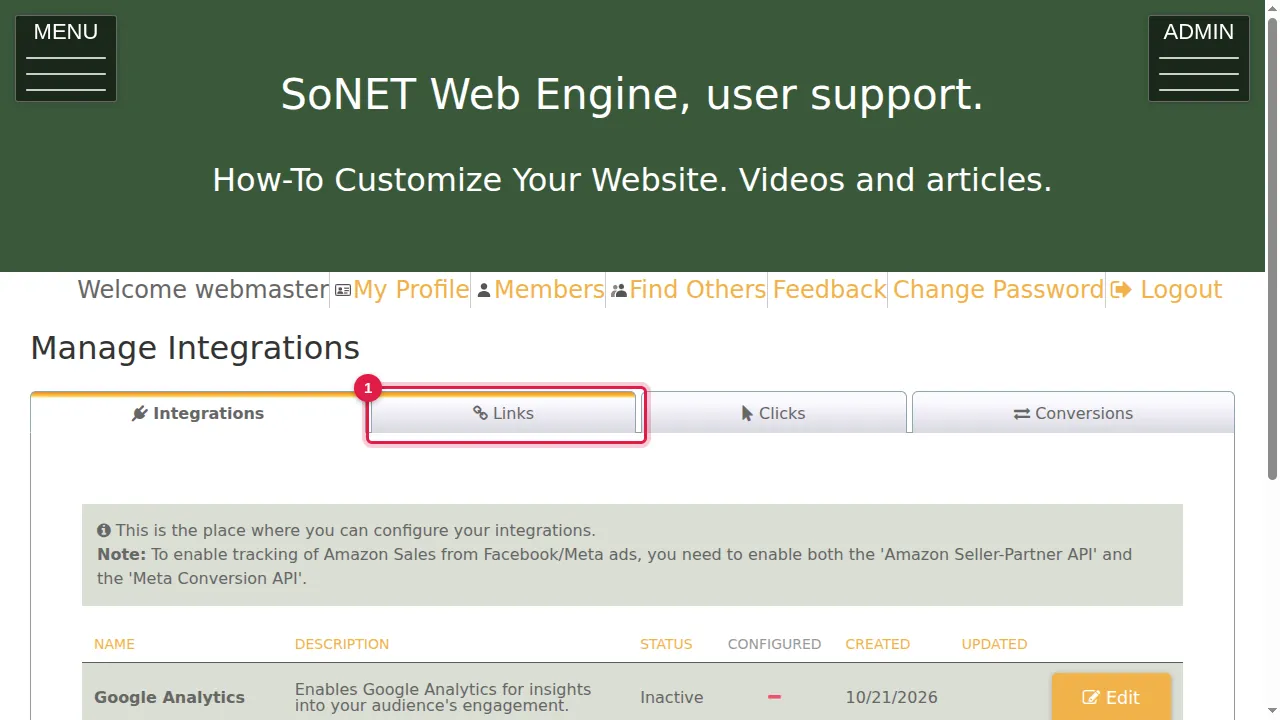
Step 1. Click the Links tab.
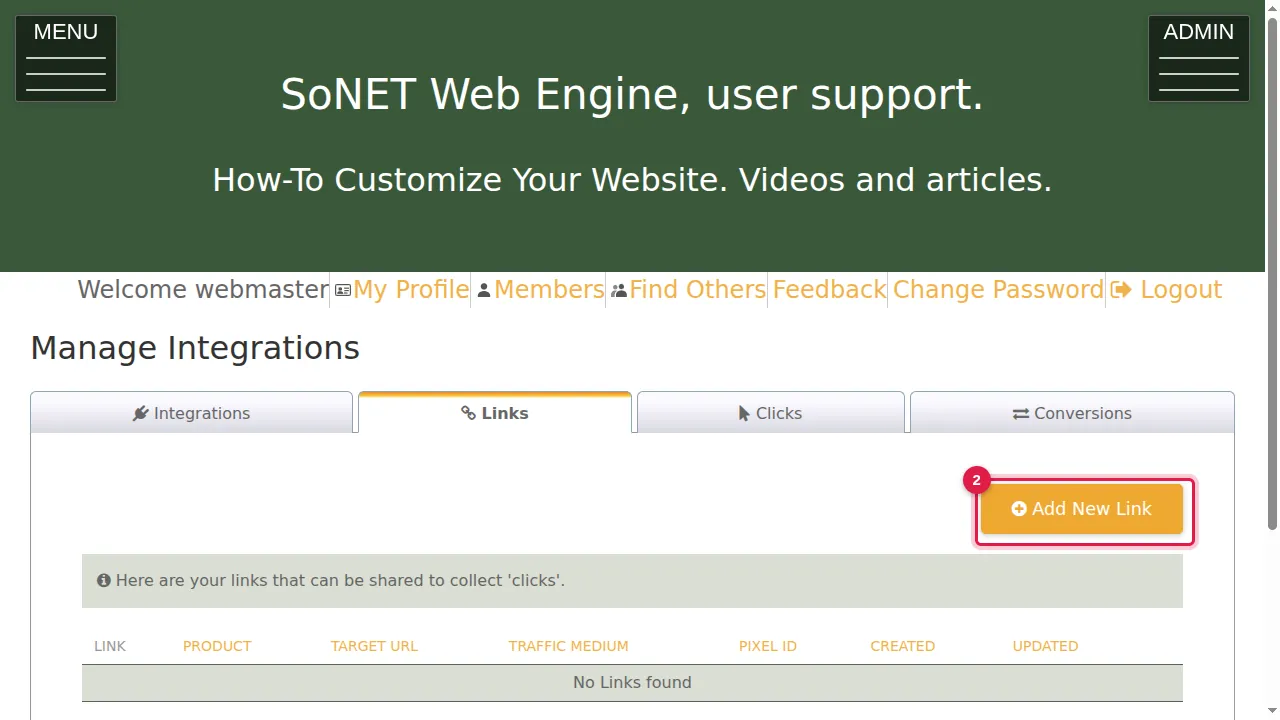
Step 2. Links are short addresses you share, for example in an ad, a social post or an e-mail, so you can count the clicks. Click Add New Link.
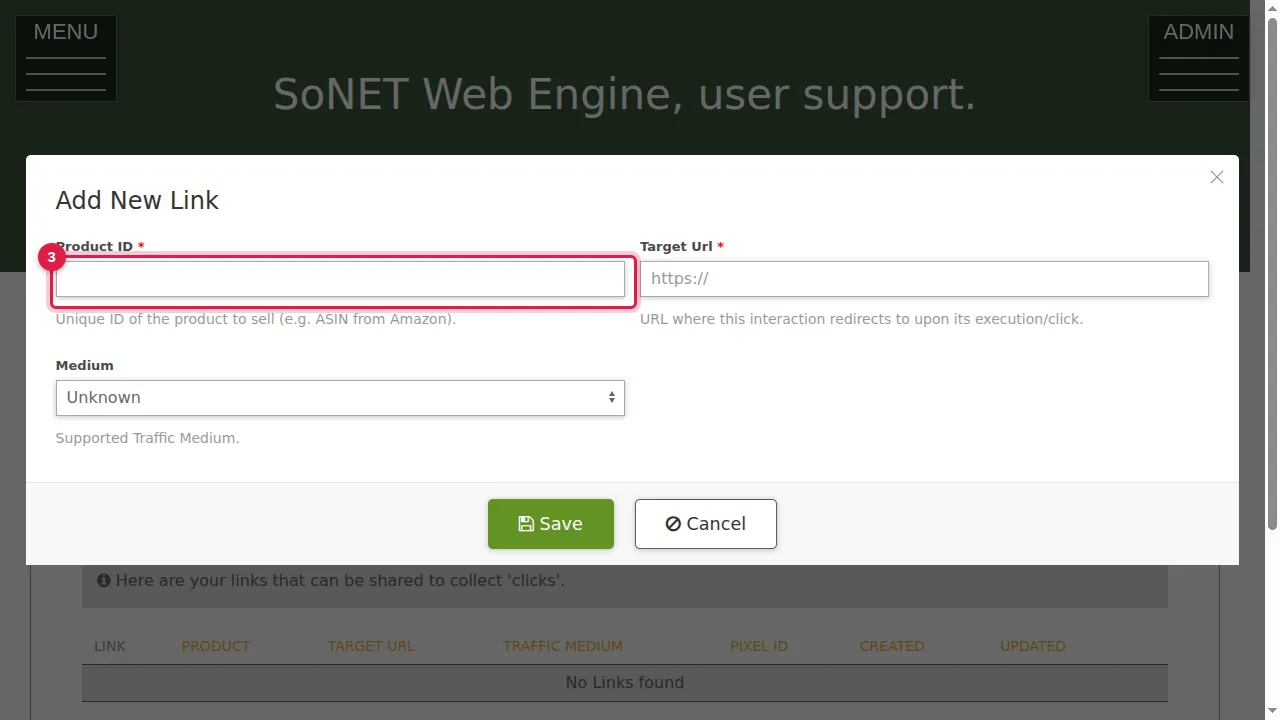
Step 3. Product ID (required): the product the link is for, for example an ASIN from Amazon.
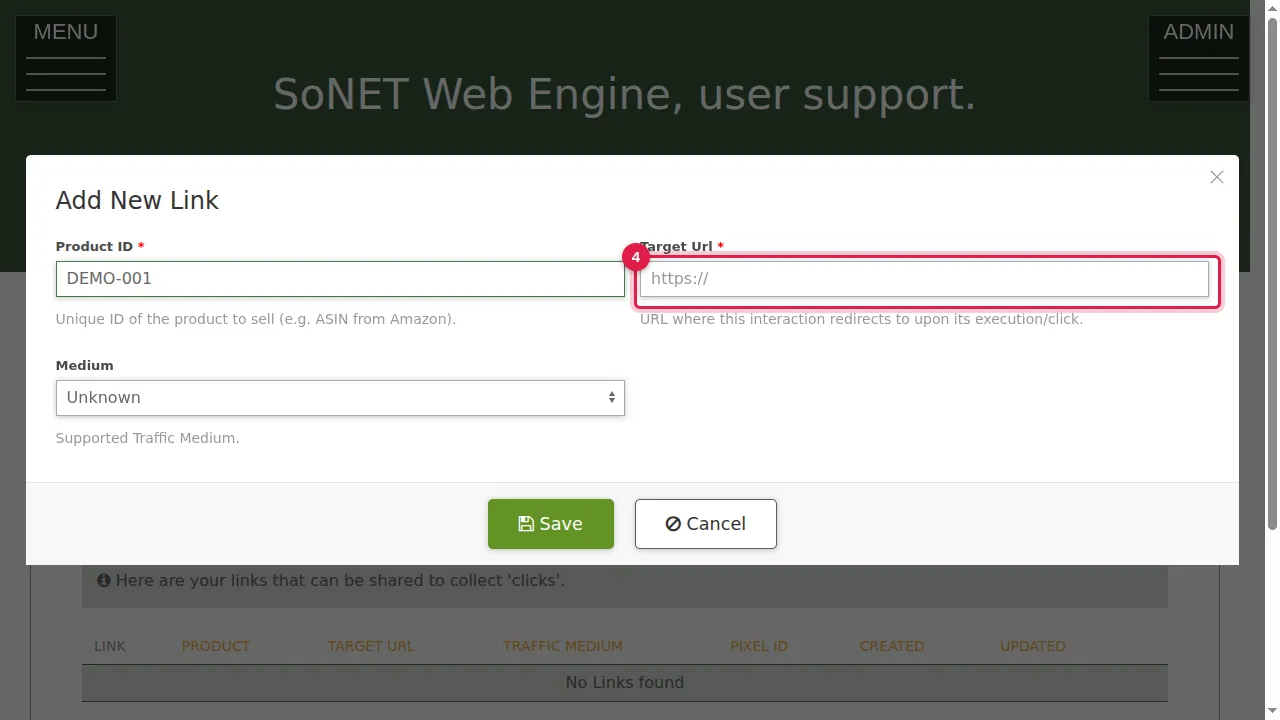
Step 4. Target Url (required): the page the link takes people to.
Step 5. Medium: where you will use the link: Social, PaidSocial, CPC, Display, Video, Email, Affiliate, or Unknown.
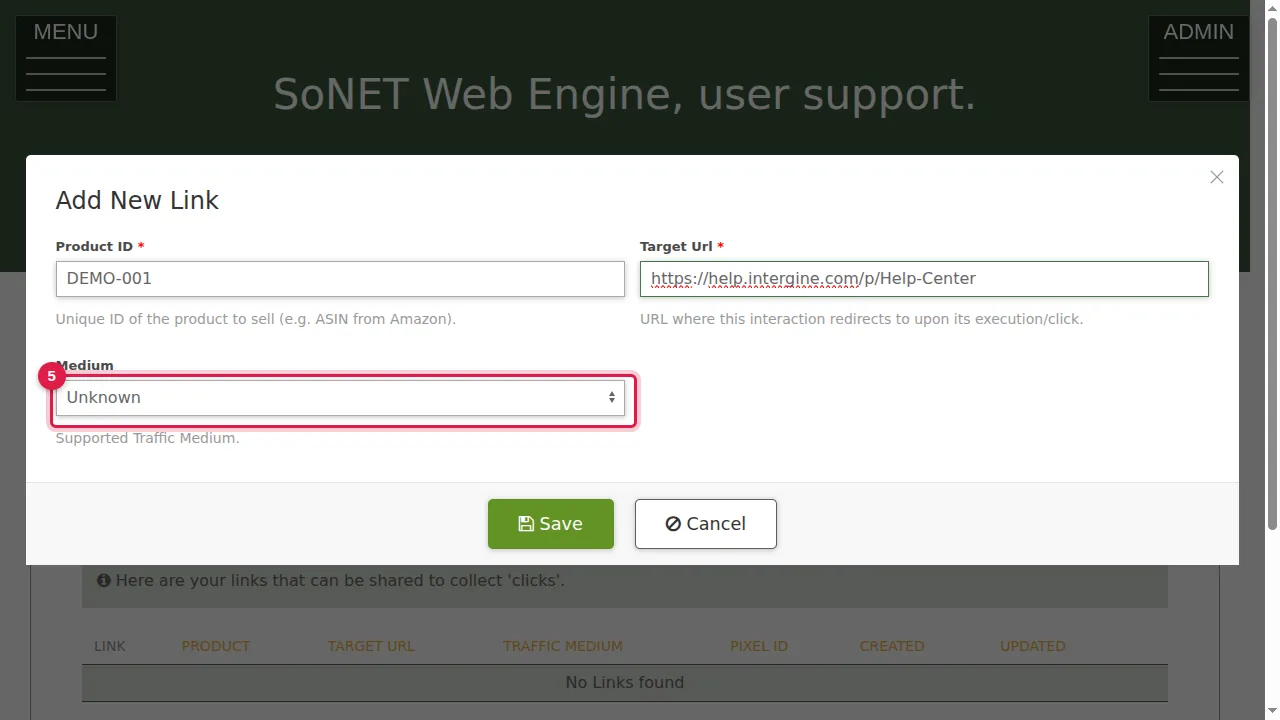
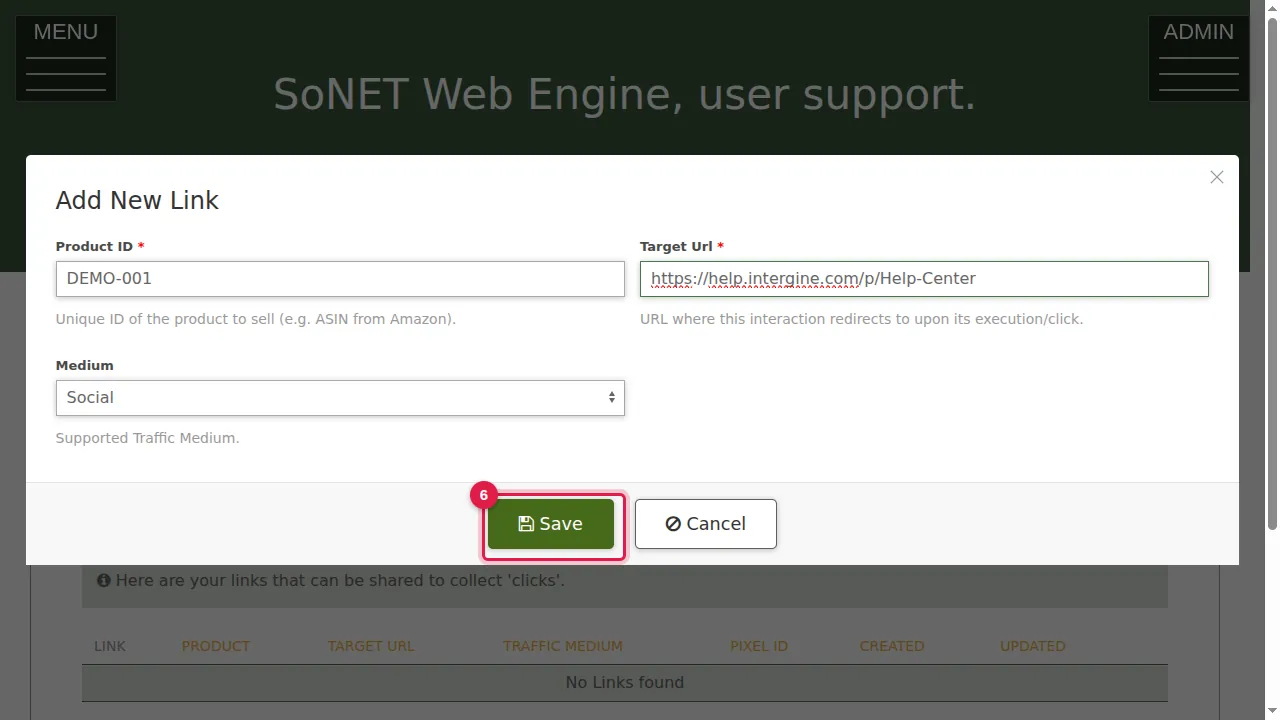
Step 6. Click Save.
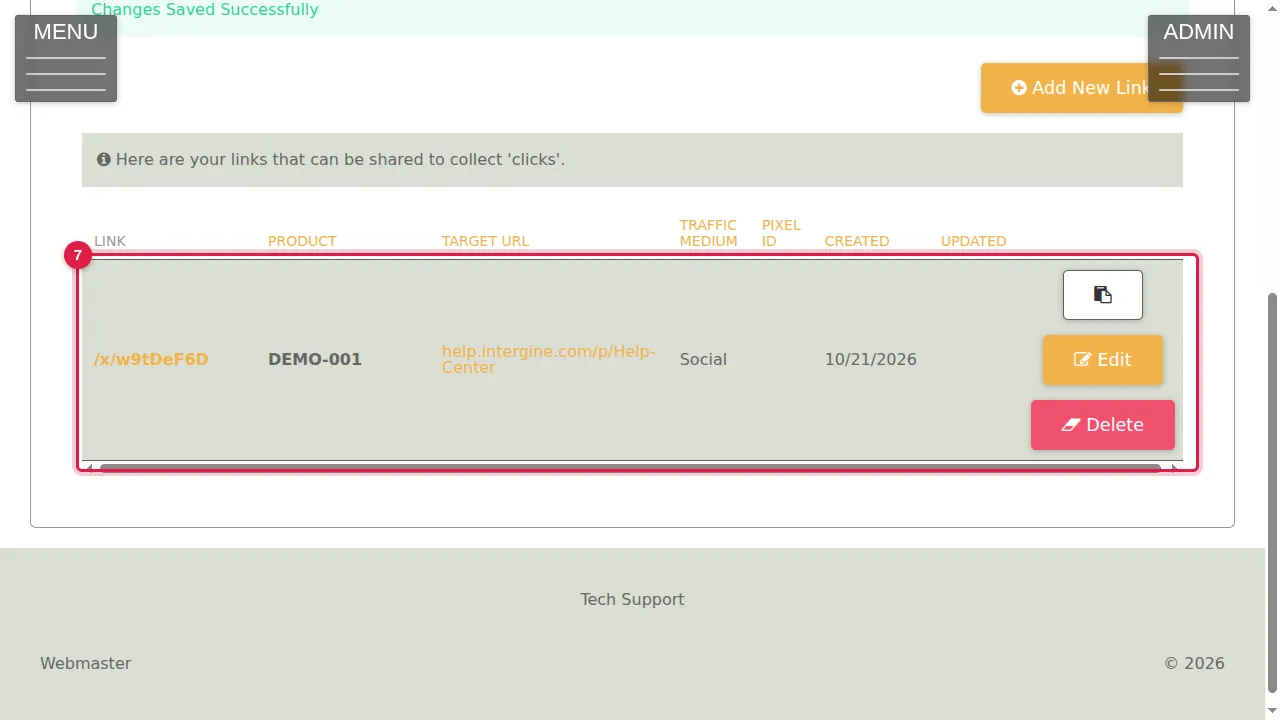
Step 7. "Changes Saved Successfully". Your short link (/x/ followed by a code) is listed with its product, target and medium, with Edit and Delete.
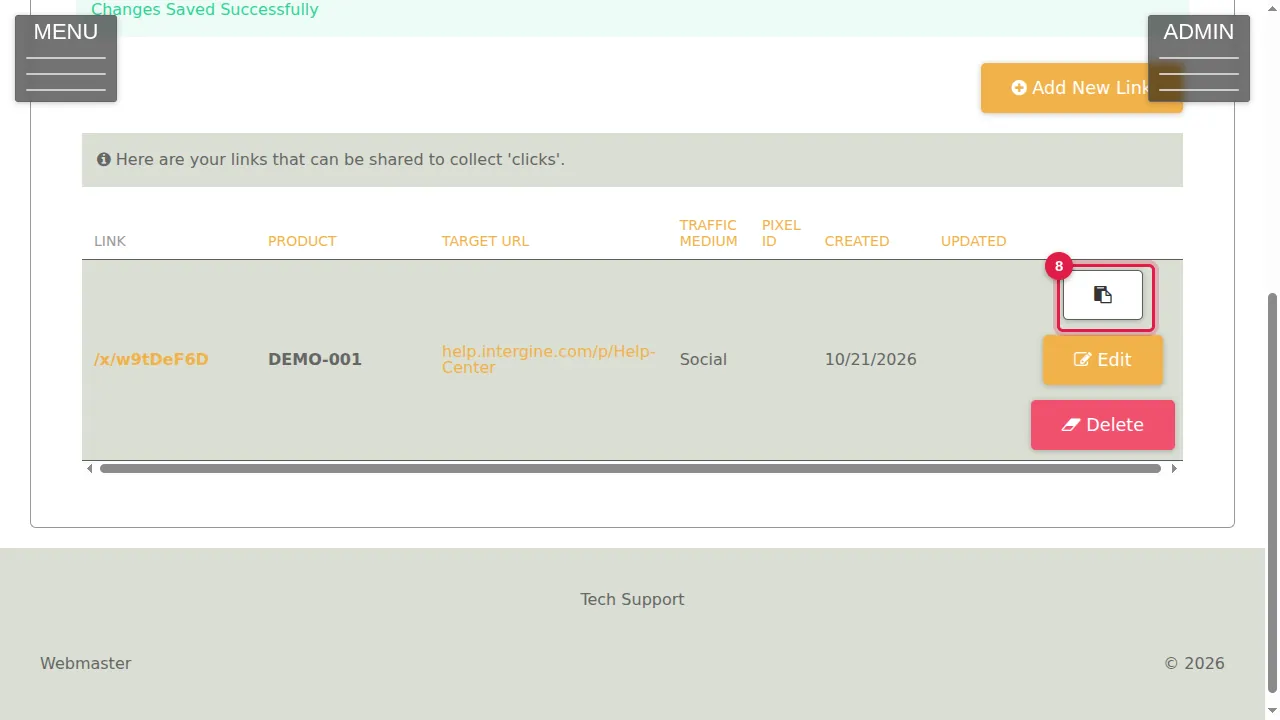
Step 8. The copy button copies the full link, ready to paste into your ad or post.
Someone clicks it
Step 9. A visitor who clicks the short link lands on the target page.
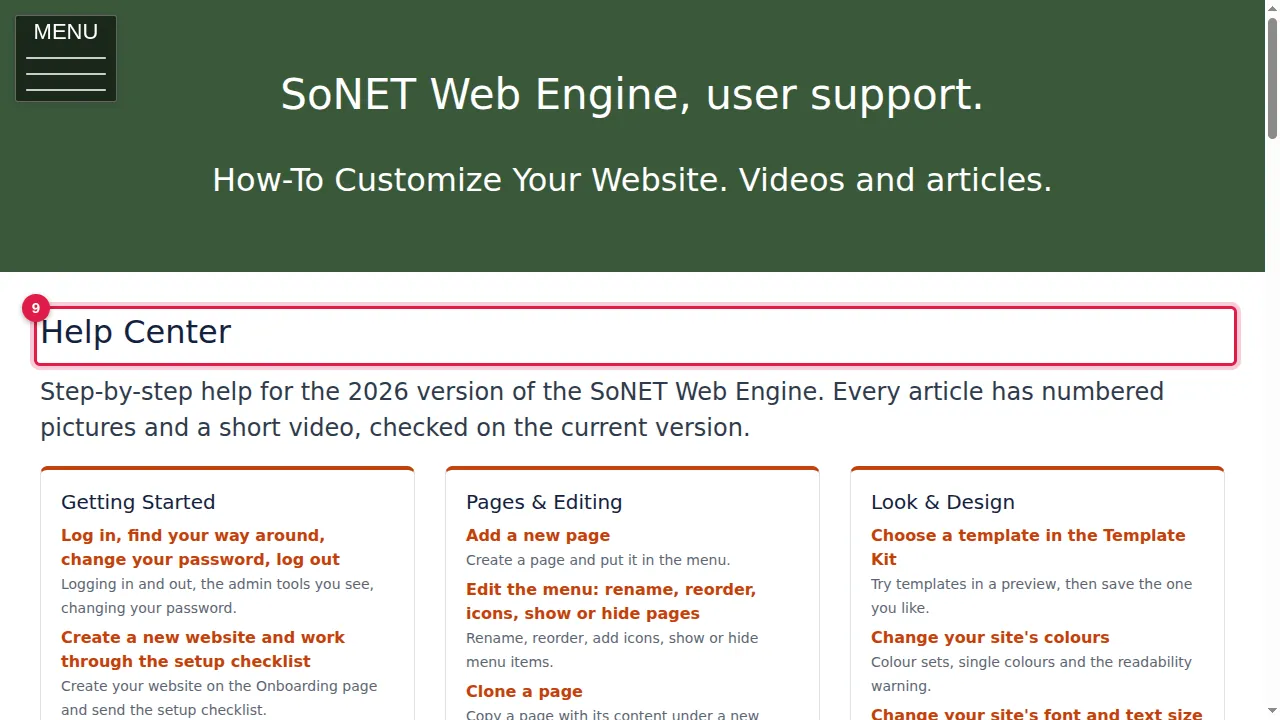
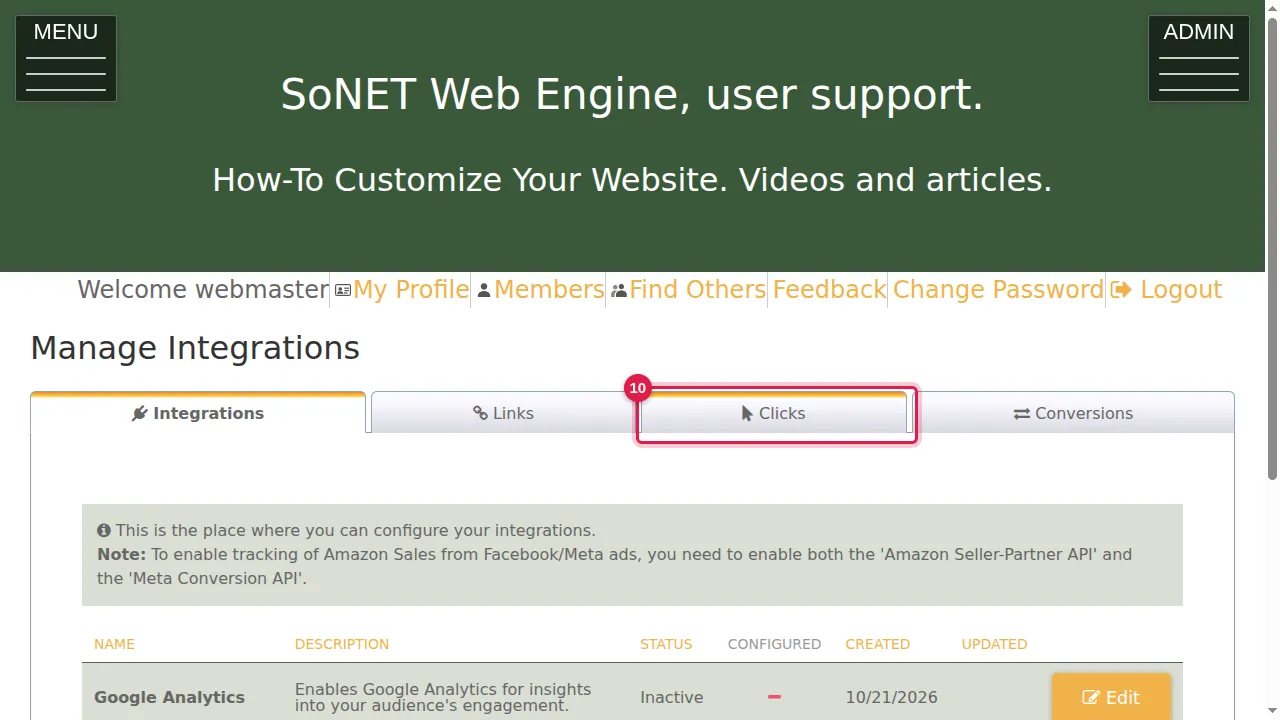
Step 10. Back in ADMIN › Integrations, open the Clicks tab.
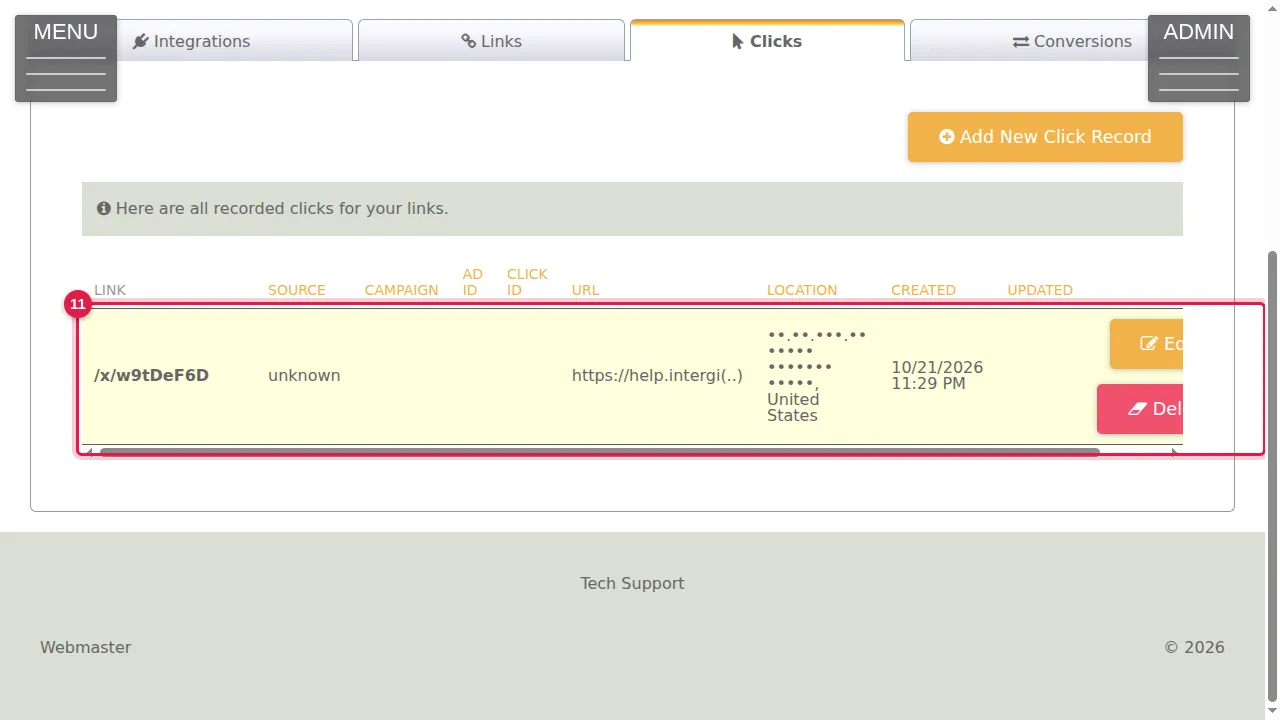
Step 11. The click is recorded: the link, source, campaign, ad and click IDs if the ad sends them, the address, the location and the time. (The visitor's IP address and place are hidden in this picture.)
Conversions
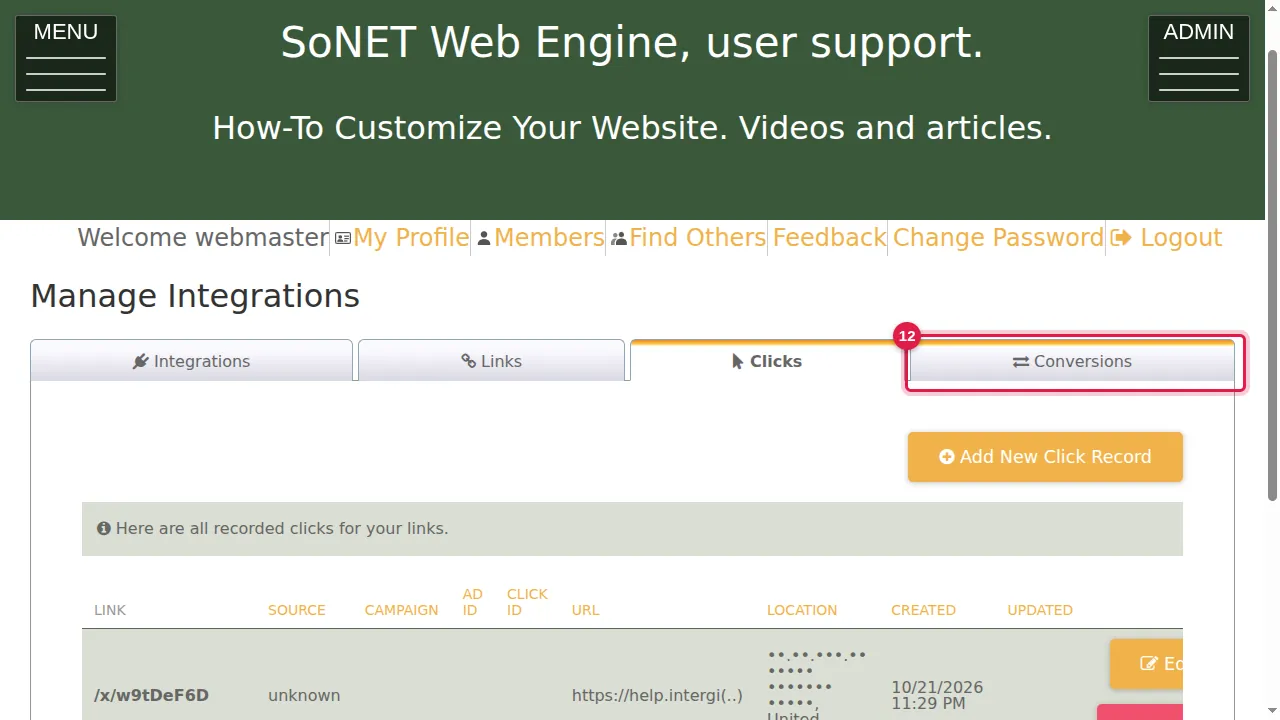
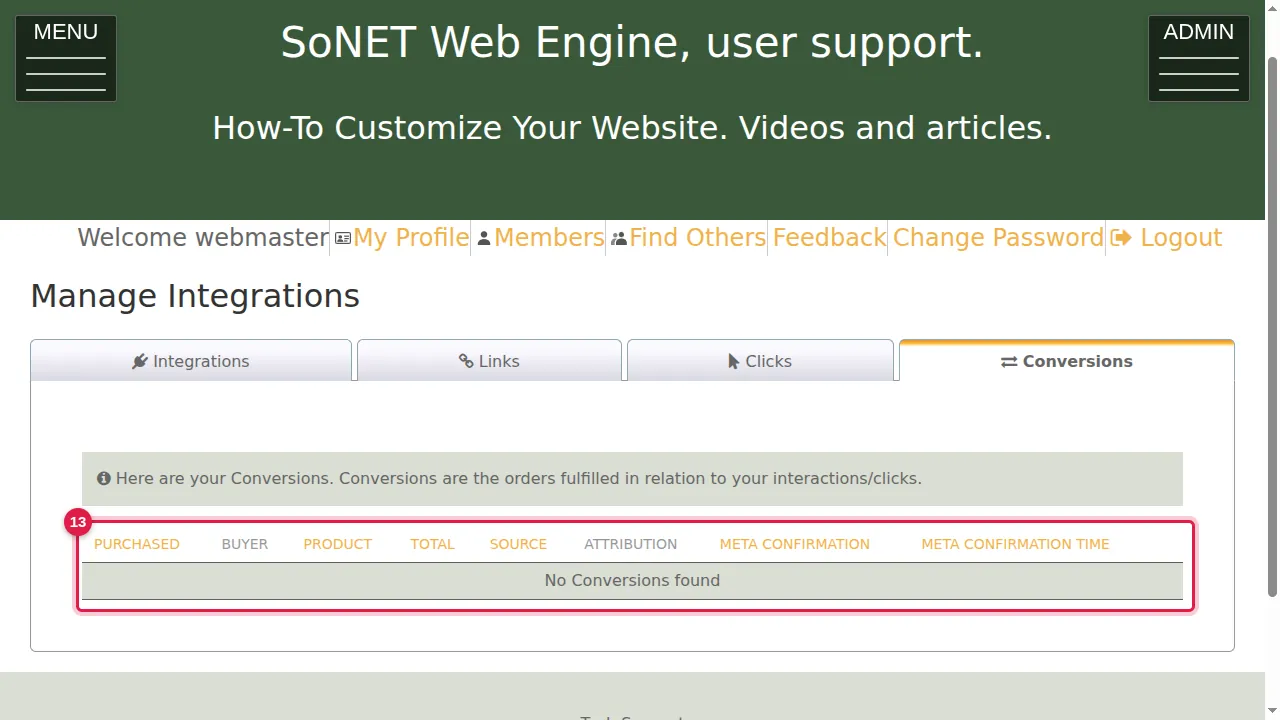
Step 12. Open the Conversions tab.
Step 13. Conversions are the orders fulfilled in relation to your links and clicks: purchase date, buyer, product, total, source and attribution. (None yet on this site. The demonstration link and its click were deleted afterwards.)
Check it worked
Open your short link in a private window, then look at the Clicks tab: the click is there.
Good to know
- Make a separate link for each ad or post, so the Clicks tab shows which one works best.
Related help
Shown on the 2026 version of the SoNET Web Engine. Last checked 21 October 2026. Something different on your screen? Tell us through the Contact page.