Help Center Pages & Editing
The Section menu widget
The Section menu widget lists the pages beside and under the current page in your menu, so visitors can move around one part of a bigger site. It only lists pages once your menu has levels (an entry put under another); until then only you see a short note, and visitors see nothing.
Watch it done: a short silent video with captions · 0:58. The steps below show the same thing picture by picture.
Before you start
- Log in, open the page and click Customize This Page.
- The widget lists pages only on a site whose menu has levels: put an entry under another in Edit Menu (see Edit the menu).
Add the widget
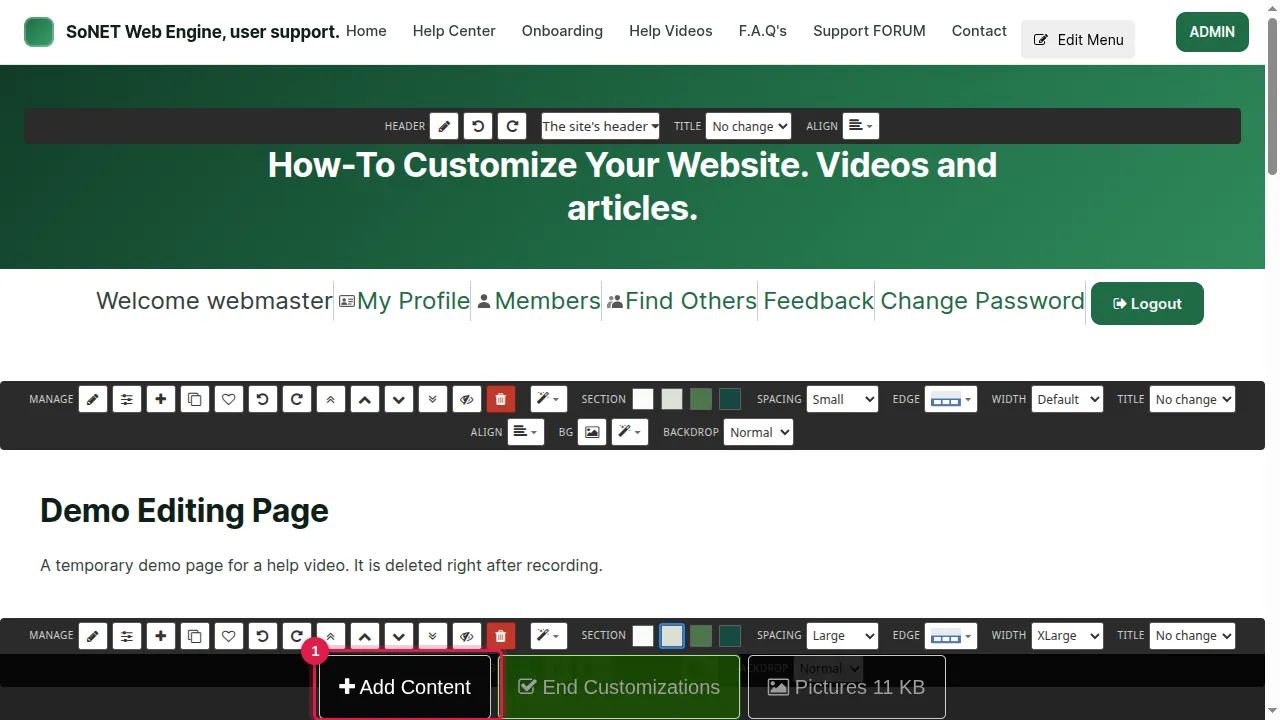
Step 1. Click Add Content in the bar at the bottom of the page.
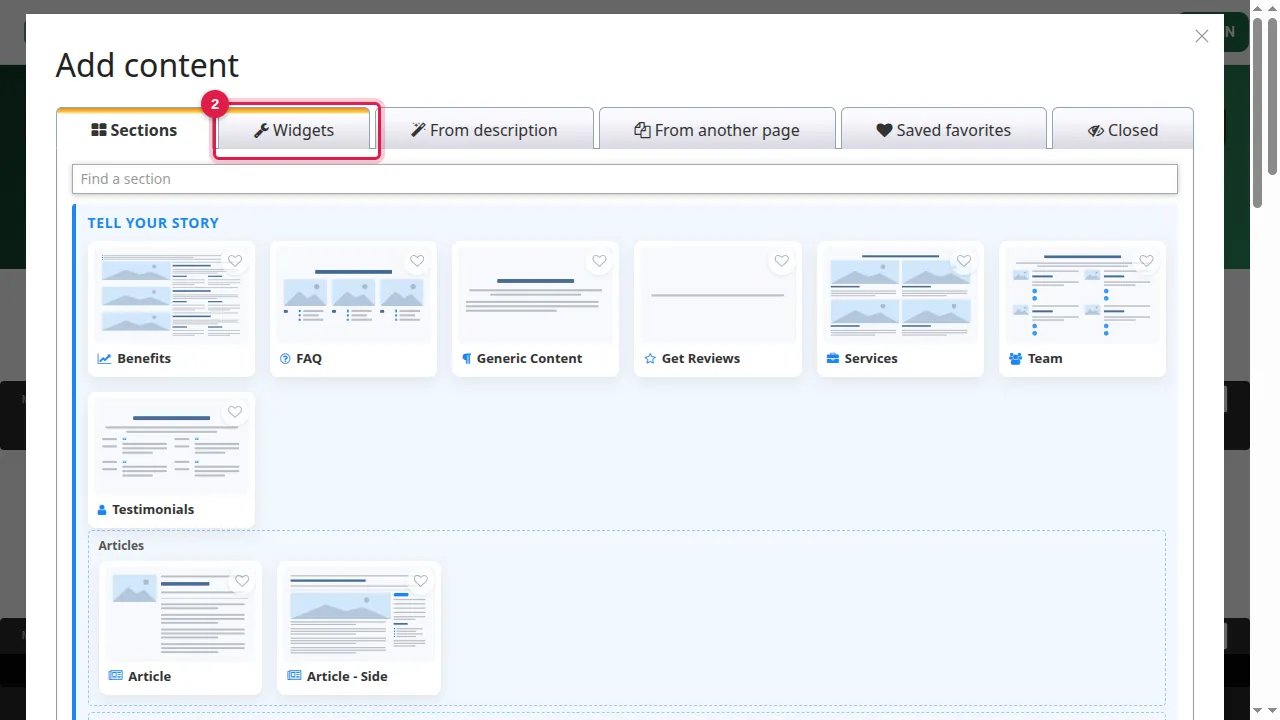
Step 2. Open the Widgets tab. Section menu is under Members and community.
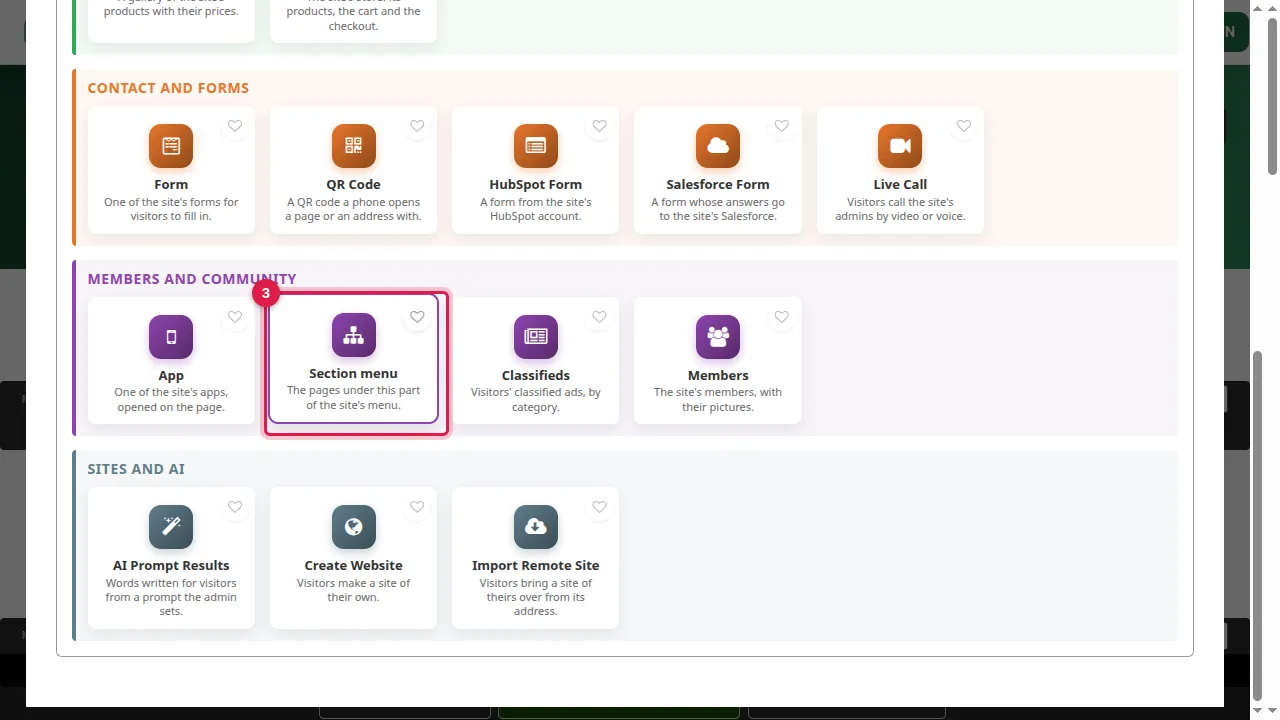
Step 3. Click Section menu ("The pages under this part of the site's menu"). It is added at the bottom of the page.
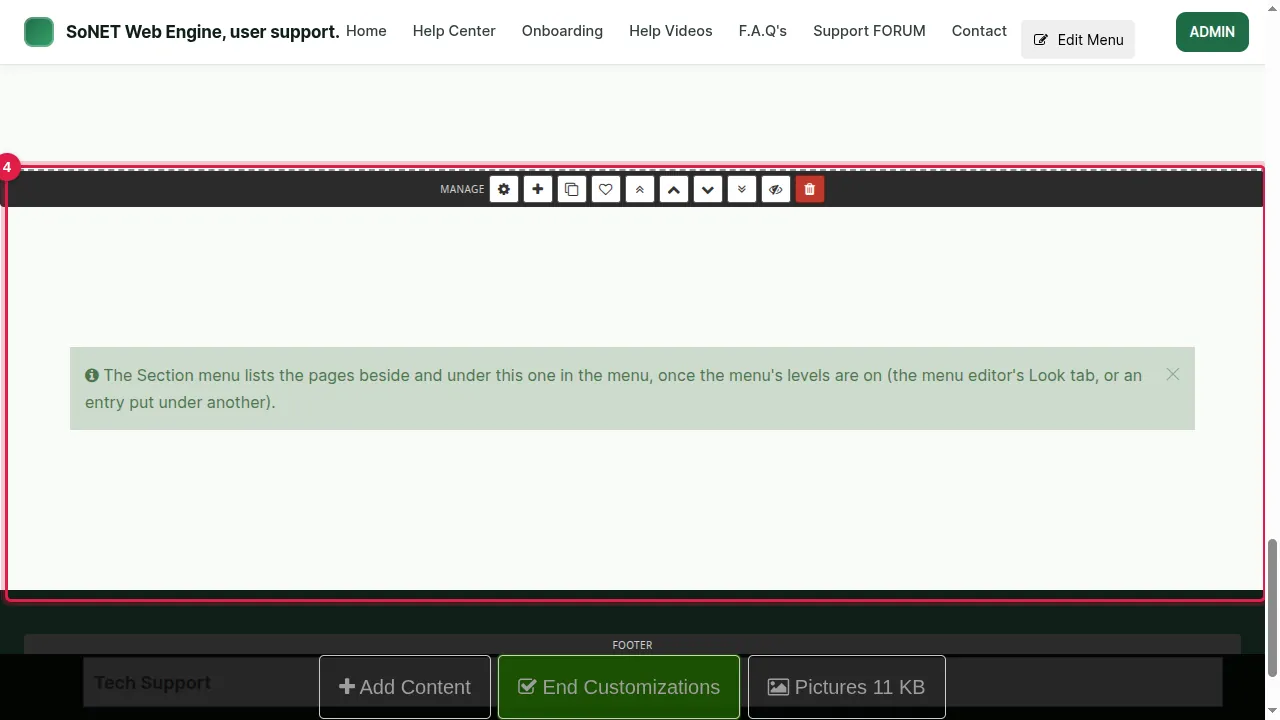
Step 4. Until your menu has levels, you see the note "The Section menu lists the pages beside and under this one in the menu, once the menu's levels are on". Your visitors see nothing there.
Its settings
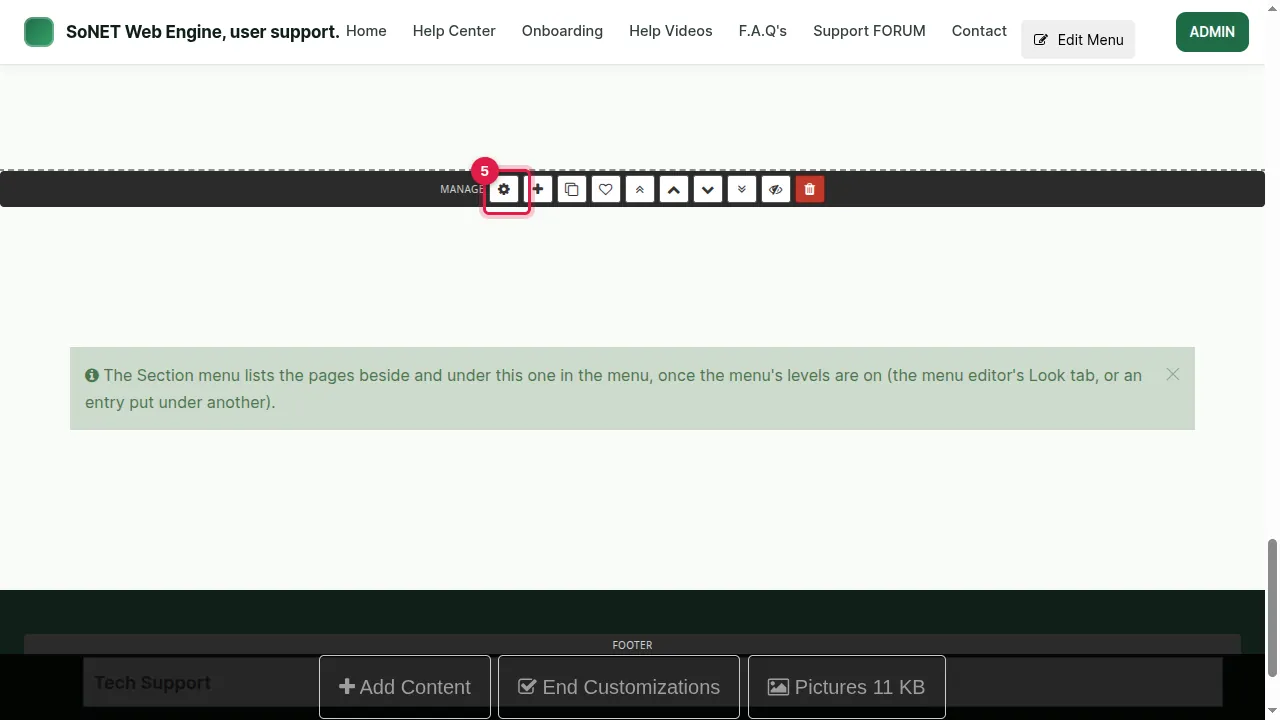
Step 5. Click the widget's gear to open its settings.
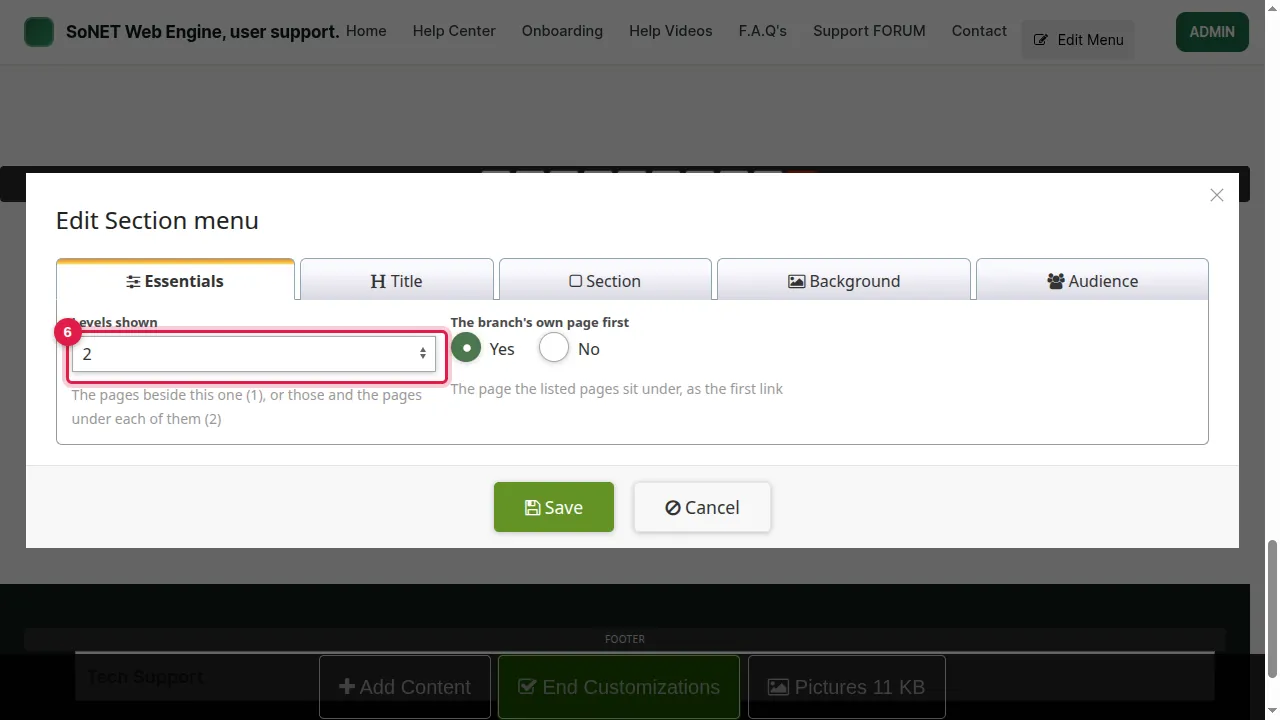
Step 6. Levels shown: 1 lists the pages beside this one; 2 also lists the pages under each of them.
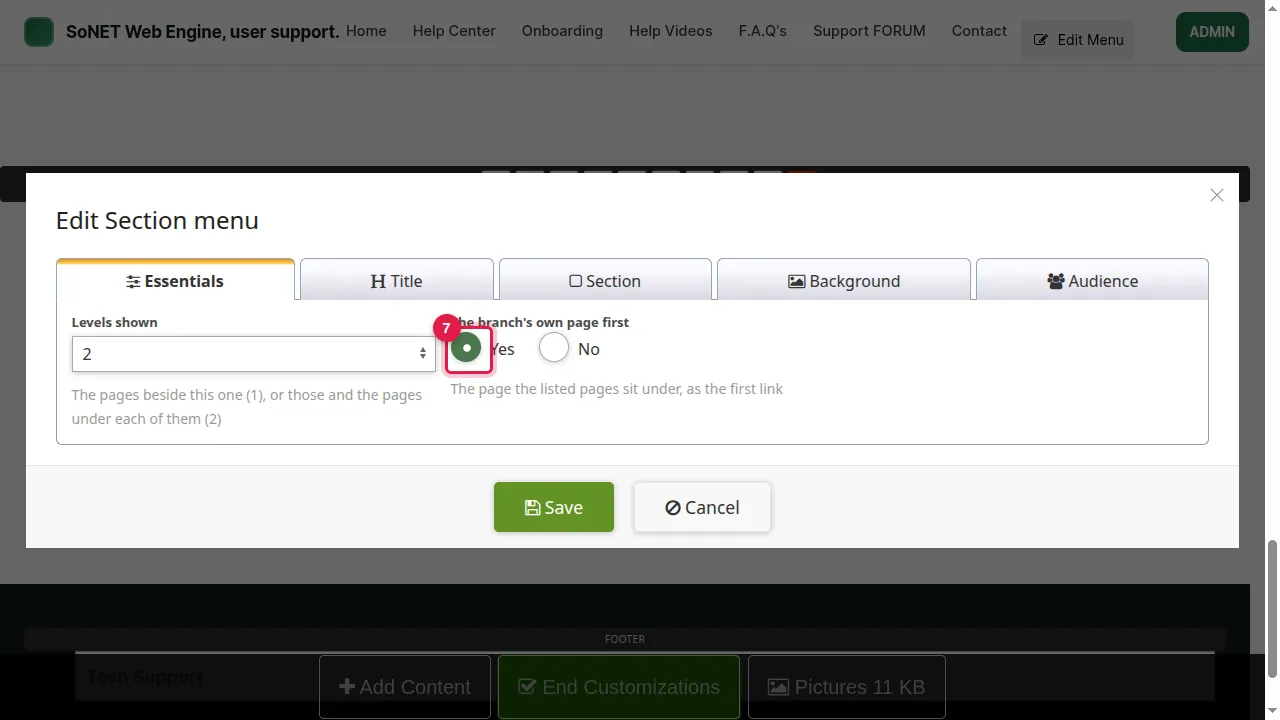
Step 7. The branch's own page first: Yes shows the page the listed pages sit under as the first link.
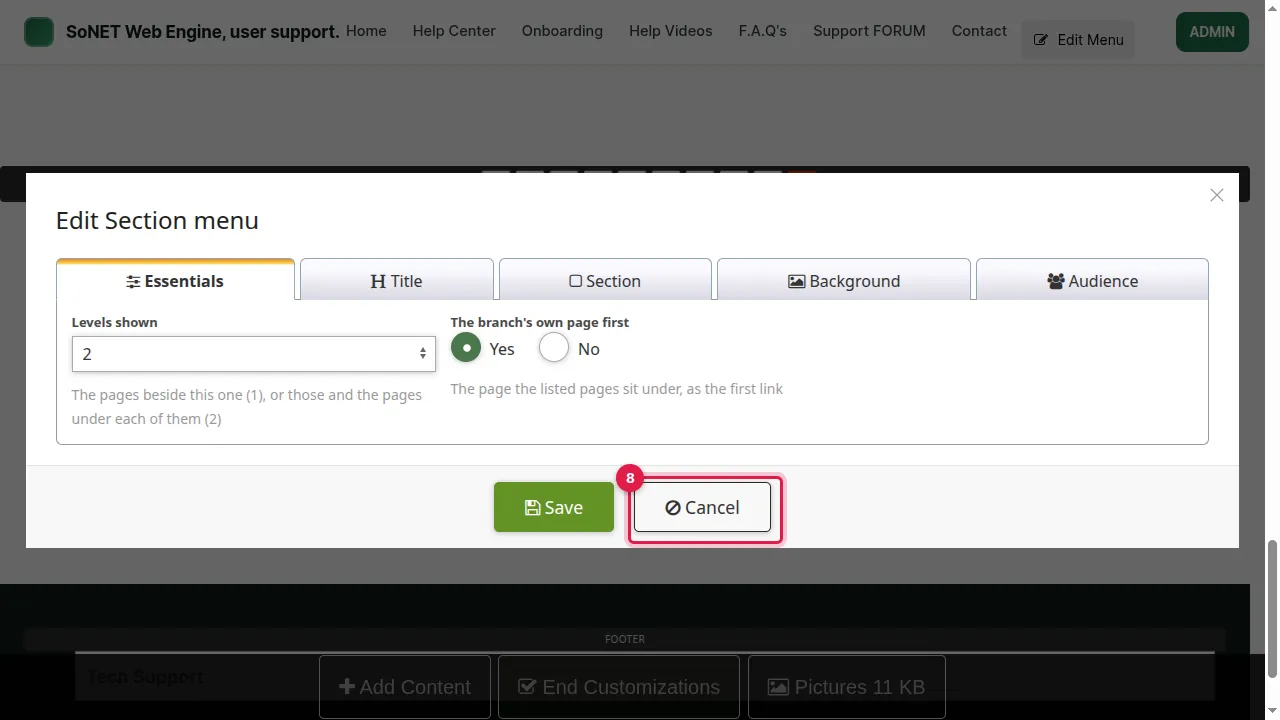
Step 8. Click Save to keep your settings, or Cancel (as in this demo).
Check it worked
On a site with menu levels, open the page as a visitor (log out or use a private window): the widget lists the pages of that part of the menu.
Good to know
- Put the widget on the page at the top of a group (for example "Services", with each service under it) so visitors see every page of the group in one place.
- Like every widget, it also has Title, Section, Background and Audience tabs in its settings.
Related help
- Edit the menu: rename, reorder, icons, show or hide pages
- Add a widget to a page (example: a QR code)
Shown on the 2026 version of the SoNET Web Engine. Last checked 5 November 2026. Something different on your screen? Tell us through the Contact page.