Help Center Store
Your product list: import, export, clone and delete
Manage many products at once: find products without a picture, download your products as a CSV spreadsheet, add many products from a CSV file, and copy or delete products.
Watch it done: a short silent video with captions · 2:21. The steps below show the same thing picture by picture.
Before you start
- Log in as the site owner.
- Open ADMIN › eCommerce › Products.
Products without pictures
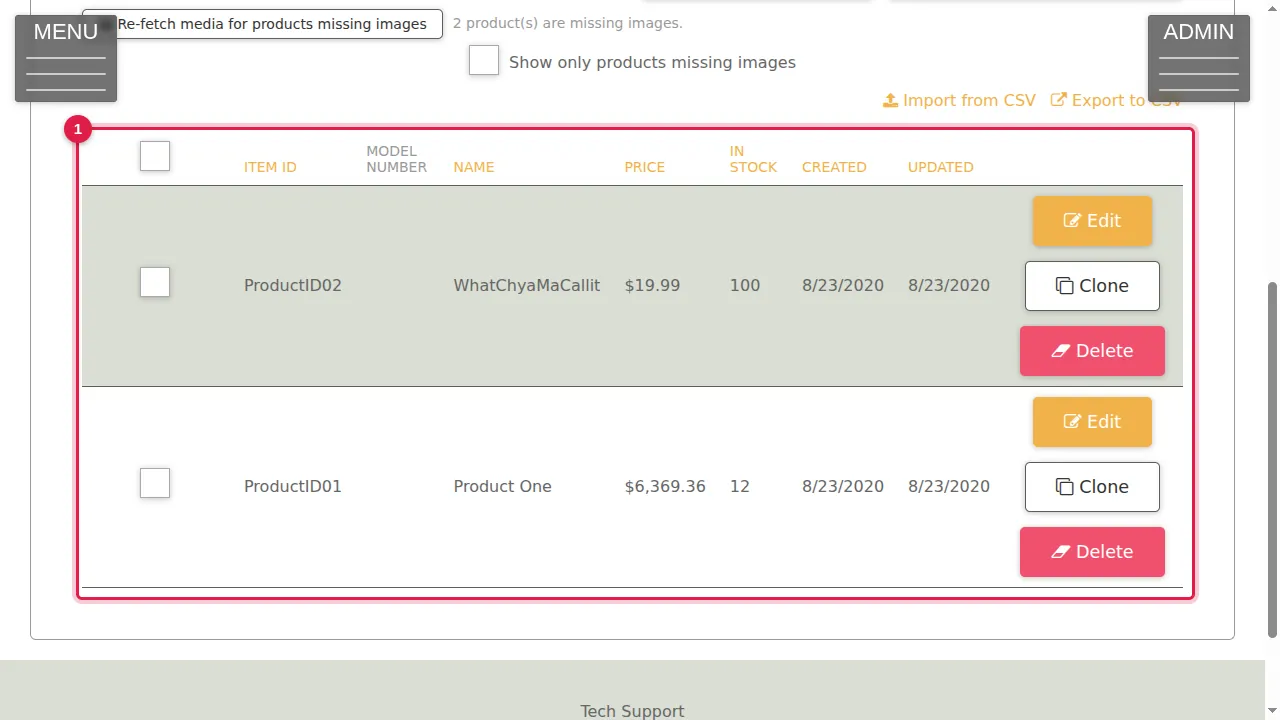
Step 1. The Products tab lists your products with Edit, Clone and Delete.
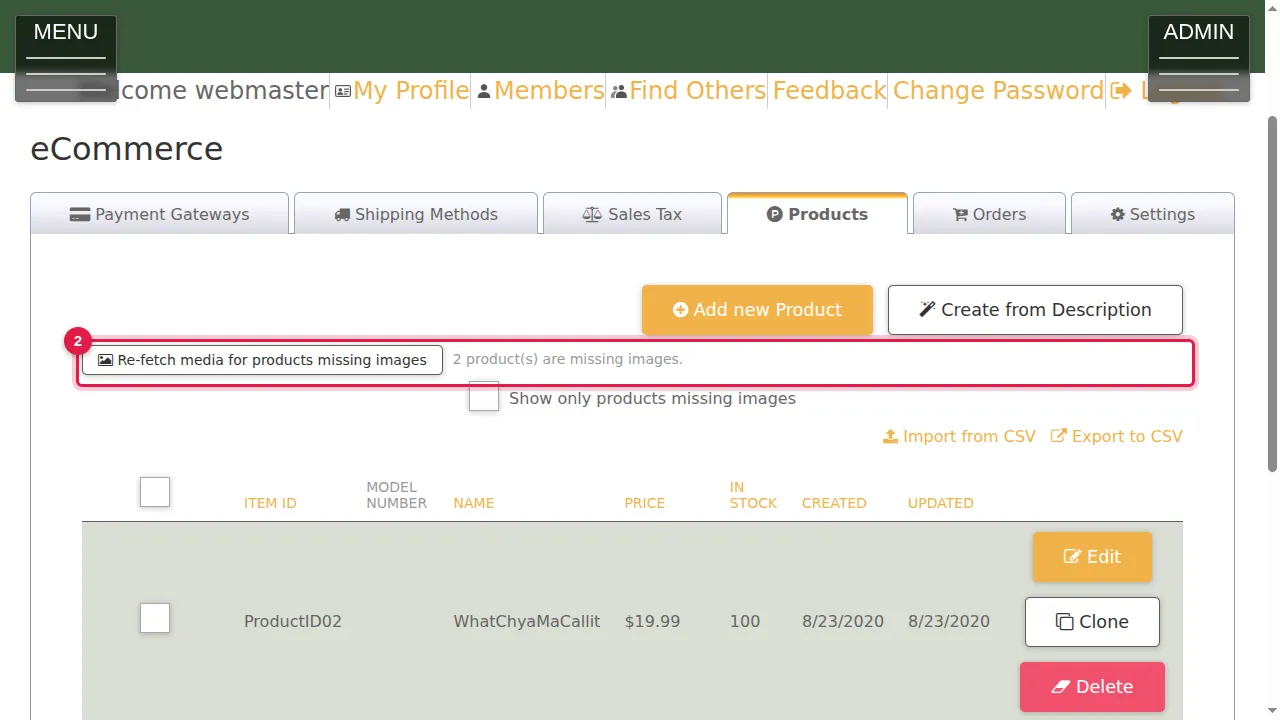
Step 2. Above the list you see how many products have no picture. Re-fetch media for products missing images looks pictures up again for them.
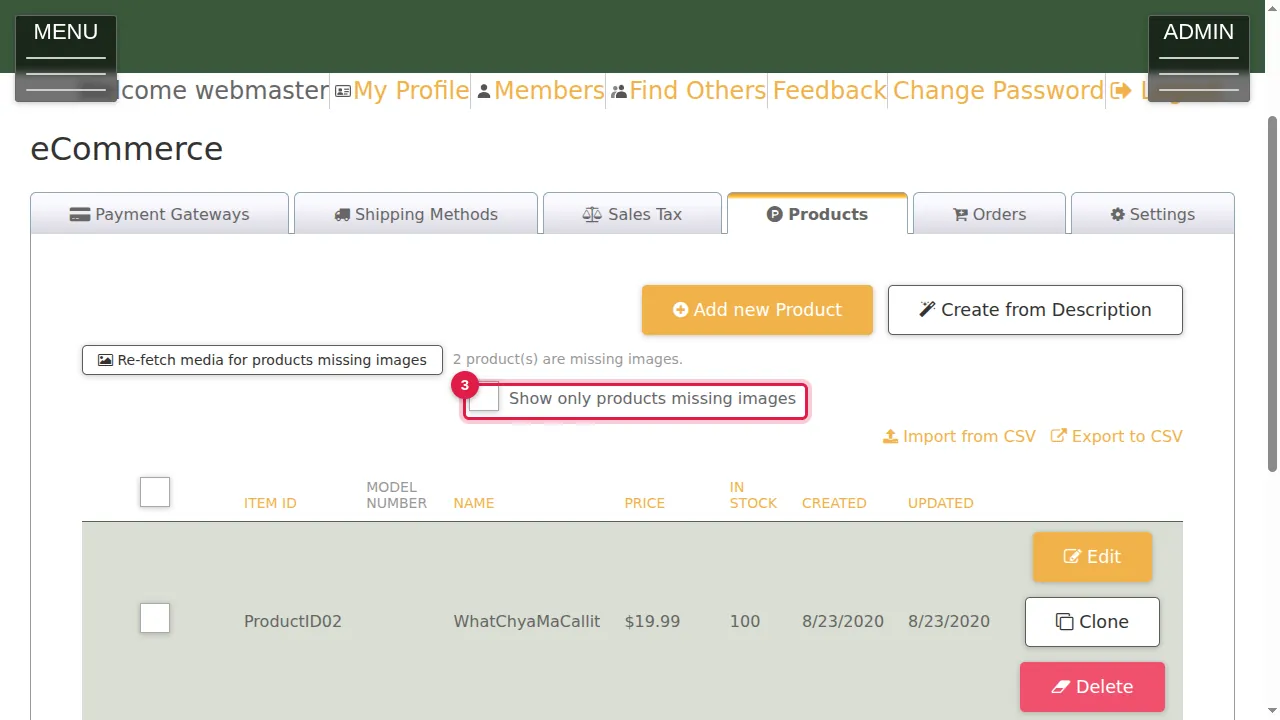
Step 3. Tick Show only products missing images to list just those; untick it to see all.
Export
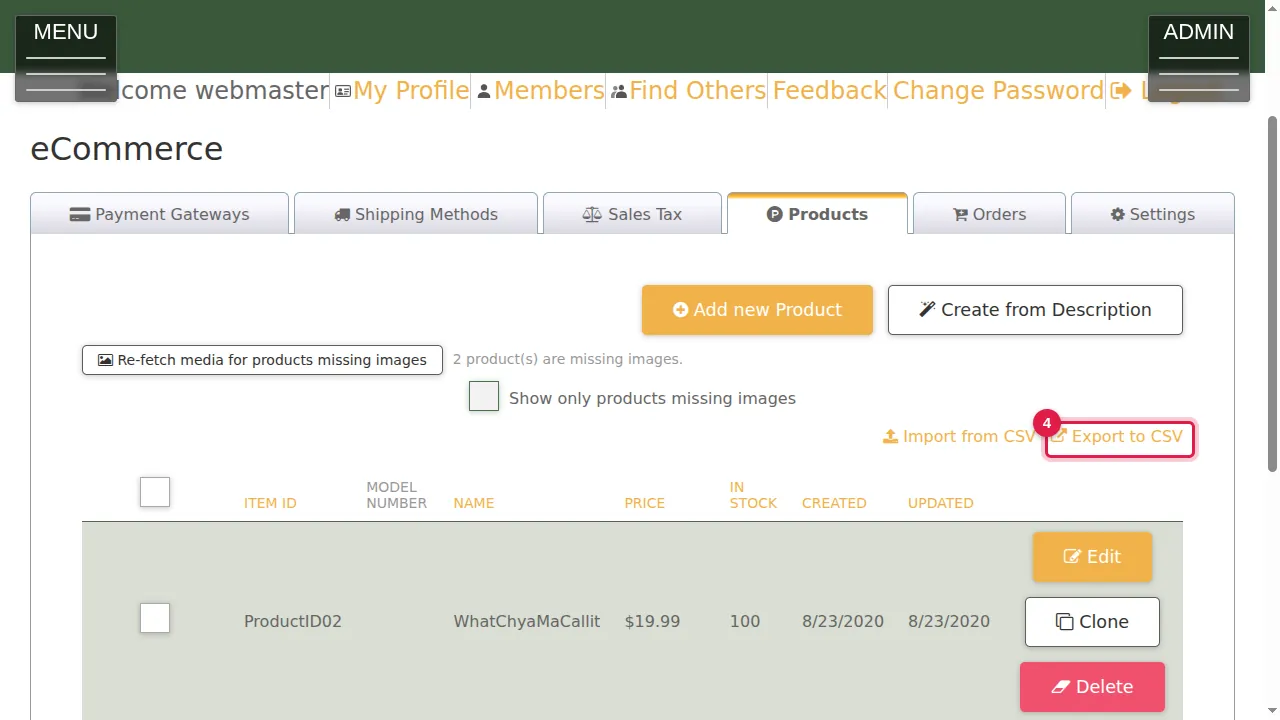
Step 4. Export to CSV downloads your products as a spreadsheet file (Item ID, Model Number, Name, Price, In Stock, Created, Updated).
Import from a CSV file
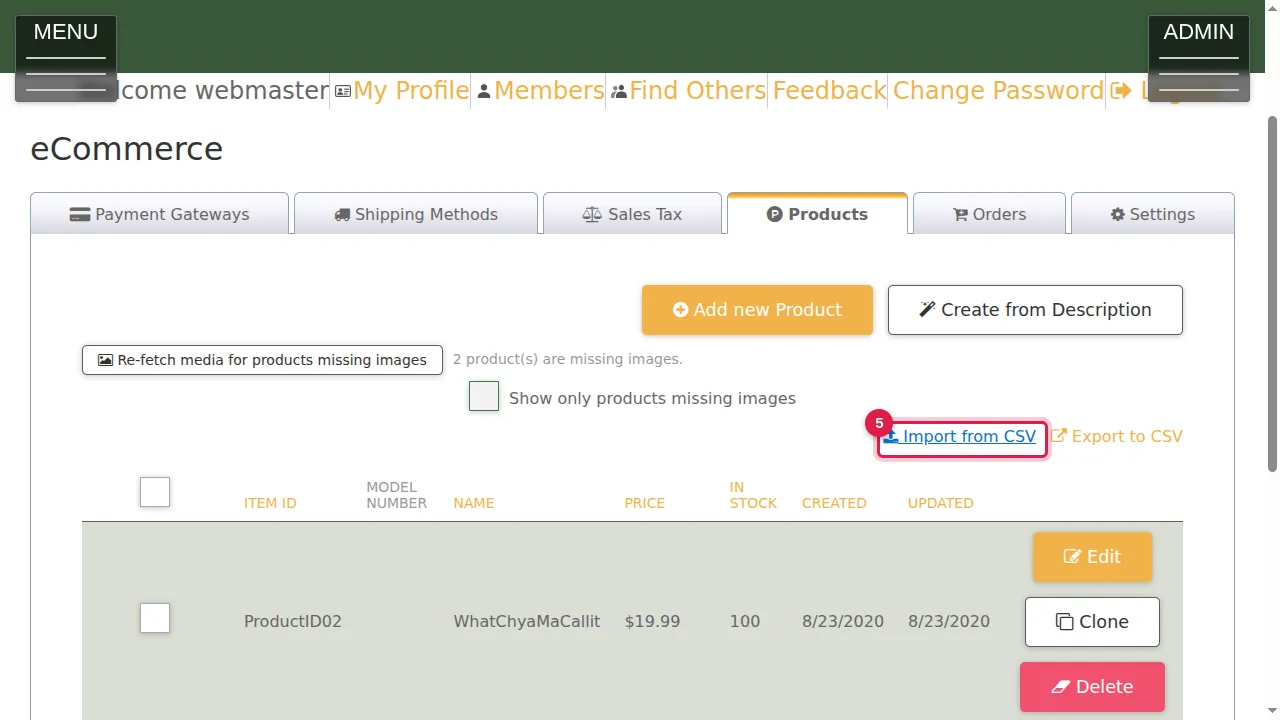
Step 5. Import from CSV adds many products at once from a spreadsheet saved as CSV.
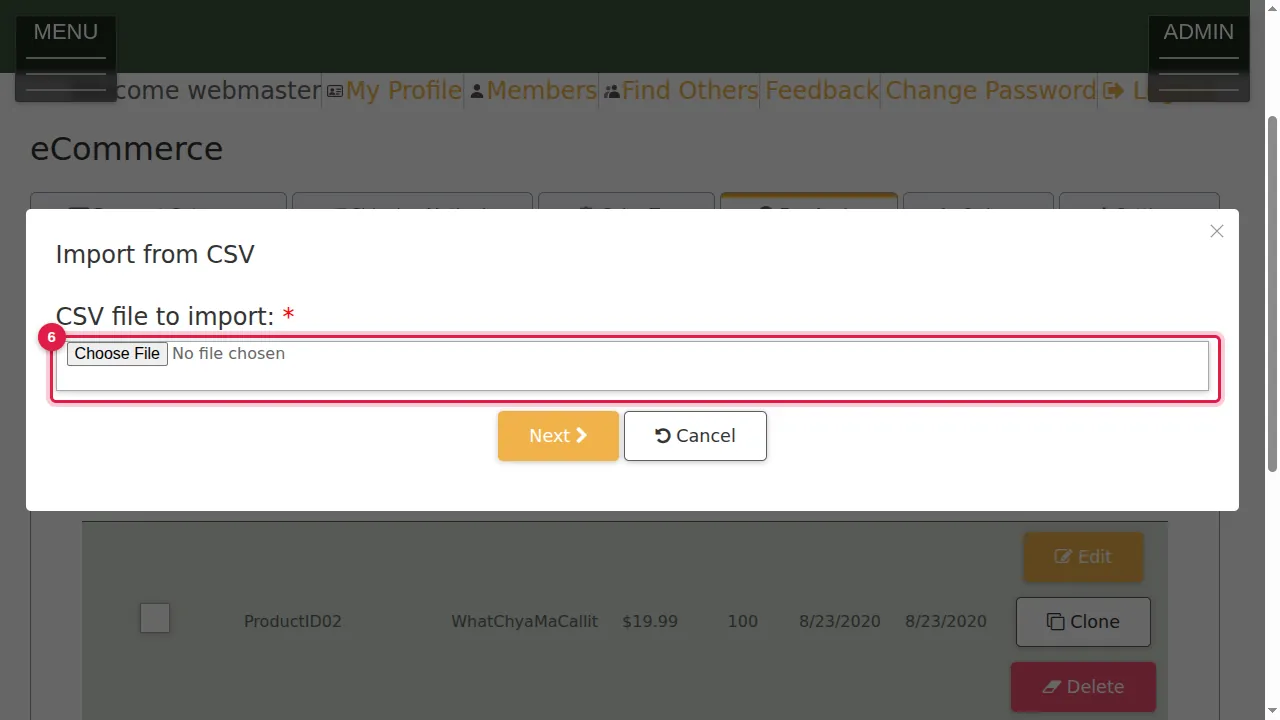
Step 6. Choose your CSV file.
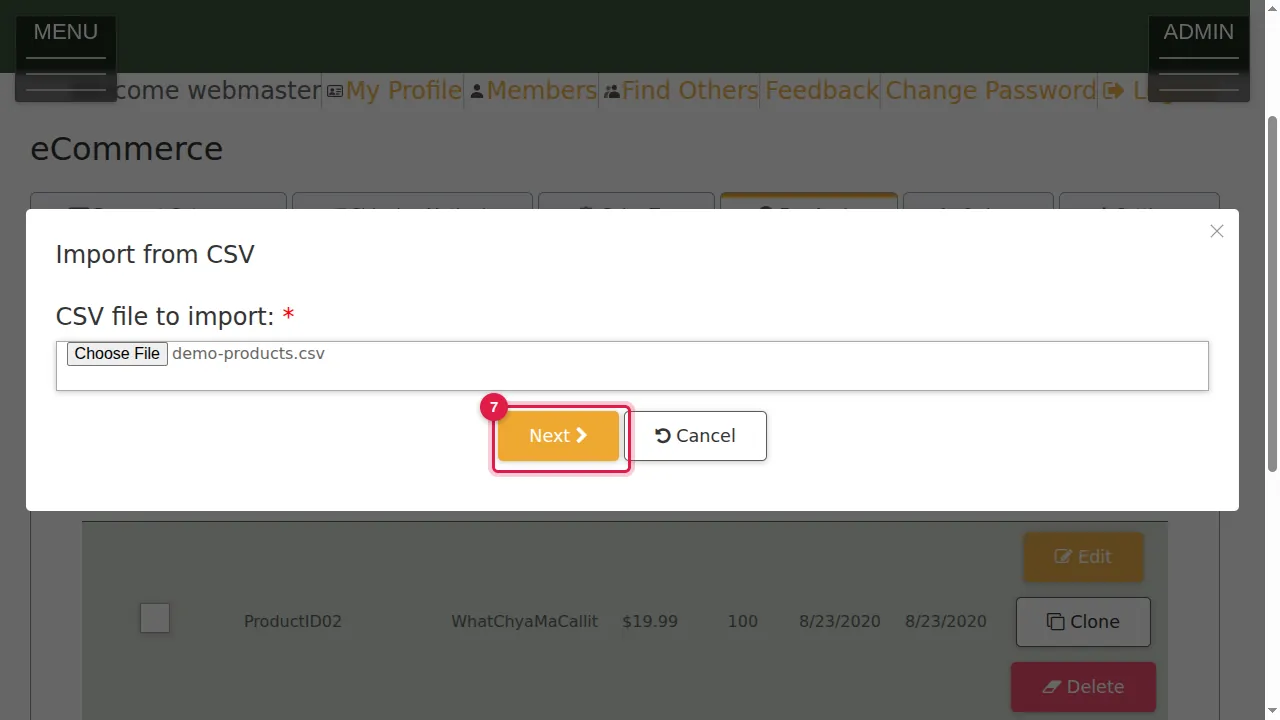
Step 7. Click Next.
Step 8. Choose Import new products, or Update existing products.
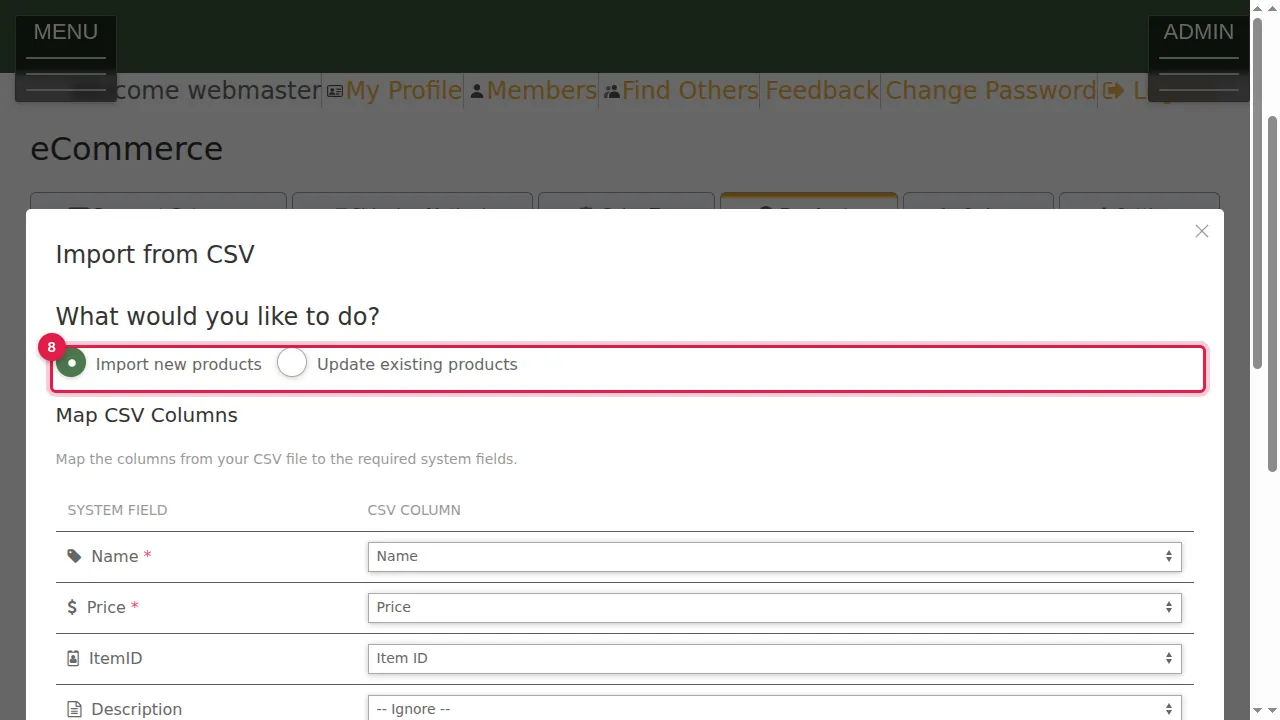
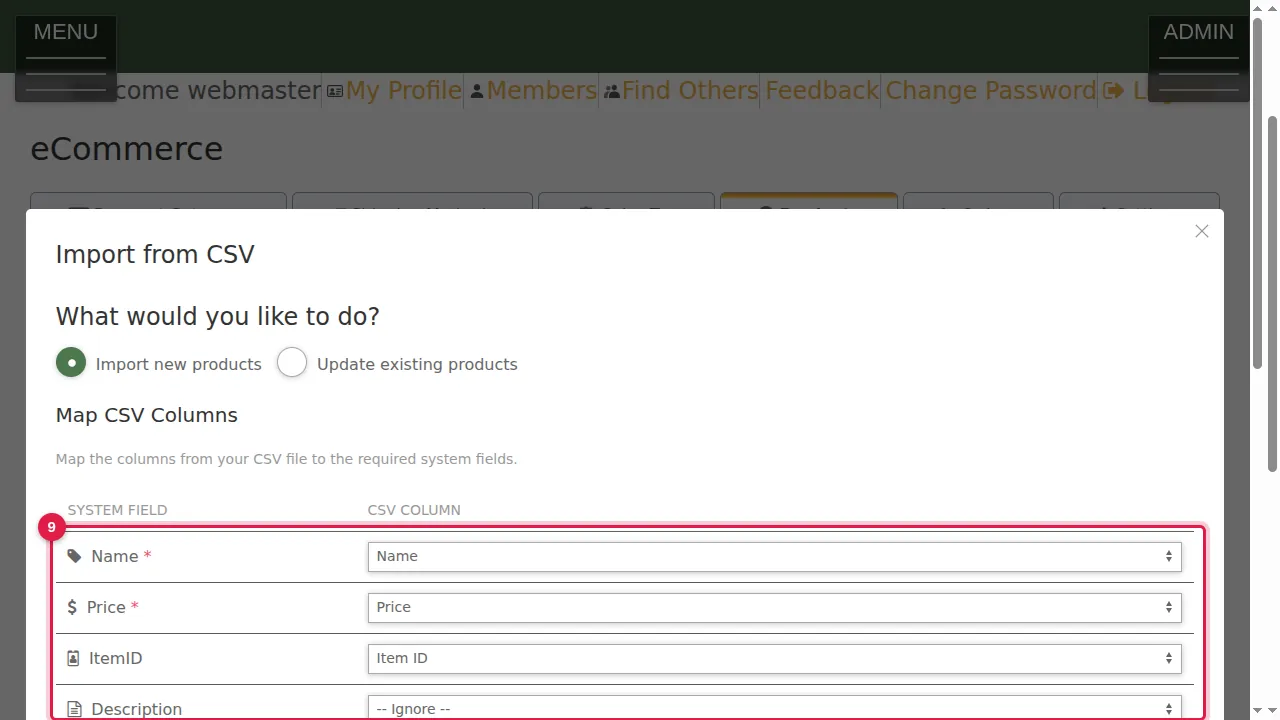
Step 9. Map CSV Columns: for each field, check which column of your file it comes from. Name and Price are required; columns with the same names are matched for you.
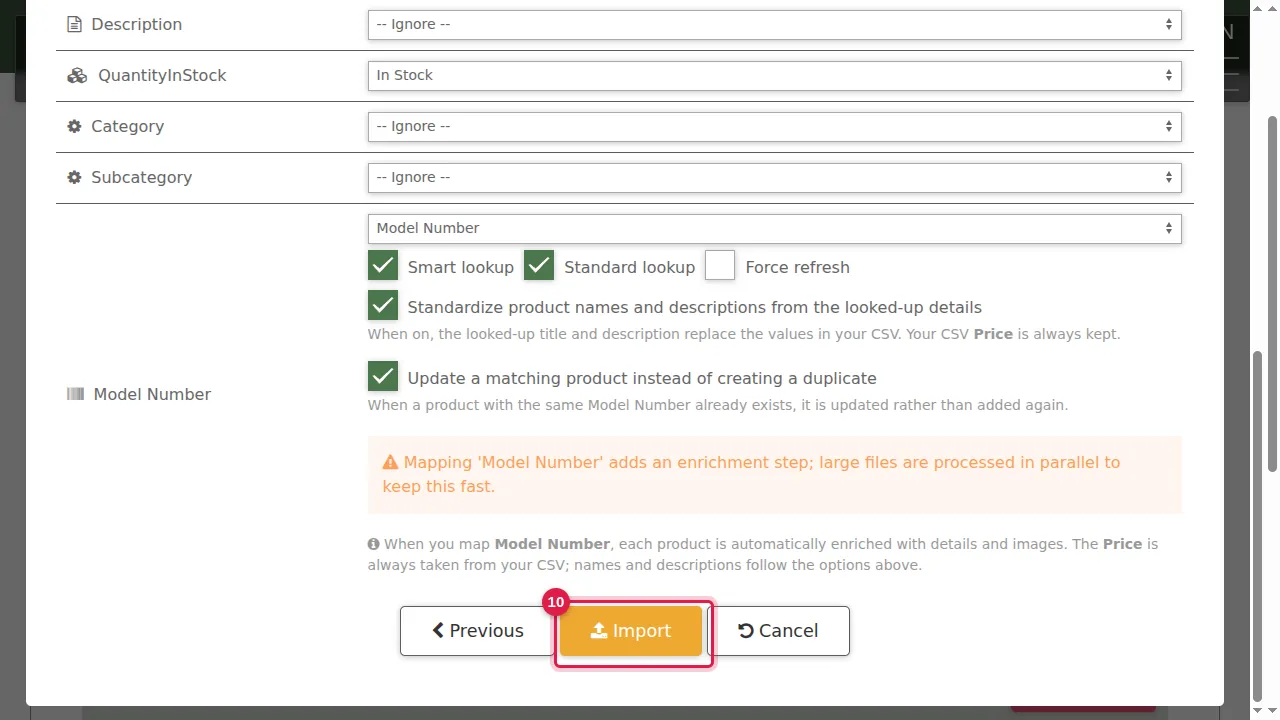
Step 10. Below are options: look products up by their model number to add pictures and details, use the looked-up names and descriptions, and update a matching product instead of creating a duplicate. The price from your file is always kept. Click Import.
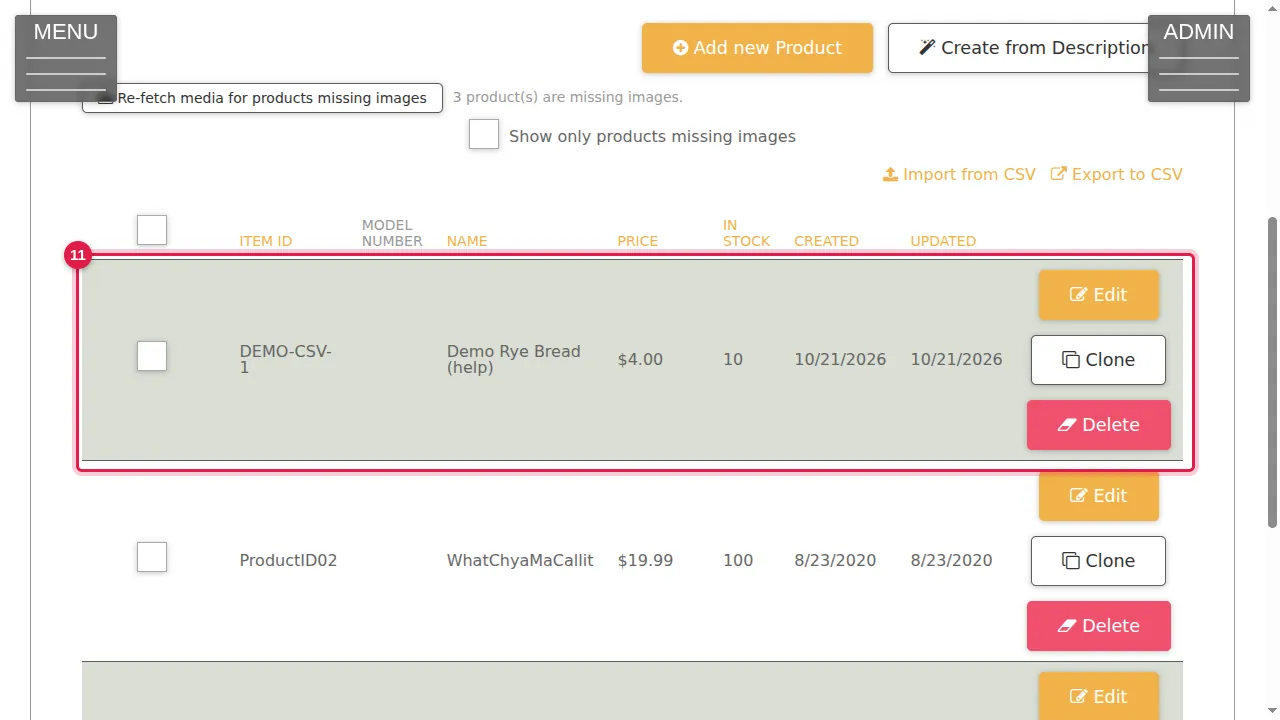
Step 11. The imported products are in the list.
Clone and delete
Step 12. Clone makes a copy of a product, to change with Edit.
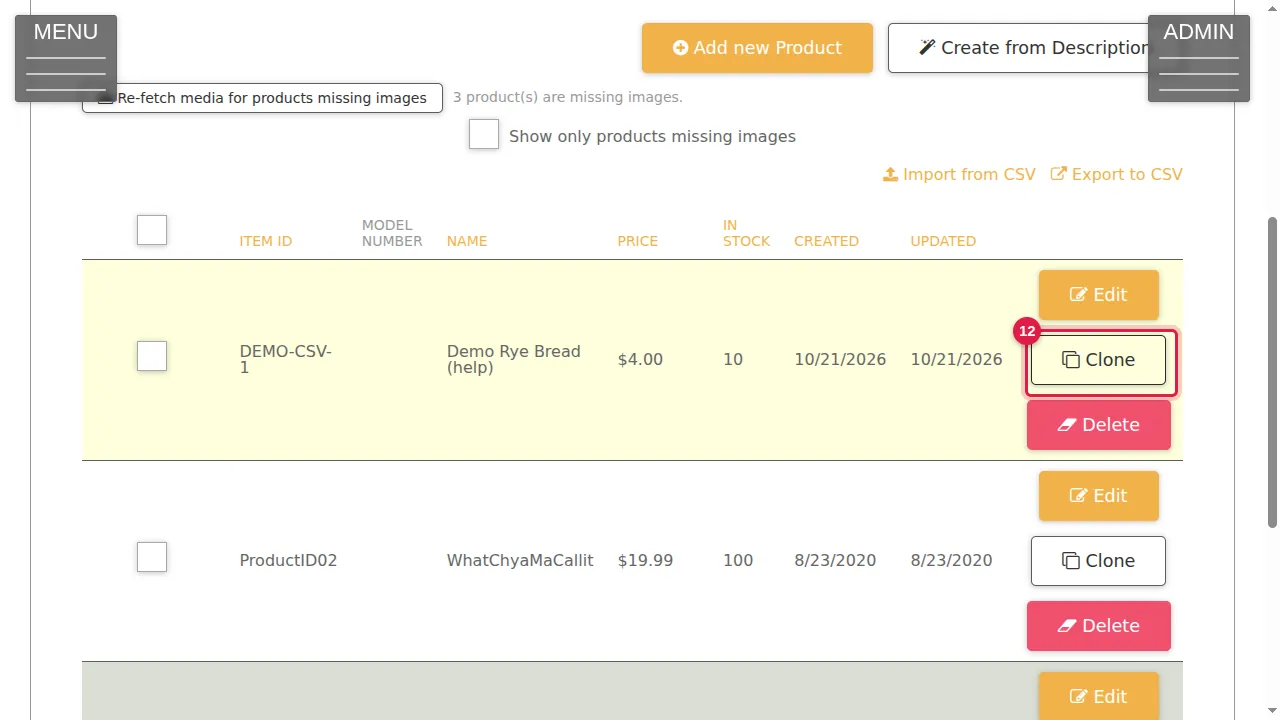
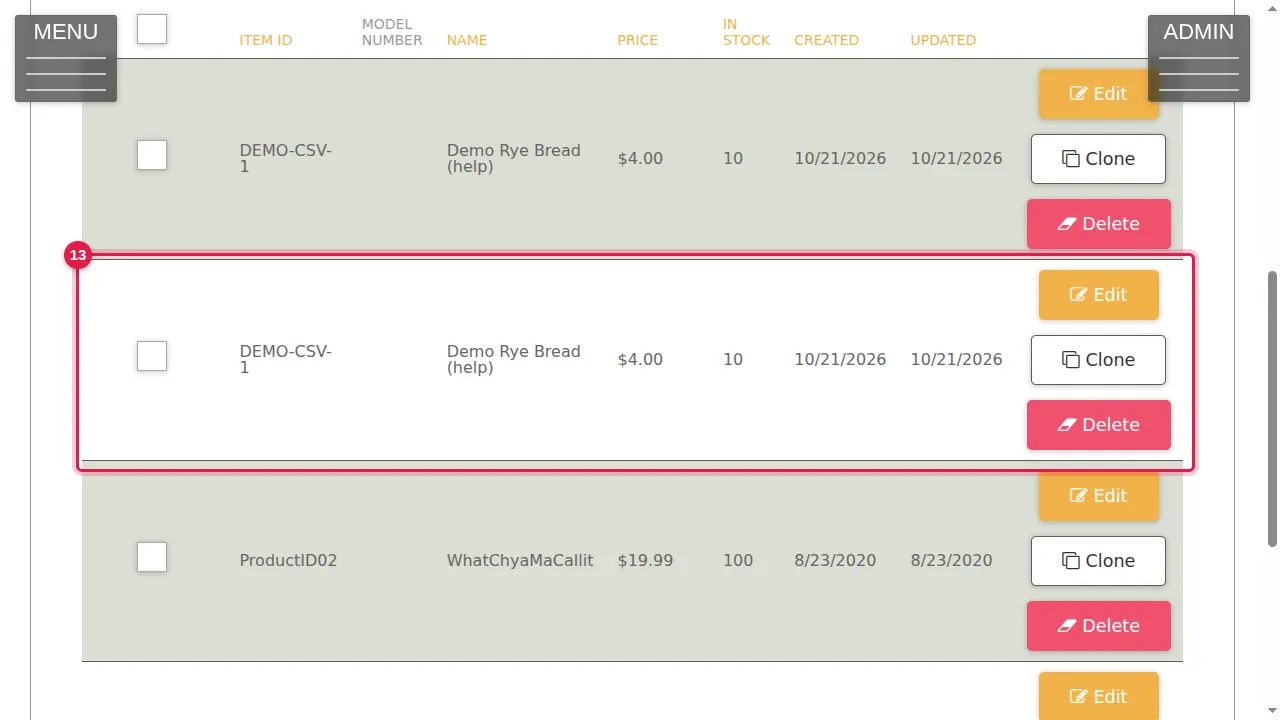
Step 13. The copy is in the list.
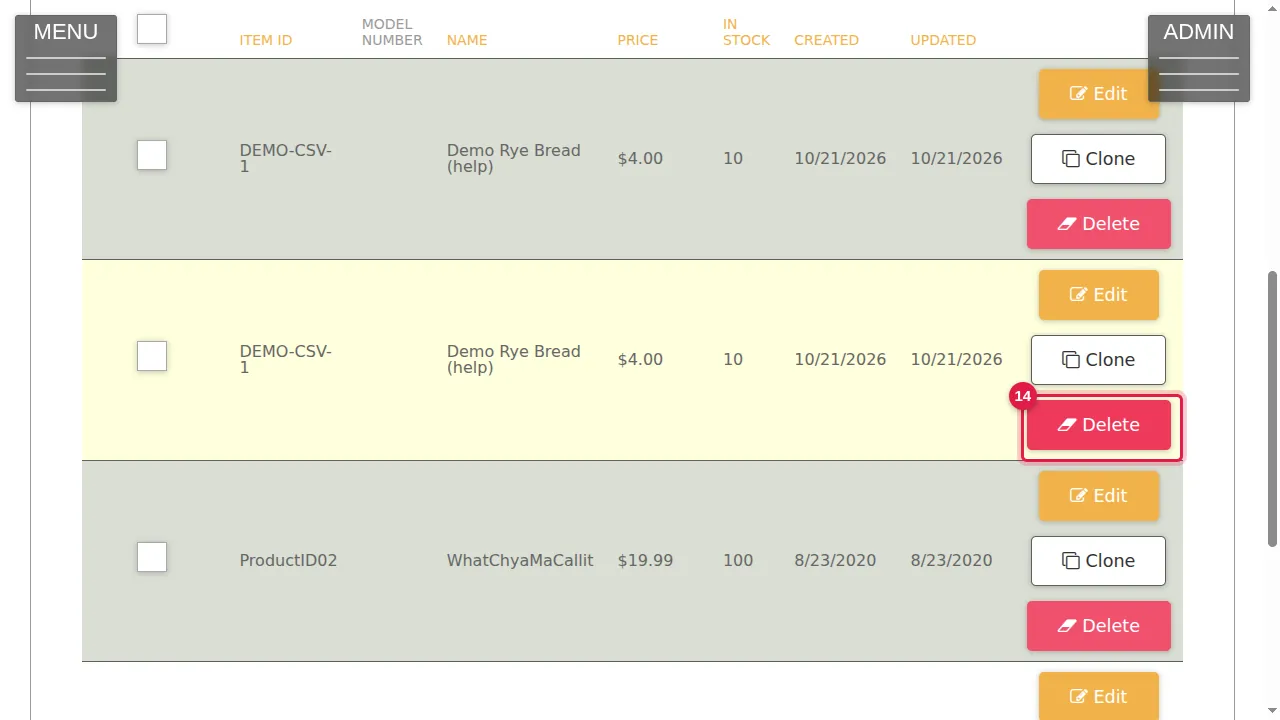
Step 14. Delete removes a product after you confirm.
Check it worked
Open your store in a private window and check the imported products, their prices and pictures.
Good to know
- Before a big import, export your products first: the file shows the column names the import understands.
Related help
Shown on the 2026 version of the SoNET Web Engine. Last checked 21 October 2026. Something different on your screen? Tell us through the Contact page.