Help Center Store
Look up a product by its model number
Save typing: give a model or part number and Lookup Product fills in the name, description, a picture, a price, the brand and more. You check and correct everything before saving.
Watch it done: a short silent video with captions · 0:56. The steps below show the same thing picture by picture.
Before you start
- Log in as the site owner.
- Open ADMIN › eCommerce › Products.
Look it up
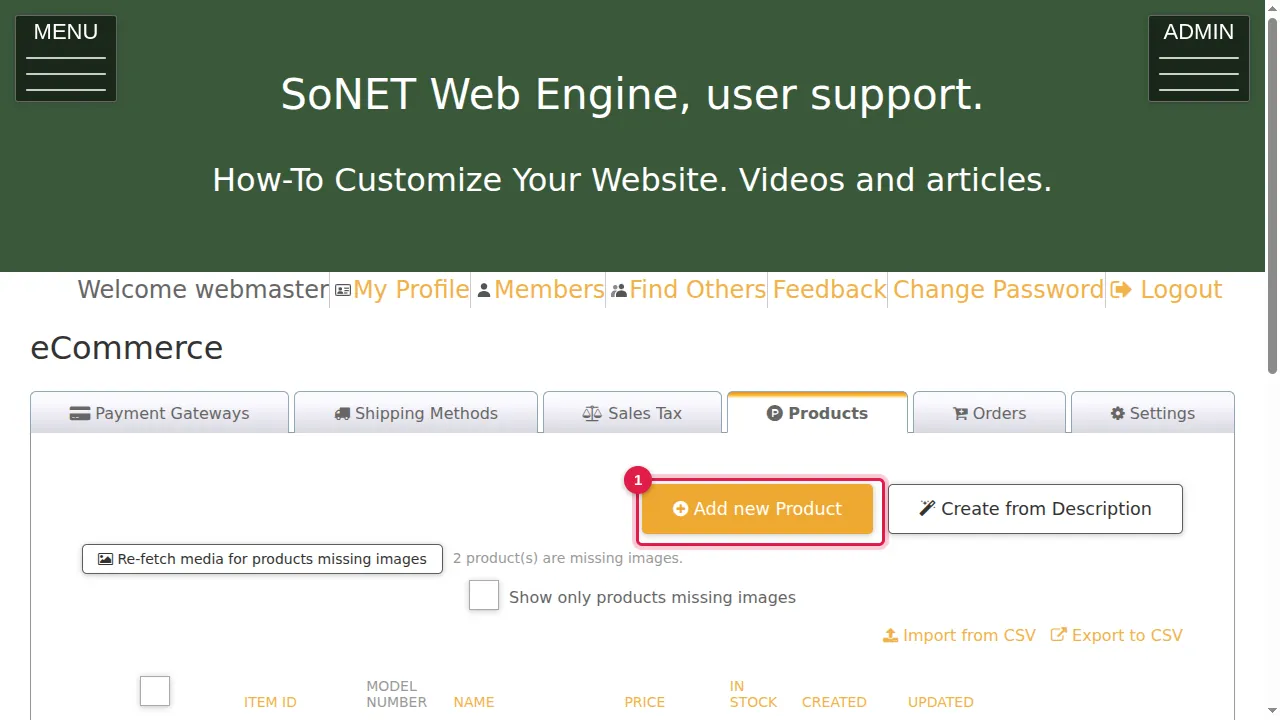
Step 1. Click Add new Product.
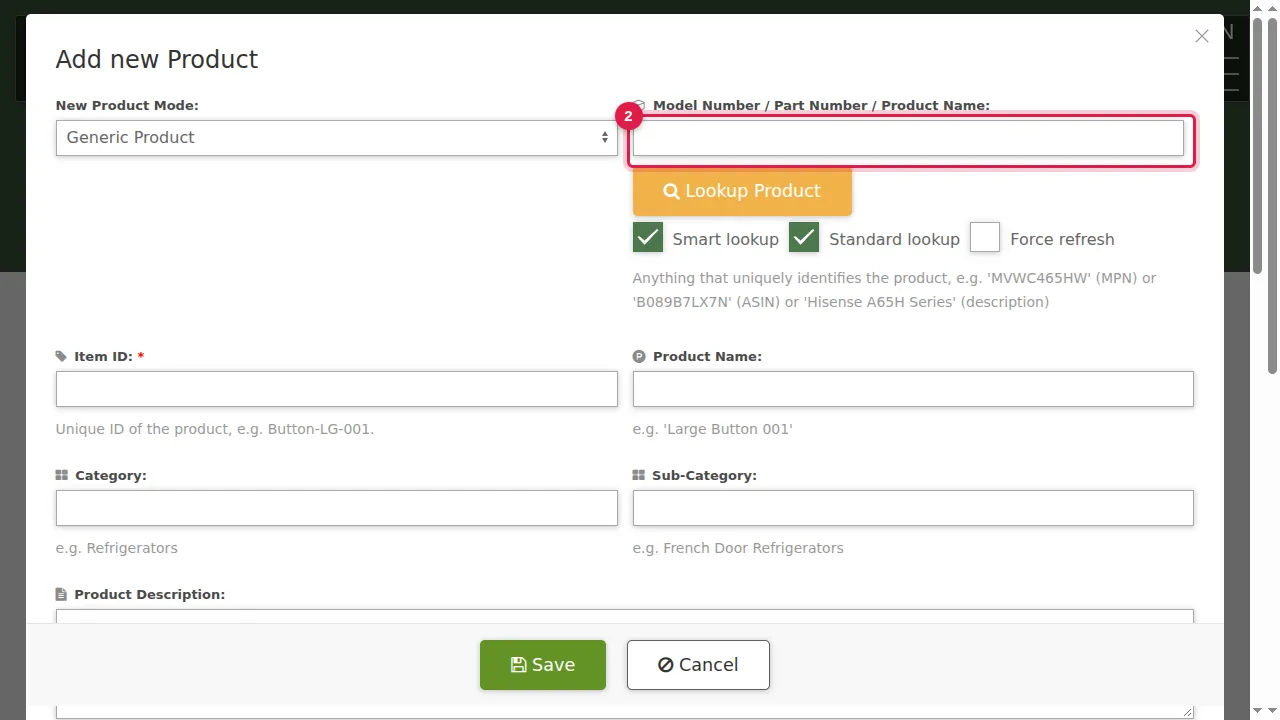
Step 2. In Model Number / Part Number / Product Name, type anything that identifies the product: a manufacturer's model or part number, an Amazon ASIN, or a short description such as "Hisense A65H Series".
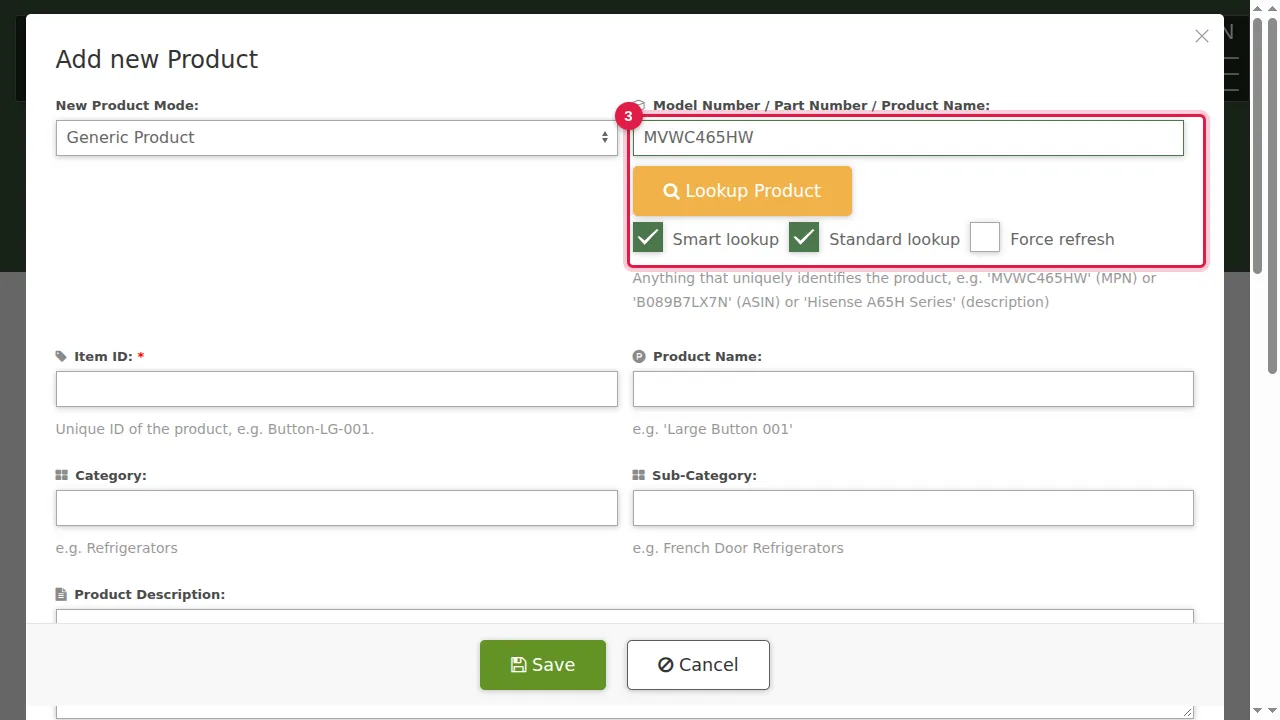
Step 3. Leave Smart lookup and Standard lookup ticked. Tick Force refresh only to look the product up again.
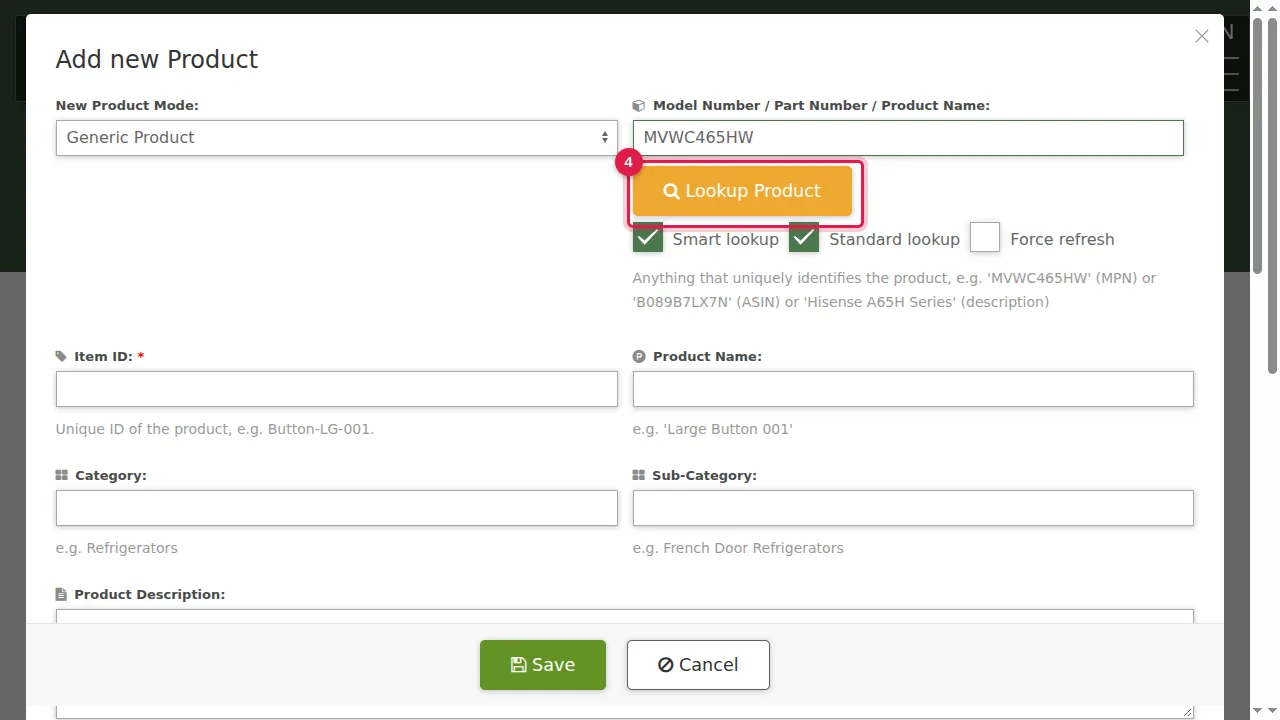
Step 4. Click Lookup Product and wait a moment.
Check what was filled in
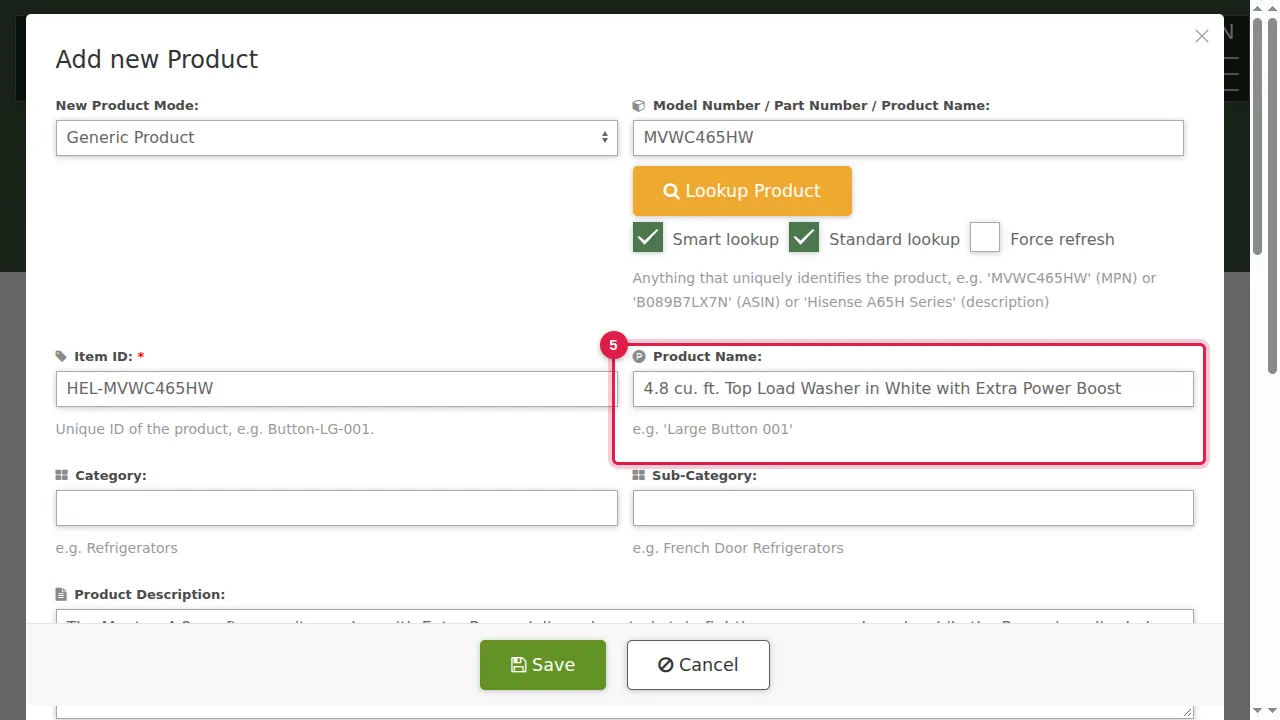
Step 5. Item ID, Product Name and the description are filled in for you.
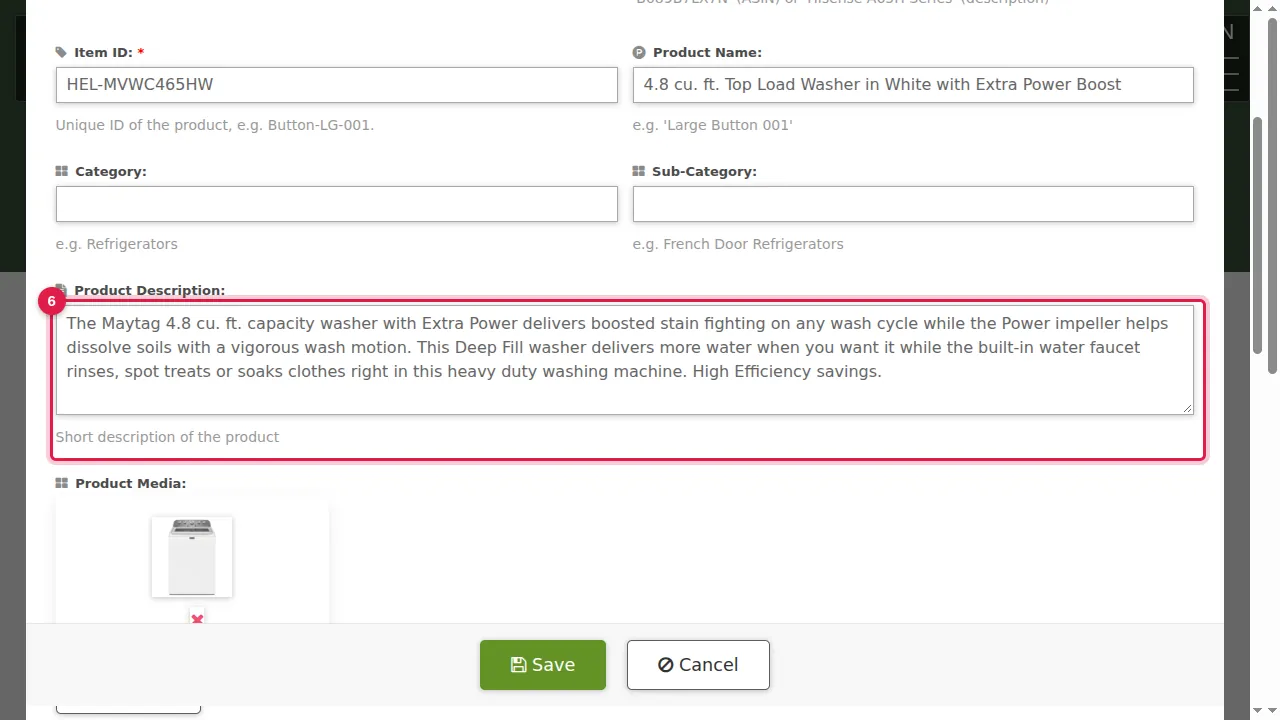
Step 6. The description comes from the internet: read it, and change it to your own words where needed.
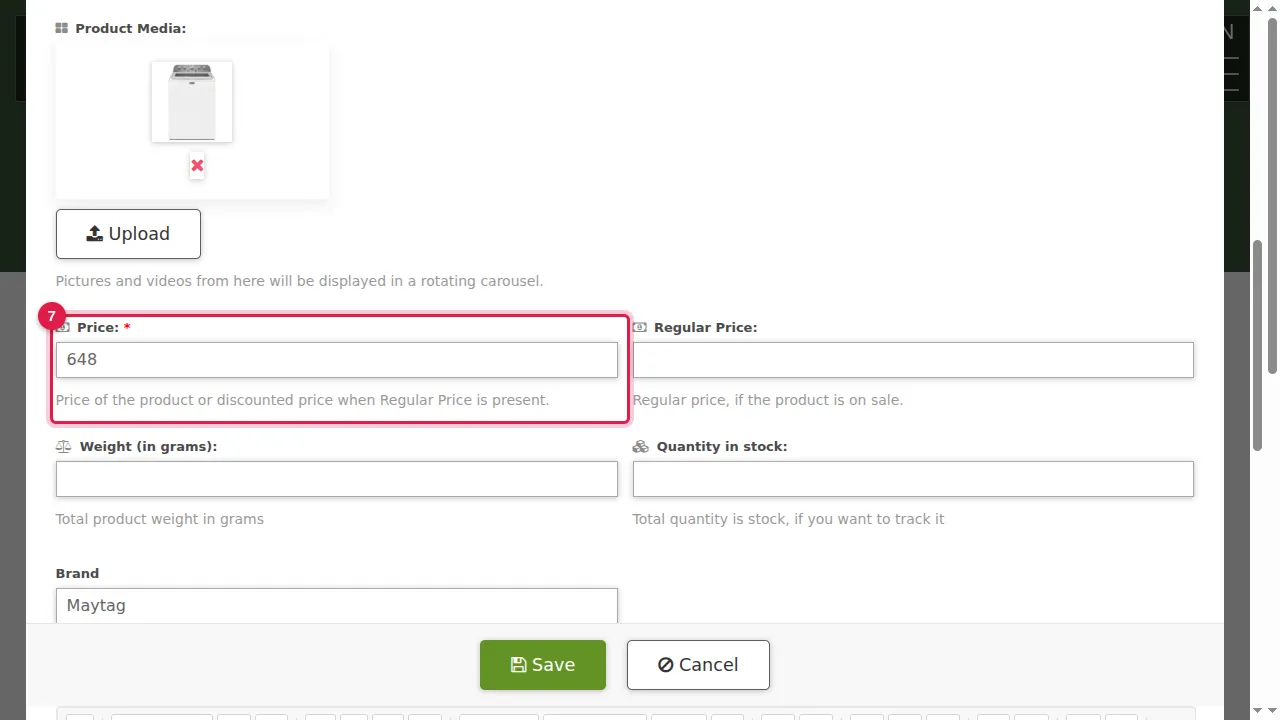
Step 7. A picture, a price, the brand and often more information (here the warranty) are added too. The price is only a suggestion: set your own. Price is required.
Finish
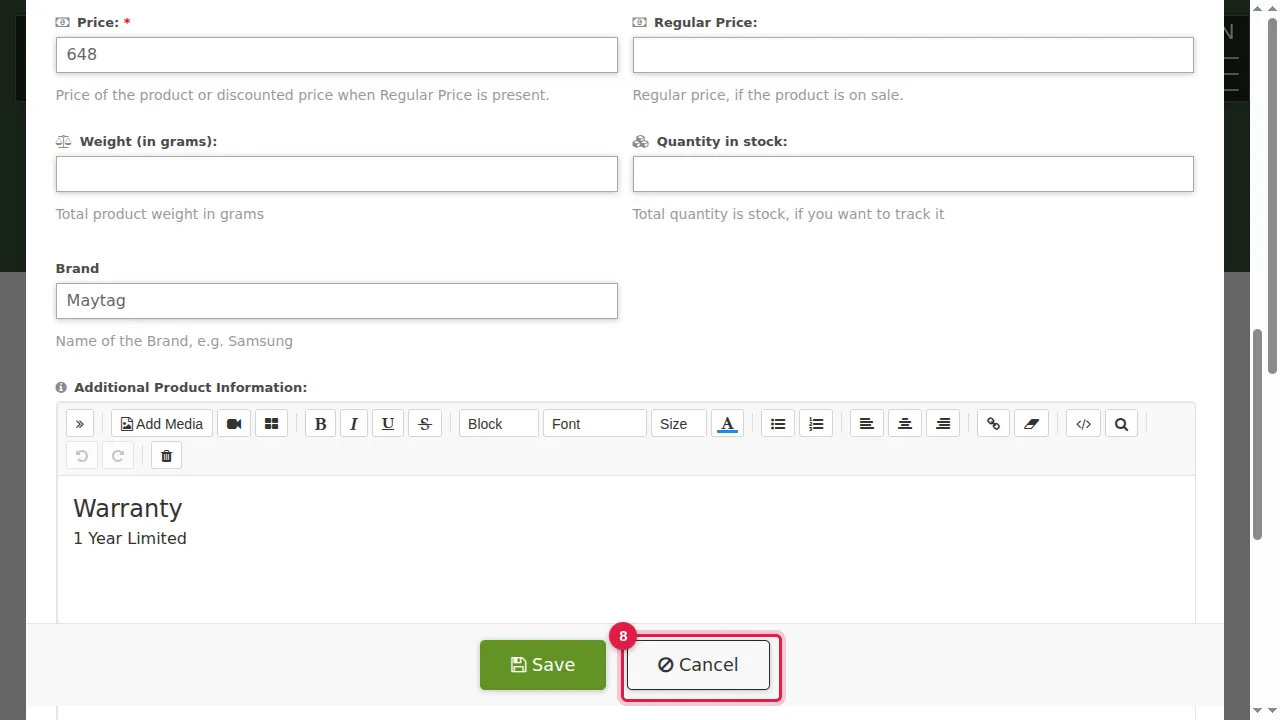
Step 8. Fill in what is missing, such as Category, check everything and click Save. (In this demonstration: Cancel, nothing was saved.)
Check it worked
Open the product in your store in a private window and check the picture, text and price.
Good to know
- Hide in Store keeps a product out of your store without deleting it.
- Listed Only shows the product in your store without a price or Add to Cart, for example for items you only show.
Related help
Shown on the 2026 version of the SoNET Web Engine. Last checked 21 October 2026. Something different on your screen? Tell us through the Contact page.