Help Center Popups & Announcements
Popups: a message that opens over your pages
Make a popup that opens over chosen pages for a set period: its message, size, place on the screen, dates, pages, and optionally a background picture or one of your forms.
Watch it done: a short silent video with captions · 2:22. The steps below show the same thing picture by picture.
Before you start
- Log in as the site owner.
- Open ADMIN › Advertising. The Popups tab is first.
Make a popup
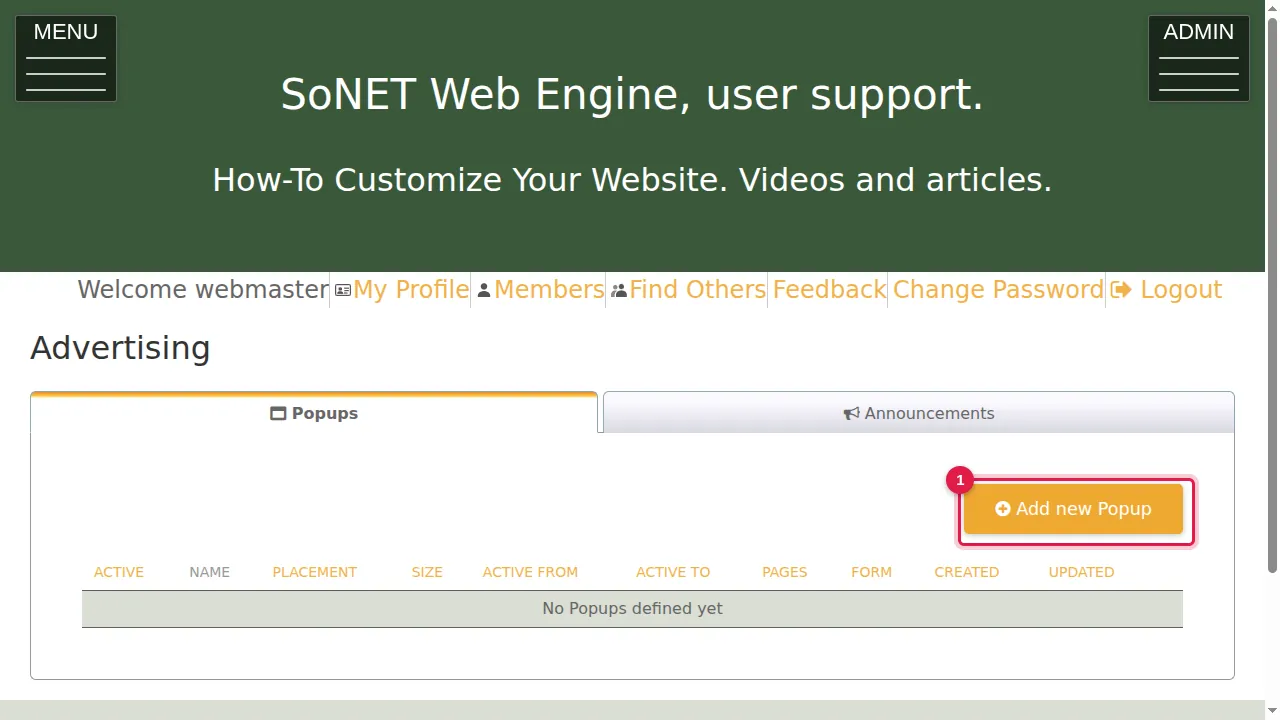
Step 1. The Popups tab lists your popups. Click Add new Popup.
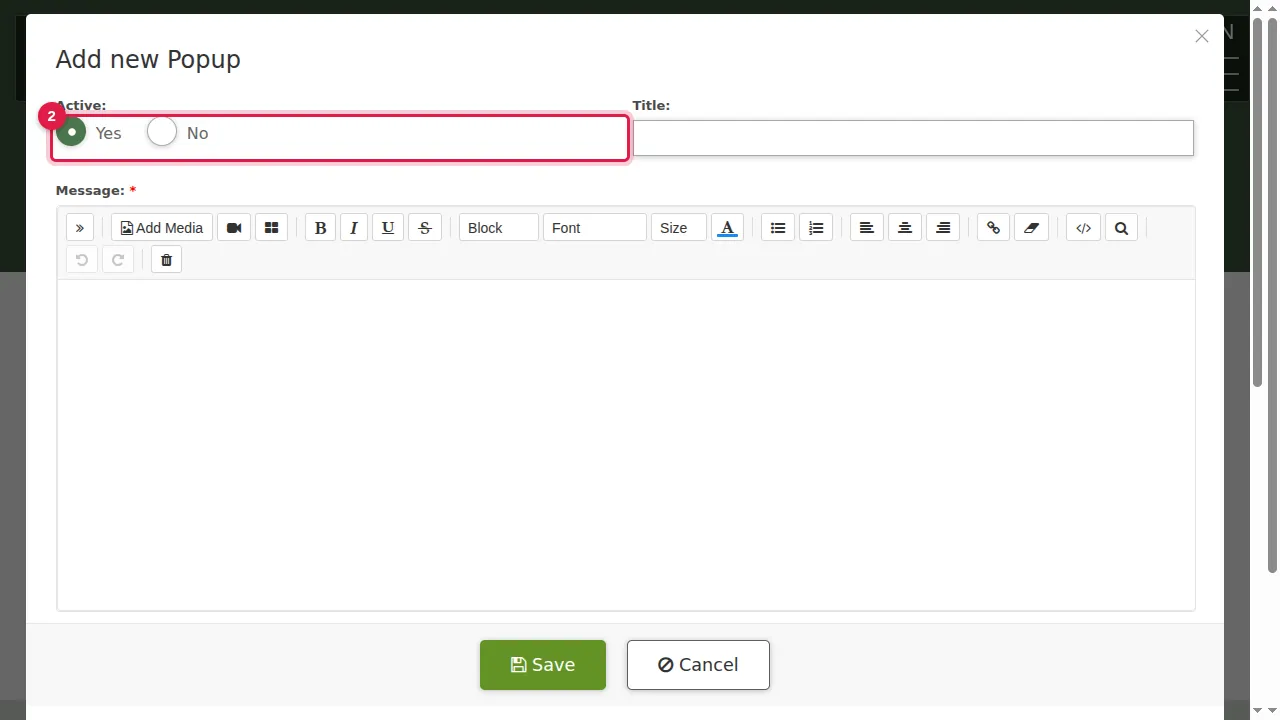
Step 2. Active: Yes shows the popup; No keeps it saved but does not show it.
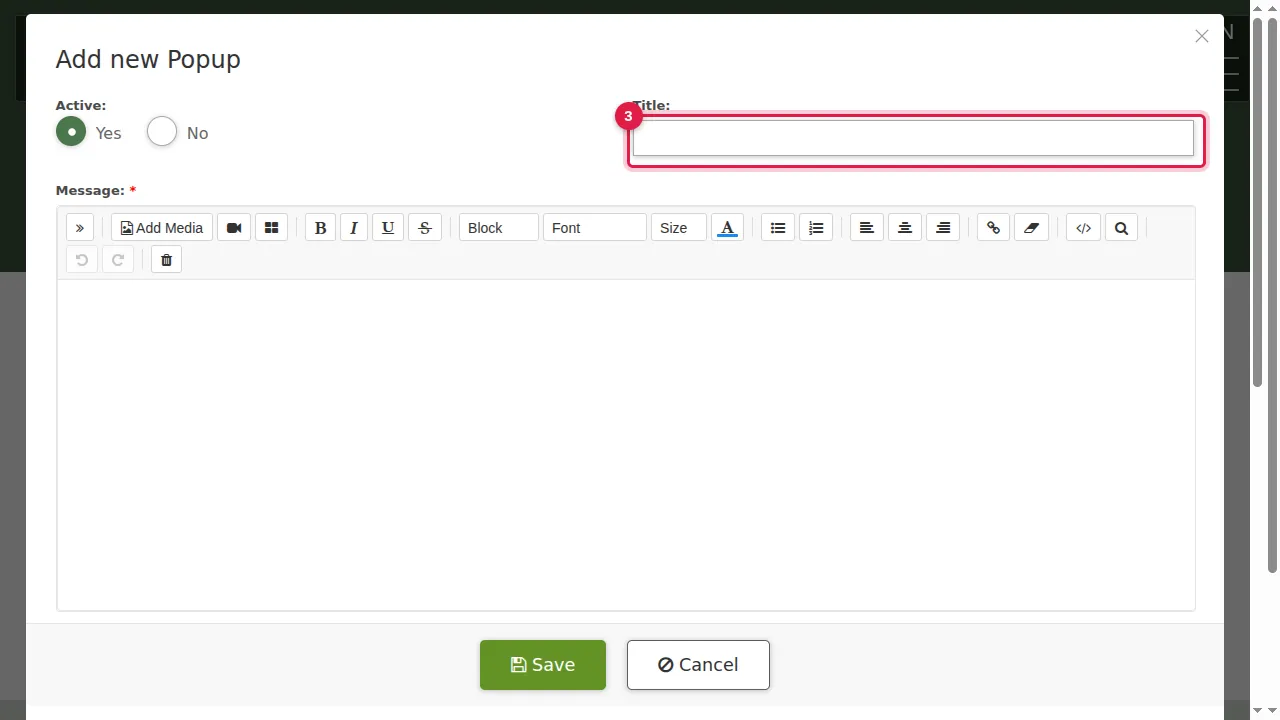
Step 3. Title: the heading of the popup.
Step 4. Message (required): what the popup says, written in the usual editor.
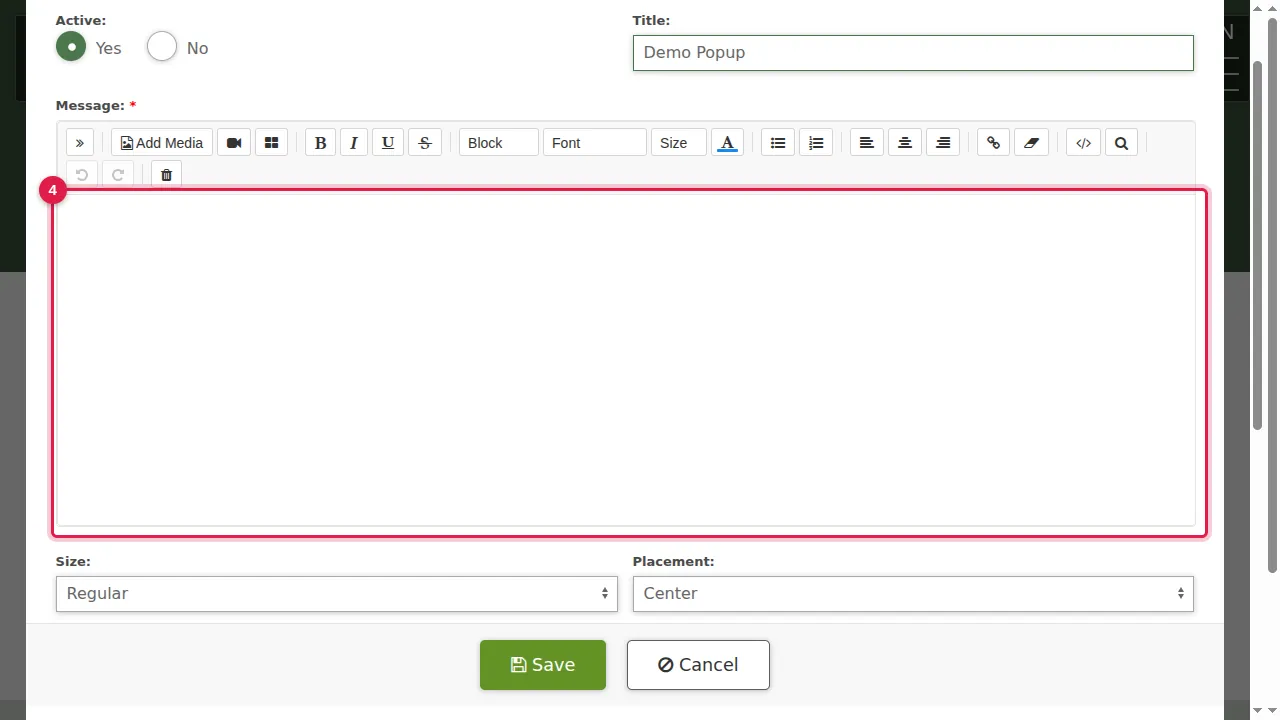
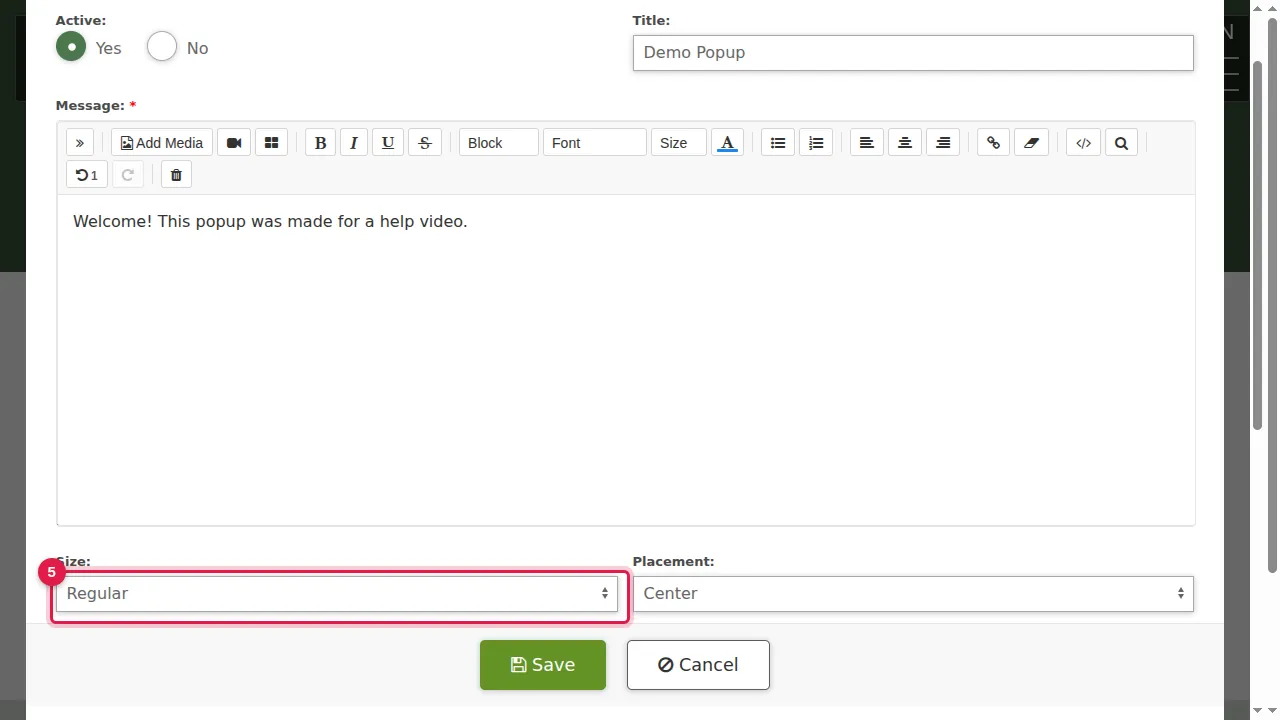
Step 5. Size: Regular, Wide or Full Screen.
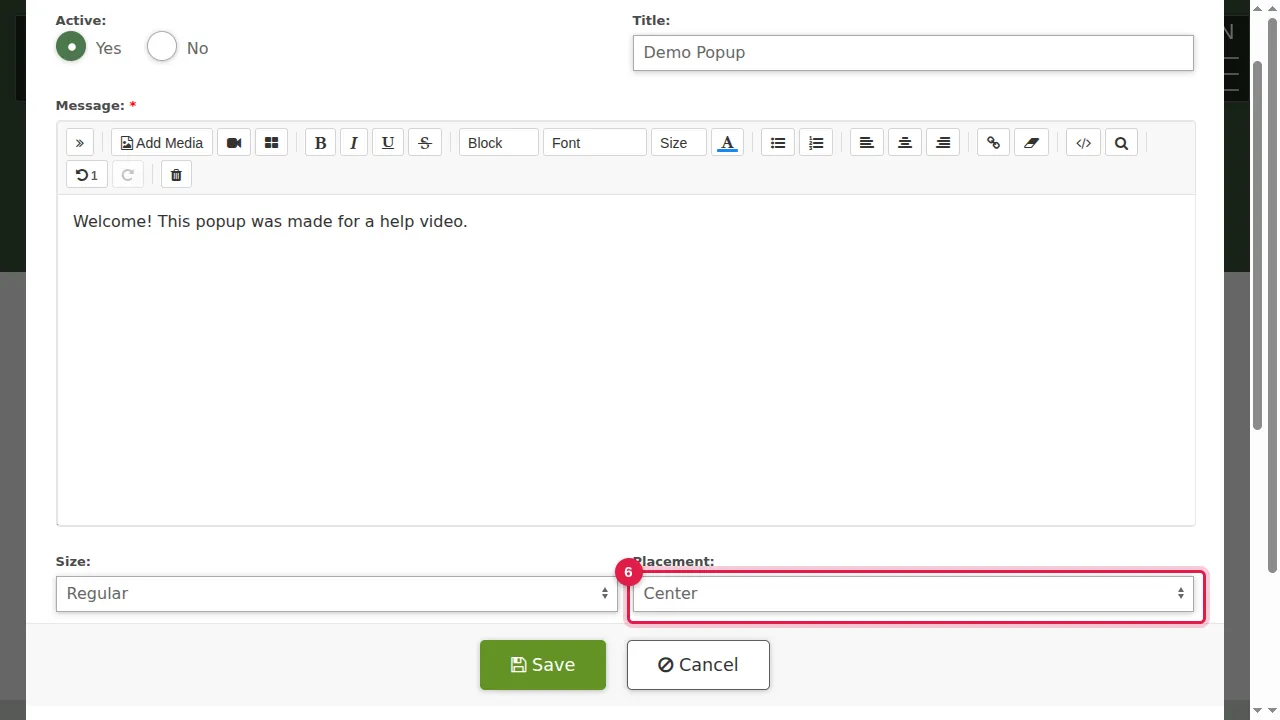
Step 6. Placement: Center or Top of the screen.
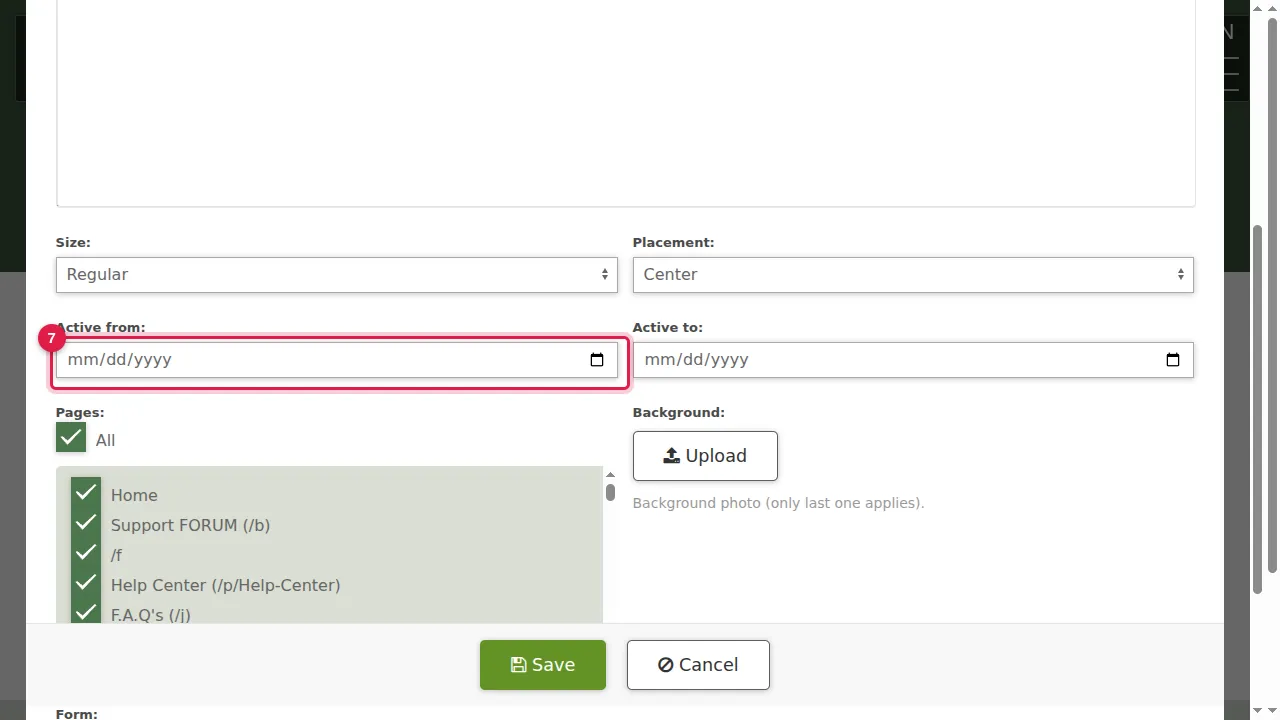
Step 7. Active from and Active to: the first and last dates the popup is shown.
Choose the pages
Step 8. Pages: at first All is ticked, so the popup would appear on every page. Untick All…
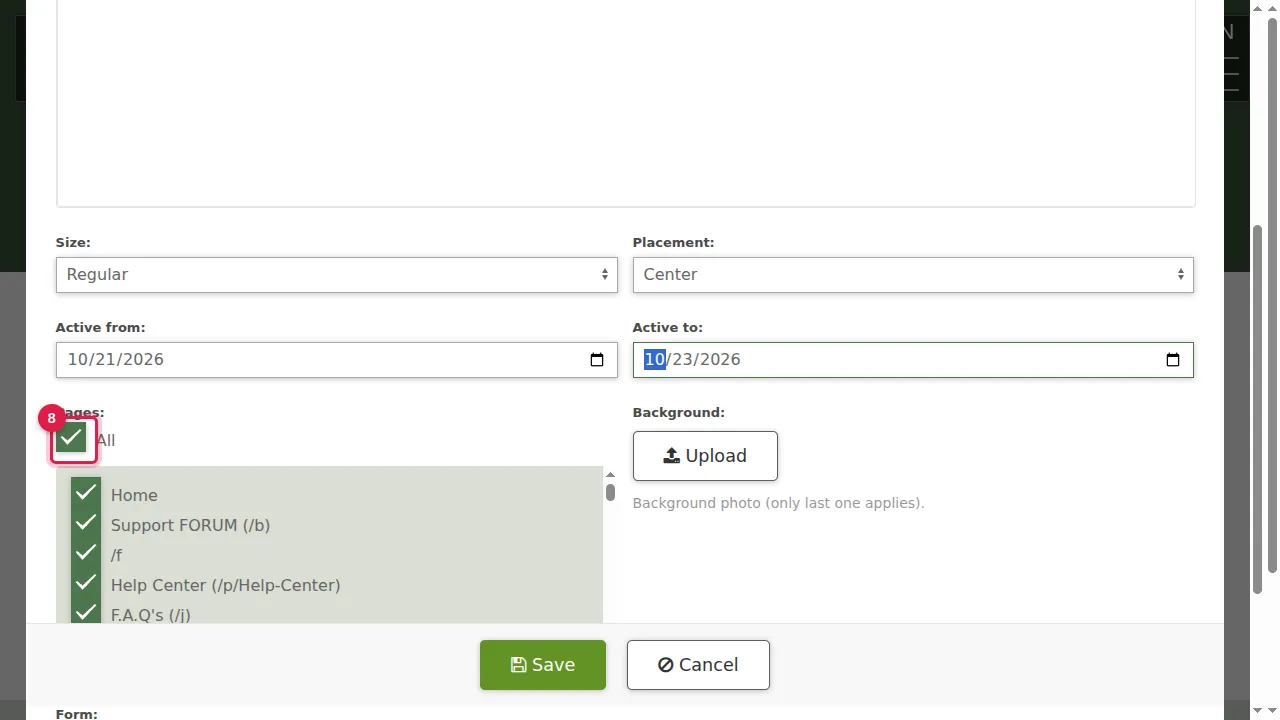
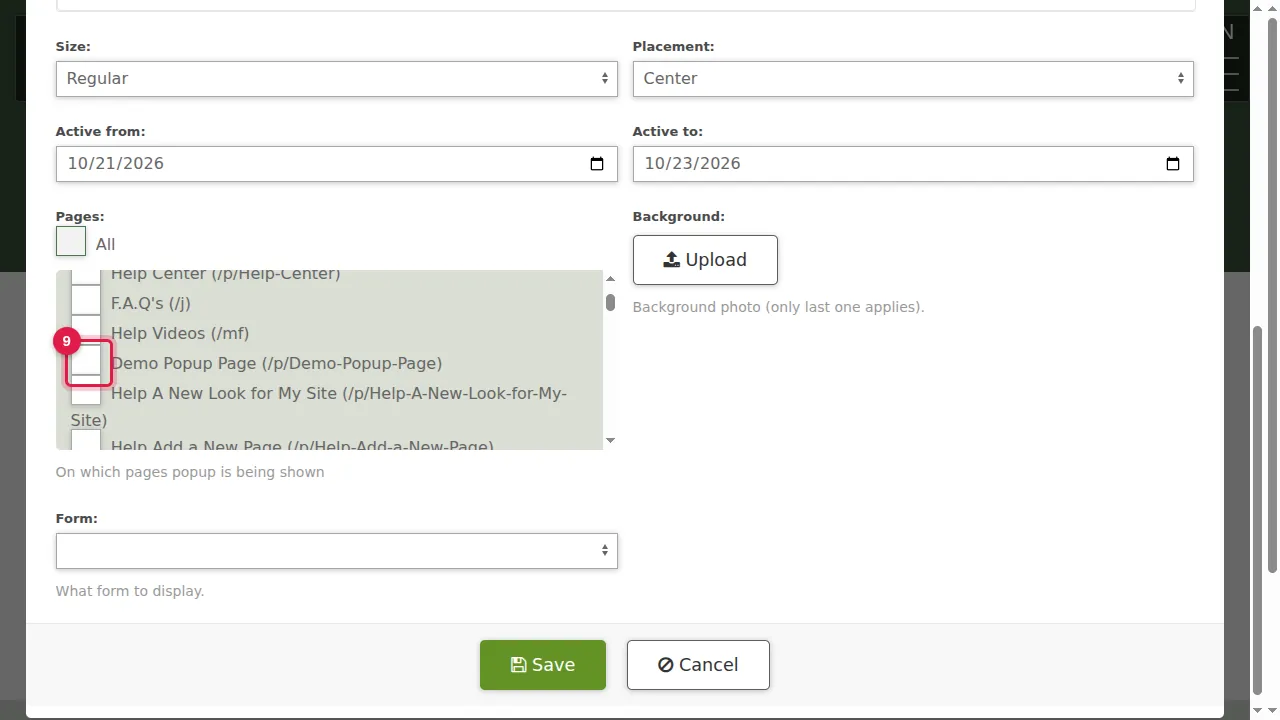
Step 9. …then tick only the pages it should appear on (here a demonstration page).
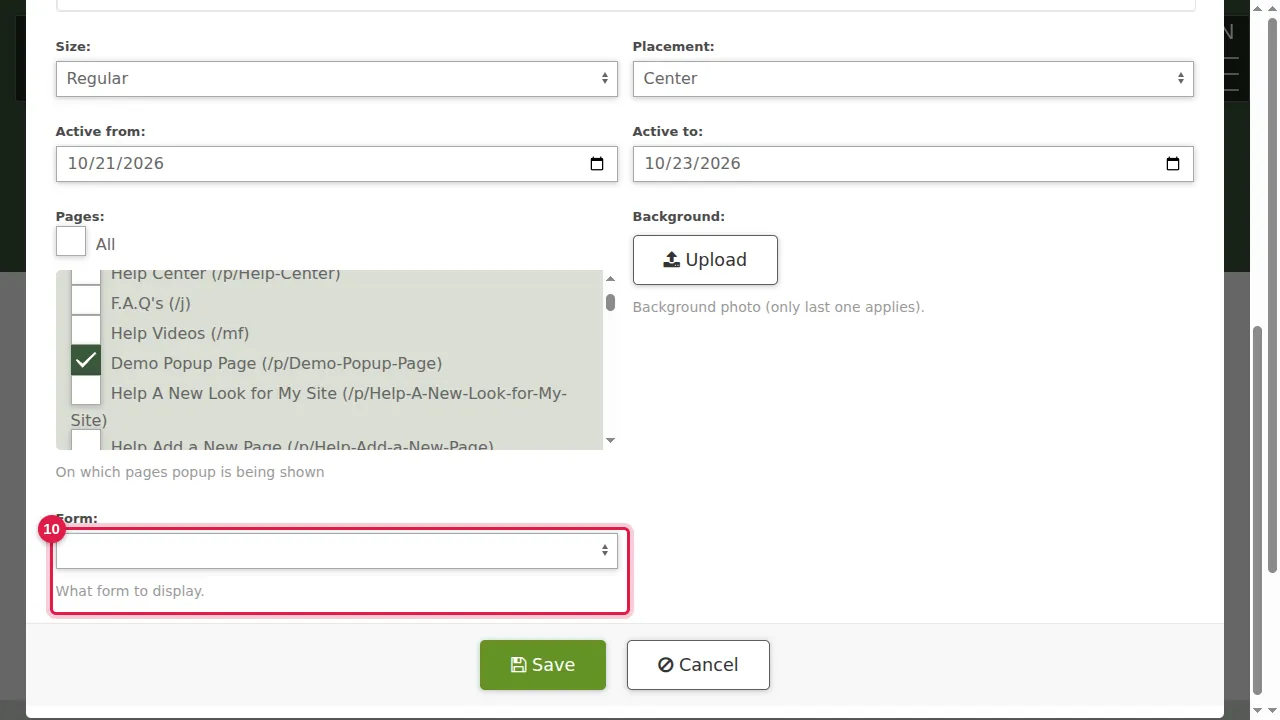
Step 10. Background: Upload adds a background photo (only the last one applies). Form: choose one of your forms to show inside the popup. Both are optional.
Save and check
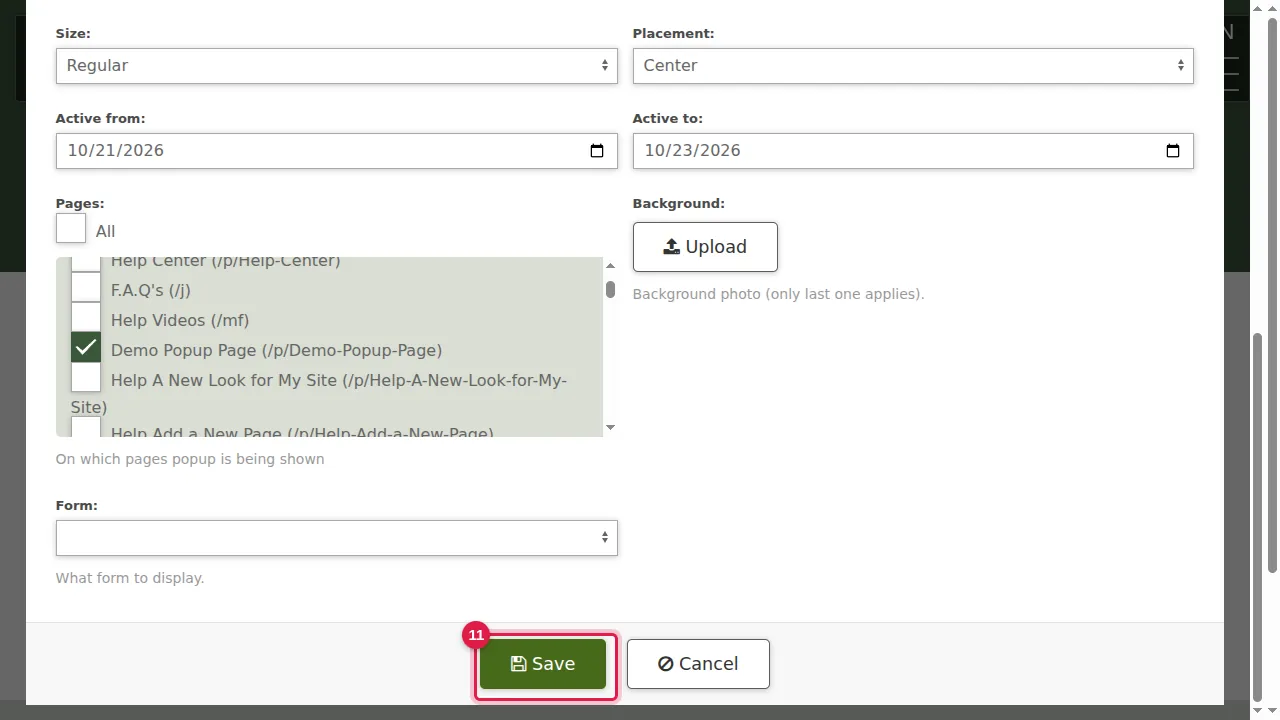
Step 11. Click Save.
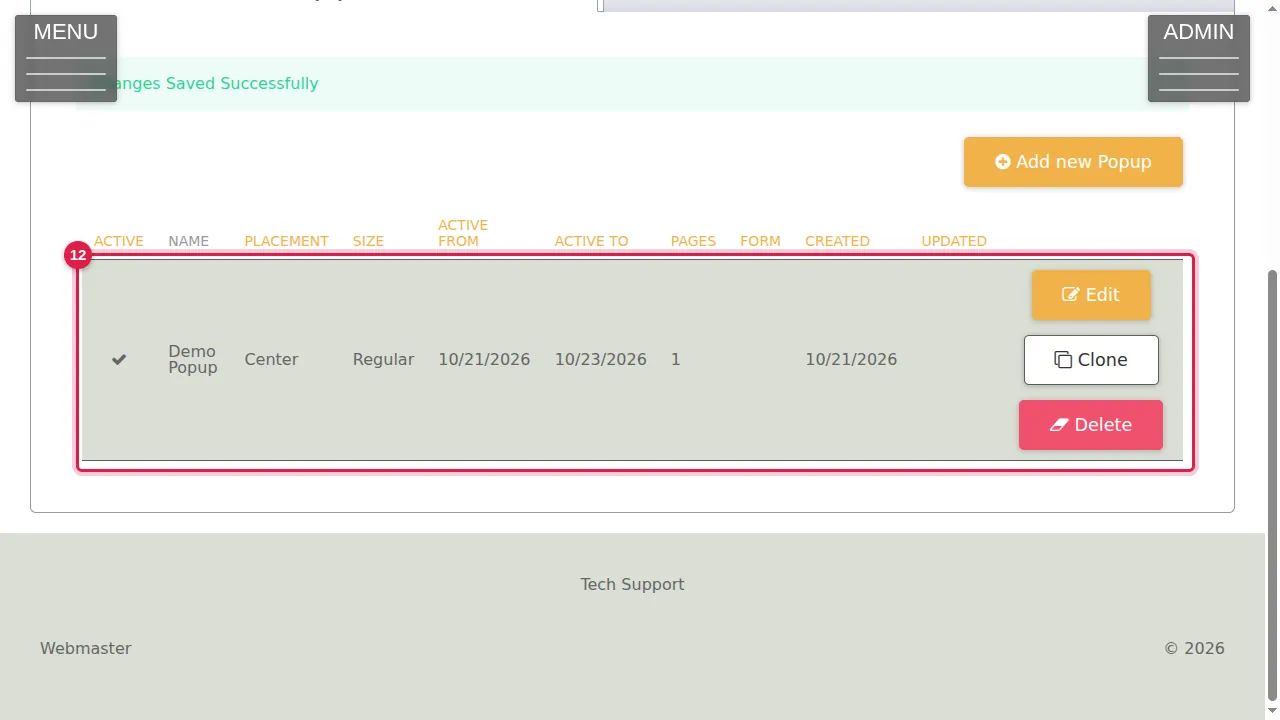
Step 12. "Changes Saved Successfully". The popup is listed with its placement, size, dates and number of pages, with Edit, Clone and Delete.
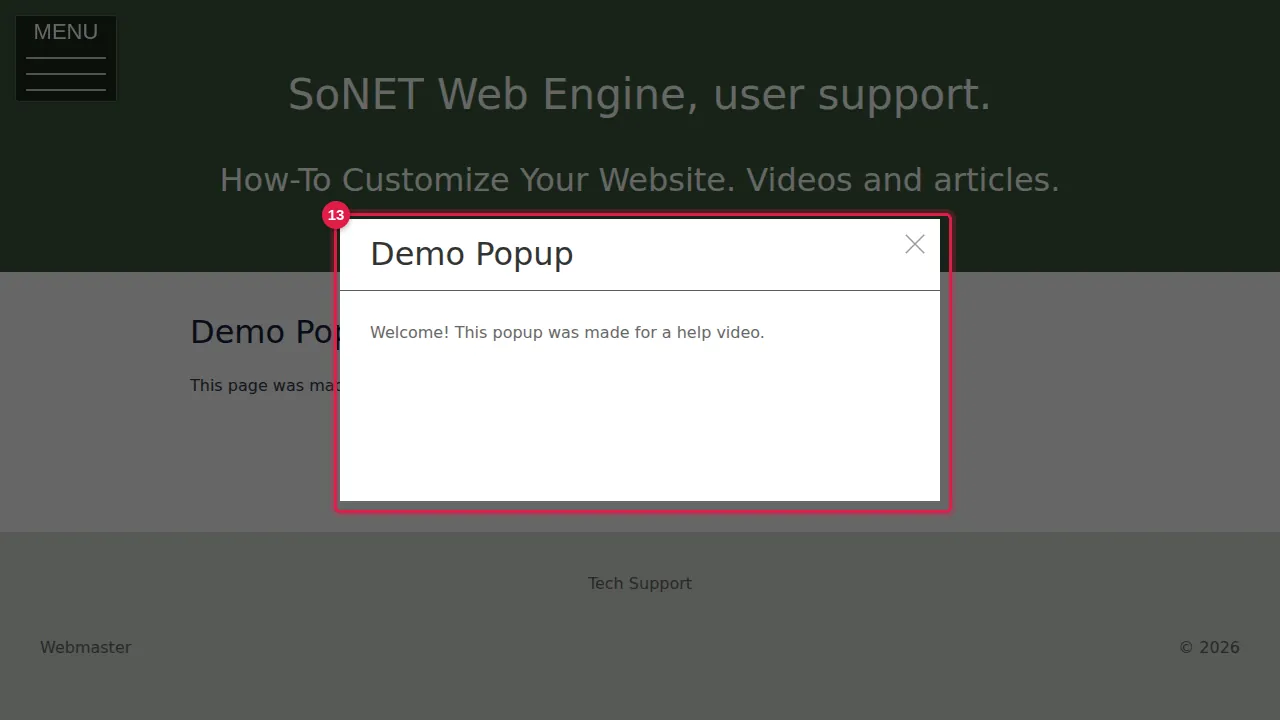
Step 13. A visitor who opens that page sees the popup, with a × to close it. (The demonstration popup and page were deleted afterwards.)
Check it worked
Open one of the chosen pages in a private window: the popup should open. You do not see it while you are logged in as the owner.
Good to know
- Check the Pages list before saving: with All ticked, the popup opens on every page of your site.
Related help
Shown on the 2026 version of the SoNET Web Engine. Last checked 21 October 2026. Something different on your screen? Tell us through the Contact page.