Help Center SEO & Search
Each page's own title and description for search
Give every page its own title and description in search results and shared links, tell search engines when a page is a copy of another one, or keep a page out of search.
Watch it done: a short silent video with captions · 0:54. The steps below show the same thing picture by picture.
Before you start
- Log in as the site owner.
- Open ADMIN › SEO.
Find the page
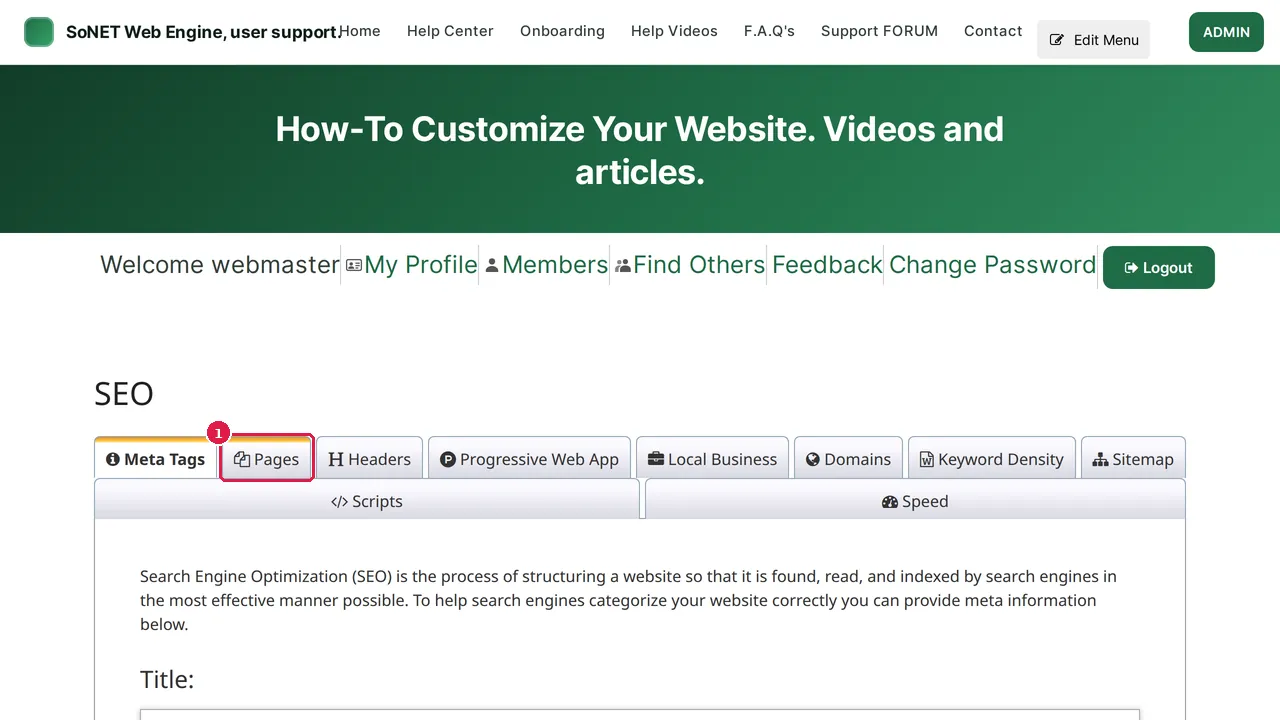
Step 1. In ADMIN › SEO, click the Pages tab.
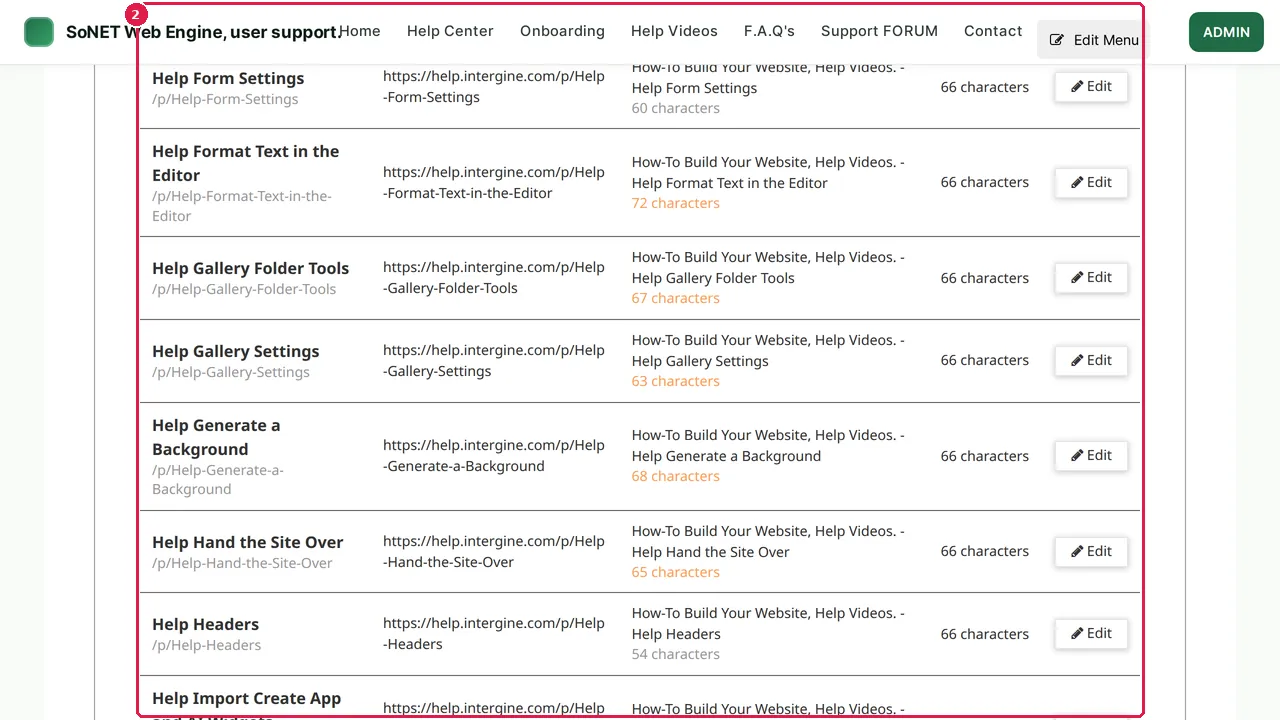
Step 2. Every page is listed with the address, title and description it gives search engines and shared links, and how many characters each has.
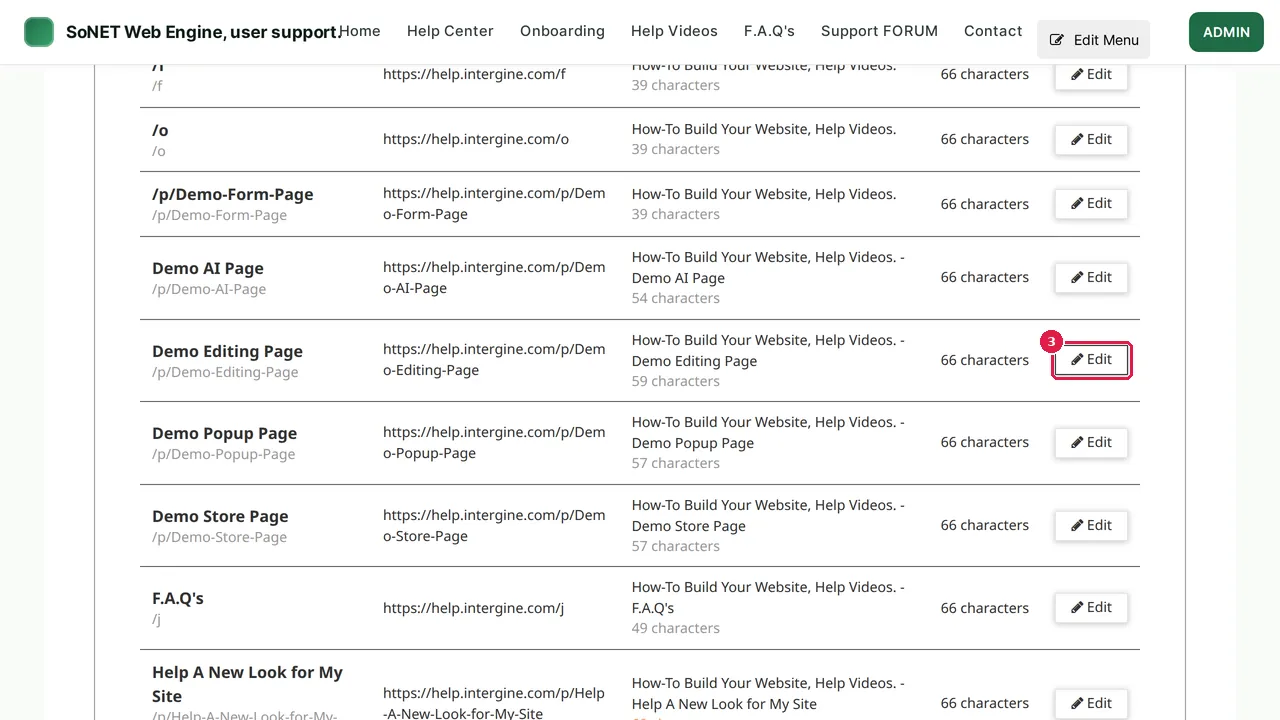
Step 3. Click Edit on the page you want to change. The Search & sharing window opens.
Title and description
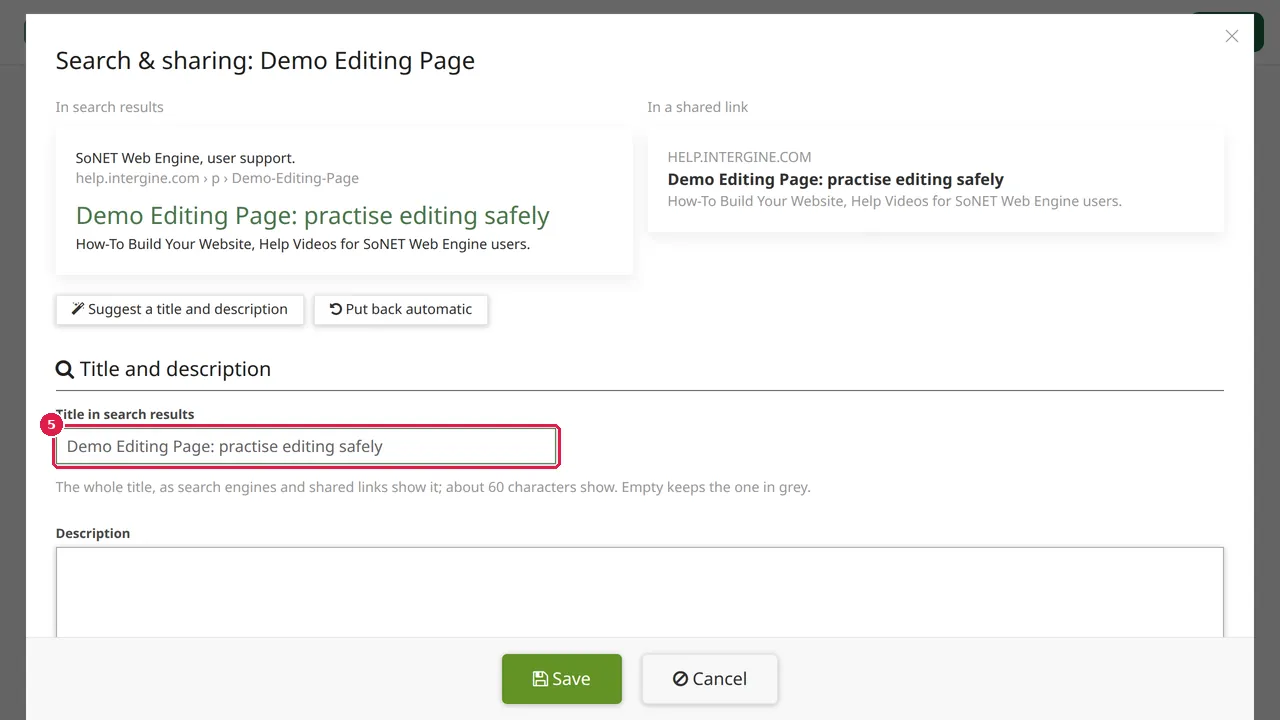
Step 4. At the top you see how the page shows in search results and in a shared link.
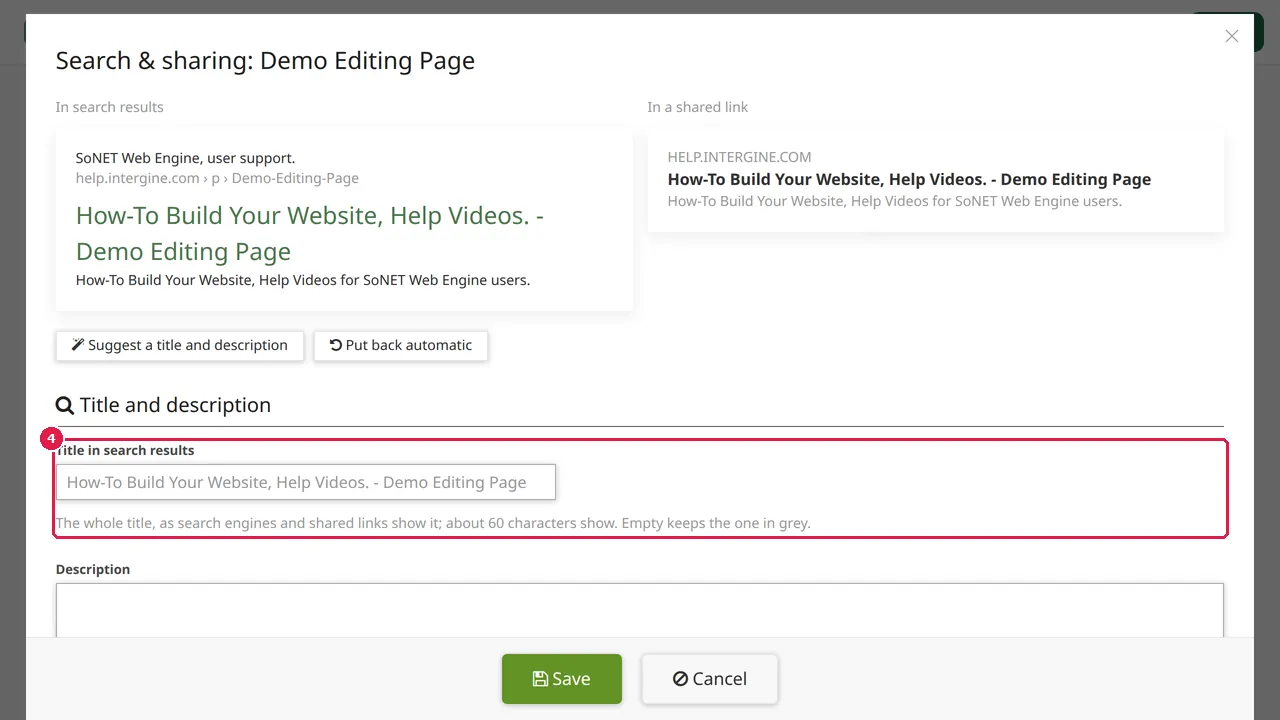
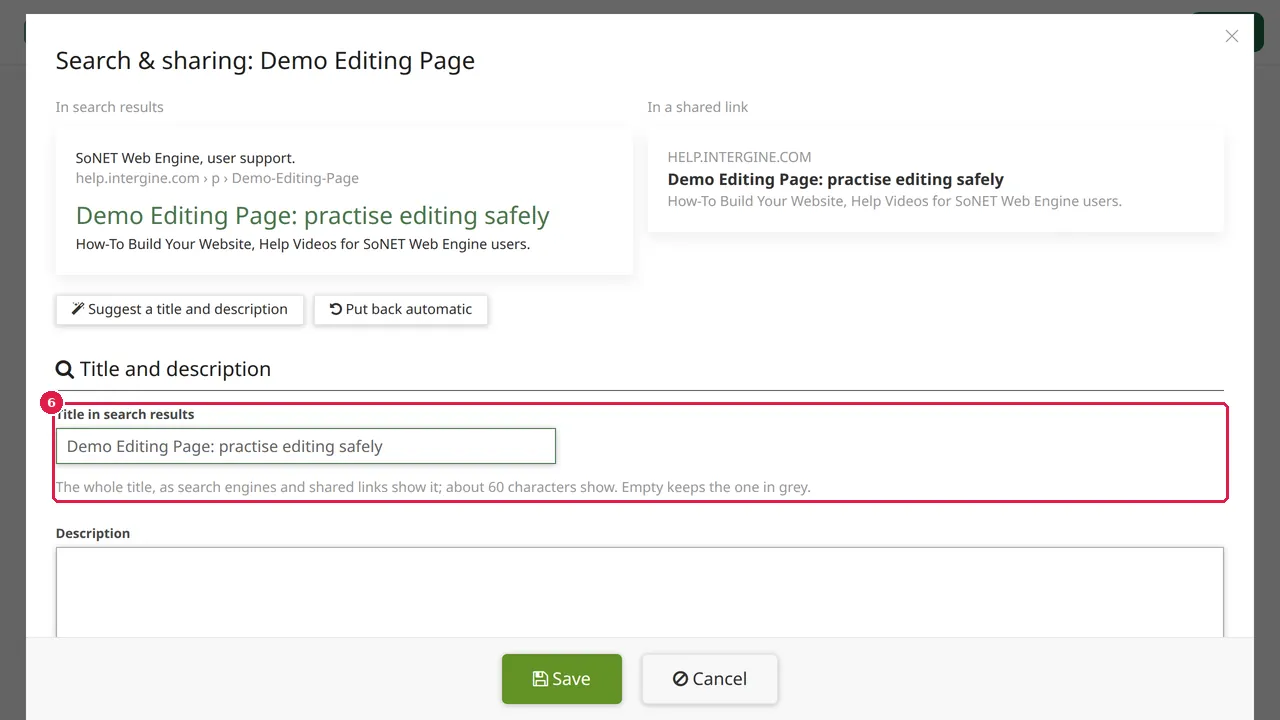
Step 5. Title in search results: type the page's own title. About 60 characters show; empty keeps the title shown in grey.
Step 6. The previews at the top change as you type, so you see the result before you save.
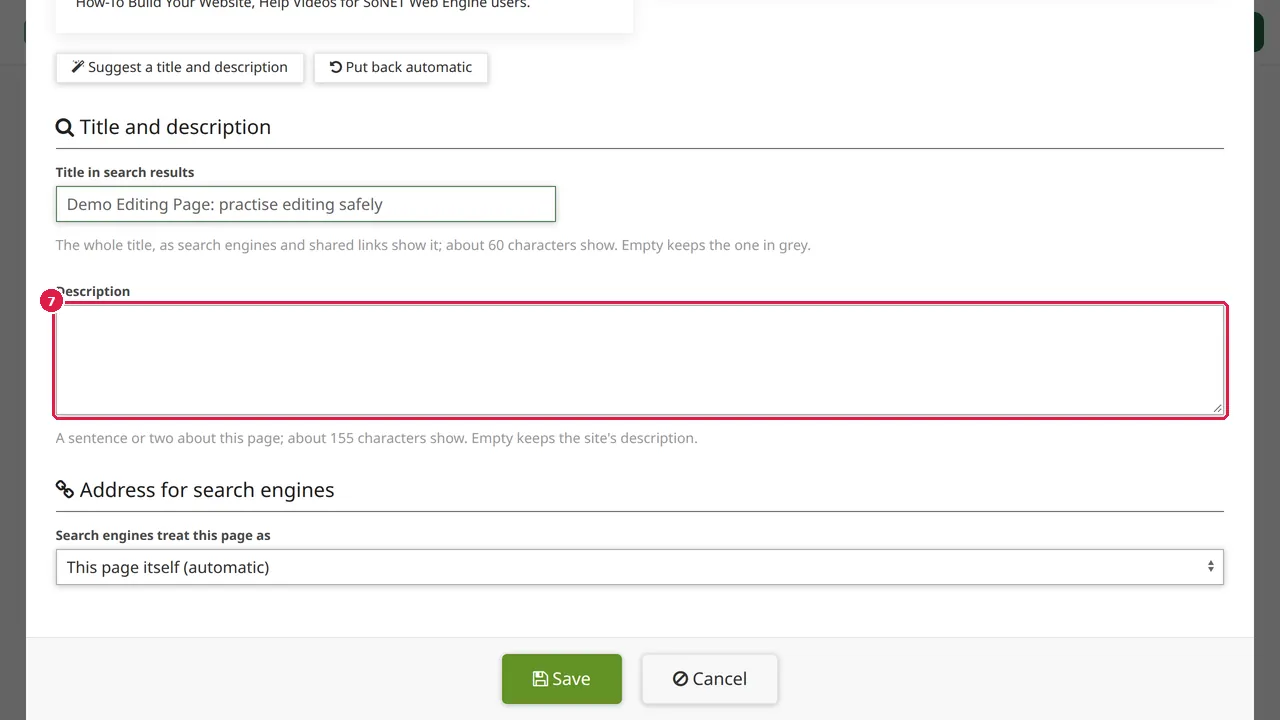
Step 7. Description: a sentence or two about the page. About 155 characters show; empty keeps the site's description.
Address and visibility
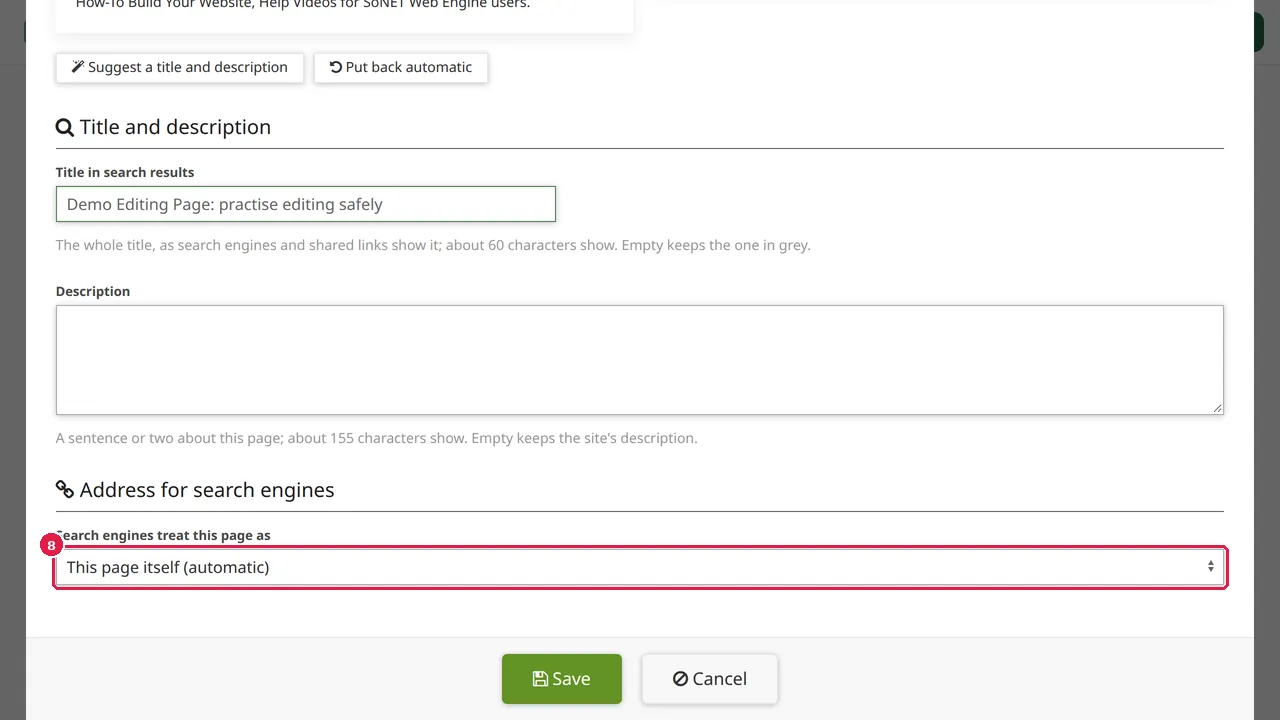
Step 8. Search engines treat this page as: the page itself (automatic), or a copy of another page you name. Choose a copy only when this page really repeats another one.
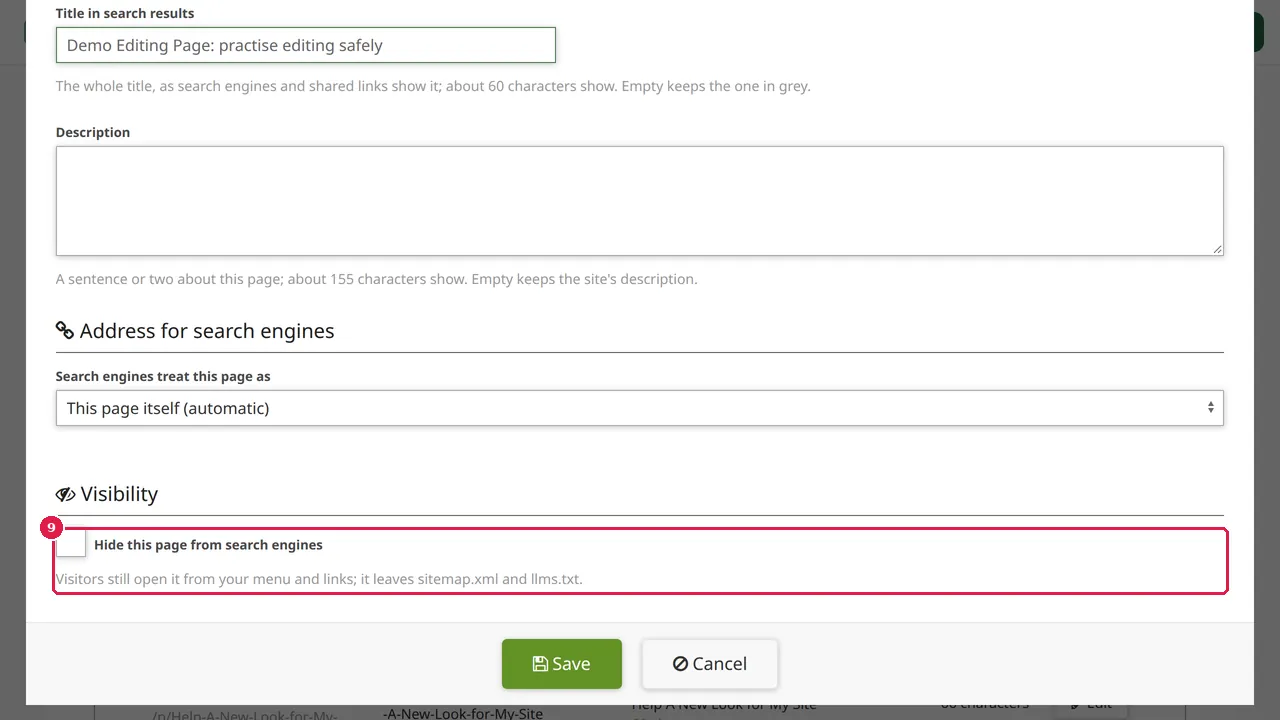
Step 9. Hide this page from search engines keeps it out of search results. Visitors still open it from your menu and links, and it leaves sitemap.xml and llms.txt.
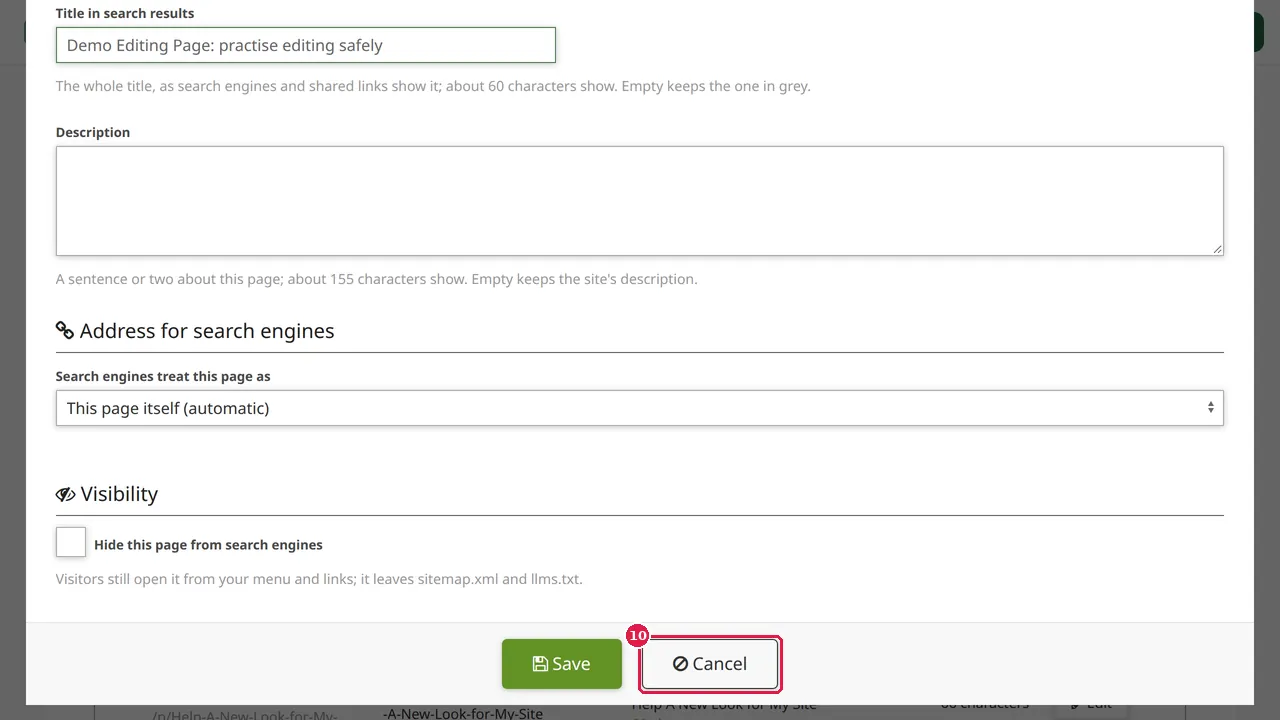
Step 10. Click Save to keep your changes. (In this demonstration Cancel was clicked, so nothing changed.)
Check it worked
Open the page as a visitor and look at its title in the browser tab, or share its link in a message: the title and description you typed appear.
Good to know
- Write a different title and description for each page: say what that page offers, with the words your visitors search for.
- Put back automatic undoes your own title and description for that page.
Related help
Shown on the 2026 version of the SoNET Web Engine. Last checked 10 November 2026. Something different on your screen? Tell us through the Contact page.