Help Center Store
Orders
See what your customers ordered: the list of orders with their status and amounts, unfinished orders, and each order's items, payment results, customer e-mail and addresses. You can change an order's status yourself, for example to Shipped.
Watch it done: a short silent video with captions · 1:37. The steps below show the same thing picture by picture.
Before you start
- Log in as the site owner.
- Open ADMIN › eCommerce and click the Orders tab.
The order list
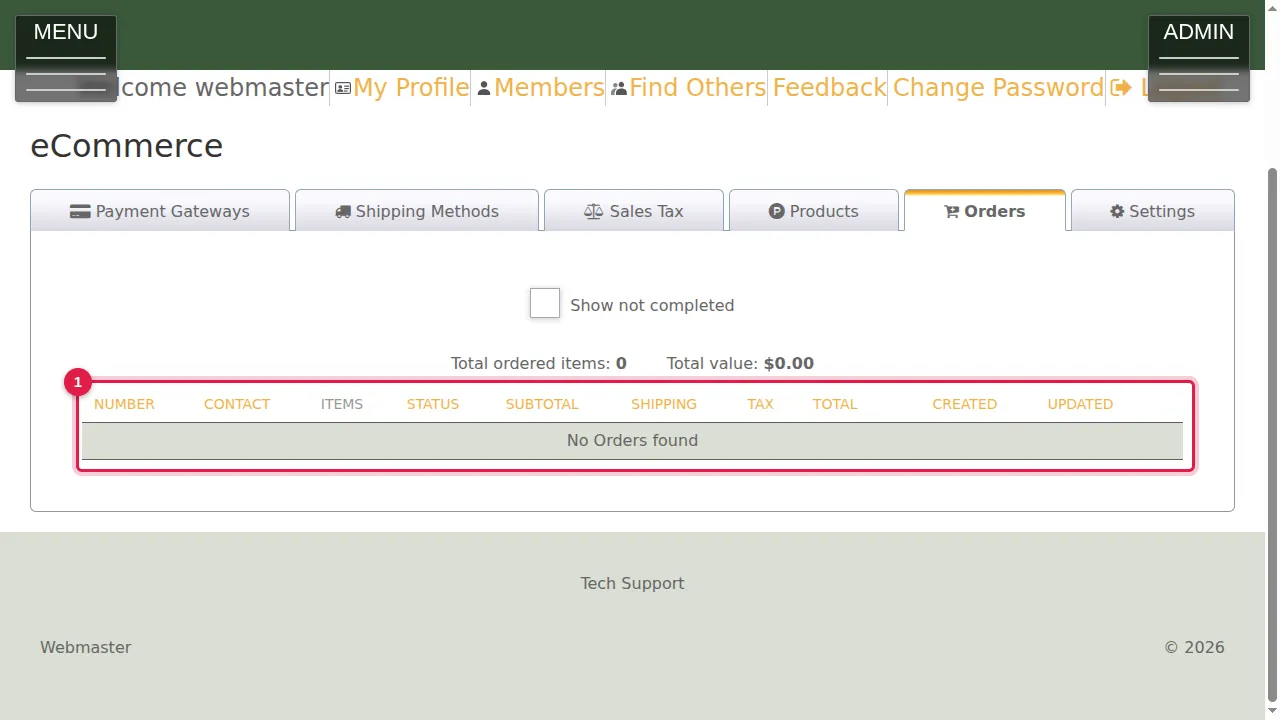
Step 1. The Orders tab lists your customers' orders, with the total number of items ordered and their total value above the list.
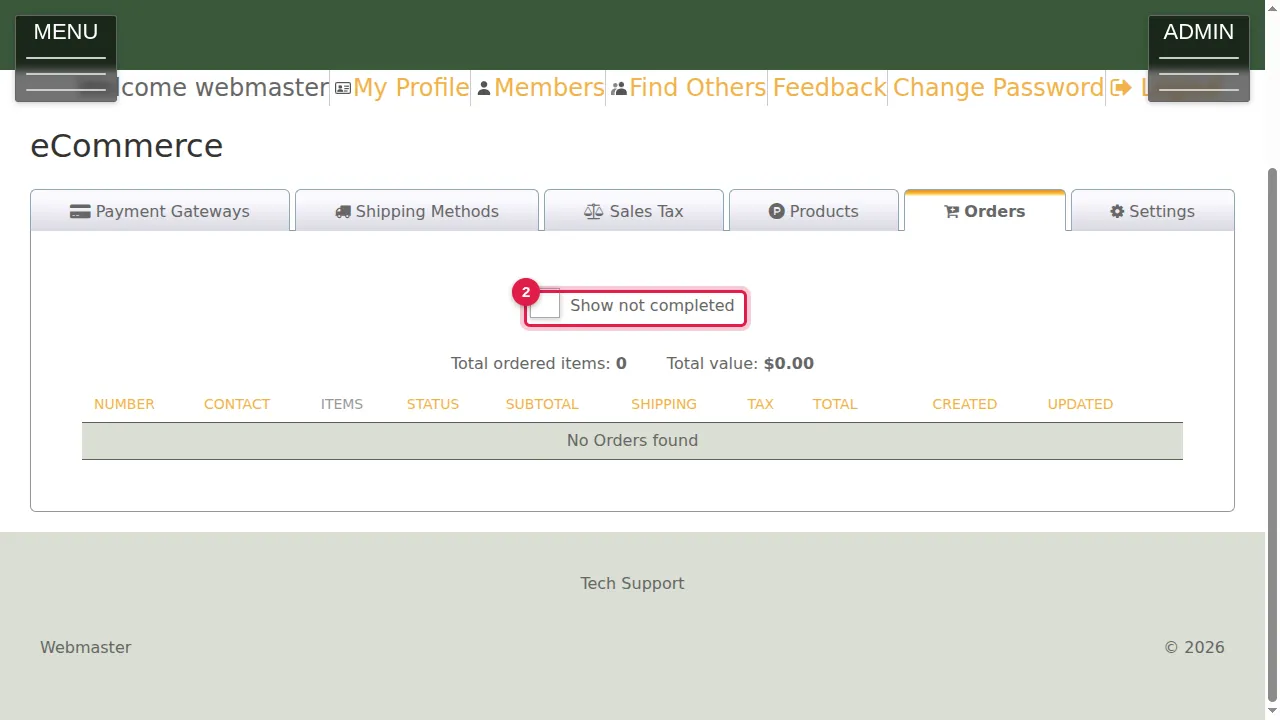
Step 2. Tick Show not completed to also see unfinished orders, for example when a customer started checking out or a payment did not go through.
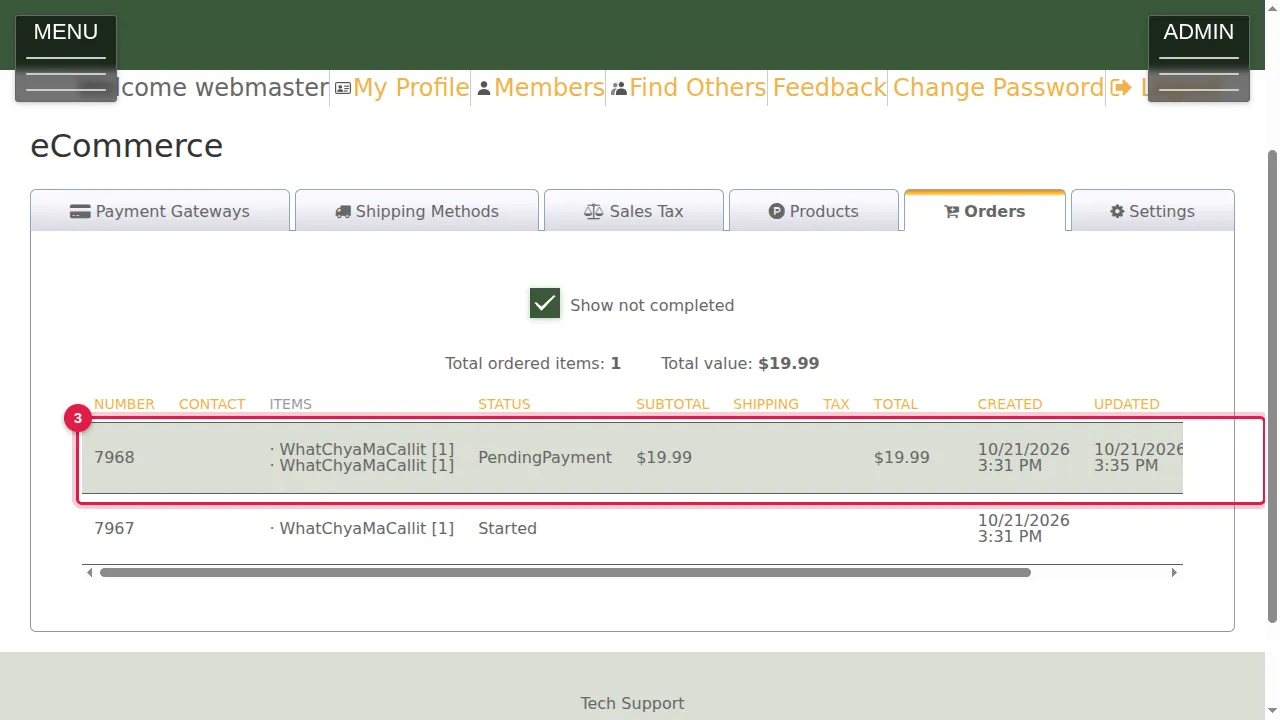
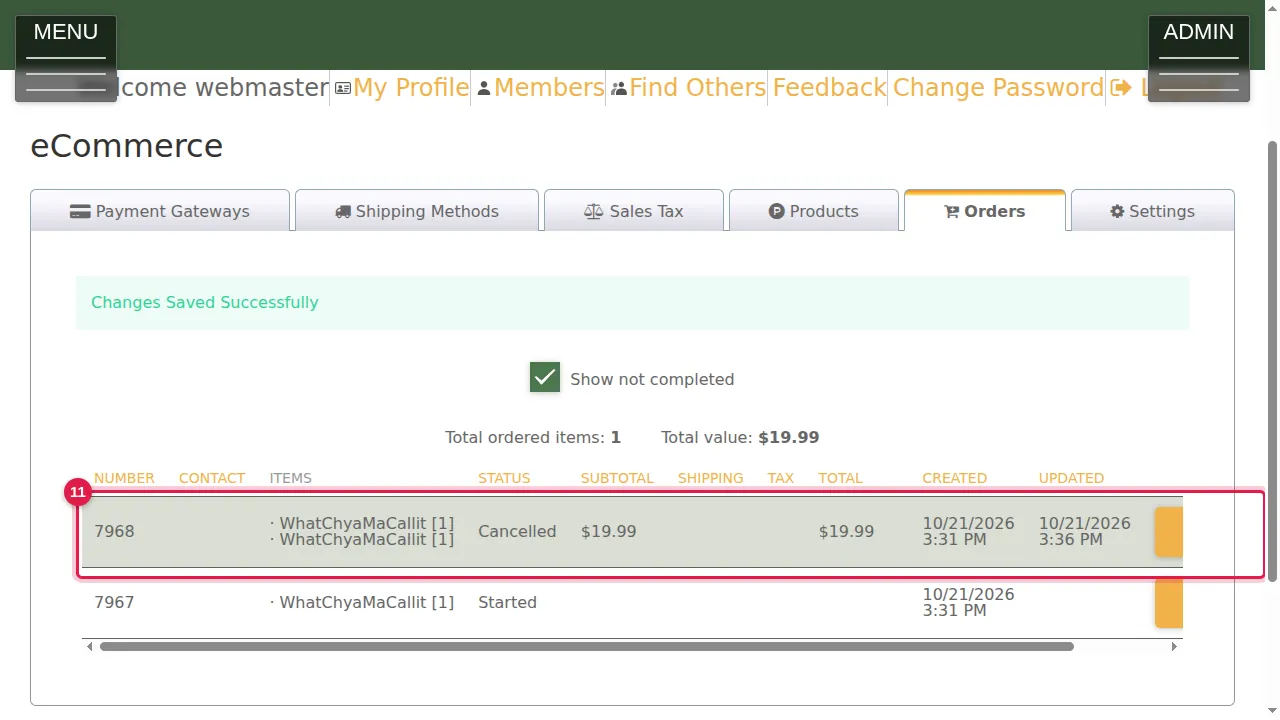
Step 3. Each row shows the order number, the customer, the items, the status, subtotal, shipping, tax, total and the dates.
Open an order
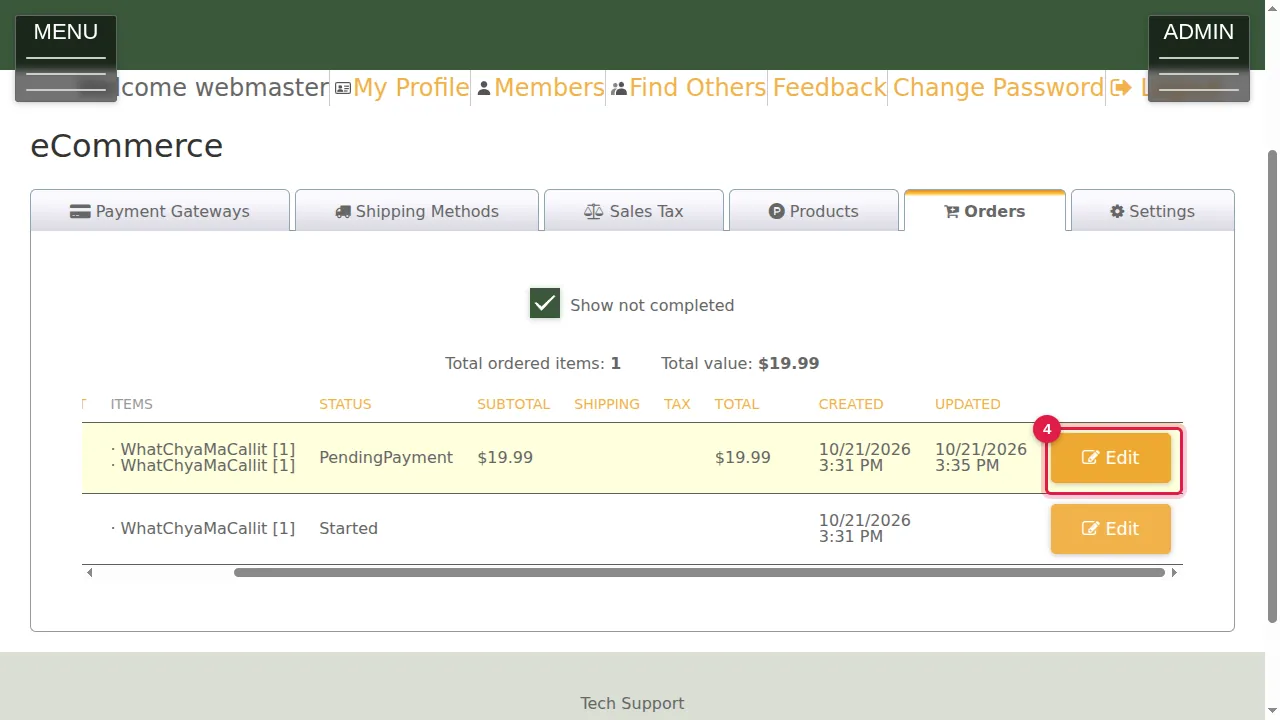
Step 4. Click Edit at the end of a row to open the order. On a small screen, scroll the list sideways to reach it.
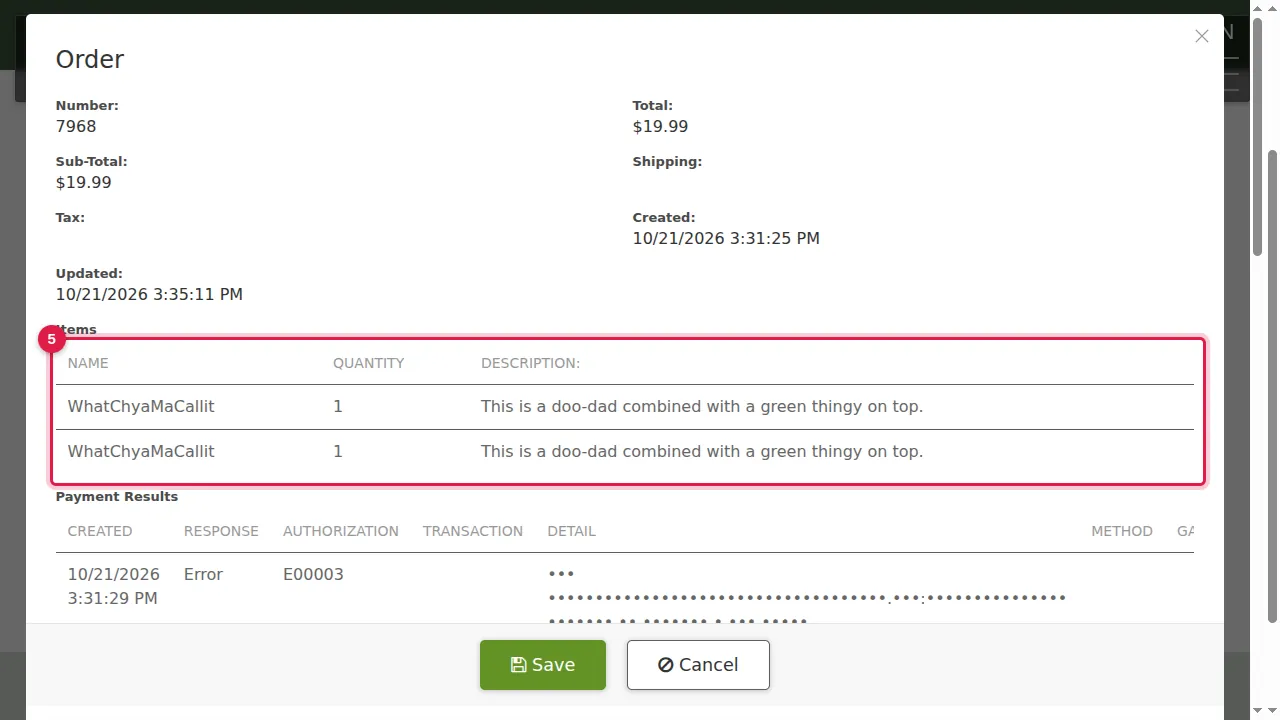
Step 5. The order shows its number, totals and dates, and the items bought with their quantity.
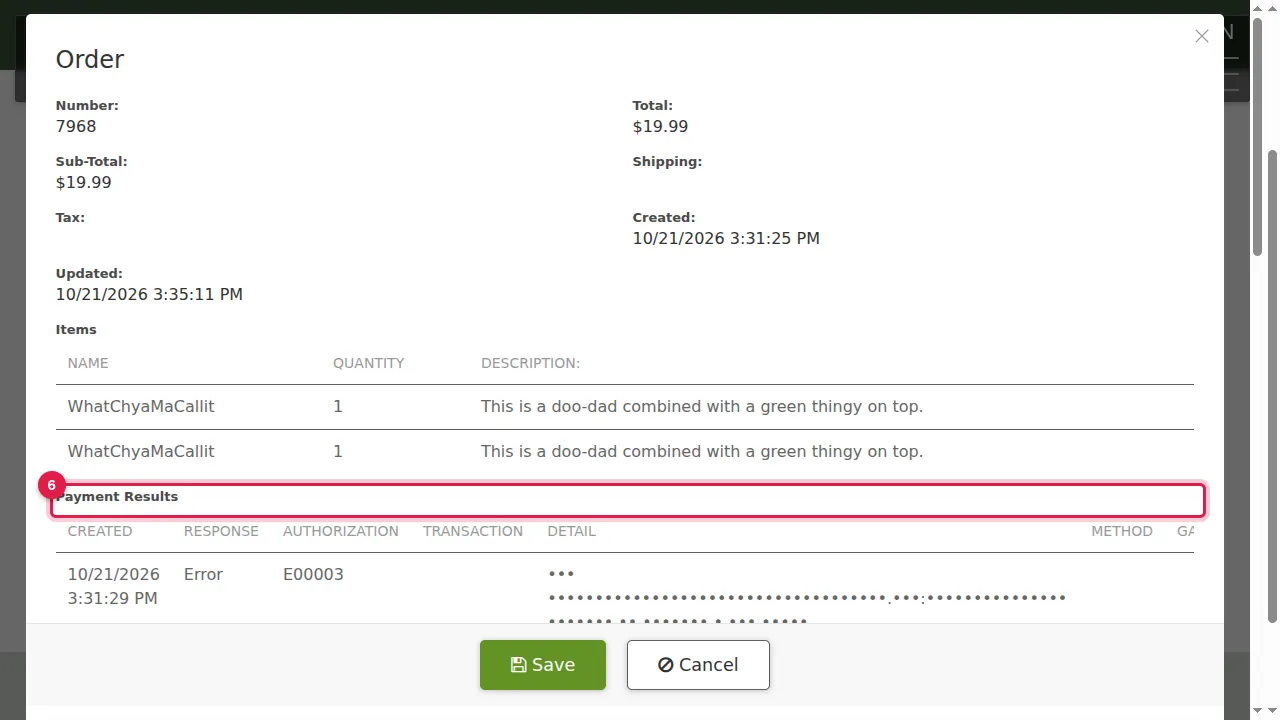
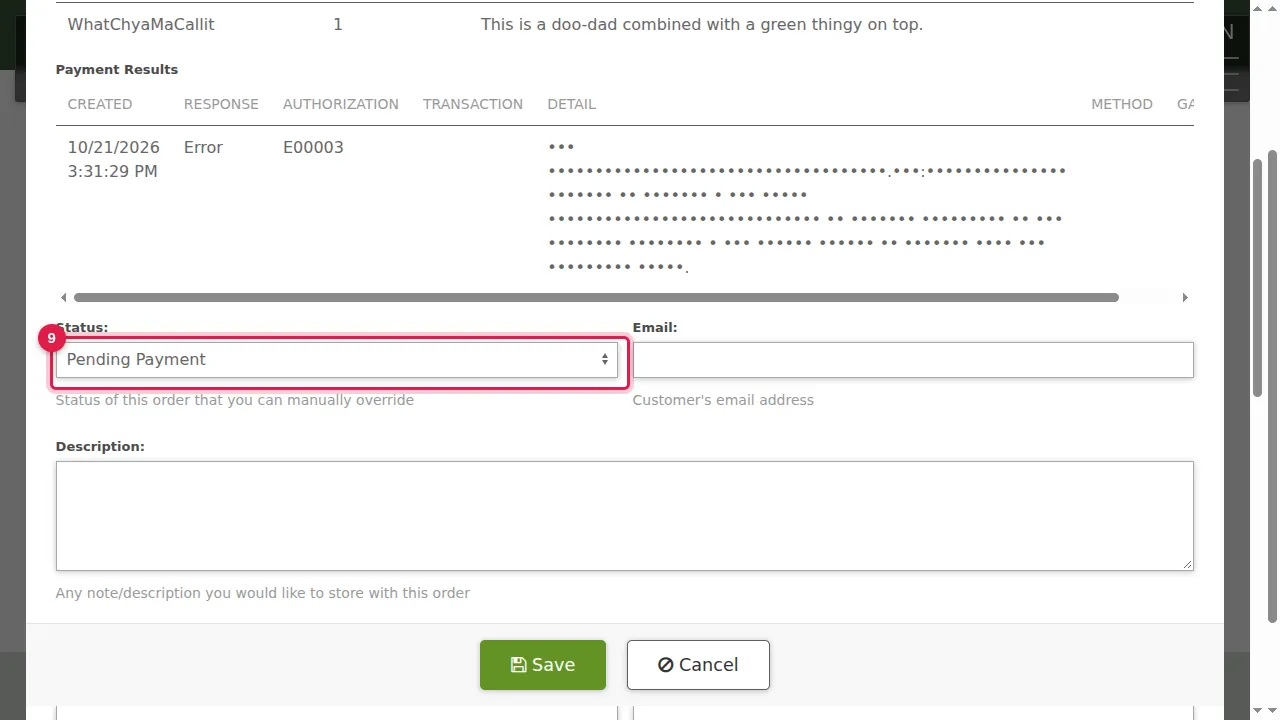
Step 6. Payment Results lists each payment attempt with the payment service's answer (hidden in this picture), useful when a customer says a payment failed.
Status and customer
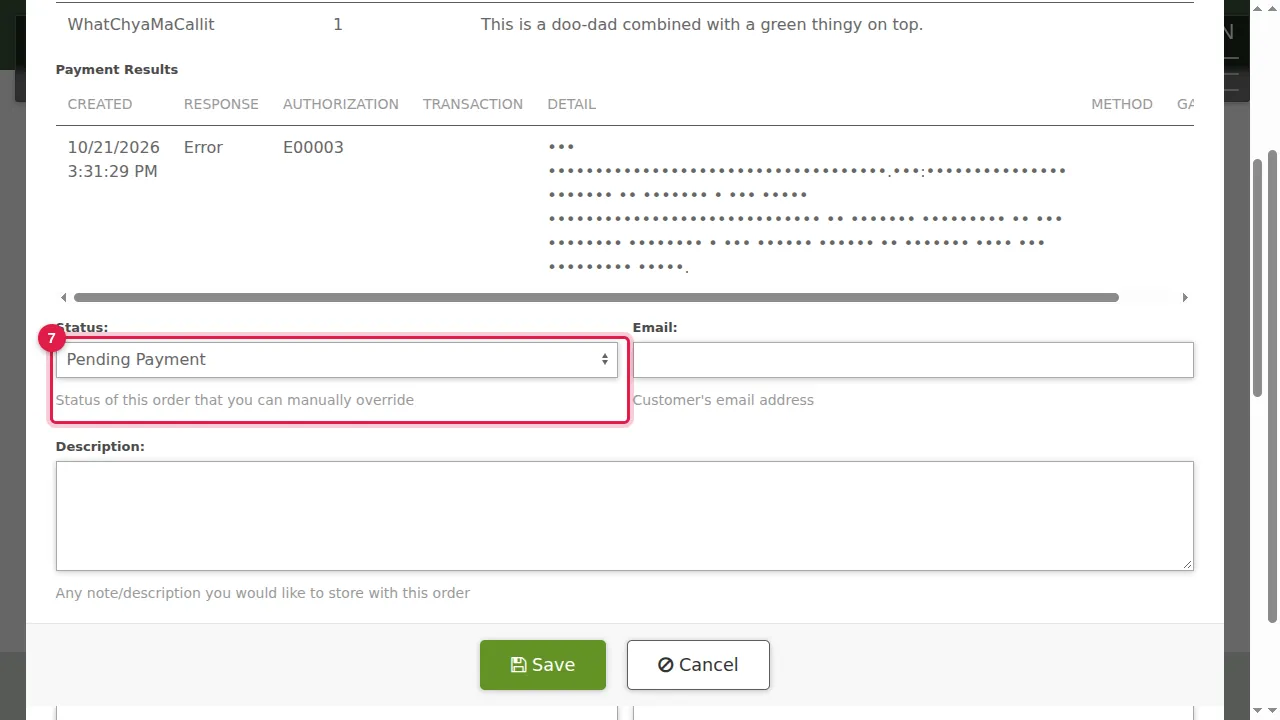
Step 7. Status: Started, Pending Payment, Payment Confirmed, Payment Failed, Shipped or Cancelled. You can change it yourself.
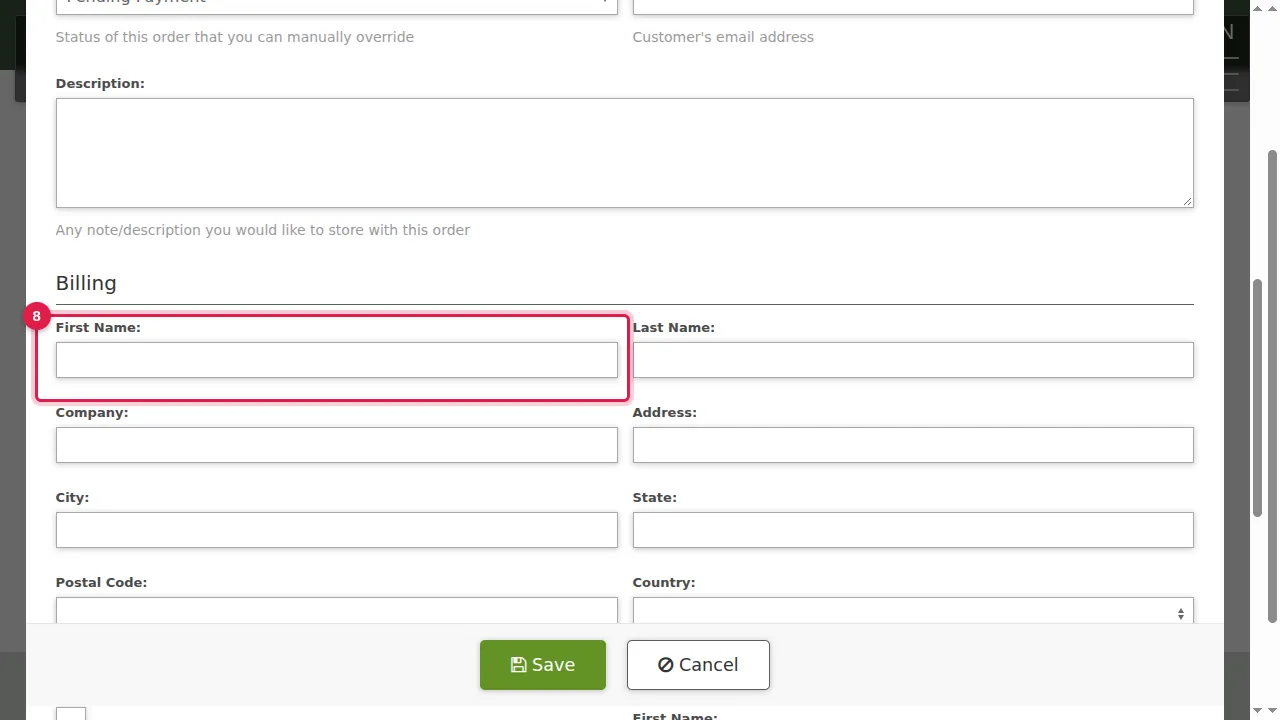
Step 8. Below are the customer's e-mail, a Description box for your own notes, and the billing and shipping addresses.
Change the status
Step 9. Here: this was a test order, so its status is set to Cancelled.
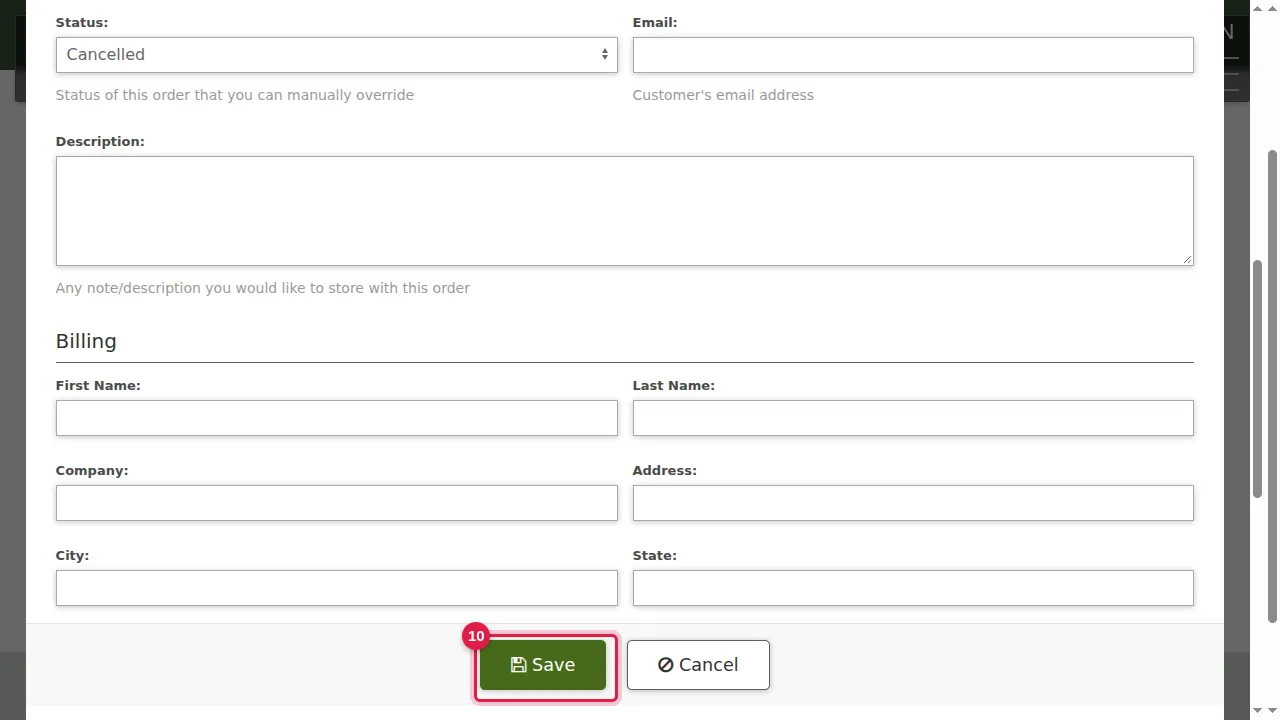
Step 10. Click Save.
Step 11. The list shows the new status.
Check it worked
Before you open your store, make one real purchase of a cheap product yourself and follow it here, from Pending Payment to Shipped.
Related help
Shown on the 2026 version of the SoNET Web Engine. Last checked 21 October 2026. Something different on your screen? Tell us through the Contact page.