Help Center Users & Privacy
Manage users: invite, approve, block, e-mail
See everyone who can log in to your site, invite new users (with or without an invitation e-mail), approve, block or opt out users, and e-mail all or some of them.
Watch it done: a short silent video with captions · 1:33. The steps below show the same thing picture by picture.
Before you start
- Log in as the site owner.
- Open ADMIN › Users.
Your users
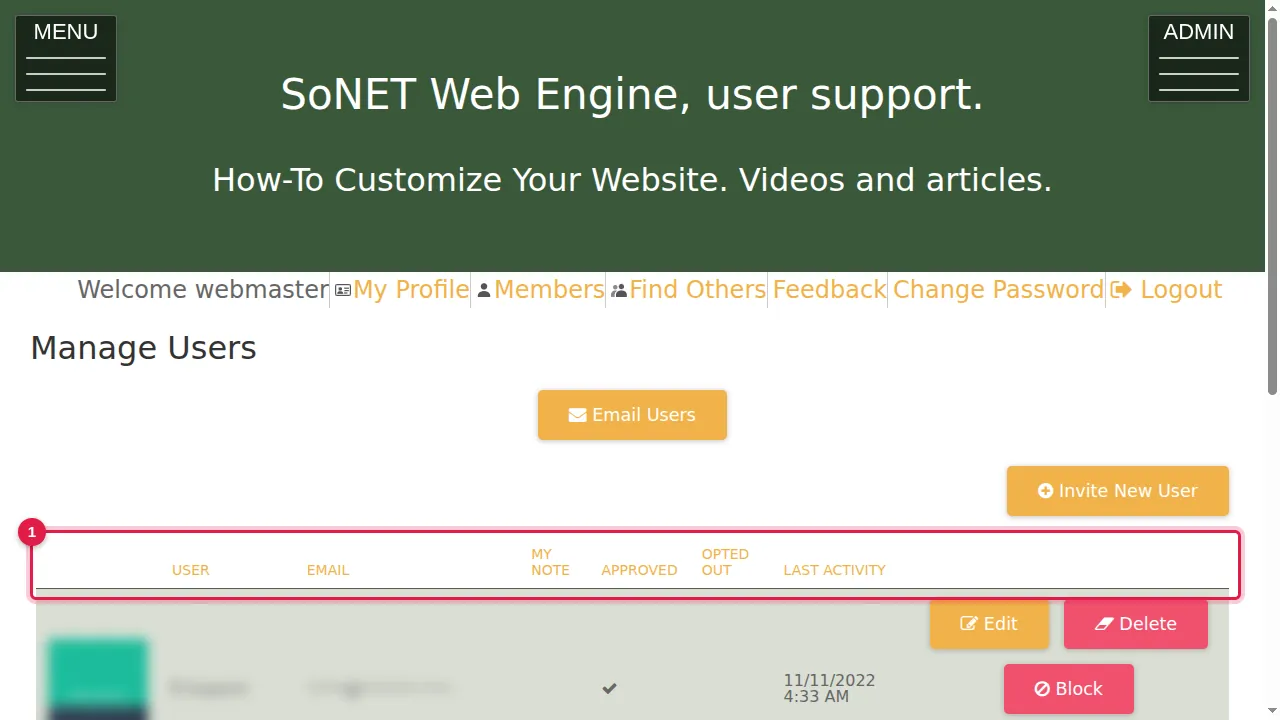
Step 1. Manage Users lists everyone who can log in: USER, EMAIL, MY NOTE (your own note), APPROVED, OPTED OUT and LAST ACTIVITY. (Names and addresses are blurred in these pictures.)
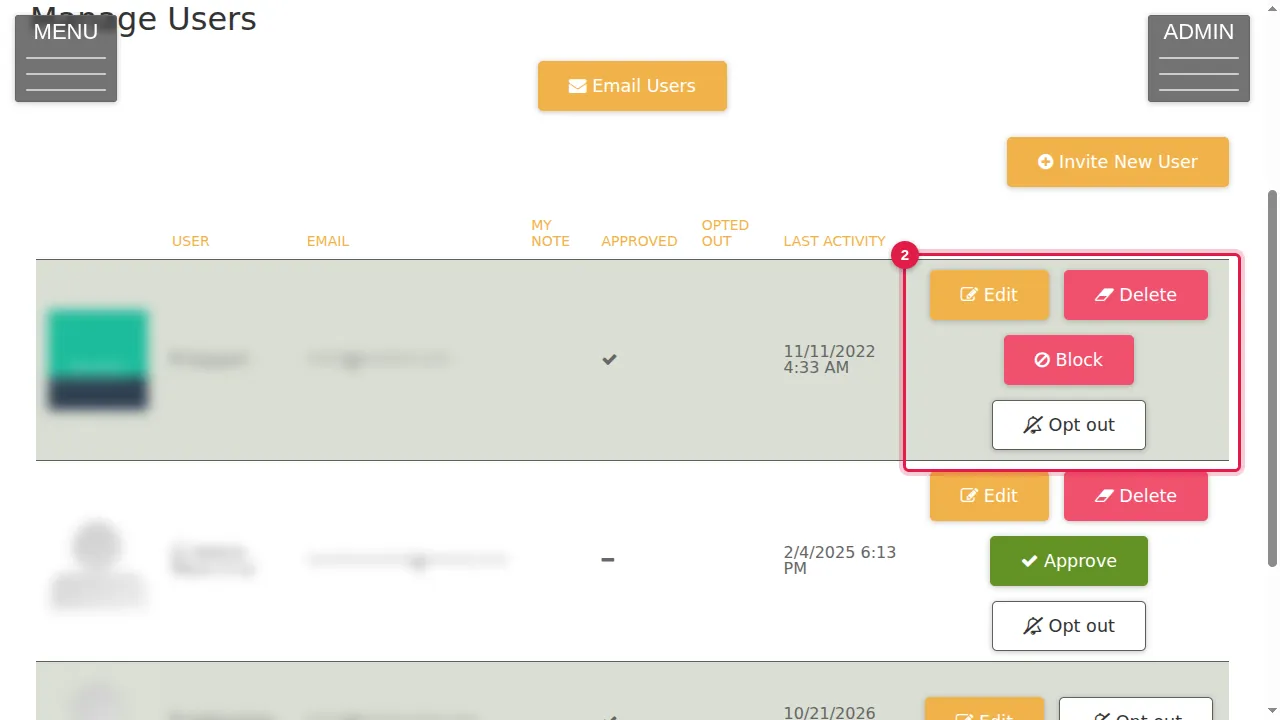
Step 2. Next to each user: Edit, Delete, Block and Opt out. A user who is waiting for your approval has Approve instead of Block.
Invite a new user
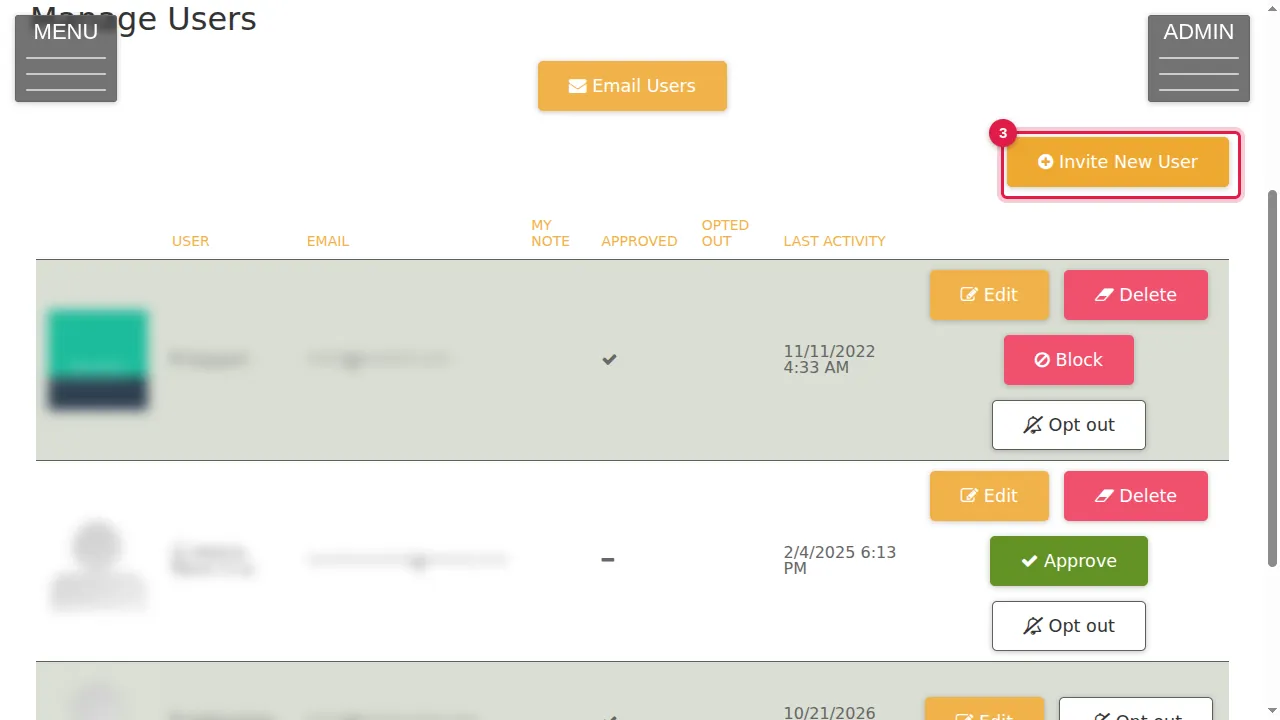
Step 3. To add someone, click Invite New User.
Step 4. Type the User Name and Email (both required), and a Note: a memo about the user, for you.
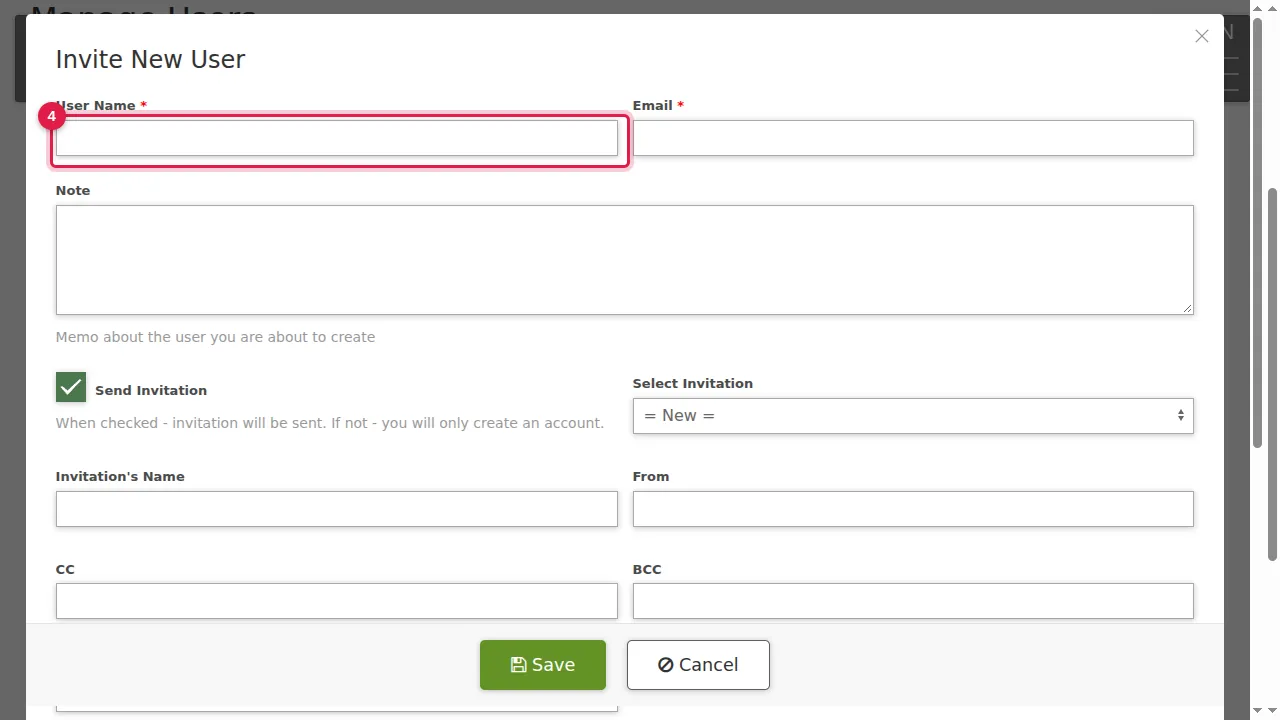
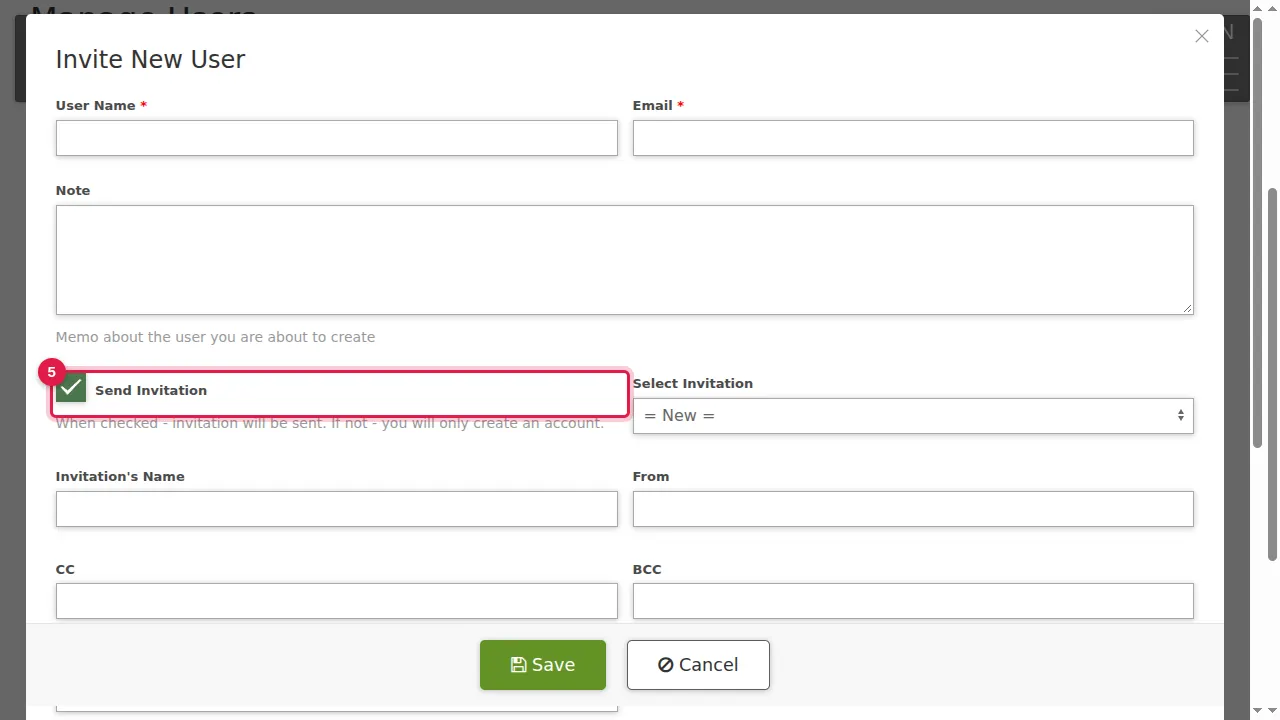
Step 5. Send Invitation: when it is ticked, an invitation e-mail is sent. When it is not, the account is only created.
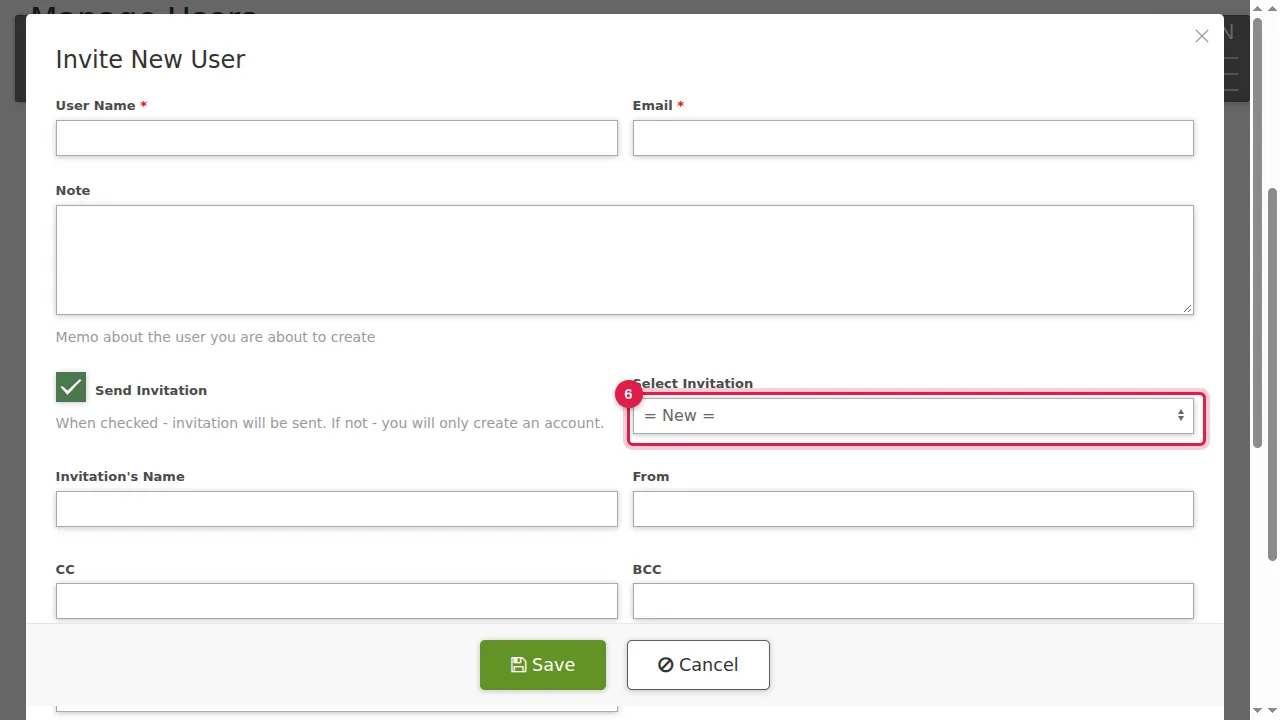
Step 6. Select Invitation: choose a saved invitation, or "= New =" to write one: Invitation's Name, From, CC, BCC, Subject and Text.
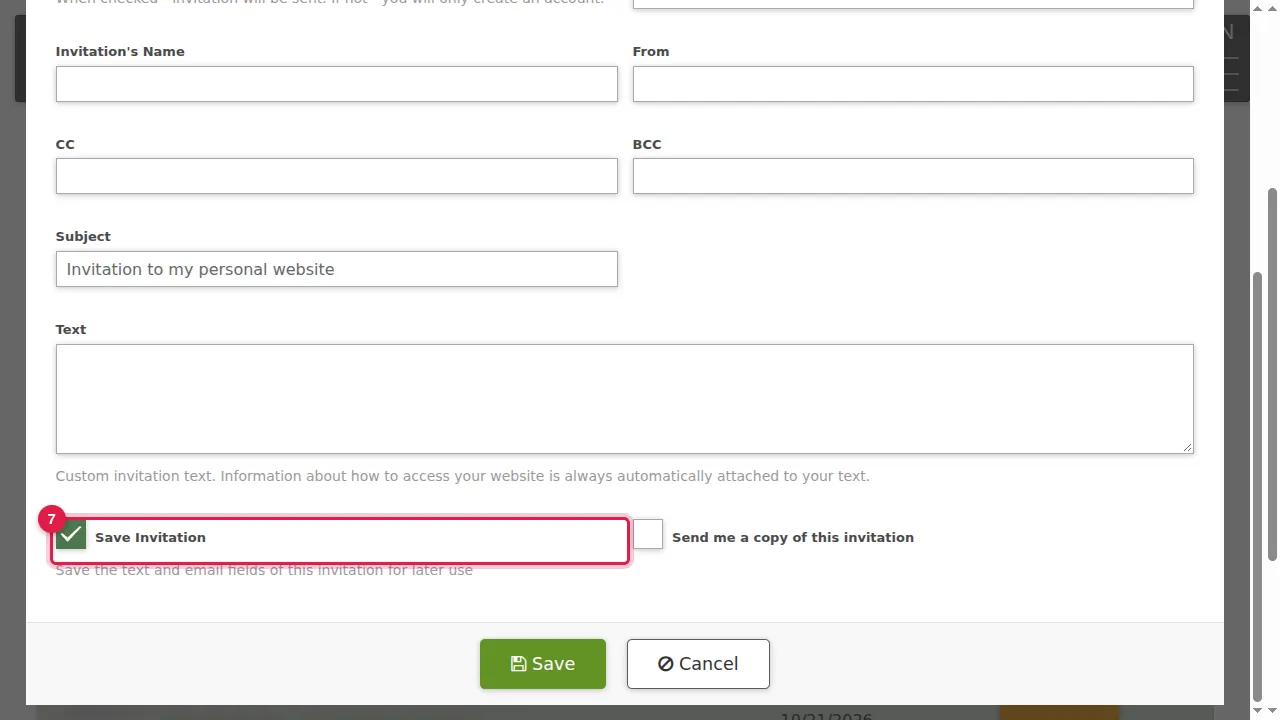
Step 7. Information about how to get into your website is always added to your text. Save Invitation keeps the text and e-mail fields for later; Send me a copy sends you a copy.
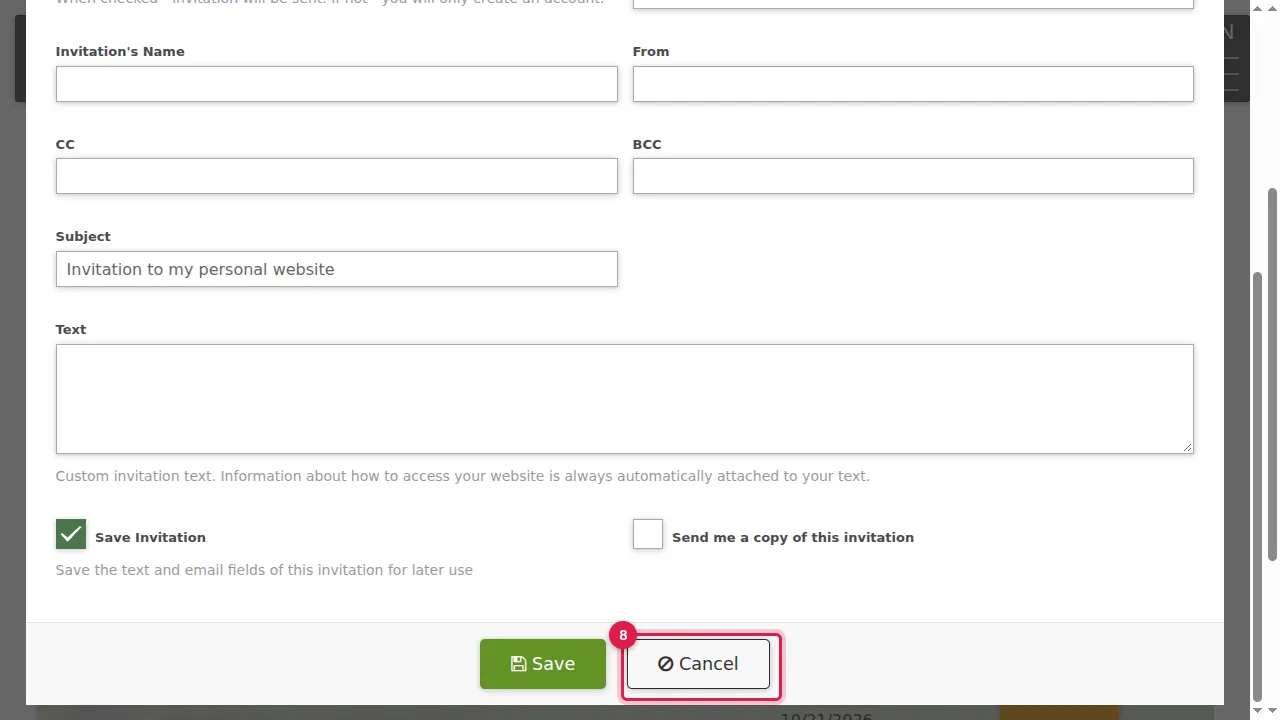
Step 8. Click Save to create the user. (Cancelled in this demonstration.)
E-mail your users
Step 9. Click Email Users to write to your users.
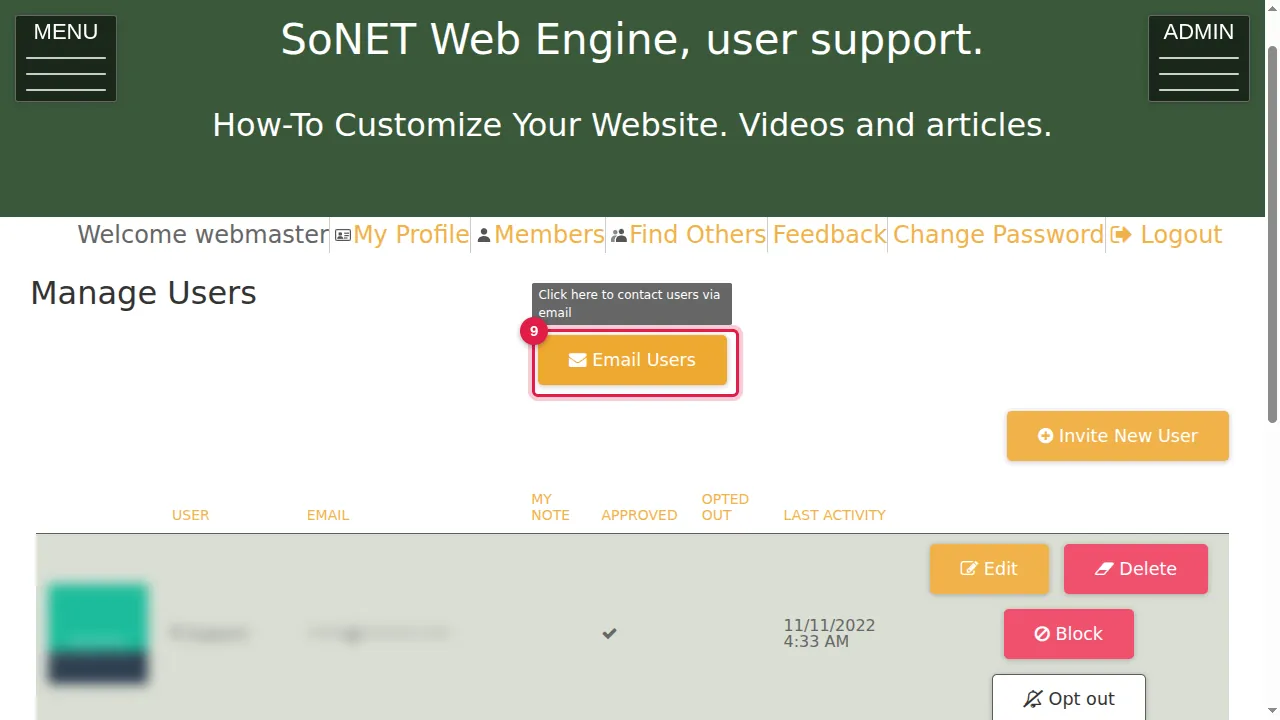
Step 10. Tick All, or tick the people you want to write to.
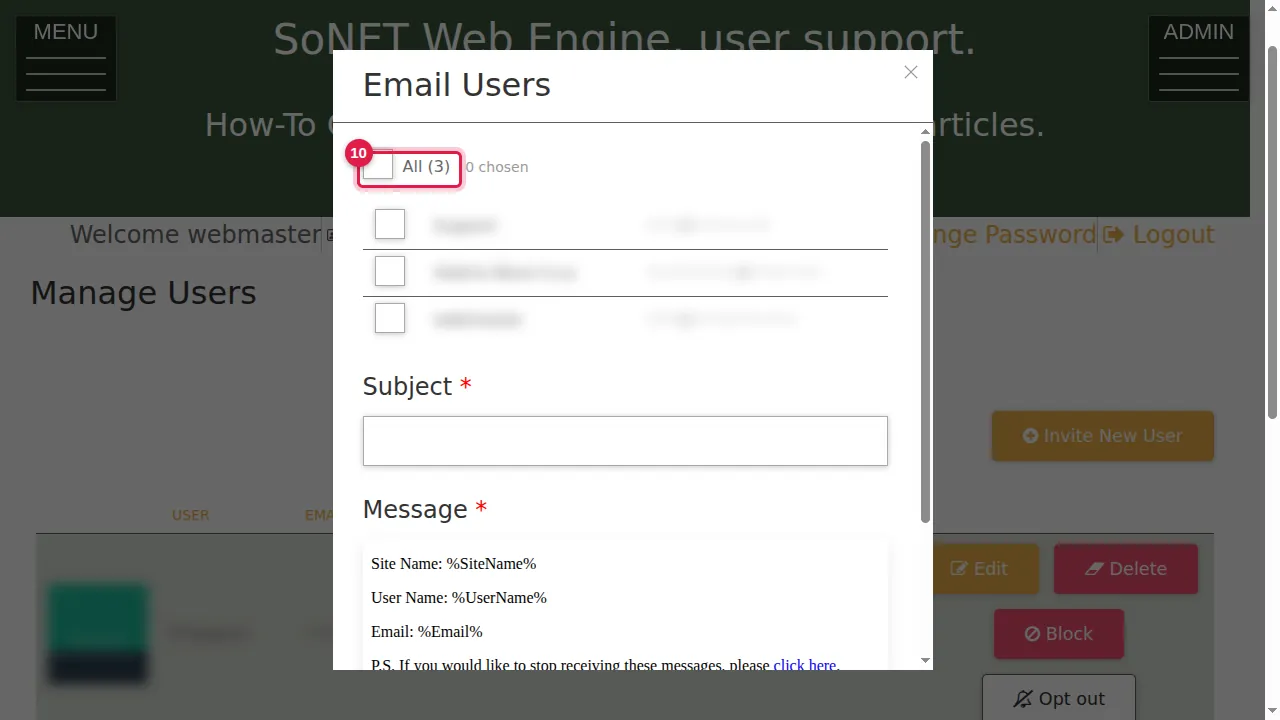
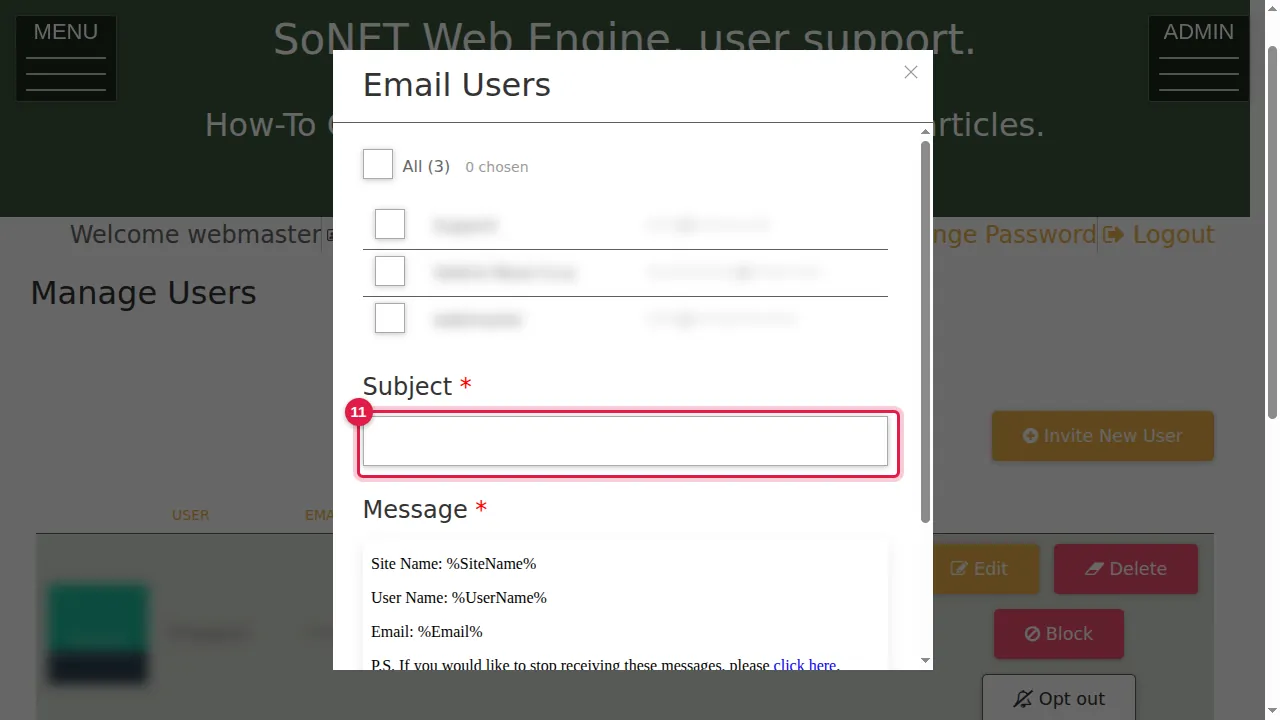
Step 11. Type a Subject. The Message starts with your site name, the user's name and e-mail, and a link to stop receiving these messages; Edit the message changes it.
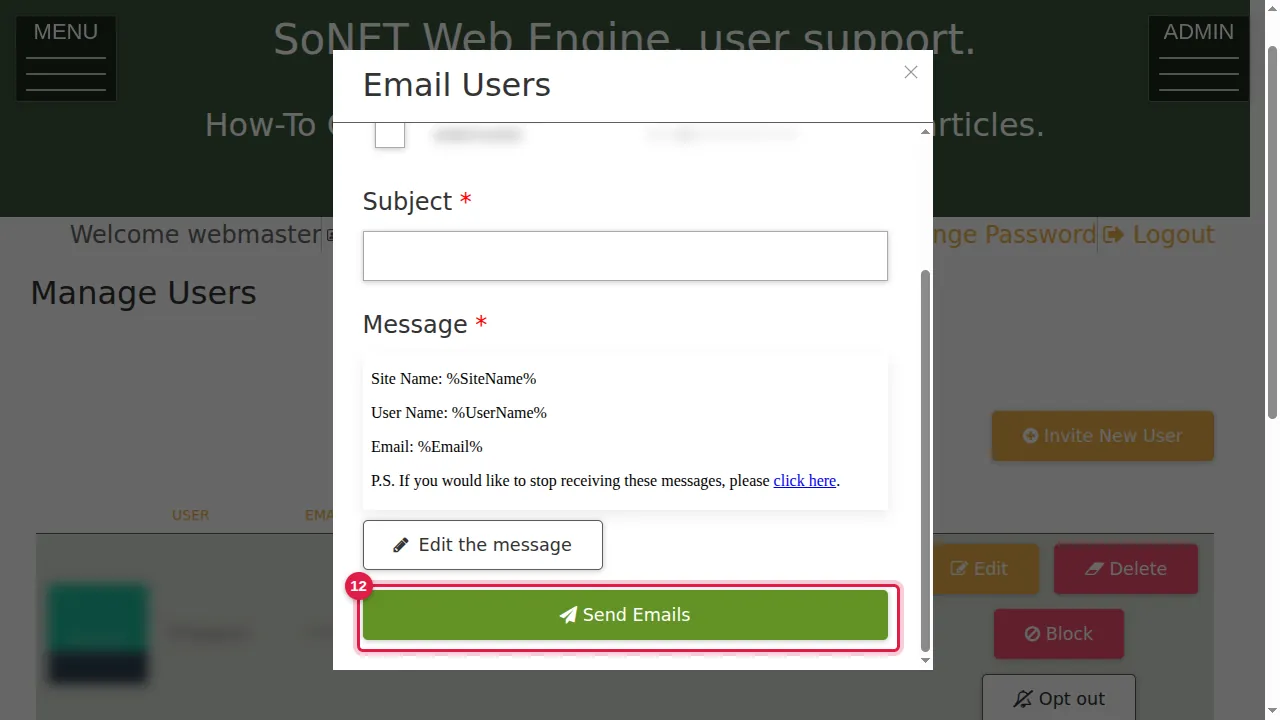
Step 12. Send Emails sends it. (Not pressed in this demonstration.)
Check it worked
After inviting someone, they appear in Manage Users.
Good to know
- Use Send Invitation unticked to create an account quietly, and tell the person yourself.
Related help
Shown on the 2026 version of the SoNET Web Engine. Last checked 21 October 2026. Something different on your screen? Tell us through the Contact page.