Help Center Blog & Forum
Find, edit, clone and delete blog posts
The list of your blog posts: search it, open a post to change it, make a copy with Clone, and delete one post or several at once.
Watch it done: a short silent video with captions · 1:56. The steps below show the same thing picture by picture.
Before you start
- Log in as the site owner.
- Open ADMIN › Manage … followed by your blog's name (here: Manage Support FORUM).
Find a post
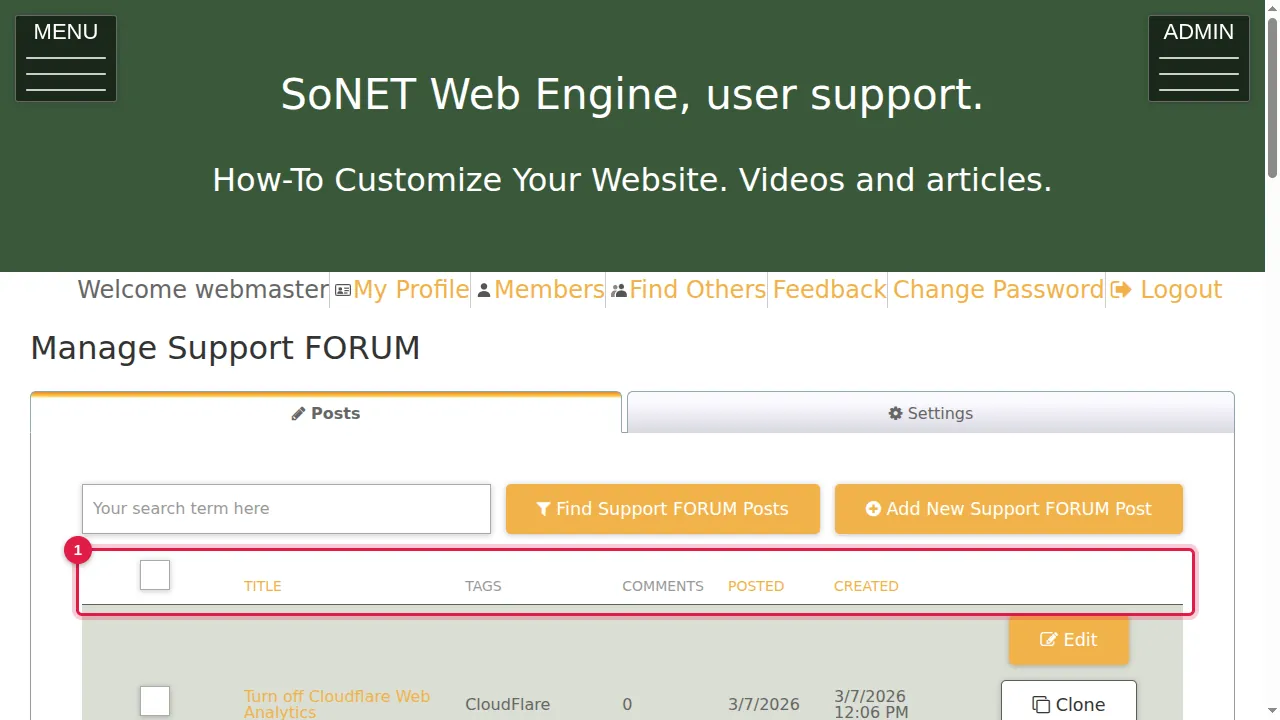
Step 1. The Posts tab lists all your posts with their tags, the number of comments, the date they were posted and the date they were created. A draft has no posted date.
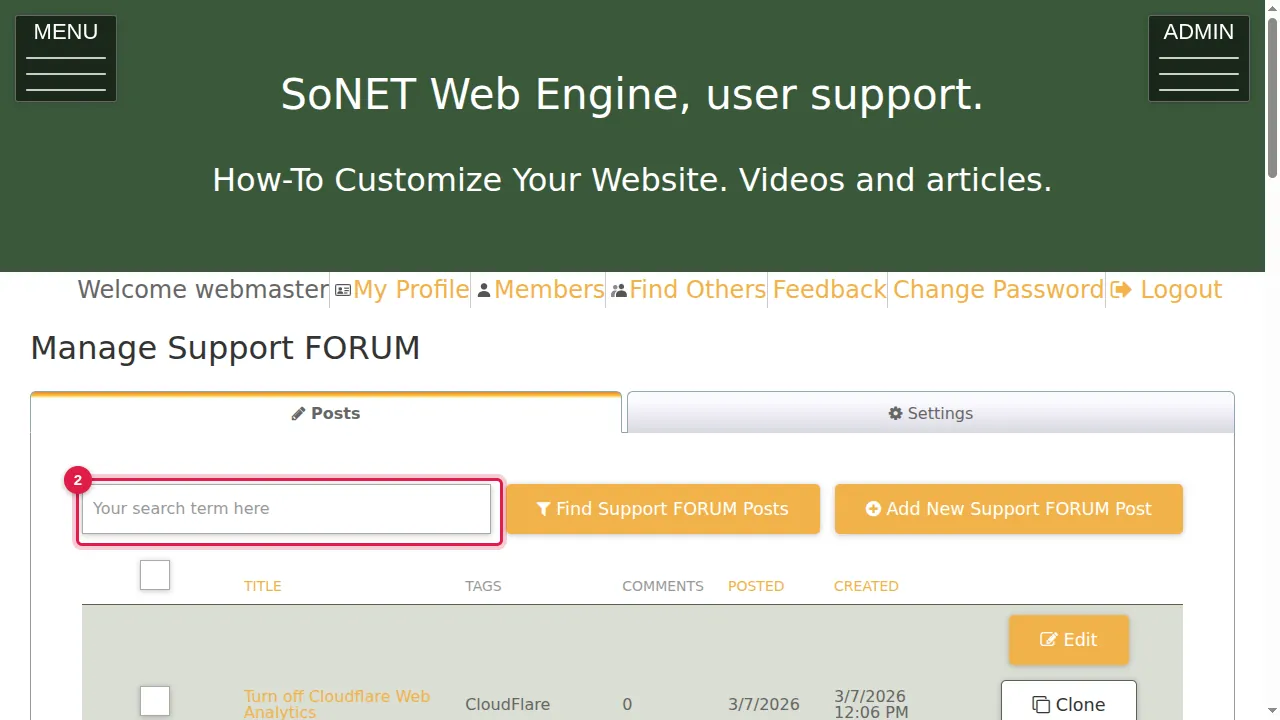
Step 2. To find a post, type a word from it in the search box.
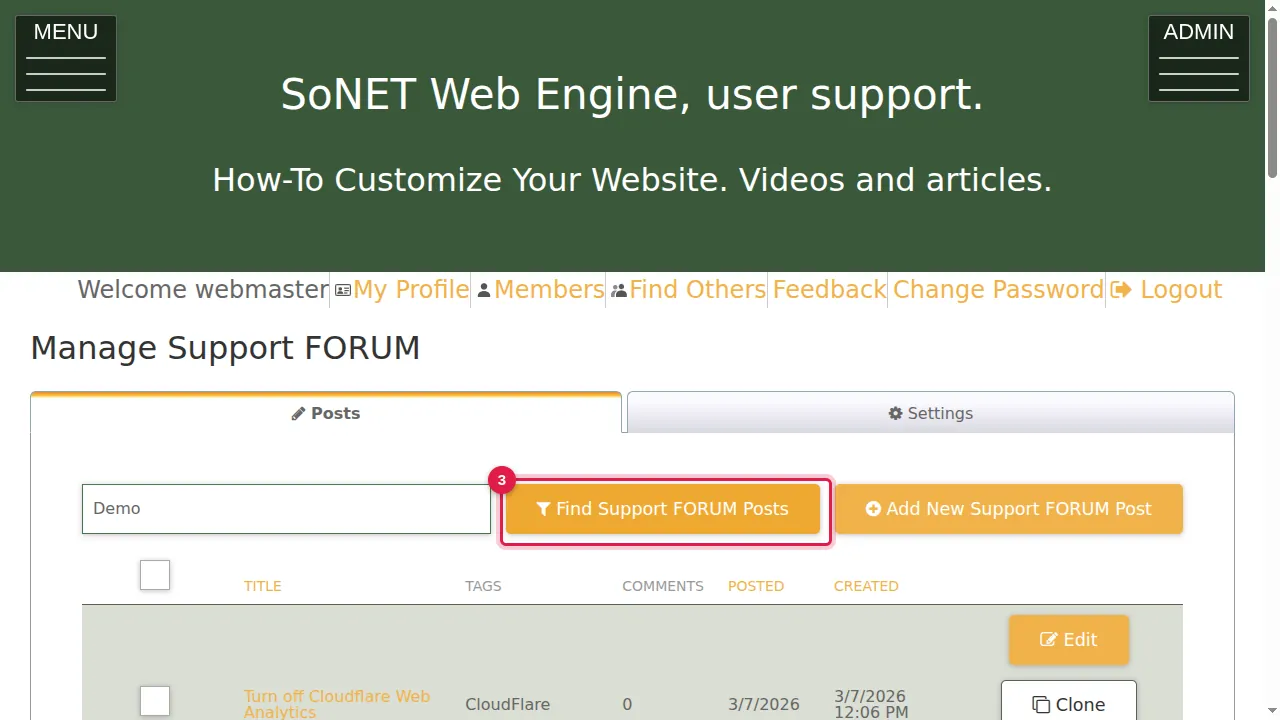
Step 3. Click Find … Posts.
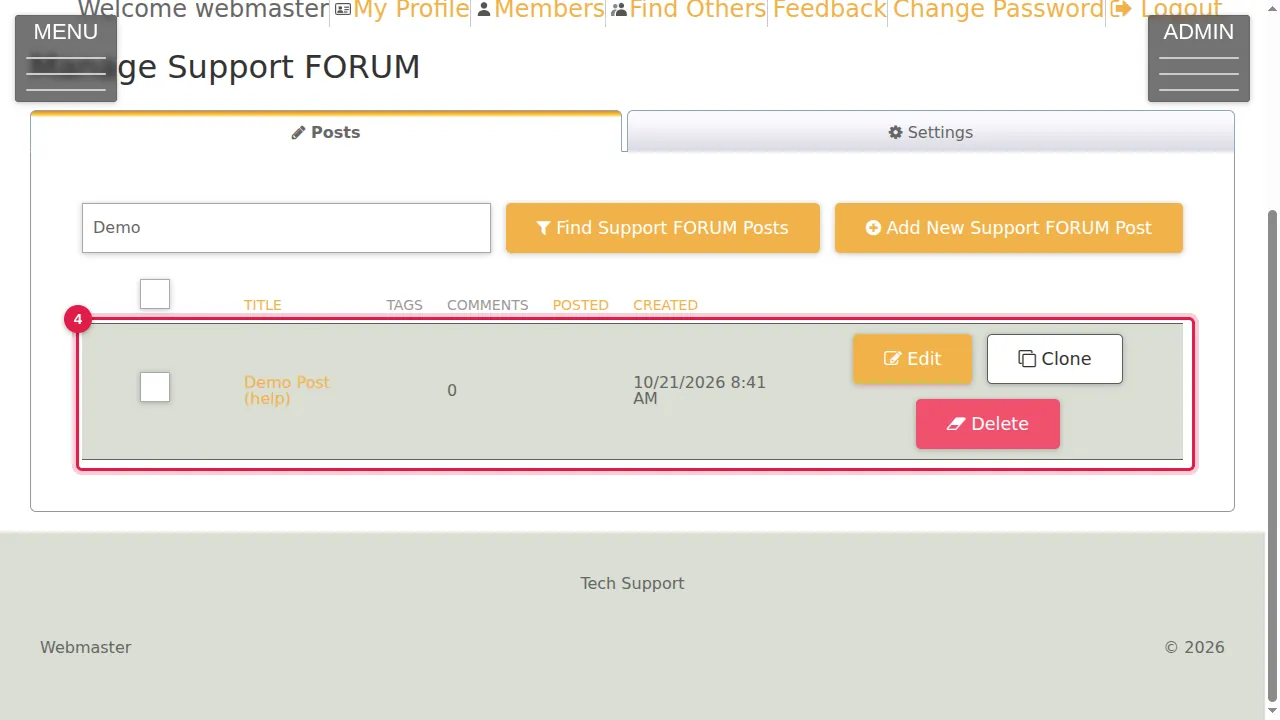
Step 4. Only the matching posts are listed. Point at a row to see the start of the post's text.
Edit a post
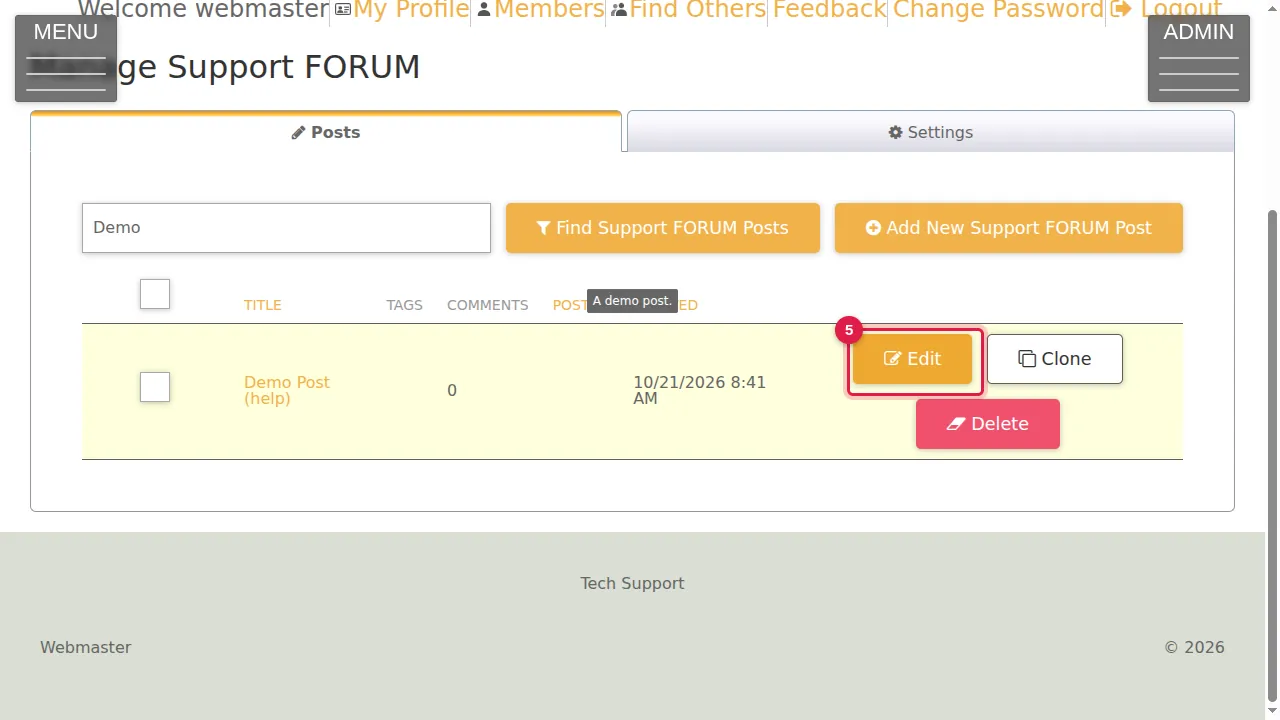
Step 5. Edit opens the post in the same window you wrote it in.
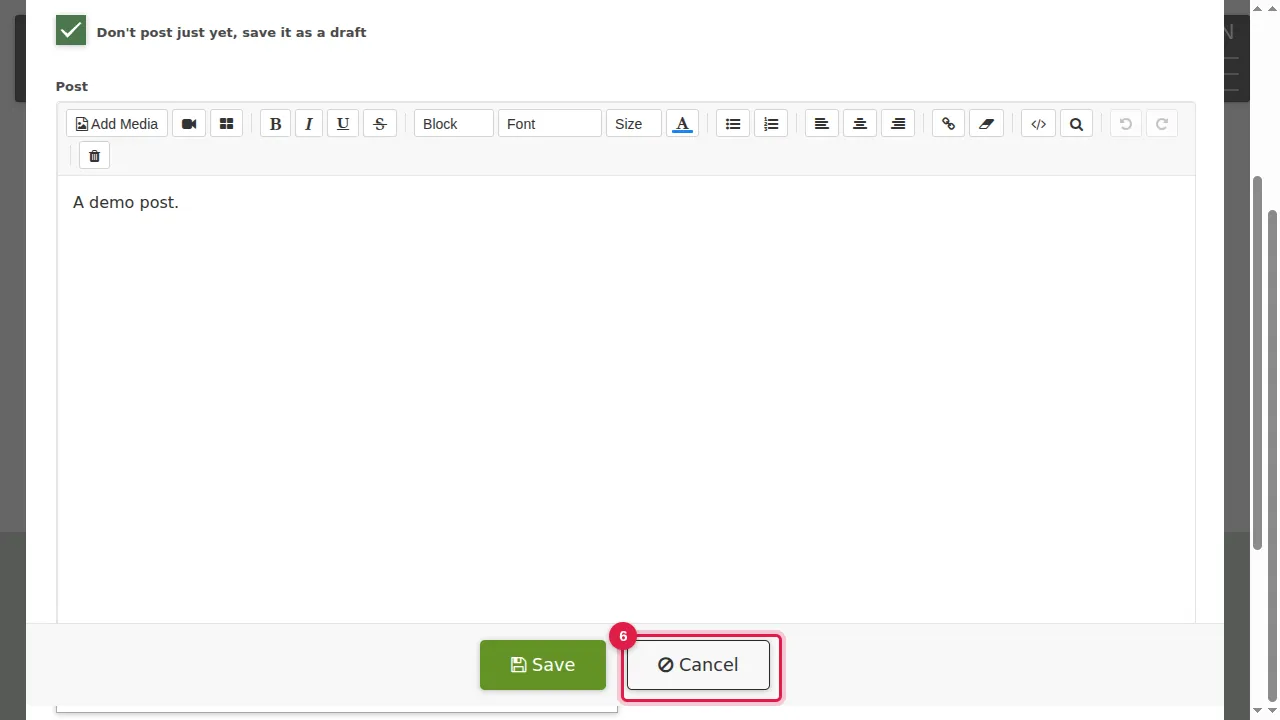
Step 6. Change what you need and click Save, or Cancel to leave it as it was.
Clone a post
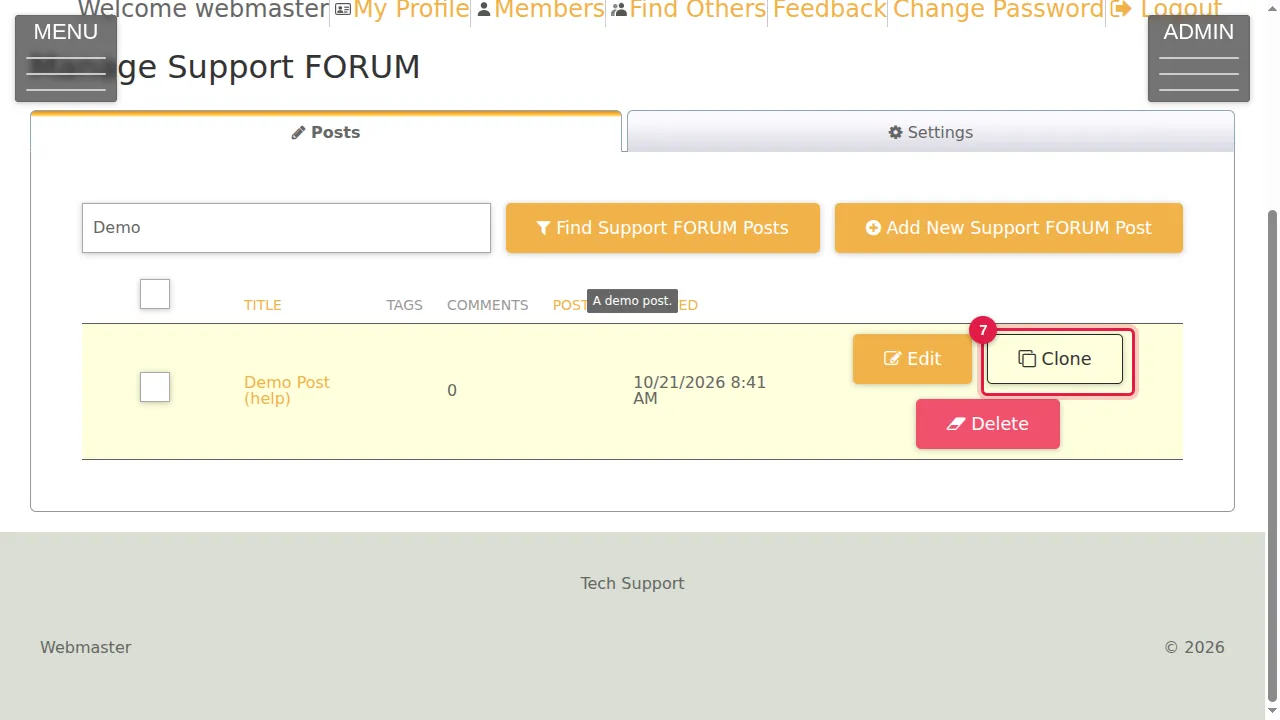
Step 7. Clone makes a copy of the post straight away, with the same title.
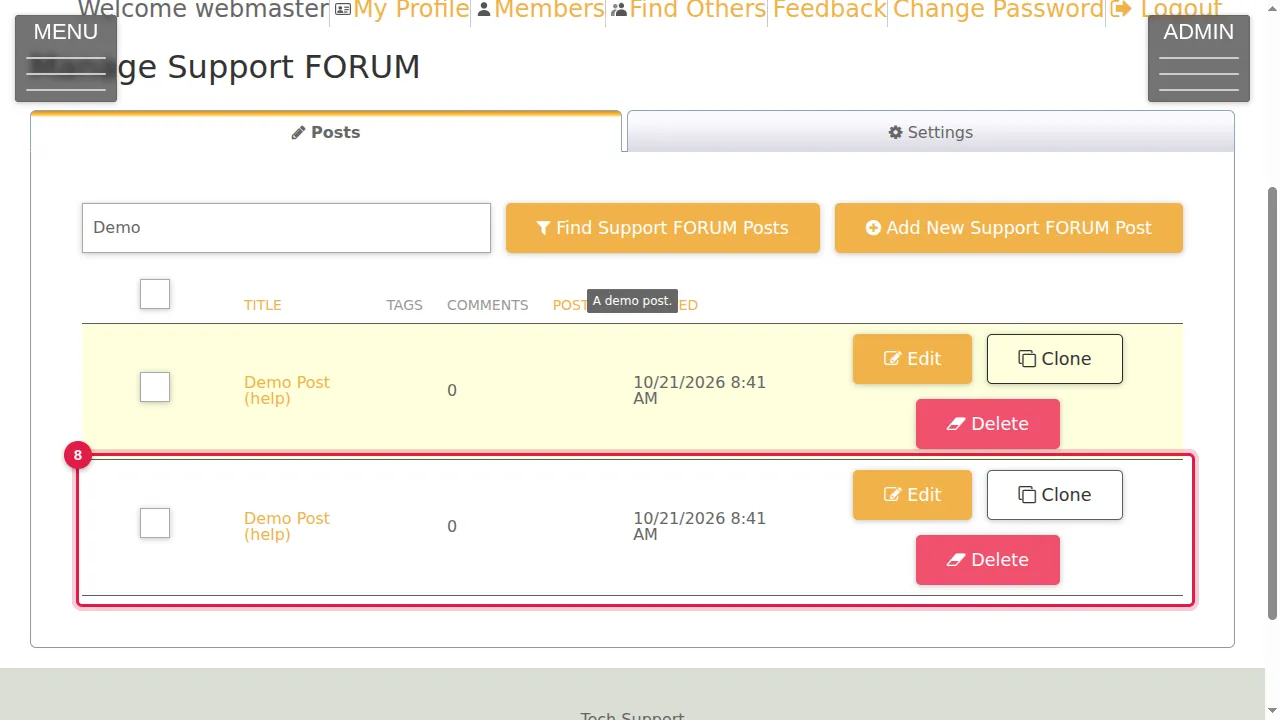
Step 8. The copy is in the list. Click its Edit to give it its own title and text.
Delete posts
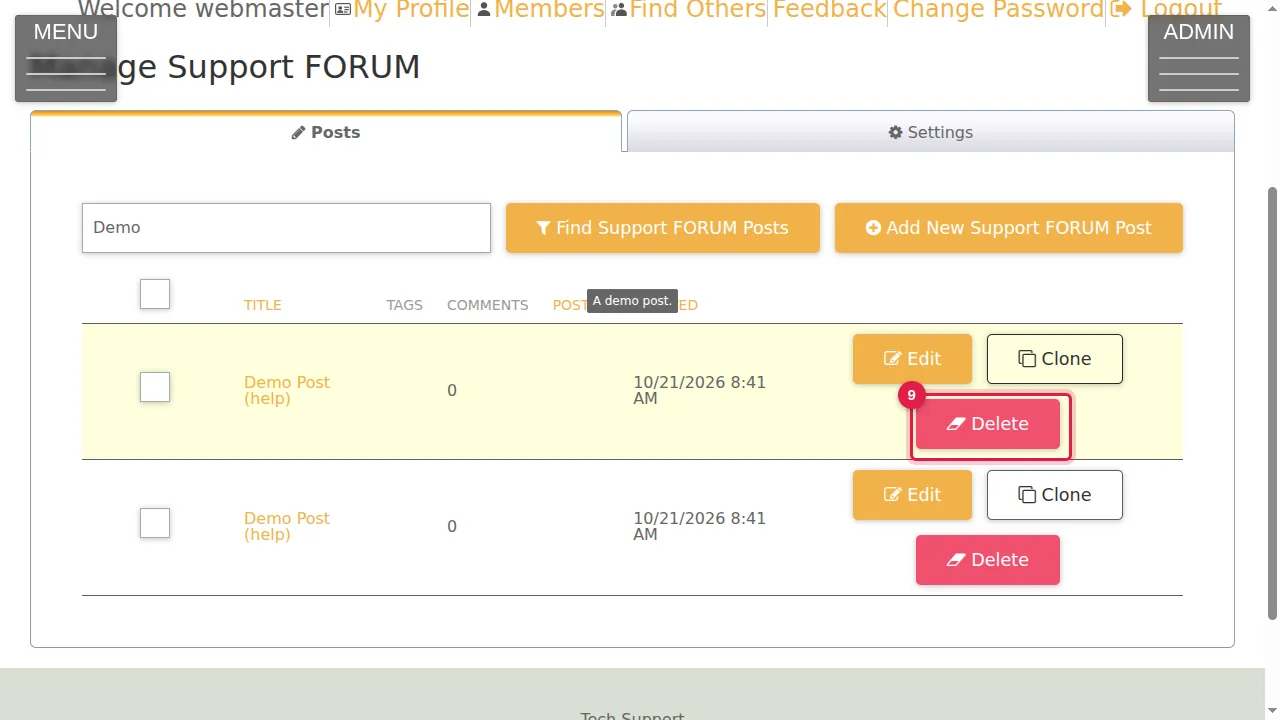
Step 9. Delete on a row deletes that one post after you confirm.
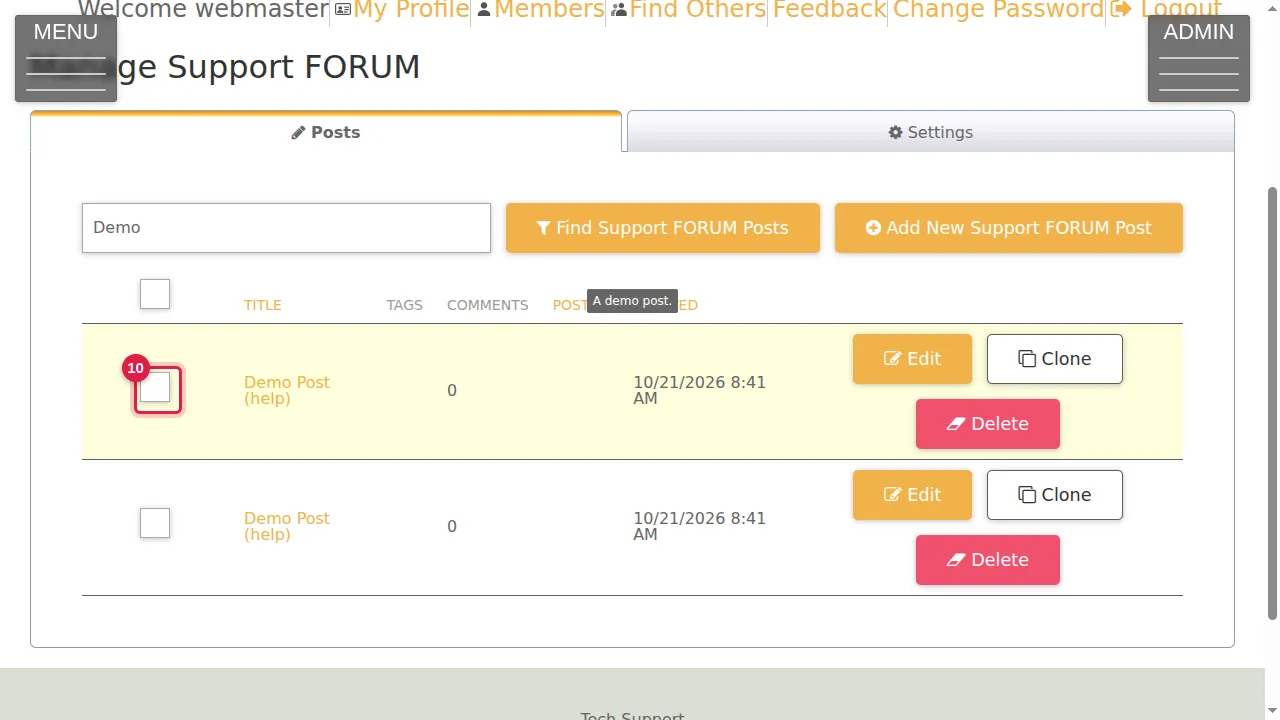
Step 10. To delete several posts at once, tick their boxes.
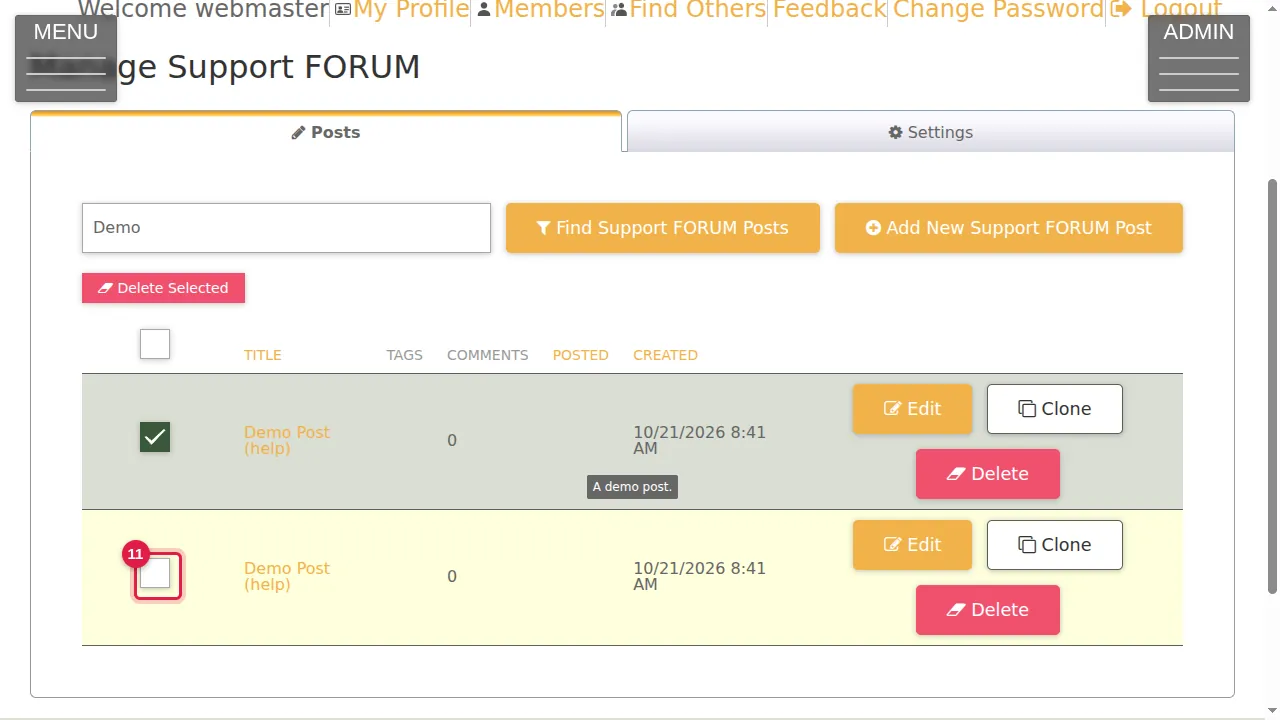
Step 11. A Delete Selected button appears above the list.
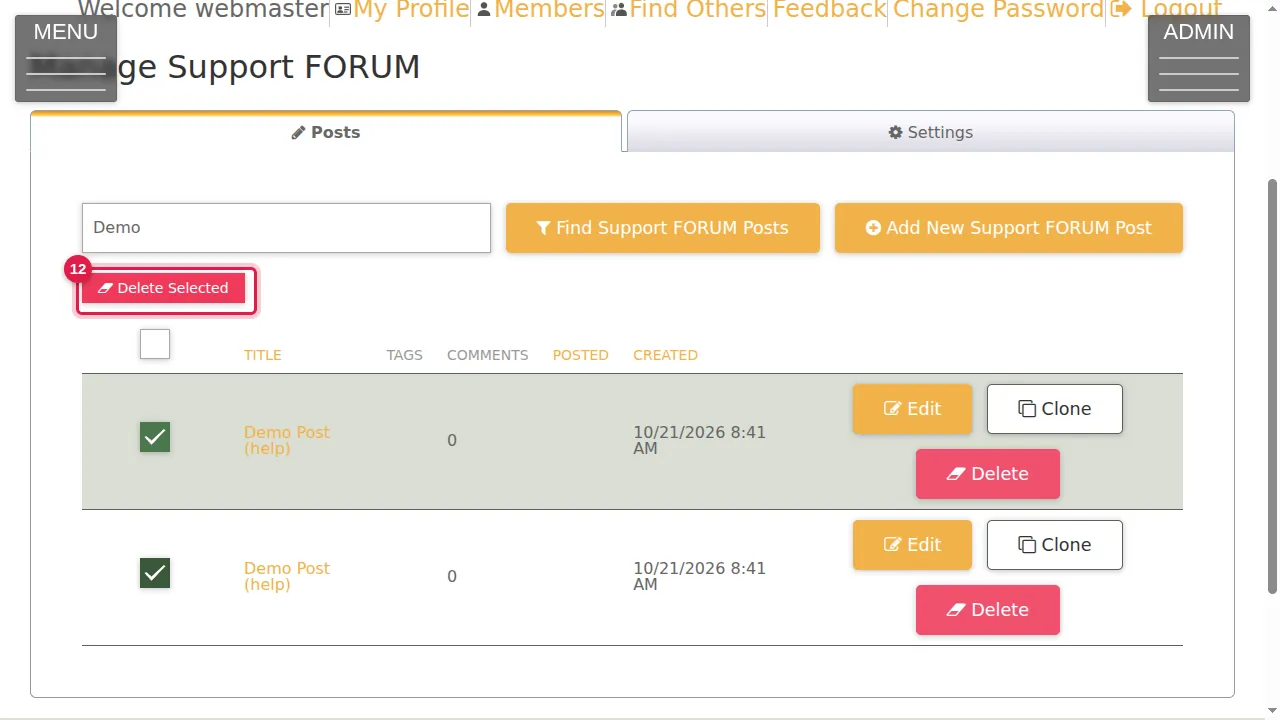
Step 12. Click Delete Selected and confirm. Deleted posts cannot be brought back.
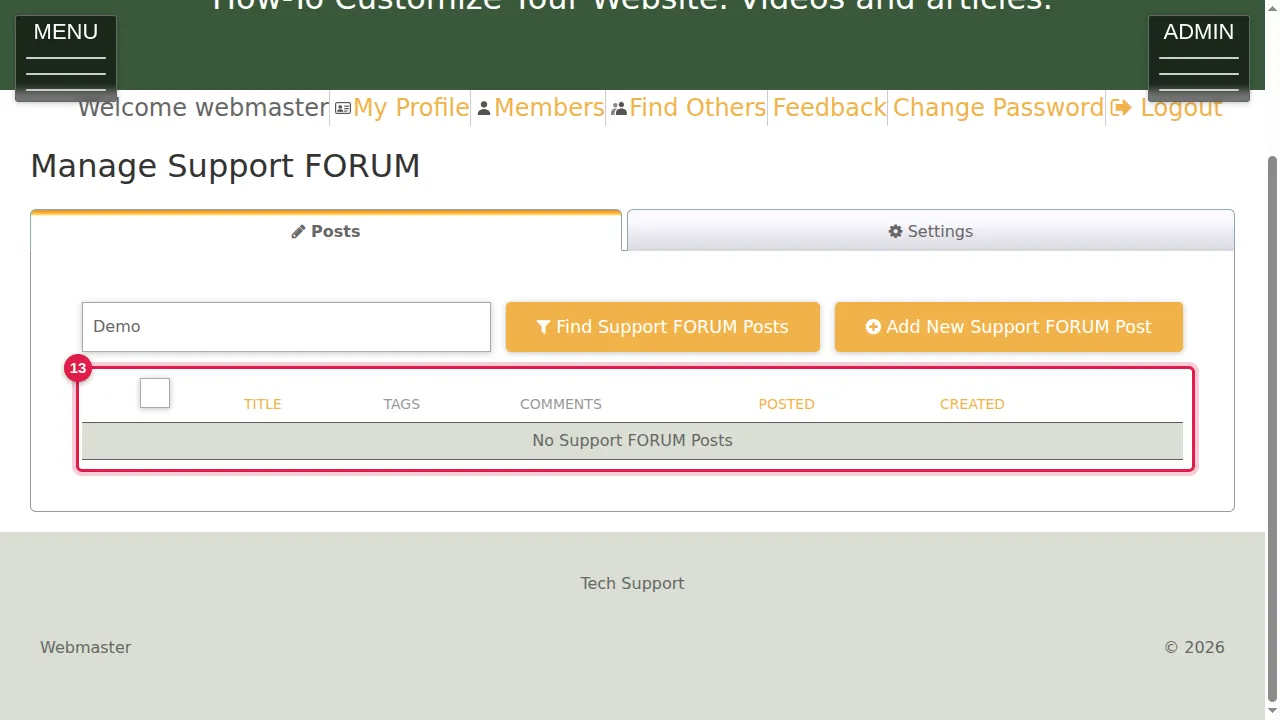
Step 13. The posts are gone (here the list was still filtered on the search word, so it is empty).
Check it worked
Open your blog in a private window: deleted posts are gone, and an edited post shows your changes.
Related help
Shown on the 2026 version of the SoNET Web Engine. Last checked 21 October 2026. Something different on your screen? Tell us through the Contact page.