Help Center Blog & Forum
Pictures, tags and the date of a blog post
Put a picture or a video in a post, give it tags so visitors find related posts, and give it an earlier date so it is filed under the right month.
Watch it done: a short silent video with captions · 2:20. The steps below show the same thing picture by picture.
Before you start
- Log in as the site owner.
- Know how to start a new post (see Write a blog post).
Title and date
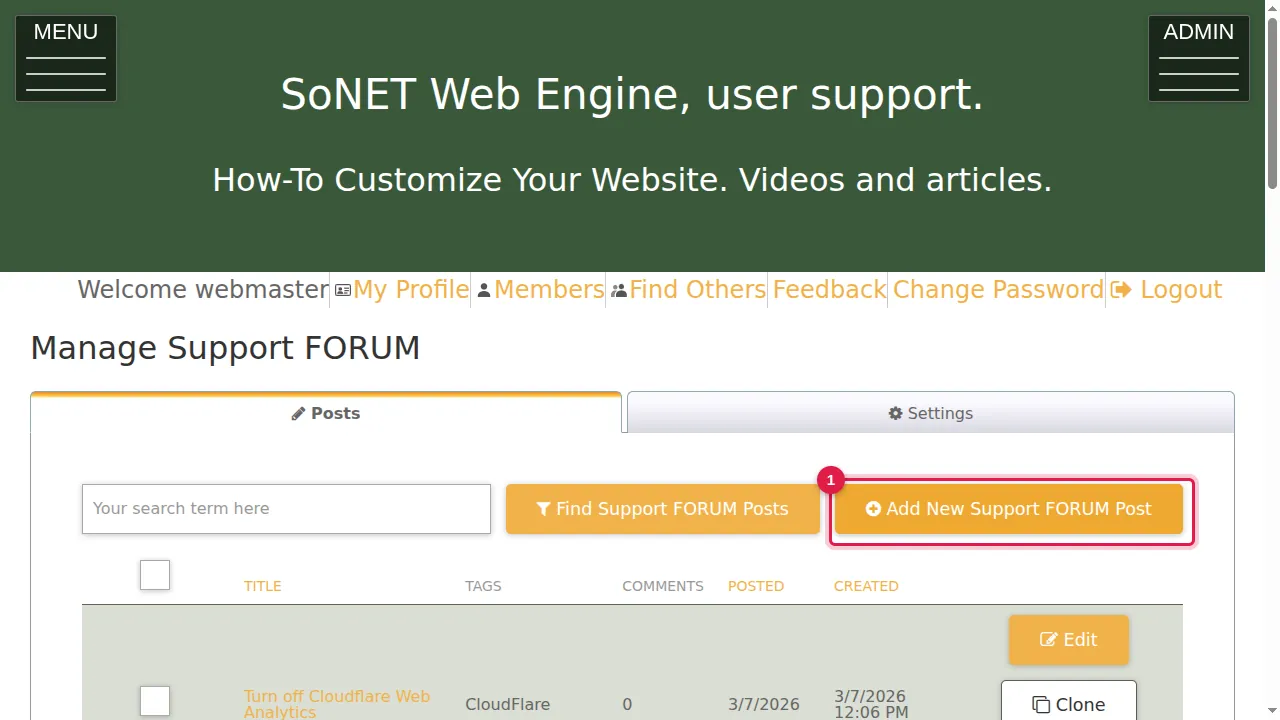
Step 1. In ADMIN › Manage … (your blog), click Add New … Post.
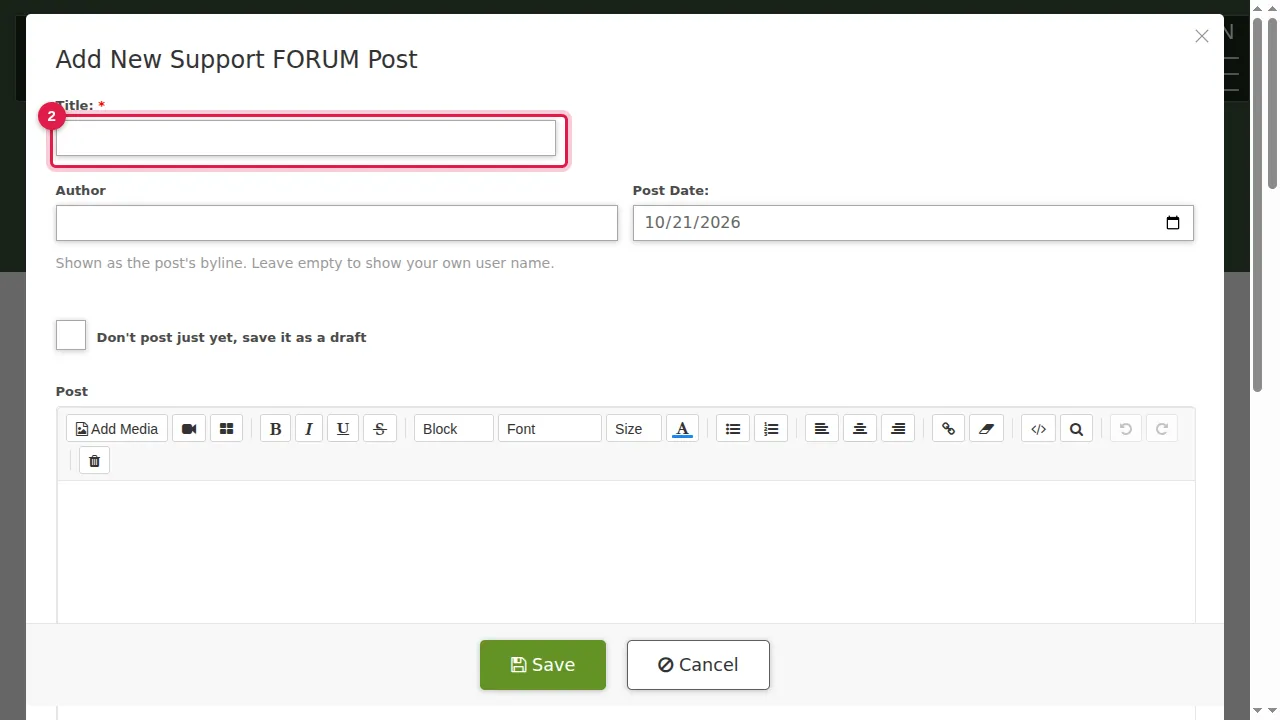
Step 2. Type the title.
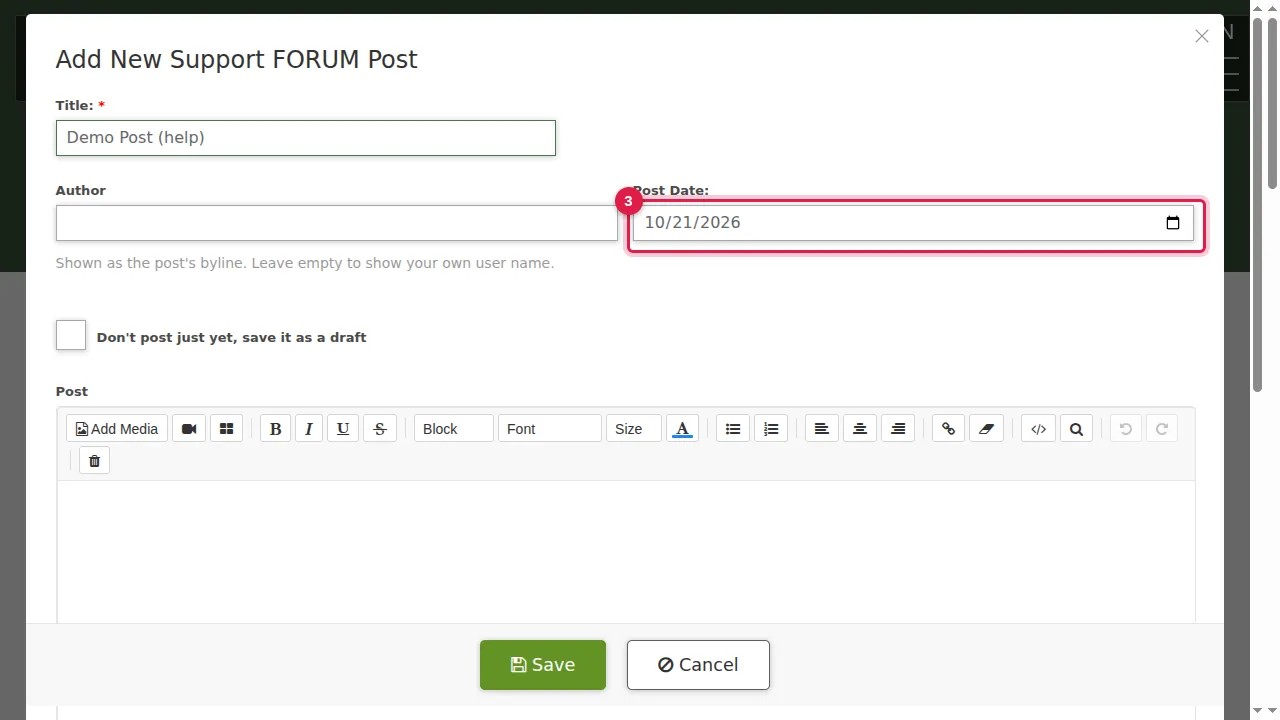
Step 3. Post Date is today. Click it and pick an earlier date for a post about something that already happened.
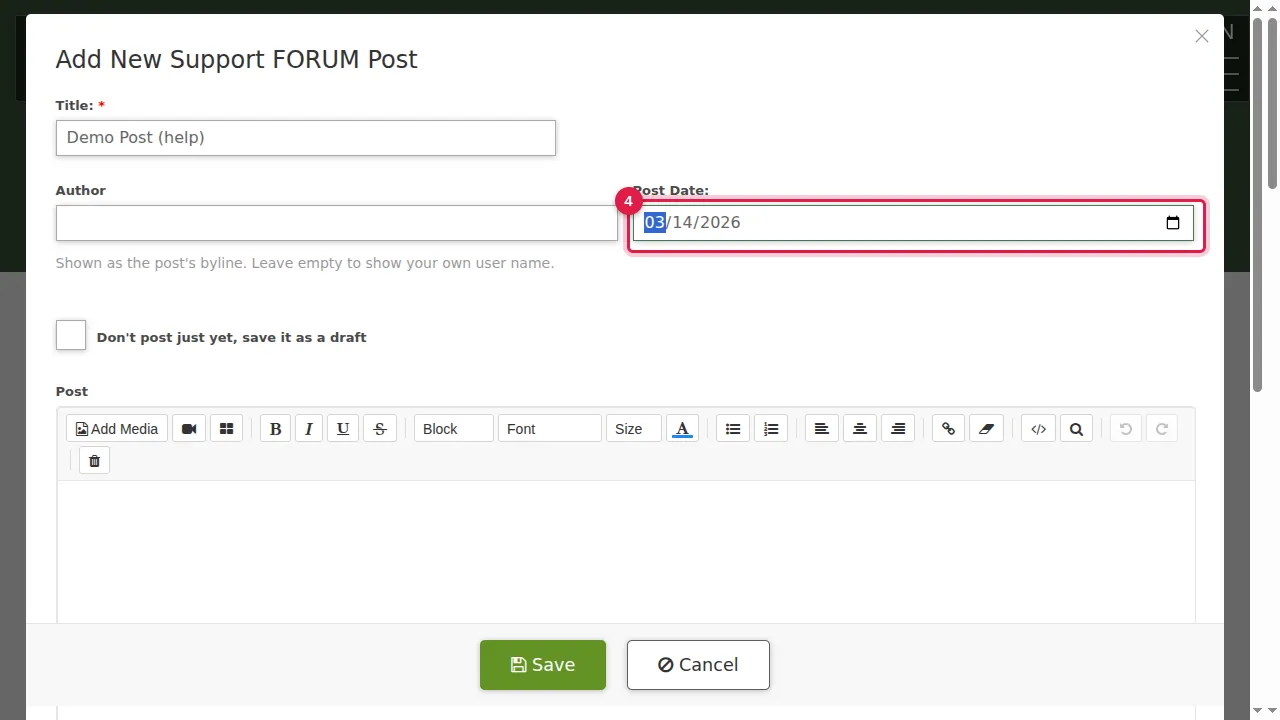
Step 4. The new date is in the box.
Text, picture and video
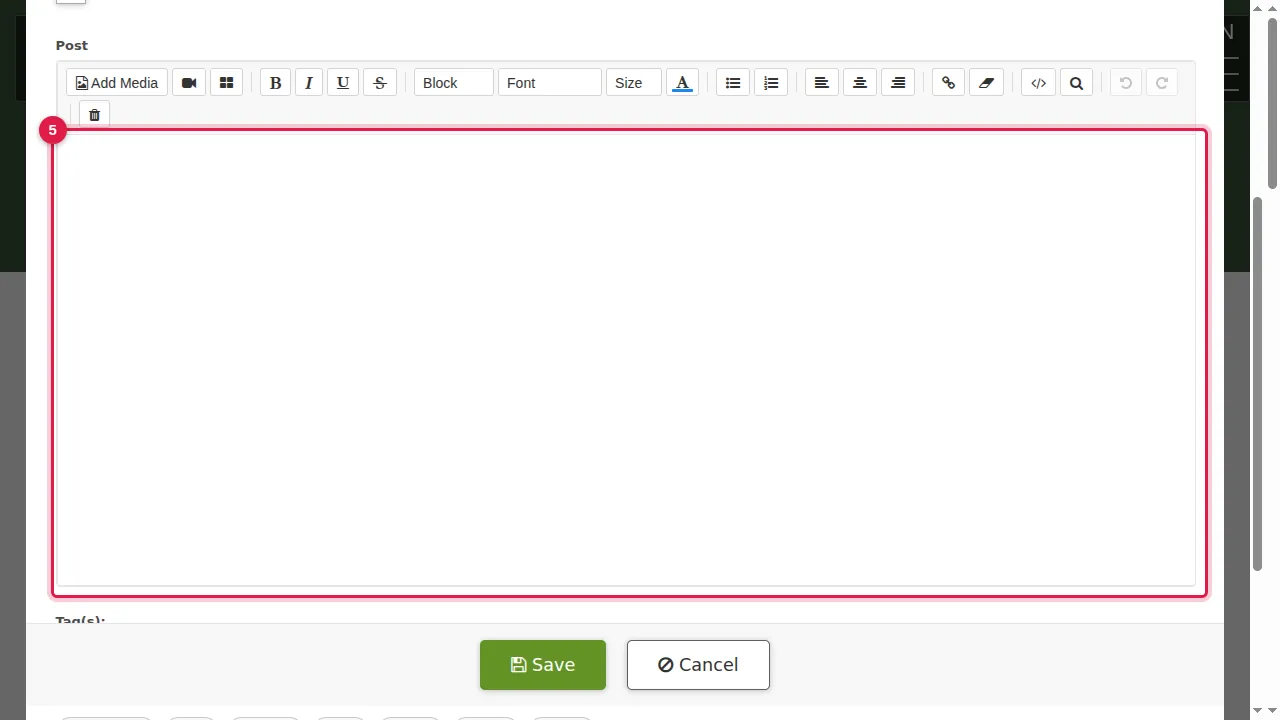
Step 5. Write the text in the editor under Post.
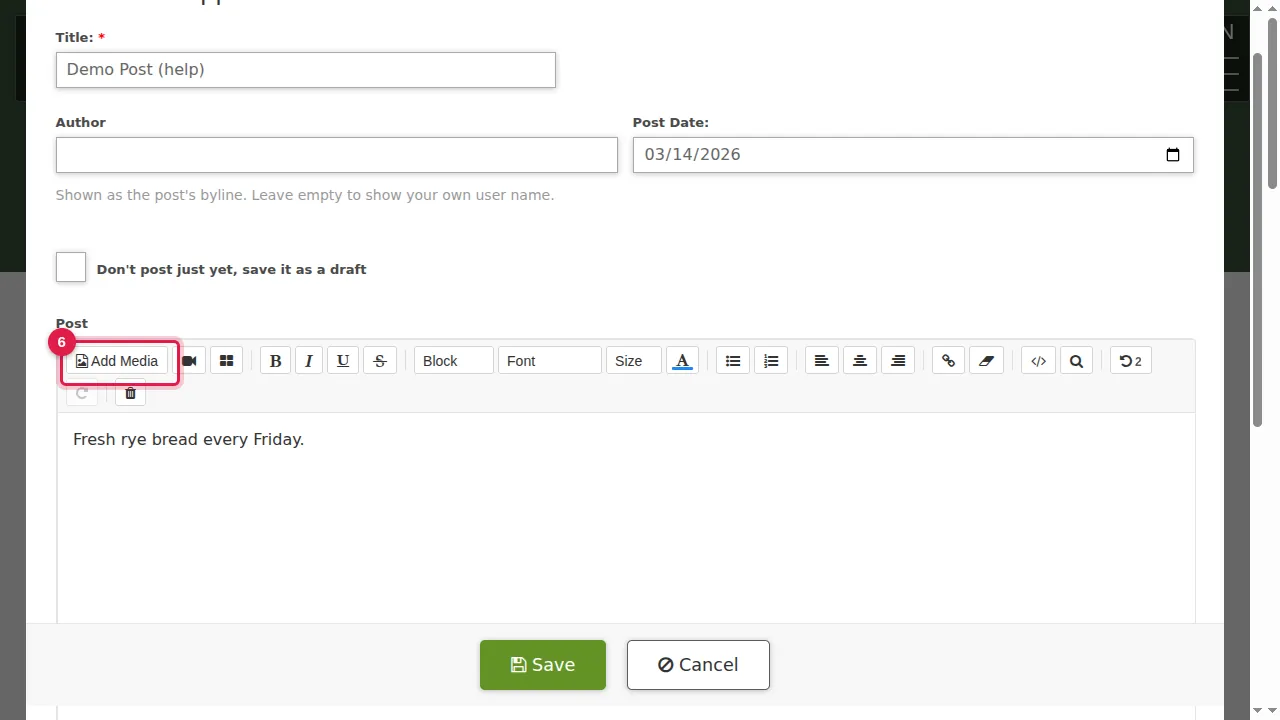
Step 6. Put the cursor where the picture should go, click Add Media and choose a picture from your computer.
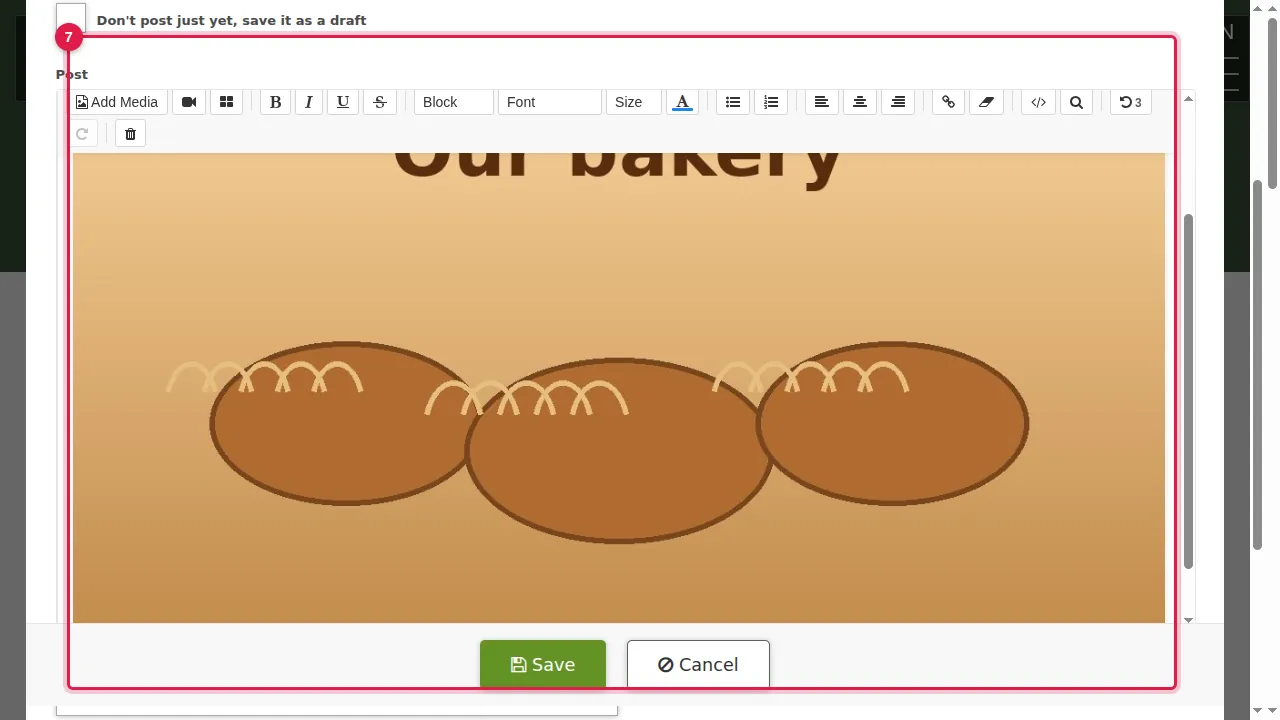
Step 7. The picture is uploaded and placed at the cursor.
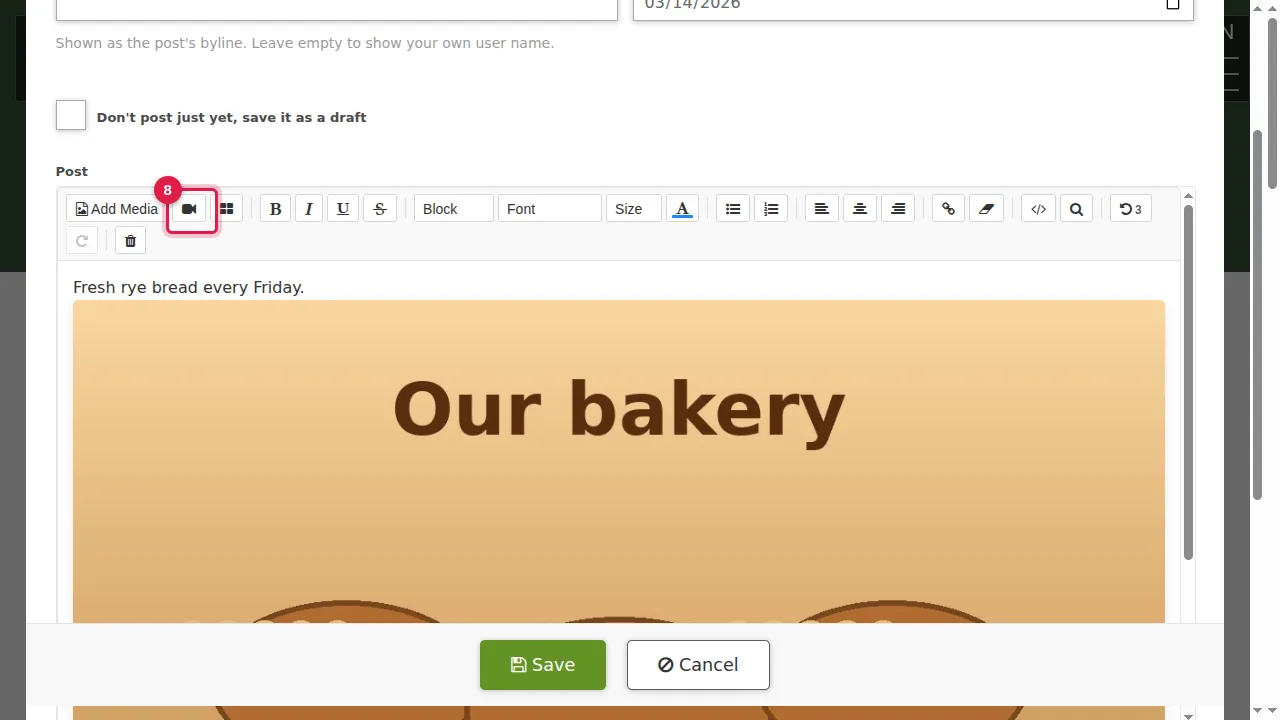
Step 8. The camera button puts in a YouTube or Vimeo video, the same way as on a page.
Tags
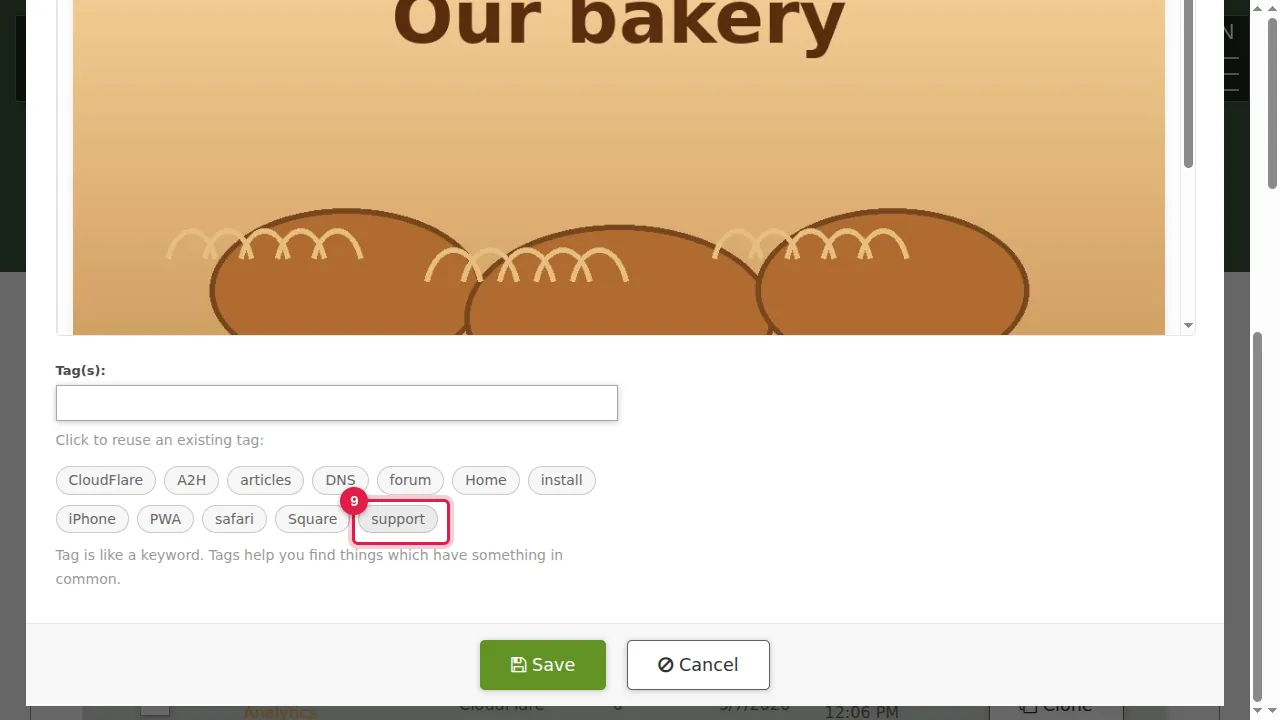
Step 9. Tags: under the Tag(s) box are the tags you used before. Click one to add it, or type new tags separated by commas.
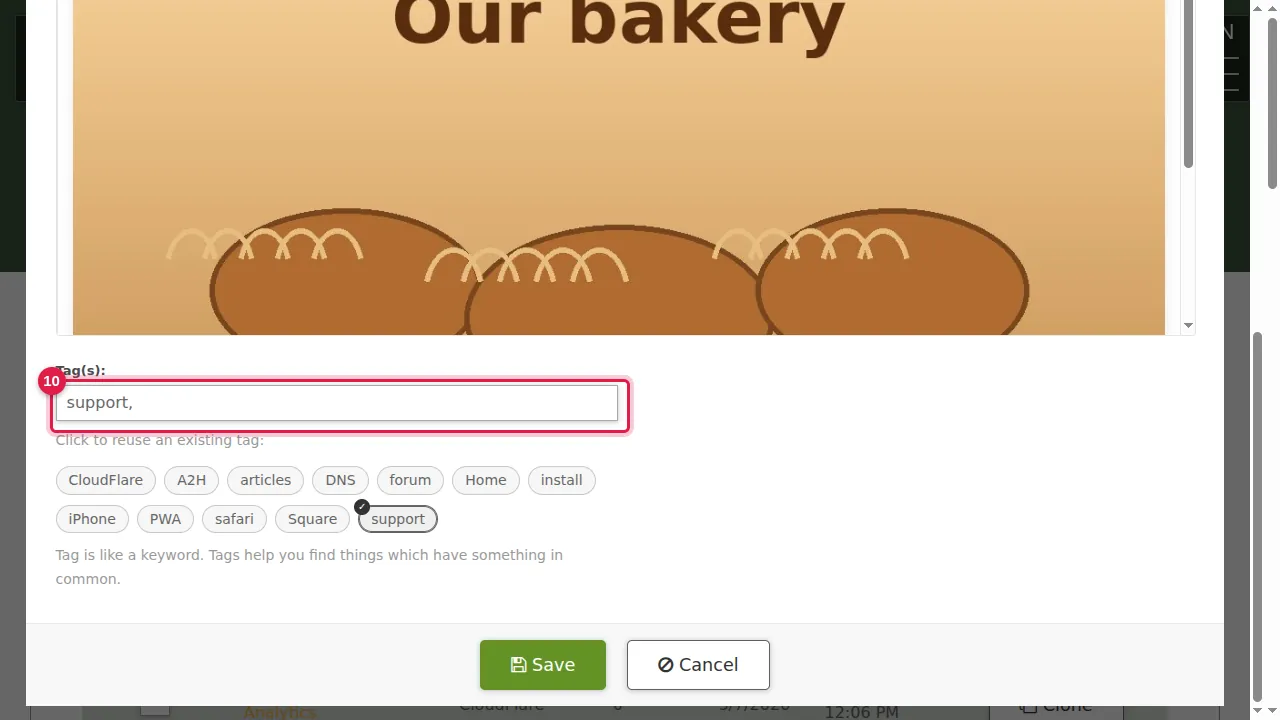
Step 10. The tag is added to the box.
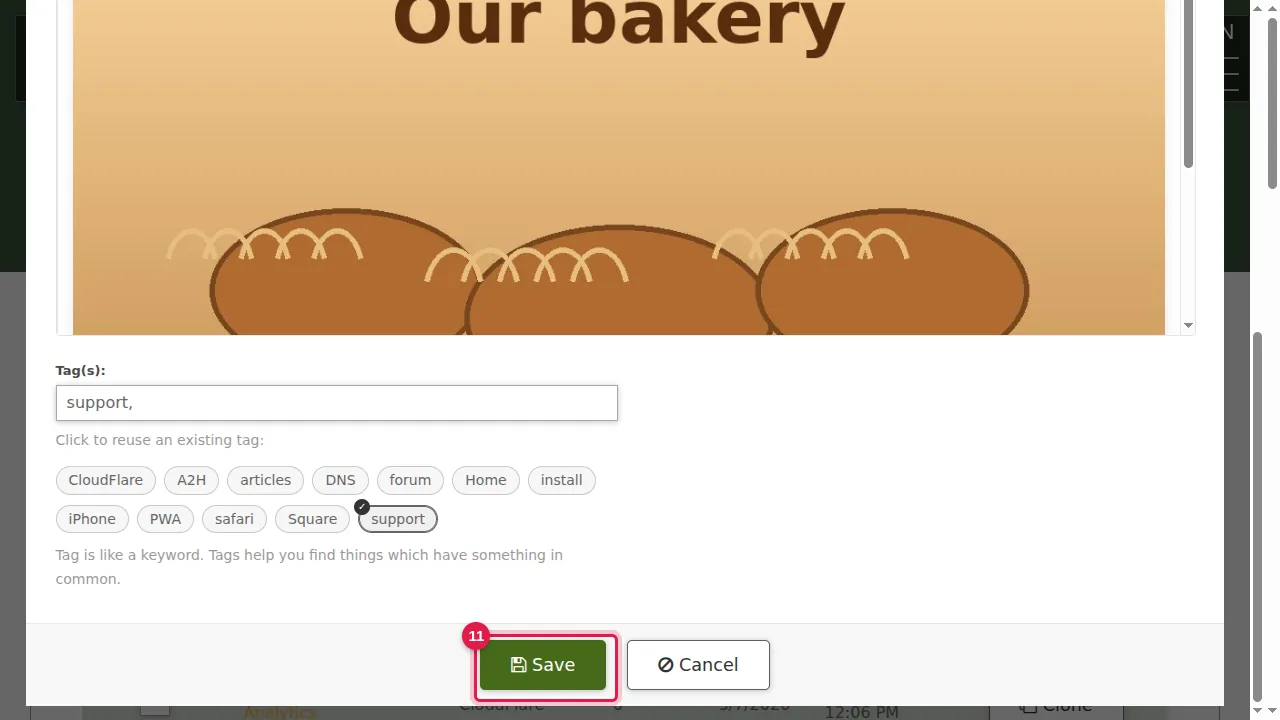
Step 11. Click Save.
What your visitors see
Step 12. On the blog page the post is filed under the month of its date (here March) and sorted by that date.
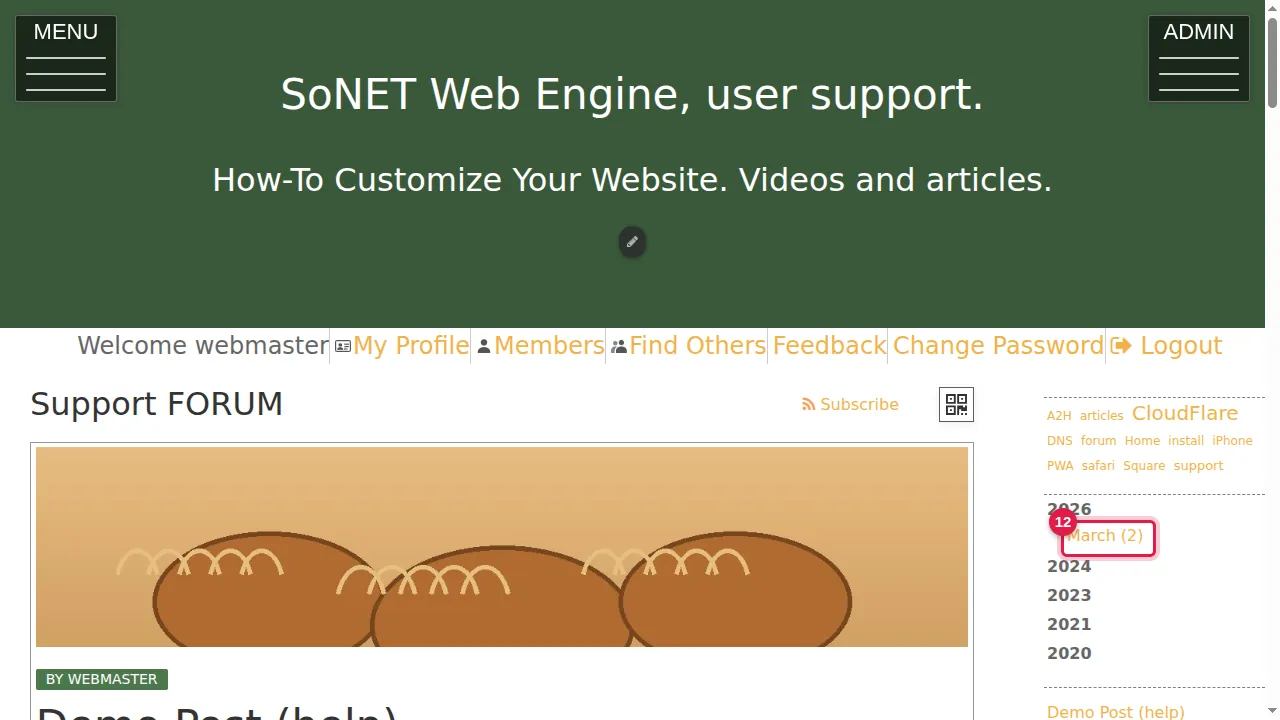
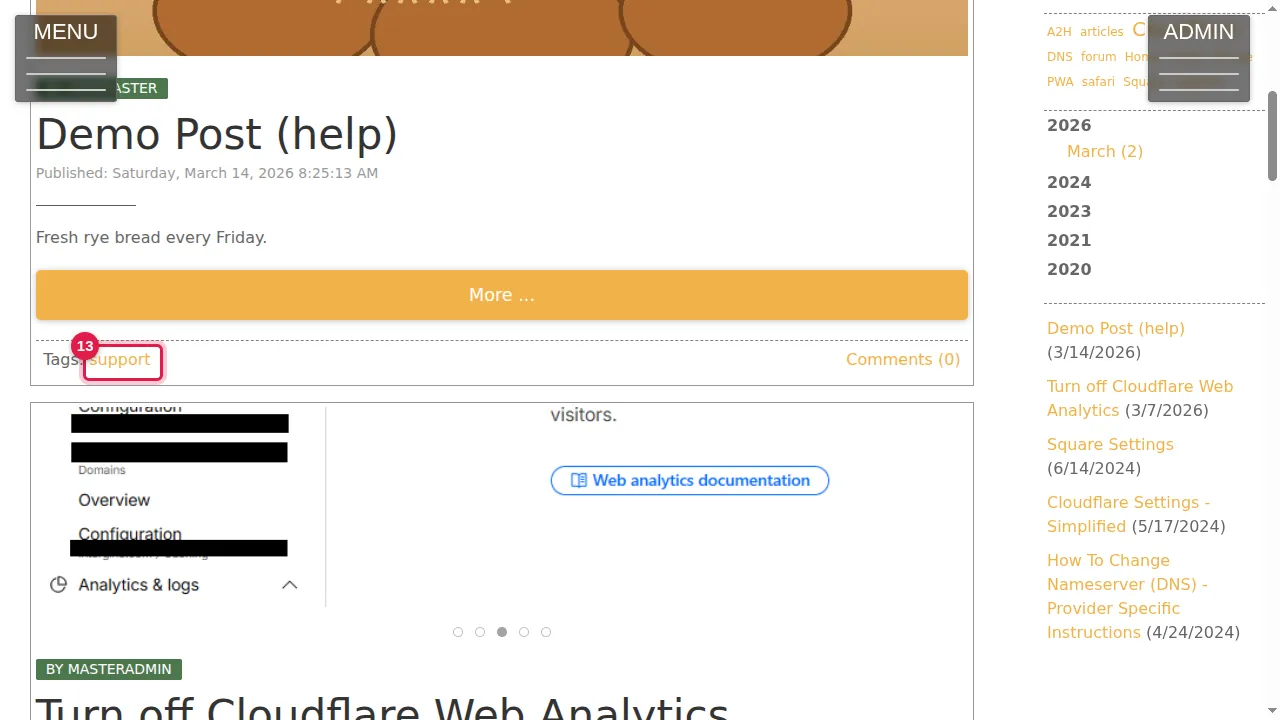
Step 13. Its tags are shown under the post and in the tag list at the side. A click on a tag shows the posts with that tag.
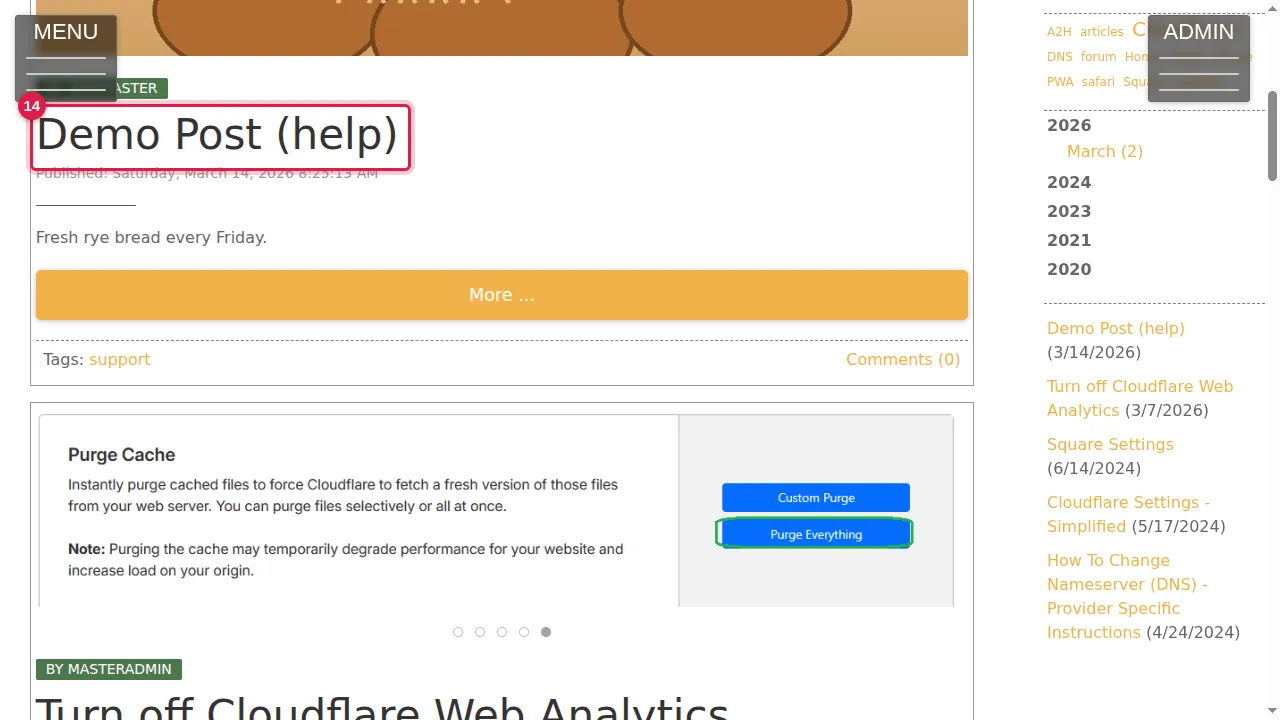
Step 14. Click the post's title to open it.
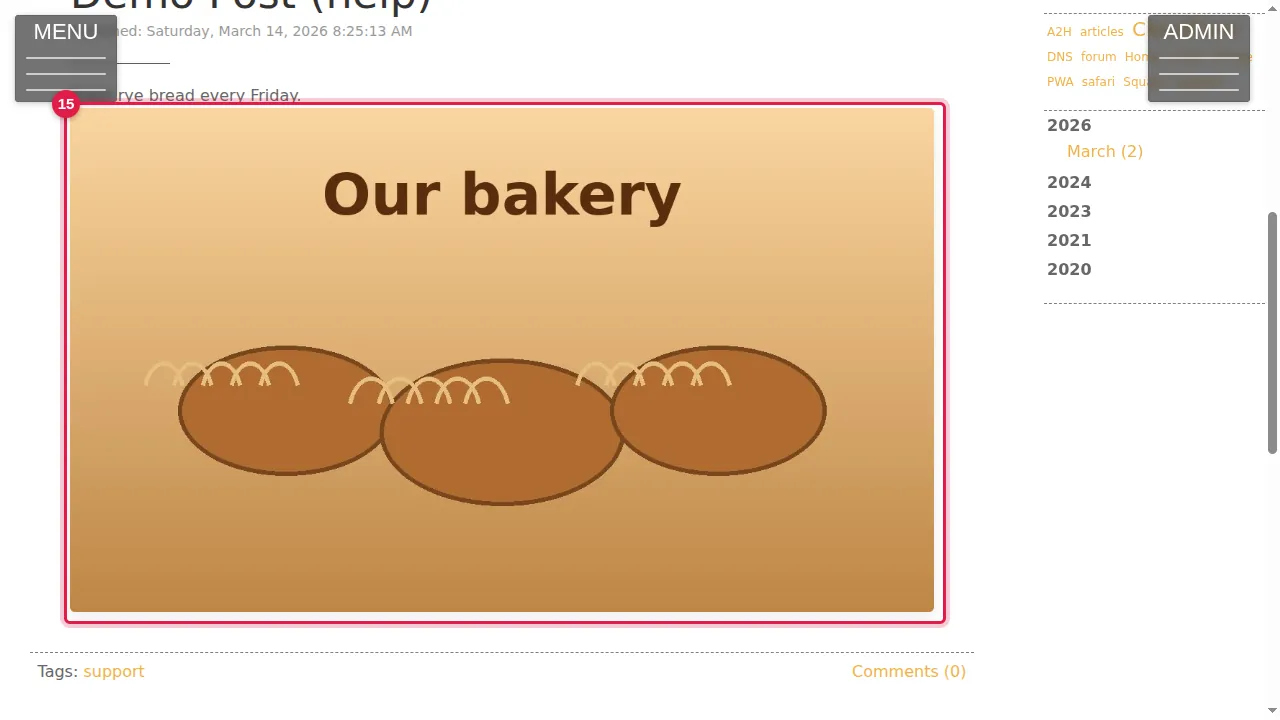
Step 15. The whole post opens, with its picture.
Check it worked
Open your blog in a private window: the post is under the right month, and its tag link shows it.
Good to know
- Use the same few tags again and again (click them under the box): a tag with many posts becomes a useful topic list for your visitors.
Related help
Shown on the 2026 version of the SoNET Web Engine. Last checked 21 October 2026. Something different on your screen? Tell us through the Contact page.