Help Center Pages & Editing
Make a slider (rotating banner)
A slider is a big banner that shows one slide after another: a picture or video with a title, a message and a button. Add one with Add Content › Widgets › Slider and fill in its slides.
Watch it done: a short silent video with captions · 2:34. The steps below show the same thing picture by picture.
Before you start
- Have the pictures ready on your computer (wide pictures work best).
- Add a Slider to the page: Add Content › Widgets › Slider (see "Add a widget to a page").
Open the slider's settings
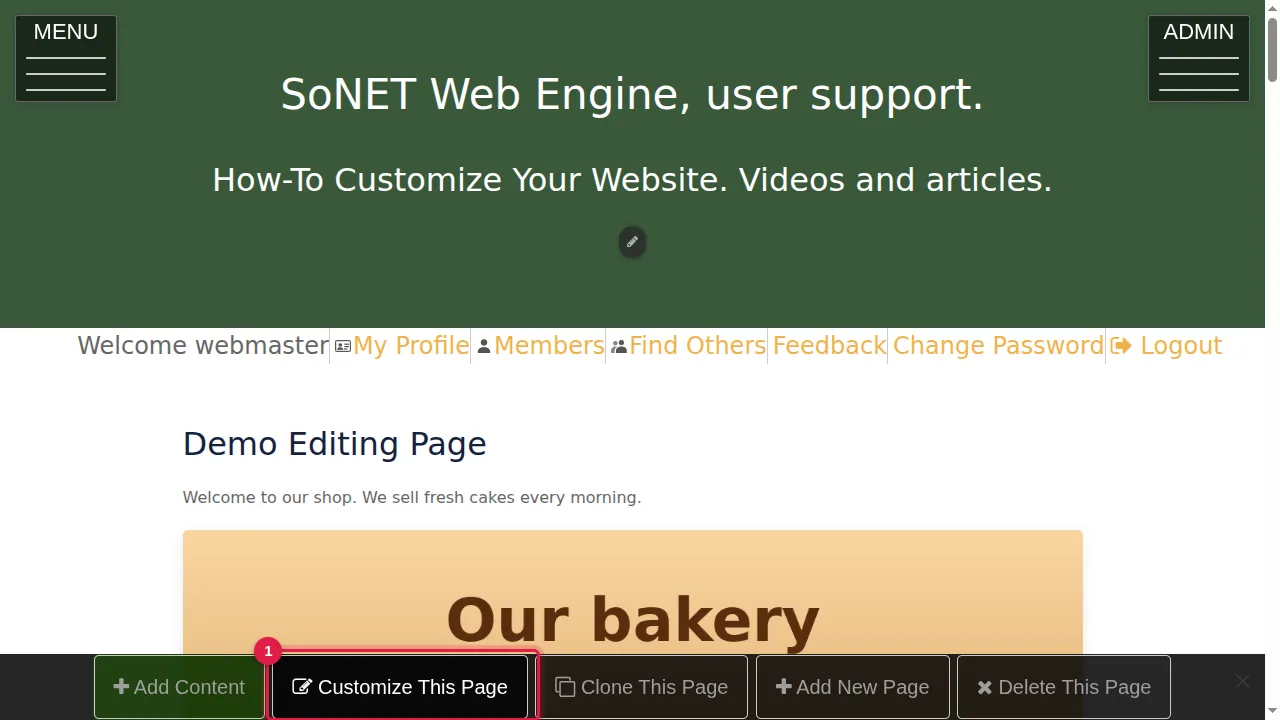
Step 1. Click Customize This Page in the bar at the bottom.
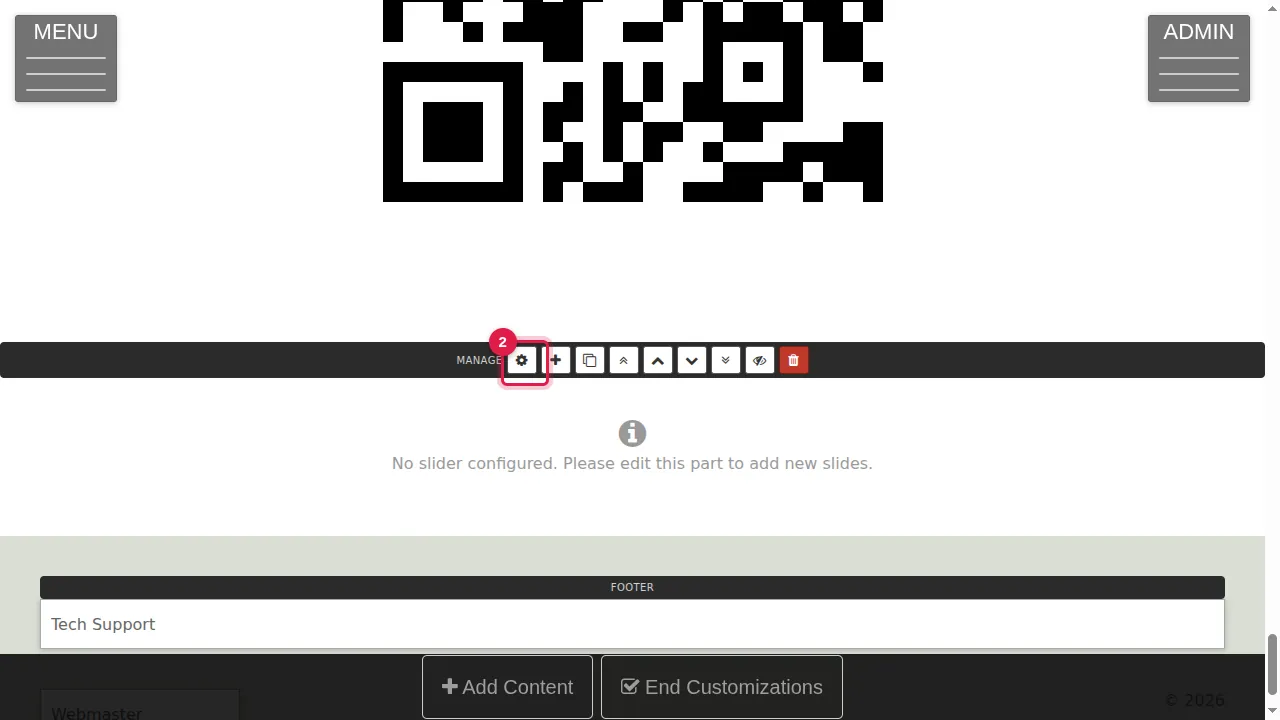
Step 2. Click the slider's gear ("This widget's settings"). The Edit Slider window opens.
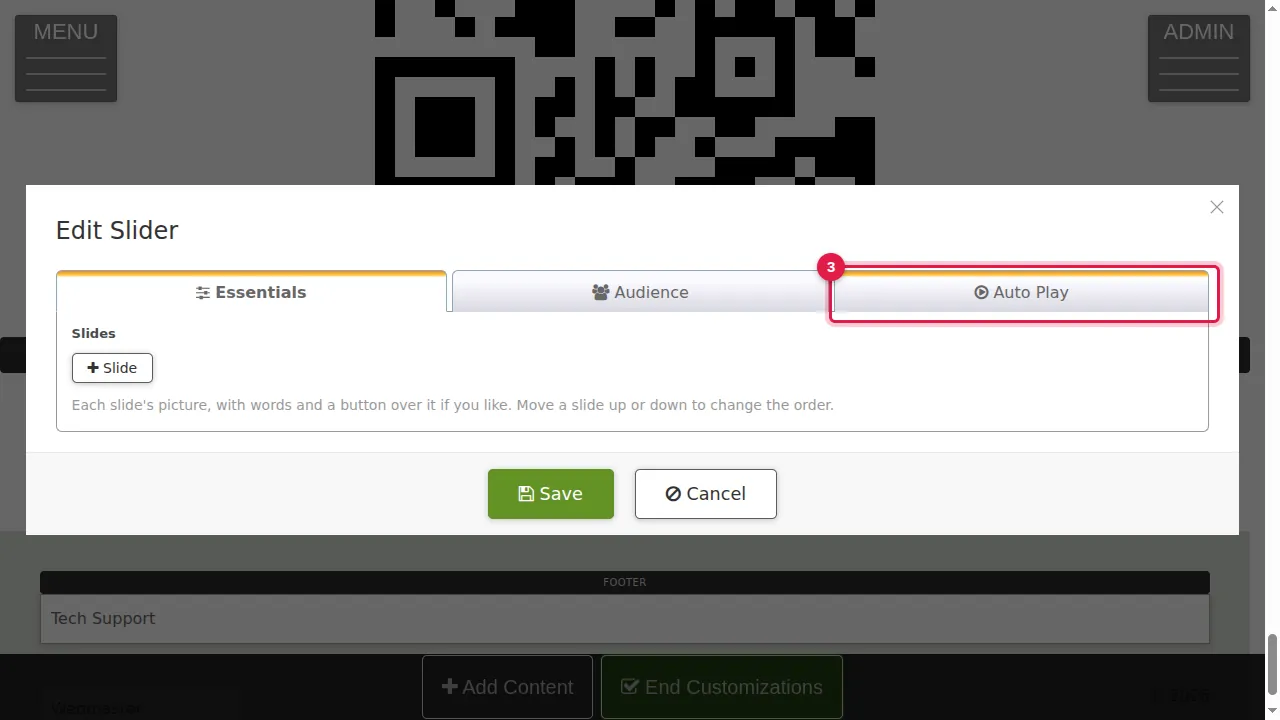
Step 3. The Auto Play tab sets how many seconds each slide shows, how one slide changes into the next, the slider's height, and whether it shows arrows and dots.
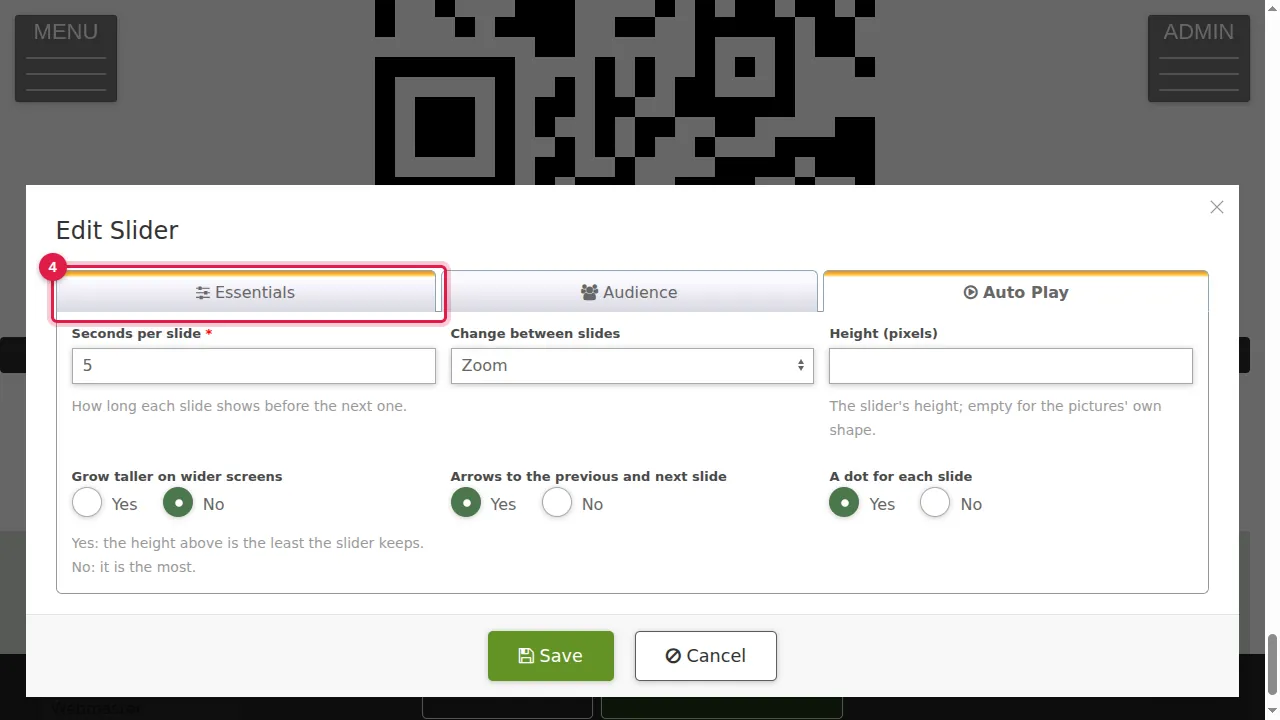
Step 4. The slides are on the Essentials tab. (Audience chooses who can see the slider.)
Add a slide
Step 5. Click + Slide to add a slide.
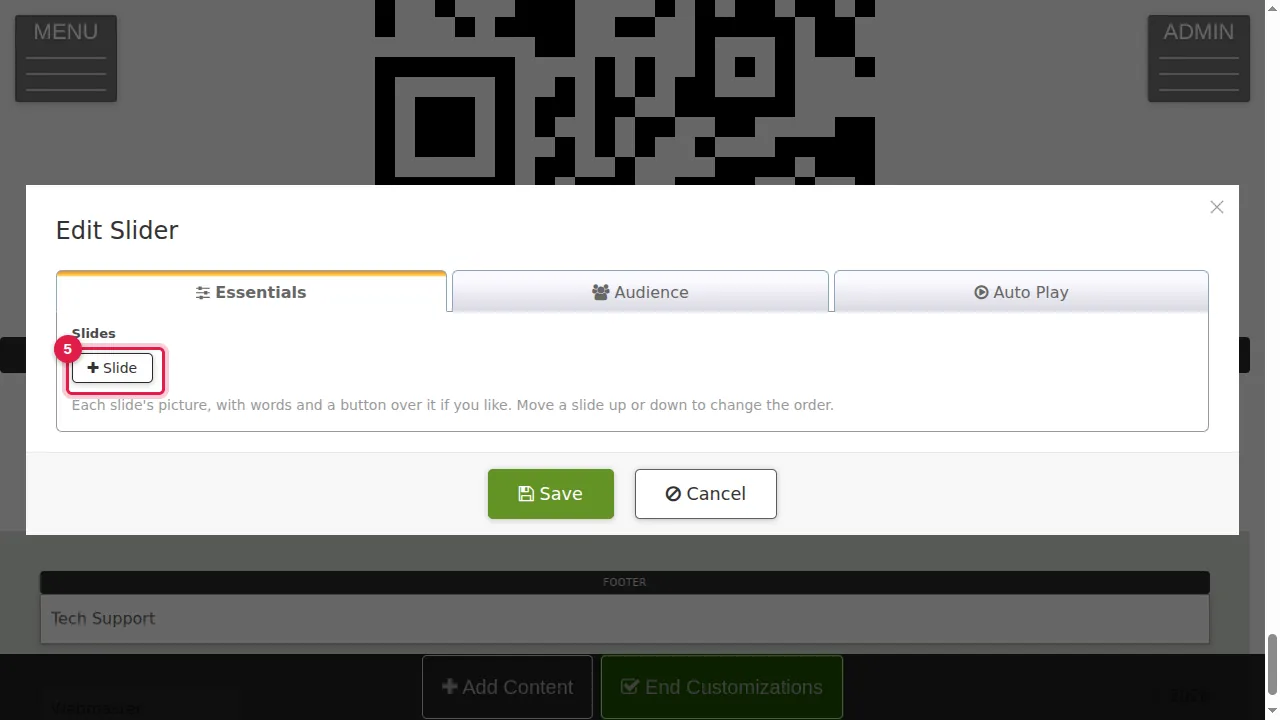
Step 6. Under "Picture or video", click Upload and choose the picture. Instead of a picture you can type a YouTube or Vimeo address under "Video address": the video then plays, muted and looped, covering the slide.
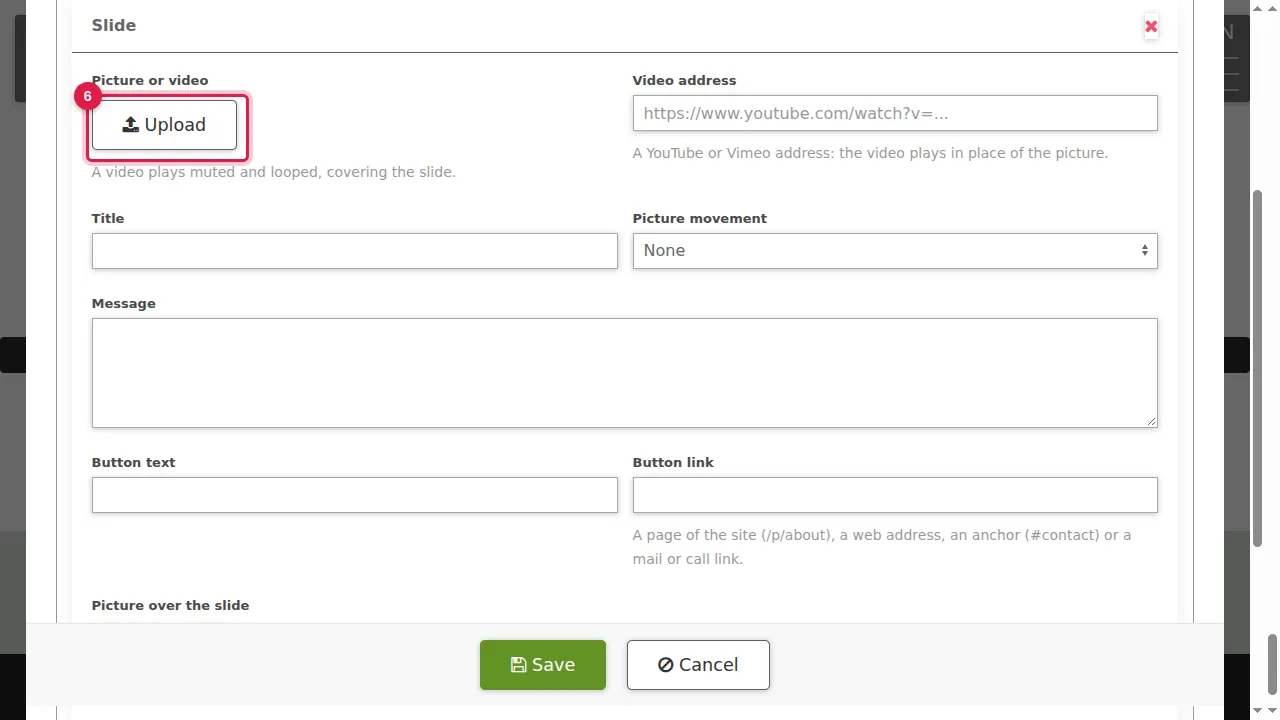
Step 7. Type a title for the slide.
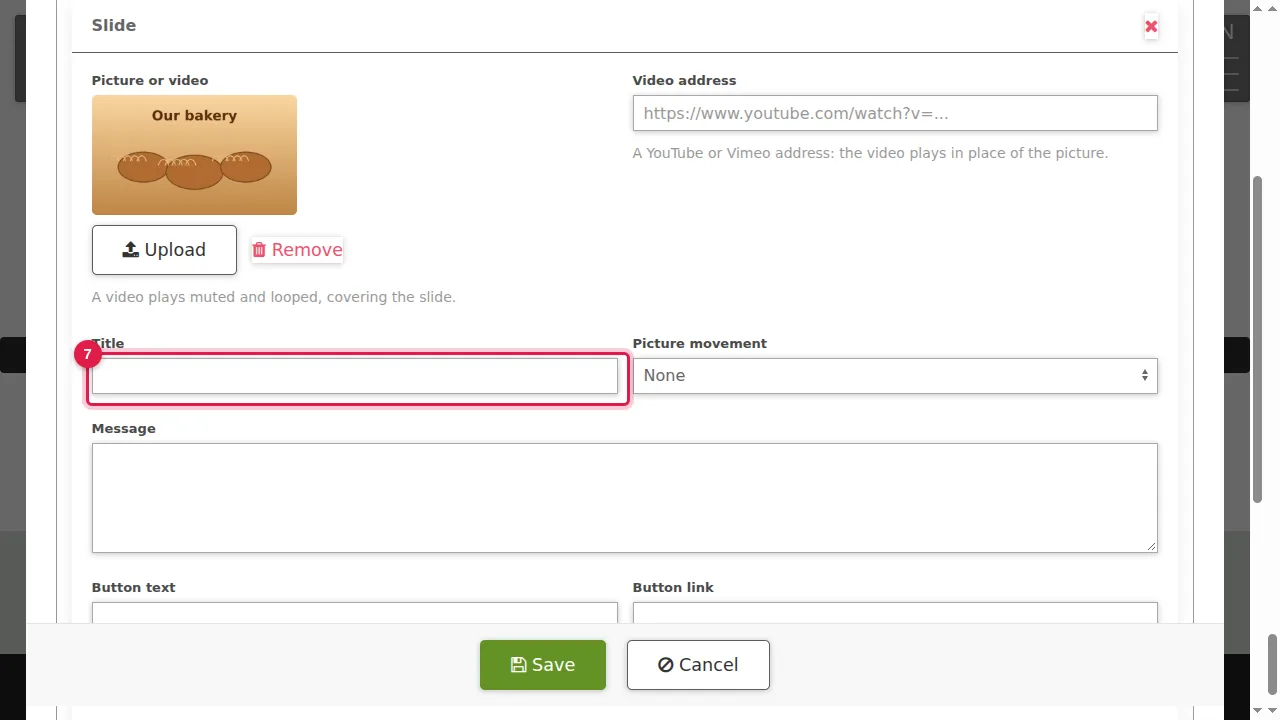
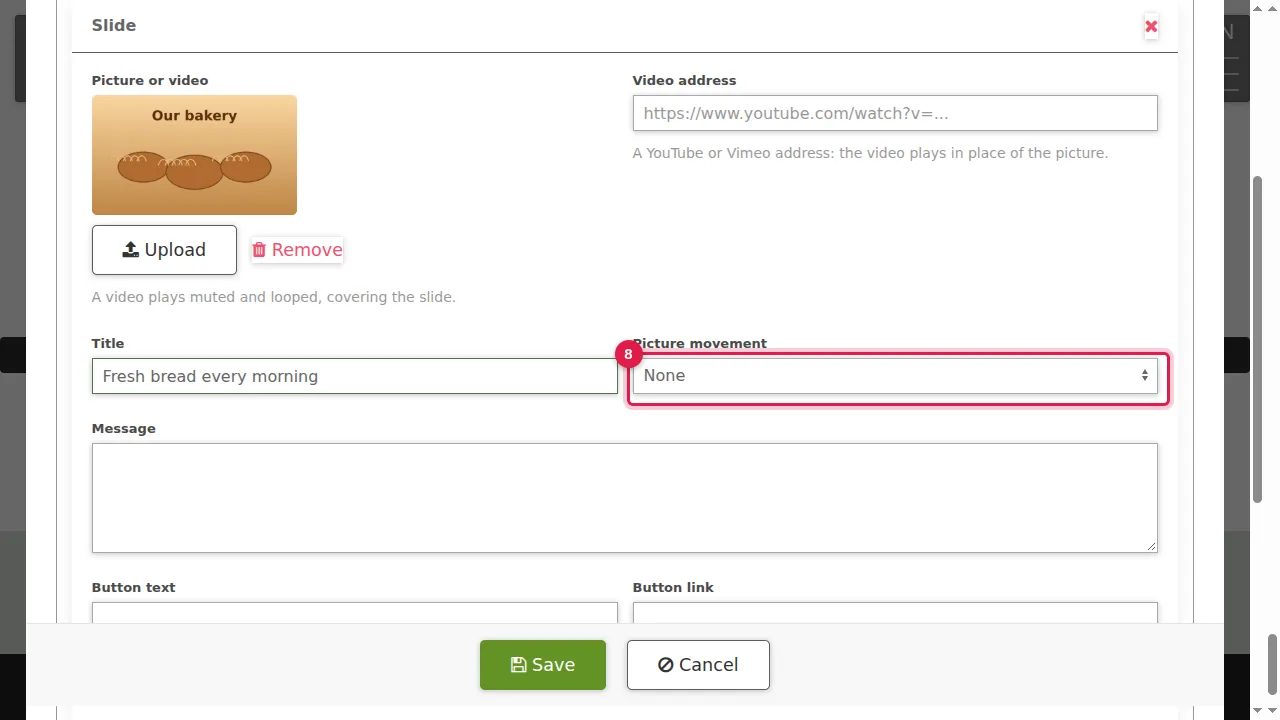
Step 8. Choose a "Picture movement", for example Ken Burns (a slow zoom), or None.
Step 9. Type a short message.
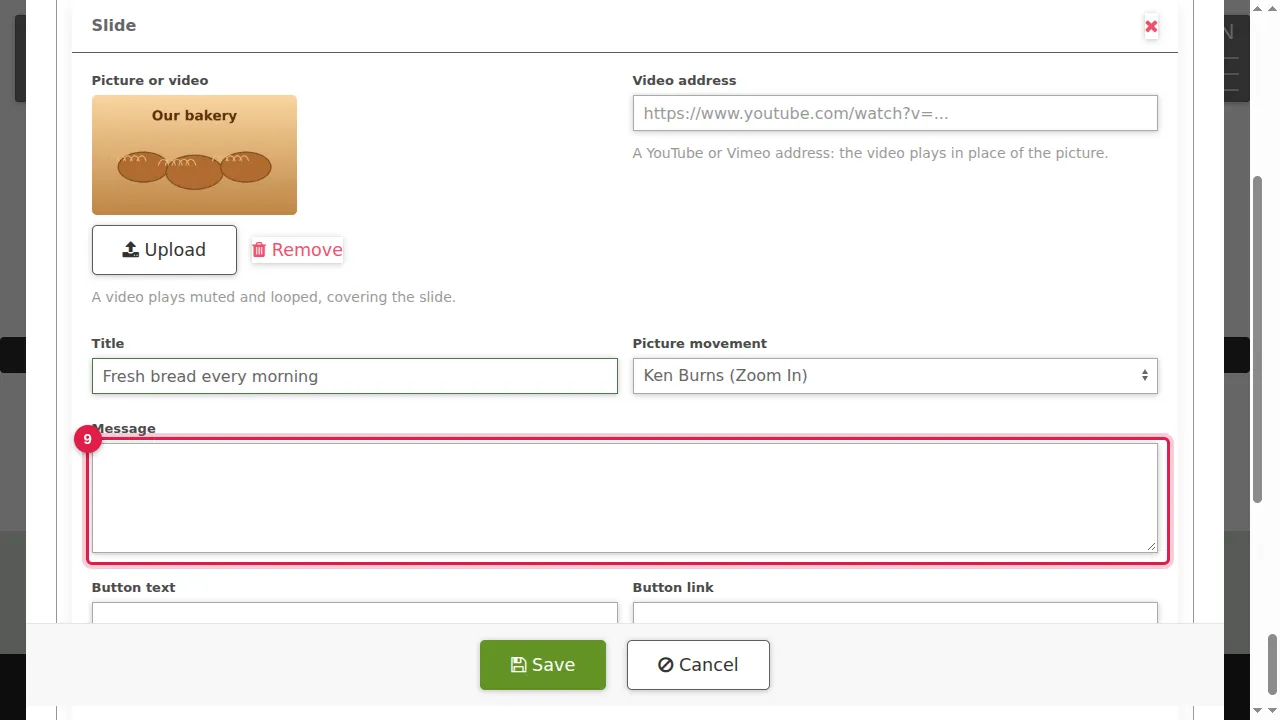
Step 10. If you want a button, type its text…
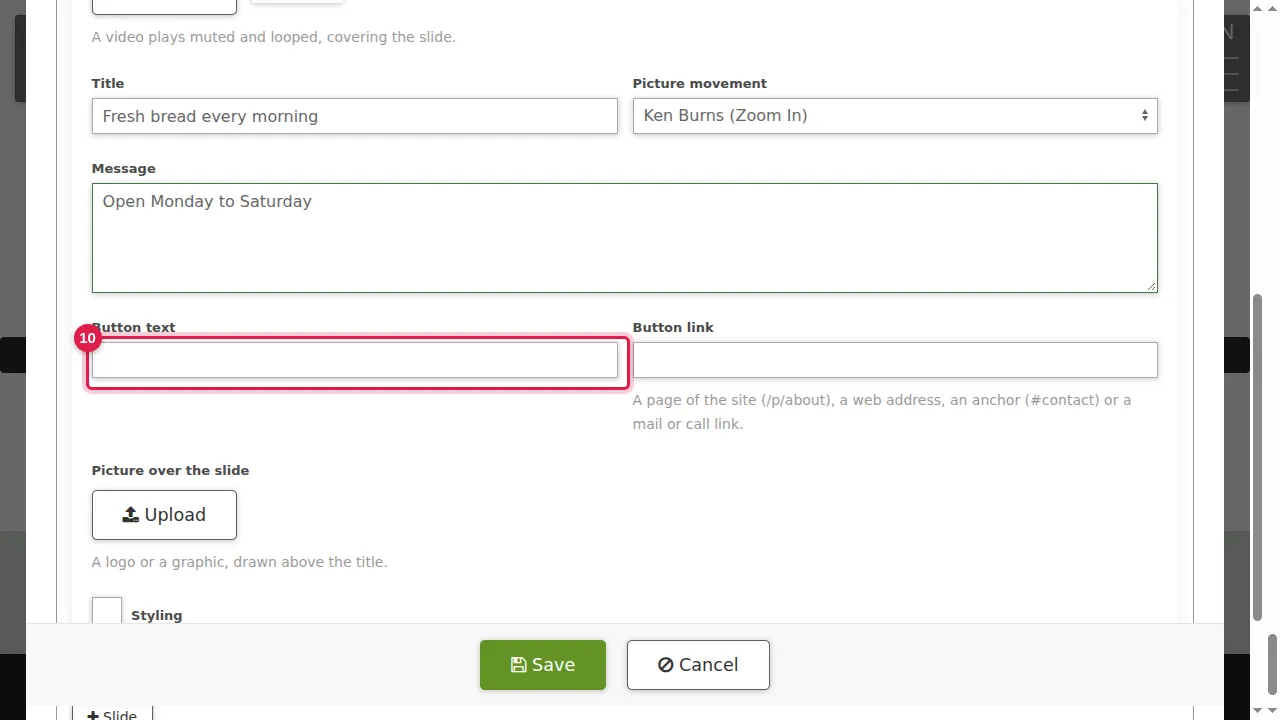
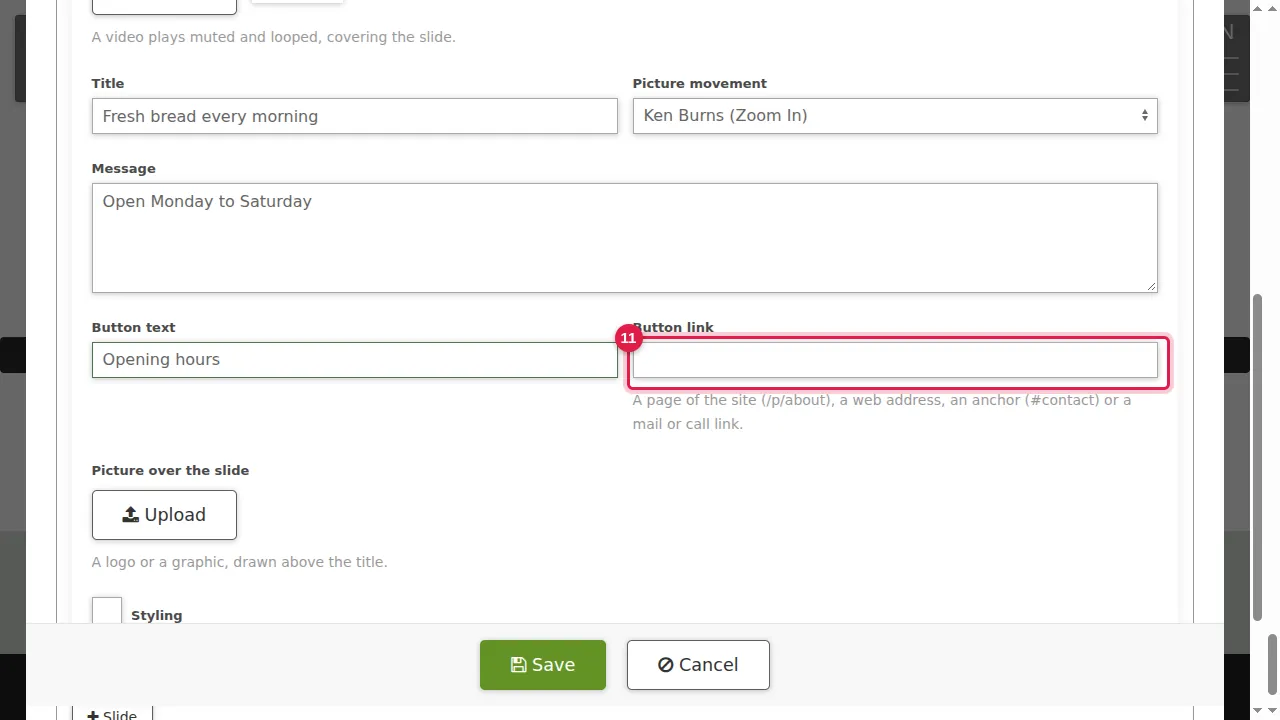
Step 11. …and its link: a page of your site (/p/…), a web address, an anchor (#contact) or a mail or call link.
See it
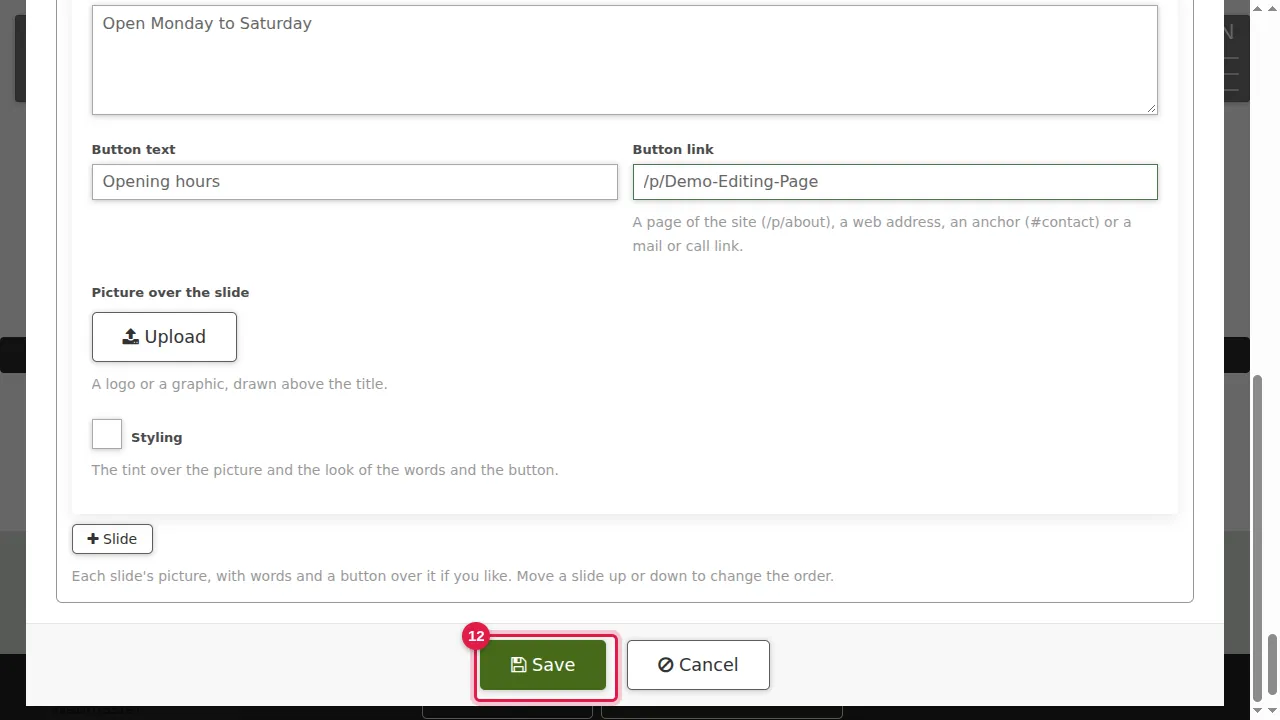
Step 12. Click Save.
Step 13. Click End Customizations.
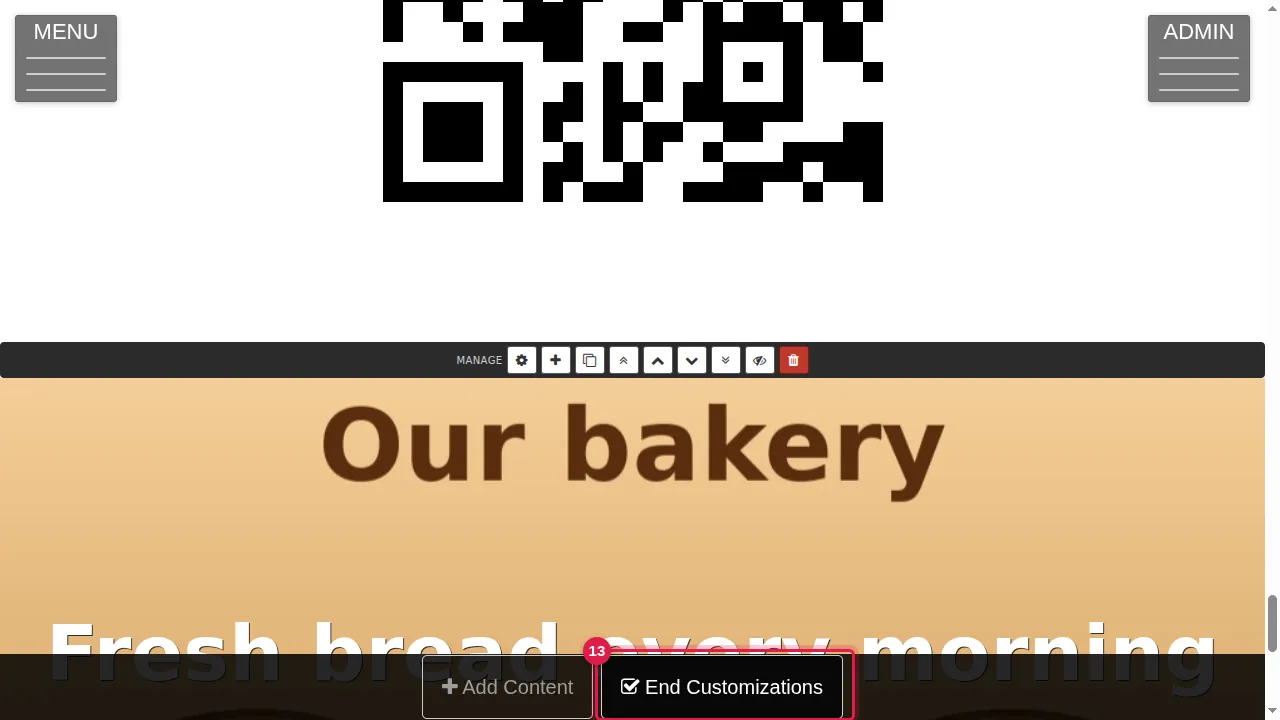
Step 14. The slider shows your slide with its title, message and button. With two or more slides they change by themselves.
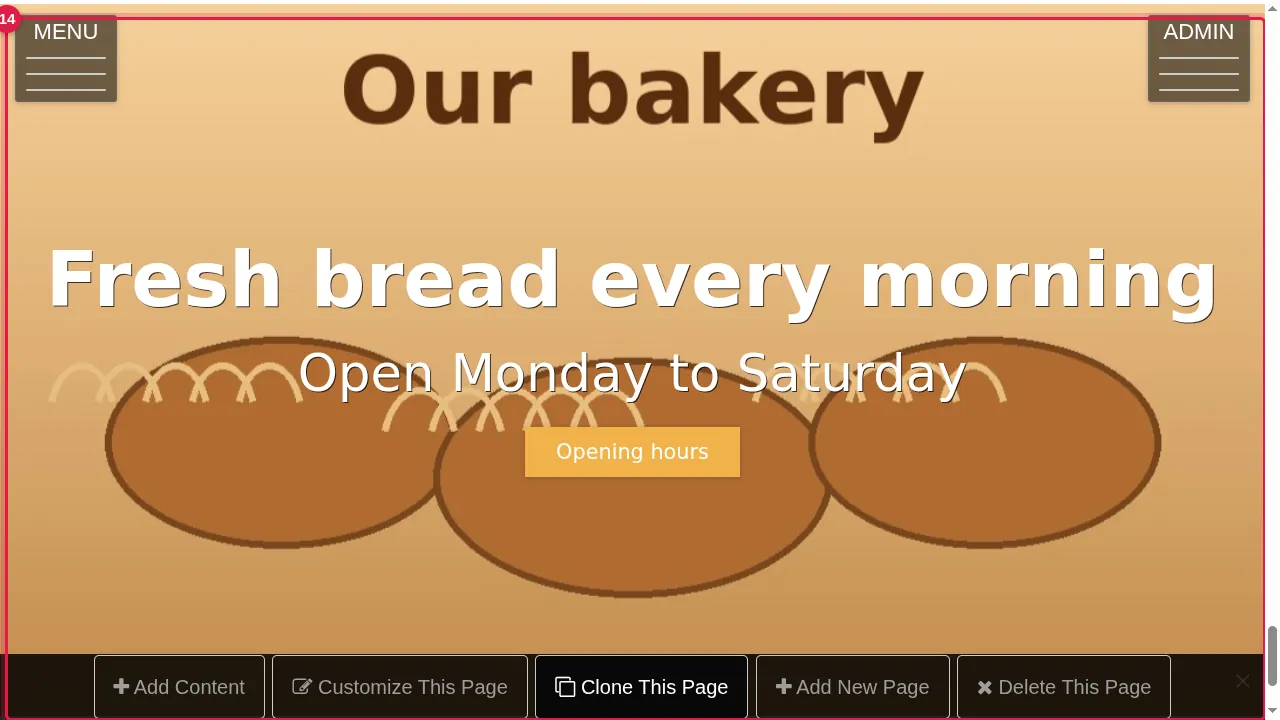
Check it worked
Watch the slider for a while as a visitor, and try it on your phone.
Good to know
- Use the arrows next to each slide in Edit Slider to change their order, and the red × to remove a slide.
- Keep the words short: visitors only see each slide for a few seconds.
Related help
Shown on the 2026 version of the SoNET Web Engine. Last checked 21 October 2026. Something different on your screen? Tell us through the Contact page.