Help Center App (PWA)
Install your site as an app on a phone or a computer
Every SoNET website can be installed like an app: it gets its own icon on the phone's home screen or the computer's app list, and opens in its own window. You and your visitors install it from the browser; nothing has to be downloaded from an app store.
Before you start
- Set the app's name, icon and colour first (see App settings).
- Use the browser the phone or computer normally uses: Chrome or Edge, or Safari on an iPhone or iPad.
On an Android phone (Chrome)
Step 1. Open your site in Chrome on the phone.

Step 2. Open the browser menu (the three dots, top right) and tap Install app or Add to Home screen.
Step 3. Confirm with Install. The app's icon (the one from App settings) appears on the home screen; tapping it opens your site in its own window, without the browser's address bar.
On an iPhone or iPad (Safari)
Step 4. Open your site in Safari.
Step 5. Tap the Share button, then Add to Home Screen.
Step 6. Check the name and tap Add. The icon appears on the home screen.
On a computer (Chrome or Edge)
Step 7. Open your site in Chrome or Edge. Click the install icon at the right end of the address bar, or open the browser menu and look for Install (for example under Cast, save and share in Chrome, or Apps in Edge).
Step 8. Confirm with Install. The site opens in its own window and is listed with your other apps; pin it to the taskbar or dock if you like.
Without a connection
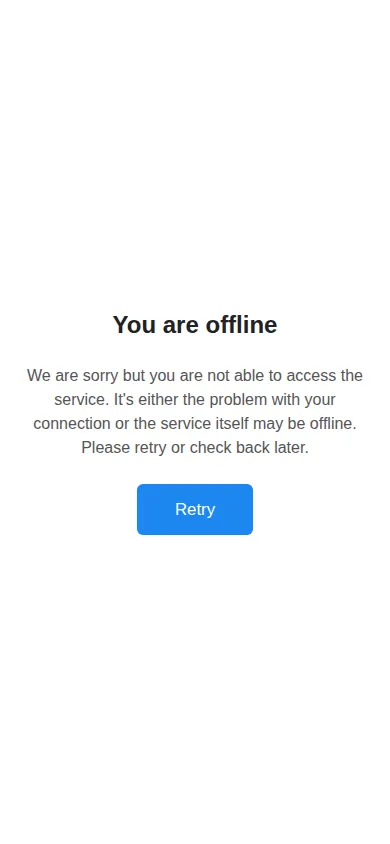
Step 9. If the app is opened without an internet connection, it shows "You are offline" with a Retry button. Tap Retry when the connection is back.
Check it worked
Close the browser and open the app from its icon: your site opens in its own window, with the name and colour you set in App settings.
Good to know
- Tell your visitors they can install your site: a regular customer is one tap away from your page.
- To remove the app, delete its icon like any other app; your site itself is not affected.
Related help
Shown on the 2026 version of the SoNET Web Engine. Last checked 22 October 2026. Something different on your screen? Tell us through the Contact page.