Help Center App (PWA)
App settings: your site as an app
Your site is also a Progressive Web App that people can install on a phone or computer. Set the app's names, description, theme colour and icon.
Watch it done: a short silent video with captions · 0:54. The steps below show the same thing picture by picture.
Before you start
- Log in as the site owner.
- Open ADMIN › SEO.
General
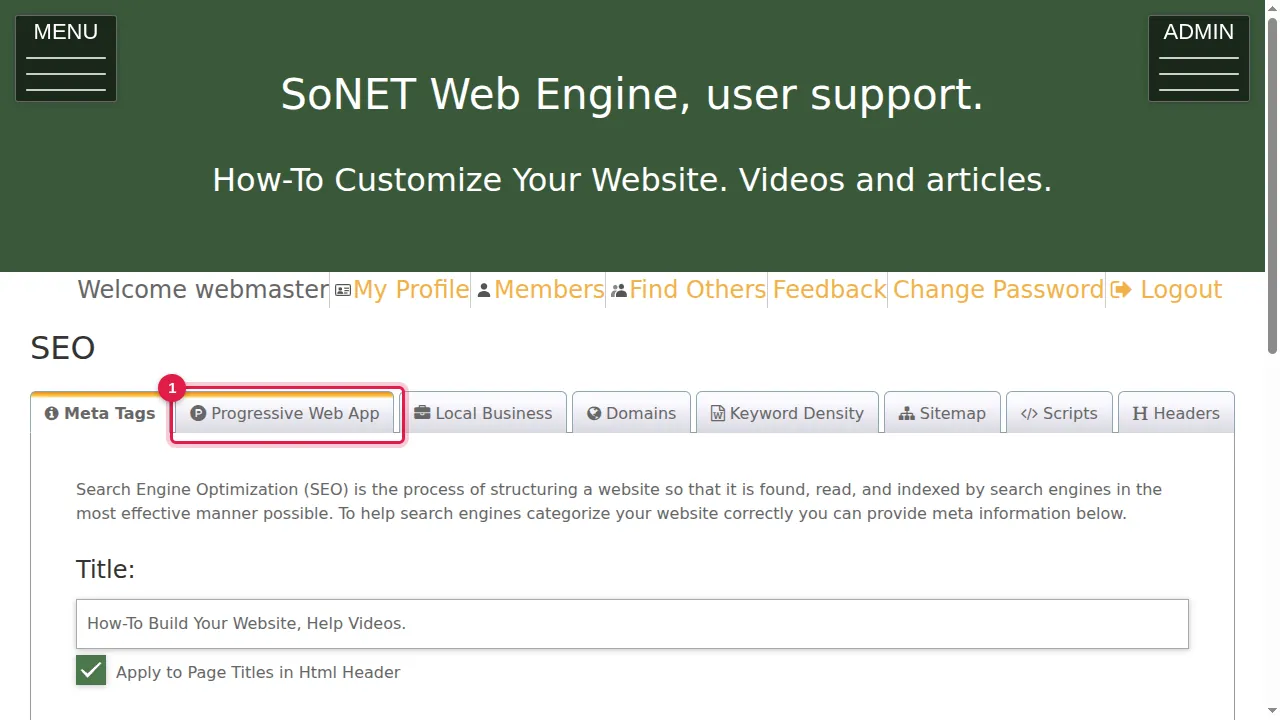
Step 1. Click the Progressive Web App tab. As it says, your site is also a Progressive Web App, and you can change some of its properties here.
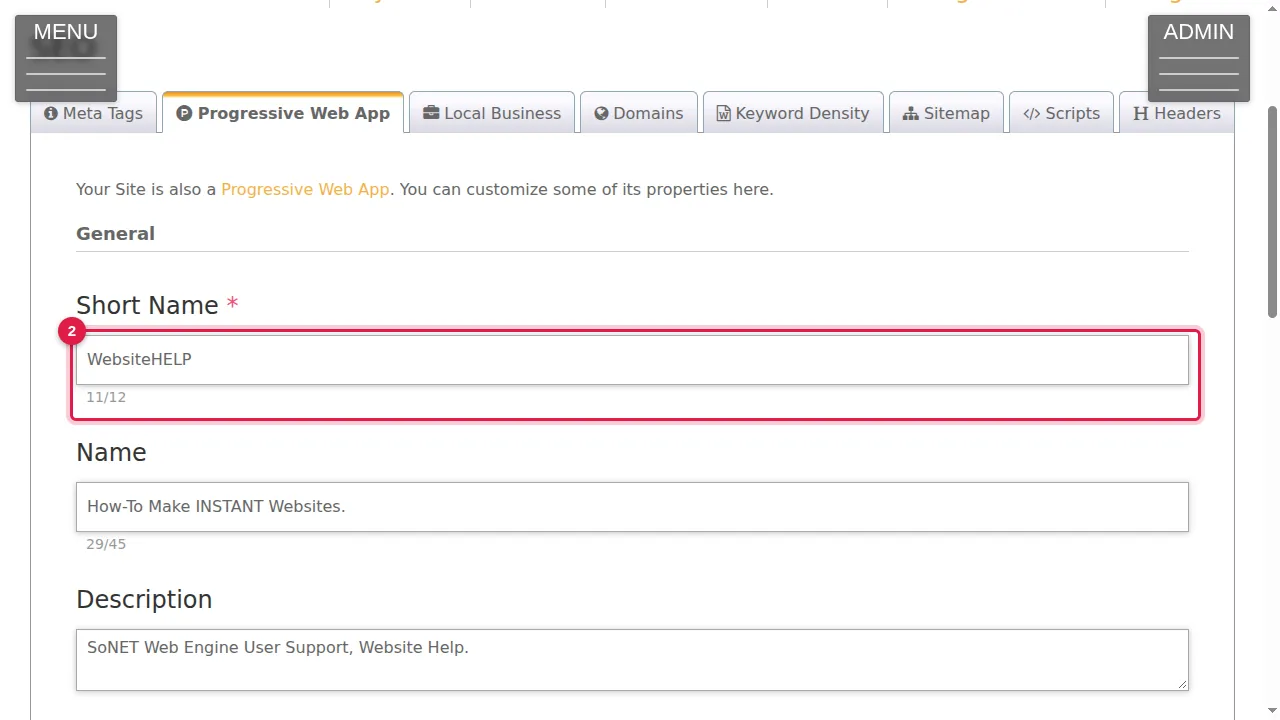
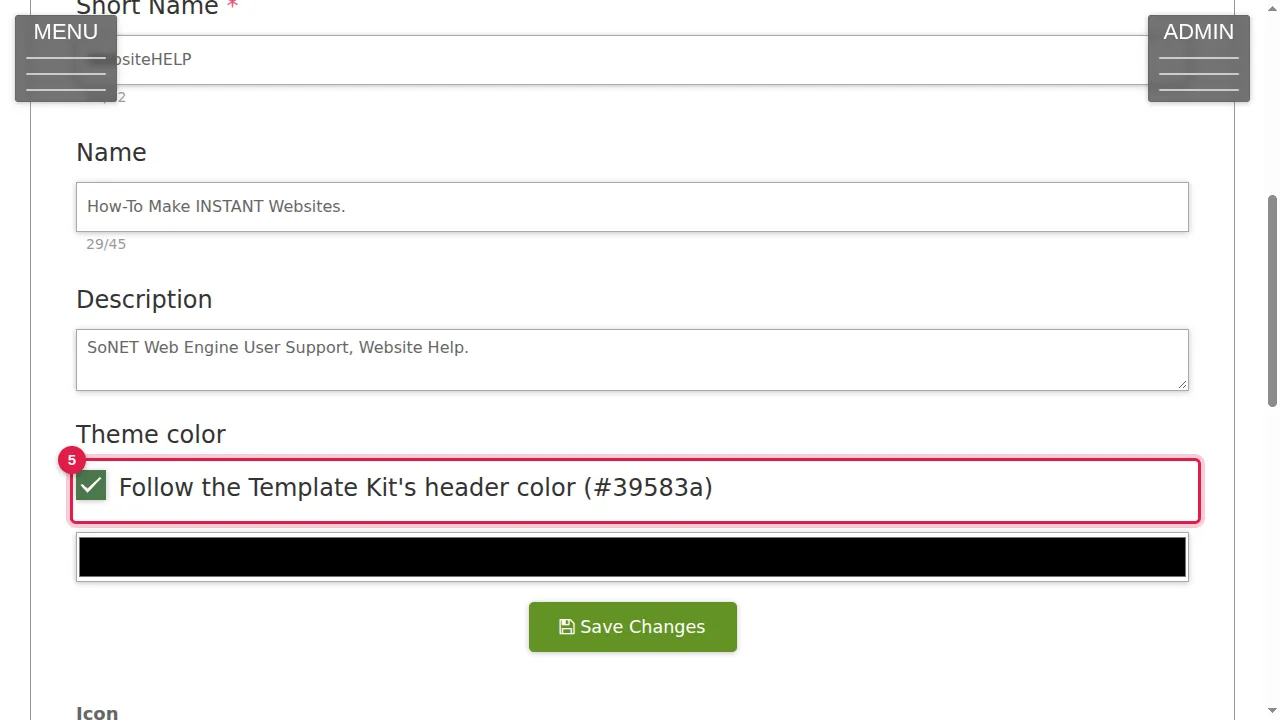
Step 2. Short Name (required, up to 12 characters): the name shown under the app's icon. The counter under the box shows how many you have used.
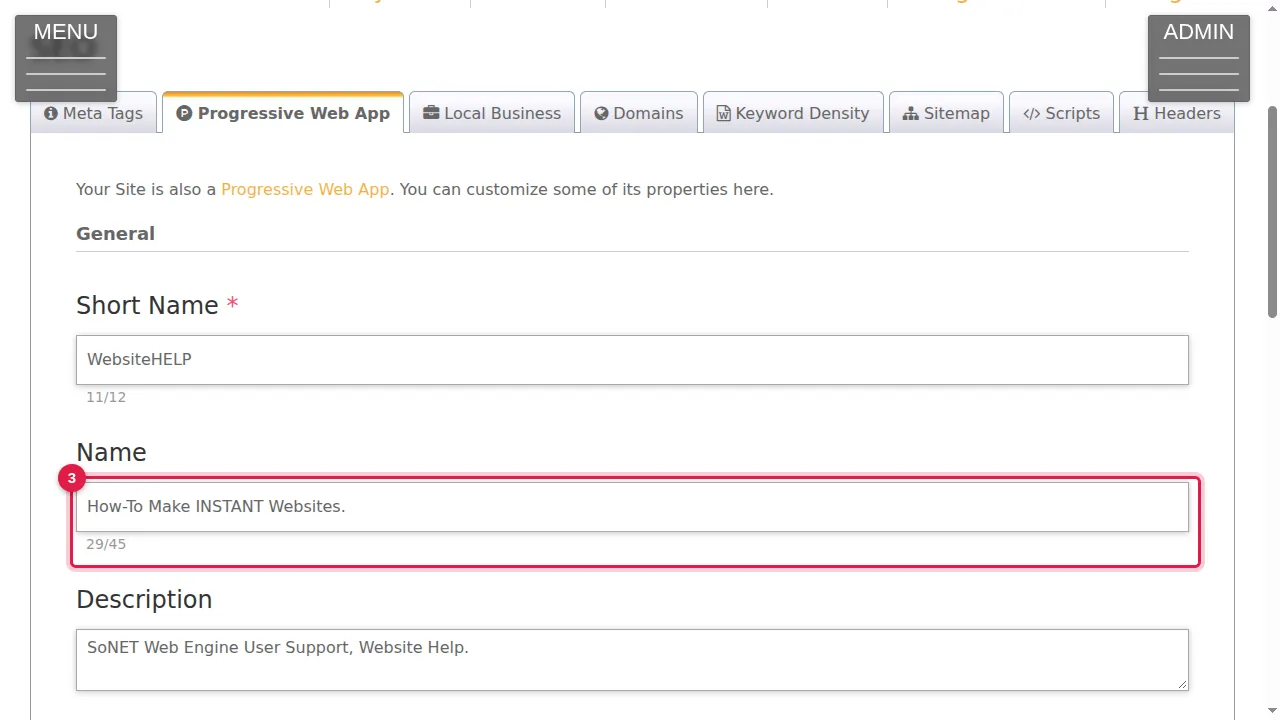
Step 3. Name (up to 45 characters): the app's full name.
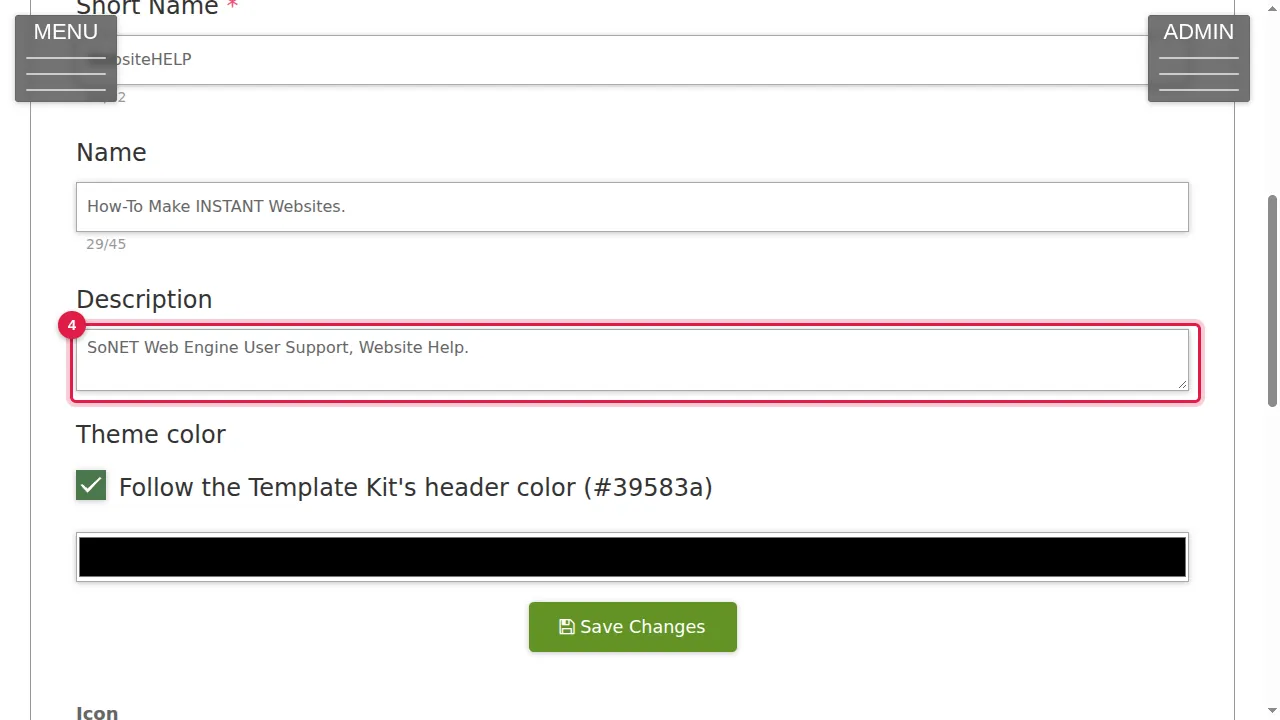
Step 4. Description: a few words about your app.
Step 5. Theme color: ticked, the app follows the Template Kit's header colour (here #39583a). Untick it to choose your own colour in the box below.
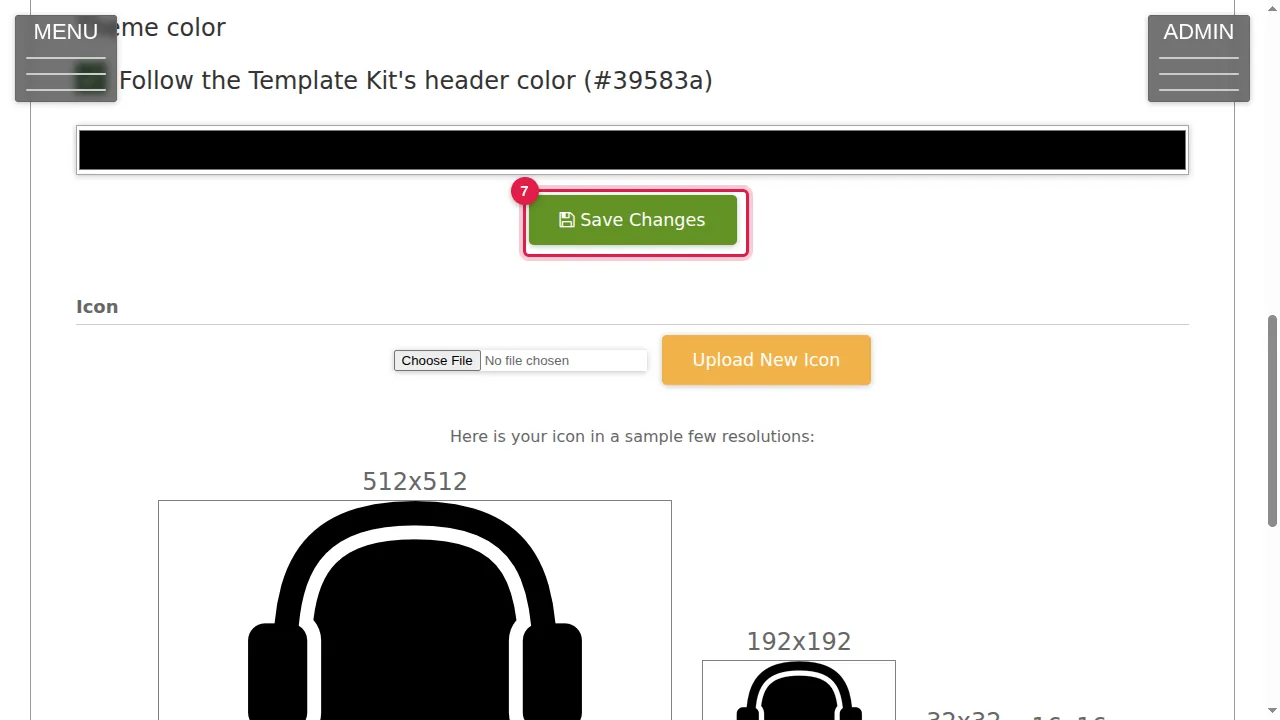
Step 6. Click Save Changes to keep the General settings. (In this demonstration nothing was changed.)
Icon
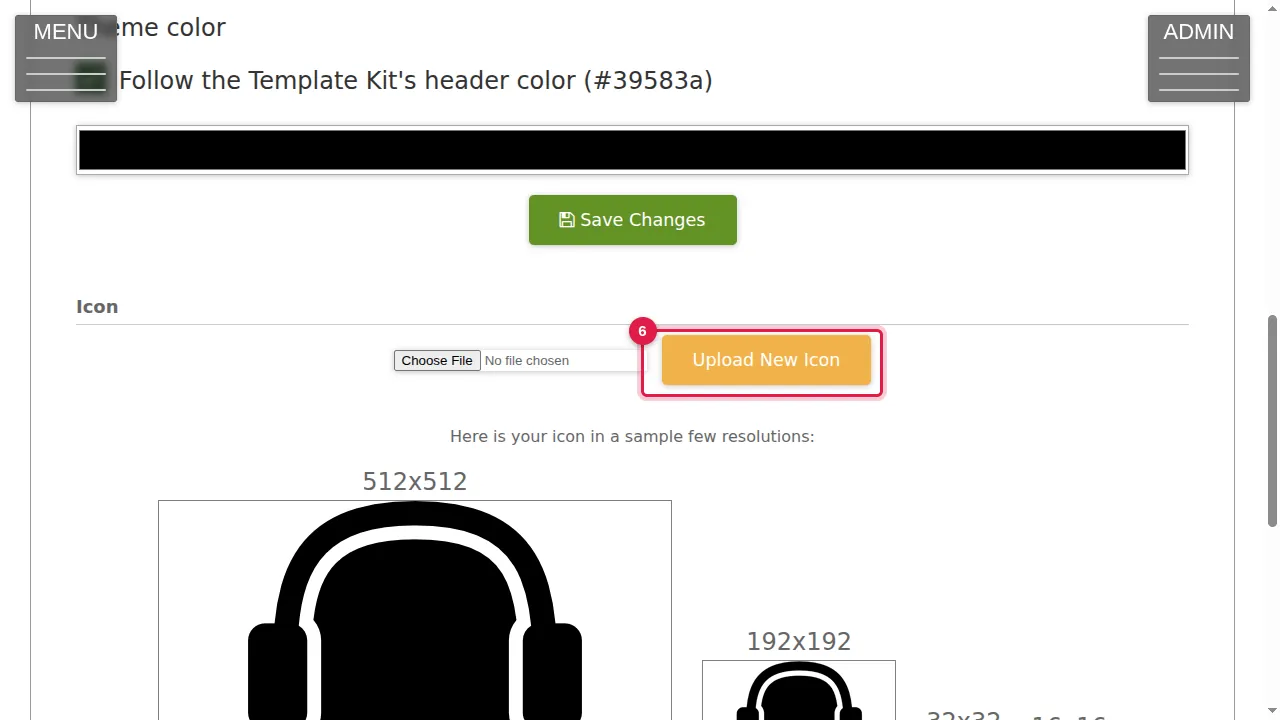
Step 7. Icon: the picture people tap to open your app. Choose a file and click Upload New Icon. Below it you see your icon in the sizes the app uses (512x512, 192x192 and smaller).
Check it worked
Install your site on your phone (see the next article) and look at its name and icon on your home screen.
Good to know
- Use a square icon with a simple shape: it must still be clear at the smallest size.
Related help
Shown on the 2026 version of the SoNET Web Engine. Last checked 22 October 2026. Something different on your screen? Tell us through the Contact page.