Help Center Pages & Editing
Improve a section with Enhance
The wand in a section's toolbar, "Enhance this section", lets the platform restyle or improve one section: a new design, your theme colours, icons, a call to action, fixed links and more. You always get a preview first; visitors see nothing until you click Keep.
Watch it done: a short silent video with captions · 0:53. The steps below show the same thing picture by picture.
Before you start
- Log in, open the page and click Customize This Page.
Choose what to improve
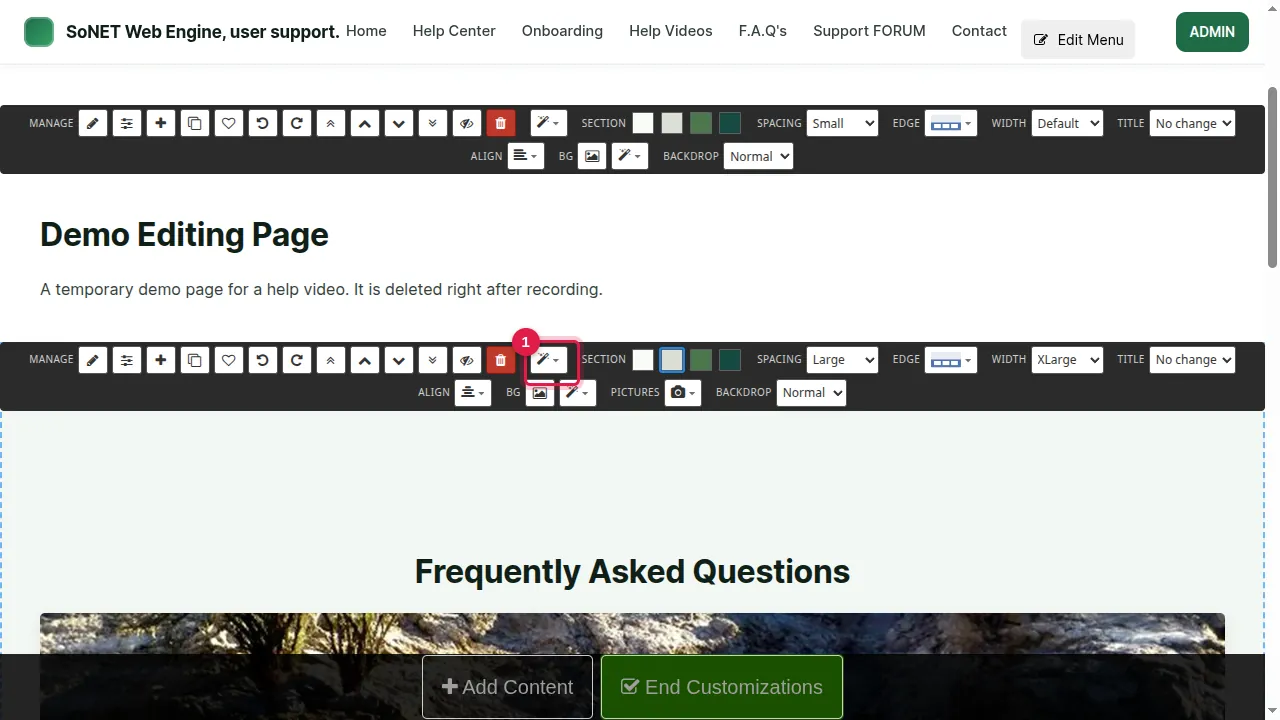
Step 1. In the section's toolbar, click the wand: "Enhance this section".
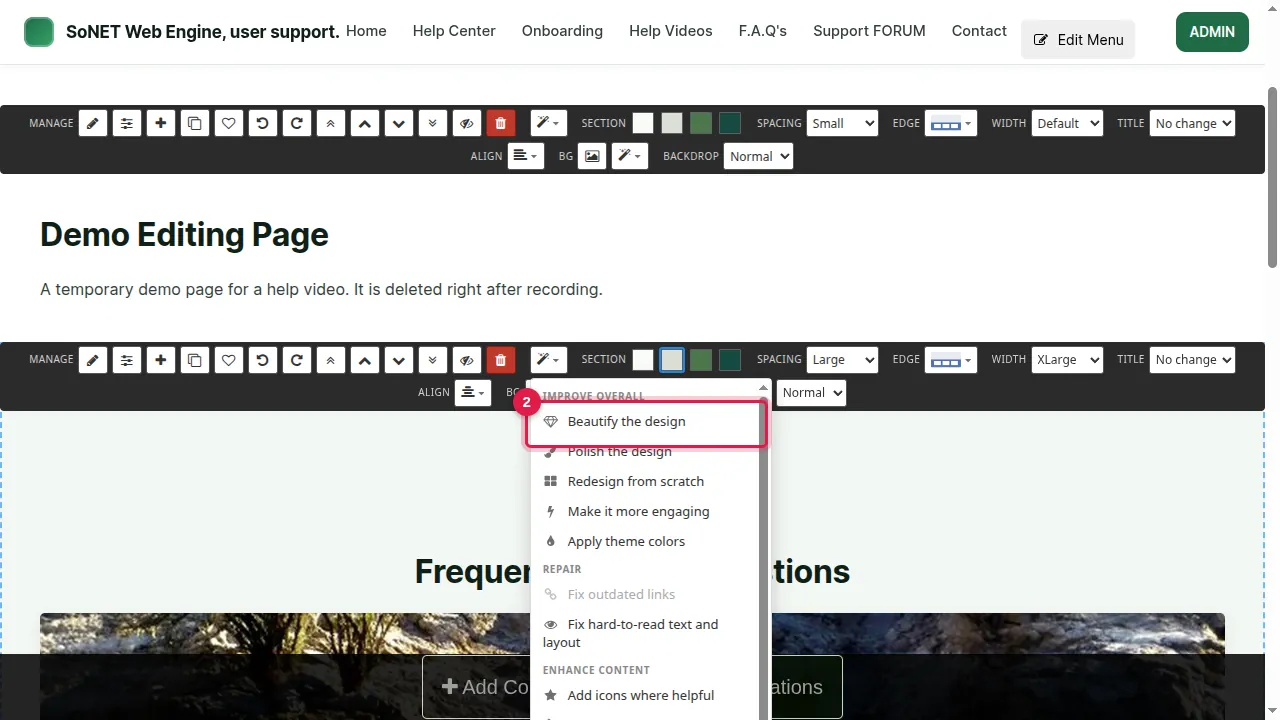
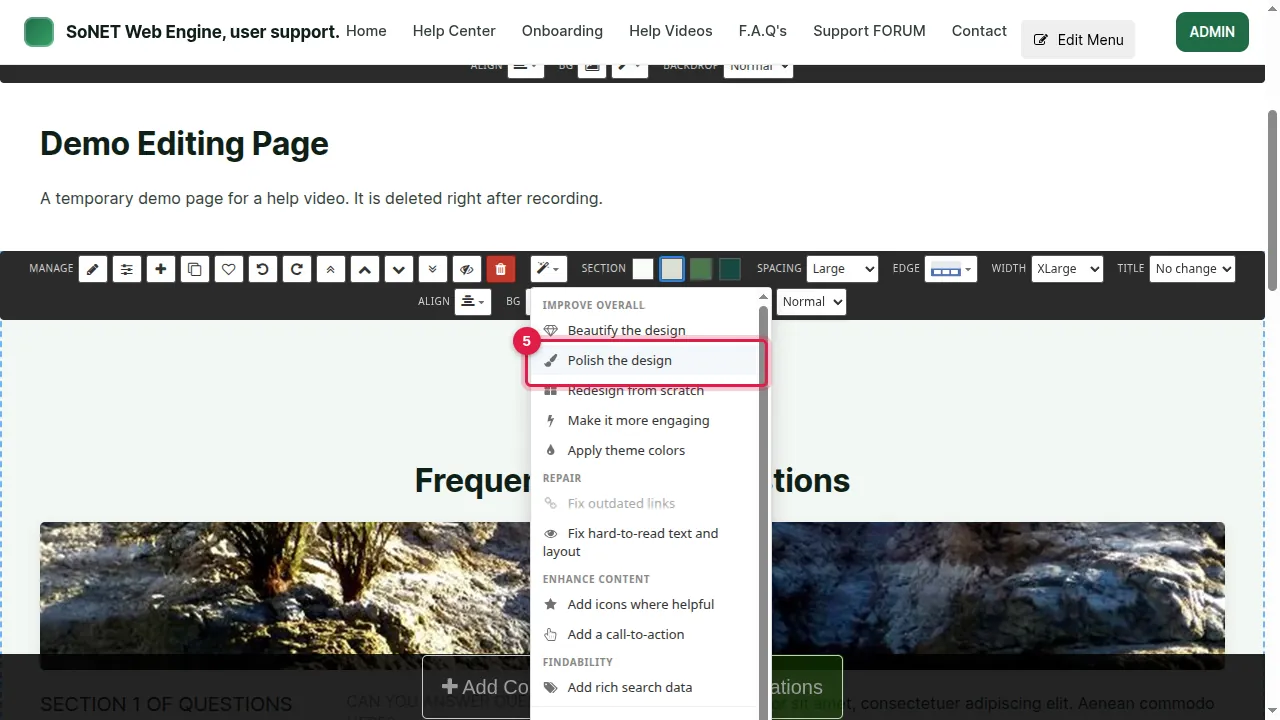
Step 2. The design presets restyle the section and keep your text and pictures word for word: Beautify the design, Polish the design, and Redesign from scratch.
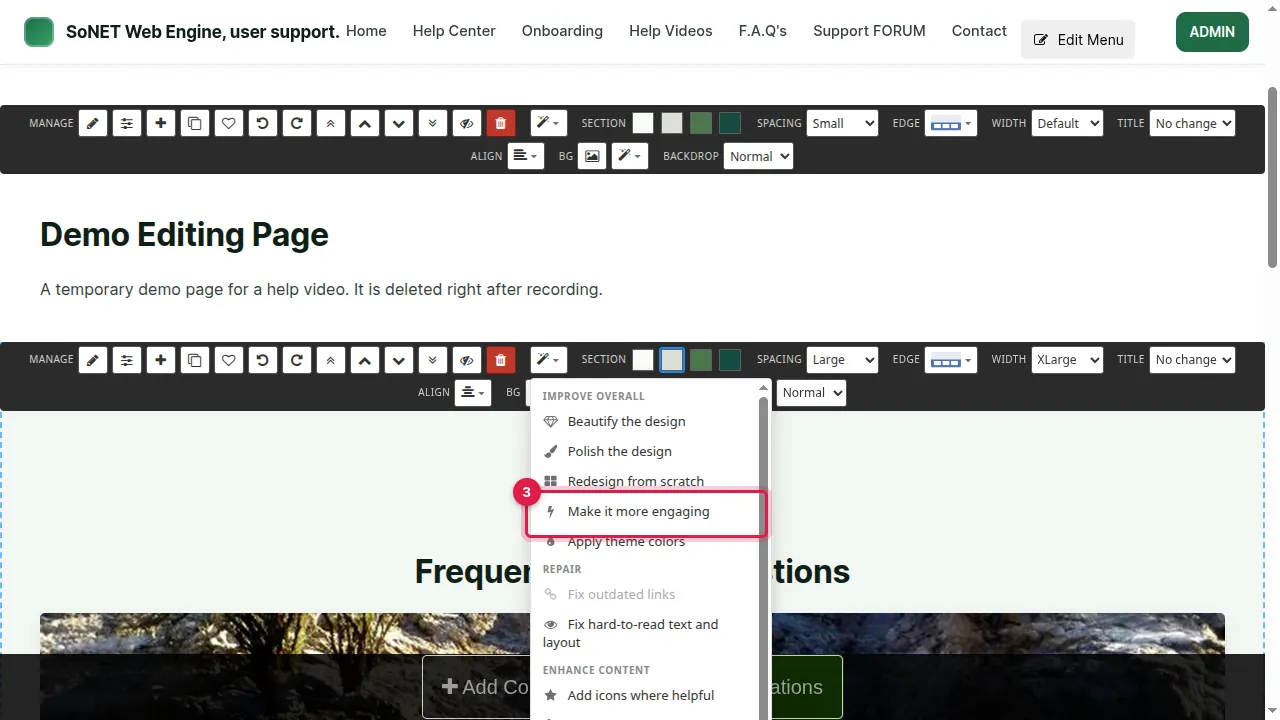
Step 3. "Make it more engaging" and the call-to-action option change your WORDS. If you use them, read every changed sentence before you click Keep, and make sure it is still true about your business: no new promises, prices or claims. The menu also has Apply theme colors, Fix outdated links, Add icons and an option that helps search engines understand the section.
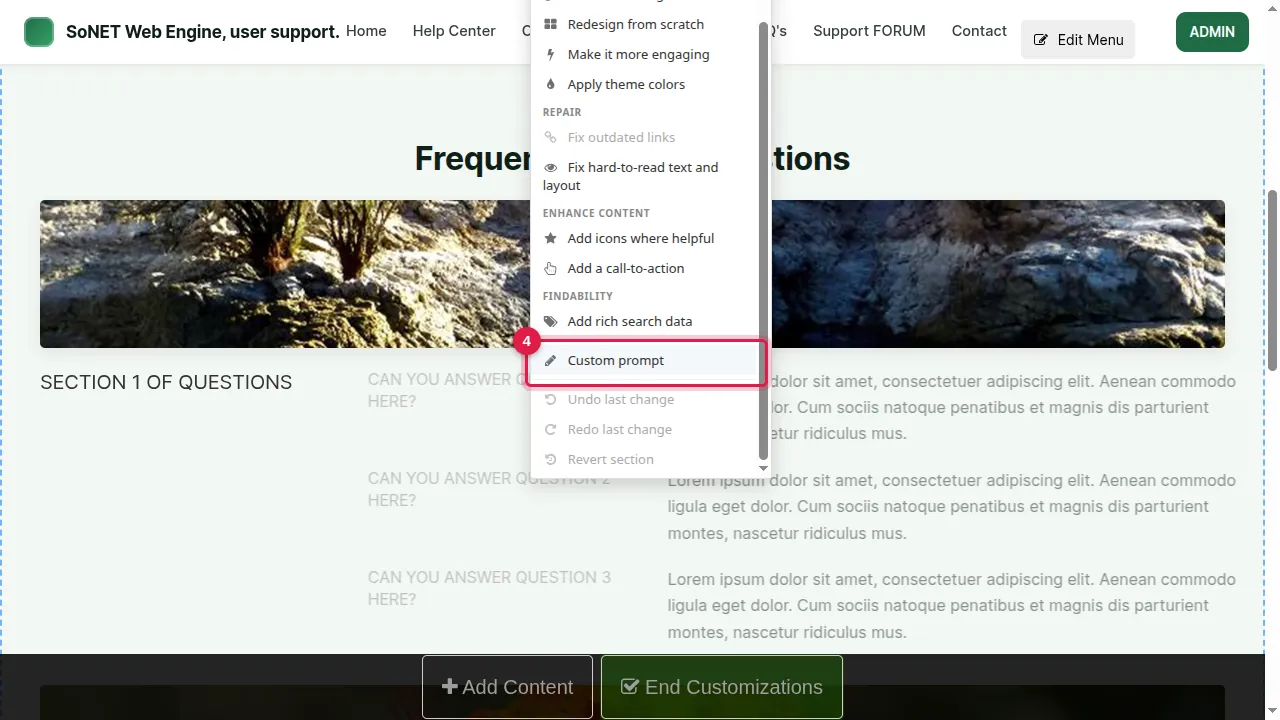
Step 4. You can also write your own one-line instruction (Custom prompt); it is saved for next time.
Preview, then keep or discard
Step 5. Click an option, here Polish the design. The platform works on the section; this took about 20 seconds.
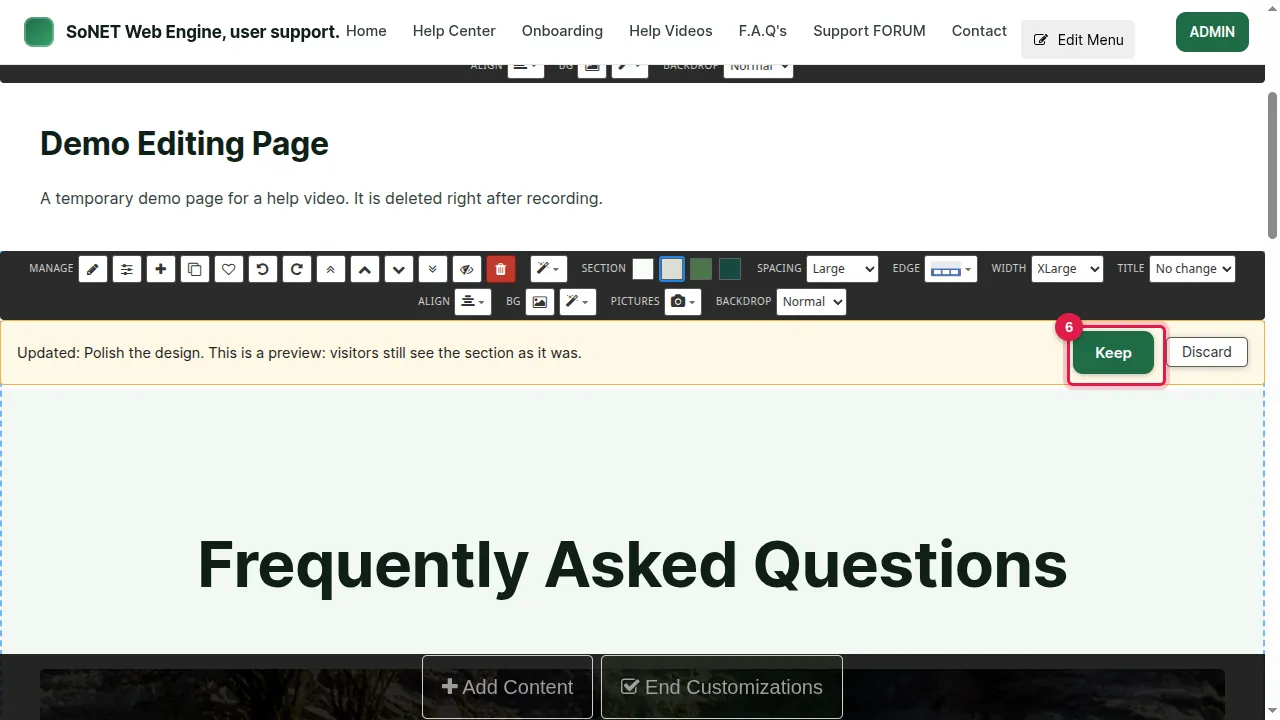
Step 6. A bar says "This is a preview: visitors still see the section as it was." Keep makes the new version live; Discard throws it away.
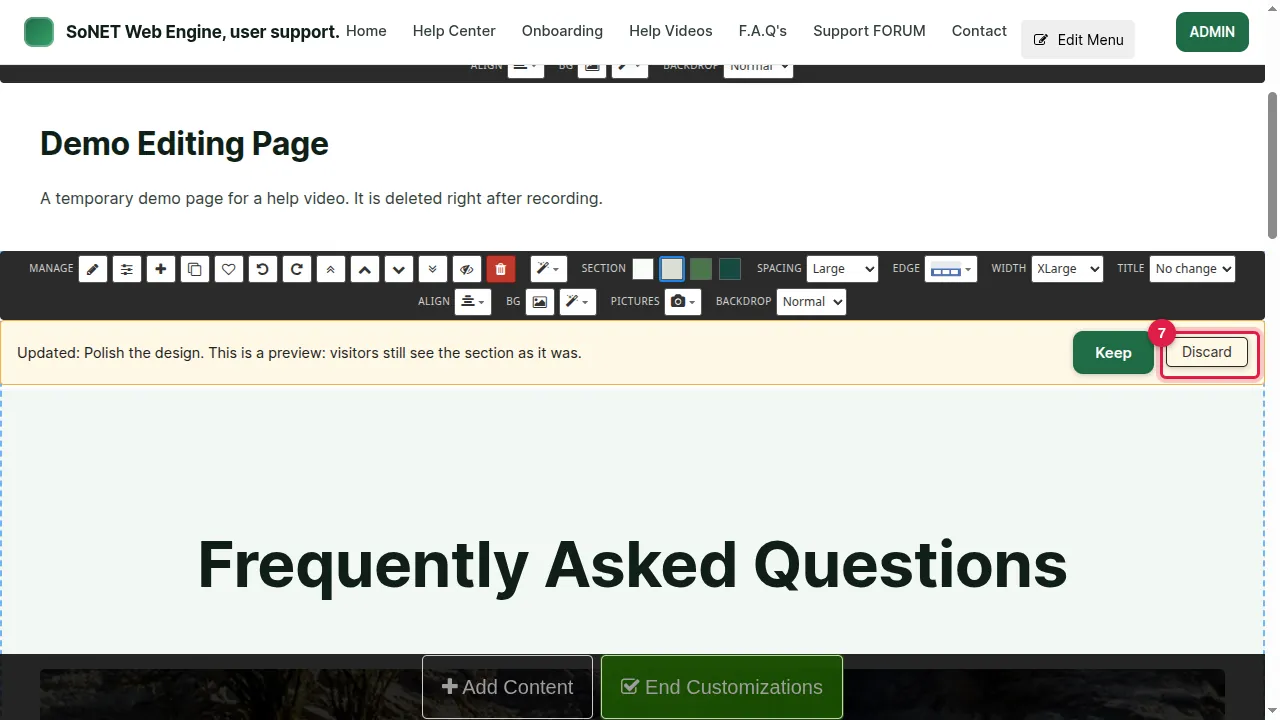
Step 7. In this demo we click Discard: the section stays as it was.
Go back later
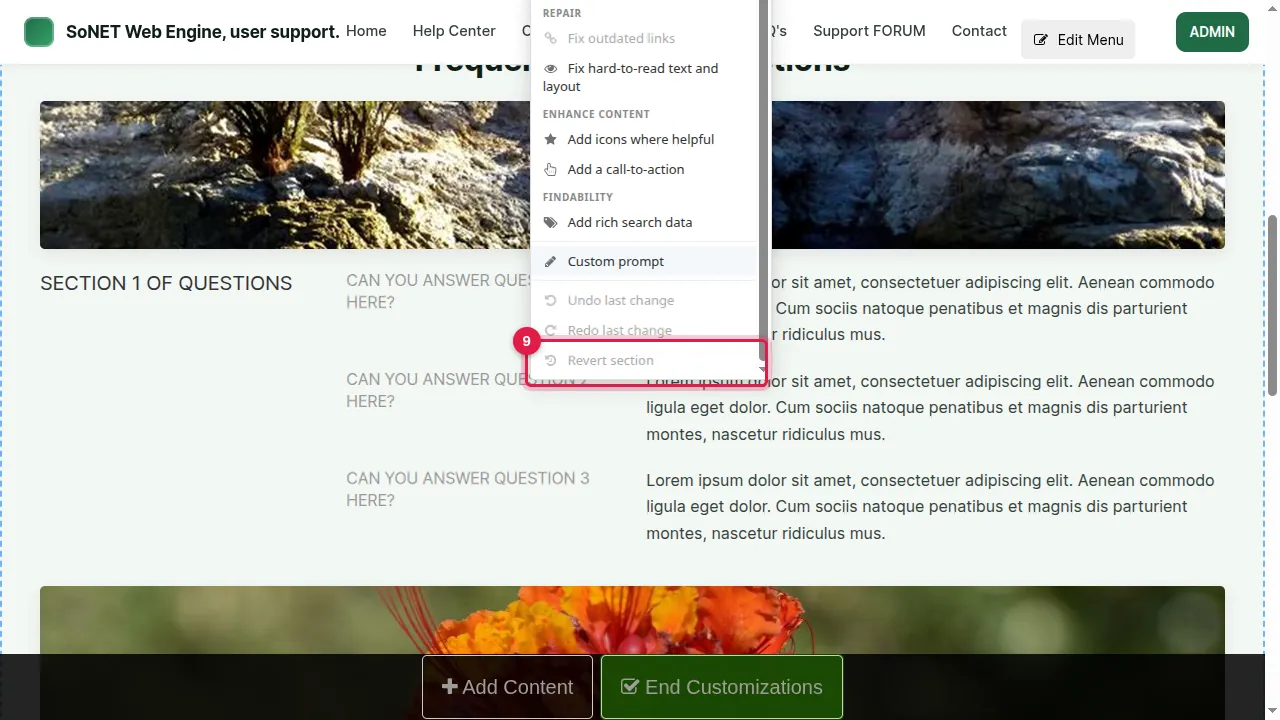
Step 8. Changed your mind after Keep? Open the wand menu again: it has Undo the last change, Redo, and Revert.
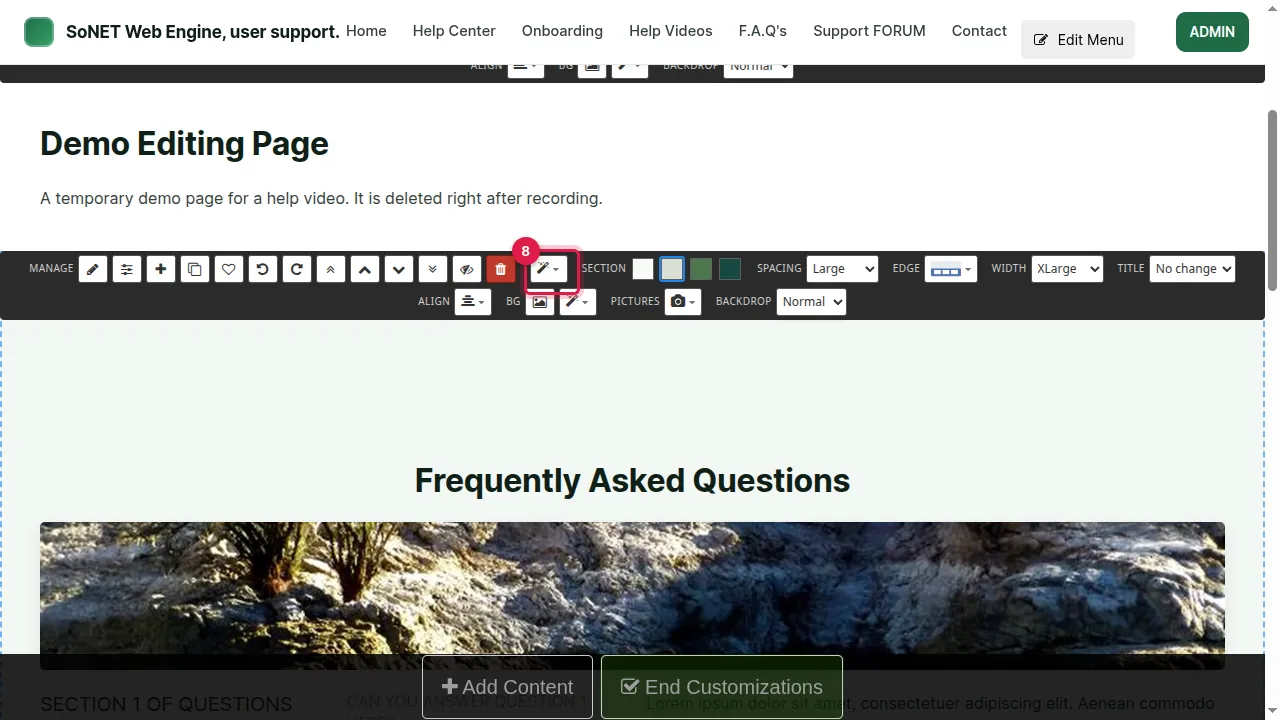
Step 9. Revert brings the section back to how it was when you opened the page.
Check it worked
After Keep, look at the page as a visitor (log out or use a private window) and read the section once more.
Good to know
- Try one option at a time and look at each preview: it is easier to judge than several changes at once.
- The design presets keep your words; only the options that say they change your copy rewrite text.
Related help
- Style a section: colours, spacing, width, heading, edge and background
- A section's own settings (the gear)
Shown on the 2026 version of the SoNET Web Engine. Last checked 5 November 2026. Something different on your screen? Tell us through the Contact page.