Help Center Pages & Editing
A section's own settings (the gear)
Every ready-made section from Add Content › Sections has its own settings behind the gear in its toolbar, such as how many questions an FAQ shows, how many groups, pictures and animations. A change draws the section again with the new settings, and the words, links and pictures you changed stay where they are.
Watch it done: a short silent video with captions · 0:44. The steps below show the same thing picture by picture.
Before you start
- Log in to your website.
- Open the page in edit mode (Customize This Page) and have a ready-made section on it (Add Content › Sections).
Open the section's settings
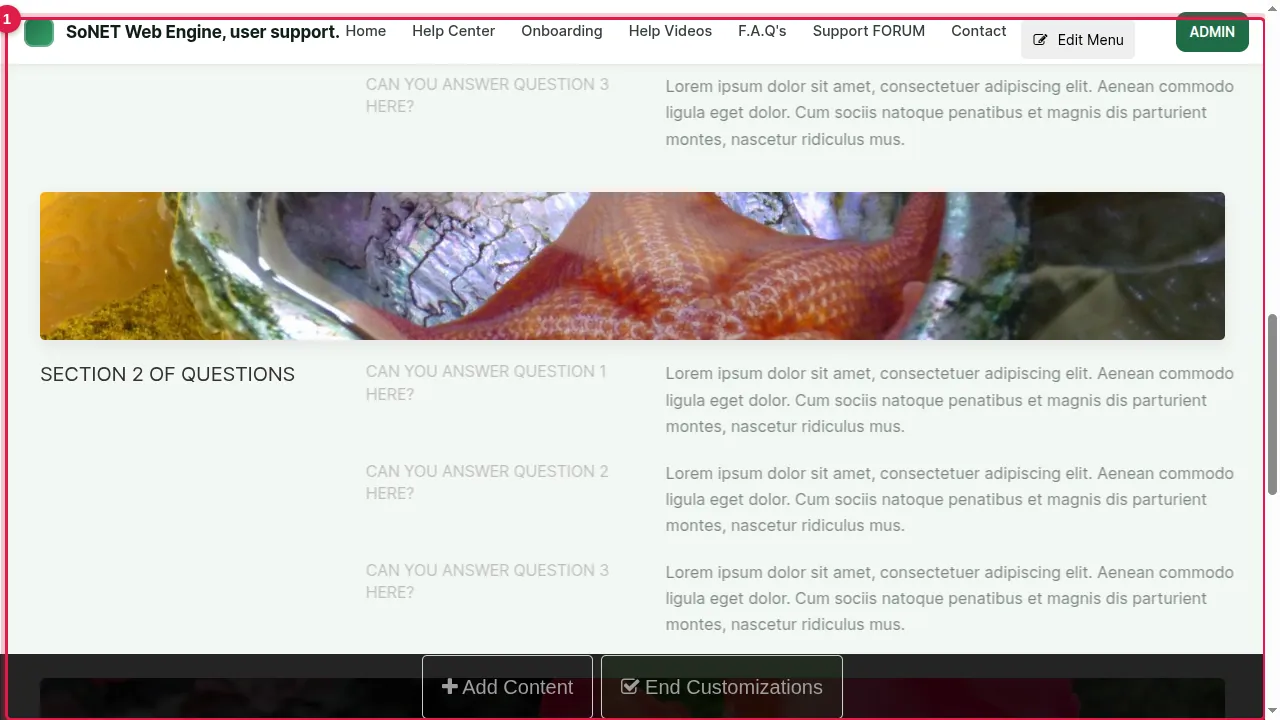
Step 1. Find the section on your page. This FAQ came from Add Content › Sections and shows 3 groups of 3 questions.
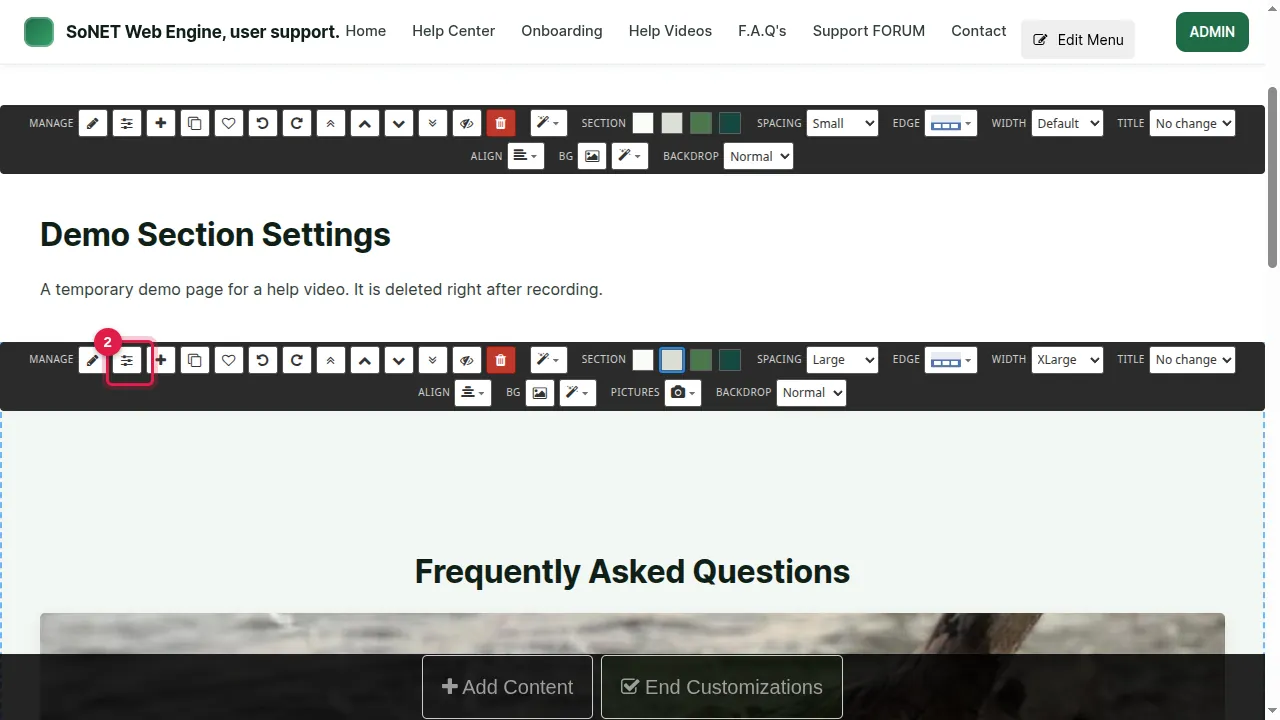
Step 2. In the section's toolbar, click the gear (sliders) button, "This section's settings".
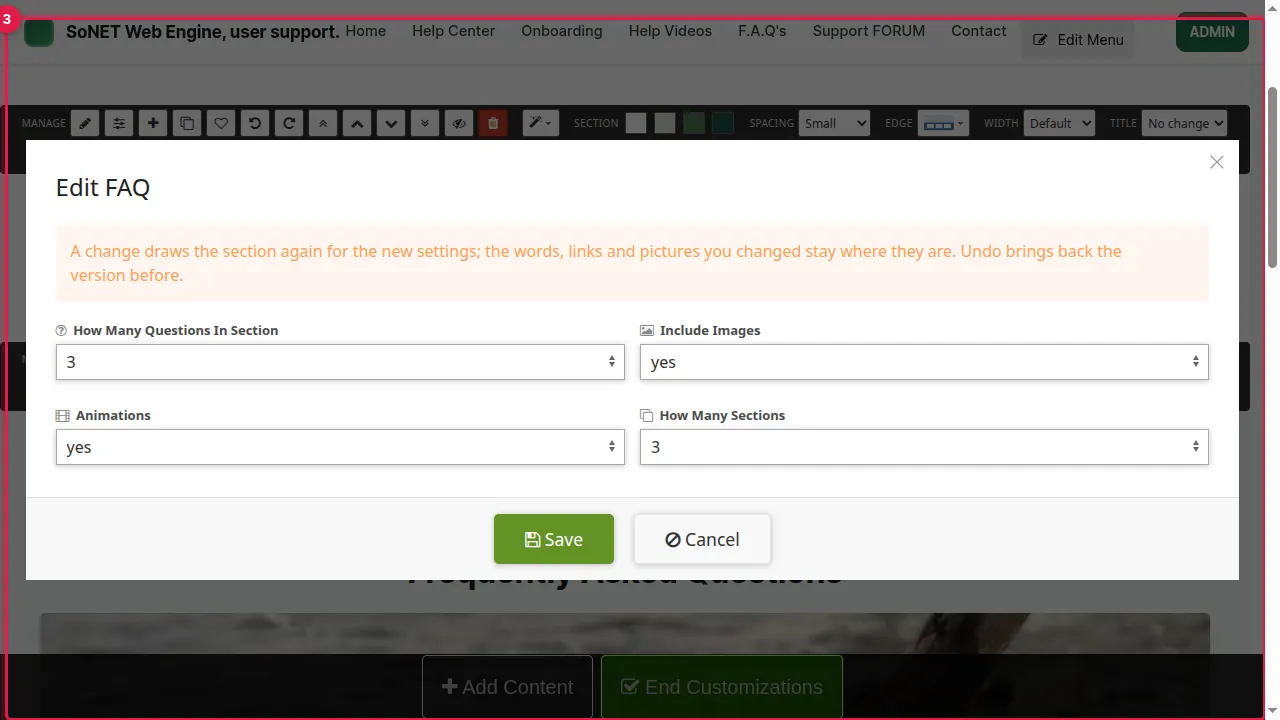
Step 3. The settings window opens with the section's name (here "Edit FAQ"). Each kind of section has its own settings. As the window says, a change draws the section again, and the words, links and pictures you changed stay where they are.
Change the settings
Step 4. How Many Questions In Section: choose 2.
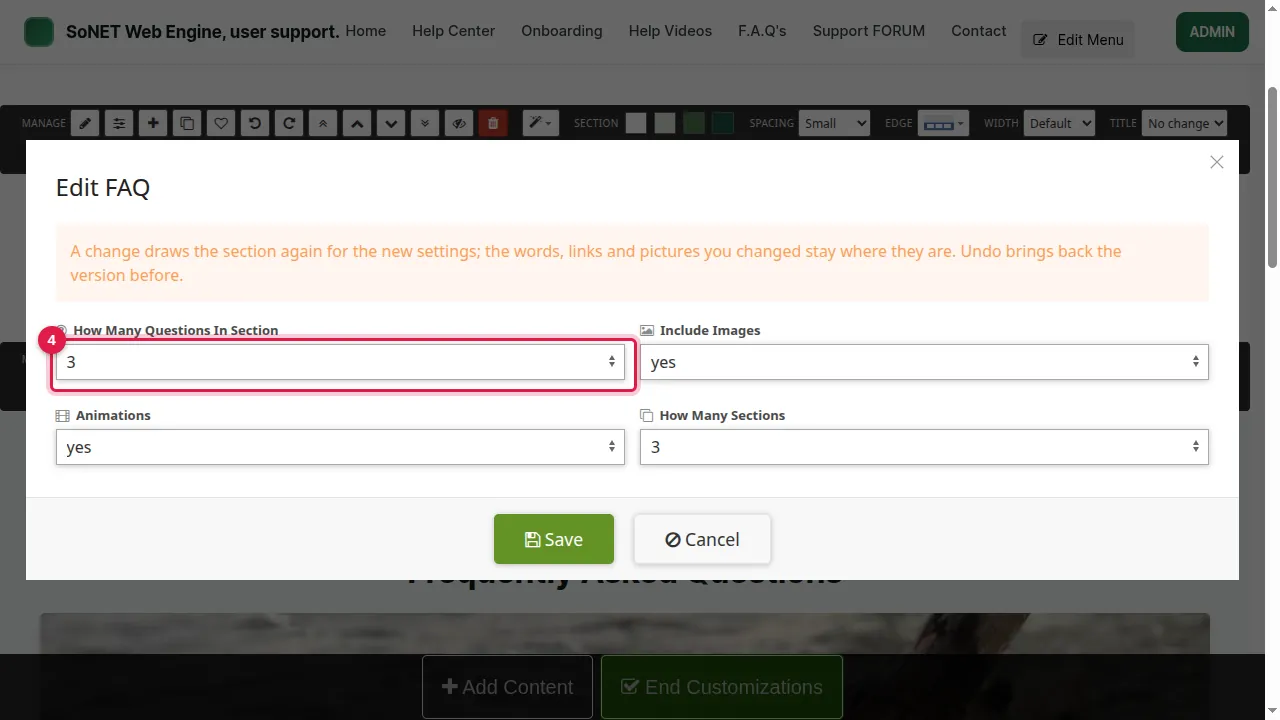
Step 5. How Many Sections (the number of groups): choose 1.
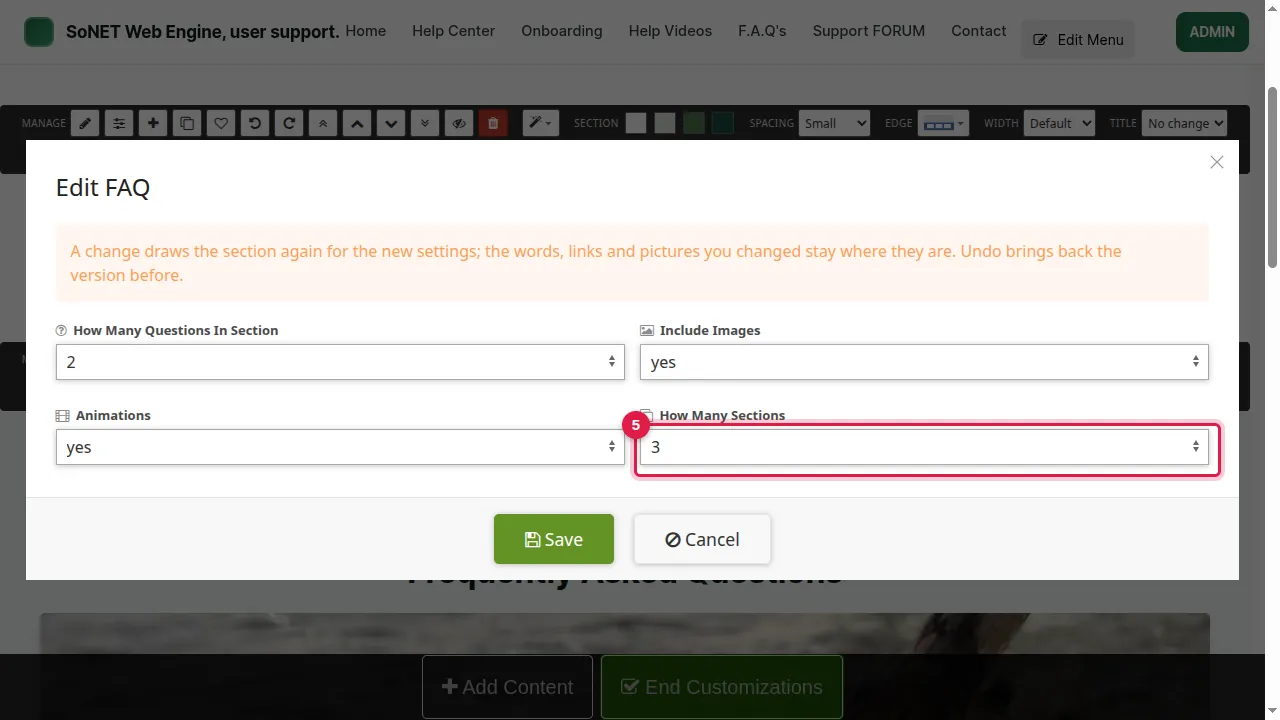
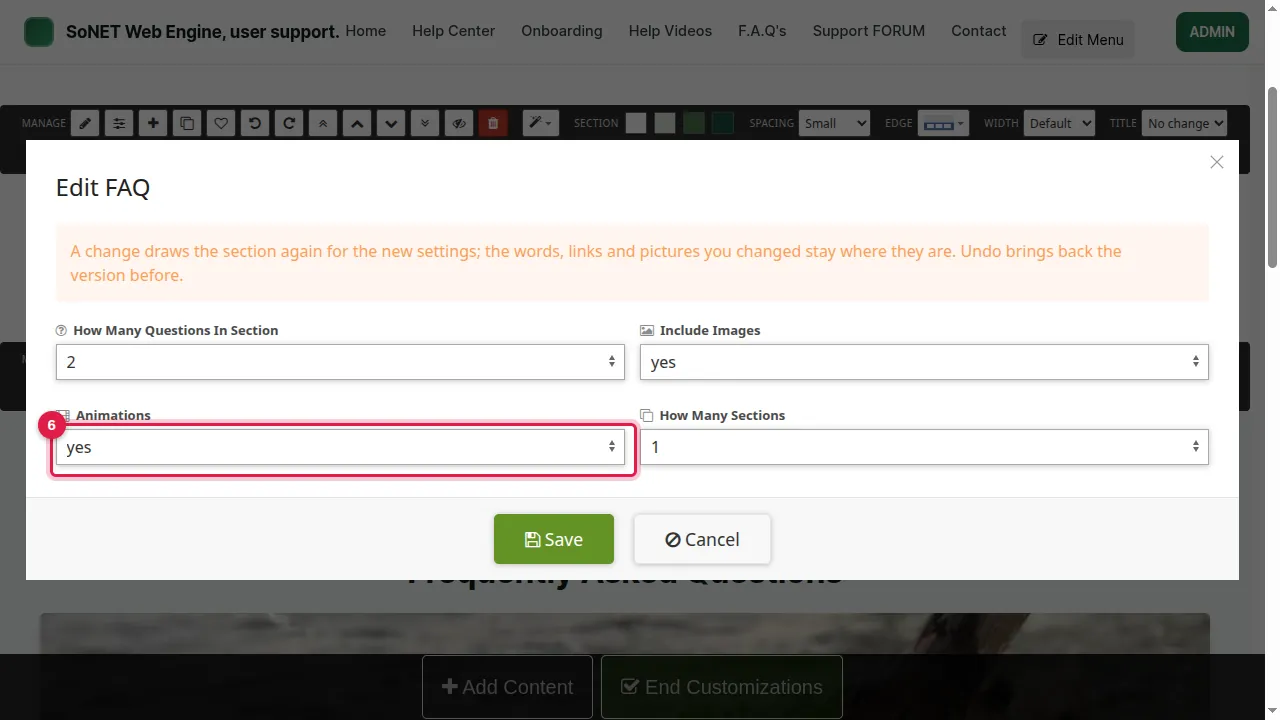
Step 6. Animations: choose no, so the questions appear without sliding in.
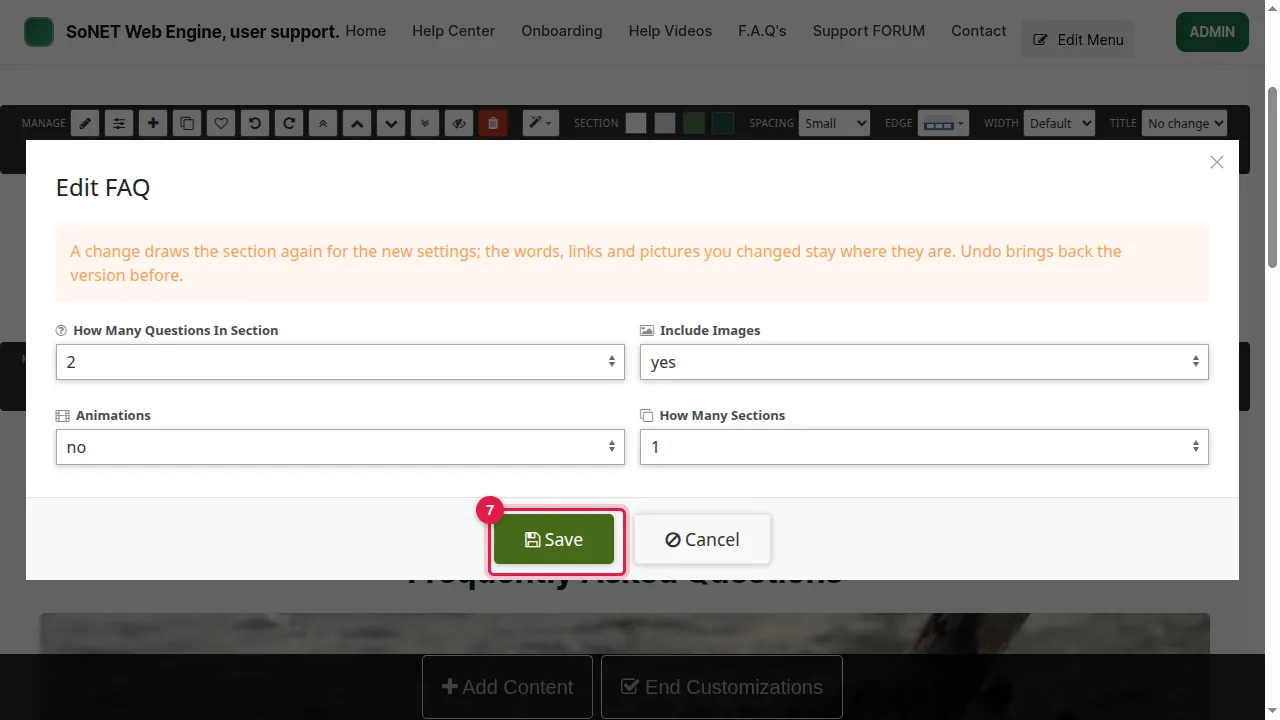
Save
Step 7. Click Save.
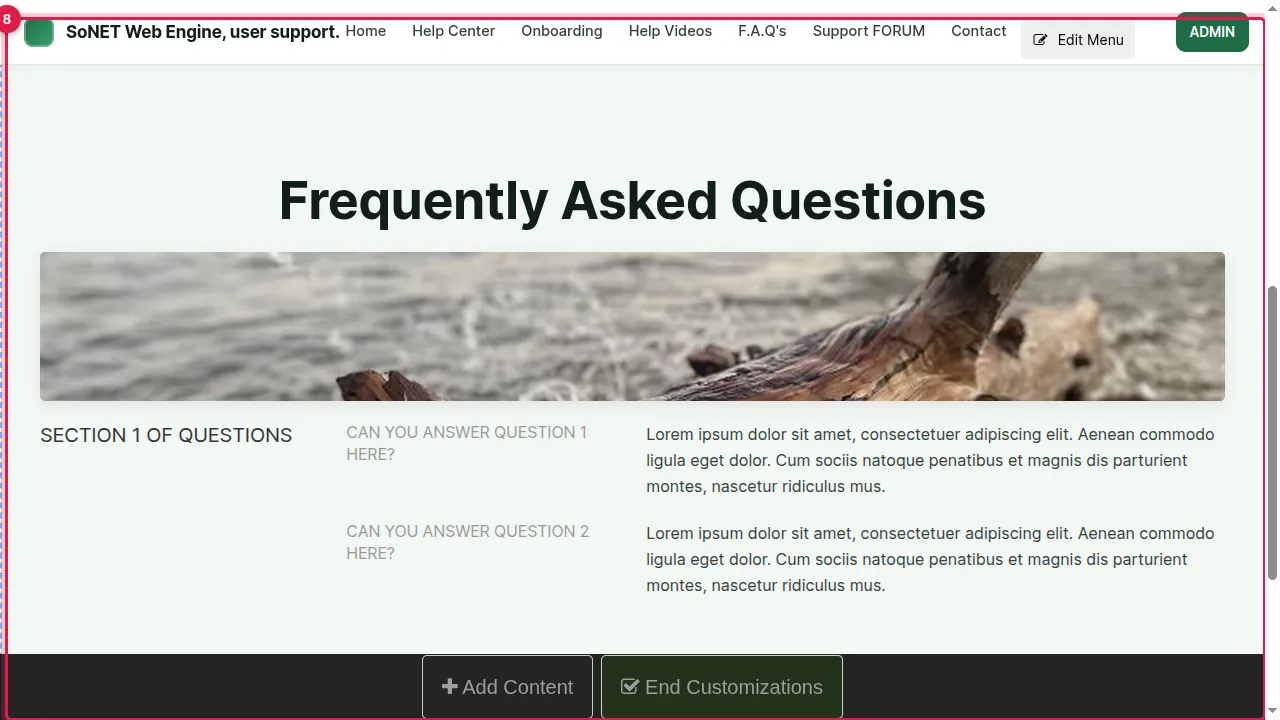
Step 8. The section is drawn again: now one group of 2 questions.
Check it worked
Log out (or open a private window) and open the page: the section shows the new settings.
Good to know
- Undo in the toolbar brings back the version before the change.
- The settings differ per section: a Map has its address, Benefits how many items. Use the gear rather than editing the section's HTML by hand.
- Ready-made sections arrive with sample text and pictures: replace them with your own before you publish, and give every picture a description (alt text).
Related help
Shown on the 2026 version of the SoNET Web Engine. Last checked 4 November 2026. Something different on your screen? Tell us through the Contact page.