Help Center Pages & Editing
Generate a background for a section
The wand next to BG in a section's toolbar makes a background for that section: a pattern in your theme colours, or a background image, optionally from a short description. It is saved and shown to visitors at once; there is no preview. The × next to BG removes it.
Watch it done: a short silent video with captions · 0:59. The steps below show the same thing picture by picture.
Before you start
- Log in, open the page and click Customize This Page.
Make a background
Step 1. In the section's toolbar, next to BG, click the wand: "Generate a background".
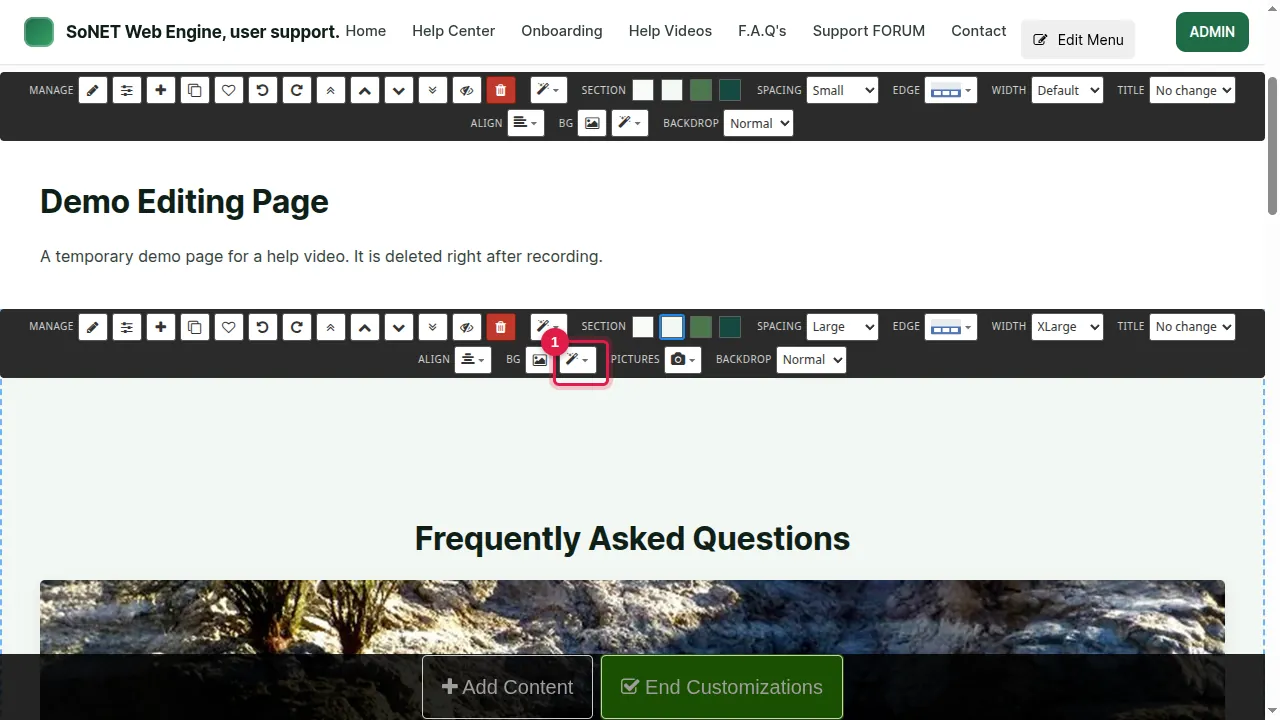
Step 2. Two choices: Generate a background pattern (a pattern in your theme colours) or Generate a background image.
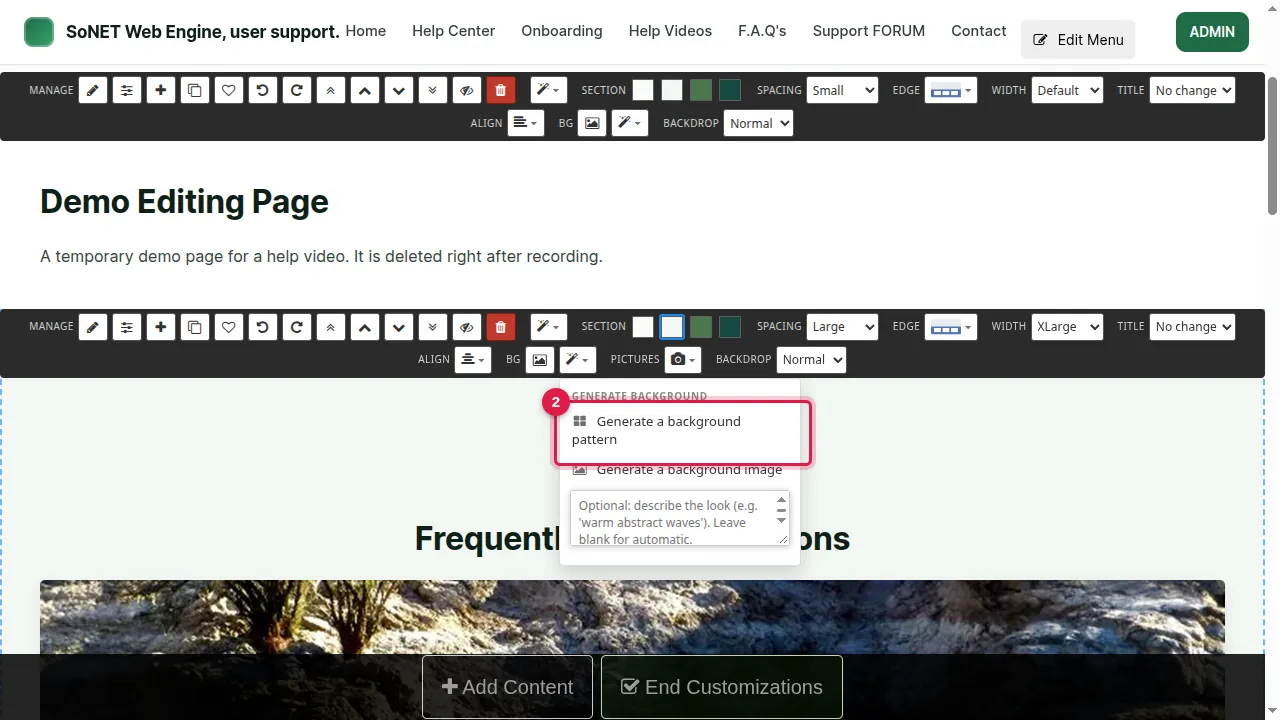
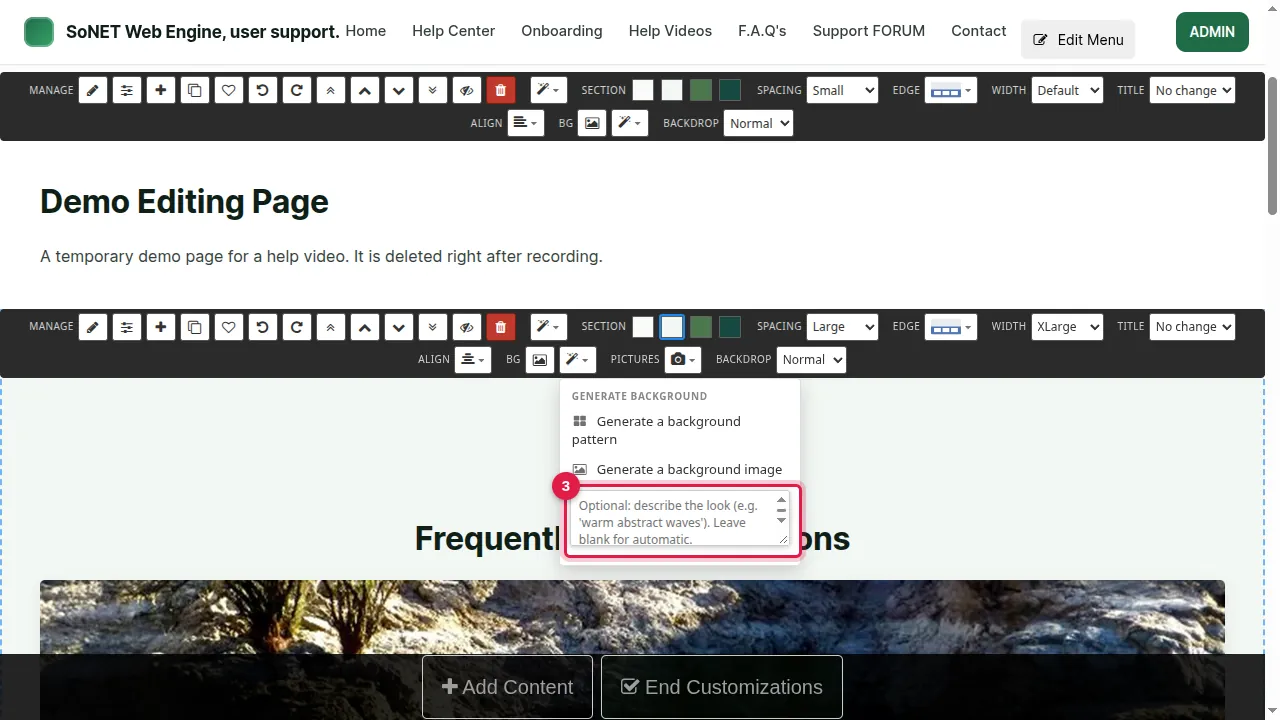
Step 3. Optional: describe the look you want in the box, for example "fresh green lawn stripes in soft morning light". Leave it blank for an automatic choice.
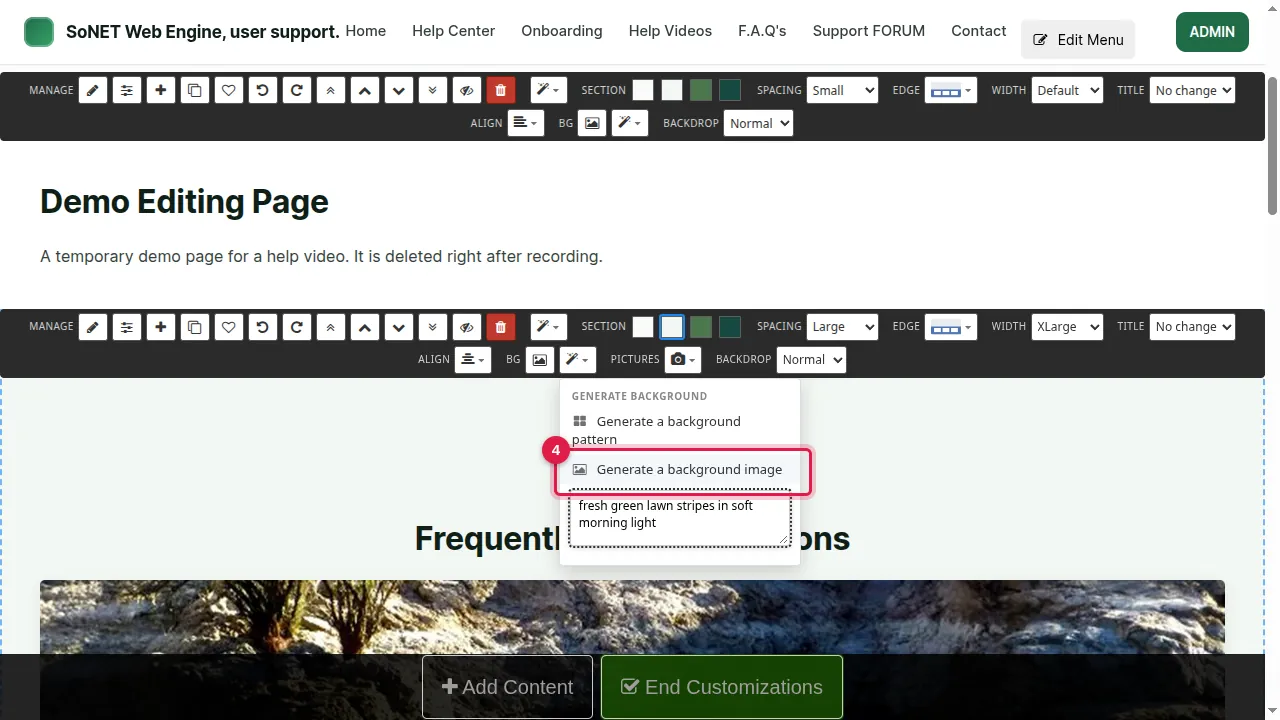
Step 4. Click your choice, here Generate a background image. It takes about 20 seconds (a pattern about 10).
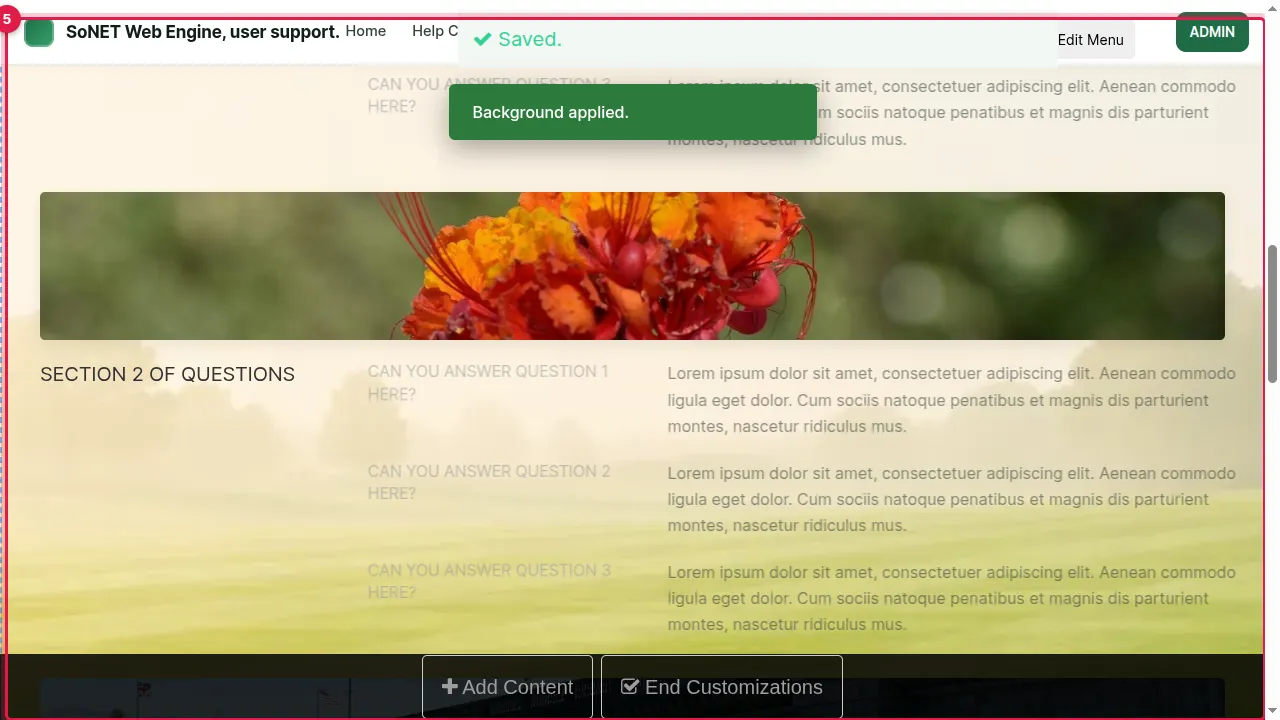
Step 5. "Saved." "Background applied.": the background is saved and visitors see it at once. Unlike Enhance, there is no preview and no Keep button.
Remove it
Step 6. Don't like it? The × next to BG clears the background.
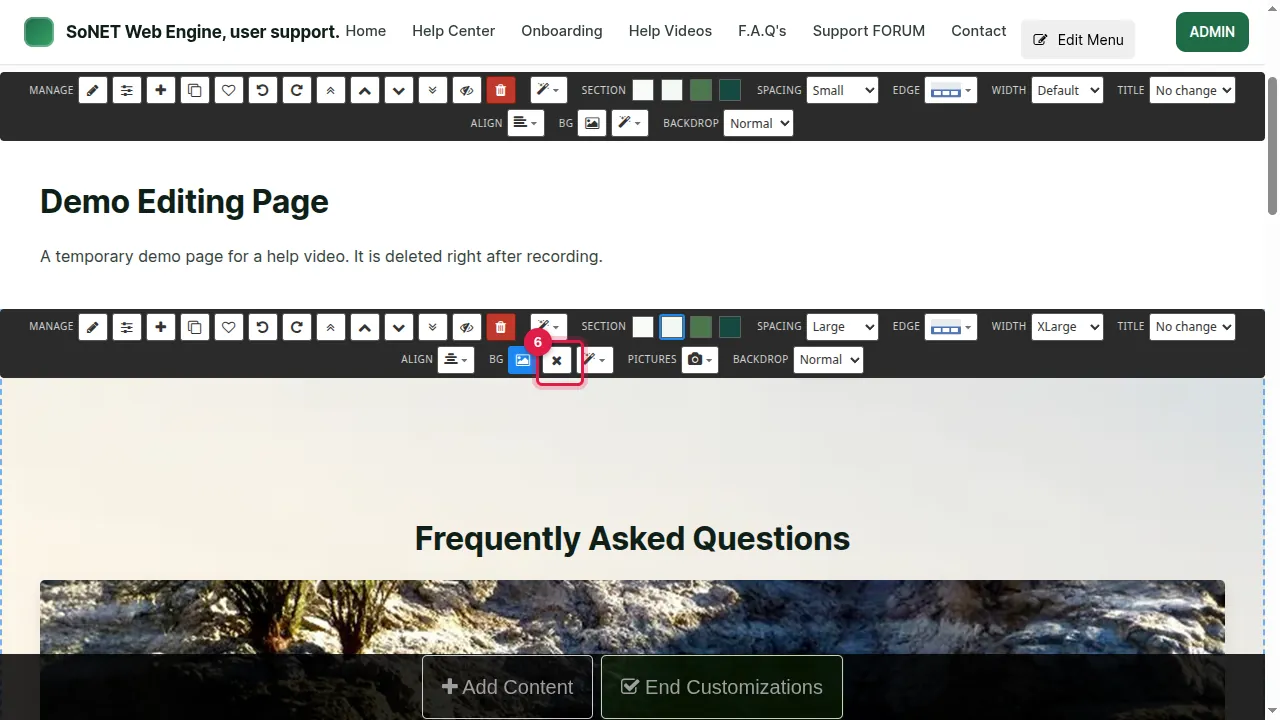
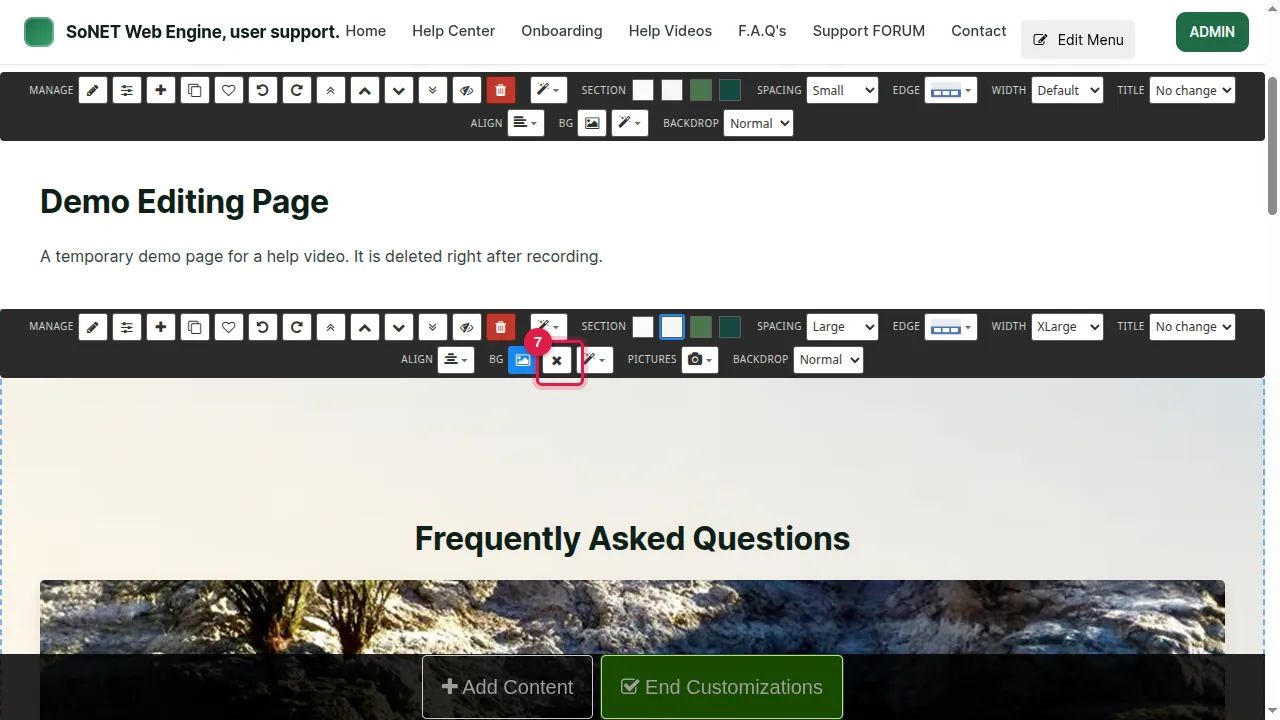
Step 7. Click the × to clear it. It saves at once (the page says "Saved.").
Step 8. Reload the page: the background is gone. (In edit mode the old picture can stay on screen until you reload.)
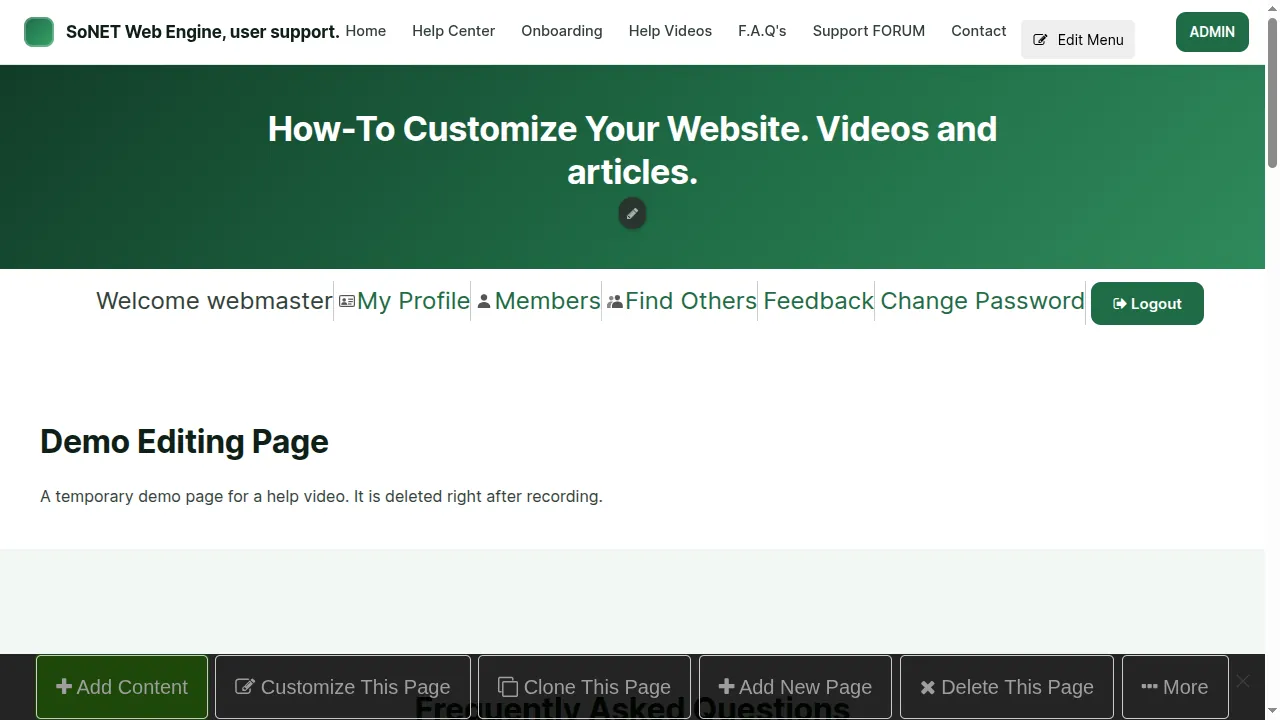
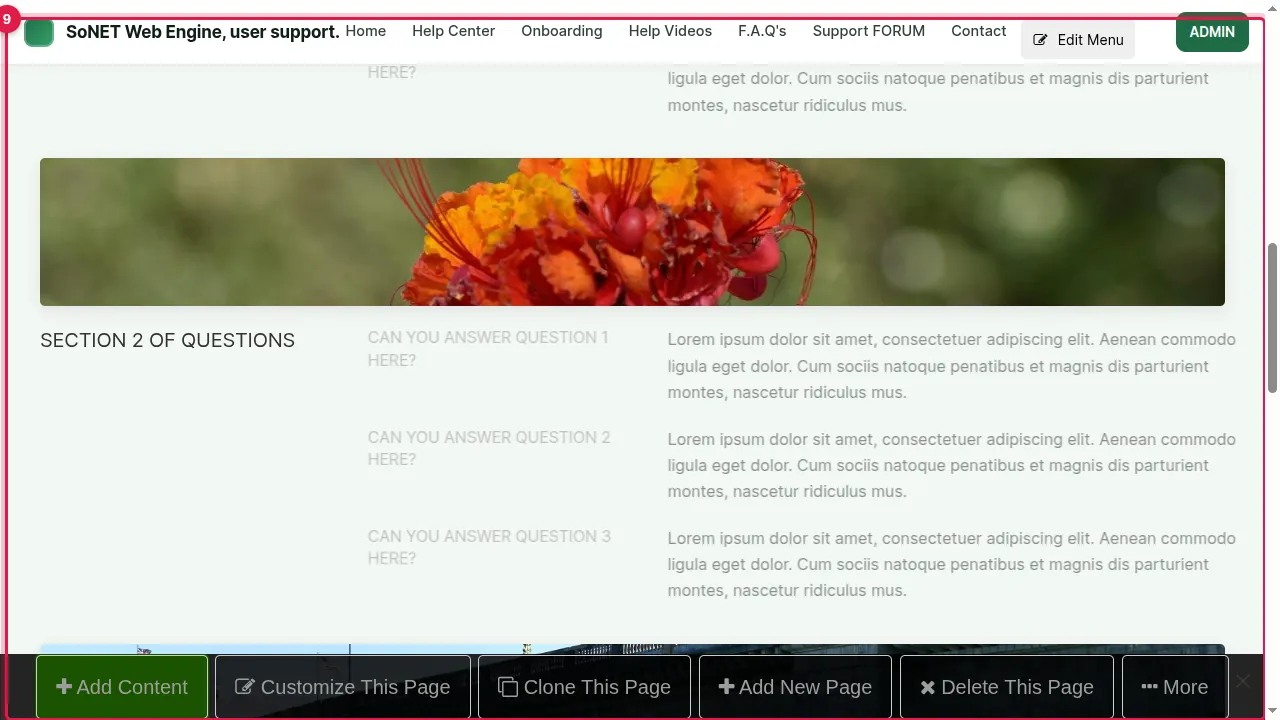
Step 9. The section is back to its own colour, for visitors too.
Check it worked
Look at the page as a visitor (log out or use a private window): the text must still be easy to read over the background.
Good to know
- Because the background goes live at once, try it on a page visitors don't see yet, or be ready to click the × right away.
- BG (the picture button) uses a picture of your own instead; BACKDROP decides how it moves when visitors scroll.
Related help
- Style a section: colours, spacing, width, heading, edge and background
- Improve a section with Enhance
Shown on the 2026 version of the SoNET Web Engine. Last checked 5 November 2026. Something different on your screen? Tell us through the Contact page.